How to set up Calendar and Timeline view in Asana

Calendar and Timeline views in Asana help you visualize project schedules and task dependencies in different formats. This guide walks you through setting up both views to manage your projects more effectively.
Quick summary
In this tutorial, you'll learn how to access your Asana project, switch between Calendar and Timeline views, and navigate different time period options. You'll discover how each view type can improve your project planning and task management.
Why this matters
Using Calendar and Timeline views gives you flexibility in how you track project progress and deadlines. Calendar view is ideal for spotting due dates at a glance, while Timeline view excels at showing task sequencing and dependencies across your entire project.
Step-by-step guide
- 1
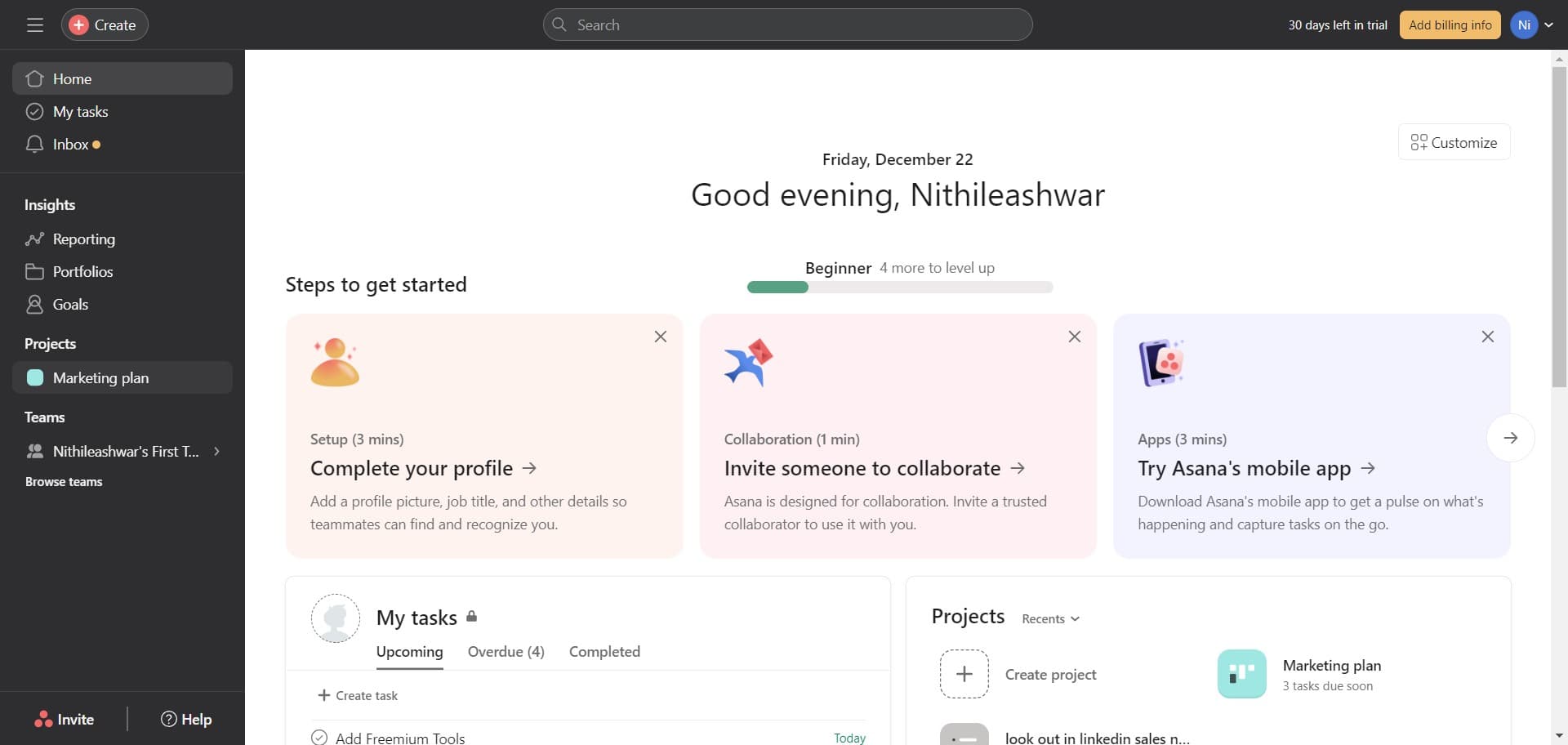
Open your Marketing plan project
Click on the 'Marketing plan' project to access your main project workspace. This loads the project dashboard where you can switch between different viewing options.
- 2
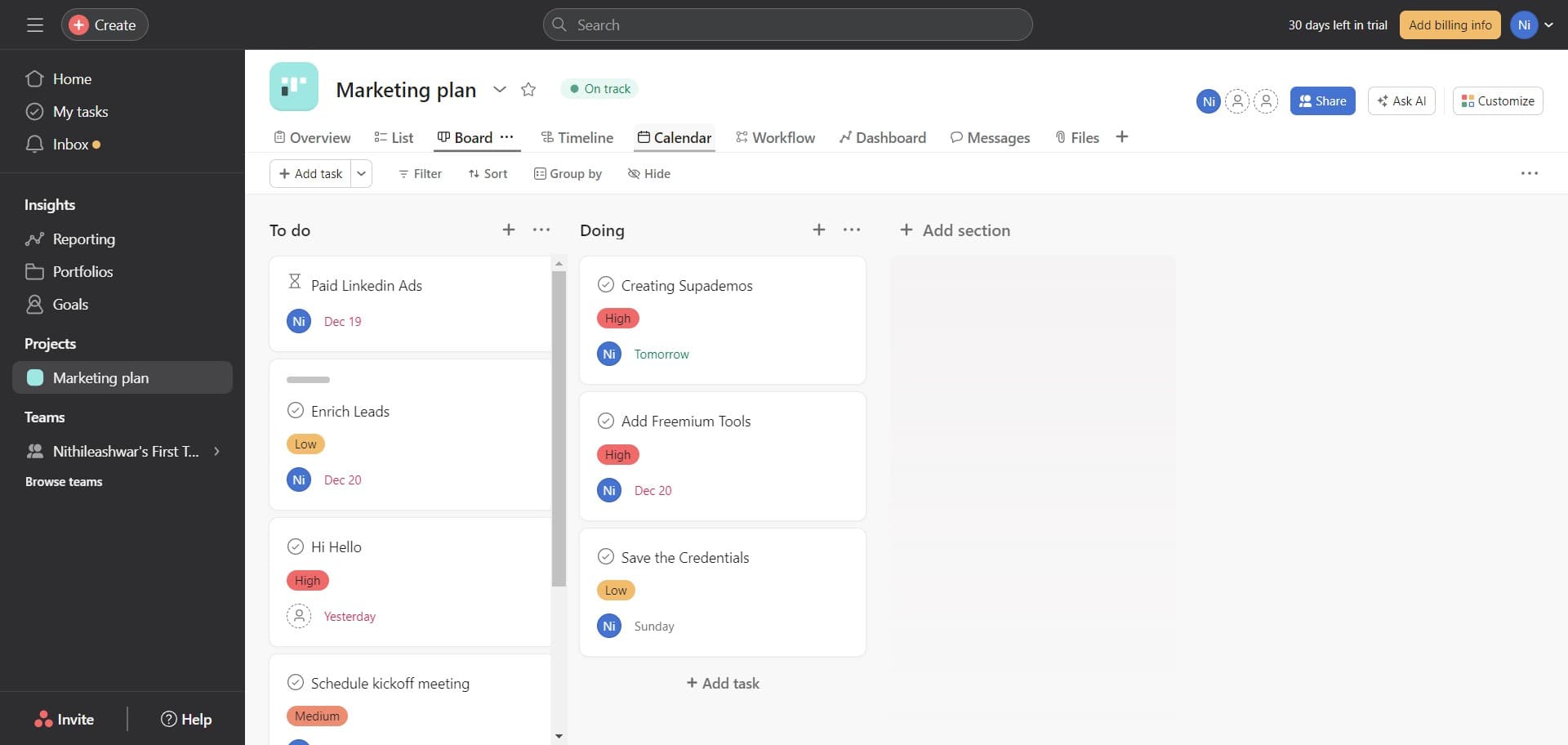
Navigate to Calendar view
Click on the 'Calendar' tab to switch to calendar view. This displays your tasks organized by date in a traditional calendar format.
- 3
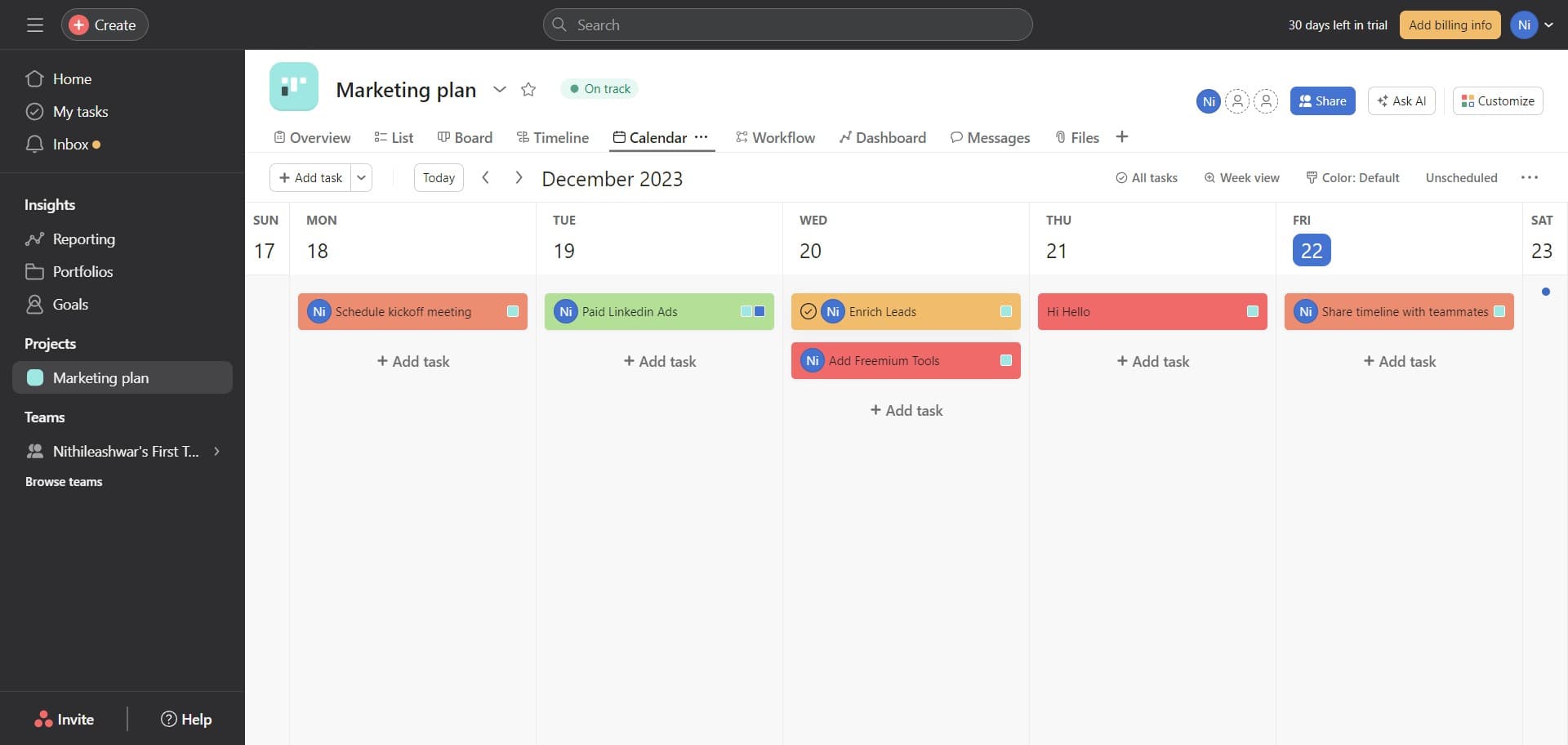
Select the Enrich Leads task
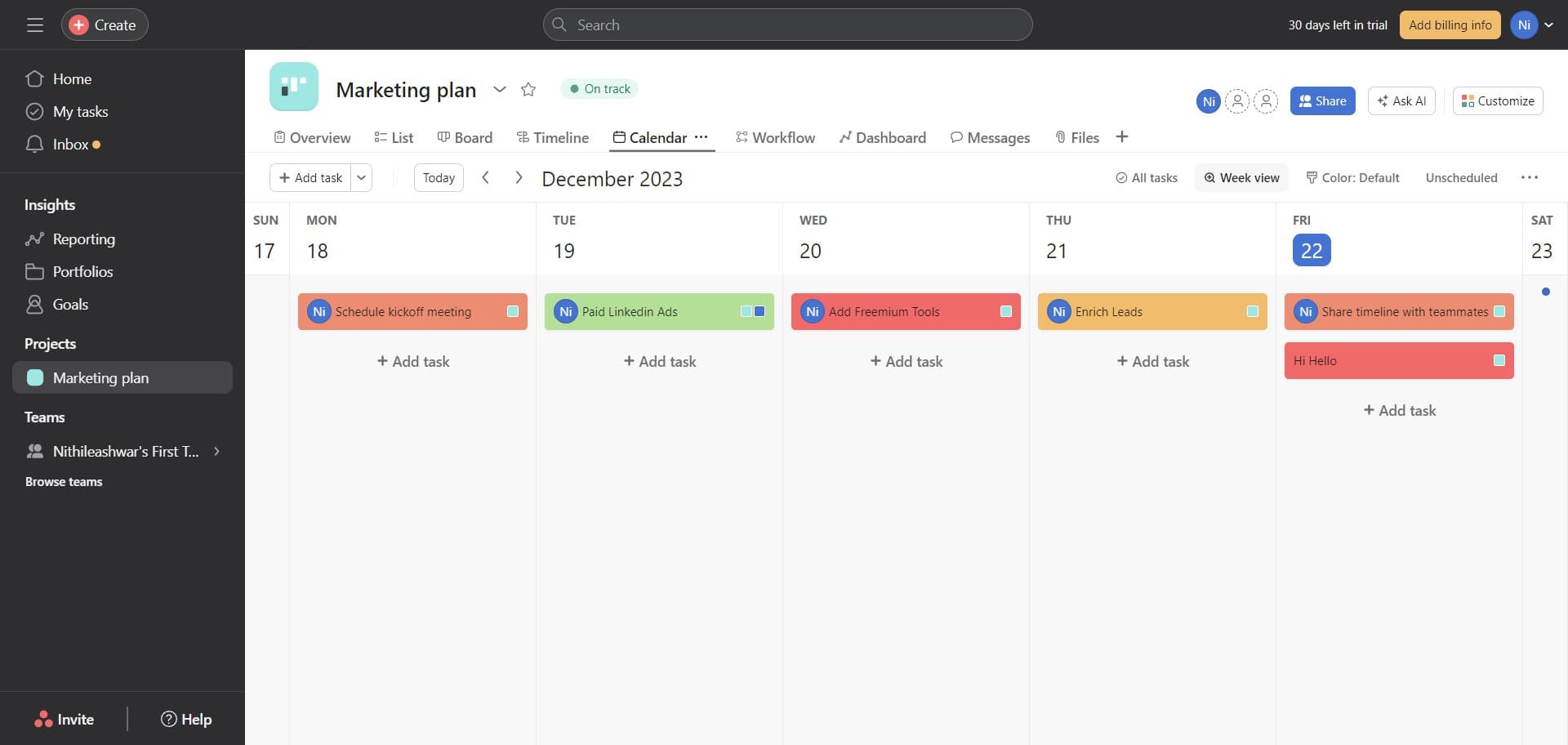
Click on 'Enrich Leads' to view its details and see how it appears in the calendar layout. This helps you understand task placement within the calendar interface.
- 4
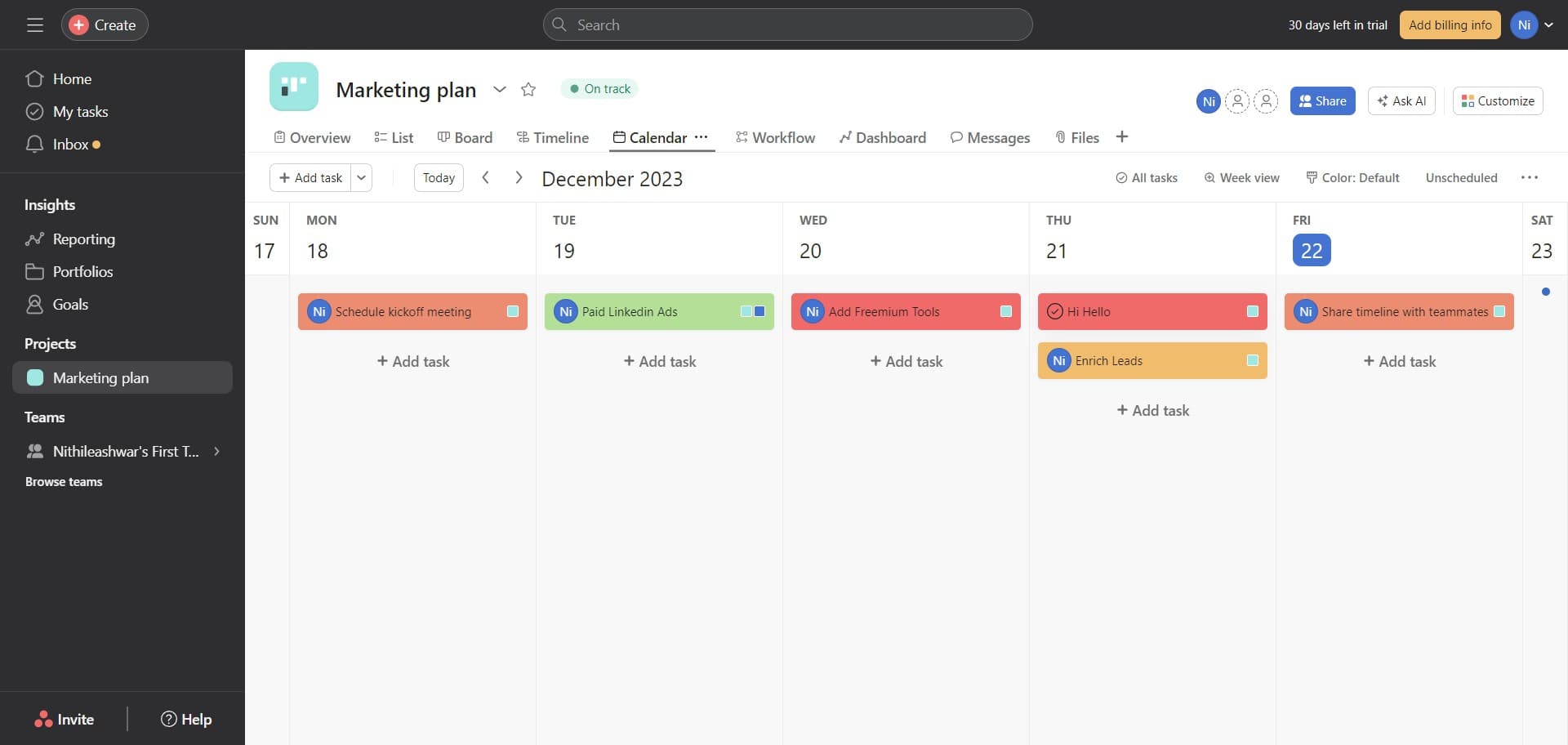
View task details
Click on 'Hi Hello' to inspect additional task information and see related subtasks or comments. This expands your view of the selected task's content.
- 5
Switch to Week view
Click on 'Week view' to display your calendar in a weekly format. This provides a narrower time window for more detailed daily scheduling.
- 6
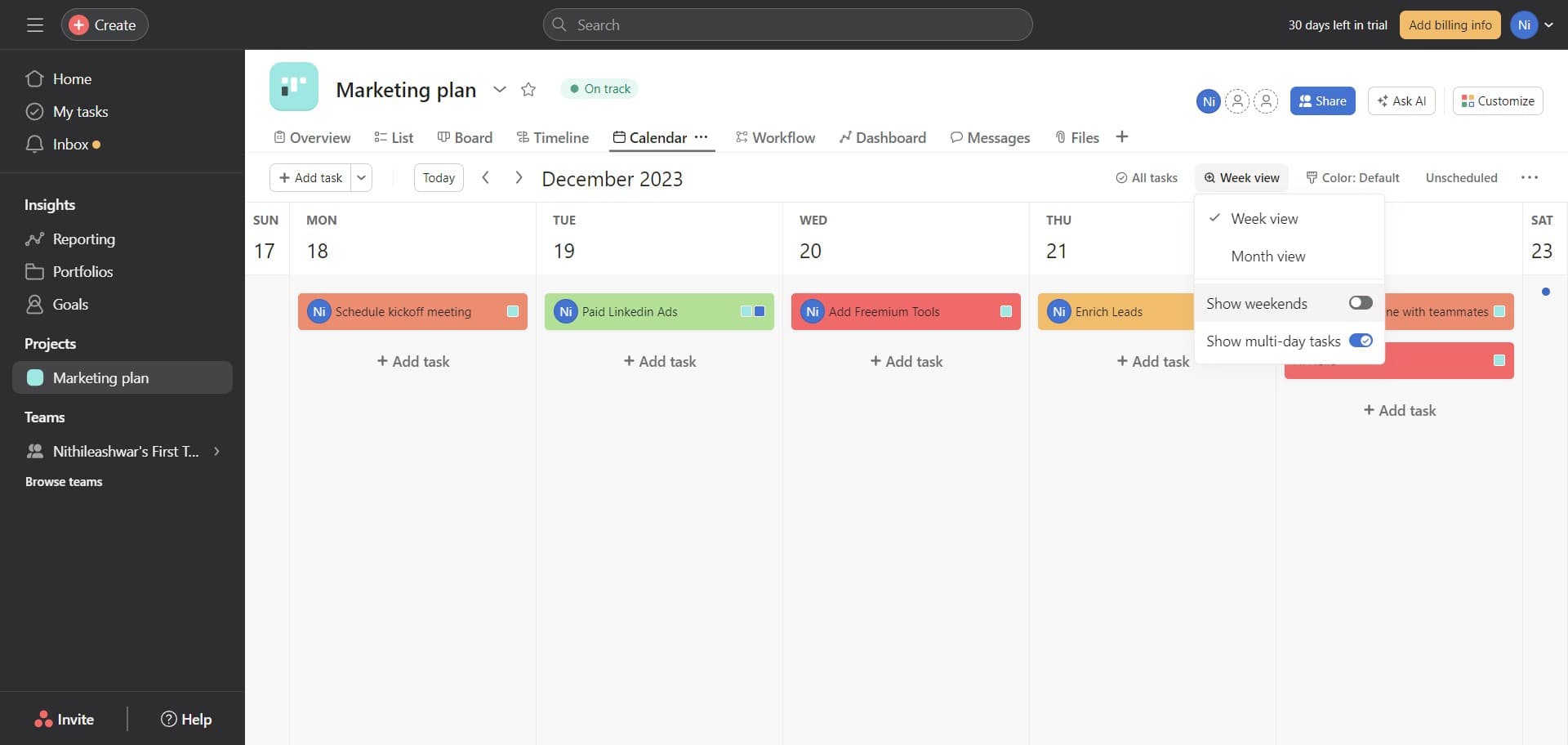
Adjust calendar settings
Click the settings or adjustment button to customize your calendar display options. This allows you to modify how tasks and dates are shown.
- 7
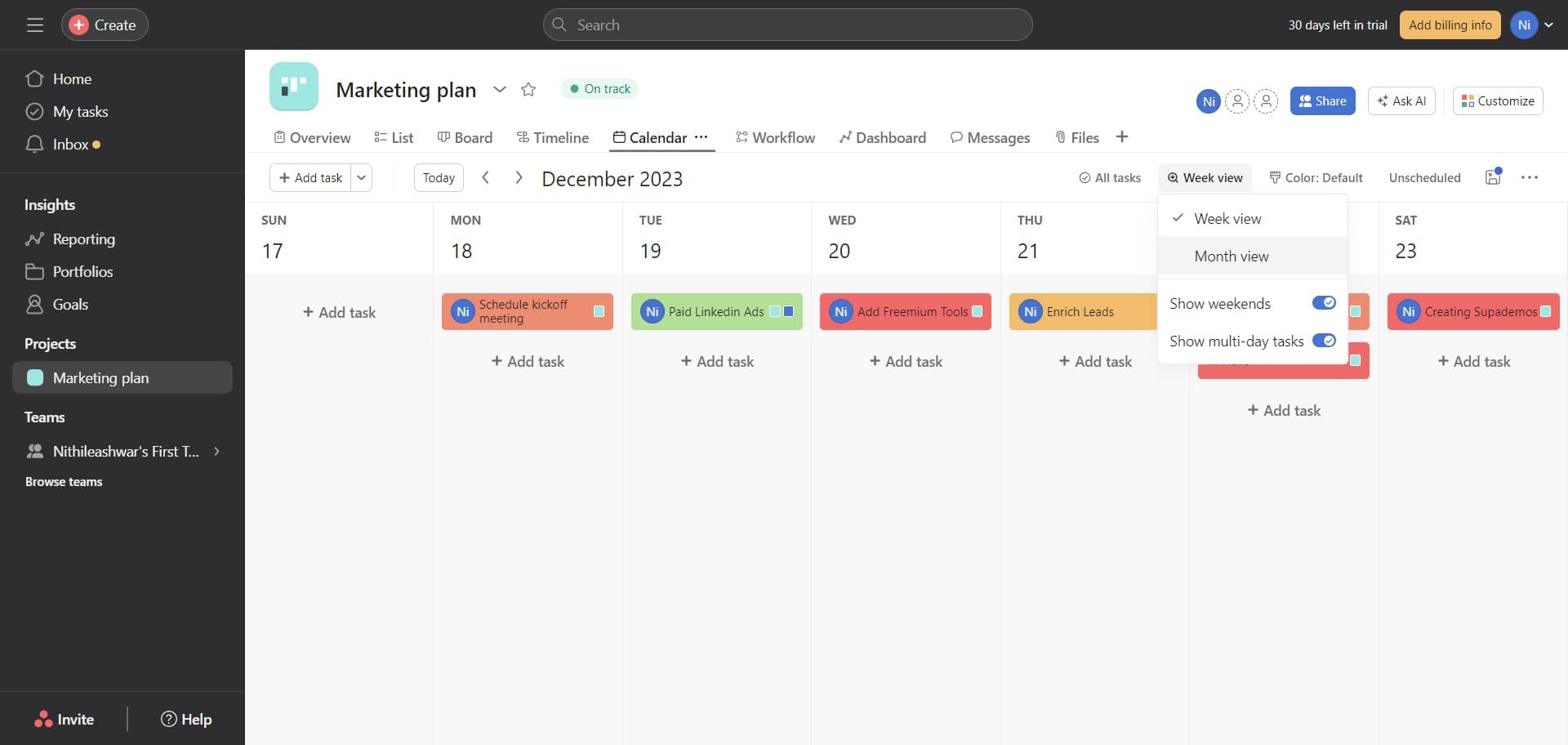
Switch to Month view
Click on 'Month view' to expand your calendar to display the entire month. This gives you a broader overview of all tasks and deadlines in a single month.
- 8
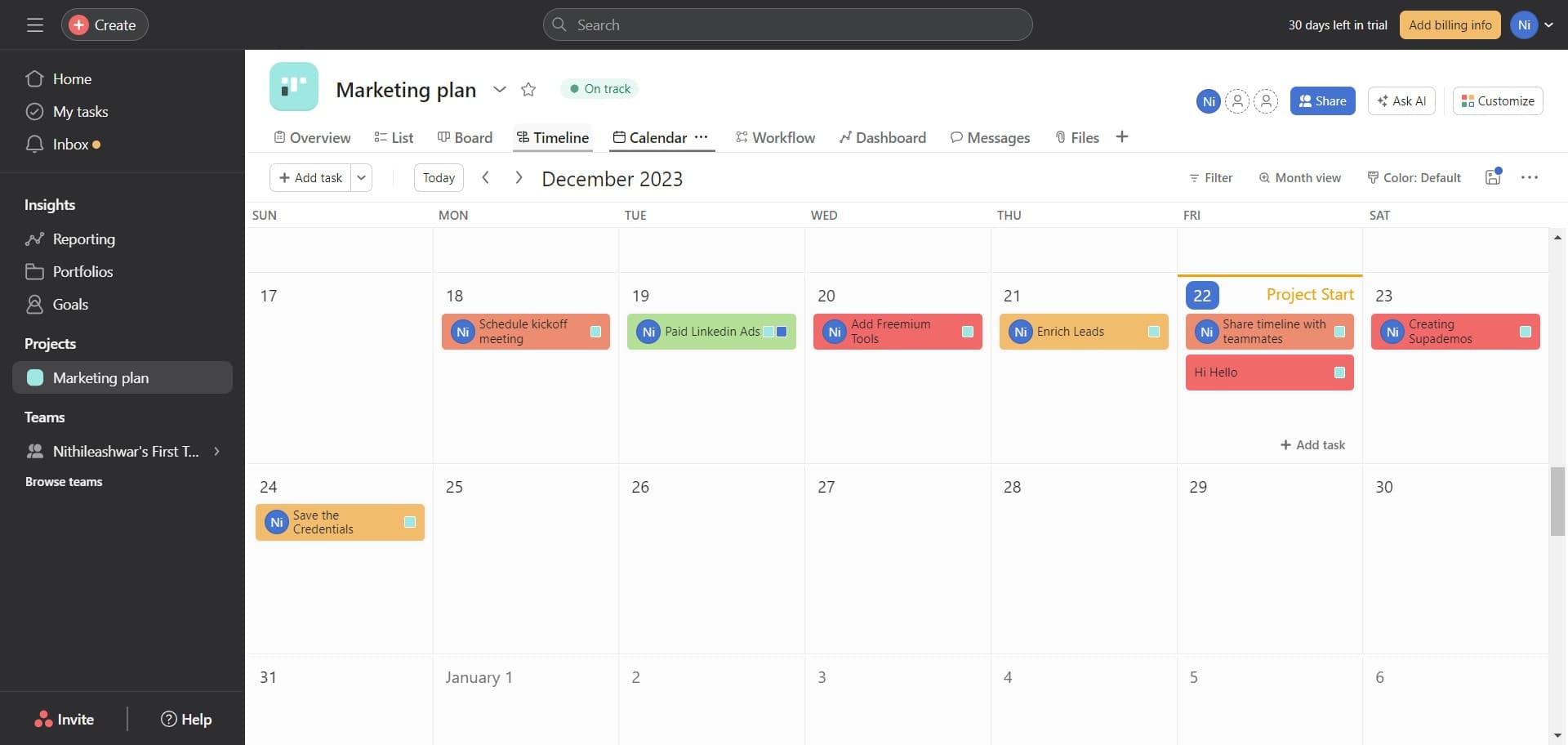
Access Timeline view
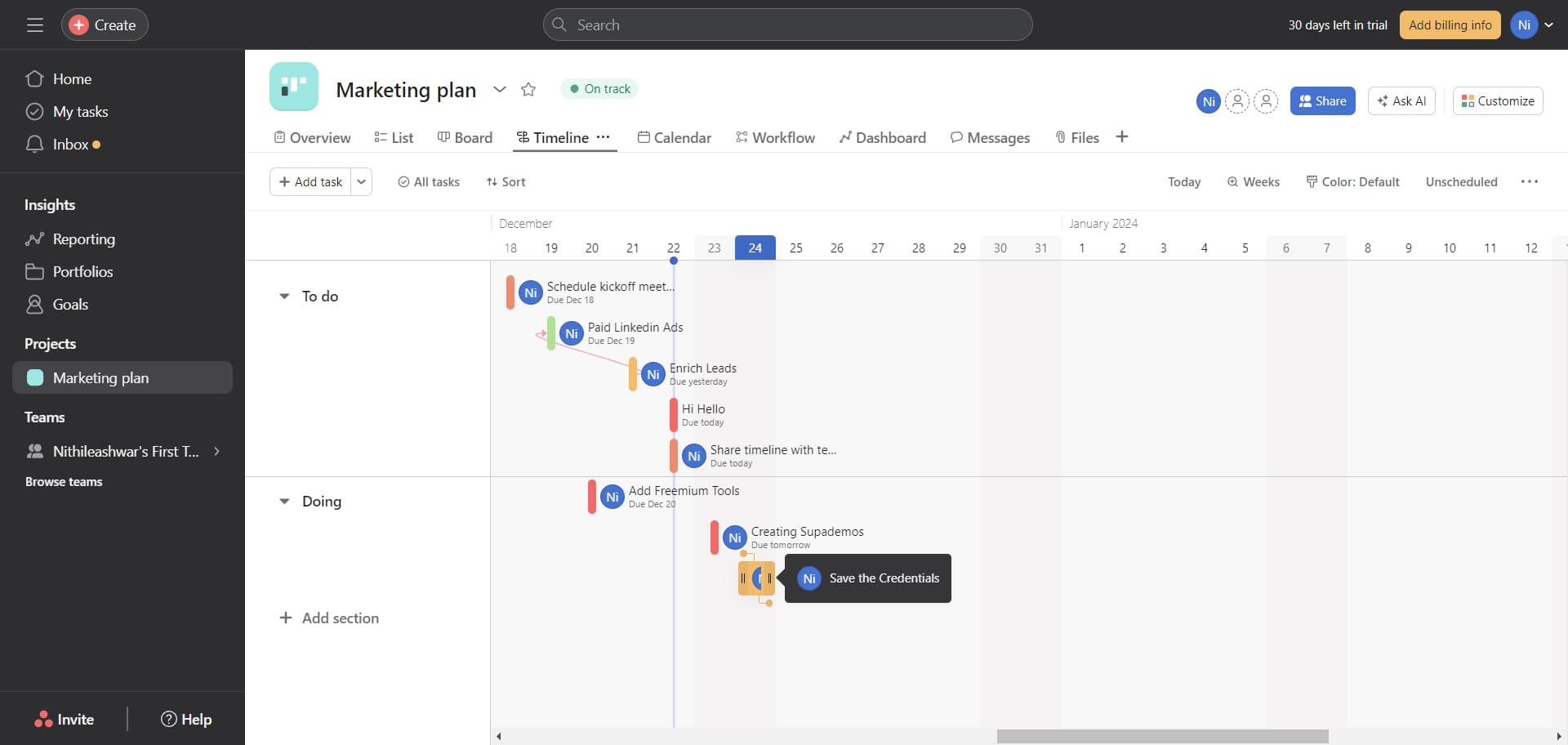
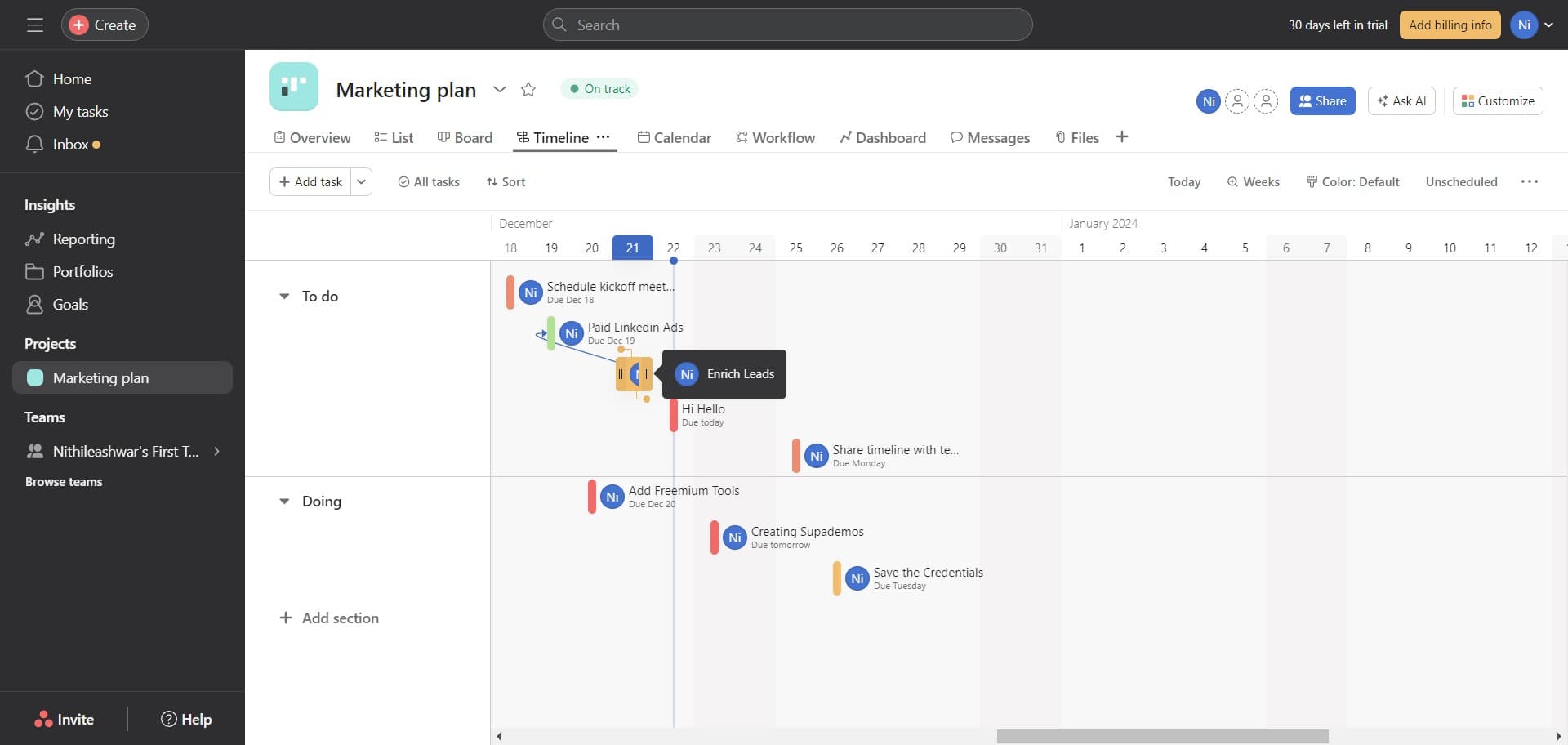
Click on 'Timeline' to switch from calendar to timeline view. Timeline view displays tasks as bars on a Gantt-style chart, making dependencies and task sequences visible.
- 9
Customize timeline display
Click to access timeline customization options. These controls let you adjust how tasks, dates, and dependencies are visualized in the timeline.
- 10
Apply final adjustments
Click to confirm and apply your timeline settings. Your project is now configured with both calendar and timeline views ready for ongoing project management.
Frequently asked questions
Common questions about how to set up calendar and timeline view in asana.
Calendar view displays tasks in a traditional calendar format organized by date, making it ideal for spotting deadlines. Timeline view shows tasks as horizontal bars similar to a Gantt chart, highlighting task sequencing and dependencies. Choose Calendar view for simple deadline tracking and Timeline view for understanding project flow and task relationships.
Yes, Asana allows you to toggle between Week and Month view within the Calendar view. Week view shows more detail for a single week's worth of tasks, while Month view provides a broader overview of the entire month. You can switch between these views depending on your planning needs.
In Timeline view, task dependencies appear as lines connecting related tasks, showing which tasks must be completed before others can begin. You can click on individual tasks to see more details about their dependencies and relationships to other tasks in the project.
Yes, both Calendar and Timeline views allow you to edit tasks without switching to a different view. You can click on a task in either view to open its details panel and make updates to due dates, assignees, and other task information.
Use Timeline view for comprehensive project planning since it shows task dependencies and sequence, helping you identify the critical path. Use Calendar view for deadline management and simple scheduling. Many teams use both views together for complete project visibility and planning.