How to add a collaborator to a task in Asana

Collaborating with team members on tasks in Asana ensures everyone stays aligned and accountable. Adding multiple assignees to a task allows you to distribute workload and clarify ownership across your team.
Quick summary
In this tutorial, you'll learn how to assign a task to multiple people in Asana, enabling seamless team collaboration. You'll navigate to your tasks, locate a specific task, and use Asana's multi-assignee feature to add collaborators efficiently.
Why this matters
Assigning tasks to multiple team members prevents bottlenecks and ensures clear communication about who is responsible for different aspects of the work. This practice is essential for complex projects where tasks require input or ownership from more than one person.
Step-by-step guide
- 1
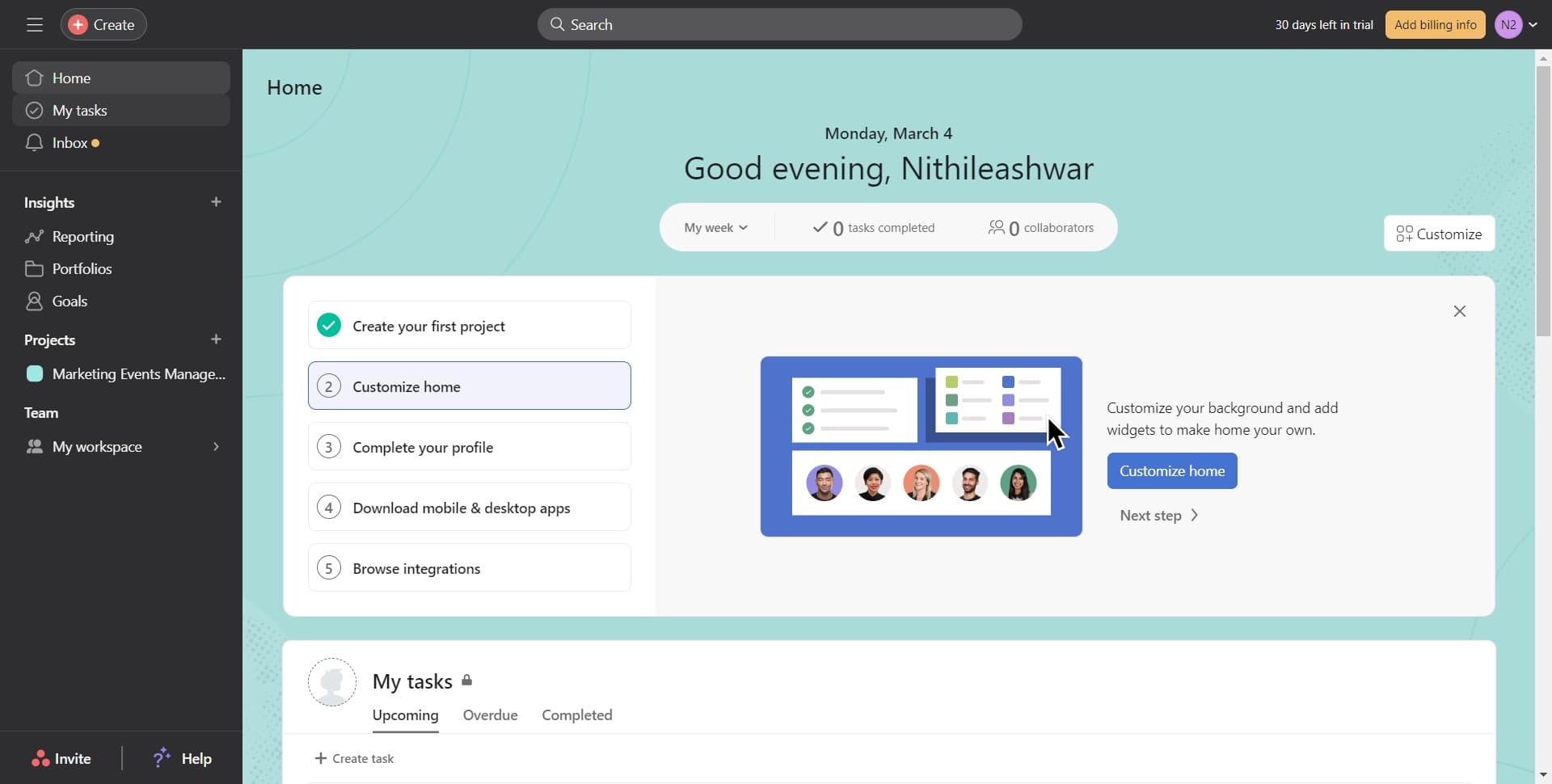
Navigate to My Tasks
Click on 'My Tasks' in the left sidebar to view all your assigned tasks. This is your starting point for accessing and managing individual tasks in Asana.
- 2
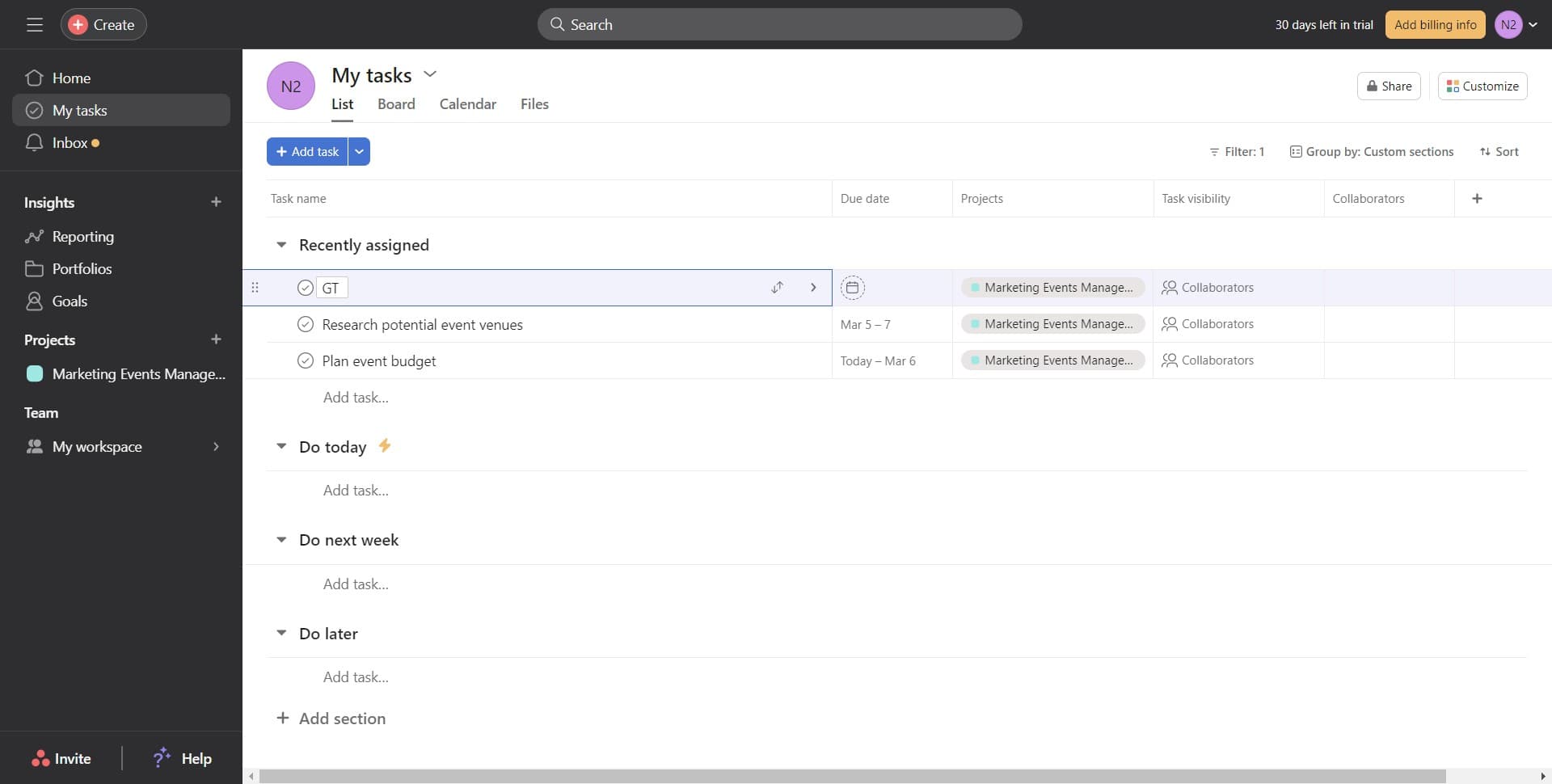
Select the target task
Click on the task you want to add collaborators to. The task details panel will open, showing all available options and fields.
- 3
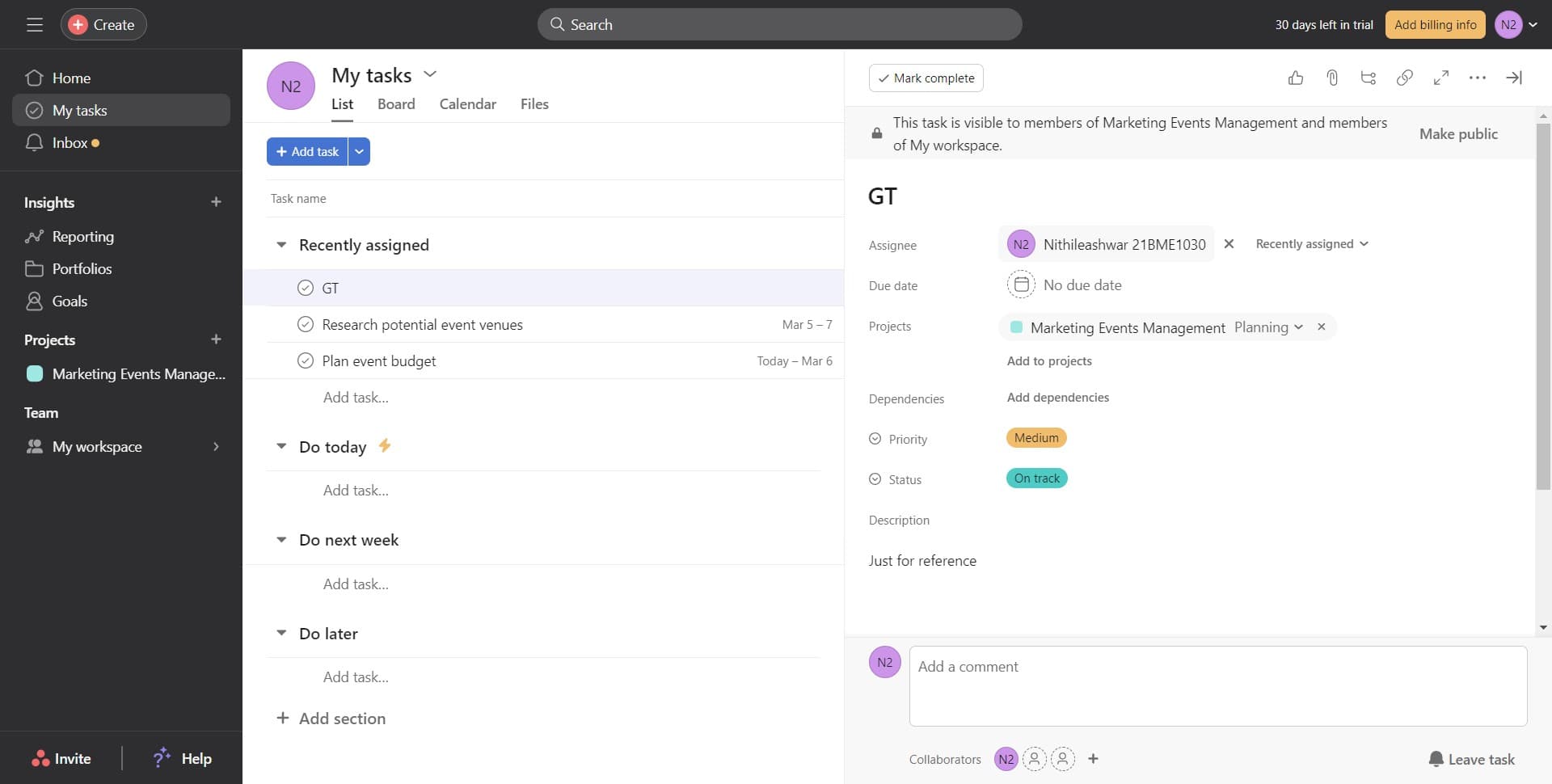
Open the task details
Click on the assignment or collaborators section within the task panel. This action prepares you to modify who is assigned to this task.
- 4
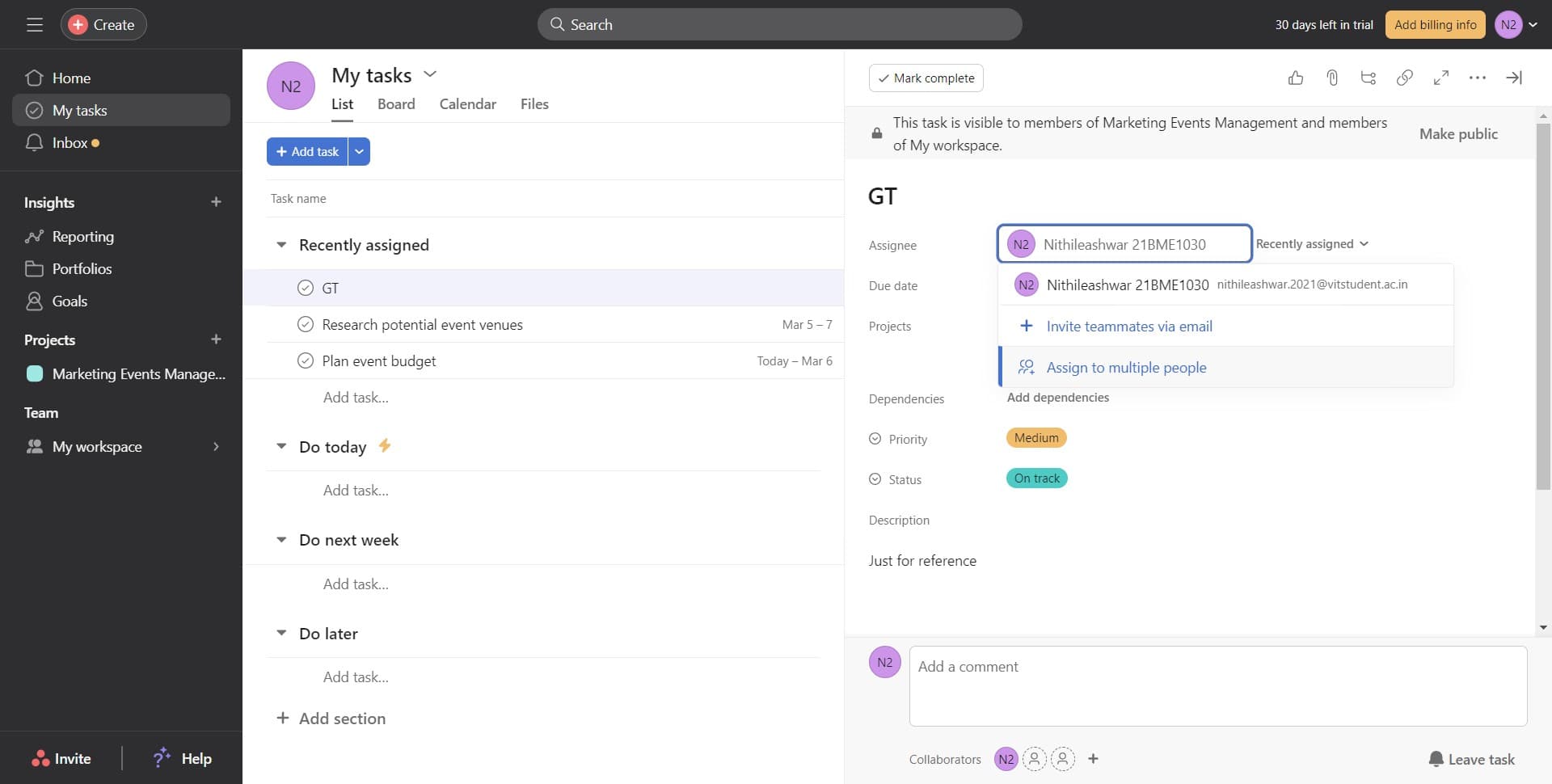
Click Assign to Multiple People
Select the 'Assign to multiple people' option to enable multi-assignee functionality. This option allows you to add more than one person to the task simultaneously.
- 5
Select team members to add
Click on the field or dropdown that appears to choose the team members you want to assign to this task. You can search for names or select from a list of available team members.
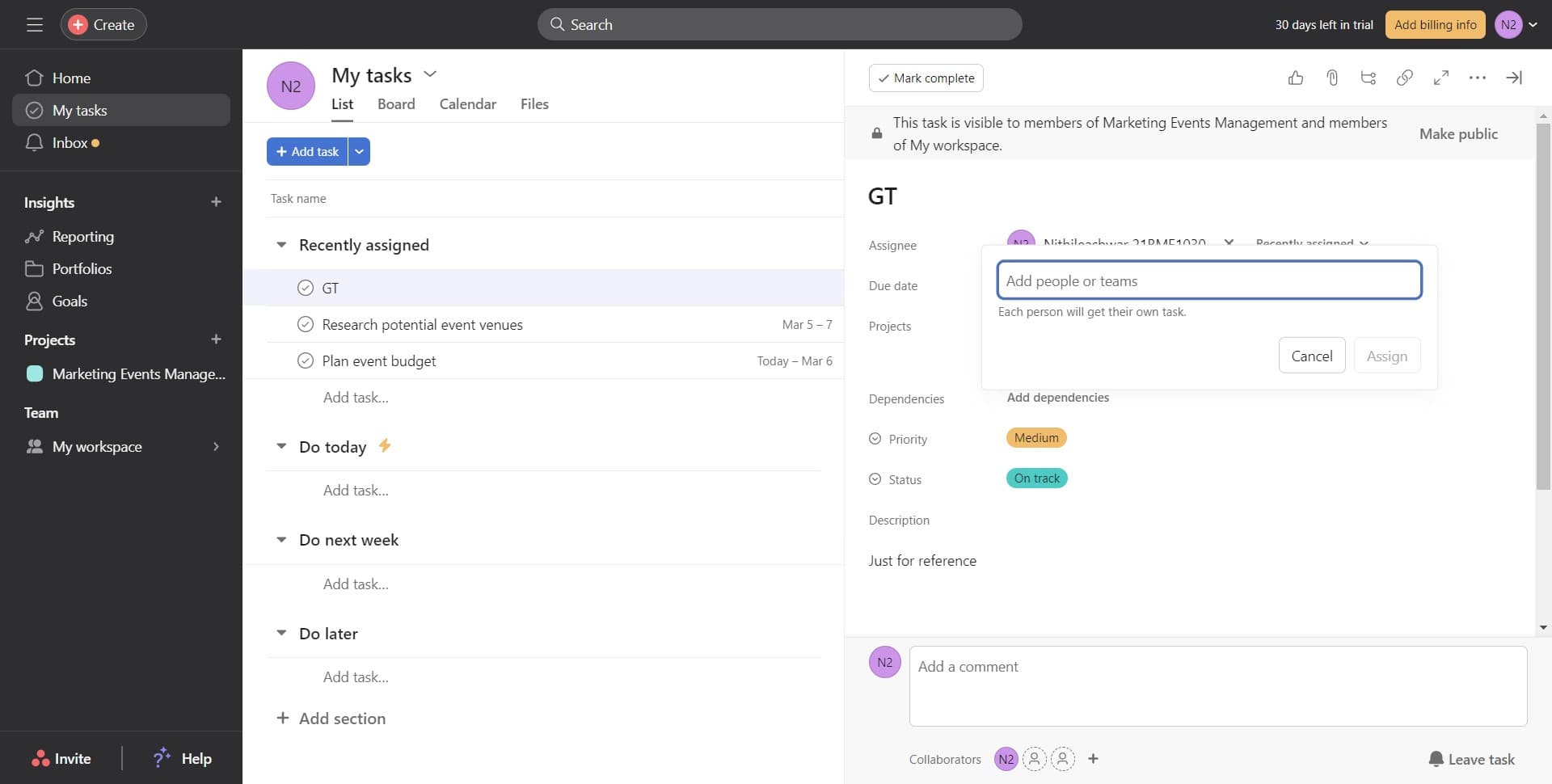
- 6
Confirm the assignment
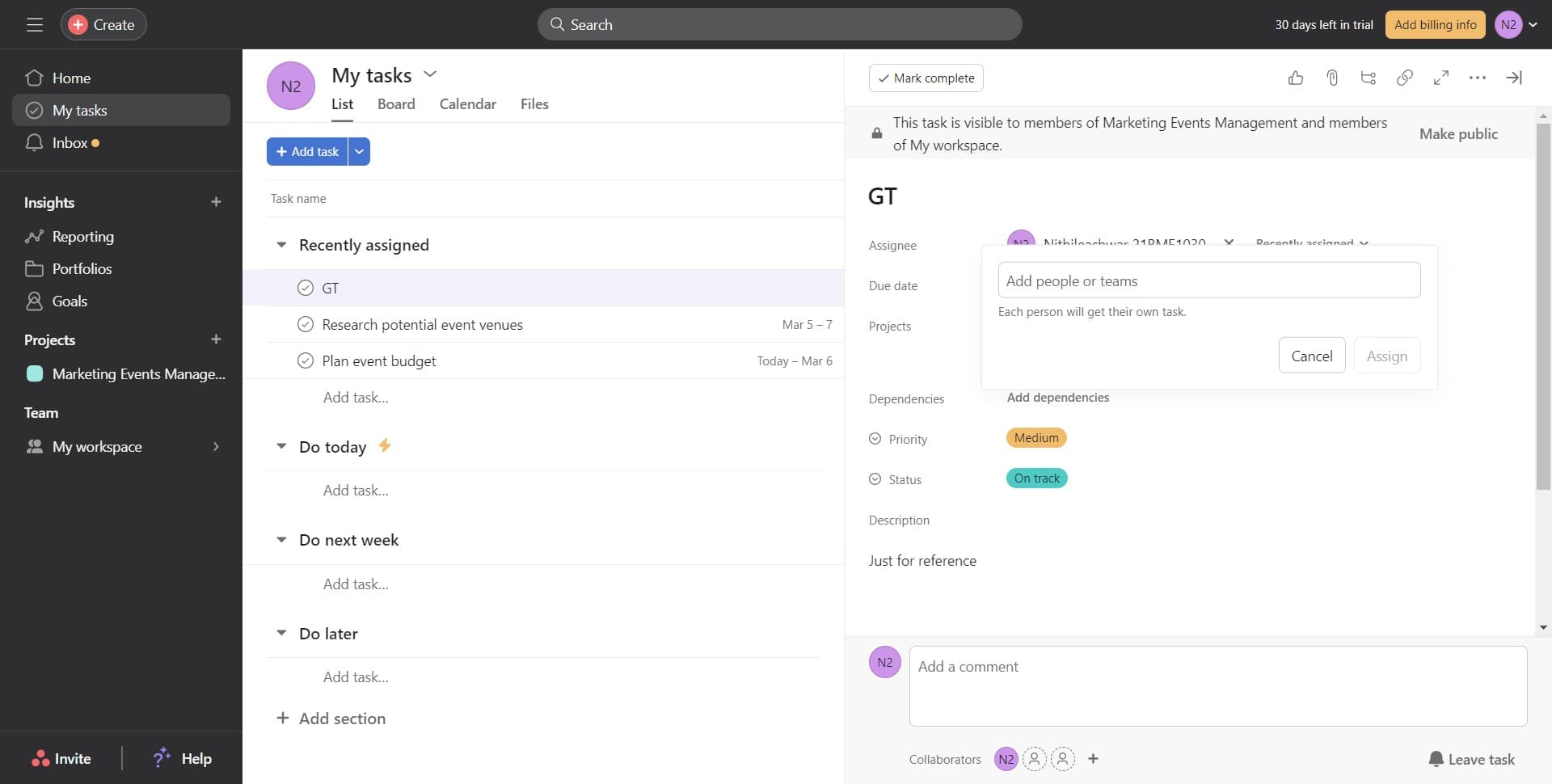
Click on 'Assign' to finalize adding the collaborators to the task. The selected team members will now appear as assignees and receive notifications about their assignment.
Frequently asked questions
Common questions about how to add a collaborator to a task in asana.
No, you can only assign tasks to members of your Asana workspace or team. Make sure the people you want to assign are already added to your Asana organization. If they aren't, an administrator will need to invite them first.
All assignees receive notifications about the task and can view it in their 'My Tasks' list. They can all edit, comment on, and update the task status independently. This is useful for collaborative work or when you want multiple people to have visibility and responsibility.
Yes, you can remove assignees at any time by opening the task, clicking on the assignee field, and deselecting the person you want to remove. Click 'Assign' to save your changes.
In Asana, when you assign a task to multiple people, all of them share equal ownership and responsibility. There is no primary or secondary assignee by default, though you can use task descriptions or comments to clarify specific responsibilities for each person.
Asana doesn't enforce a strict limit on the number of assignees per task, but assigning too many people can reduce clarity about individual responsibilities. It's a best practice to keep the number of assignees to those who genuinely need to work on or oversee the task.