How to add a comment in Asana

Comments are a powerful way to collaborate with your team in Asana, allowing you to discuss task details, share feedback, and keep conversations organized in one place. This guide walks you through the process of adding a comment to a task so you can improve team communication and keep project discussions centralized.
Quick summary
In this tutorial, you'll learn how to navigate to a task in Asana and add a comment to facilitate team collaboration. You'll discover how to access your task list, locate a specific task, and use the comment feature to contribute to ongoing discussions.
Why this matters
Adding comments to tasks in Asana keeps all relevant discussions tied to the work itself, eliminating scattered emails and messages. This approach ensures that context is preserved, team members stay informed, and nothing falls through the cracks during project execution.
Step-by-step guide
- 1
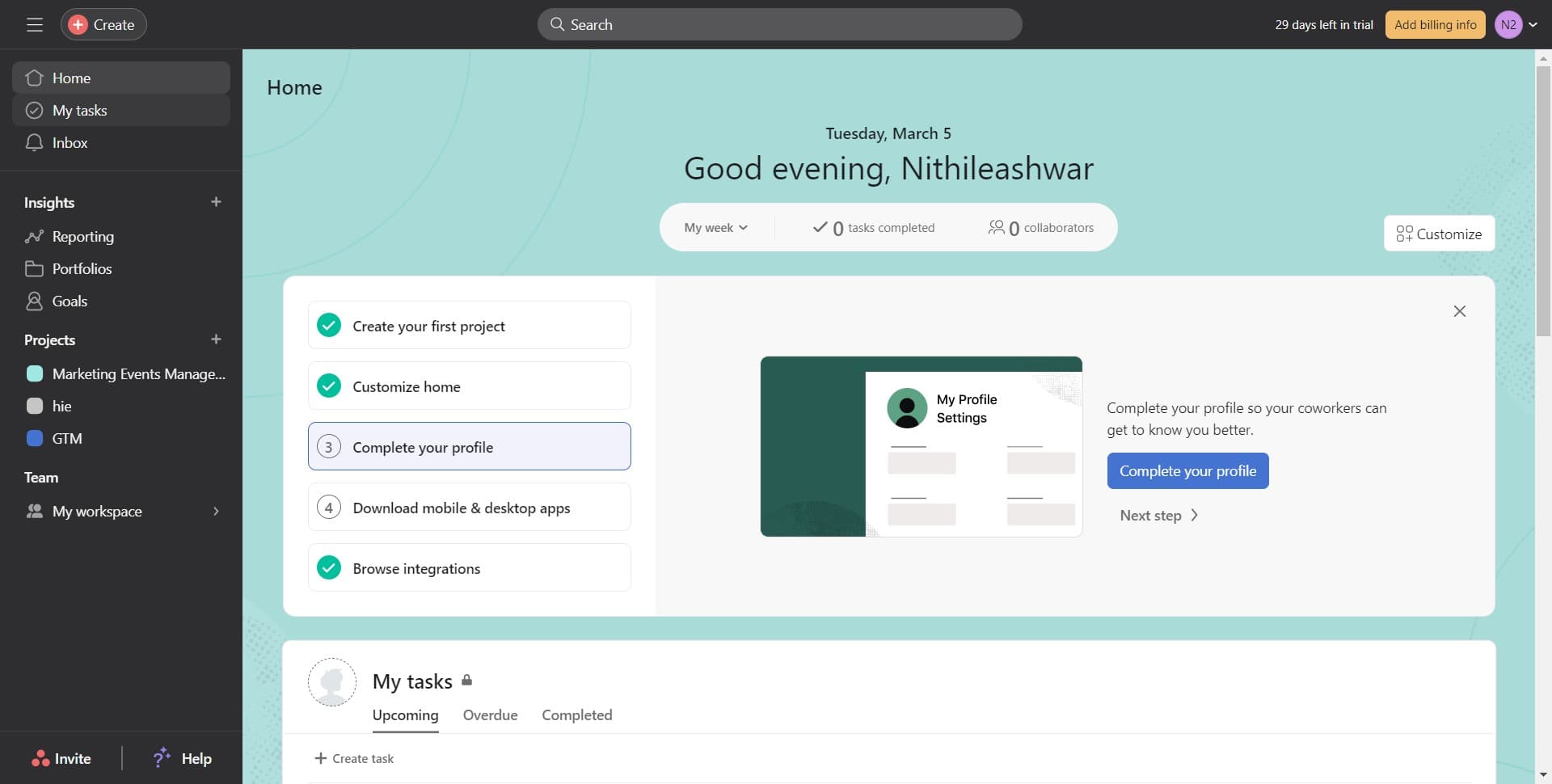
Click on My Tasks
Start by clicking the 'My Tasks' section in Asana's sidebar. This will display all tasks assigned to you, giving you quick access to your current workload.
- 2
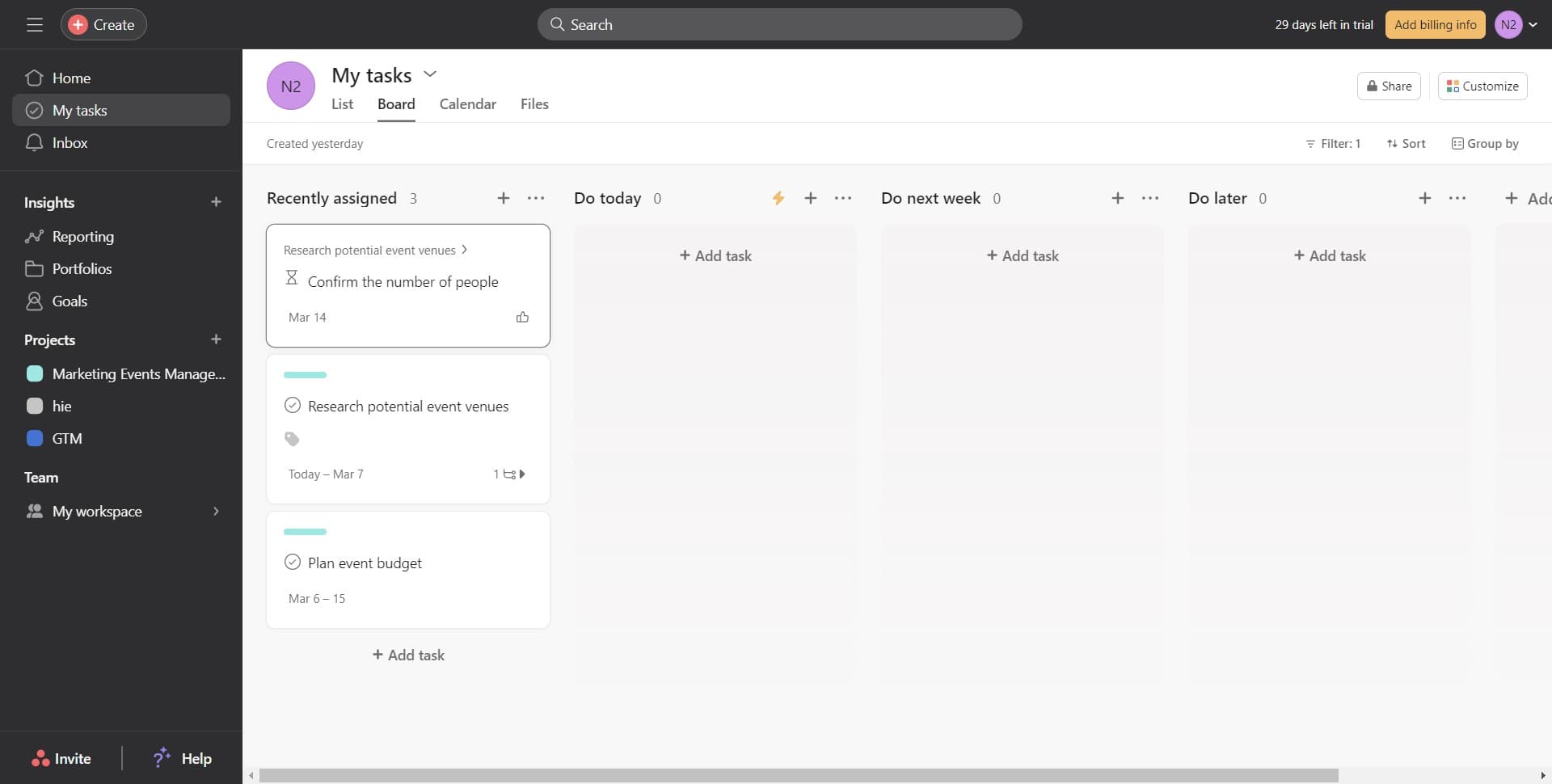
Click on the target task
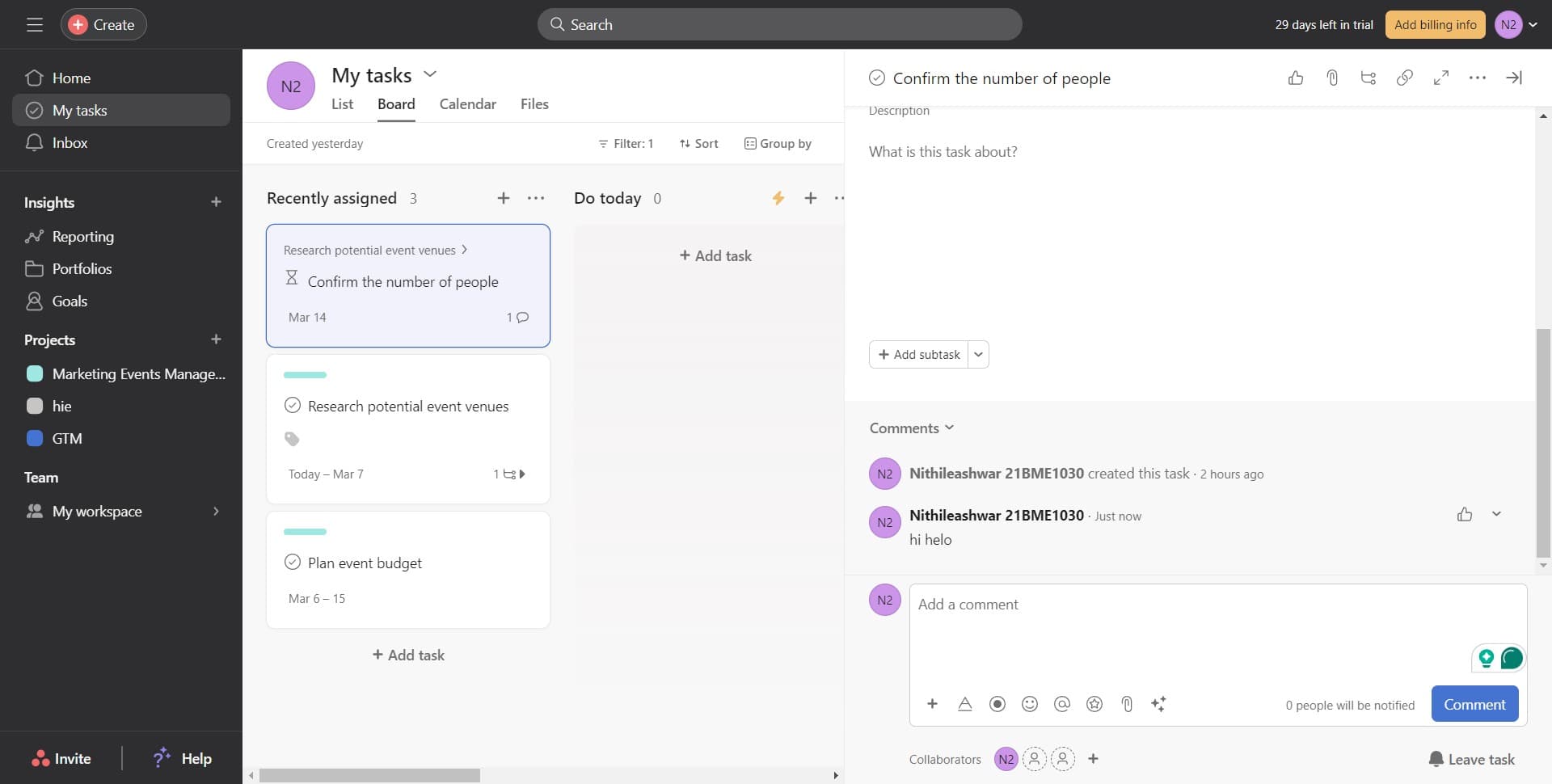
Locate and click on the task titled 'Confirm the number of people' to open its details panel. This action displays the full task information and all available interaction options.
- 3
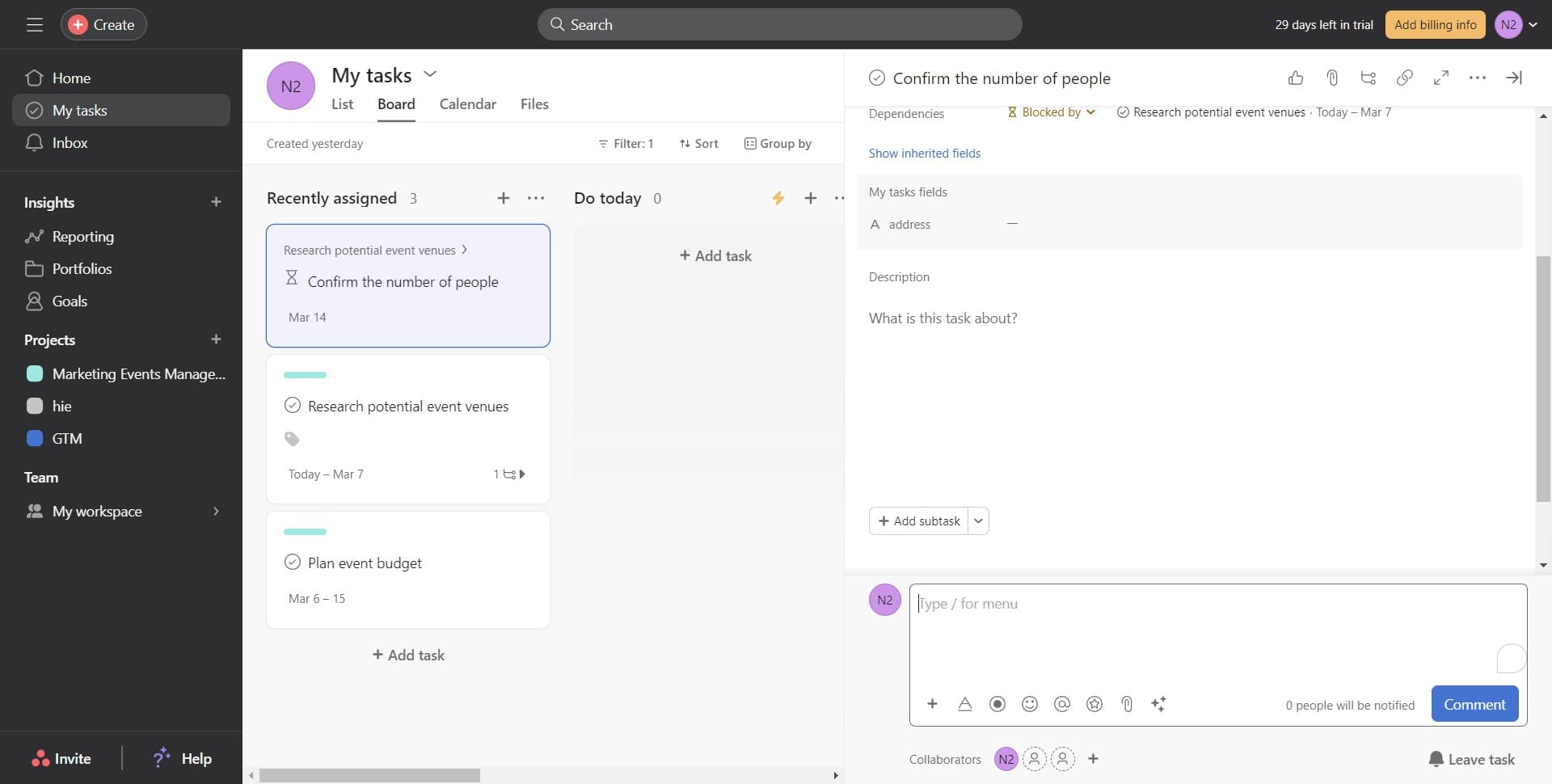
Open the task details
Click on the task title or details area to expand the full task view. You'll now see the complete task information along with the comments section at the bottom.
- 4
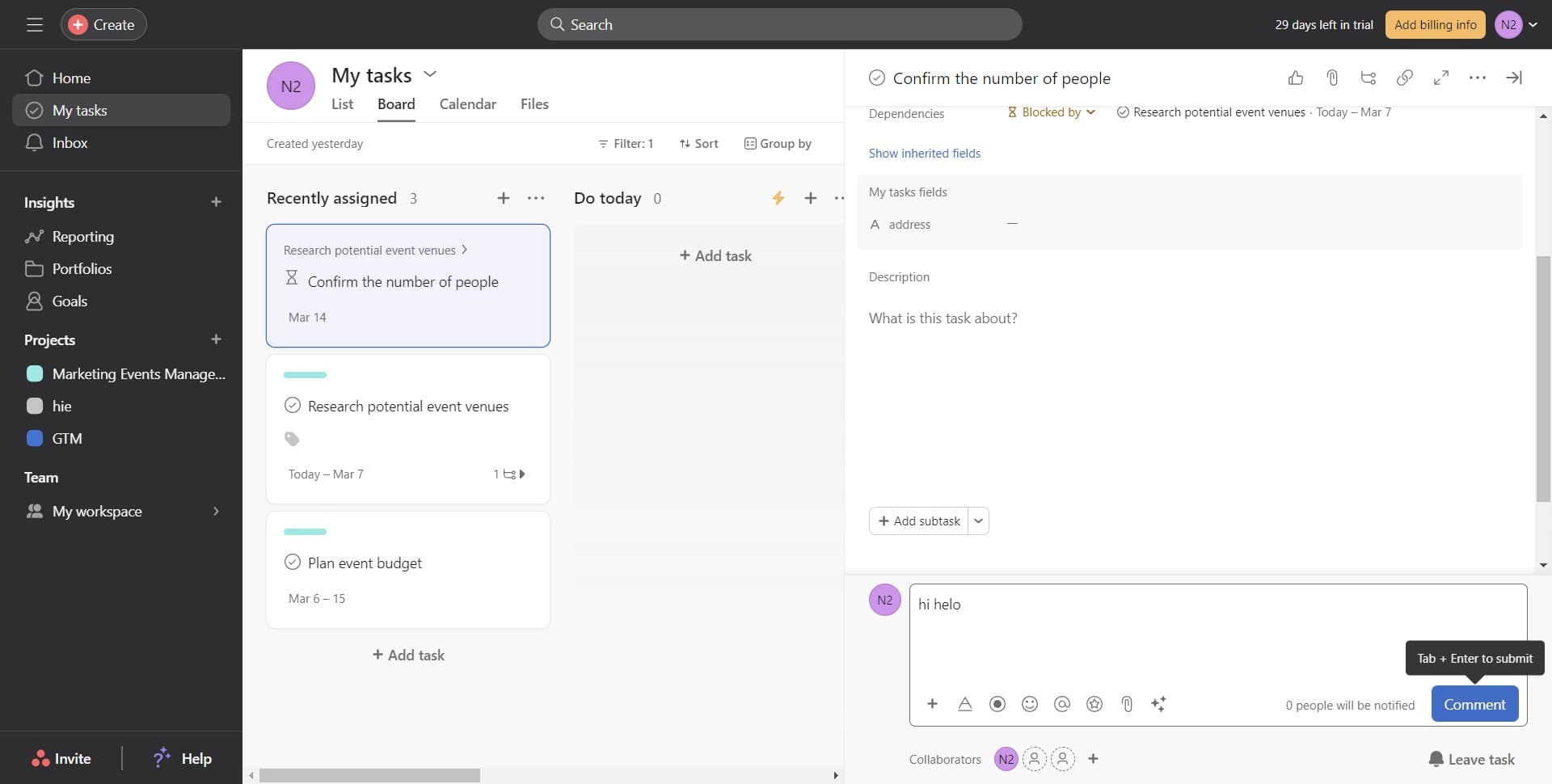
Click on Comment
Look for the 'Comment' field or button in the task details panel and click on it. This activates the text input area where you can type your message.
- 5
Select assignee and post comment
Type your comment in the text field, then optionally tag team members like 'Nithileashwa' by clicking on their name. Press Enter or click the post button to submit your comment.
Frequently asked questions
Common questions about how to add a comment in asana.
Yes, you can mention team members in comments by typing their name or using the @ symbol. This sends them a notification so they see your comment right away and can respond promptly.
Comments on tasks are visible to all team members who have access to that task or project. This ensures transparency and keeps everyone informed about task-related discussions.
Yes, you can edit or delete comments you've posted. Look for the menu options on your comment and select edit or delete as needed. This gives you control over your contributions if you need to make corrections.
Asana sends notifications when someone comments on a task you're assigned to or following. You can customize your notification preferences in Asana settings to control how and when you receive these alerts.
Yes, you can attach files directly to comments in Asana. This allows you to share documents, images, or other resources without leaving the task, keeping all relevant materials in one place.