How to add a due date in Asana

Setting due dates in Asana keeps your team aligned on deadlines and helps prioritize work effectively. This guide walks you through the process of adding a due date to a task in just a few clicks.
Quick summary
In this tutorial, you'll learn how to navigate to your tasks, select a task, choose a due date from the calendar, and set a priority level. By the end, you'll be able to quickly assign deadlines to keep your projects on track.
Why this matters
Due dates are essential for task management because they create accountability and help teams understand which work is most urgent. Without clear deadlines, tasks can slip through the cracks and project timelines become unpredictable.
Step-by-step guide
- 1
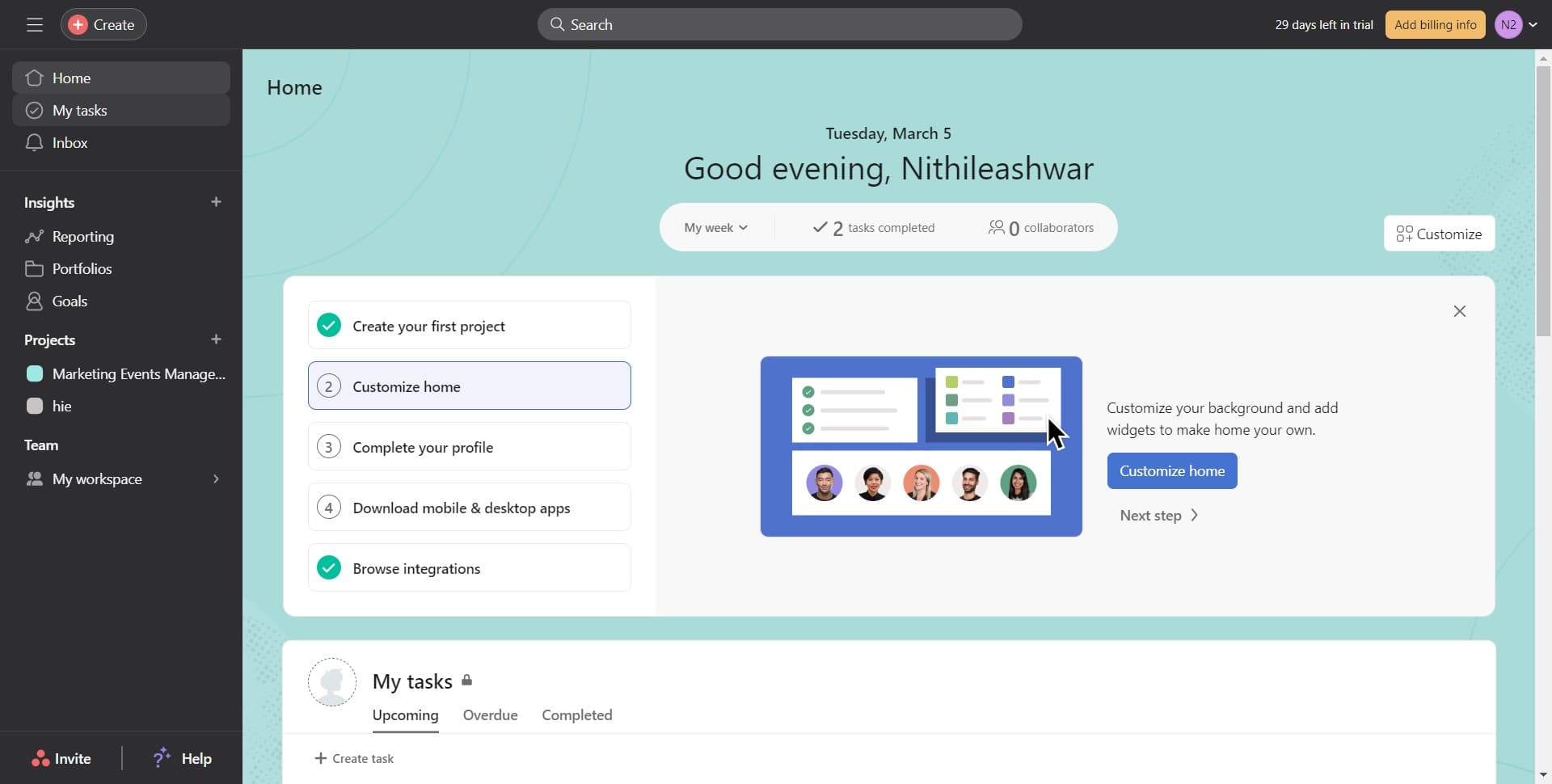
Click on My Tasks
Start by clicking the 'My Tasks' section in the left sidebar. This displays all tasks assigned to you in a centralized view.
- 2
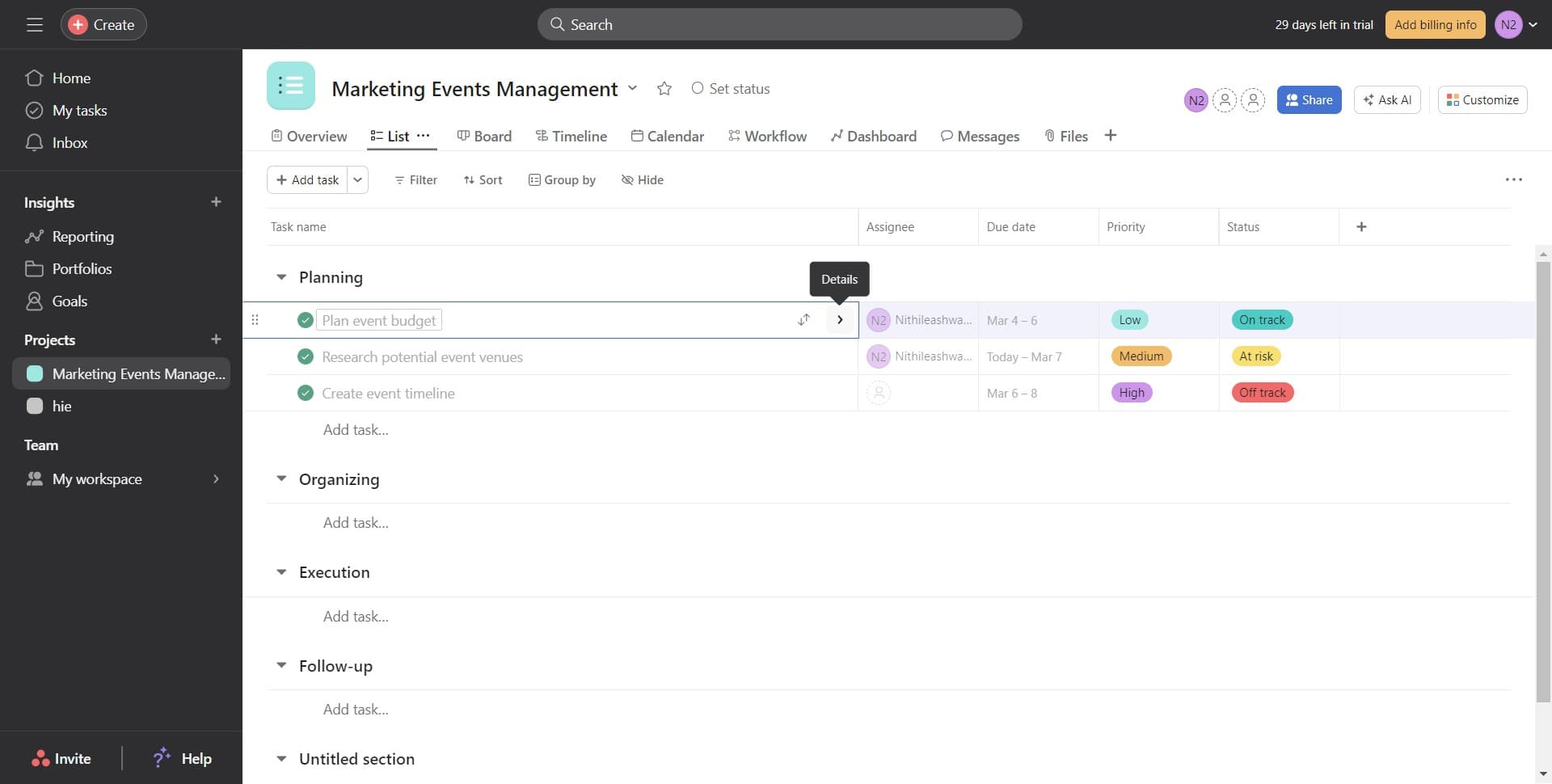
Click on the target task
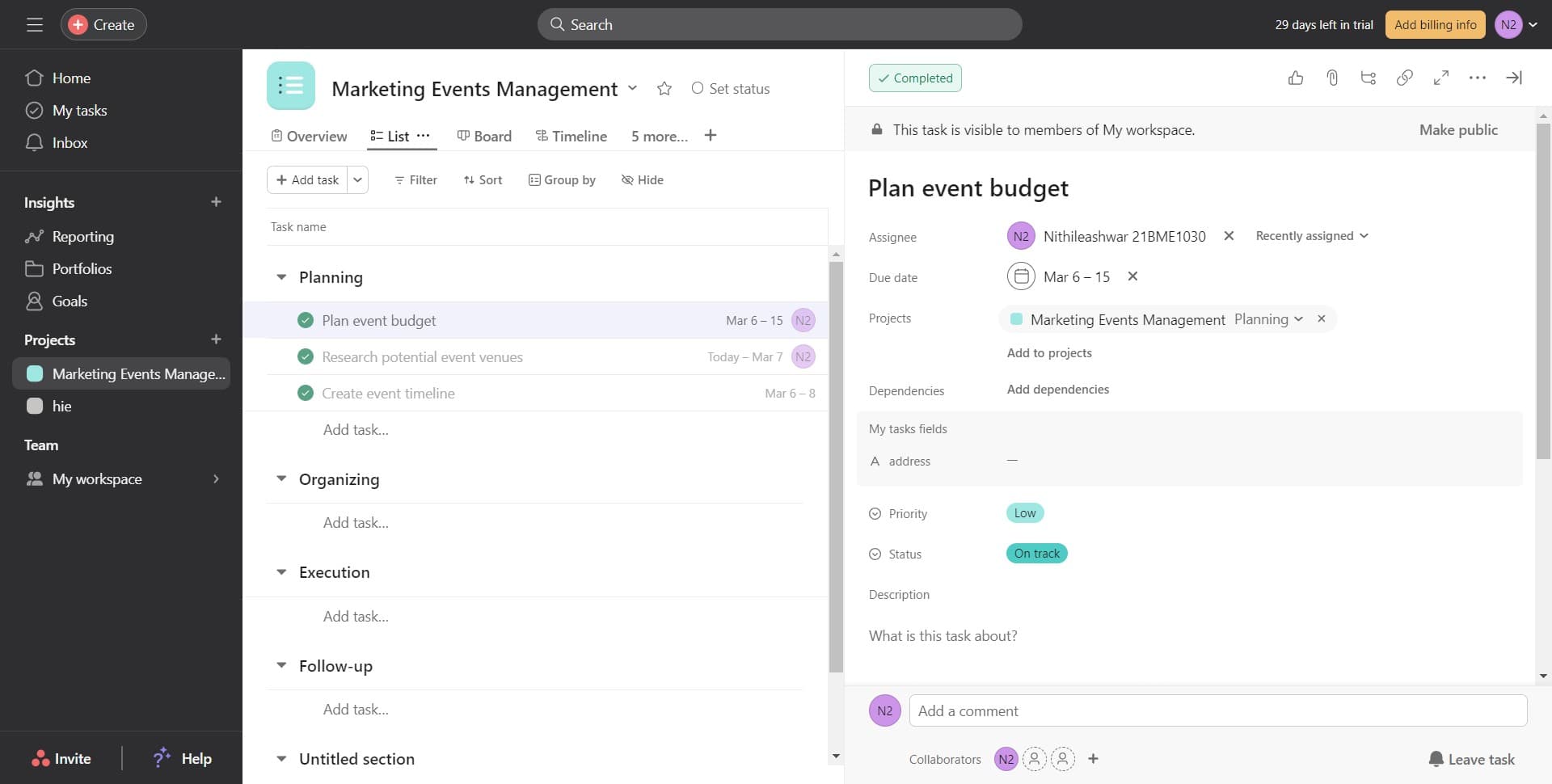
Select the specific task you want to add a due date to by clicking on it. The task details panel will open, showing all available fields and options.
- 3
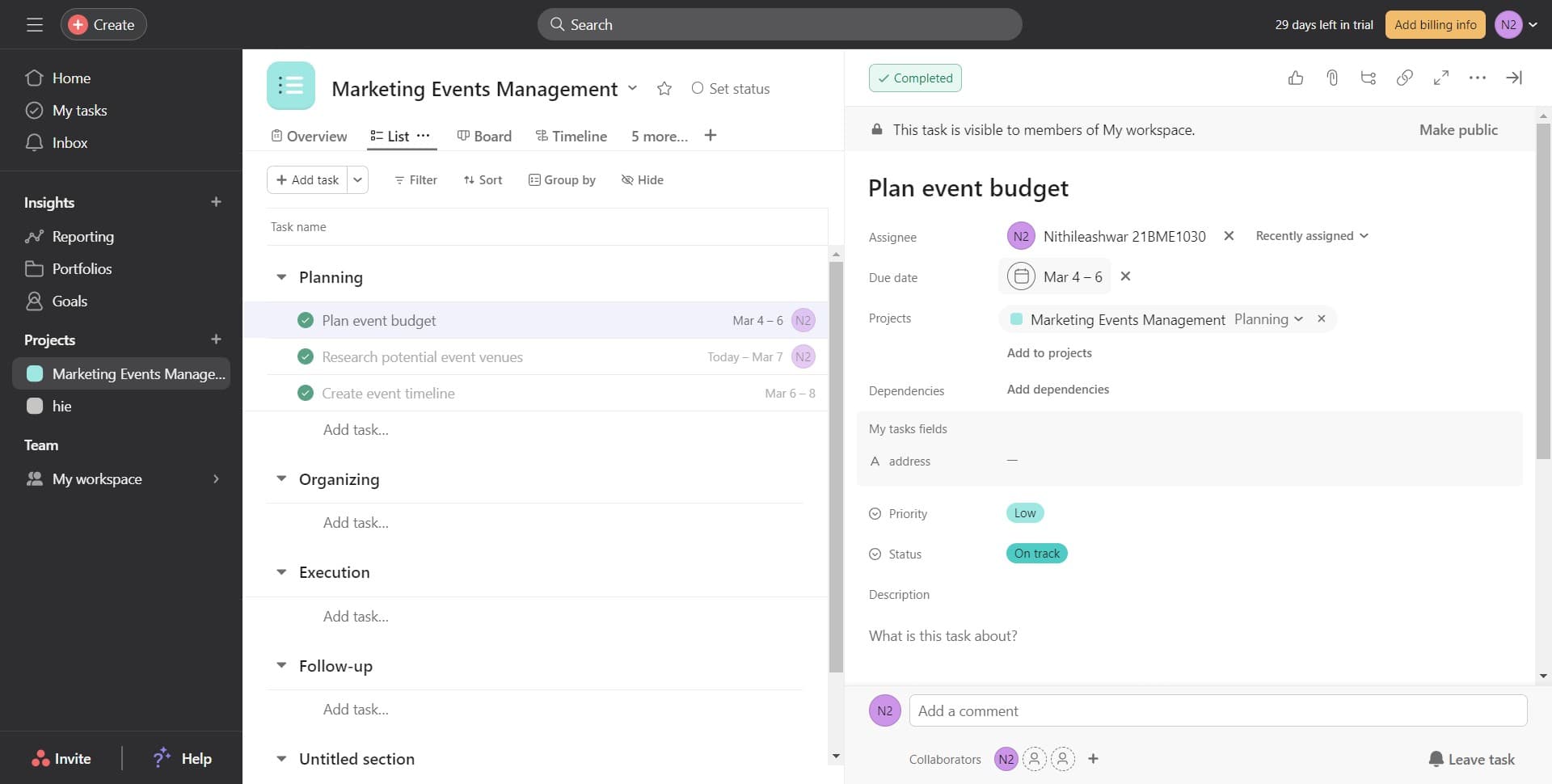
Click on the day field
Look for the due date field and click on the dash or date indicator to open the calendar picker. This allows you to select the specific day your task is due.
- 4
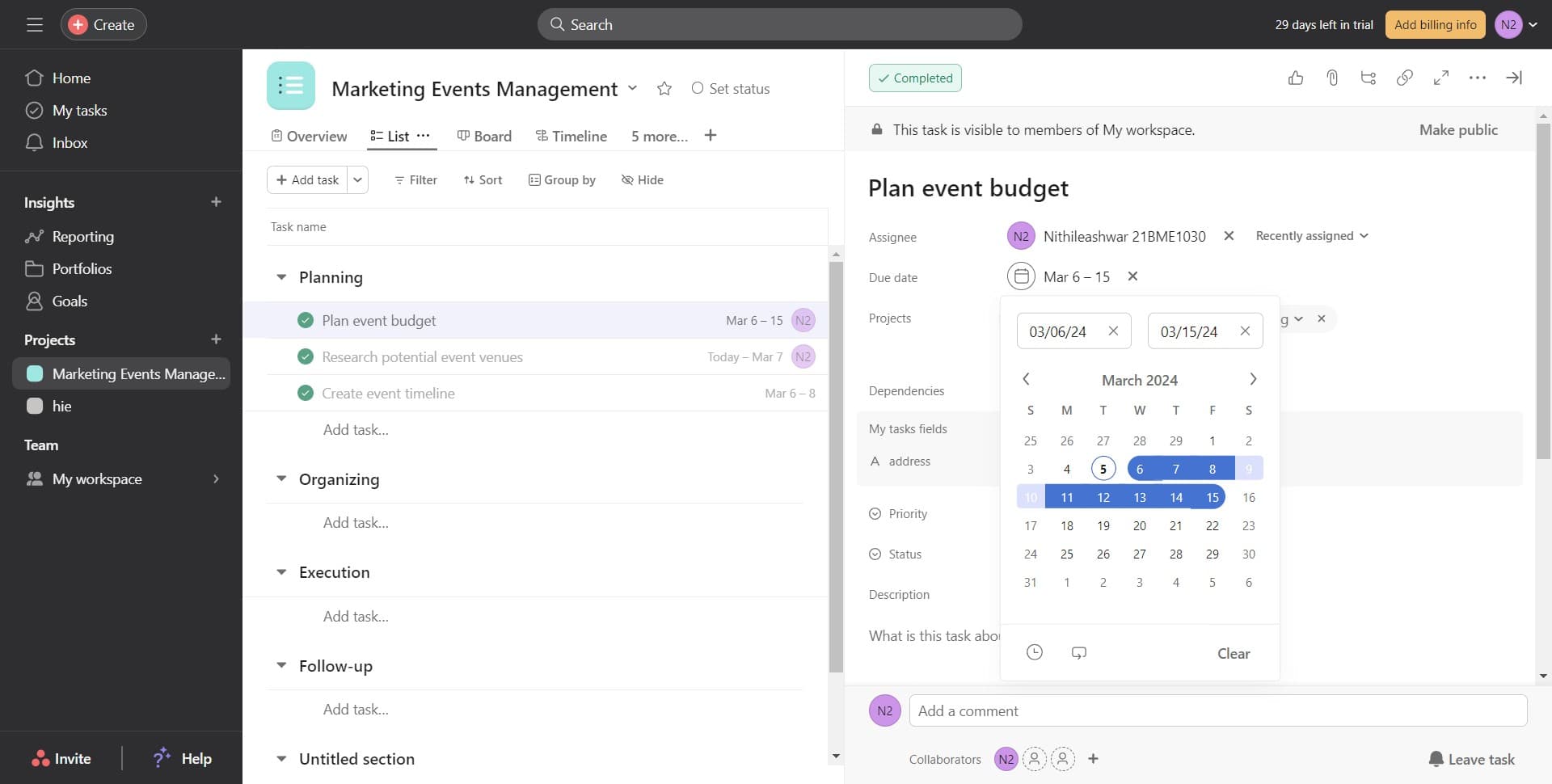
Select the 15th from the calendar
Click on the date '15' in the calendar that appears. This sets the task's due date to the 15th of the current or selected month.
- 5
Set priority to Low
Click on the 'Low' priority option to assign this task a low priority level. This helps your team understand the urgency relative to other tasks.
Frequently asked questions
Common questions about how to add a due date in asana.
Yes, you can update the due date at any time by clicking on the date field in the task details and selecting a new date from the calendar. Asana will update the task immediately and notify any followers of the change.
Asana will mark the task as overdue and highlight it in red to draw attention. You can still update the due date or mark the task complete even after it has passed.
The basic due date field in Asana is set at the day level. However, if you need time-specific deadlines, you can add that information in the task description or use custom fields for additional detail.
Priority and due dates are separate attributes that work together to help teams understand urgency and importance. A task can have a near due date but low priority, or a distant due date but high priority depending on business needs.
Team members who are following the task or assigned to it will receive notifications when you add or change the due date. This keeps everyone informed about deadline changes and adjustments.