How to add a integration to Asana

Integrating Asana with Salesforce connects your project management and CRM workflows, enabling seamless data synchronization between platforms. This guide walks you through the process of adding the Asana for Salesforce integration to your workspace in just a few clicks.
Quick summary
In this tutorial, you'll learn how to browse available integrations in Asana and install the Asana for Salesforce connector. By the end, your Asana and Salesforce accounts will be linked, allowing you to manage tasks and opportunities across both tools efficiently.
Why this matters
Connecting Asana to Salesforce eliminates manual data entry and keeps your team aligned across sales and project management. This integration ensures that opportunities in Salesforce are reflected in Asana tasks, reducing bottlenecks and improving visibility into project status for sales teams.
Step-by-step guide
- 1
Navigate to Browse Integrations
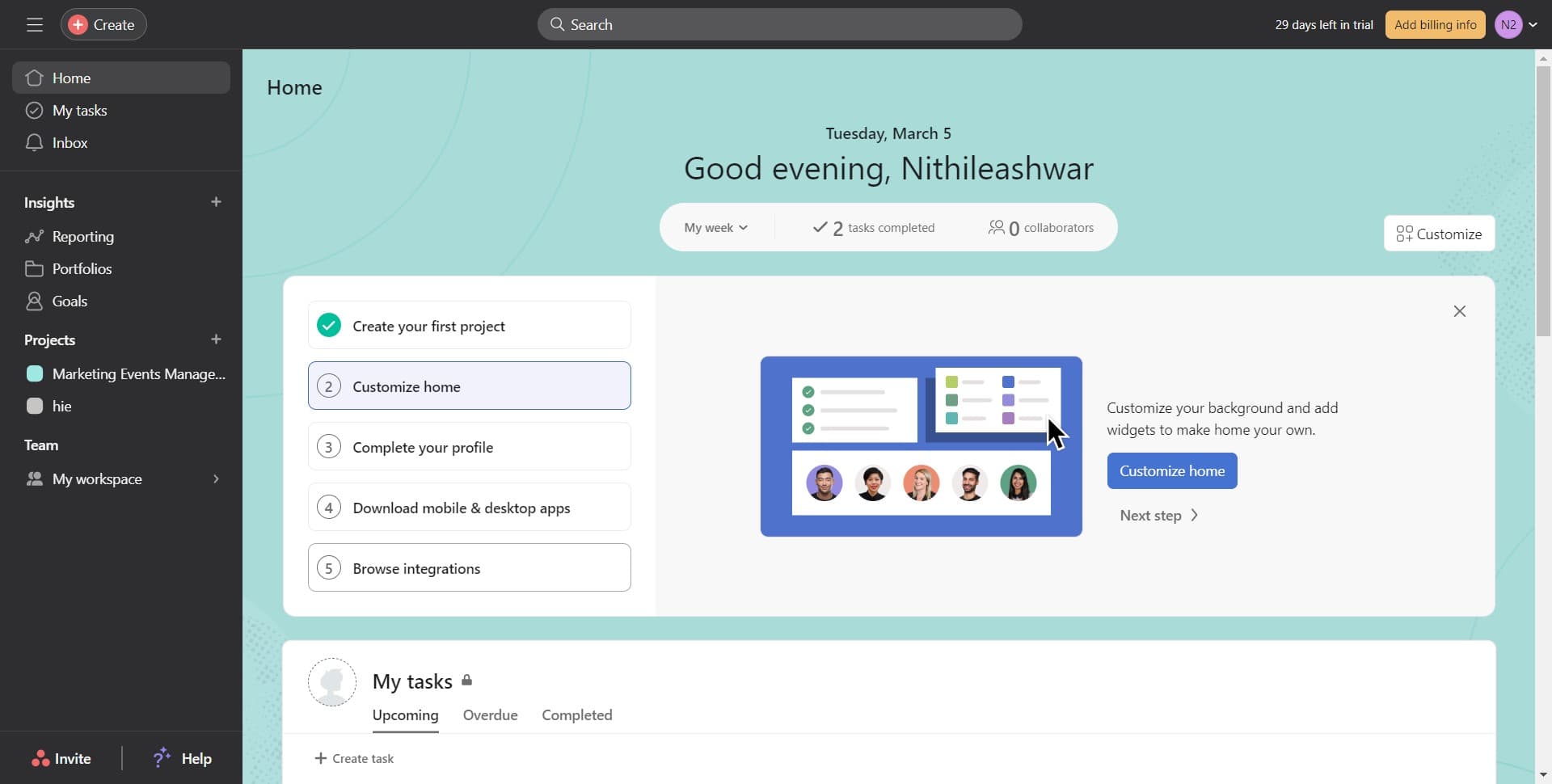
In your Asana workspace, locate and click on the 'Browse integrations' option. This takes you to Asana's integration marketplace where you can explore available app connections.
- 2
Access the Integrations Marketplace
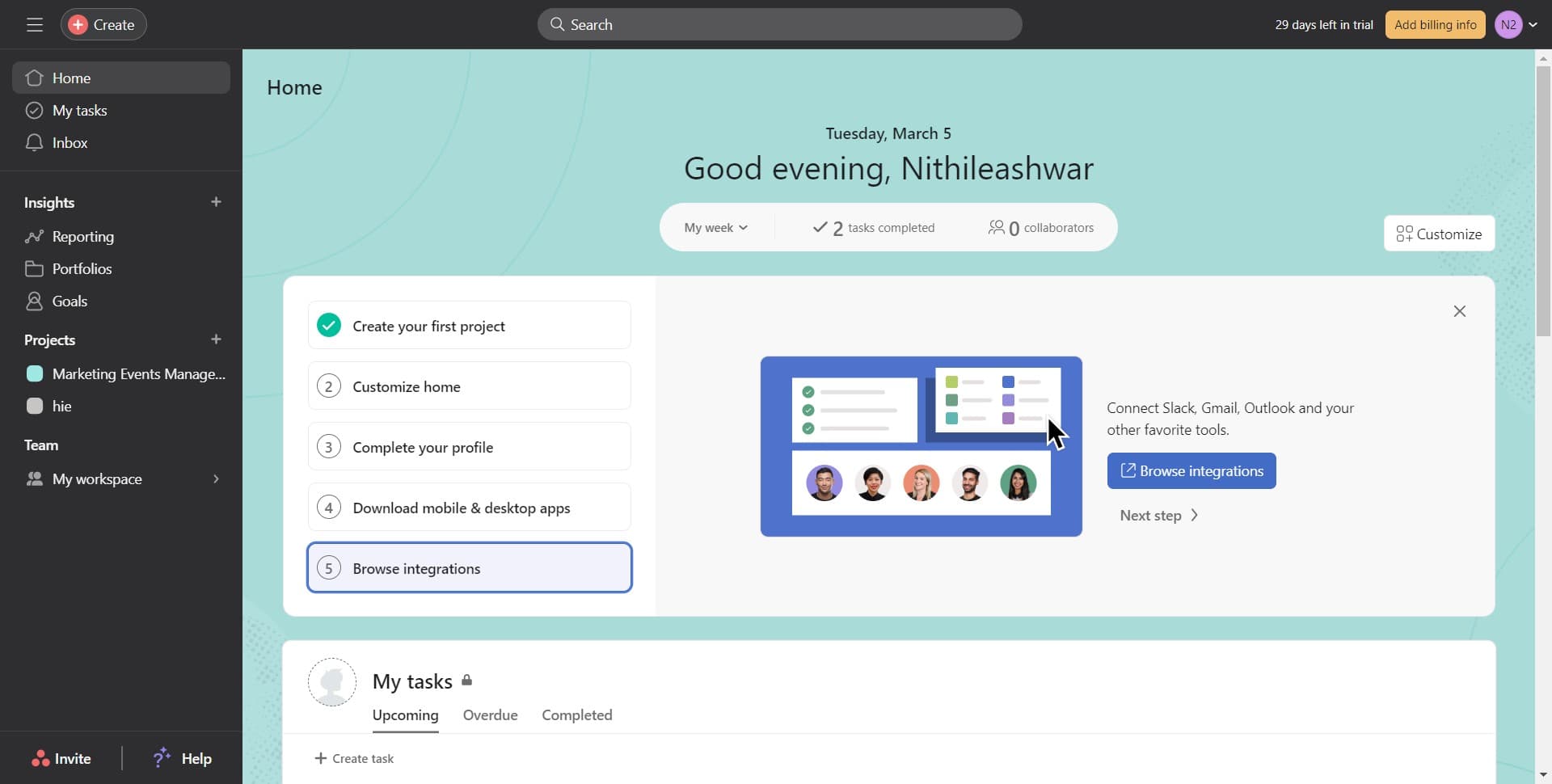
Click on 'Browse integrations' again to fully open the marketplace interface. You'll now see a list of available integrations that can be added to your workspace.
- 3
Select Asana for Salesforce
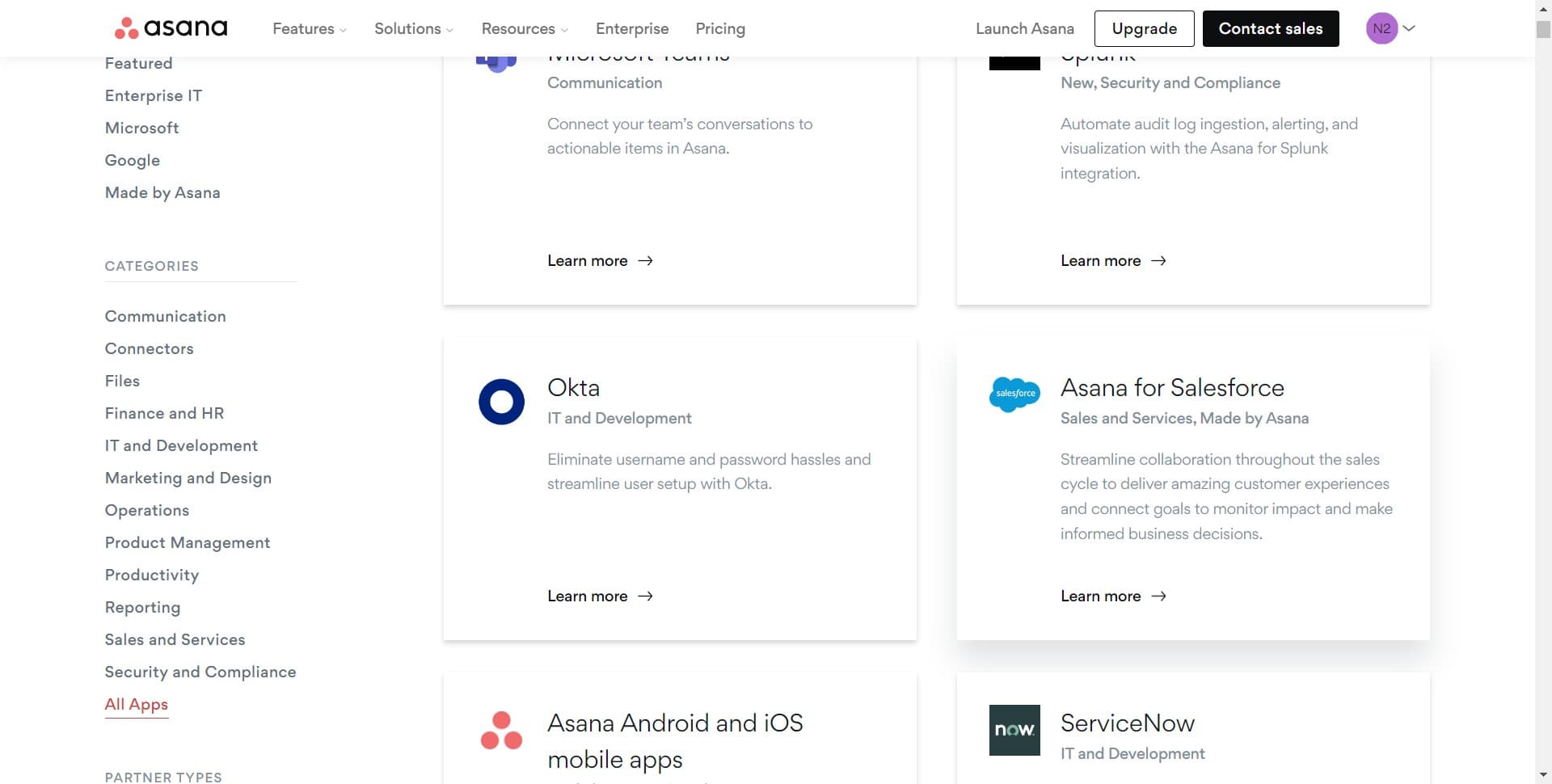
From the integration list, click on 'Asana for Salesforce' to view the integration details and capabilities. This opens the dedicated page for the Salesforce connector.
- 4
Install the Salesforce Integration
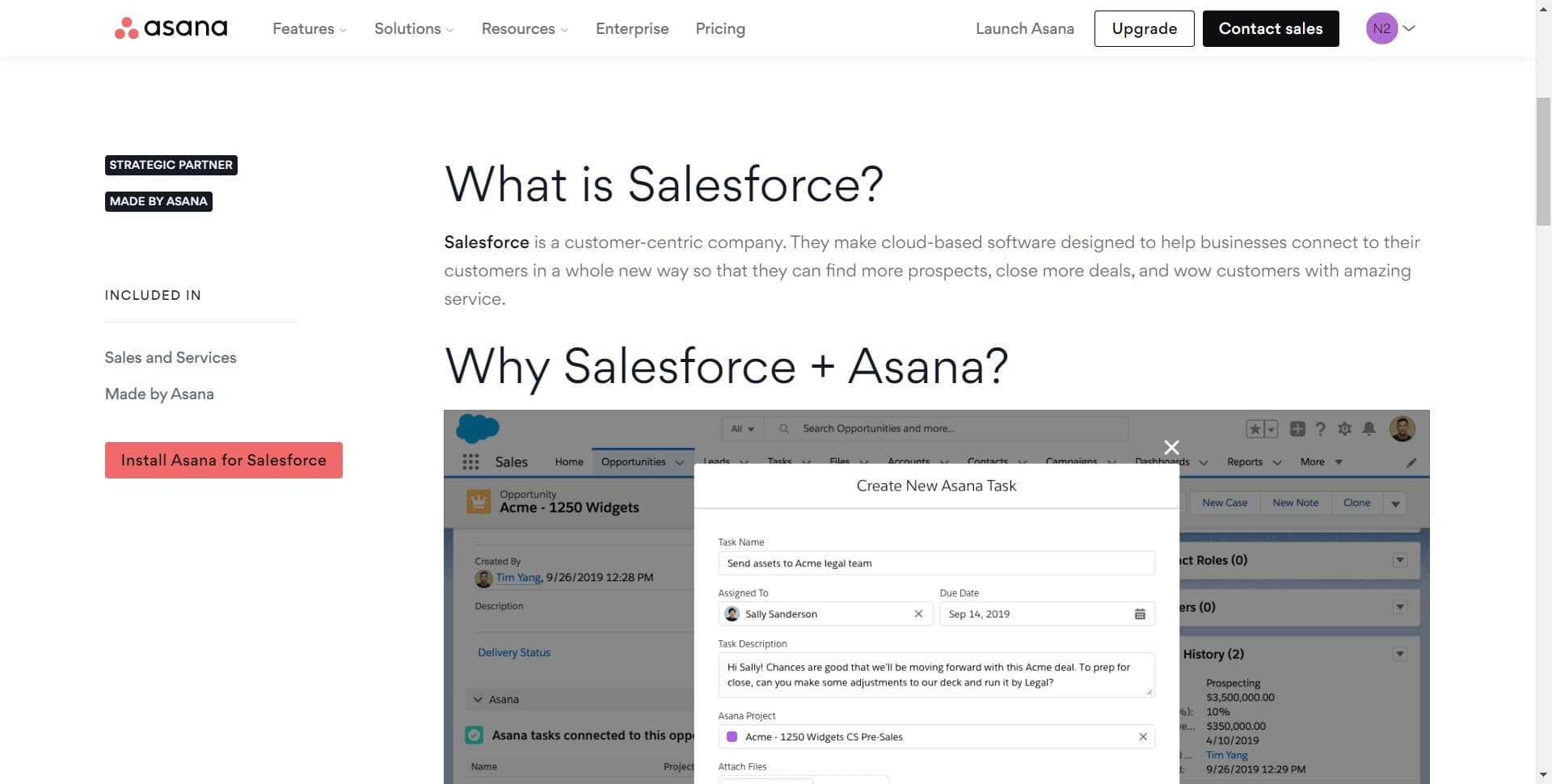
Click the 'Install Asana for Salesforce' button to begin the installation process. You'll be guided through authentication steps to connect your Salesforce account with Asana.
Frequently asked questions
Common questions about how to add a integration to asana.
You need admin access in both your Asana workspace and your Salesforce organization to install this integration. If you don't have admin privileges, contact your workspace or account administrator to complete the installation process.
Yes, you can uninstall the integration at any time from your workspace settings. Navigate to Apps and Integrations, find the Asana for Salesforce integration, and select the option to remove it. Note that this will disconnect the two platforms.
Installing the integration itself does not modify your existing data. However, once installed and configured, the integration will begin syncing information between the platforms based on your settings. You can control which data syncs through the integration configuration.
The installation process is typically quick, taking just a few minutes. After clicking 'Install Asana for Salesforce,' you'll authenticate your Salesforce account and set your sync preferences, which usually completes within 5-10 minutes.
The integration is available for most Asana plans, but some advanced features may require a premium Asana subscription. Check Asana's pricing page or contact their support team to confirm if your plan includes access to this integration.