How to add a project in Asana

Creating a project in Asana is the first step toward organizing your team's work and tracking progress on important initiatives. Whether you're managing a campaign, product launch, or ongoing team effort, projects serve as containers for tasks, timelines, and collaboration. This guide walks you through the straightforward process of setting up a new project.
Quick summary
In this tutorial, you'll learn how to create a new project in Asana from start to finish. You'll navigate to the project creation interface, choose your project view, and set up your first project in just a few clicks.
Why this matters
Projects in Asana help teams stay aligned by centralizing work, deadlines, and accountability in one place. Creating projects efficiently ensures your team can begin collaborating immediately without unnecessary delays. Proper project setup establishes the foundation for effective task management and progress tracking.
Step-by-step guide
- 1
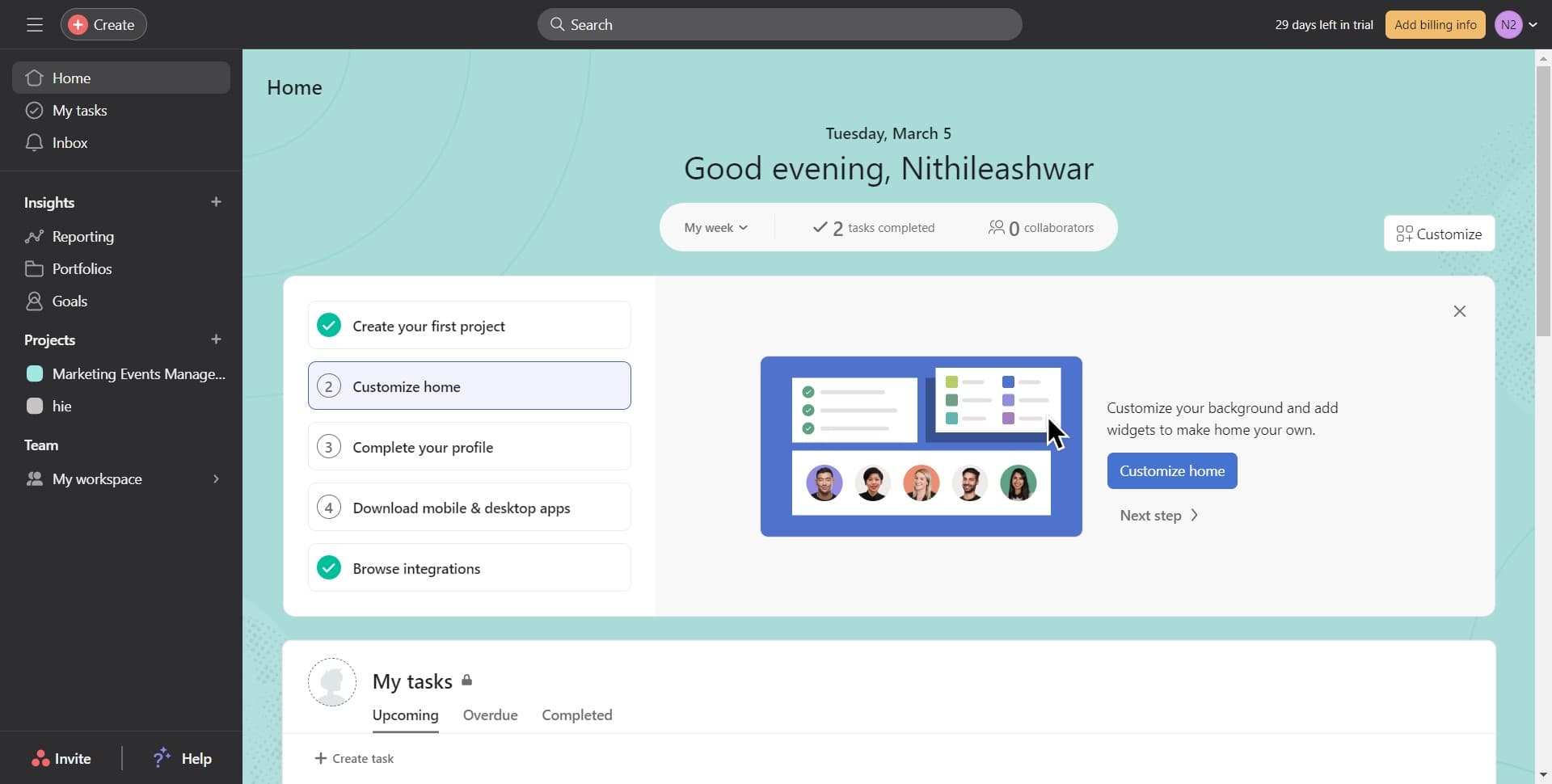
Click on Create
Look for the Create button, typically located in the top navigation or sidebar of your Asana workspace. This button opens a menu with options for adding new items to your workspace.
- 2
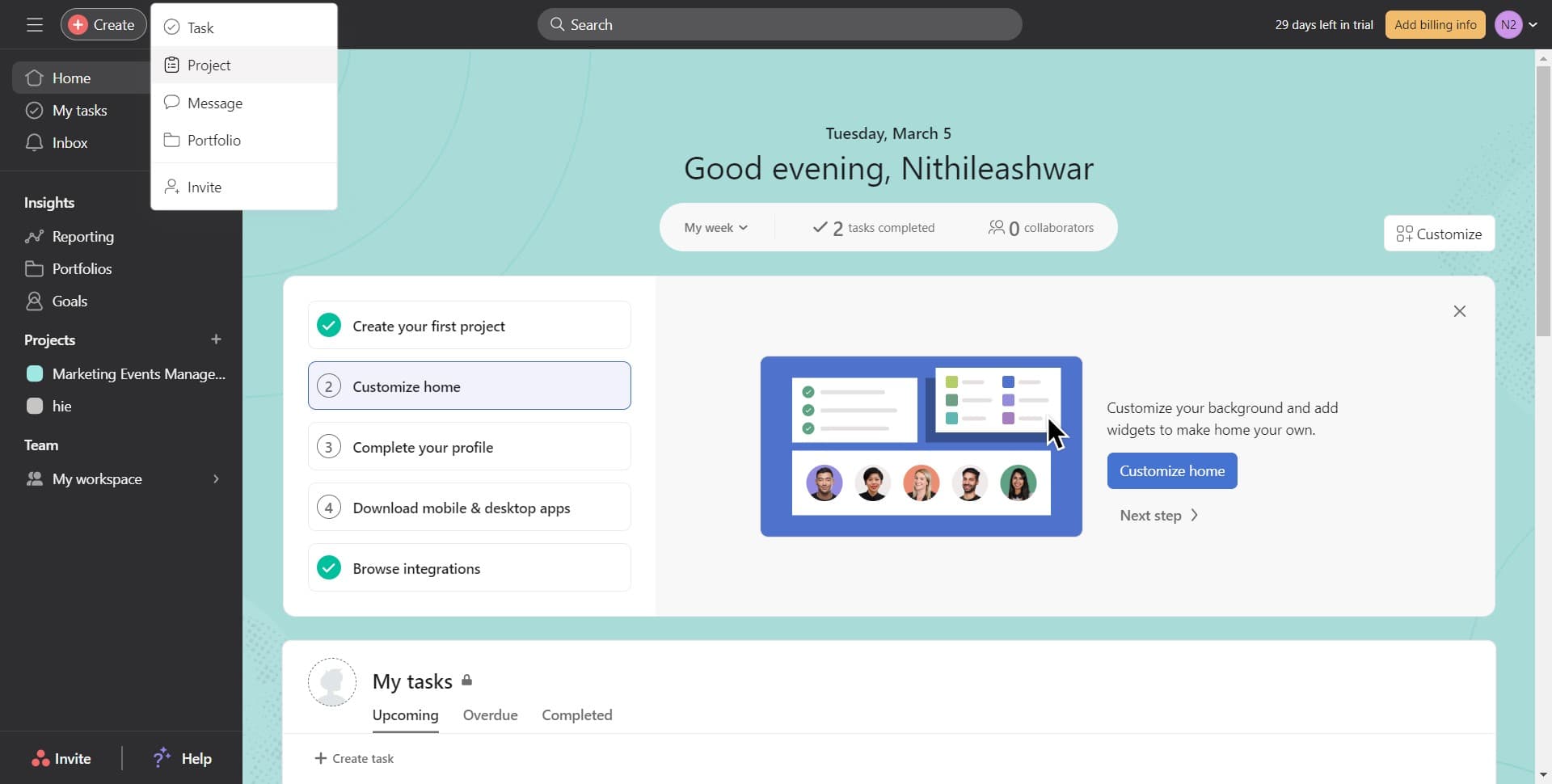
Click on Project
From the Create menu, select Project to begin the project creation process. This option allows you to define and configure a new project for your team.
- 3
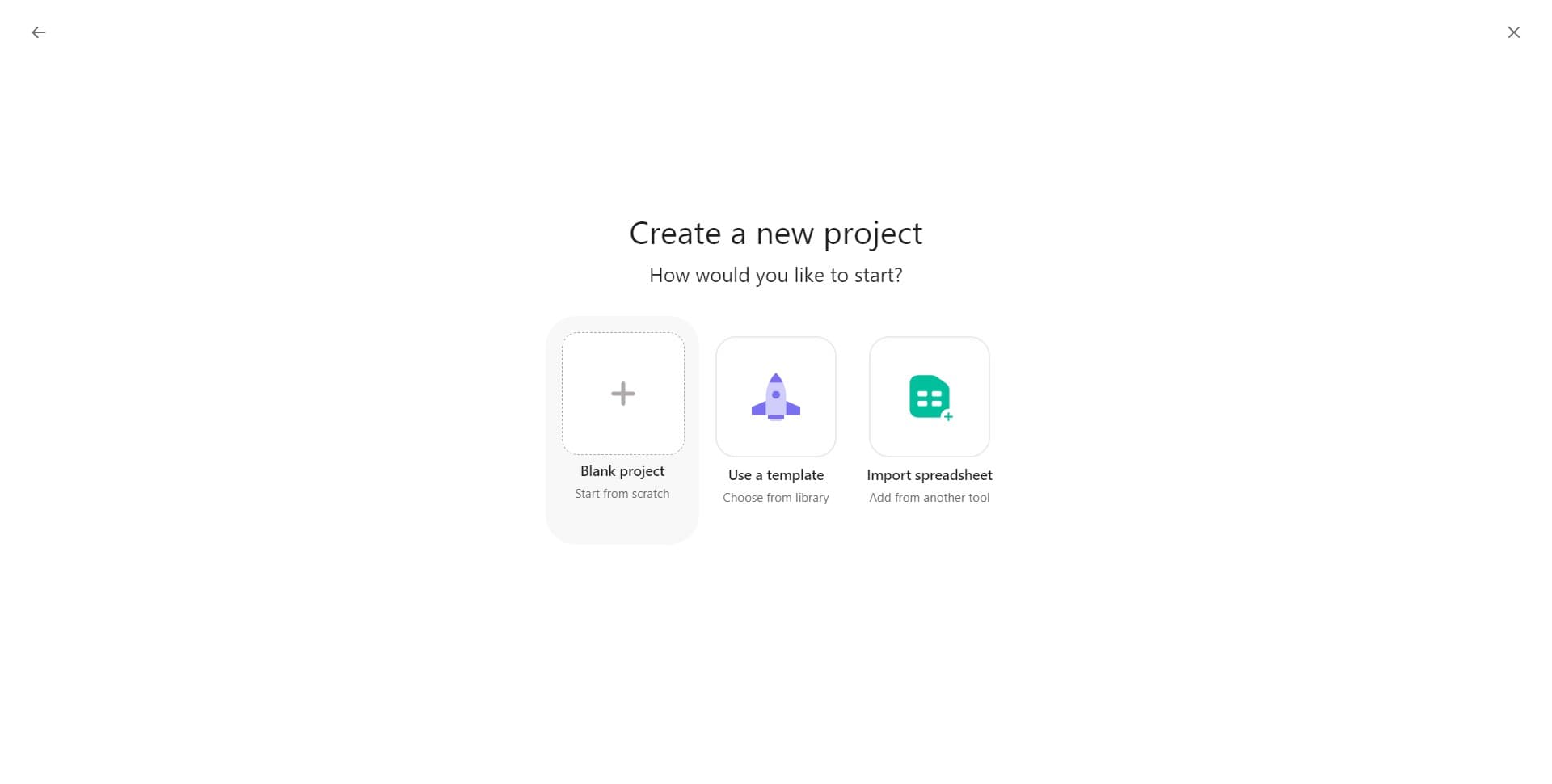
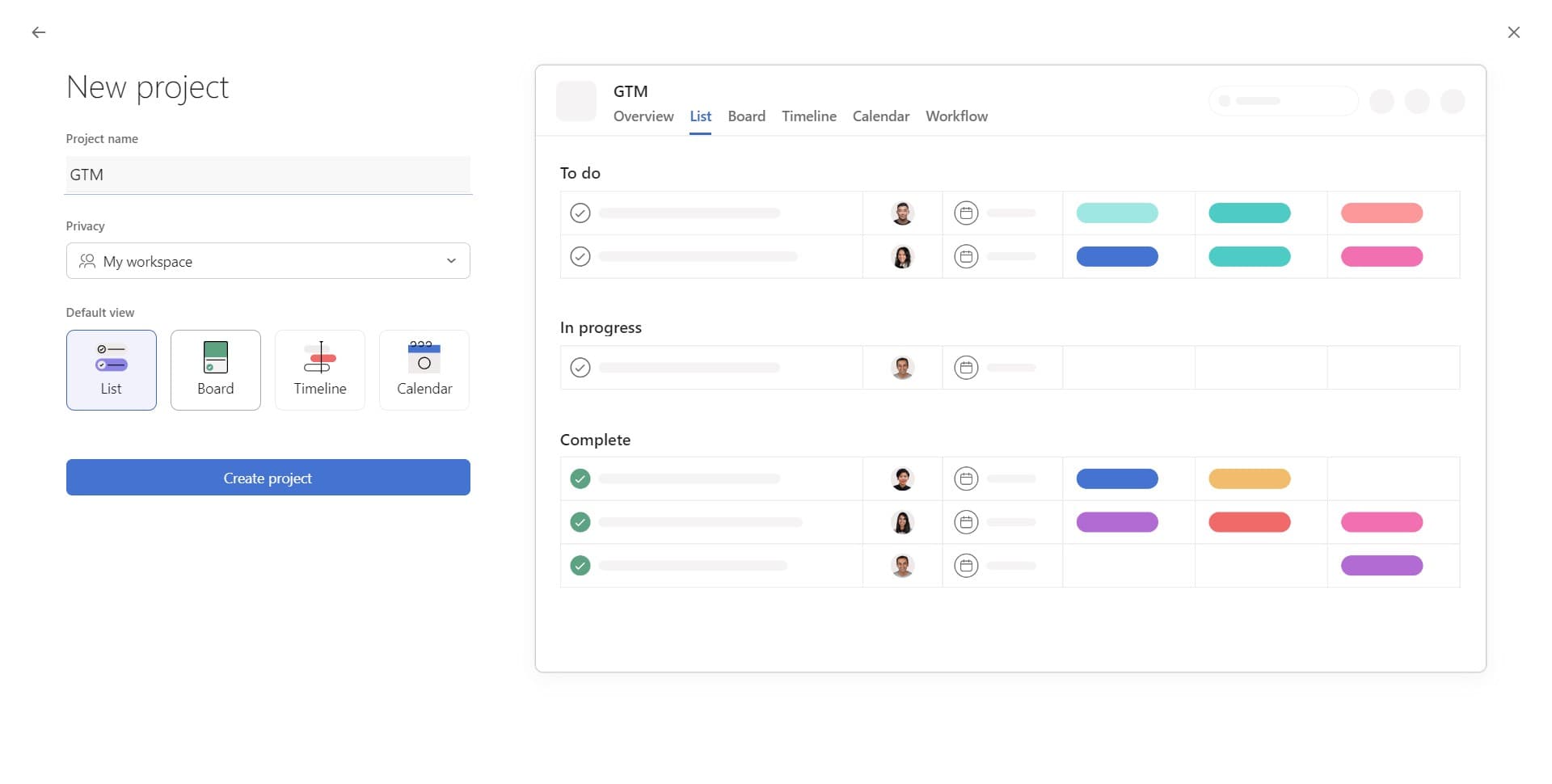
Enter project details
Fill in the required information for your project, such as the project name and any initial description or details. This helps your team understand the project's purpose and scope.
- 4
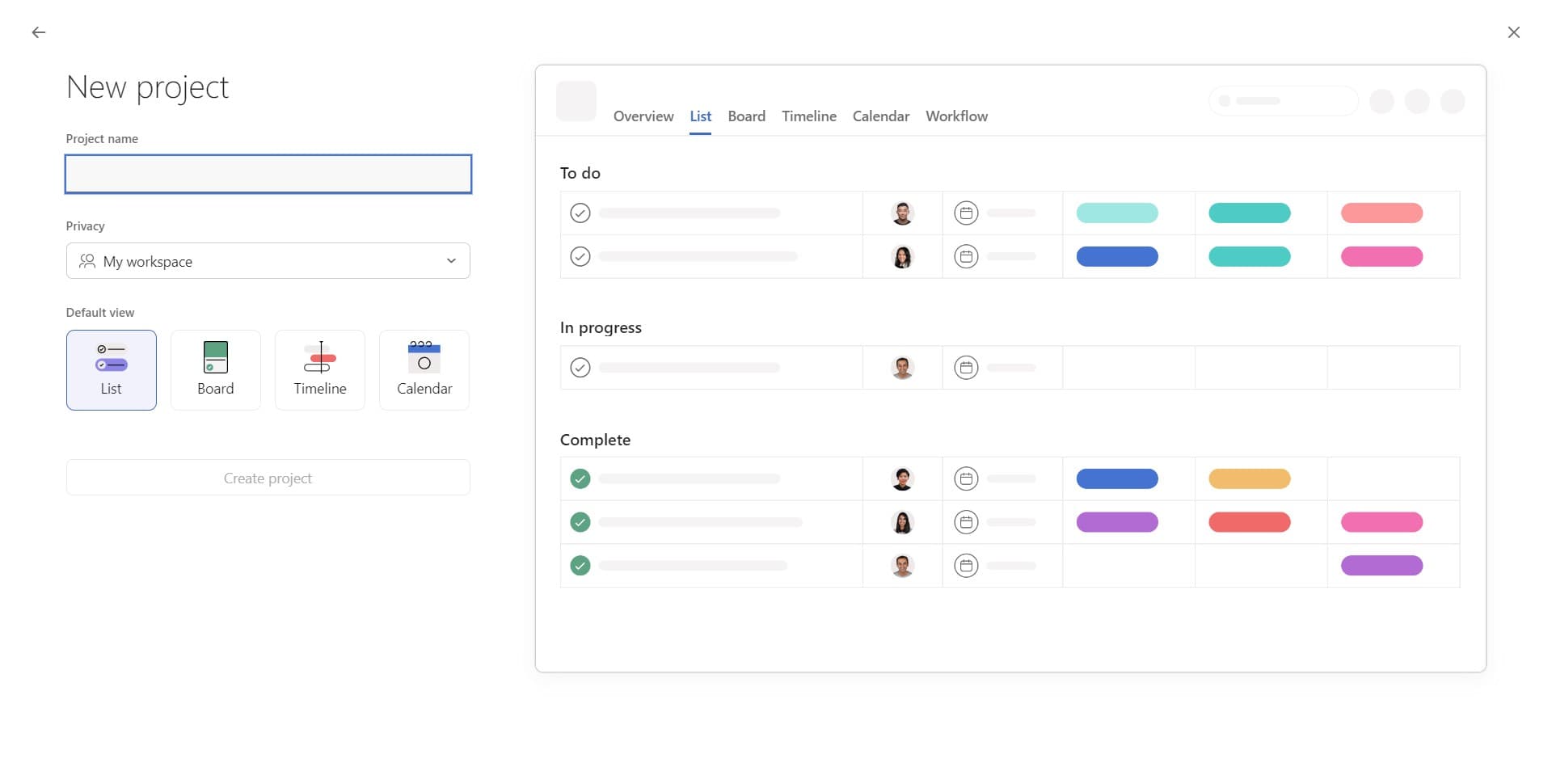
Configure project settings
Review and adjust any additional settings for your project, such as privacy, team access, or project status. These settings ensure your project is configured according to your team's needs.
- 5
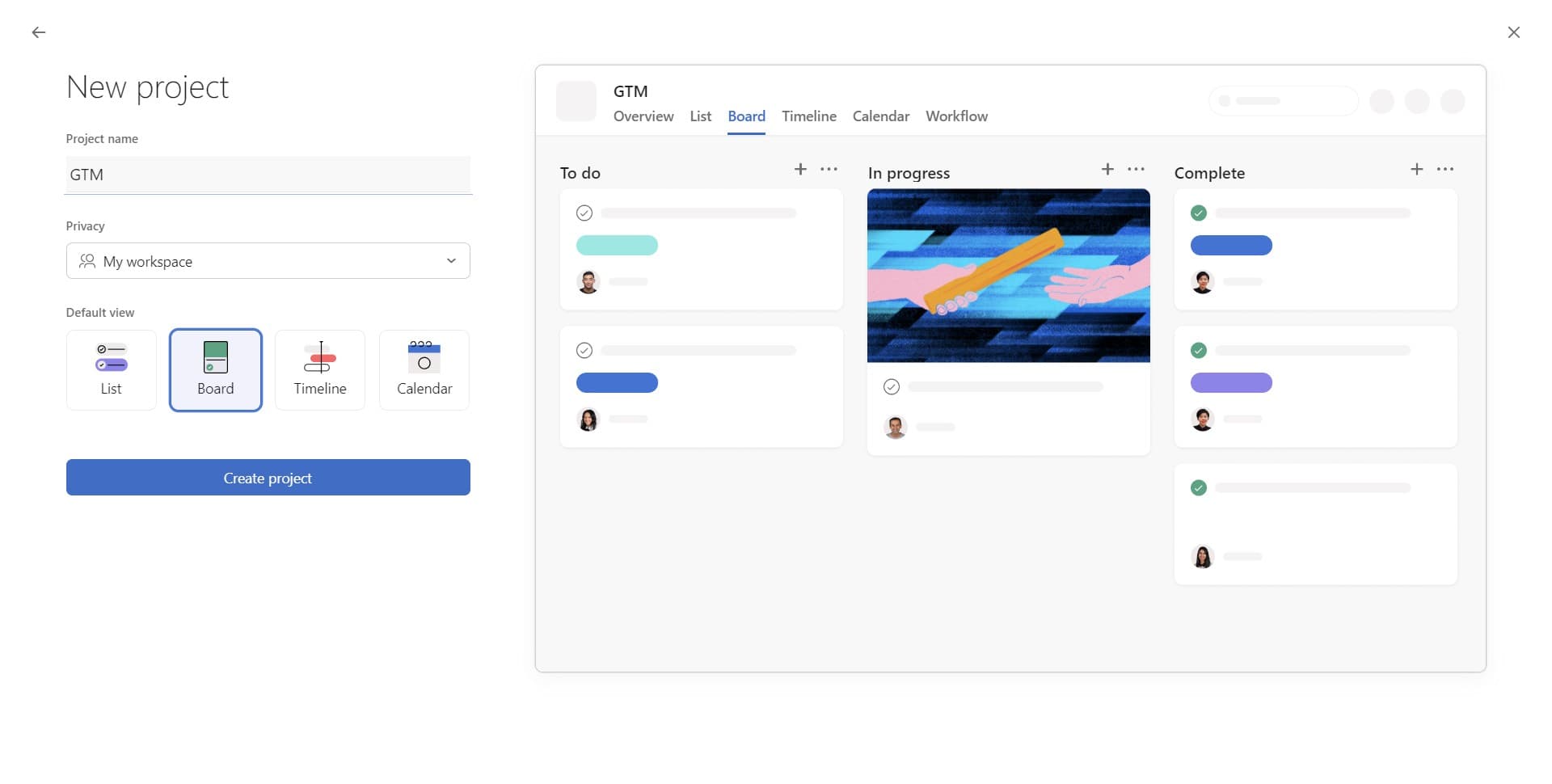
Select Board view
Choose Board as your default project view to organize tasks in a card-based, Kanban-style layout. The Board view is ideal for visualizing workflow stages and task progress.
- 6
Click Create project
Click the Create project button to finalize and launch your new project. Your project is now ready for your team to start adding tasks and collaborating.
- 7
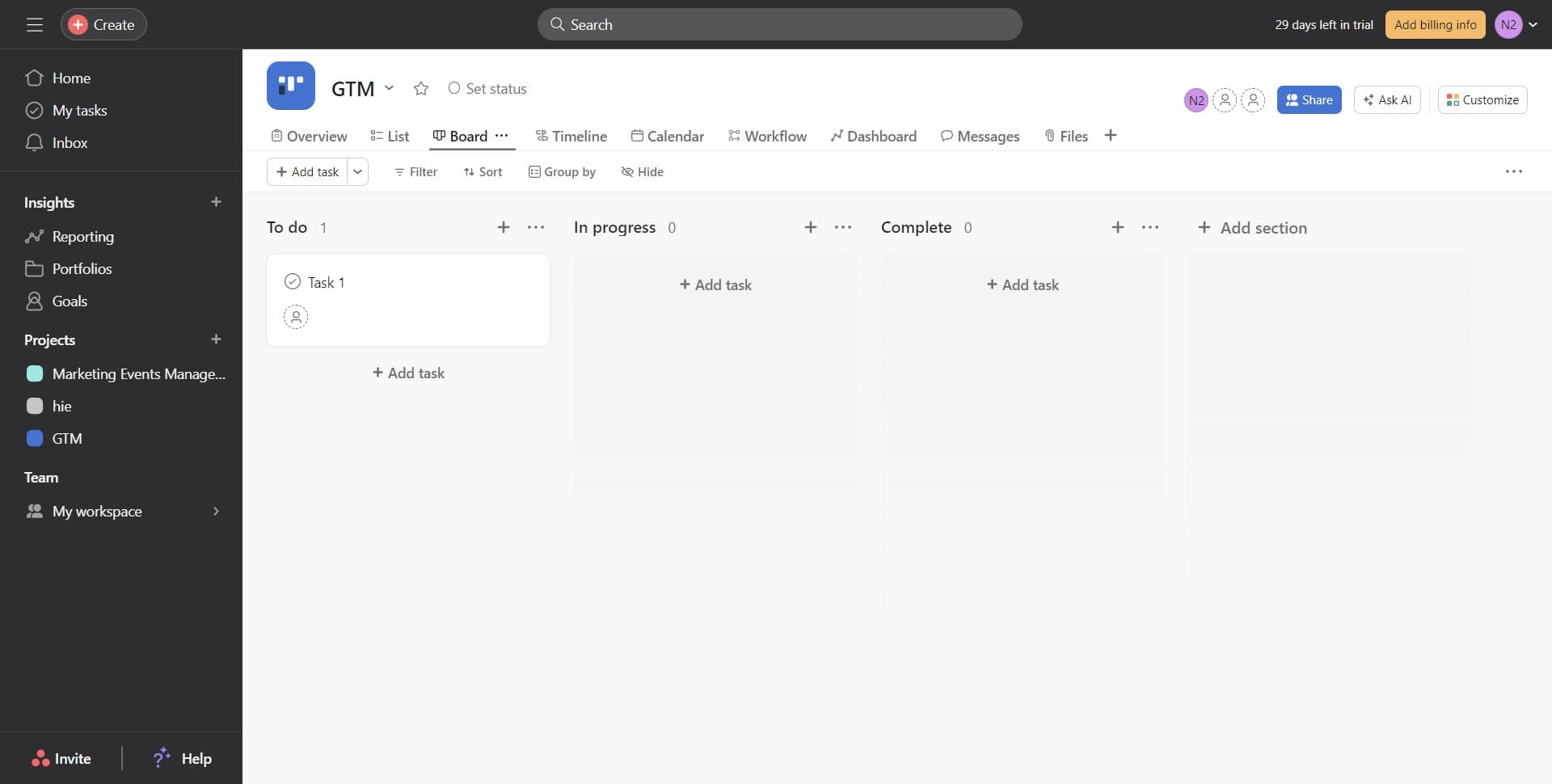
Confirm project creation
You'll see your newly created project appear in your workspace. You can now begin inviting team members and adding tasks to get started.
Frequently asked questions
Common questions about how to add a project in asana.
Yes, you can switch between different project views like Board, List, Timeline, and Calendar at any time after creation. Simply click the view option at the top of your project to change it based on your current needs.
After creating your project, click on the share or settings option to add team members. You can invite specific people or entire teams to collaborate on the project.
A team is a group of people in your organization, while a project is a specific initiative or work container within a team. Projects contain tasks and are used to organize work around specific goals or deadlines.
Yes, Asana offers project templates that you can use as a starting point. When creating a project, look for template options that match your workflow or industry to save setup time.
Yes, you can delete a project from the project settings menu if it's no longer needed. Be aware that deleting a project will remove all associated tasks and data, so ensure you have backups if necessary.