How to add a tag in Asana

Tags in Asana help you organize and categorize tasks across projects, making it easier to filter and track work by theme, priority, or team. This guide walks you through the process of creating and adding a new tag to your tasks in Asana.
Quick summary
In this tutorial, you'll learn how to navigate to your tasks, access the tag creation feature, and create a custom tag that you can apply to organize your work. By the end, you'll be able to quickly tag tasks to improve project visibility and task management.
Why this matters
Tags are essential for managing large workloads and improving task discoverability across multiple projects. Using tags consistently helps teams collaborate more effectively and ensures critical work is easily identifiable and filterable.
Step-by-step guide
- 1
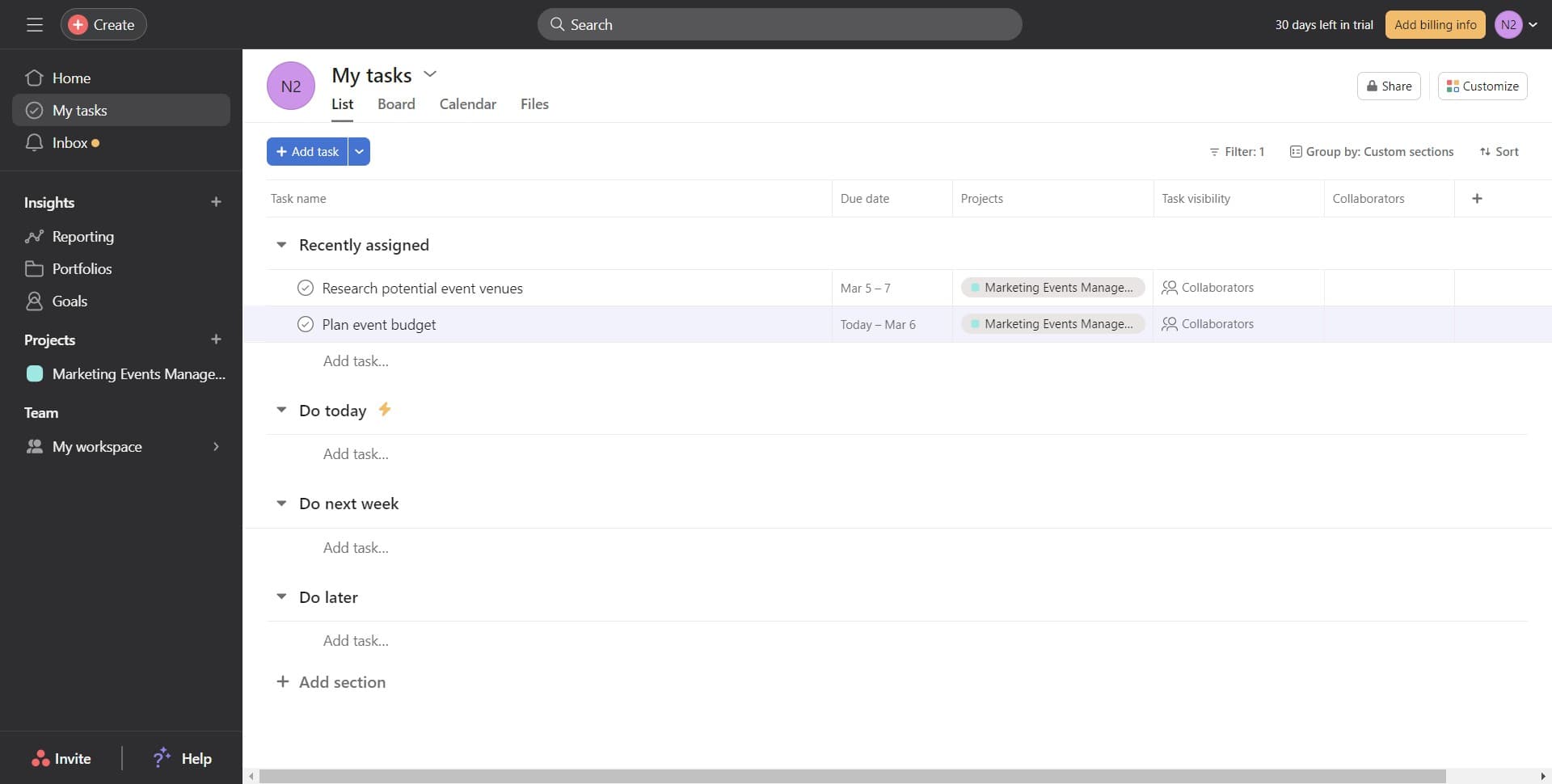
Open your tasks view
Click on 'My tasks' to access your task list. This is your centralized hub where all your assigned and created tasks are displayed.
- 2
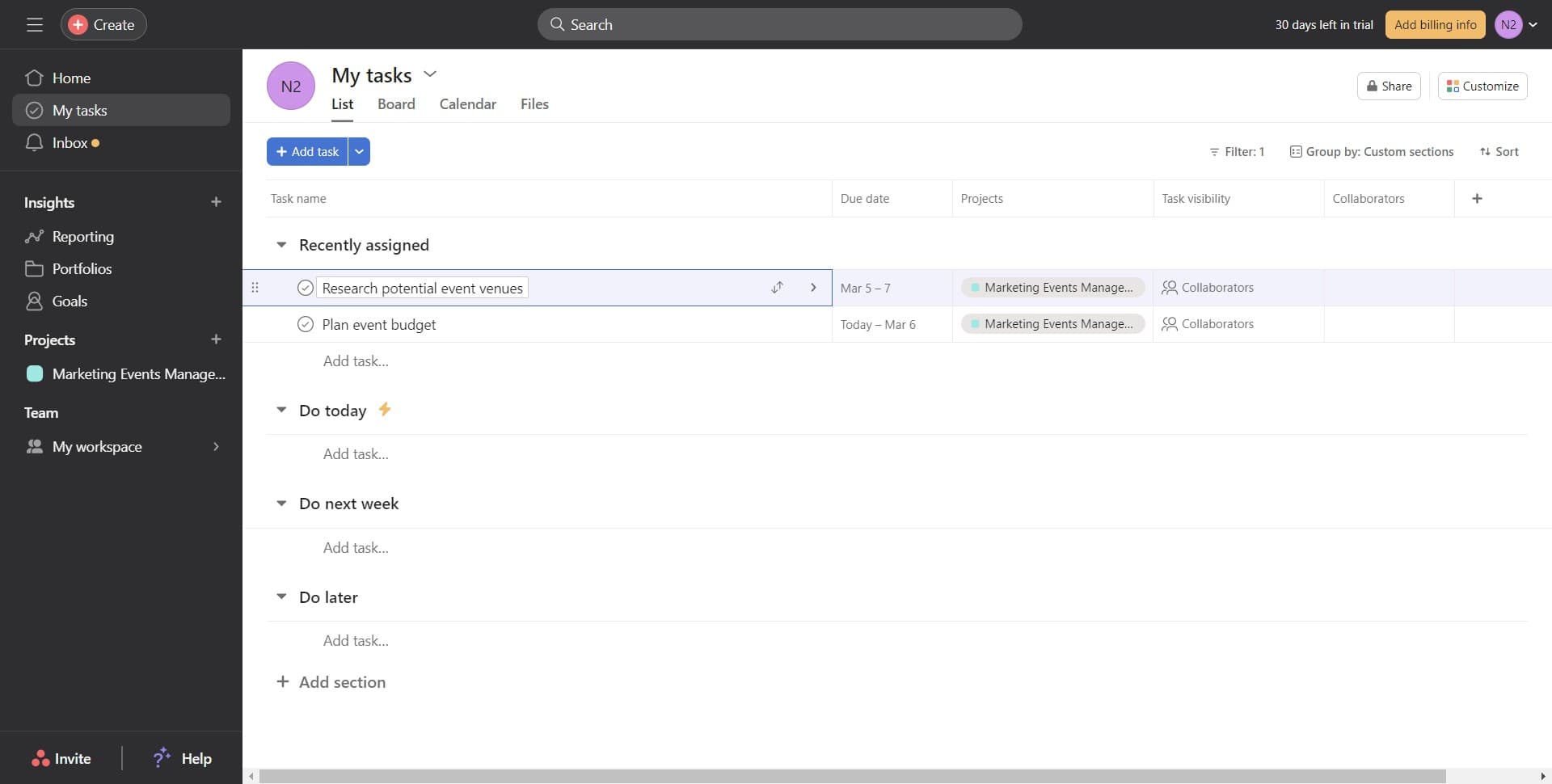
Select your target task
Click on the specific task you want to add a tag to. The task details panel will open, giving you access to all task properties including tags.
- 3
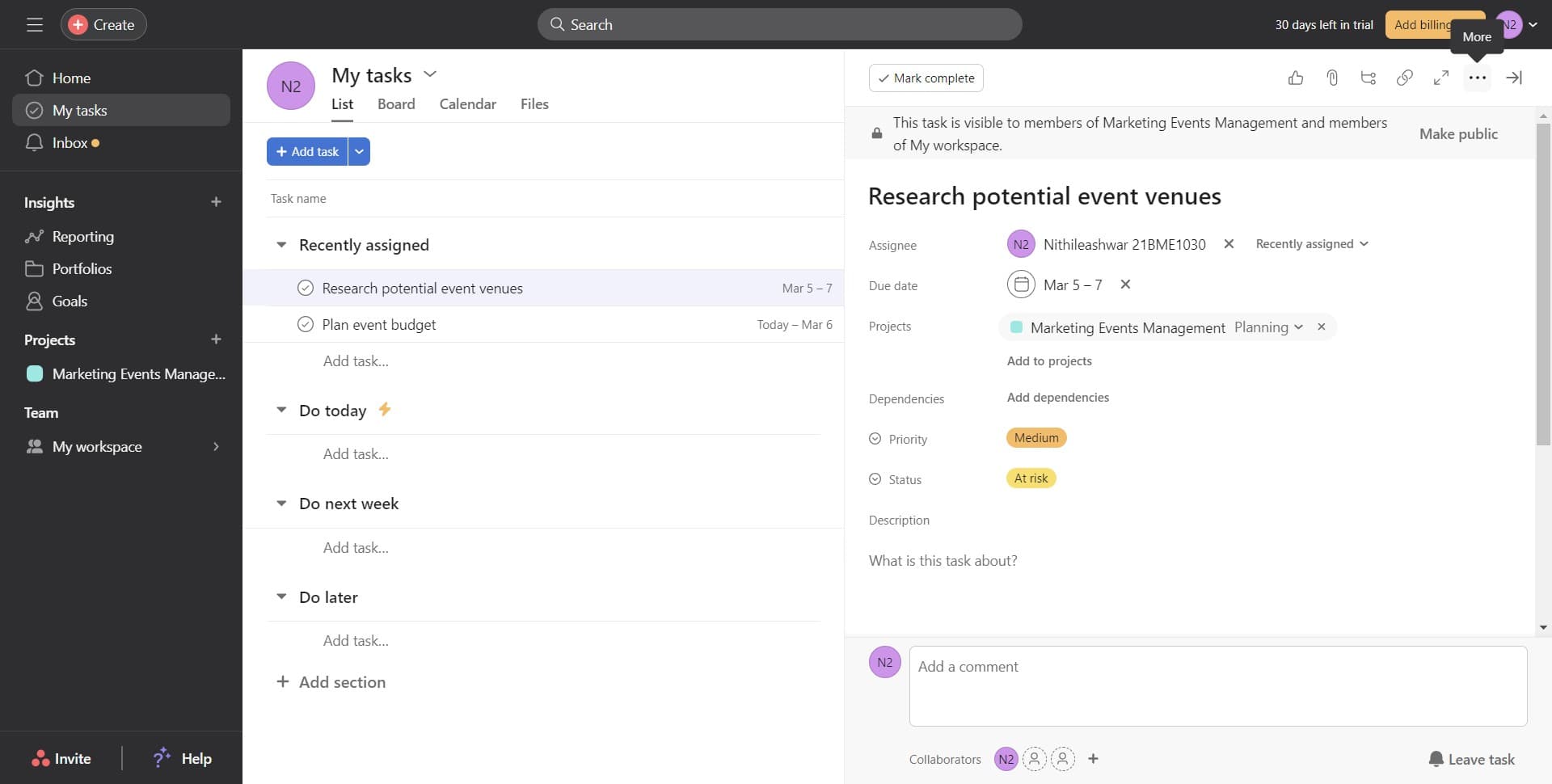
Navigate to the task detail view
Ensure you have the full task detail view open by clicking through to the complete task card. This view displays all available options for customizing the task.
- 4
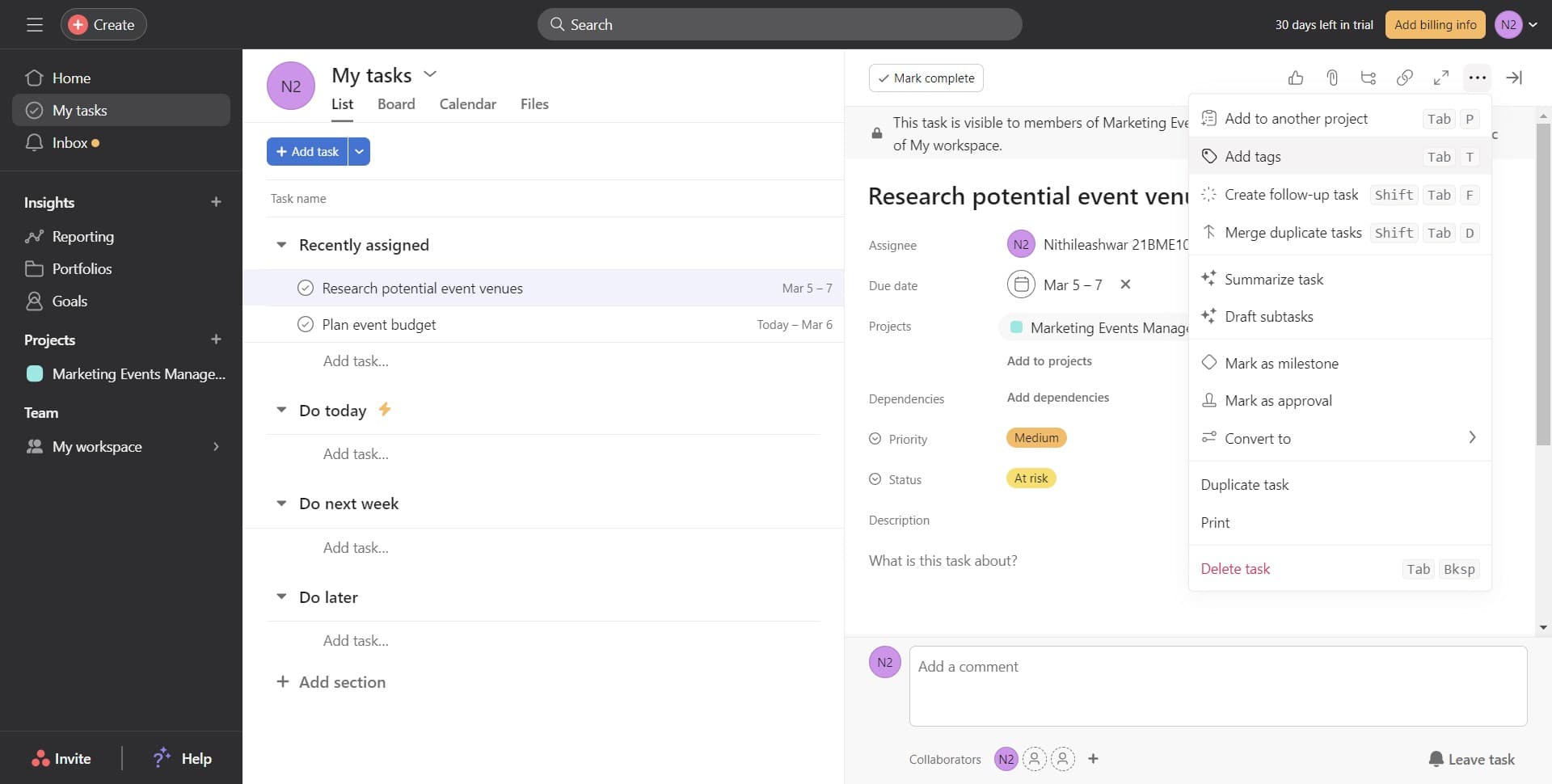
Access the tag input field
Click on 'Add tags' in the task details panel. This will activate the tag input field where you can create new tags or select existing ones.
- 5
Create your new tag
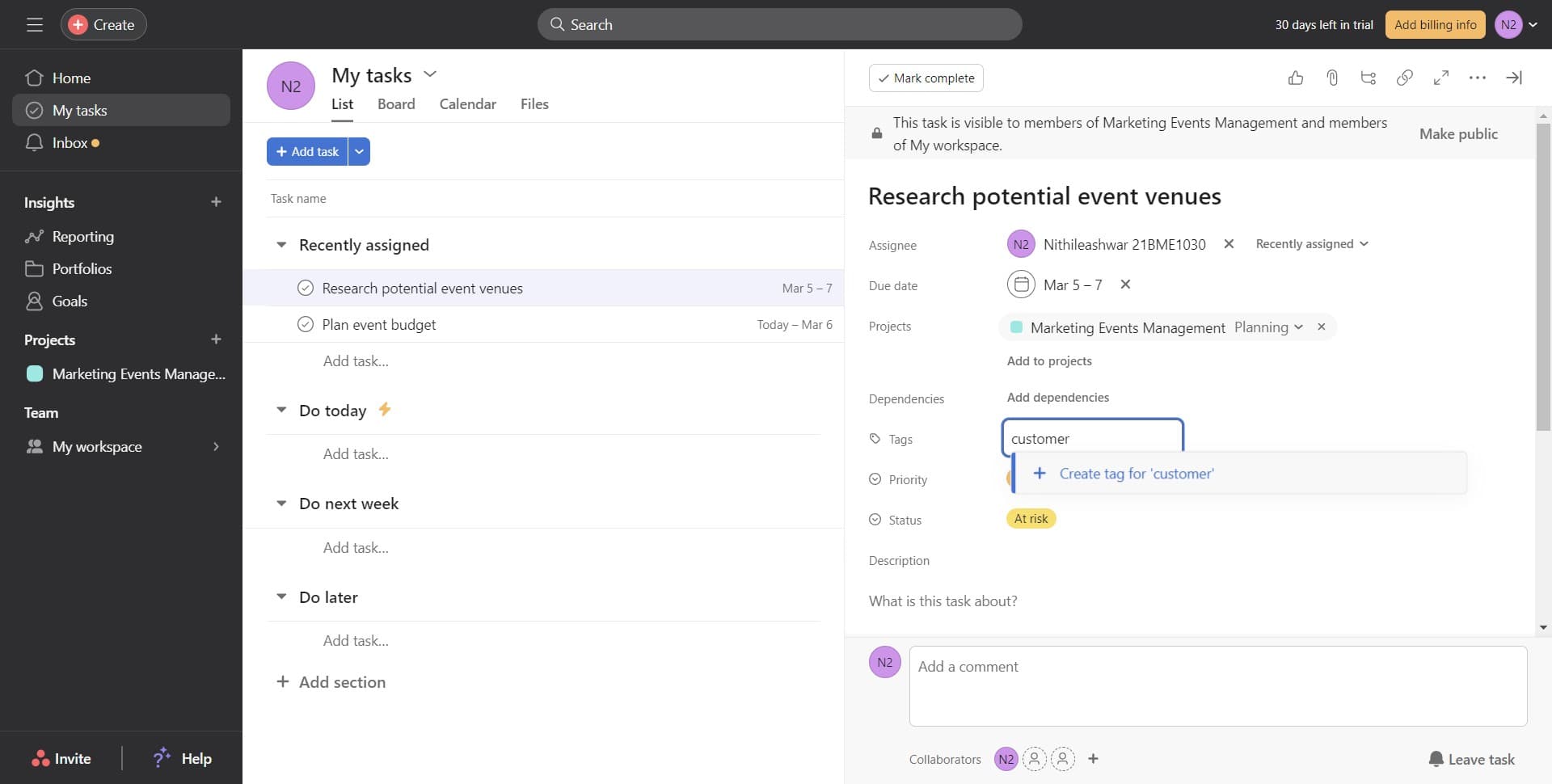
Type your tag name and click 'Create tag for [your tag name]' to generate a new custom tag. This tag will be created and immediately applied to your current task.
- 6
Confirm tag application
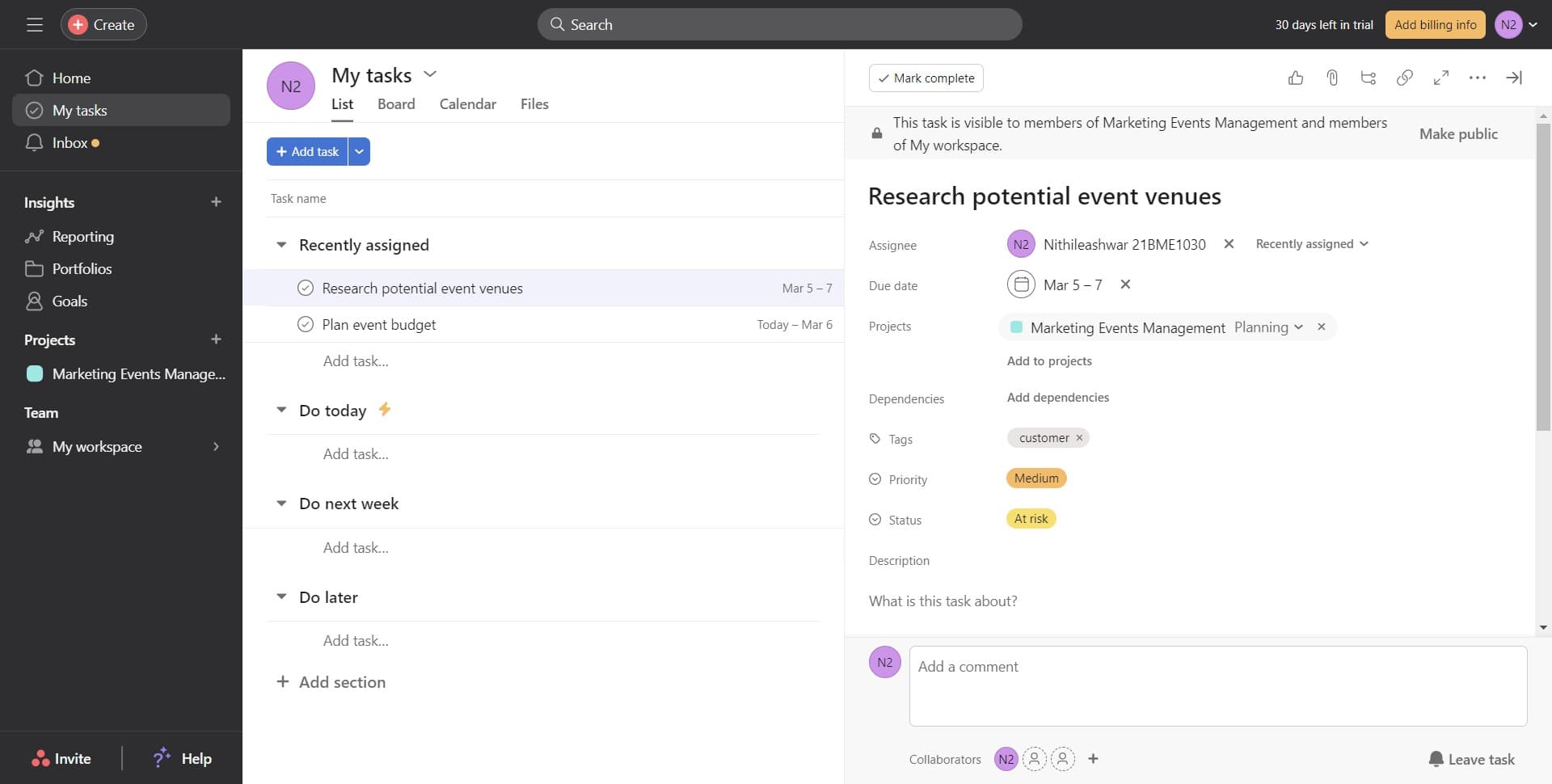
The tag will appear in the task's tag field, indicating it has been successfully added. You can now use this tag on other tasks to maintain consistent categorization.
Frequently asked questions
Common questions about how to add a tag in asana.
Yes, once you create a tag, it becomes available in your Asana workspace for use on any task. This helps maintain consistent tagging and makes filtering across tasks more efficient.
Use clear, descriptive names that reflect the tag's purpose—such as 'urgent', 'customer-facing', or 'design-review'. Avoid overly long names and maintain consistency across your team.
Tags are workspace-level, meaning all team members in your Asana workspace can see and use the same tags. This promotes consistency and collaboration across your team.
Open the task's tag field and hover over or click the tag you want to remove. Select the delete or remove option that appears next to the tag name.
Yes, Asana allows you to filter tasks, sections, and project views by tag. This helps you quickly isolate work by category and track progress on grouped tasks.