How to add dashboard in Asana

Dashboards in Asana provide a centralized view of your project data, allowing you to visualize task progress, workload distribution, and key metrics at a glance. This guide walks you through creating a new dashboard and adding your first visualization to track project performance effectively.
Quick summary
In this tutorial, you'll learn how to create a new dashboard in Asana and configure it with visualizations like donut charts. By the end, you'll have a functional dashboard displaying metrics such as total tasks by category or assignee.
Why this matters
Dashboards are essential for project managers and team leads who need quick visibility into project health and team performance. Rather than diving into individual tasks, a well-configured dashboard surfaces the insights that matter most, enabling faster decision-making and improved project oversight.
Step-by-step guide
- 1
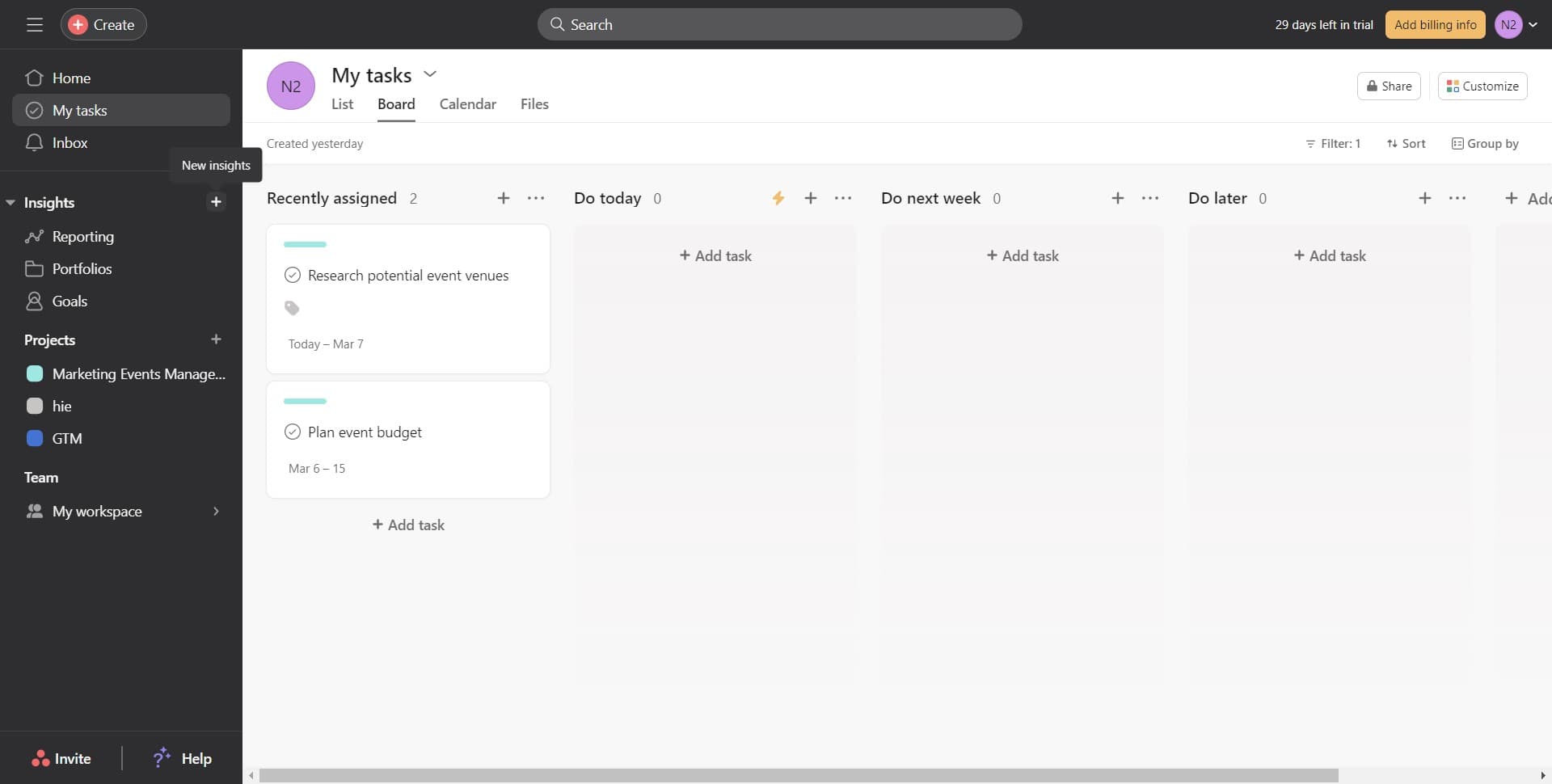
Navigate to the dashboard creation area
Start by locating and clicking the entry point for creating a new dashboard in your Asana workspace. This typically appears in your project or team navigation menu.
- 2
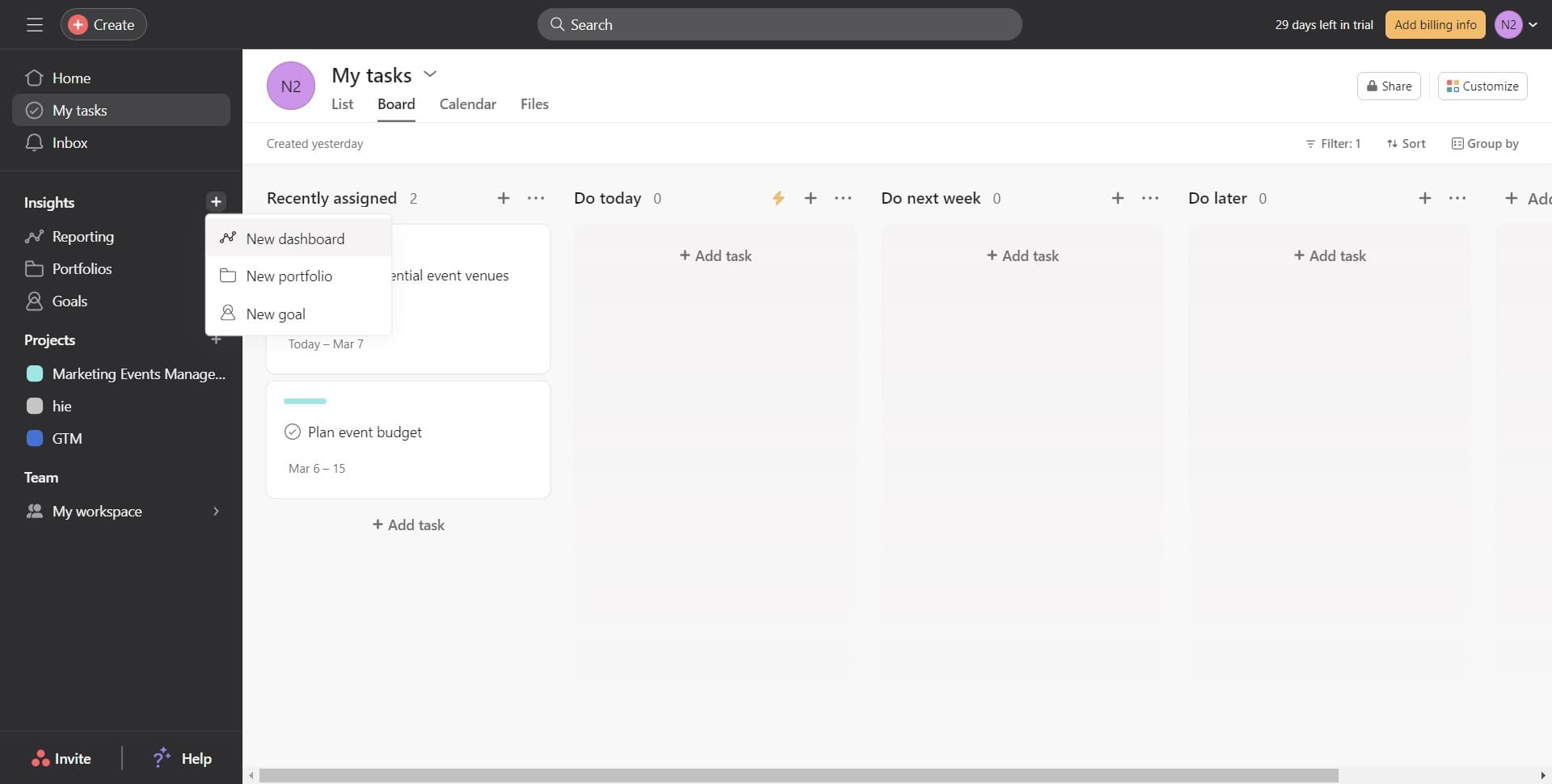
Click on New dashboard
Select the 'New dashboard' option from the available menu. This action opens the dashboard creation interface where you can begin configuring your visualization.
- 3
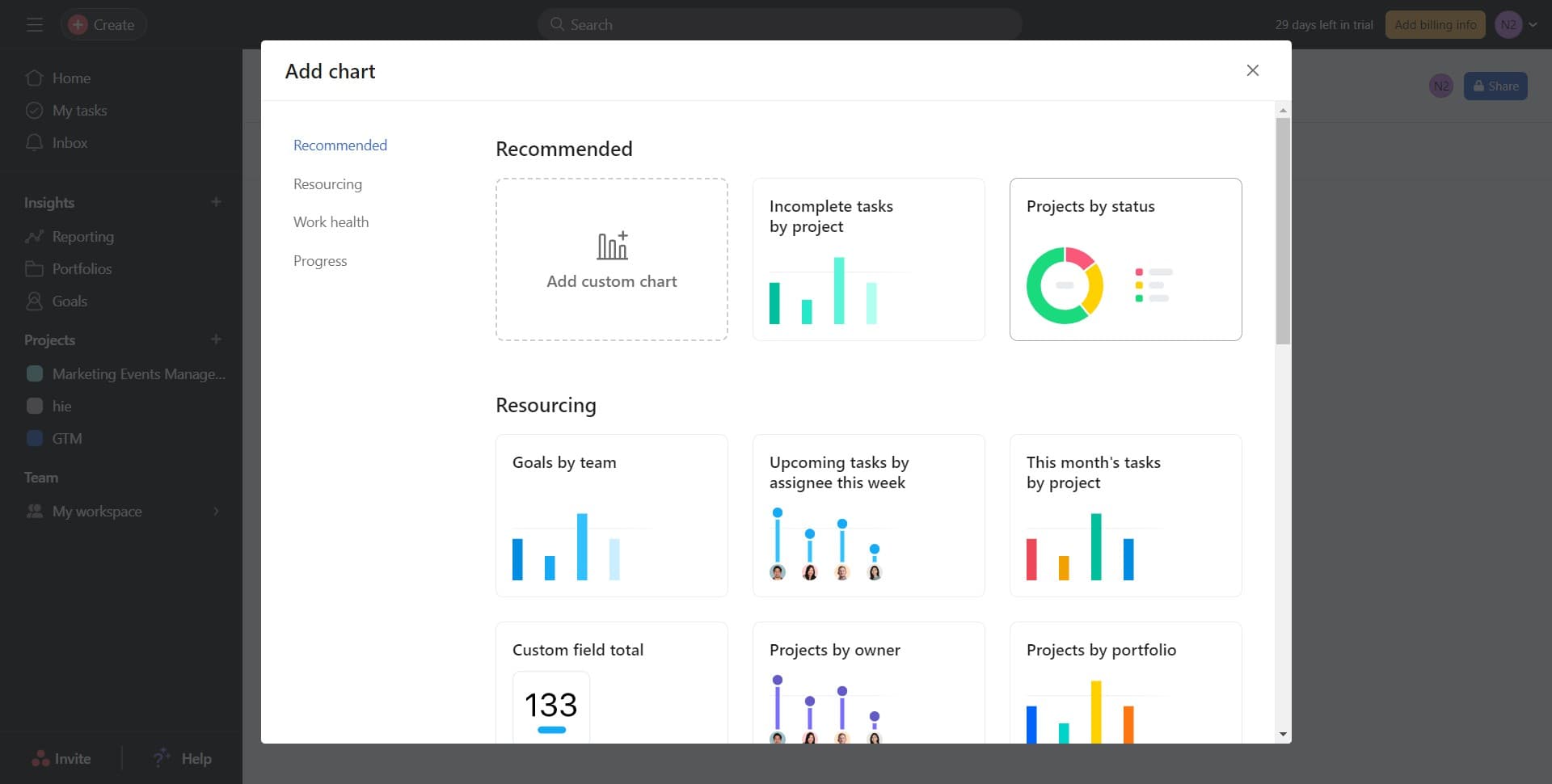
Click on Image
Choose the 'Image' option to select the type of visualization you want to add. This allows you to insert charts and graphs into your dashboard.
- 4
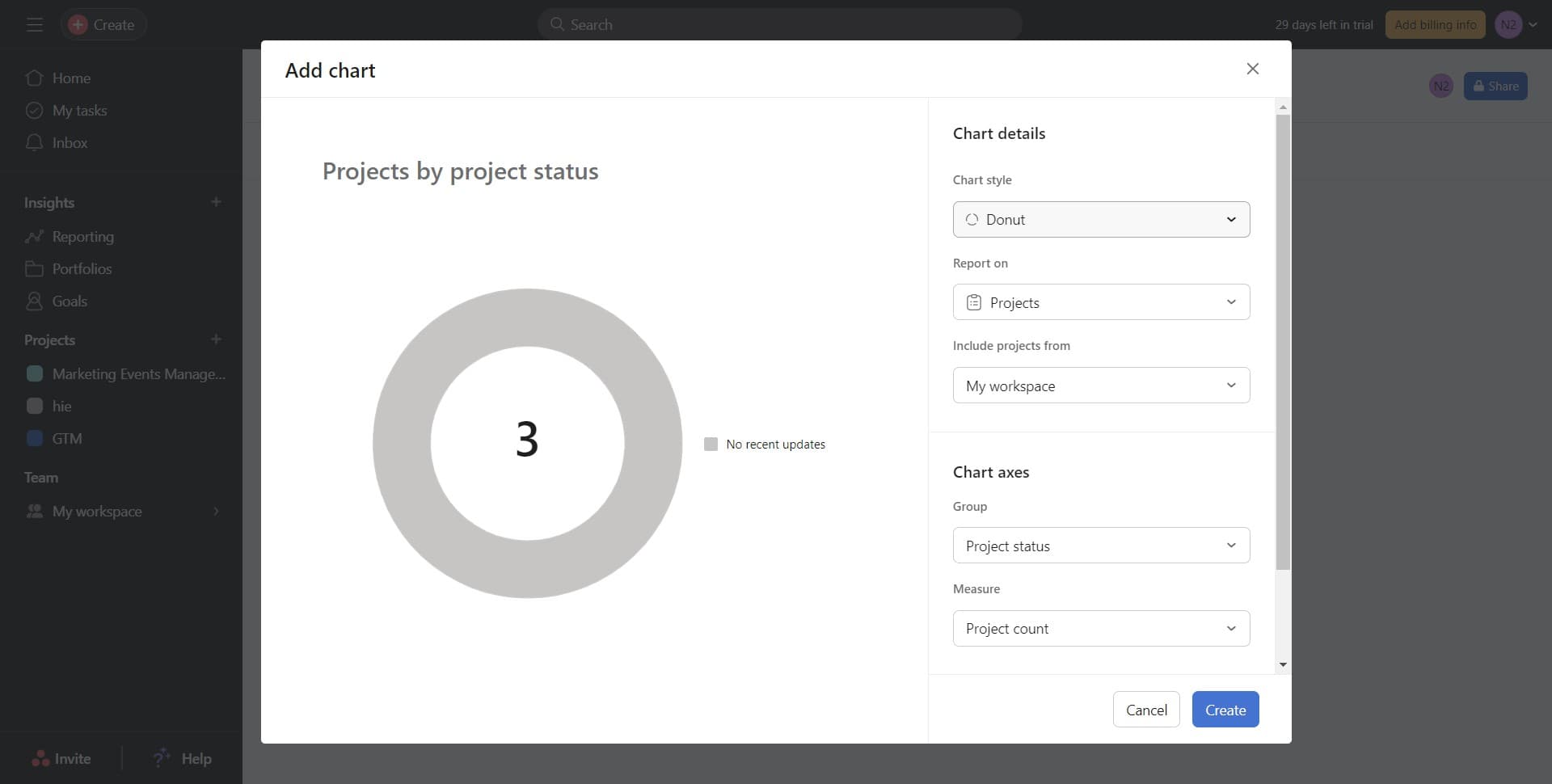
Click on Donut
Select the 'Donut' chart type from the available visualization options. Donut charts are effective for displaying proportional data and showing how different categories contribute to a whole.
- 5
Click on Create
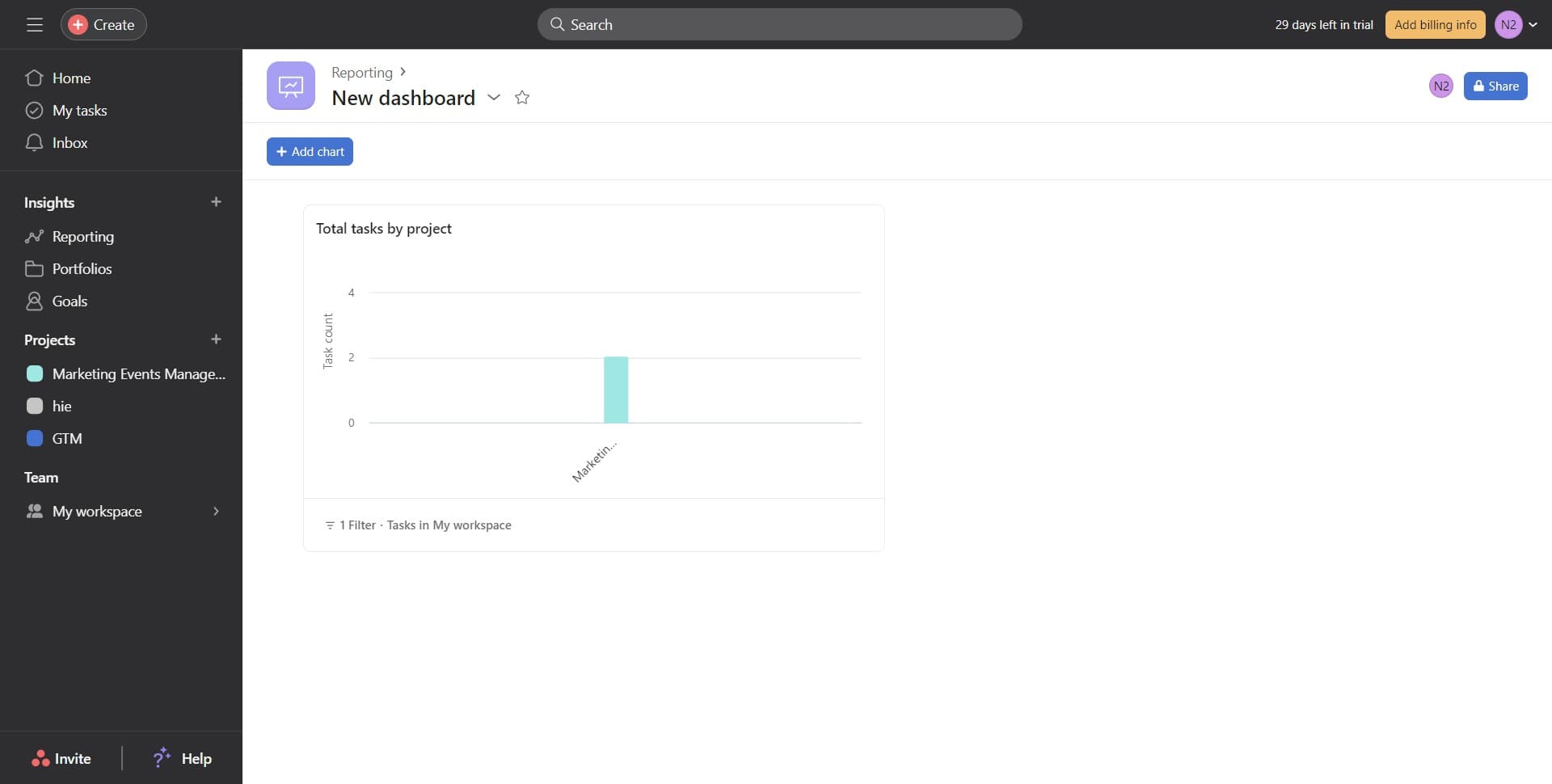
Confirm your chart selection by clicking 'Create'. Asana will now add the donut chart to your dashboard.
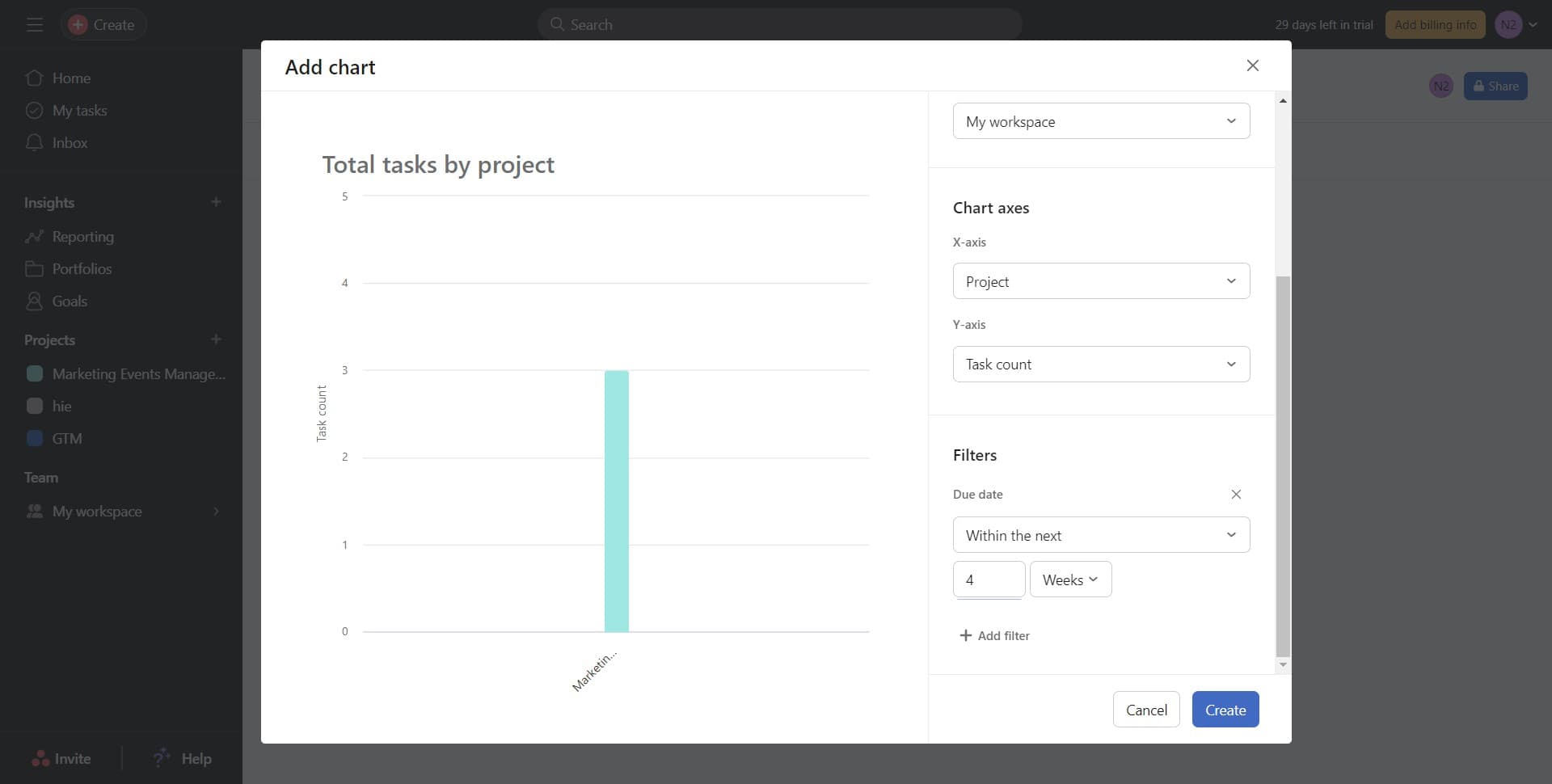
- 6
Configure the chart metric
Click on 'Total tasks by...' to specify what data the donut chart should display. This step allows you to select the grouping dimension, such as assignee, status, or custom field, to visualize task distribution.
Frequently asked questions
Common questions about how to add dashboard in asana.
Yes, Asana dashboards support multiple visualizations. You can repeat the process to add additional charts, allowing you to create a comprehensive view of different project metrics on one dashboard.
Donut charts in Asana can display task counts grouped by various dimensions, including assignee, project status, priority level, or custom fields. This makes them ideal for showing how tasks are distributed across teams or categories.
Yes, dashboards are fully customizable. You can modify existing charts, change their metrics, resize them, or add new visualizations at any time to match your evolving project needs.
Dashboard visibility depends on your sharing settings. By default, dashboards are visible to team members with access to your project or team. You can adjust permissions to share with specific users or keep it private.
Dashboard data in Asana updates in real-time as tasks are created, completed, or modified. This ensures that your visualizations always reflect the current state of your projects.