How to change fiscal year in Asana

Asana's fiscal year settings determine how your organization's time periods are structured for reporting and planning purposes. Changing the fiscal year ensures your project timelines, roadmaps, and financial reporting align with your company's actual fiscal calendar. This guide walks you through the steps to update your fiscal year settings in Asana's admin console.
Quick summary
In this tutorial, you'll learn how to navigate to Asana's admin settings and change your fiscal year configuration. You'll access the Admin Console, locate the Time Periods settings, and save your new fiscal year preferences to take effect across your workspace.
Why this matters
Setting the correct fiscal year is critical for accurate project forecasting, budget tracking, and quarterly planning in Asana. When your fiscal year aligns with your organization's actual financial calendar, reporting becomes more reliable and stakeholders see data that matches their business cycle. This prevents confusion and ensures consistent planning across teams.
Step-by-step guide
- 1
Access admin settings
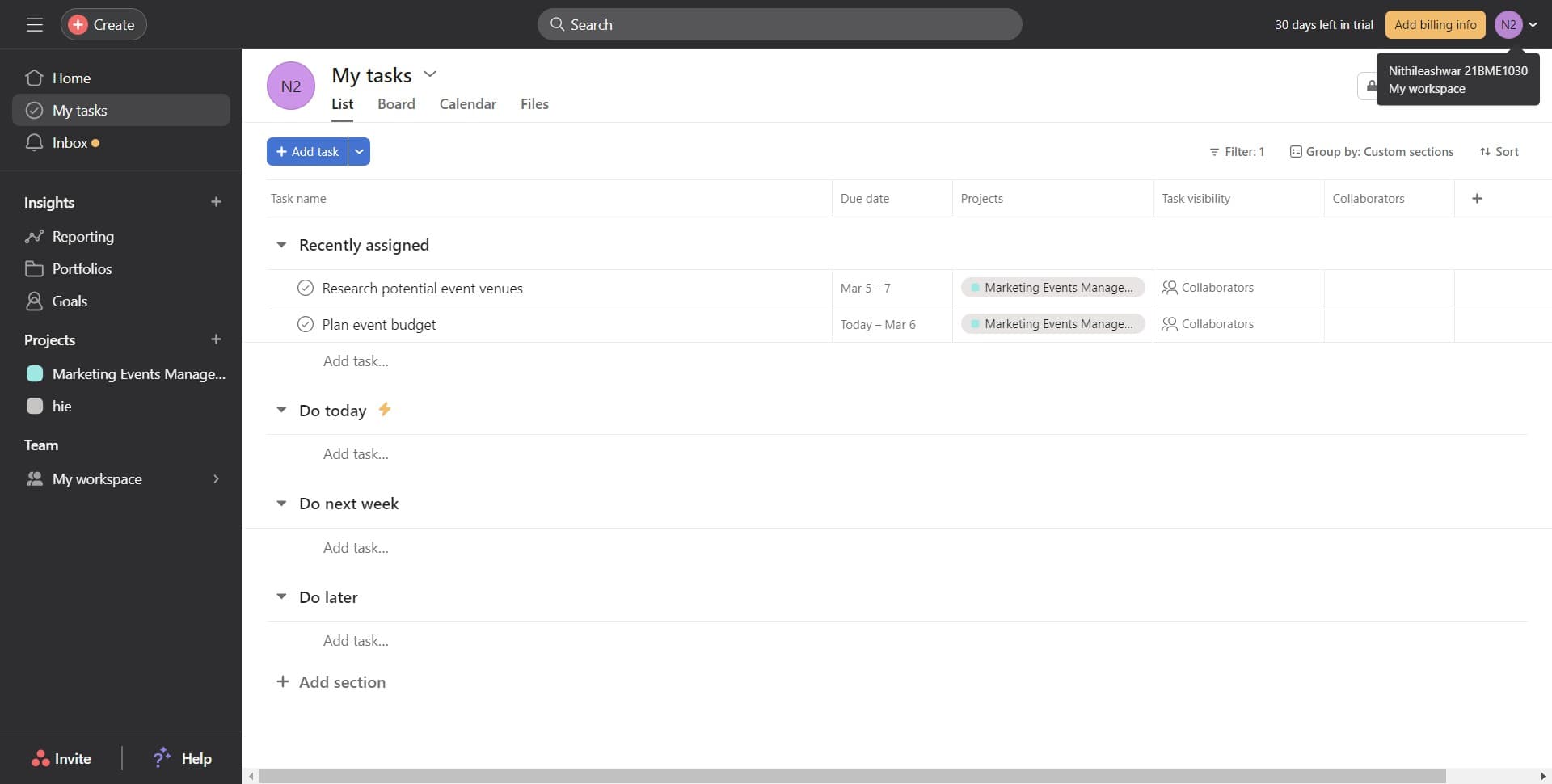
Click the designated area to begin accessing your workspace administration options. This action takes you to the main admin interface where you can manage workspace-level settings.
- 2
Open Admin console
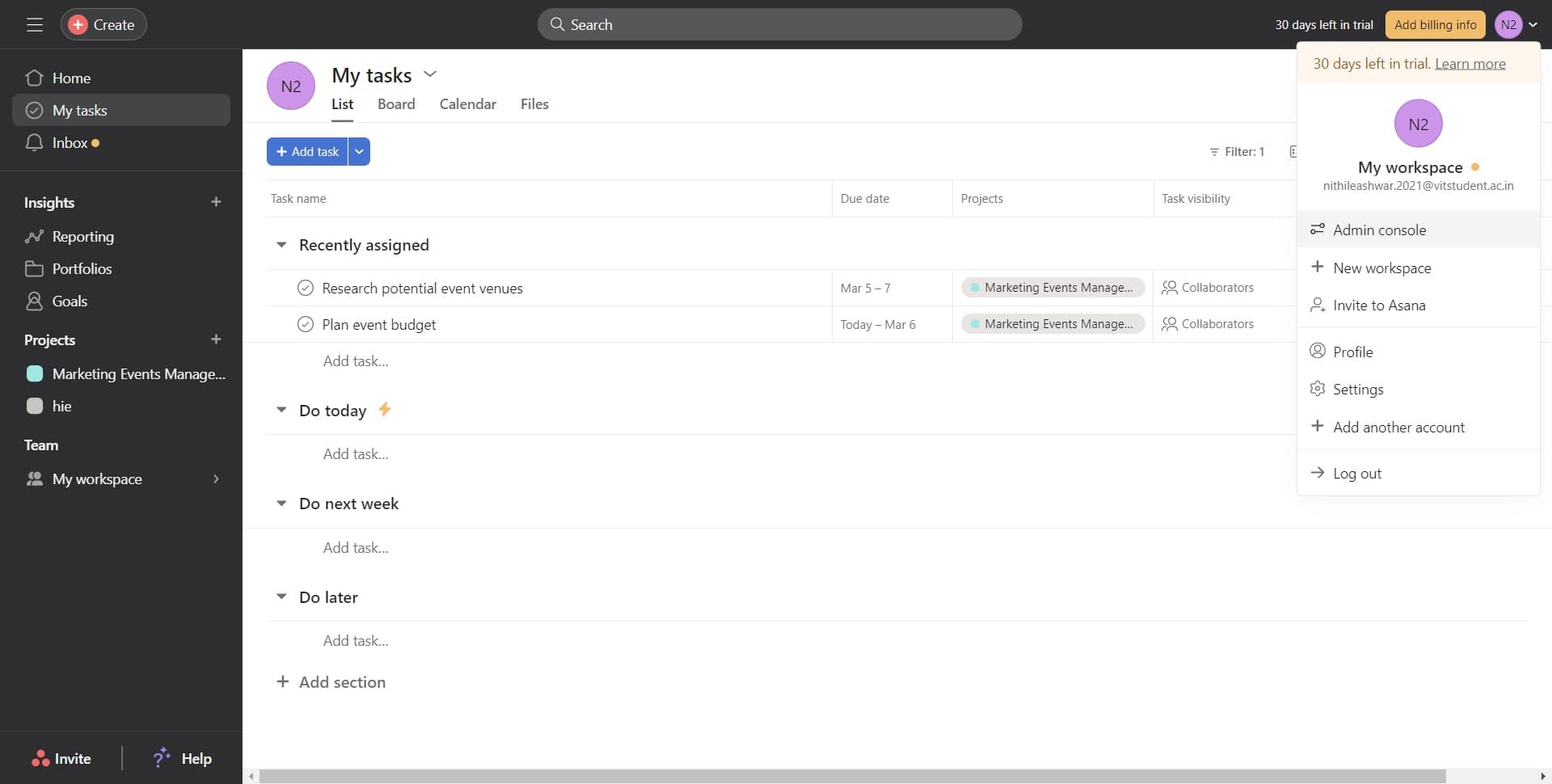
Click on 'Admin console' to enter the dedicated administration area for your Asana workspace. From here, you can manage all organizational settings and configurations.
- 3
Navigate to Settings
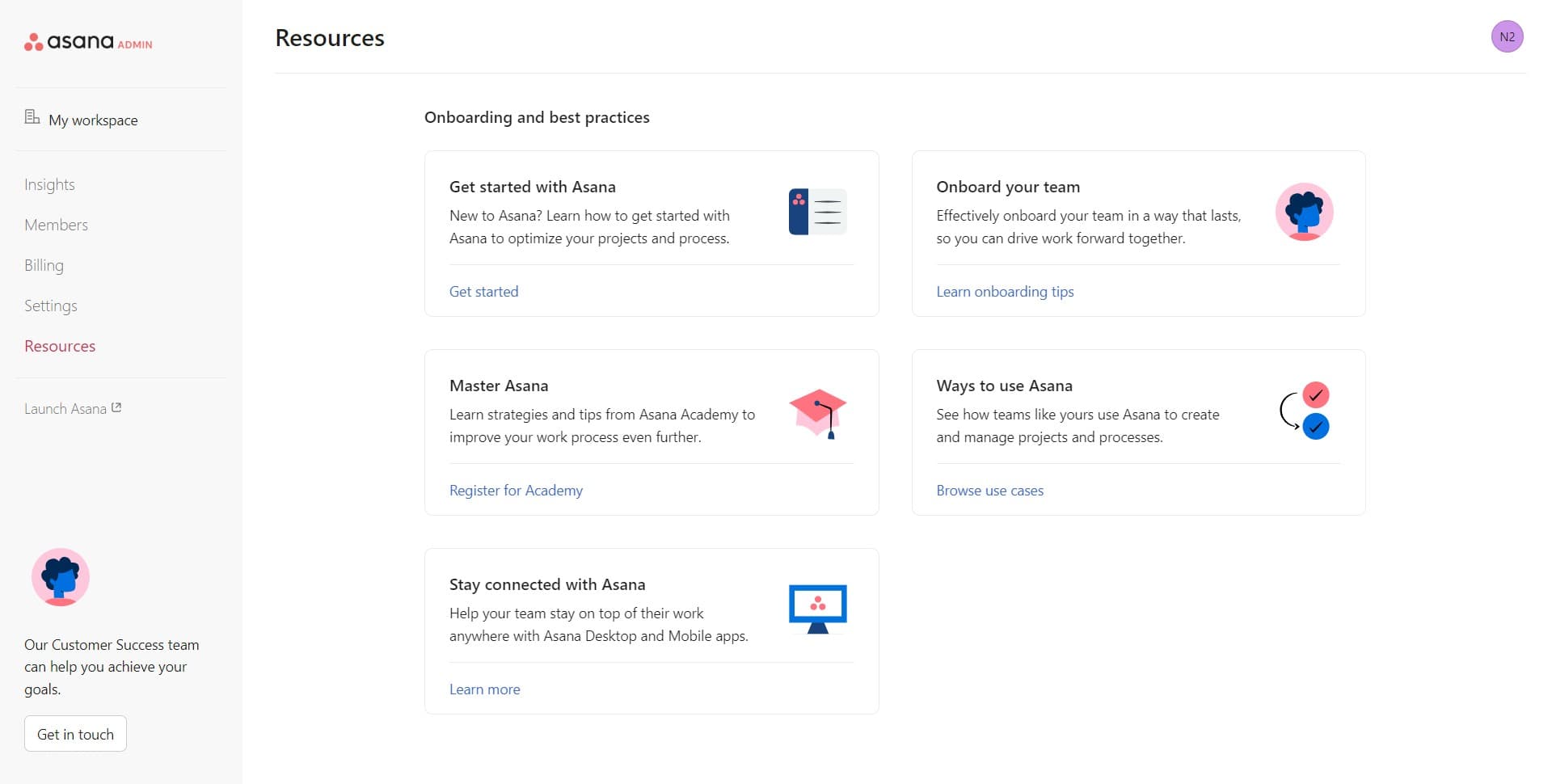
Click on 'Settings' to access the main settings menu where various workspace configurations are available. This section contains all the core preferences for your organization.
- 4
Select Time periods
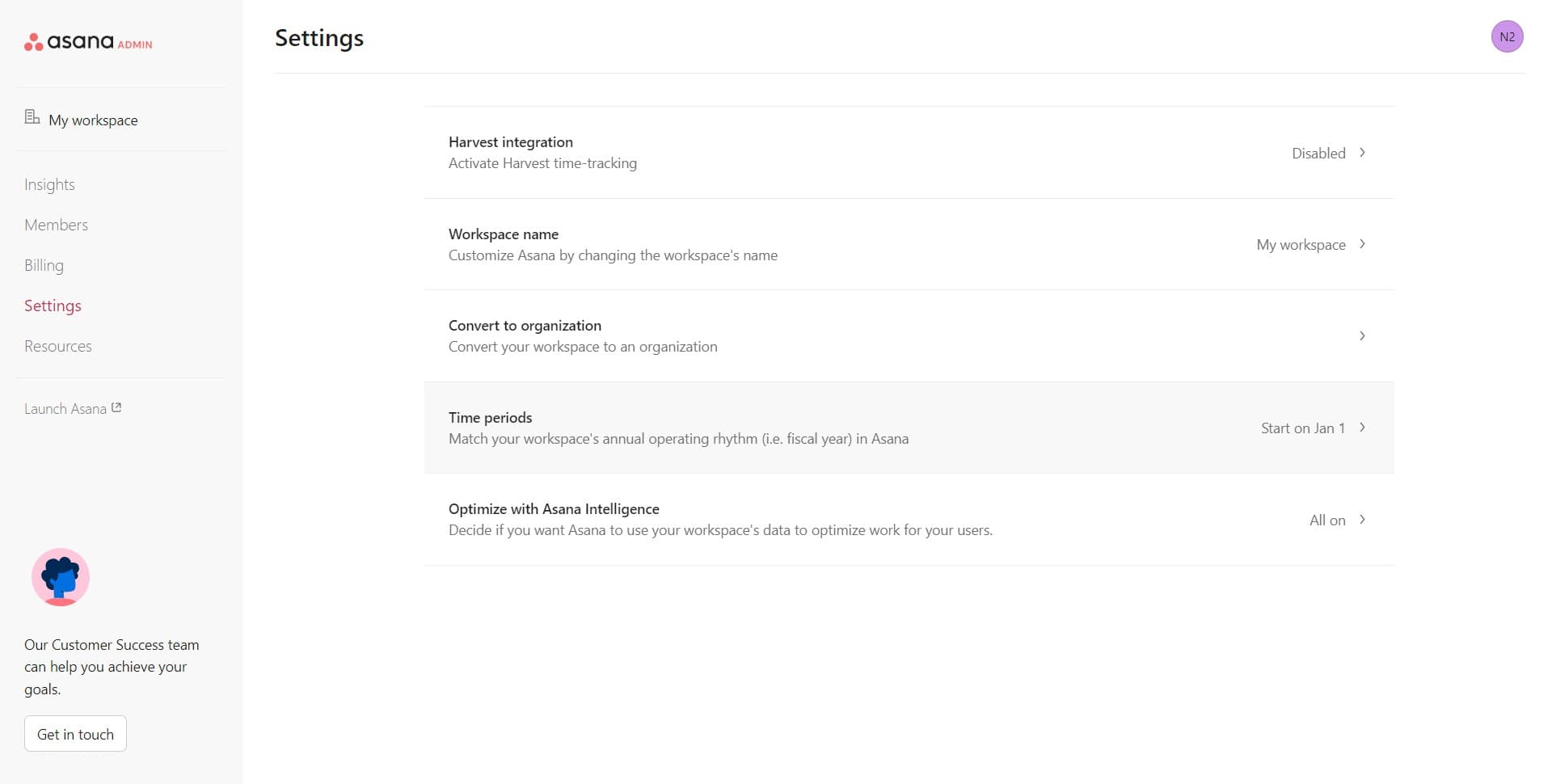
Click on 'Time periods' to open the fiscal year configuration panel. You'll see options related to how your workspace defines quarters, years, and other time-based reporting periods.
- 5
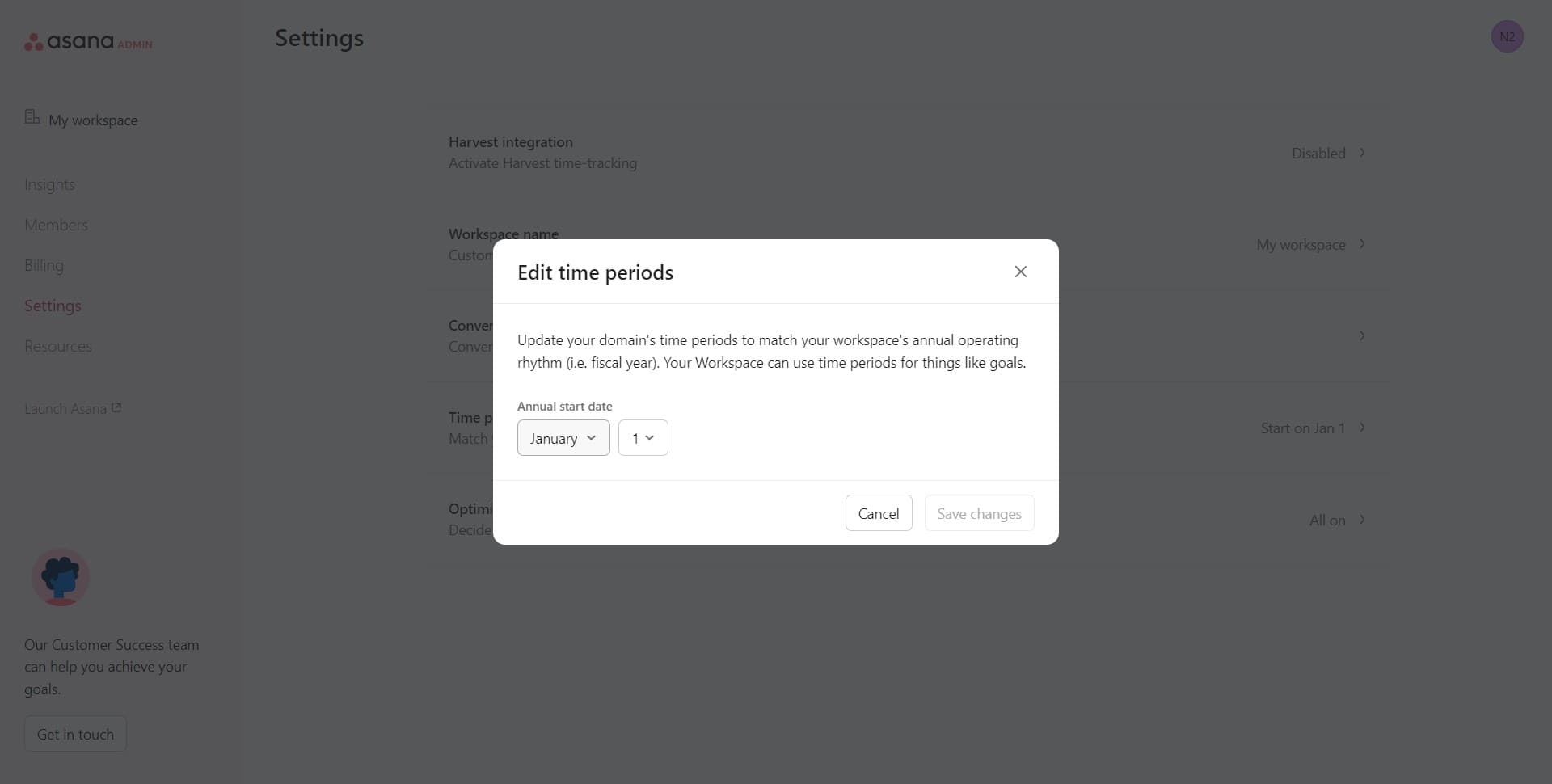
Configure fiscal year settings
Click the designated area to select or adjust your fiscal year dates and structure. This is where you specify when your fiscal year begins and ends to match your organization's financial calendar.
- 6
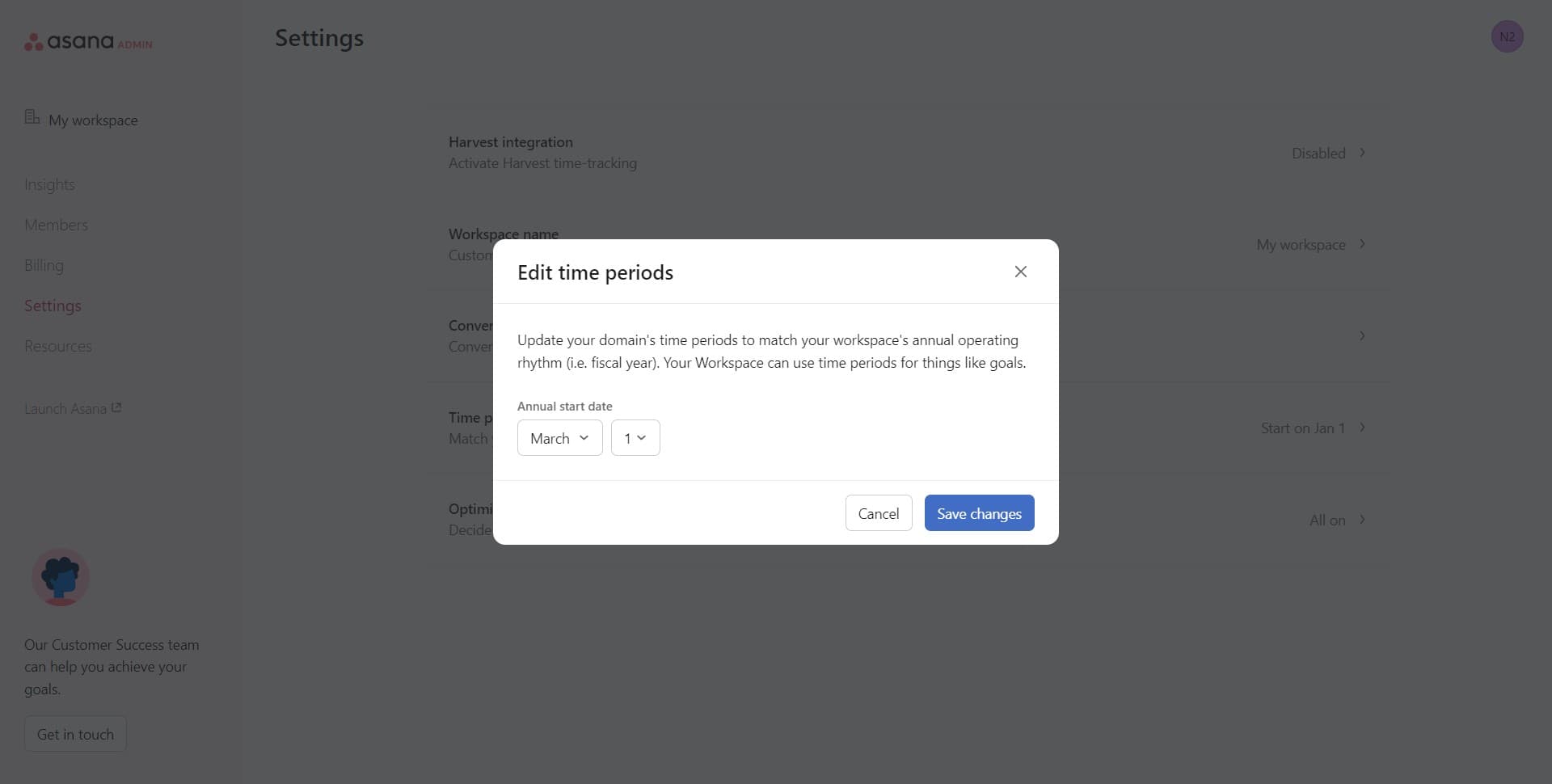
Save your changes
Click on 'Save changes' to apply your new fiscal year settings to your entire workspace. Your updated fiscal year configuration is now active for all users and reports.
Frequently asked questions
Common questions about how to change fiscal year in asana.
Changing the fiscal year affects how future reports and forecasts are organized, but it doesn't retroactively alter past project data. Existing projects remain intact, but new reporting periods will be calculated based on your updated fiscal year. Timeline views and quarterly planning tools will reflect the new fiscal year structure going forward.
No, the fiscal year setting in Asana is organization-wide and applies uniformly across all teams and projects in your workspace. If multiple business units operate on different fiscal calendars, you'll need to choose the primary fiscal year for your organization or use custom time period workarounds within individual portfolios.
You can change your fiscal year at any time, though it's typically less disruptive to make this change at the beginning of your new fiscal cycle. If you change it mid-year, ensure your stakeholders understand how the change affects current reporting and forecasts to avoid confusion about quarterly goals.
Yes, only workspace administrators can access the Admin console and modify fiscal year settings. If you don't have admin access, contact your workspace owner or administrator to make this change on your behalf.
Asana supports multiple fiscal year configurations, including the standard January-December calendar and custom start/end dates that align with common fiscal calendars like April-March or July-June. The exact options available may depend on your Asana plan, so check your admin settings to see which configurations your organization can use.