How to create a portfolio in Asana

Portfolios in Asana provide a high-level view of multiple projects, allowing teams to track progress and dependencies across their entire work landscape. This guide walks you through creating a portfolio from scratch, setting up projects within it, and customizing fields to match your team's needs.
Quick summary
In this tutorial, you'll learn how to create a portfolio in Asana, add projects to it, and configure custom fields for better visibility and tracking. By the end, you'll have a functional portfolio dashboard that consolidates your team's project data in one centralized location.
Why this matters
Portfolios are essential for managers and team leads who need to monitor multiple projects simultaneously without diving into each one individually. They enable stakeholders to identify bottlenecks, track progress toward key milestones, and make data-driven decisions about resource allocation and project priorities.
Step-by-step guide
- 1
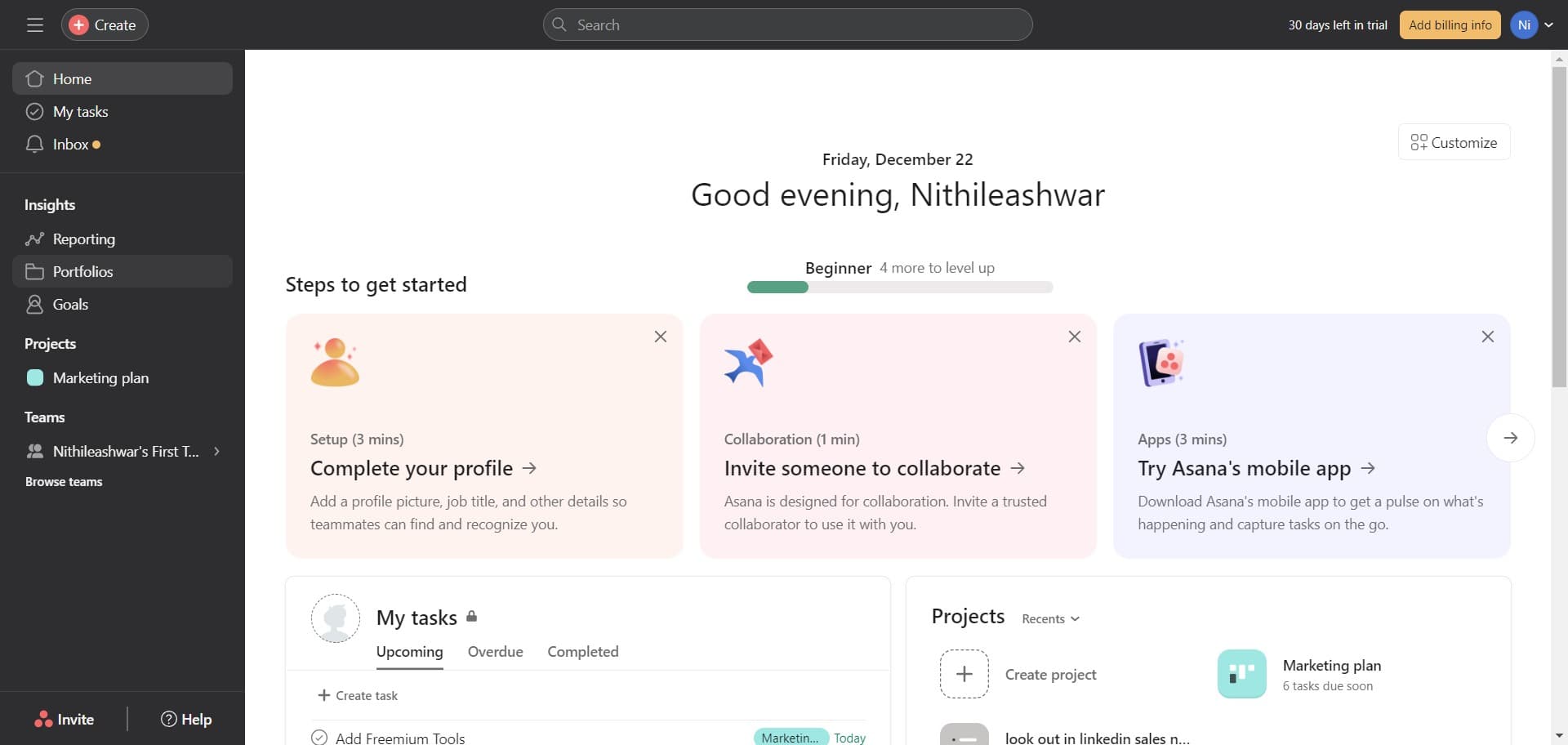
Navigate to Portfolios
Click on 'Portfolios' in the main navigation menu to access the portfolios section of Asana. This is where all your portfolios will be listed and managed.
- 2
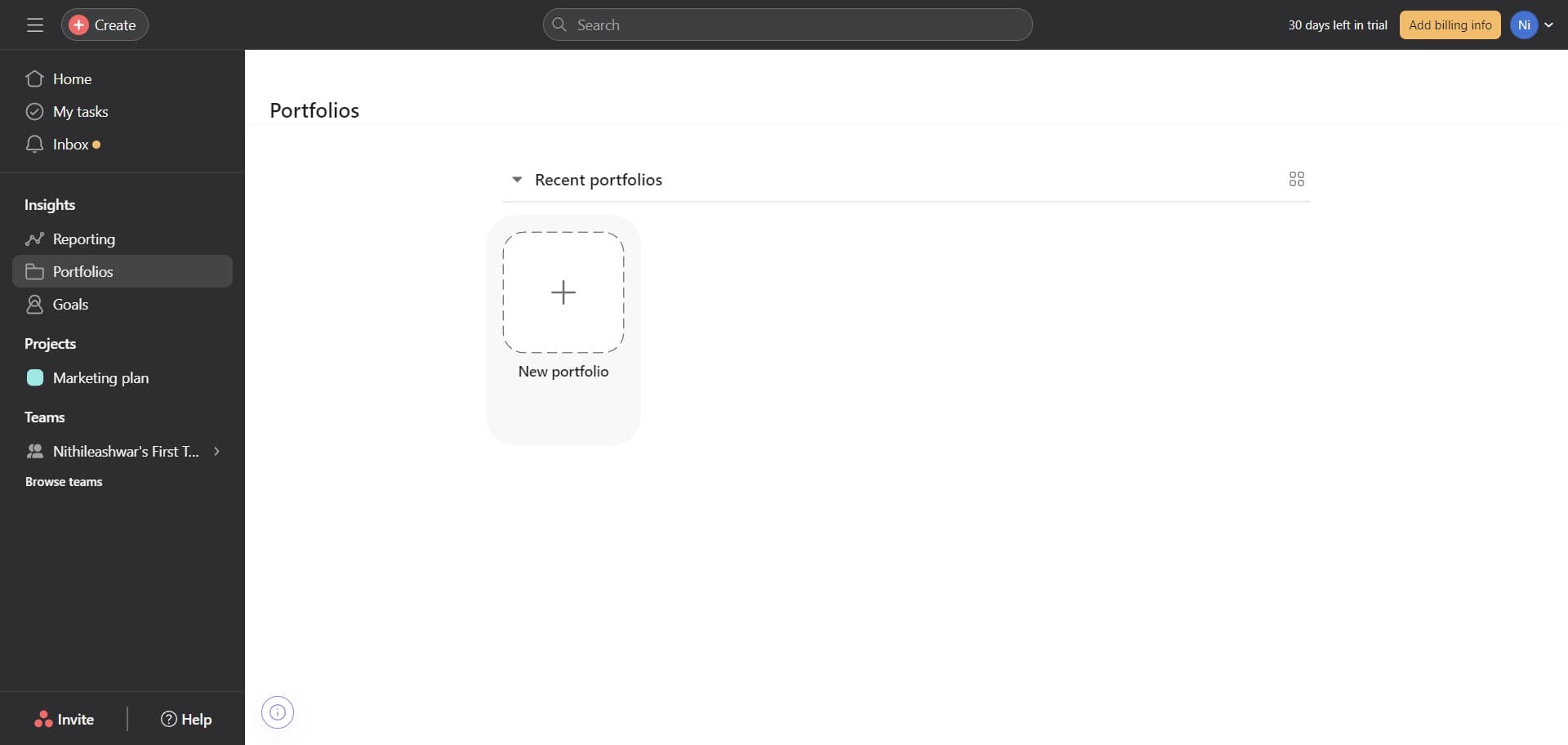
Open the portfolio creation flow
Click the designated button to initiate the process of creating a new portfolio. You'll be guided through a setup flow that will help you configure your portfolio.
- 3
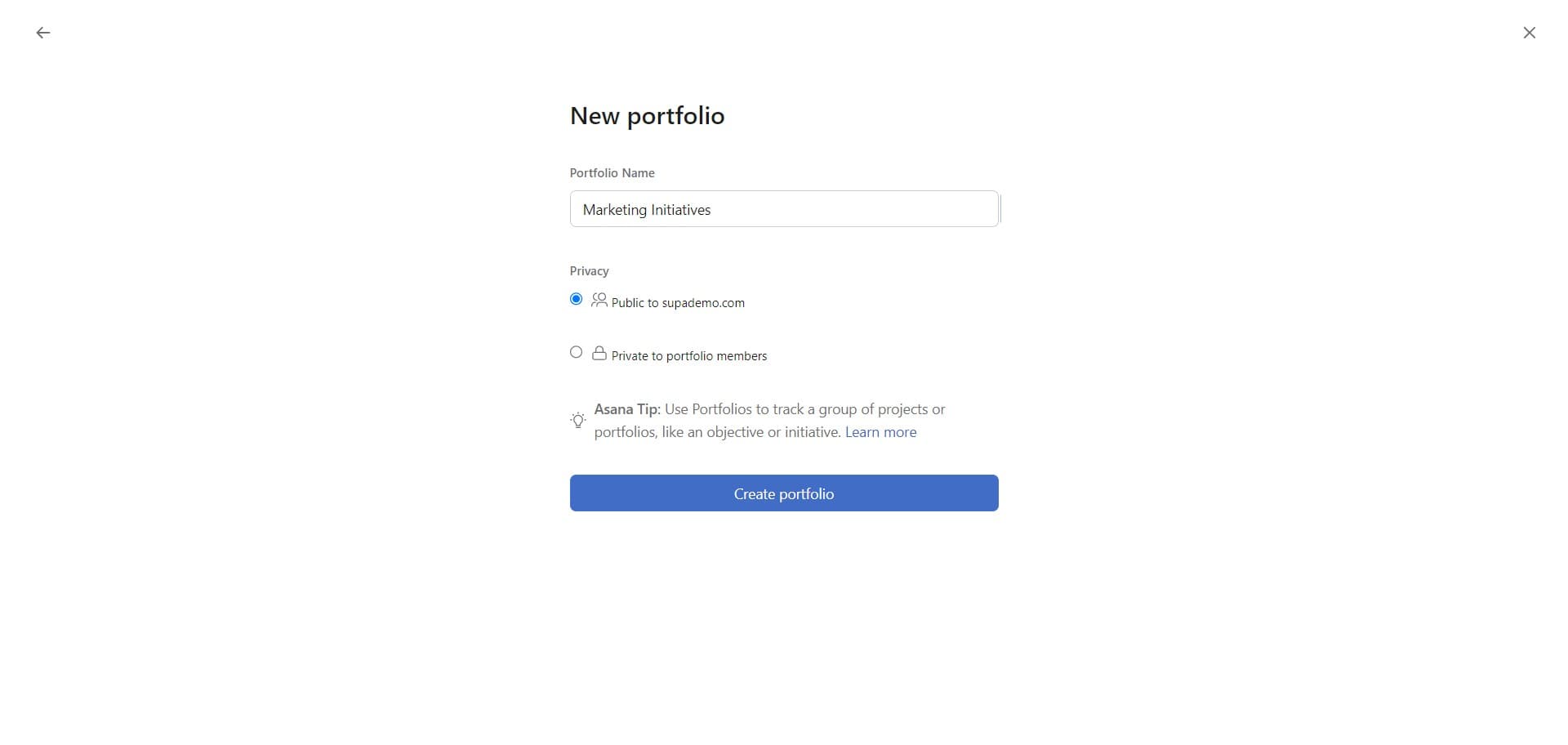
Select Create portfolio
Click on 'Create portfolio' to proceed with setting up your new portfolio. This step confirms your intent to create a fresh portfolio for your team or project oversight.
- 4
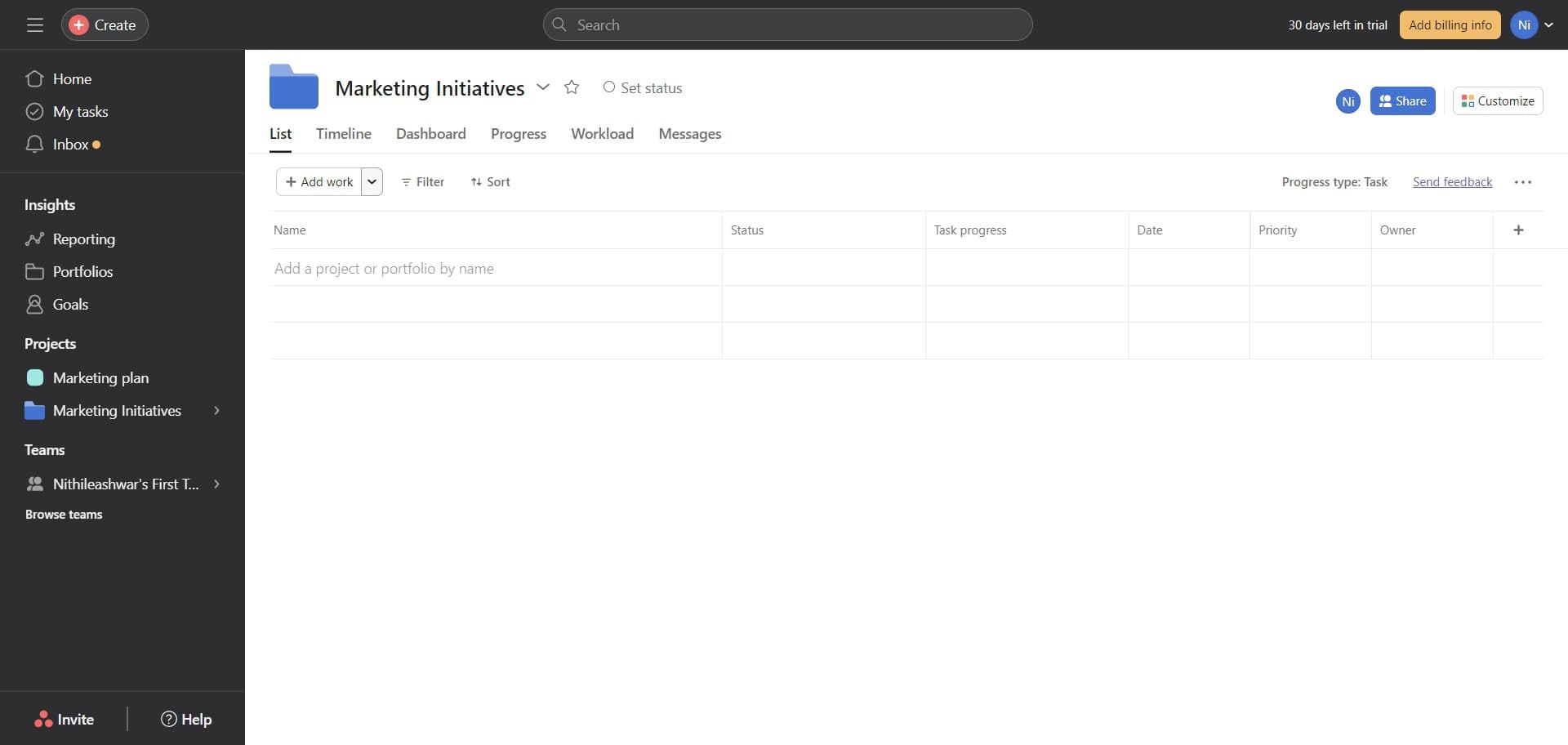
Confirm portfolio creation
Click the button to confirm the portfolio creation settings. Your new portfolio will now be generated and ready for project additions.
- 5
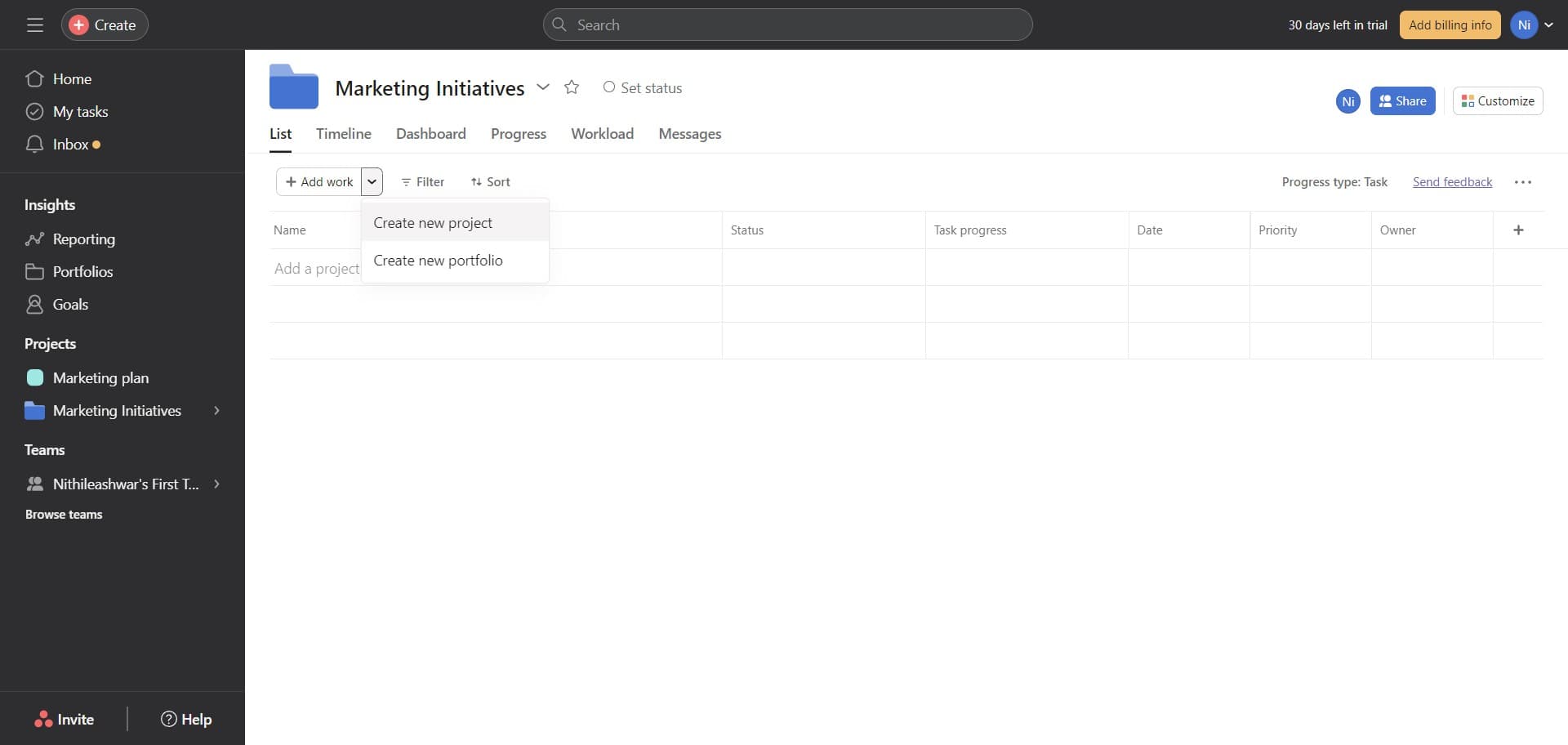
Add a new project to portfolio
Click on 'Create new project' to add a project directly to your portfolio. This allows you to build out the project structure as part of your portfolio setup.
- 6
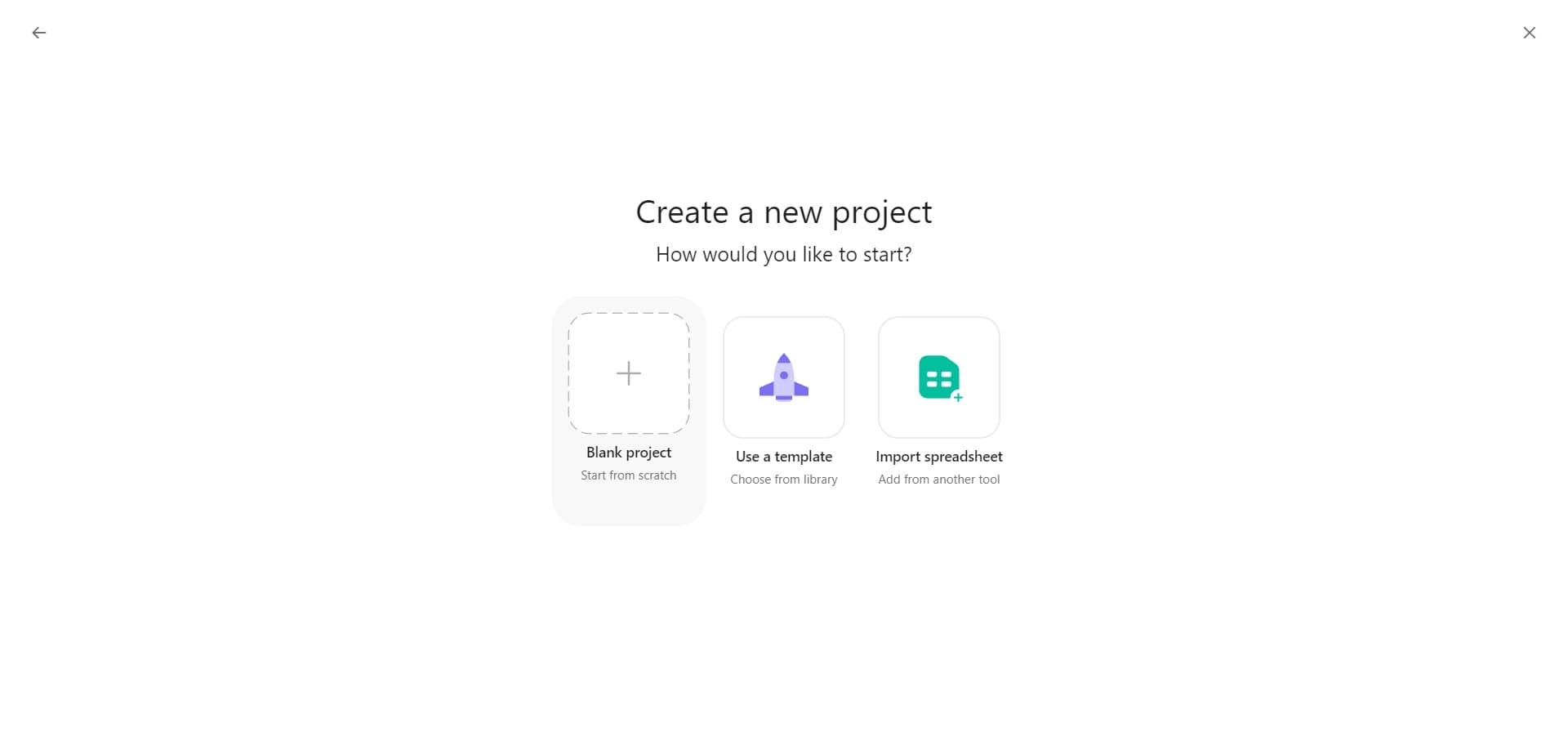
Proceed with project setup
Click the button to continue with the project creation process. You're now in the final stage before your project is officially added to the portfolio.
- 7
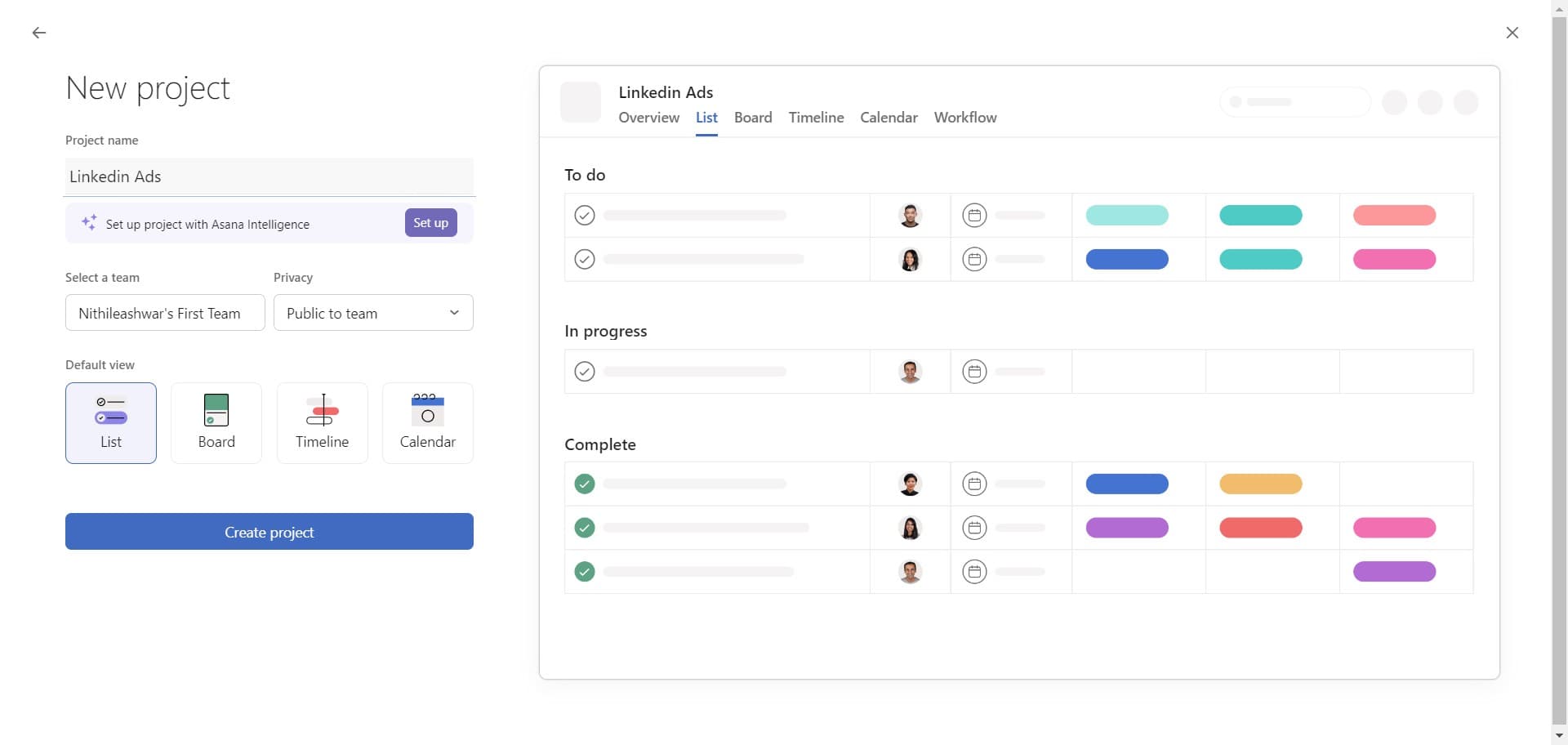
Finalize project creation
Click on 'Create project' to complete the project setup and add it to your portfolio. The new project will now appear as part of your portfolio structure.
- 8
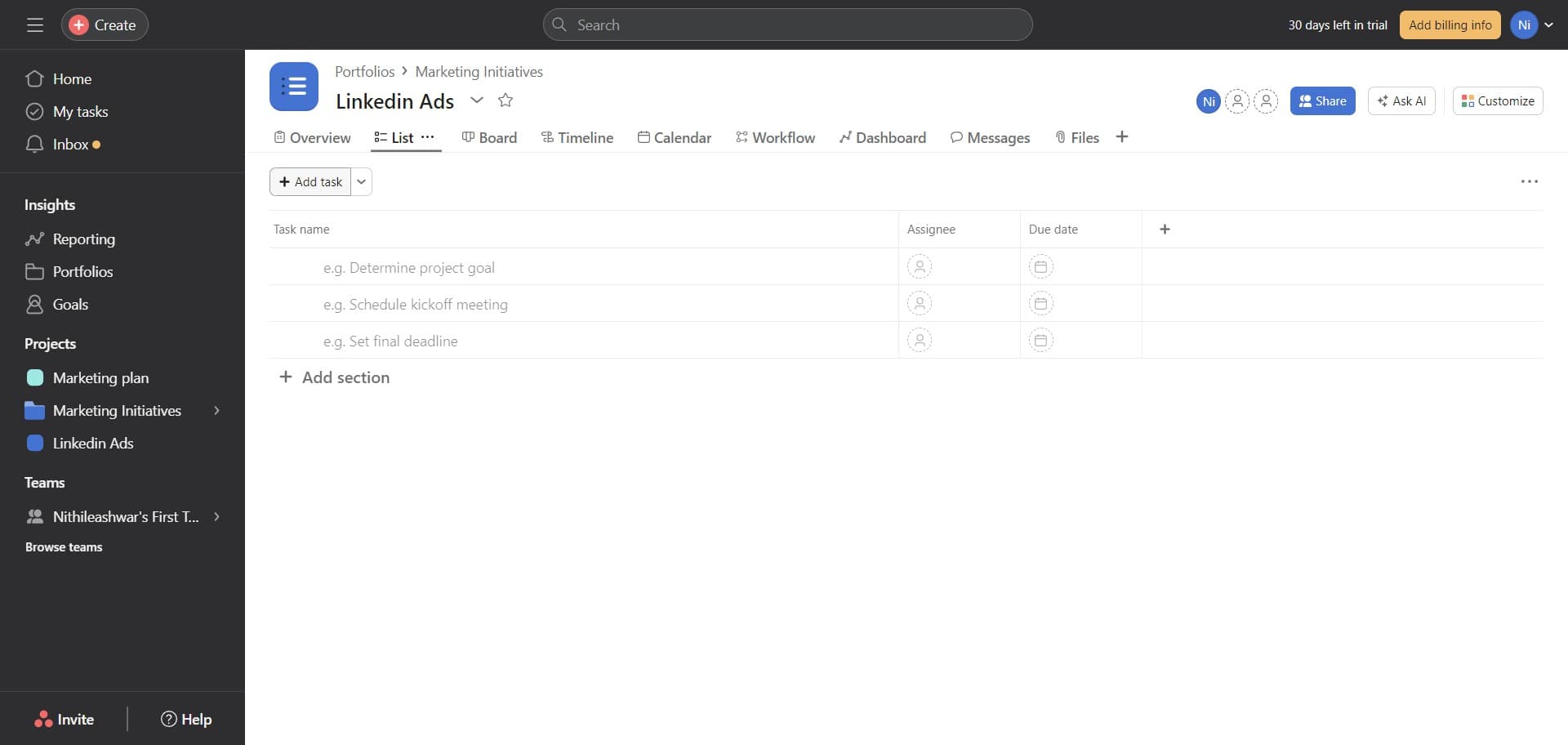
Add a task to the project
Click on 'Add task' to begin populating your project with work items. Tasks are the fundamental units of work that will be tracked within your portfolio.
- 9
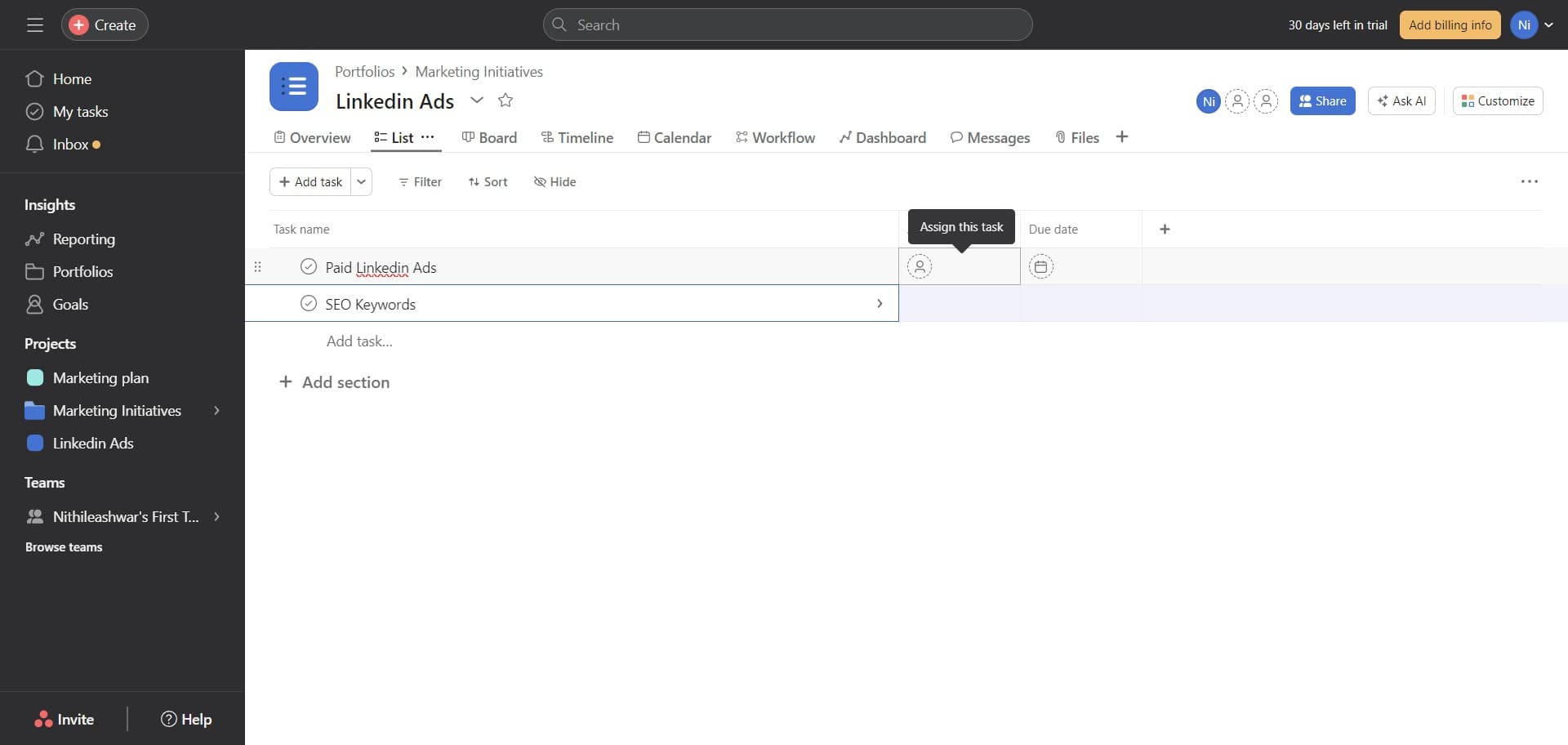
Enter task details
Click the input area to add task information such as the task name and other relevant details. Fill in the necessary fields to describe the work that needs to be completed.
- 10
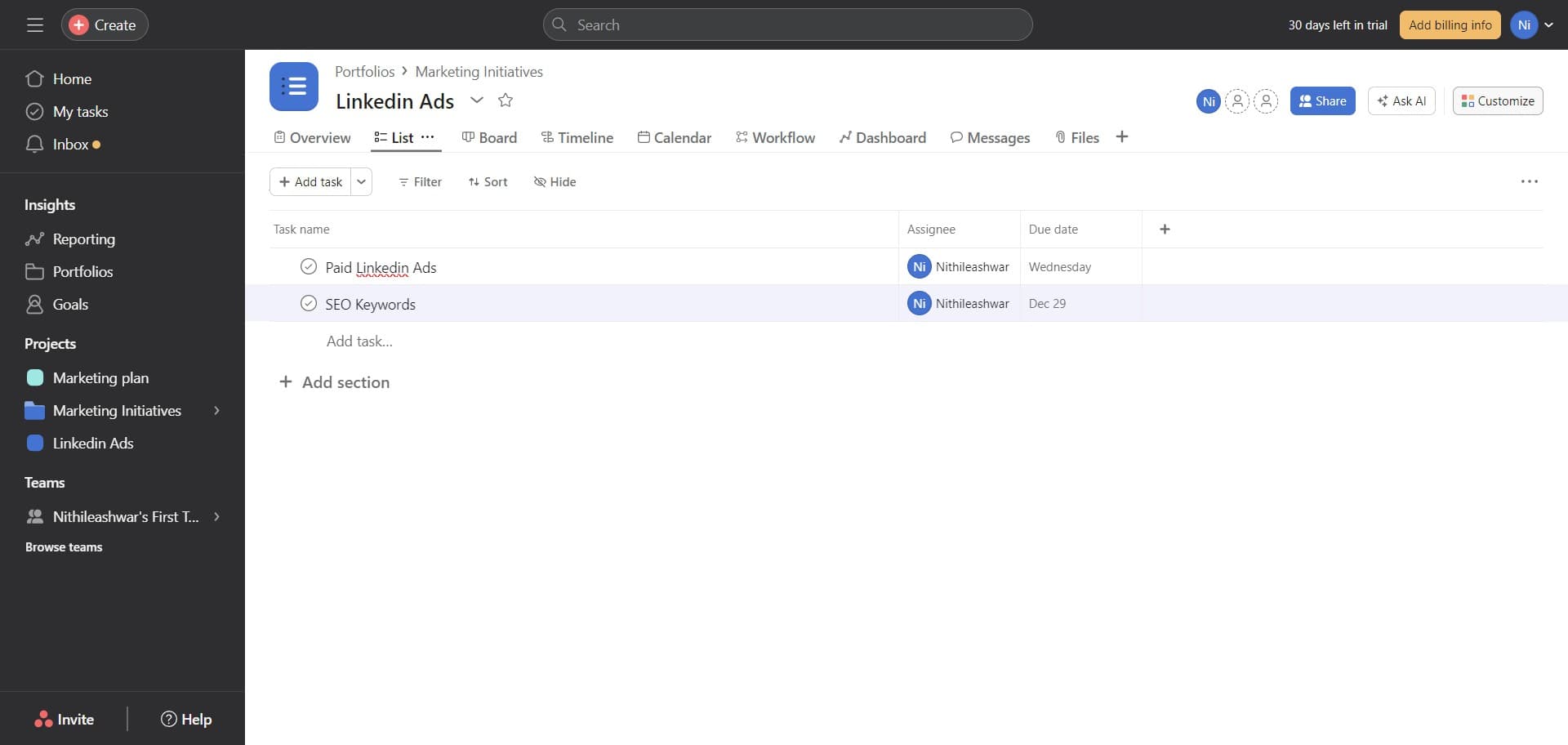
Access field customization
Click on 'Customize' to open the field customization menu for your portfolio or project. This allows you to tailor the data fields to your specific workflow and reporting needs.
- 11
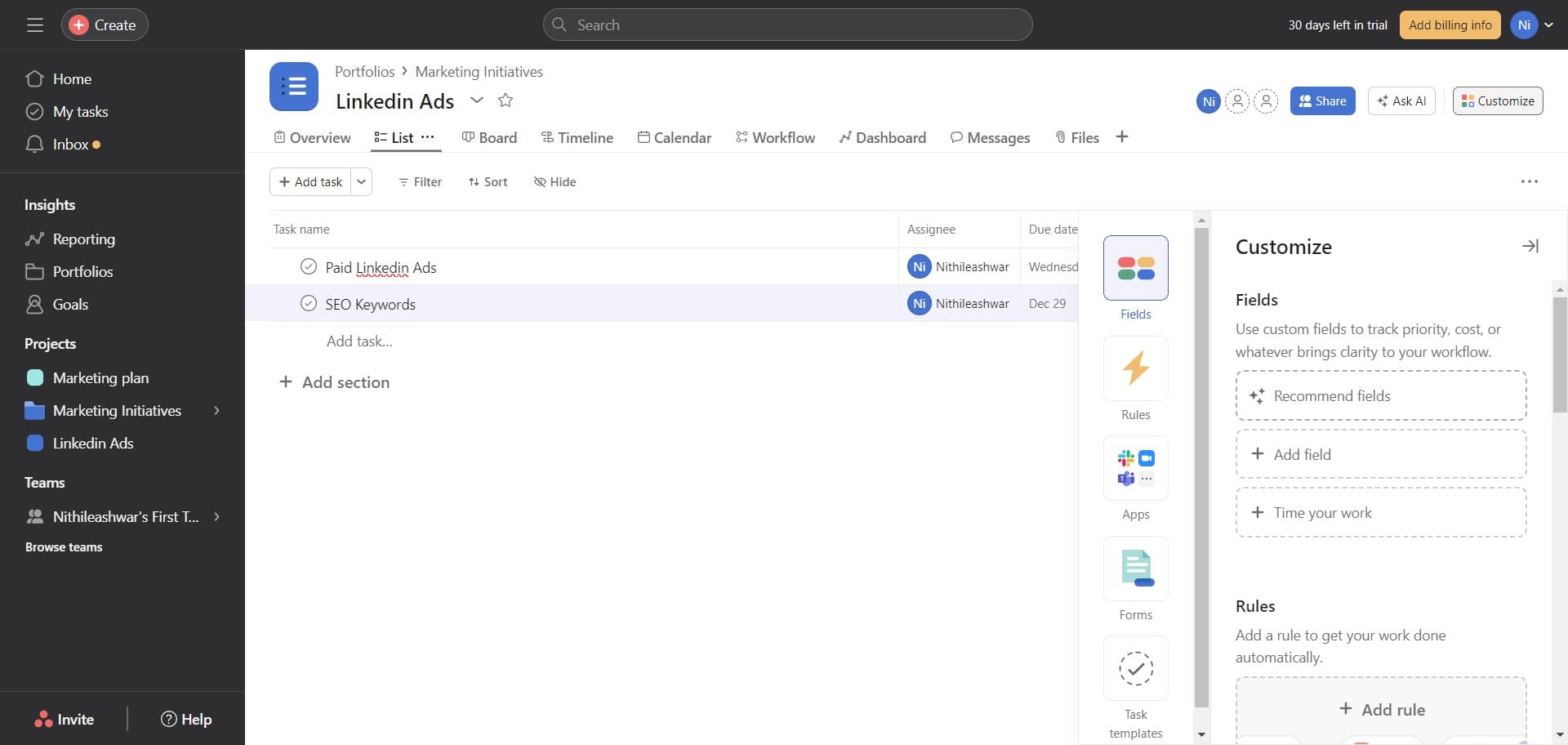
Select recommended fields
Click on 'Recommend fields' to view Asana's suggested field configurations based on your portfolio type. These recommended fields are designed to provide essential visibility and tracking capabilities.
- 12
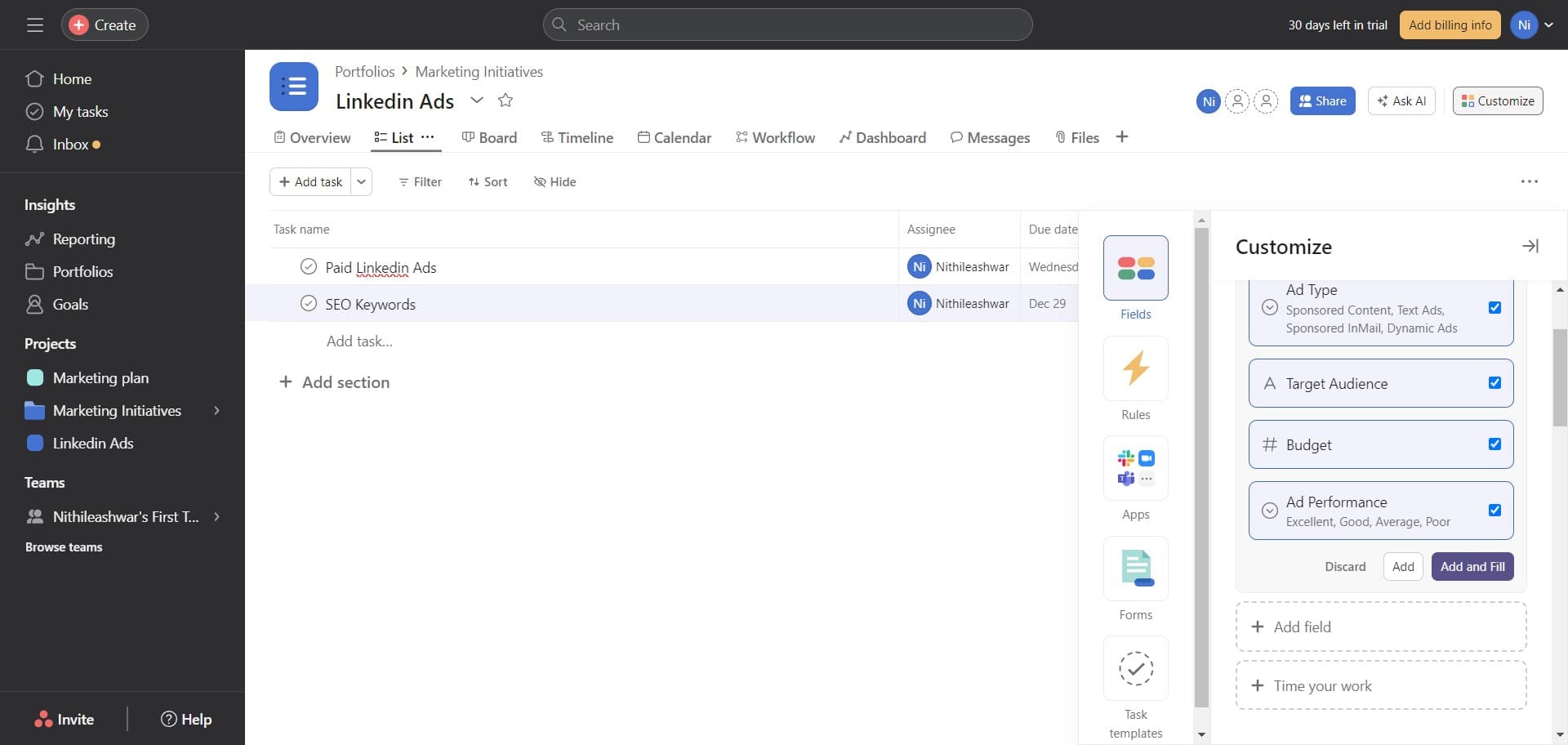
Apply and fill recommended fields
Click on 'Add and Fill' to apply the recommended fields to your portfolio and prepare them for data entry. This action will add these fields to your portfolio's structure.
- 13
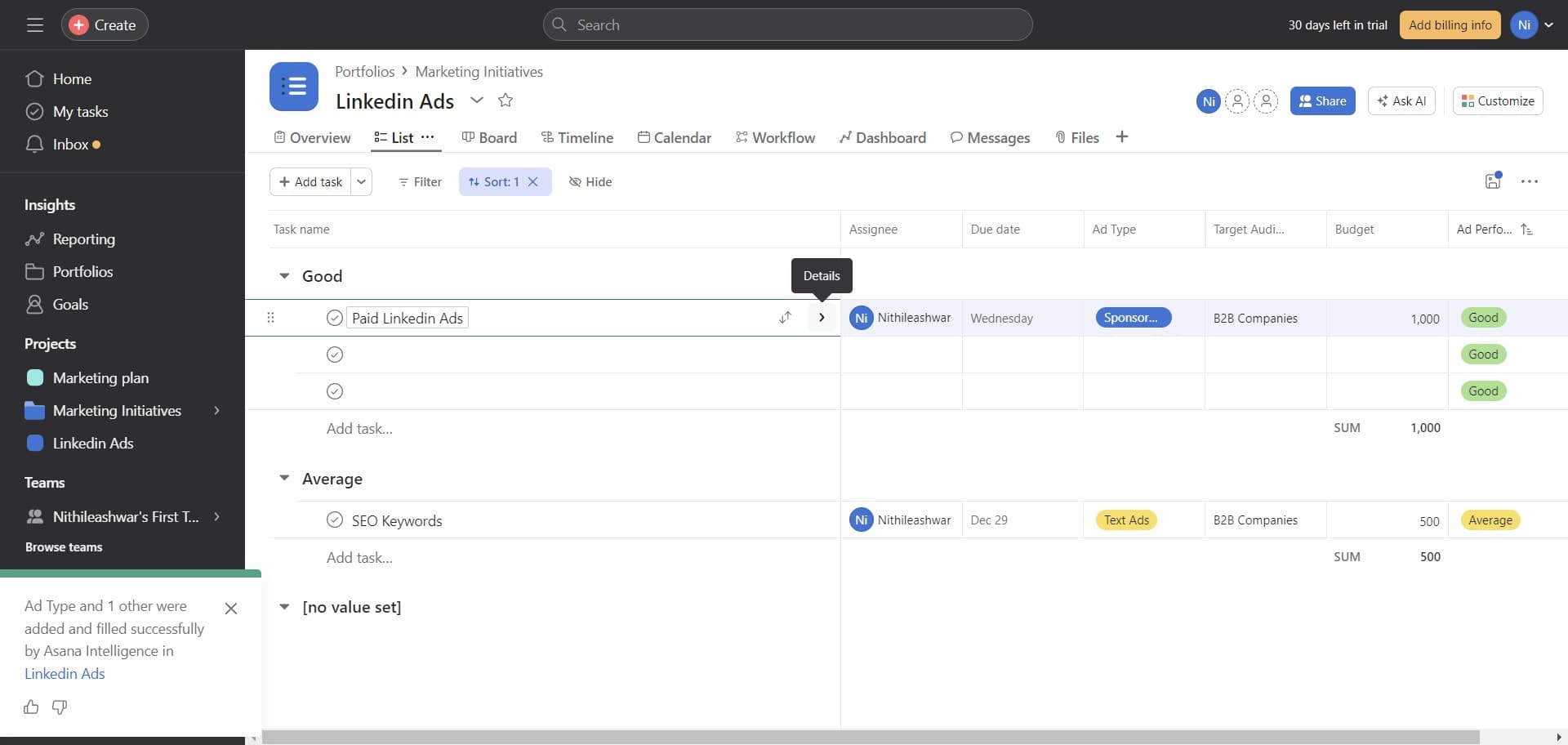
Configure field settings
Click the button to finalize the field configuration and move forward with setting up your portfolio display options. Your customized fields are now part of your portfolio structure.
- 14
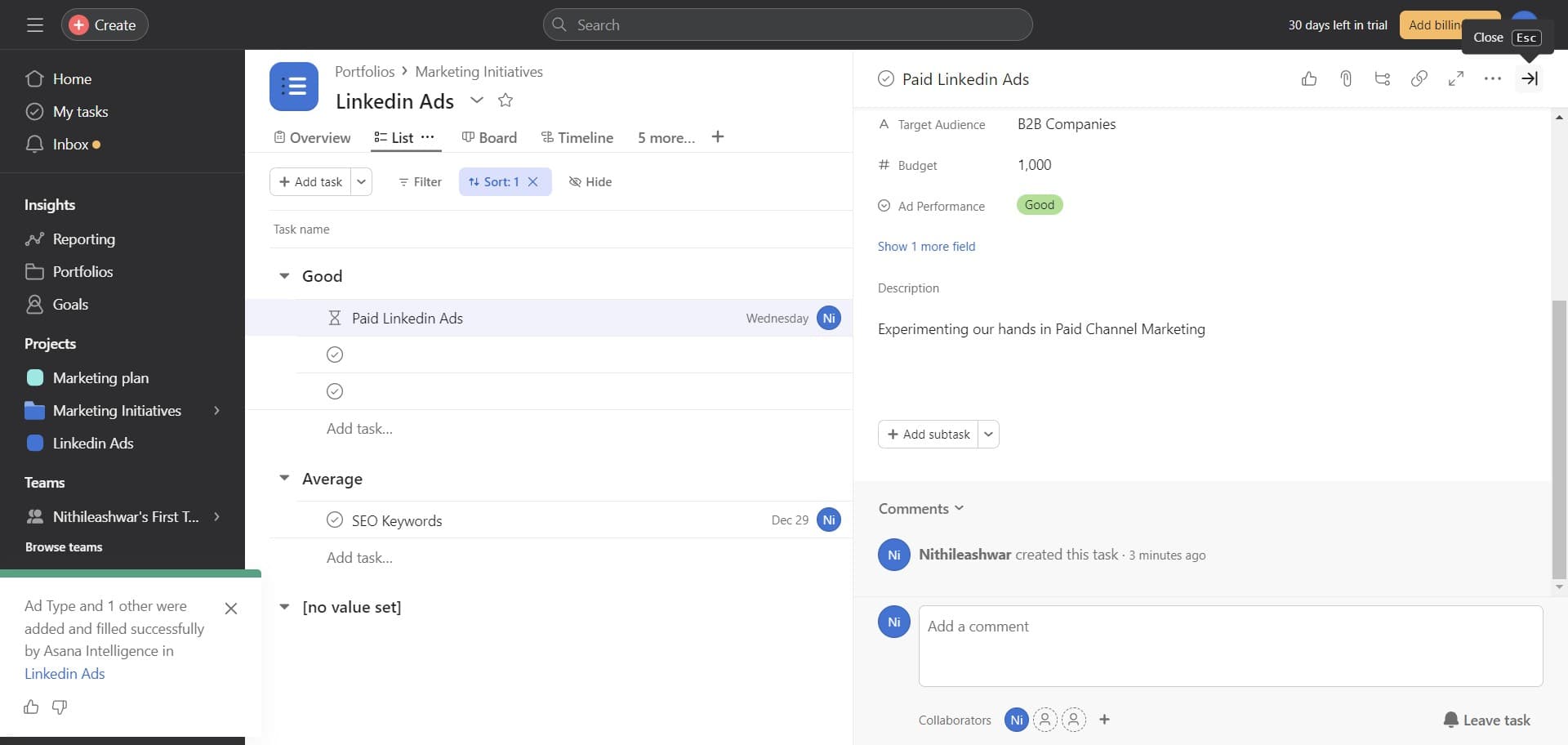
Complete customization setup
Click to finish the customization process and return to your portfolio view. All your configured fields and settings are now active.
- 15
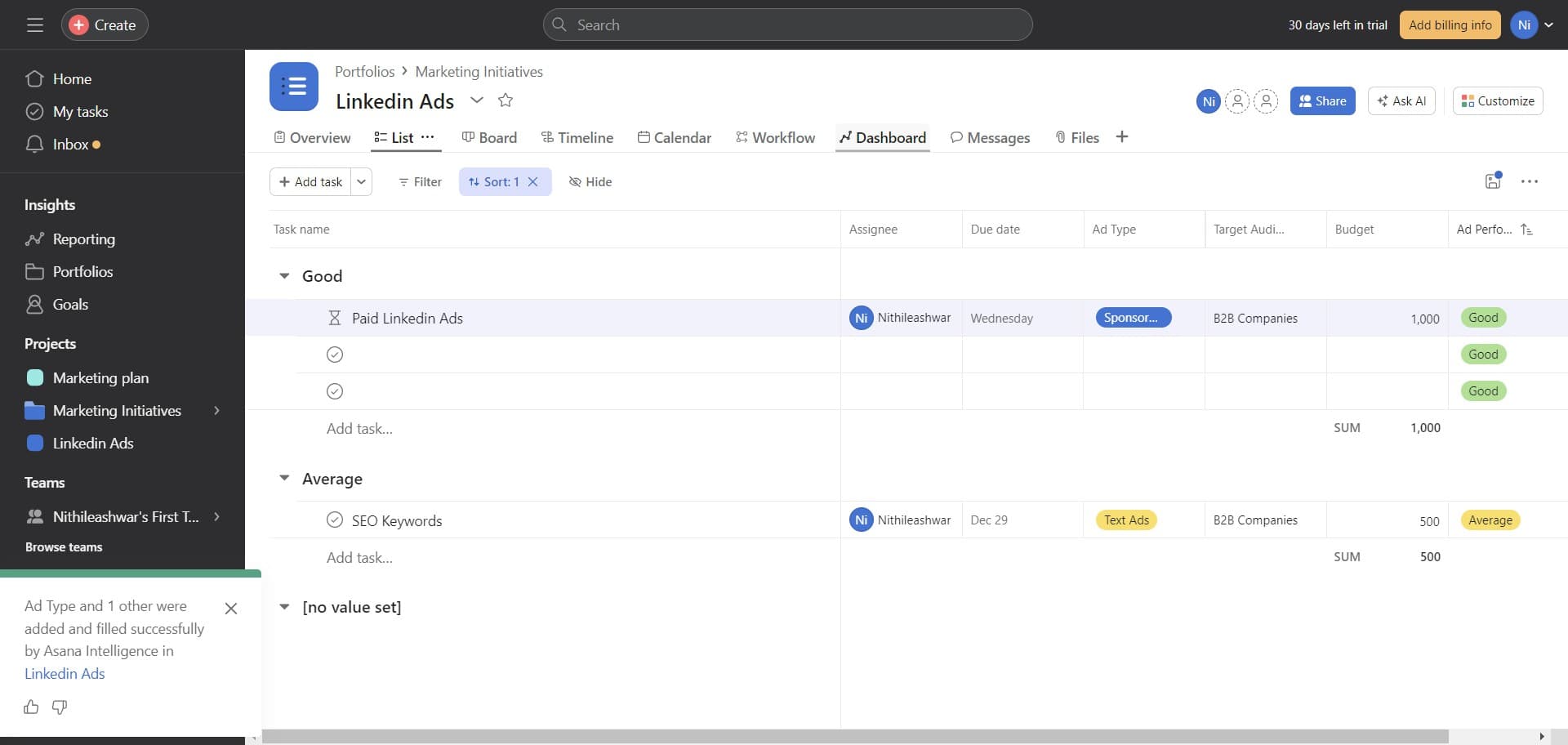
View portfolio dashboard
Click on 'Dashboard' to access your portfolio's main dashboard view. This will display an overview of all projects, tasks, and custom fields you've configured, giving you a complete picture of your portfolio's status.
Frequently asked questions
Common questions about how to create a portfolio in asana.
A project is a container for related tasks and represents a specific body of work, while a portfolio is a higher-level view that aggregates multiple projects together. Portfolios are designed for executives and managers who need to see progress across many projects at once, whereas projects are where individual teams manage daily work.
Yes, you can add existing projects to a portfolio during the creation process or afterward by editing the portfolio. You're not limited to only creating new projects within a portfolio; you can include any projects your team has already set up.
The best custom fields depend on your team's needs, but common ones include status, priority, owner, deadline, and budget. Asana's recommended fields feature will suggest relevant fields based on your portfolio type, which is a good starting point for most teams.
After creating your portfolio, you can adjust access settings to share it with team members, stakeholders, or entire teams. Click on the portfolio settings and select the sharing or access options to invite specific people or groups to view your portfolio.
Absolutely. Portfolios are fully editable after creation, allowing you to add or remove projects, modify custom fields, adjust settings, and update the dashboard layout. You can make changes at any time to keep your portfolio aligned with your team's evolving needs.