How to create and save a template in Asana

Asana templates allow you to standardize your project structure and streamline repetitive workflows. By saving a project as a template, you can quickly replicate the same tasks, custom fields, and organizational structure across multiple projects, saving time and ensuring consistency across your team.
Quick summary
In this tutorial, you'll learn how to convert an existing Asana project into a reusable template that you and your team can apply to future projects. You'll navigate to your project, access the template save option, and complete the setup process to make your template available for immediate use.
Why this matters
Using templates in Asana eliminates the need to manually recreate the same project structure repeatedly. This is especially valuable for teams managing recurring campaigns, events, or processes where consistency and speed are critical. Templates reduce setup time and help maintain standardized workflows across your organization.
Step-by-step guide
- 1
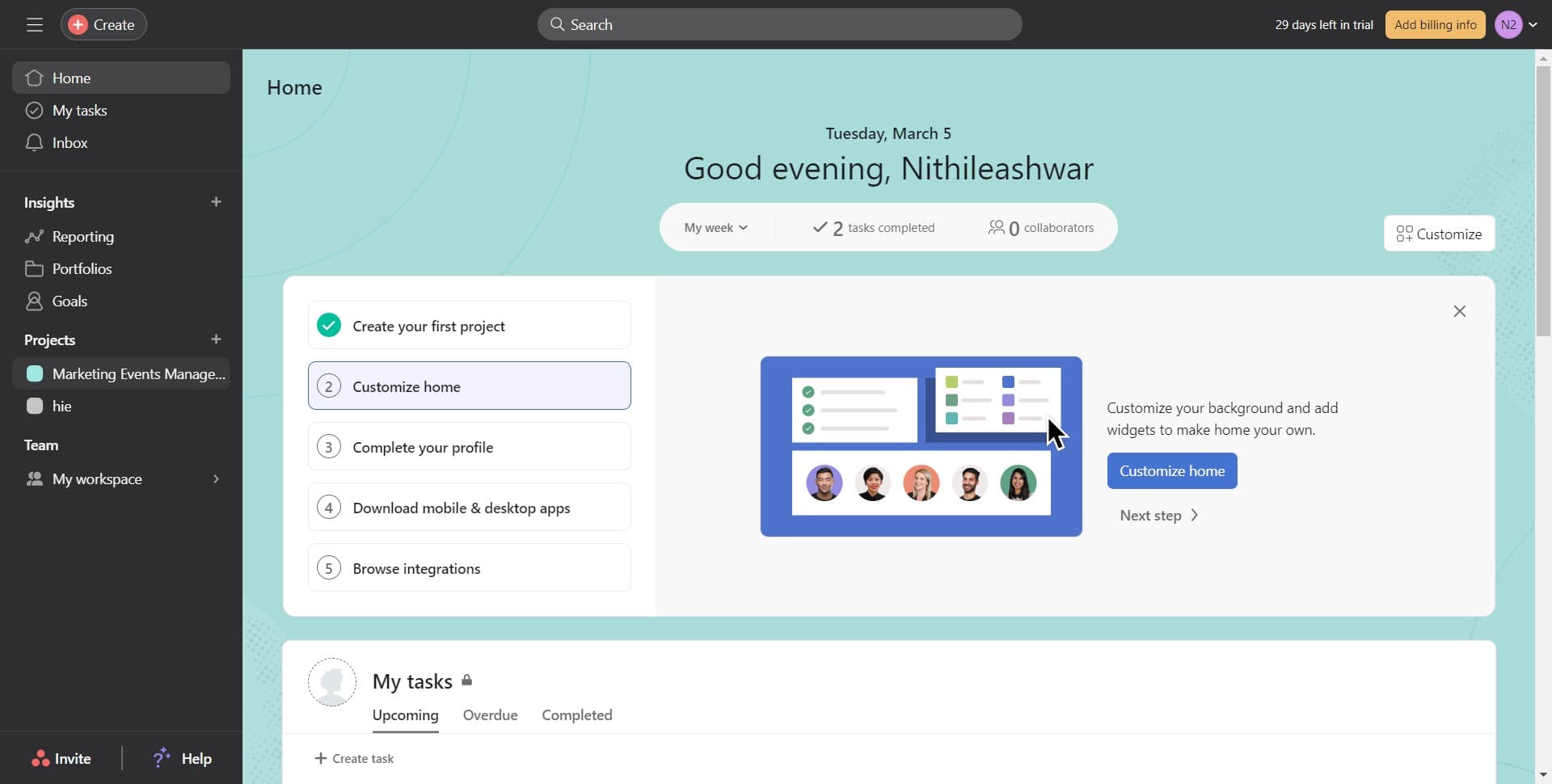
Select your project to template
Navigate to and click on the project you want to convert into a template. In this example, we'll use the 'Marketing Events Management' project as the source for our template.
- 2
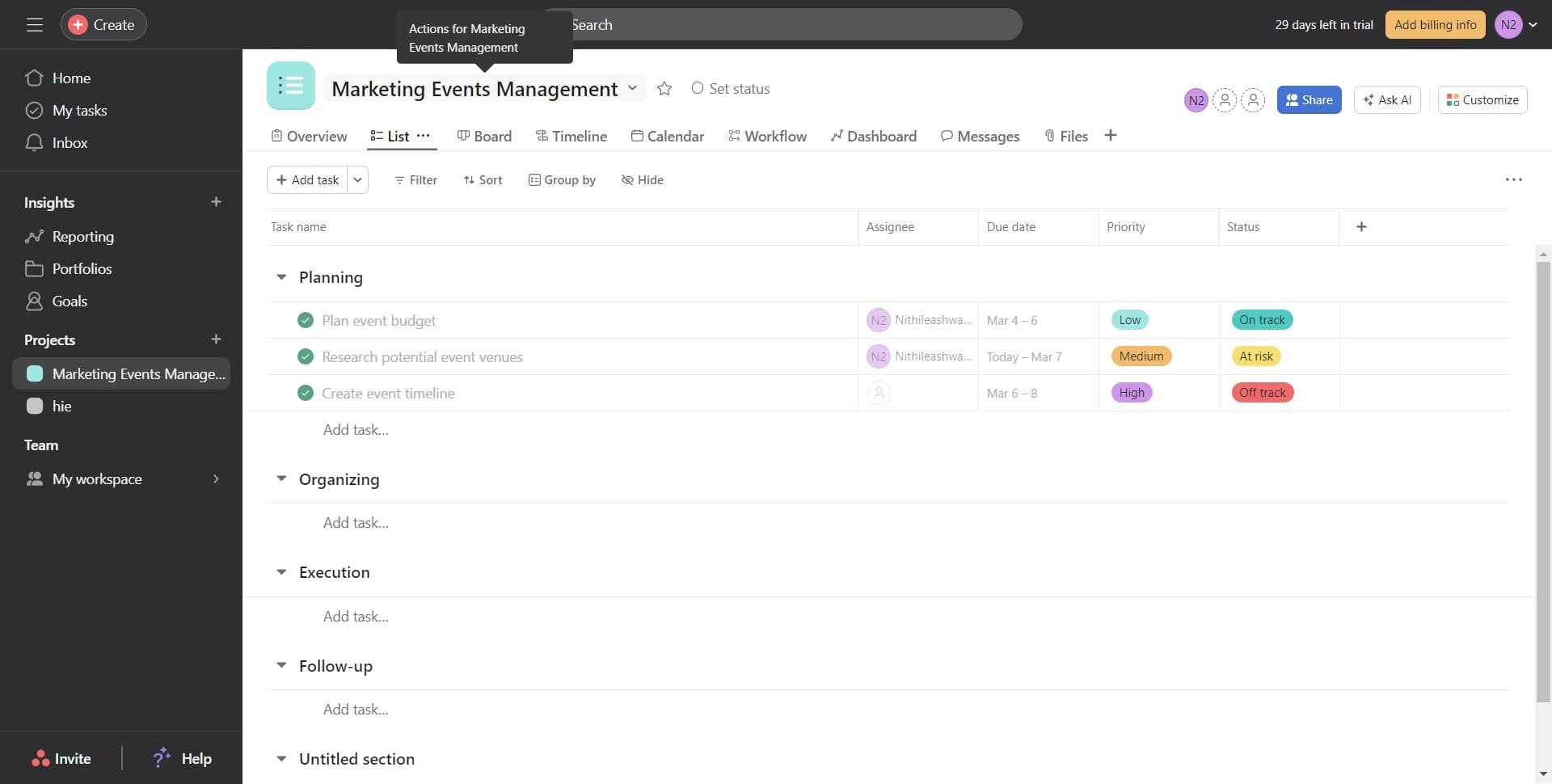
Access the template options
Click on the designated menu or options button within your project to reveal additional actions. This will display the available project management options including the template creation feature.
- 3
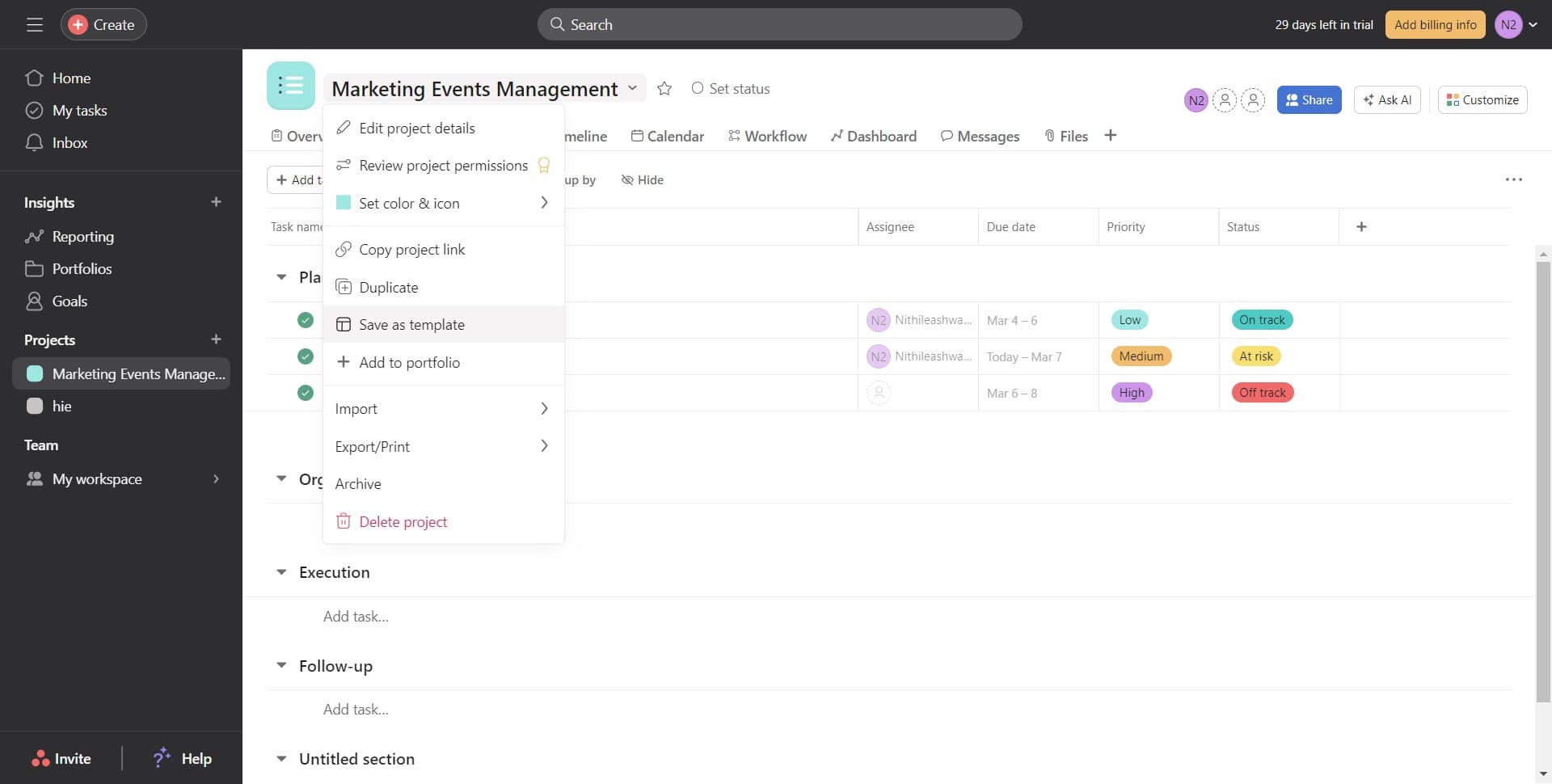
Click on 'Save as template'
Select the 'Save as template' option from the menu. This action prepares your project to be saved as a reusable template that can be applied to create new projects with the same structure.
- 4
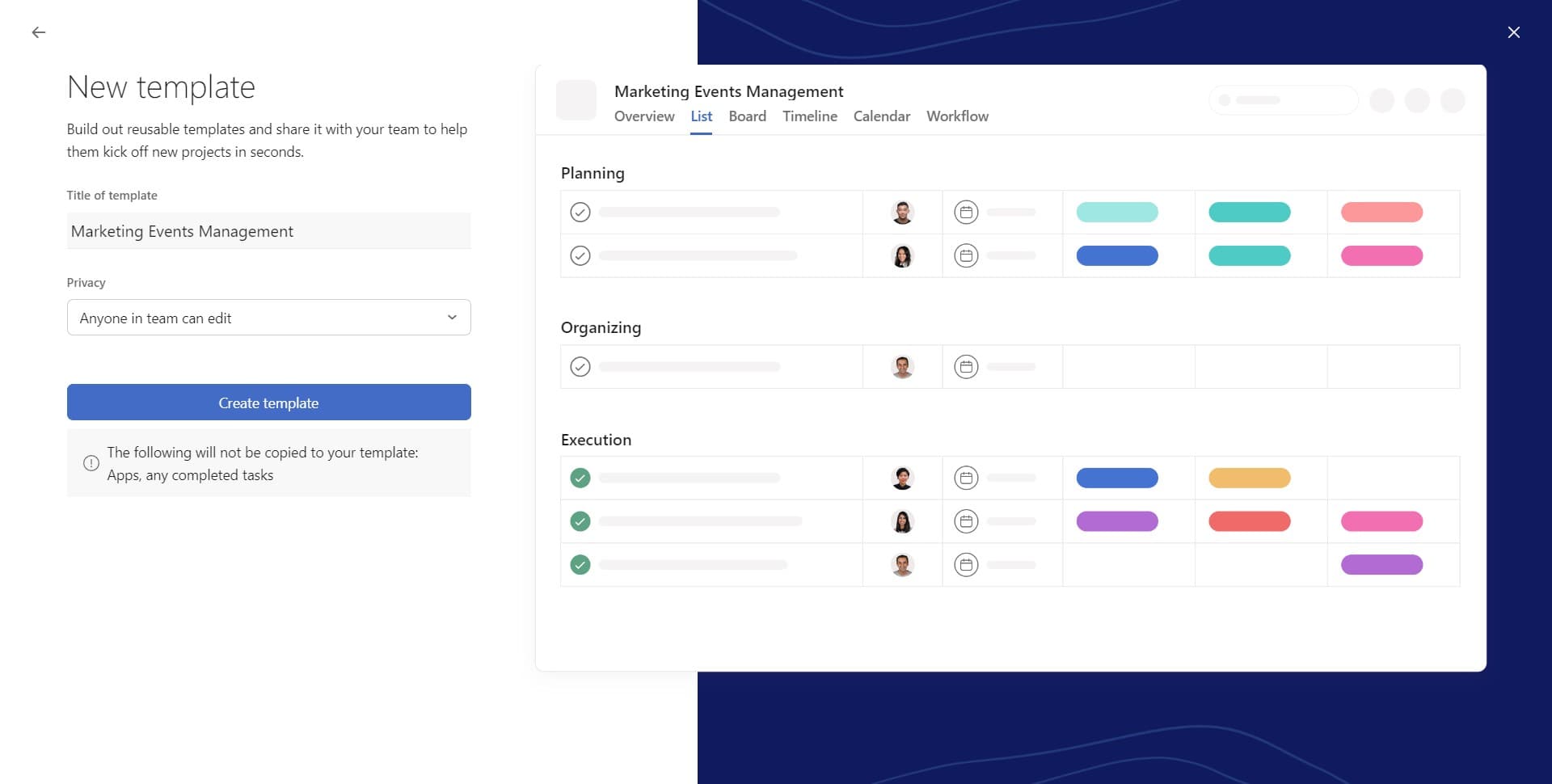
Click on 'Create template'
Confirm your action by clicking the 'Create template' button. Asana will now process your project and prepare it as a template, preserving all tasks, sections, and custom fields you've configured.
- 5
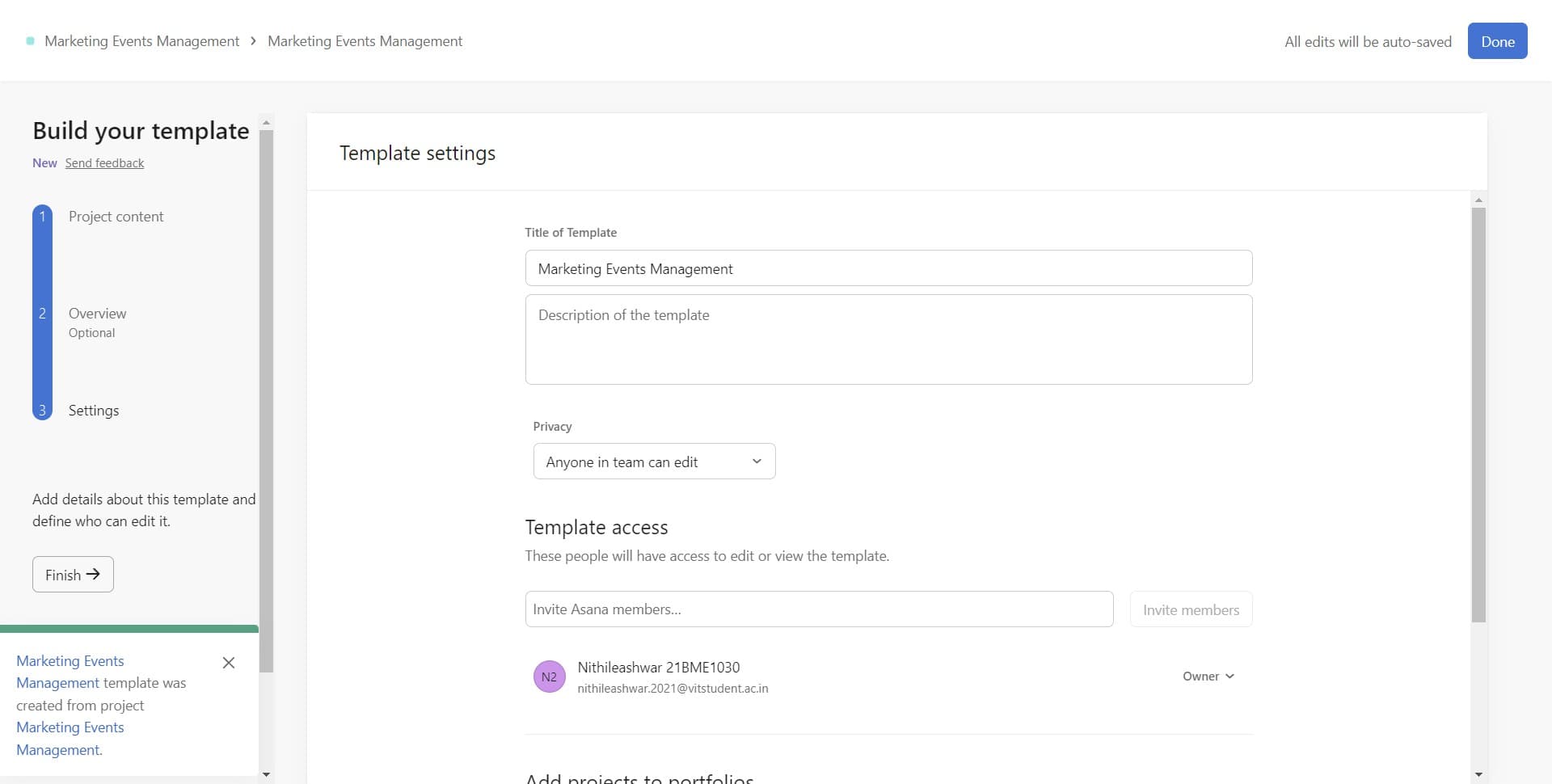
Complete the template setup
Click 'Finish' to complete the template creation process. Your project is now saved as a template and available for use when creating new projects in your workspace.
- 6
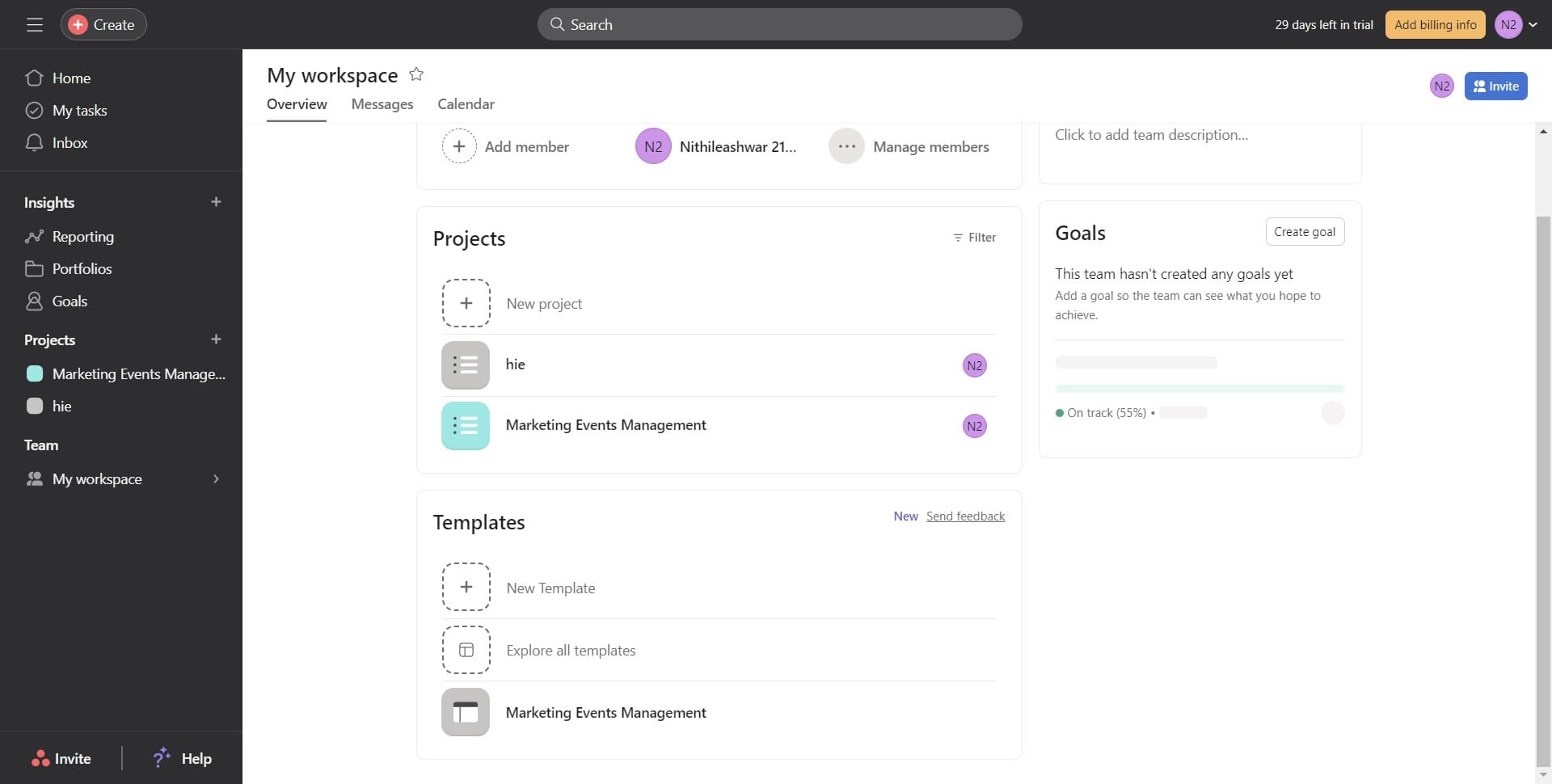
Add team members to the template
Click on 'Members (1)' and then 'Add' to designate which team members should have access to this template. This ensures the right people can use the template when launching new projects.
Frequently asked questions
Common questions about how to create and save a template in asana.
Yes, you can edit templates in Asana. Navigate to your team's template library, select the template you want to modify, and make changes just as you would with a regular project. All future projects created from that template will include your updates.
No, once you save a project as a template, changes made to the original project will not automatically update the template. However, you can manually update the template itself if needed by editing it in your template library.
Yes, any team member with access to the template can create new projects from it. You control template access by managing the template's member list, just like you would with a standard project.
When you save a project as a template, all tasks, subtasks, custom fields, sections, and dependencies are preserved. However, any actual work data, comments, or task assignments may be handled differently depending on your Asana plan.
To create a new project from a template, click 'Create project' in Asana, select 'From template,' and choose the template you want to use. Asana will then generate a new project with all the structure and tasks from your template.