How to create forms in Asana

Asana forms streamline how you collect information from team members and stakeholders, eliminating the need for scattered emails or external tools. This guide walks you through creating a custom form in Asana, from setup to sharing, so you can start gathering structured data immediately.
Quick summary
In this tutorial, you'll learn how to create and configure a form in Asana by customizing a project, adding form fields like headings and text inputs, naming your form, and sharing it with others. By the end, you'll have a fully functional form ready to collect responses from your team.
Why this matters
Forms in Asana reduce friction in data collection by creating a single source of truth for project intake, feedback, and requests. Instead of managing responses across email or multiple platforms, you can automatically populate Asana tasks with form submissions, keeping your workflow organized and efficient.
Step-by-step guide
- 1
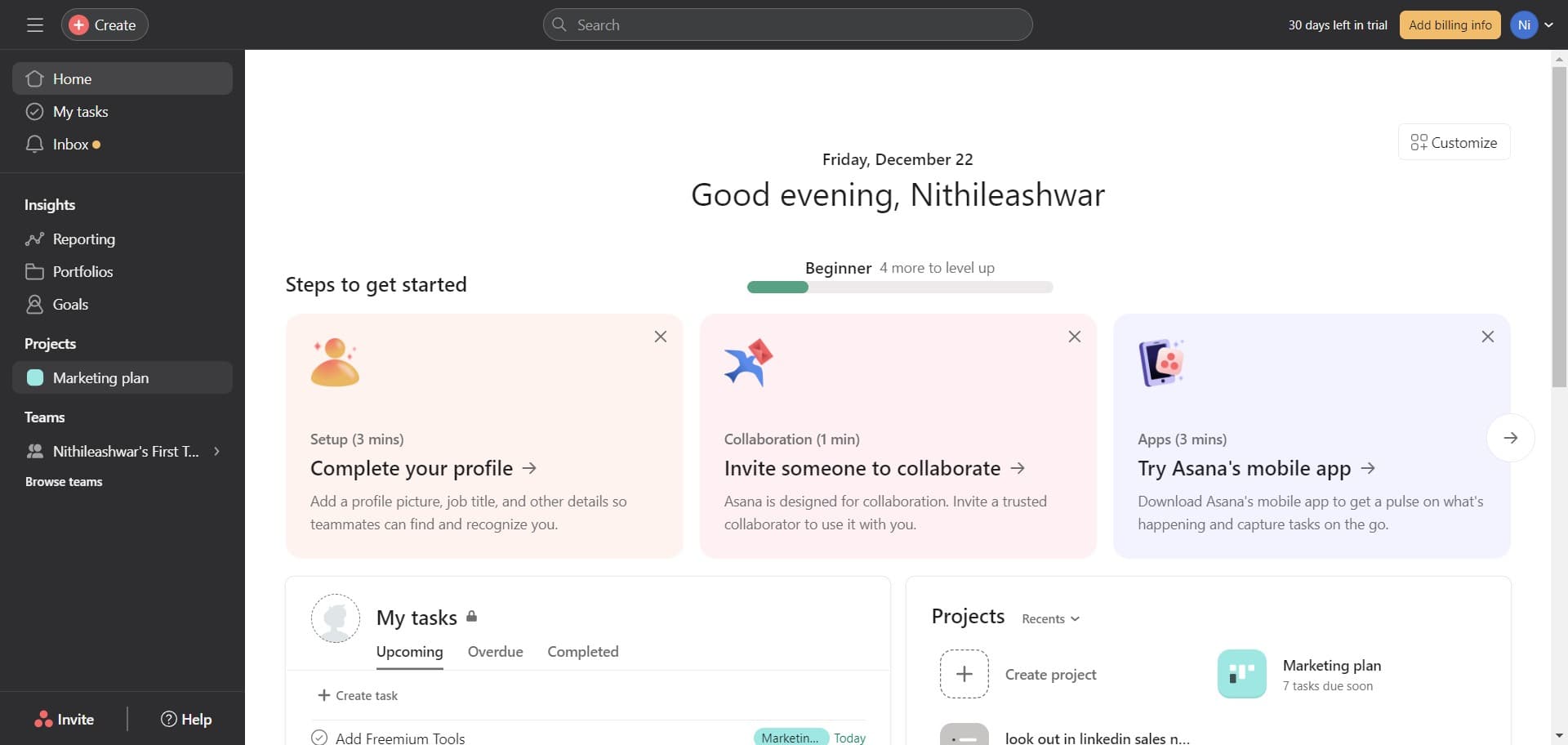
Click on Marketing plan
Open the Marketing plan project in Asana where you want to create the form. This serves as the container for your form and determines where submitted responses will appear as tasks.
- 2
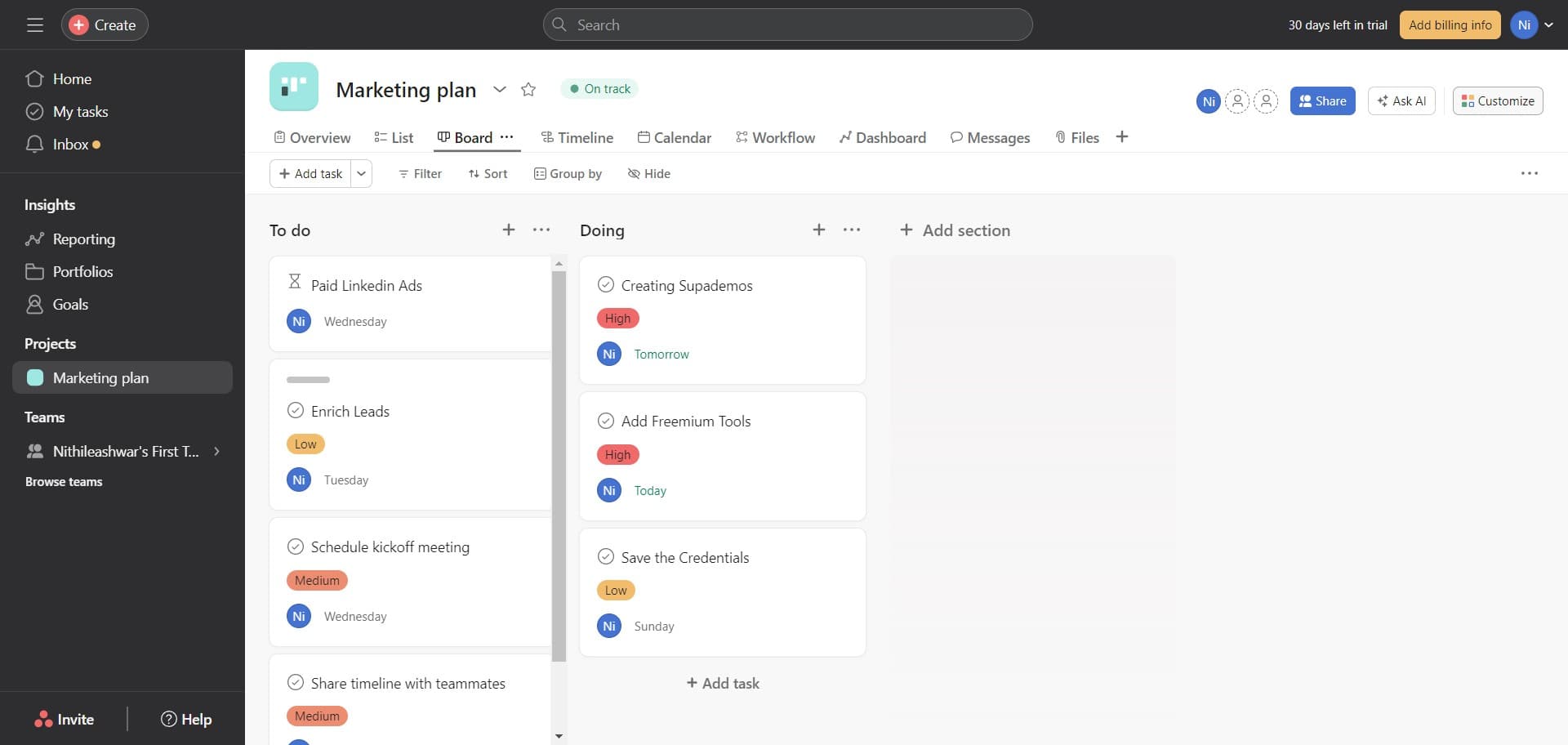
Click on Customize
Access the project customization menu to modify the form structure and fields. This opens the configuration panel where you can tailor the form to your specific needs.
- 3
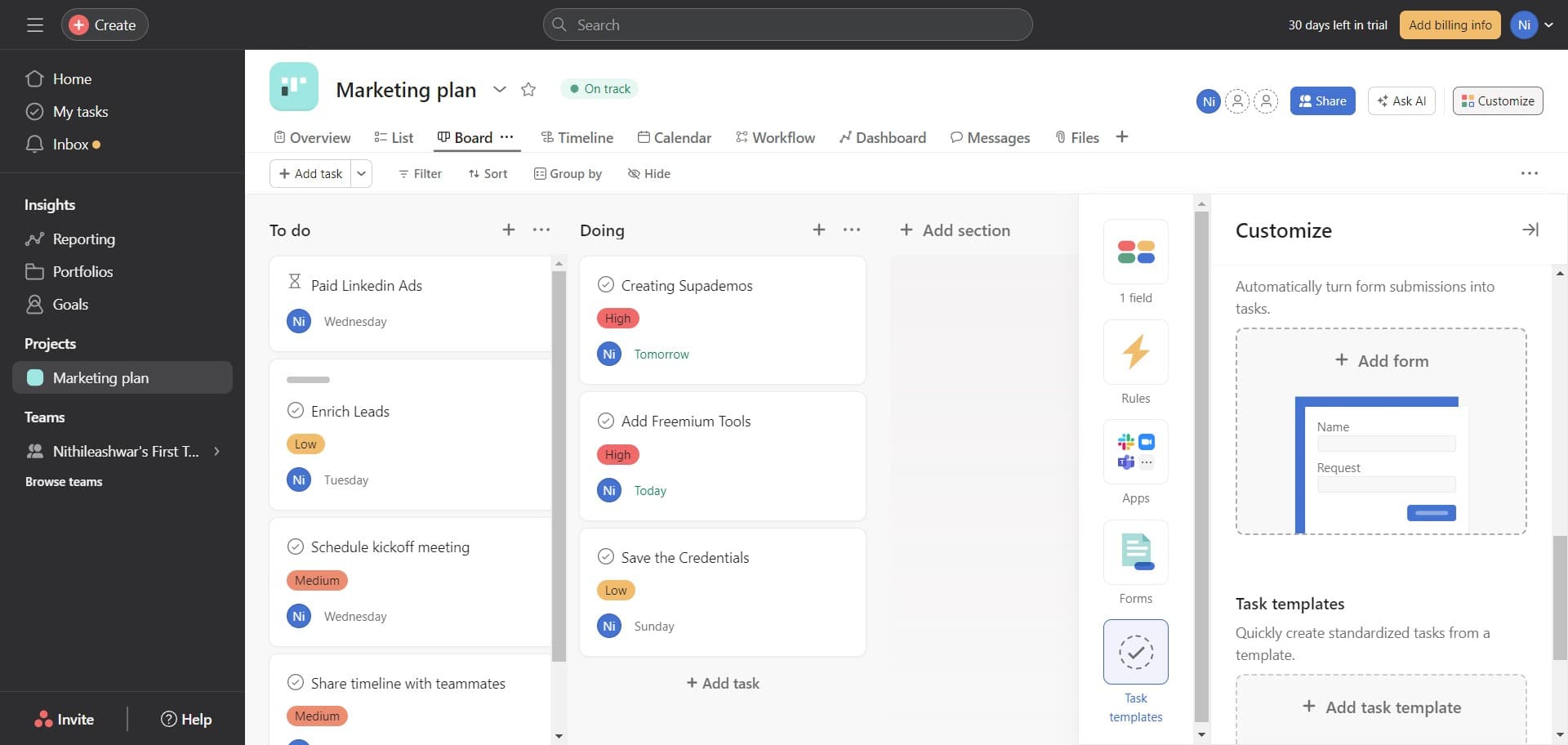
Click on Image
Select the Image option to add visual elements to your form. This allows you to upload a header image or branding element to make the form more visually appealing.
- 4
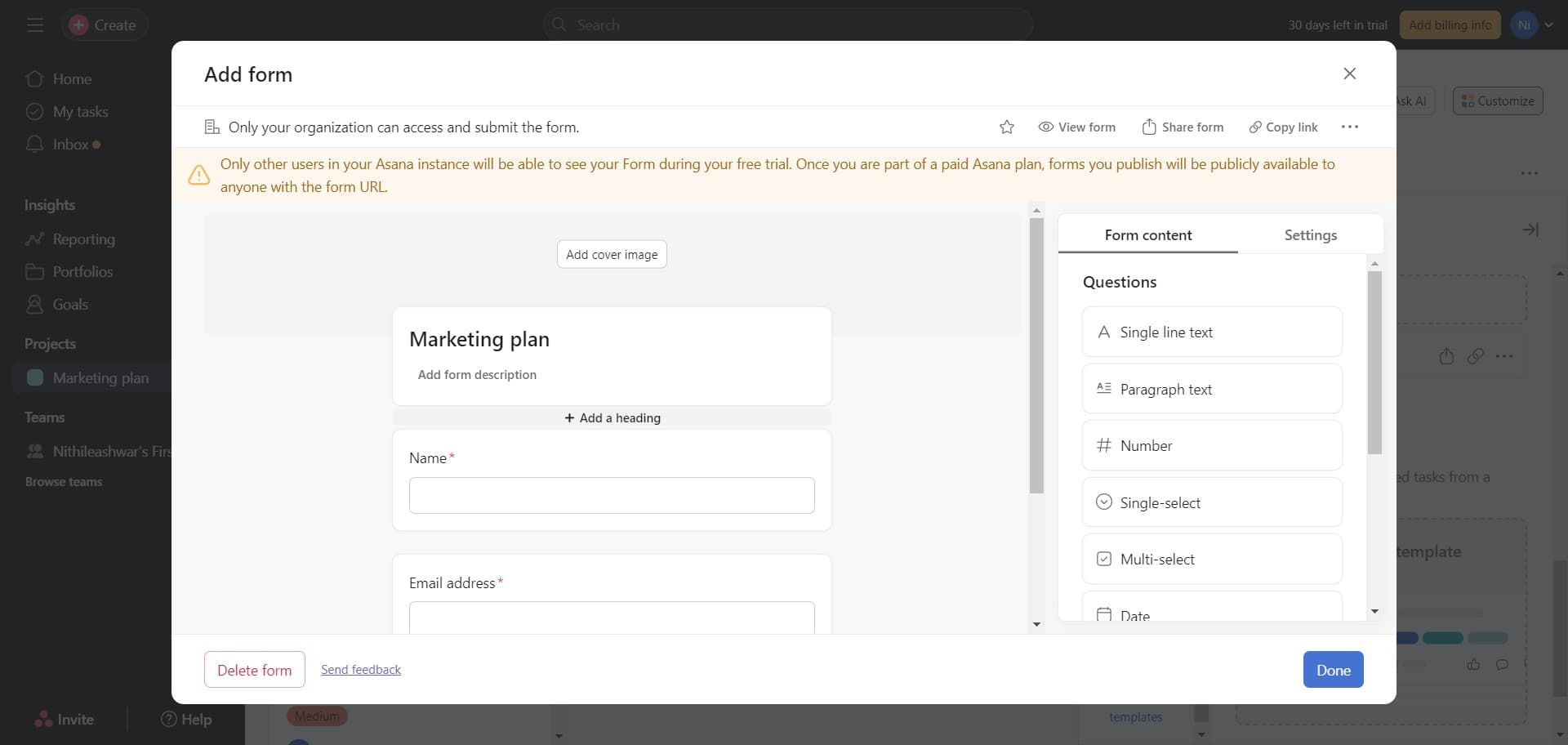
Click on Add a heading
Insert a heading field to provide context and guide users at the top of your form. This text will appear prominently to explain the purpose of the form.
- 5
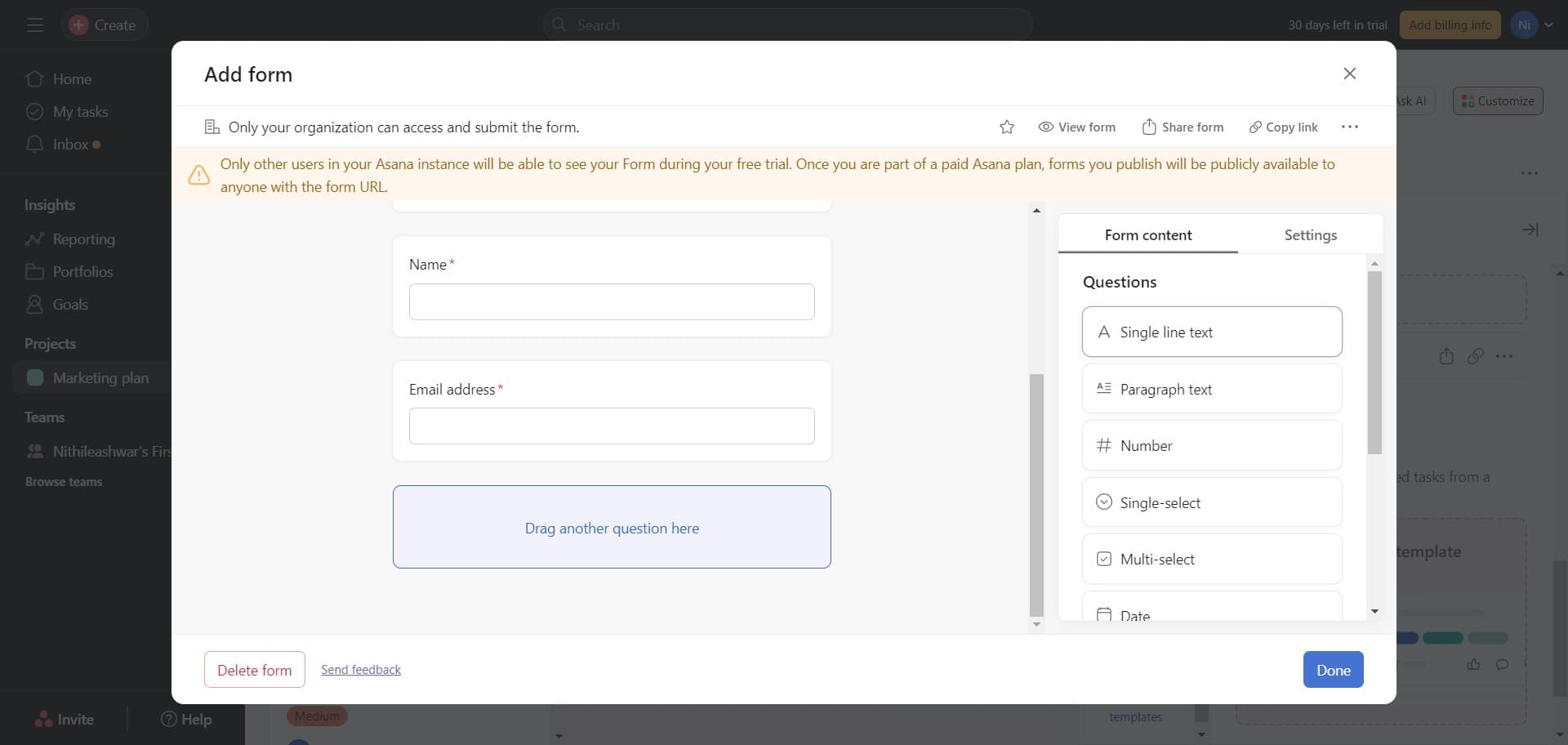
Click on Single line text
Add a single line text field to your form for collecting short responses like names or email addresses. This field type is ideal for brief, one-line answers.
- 6
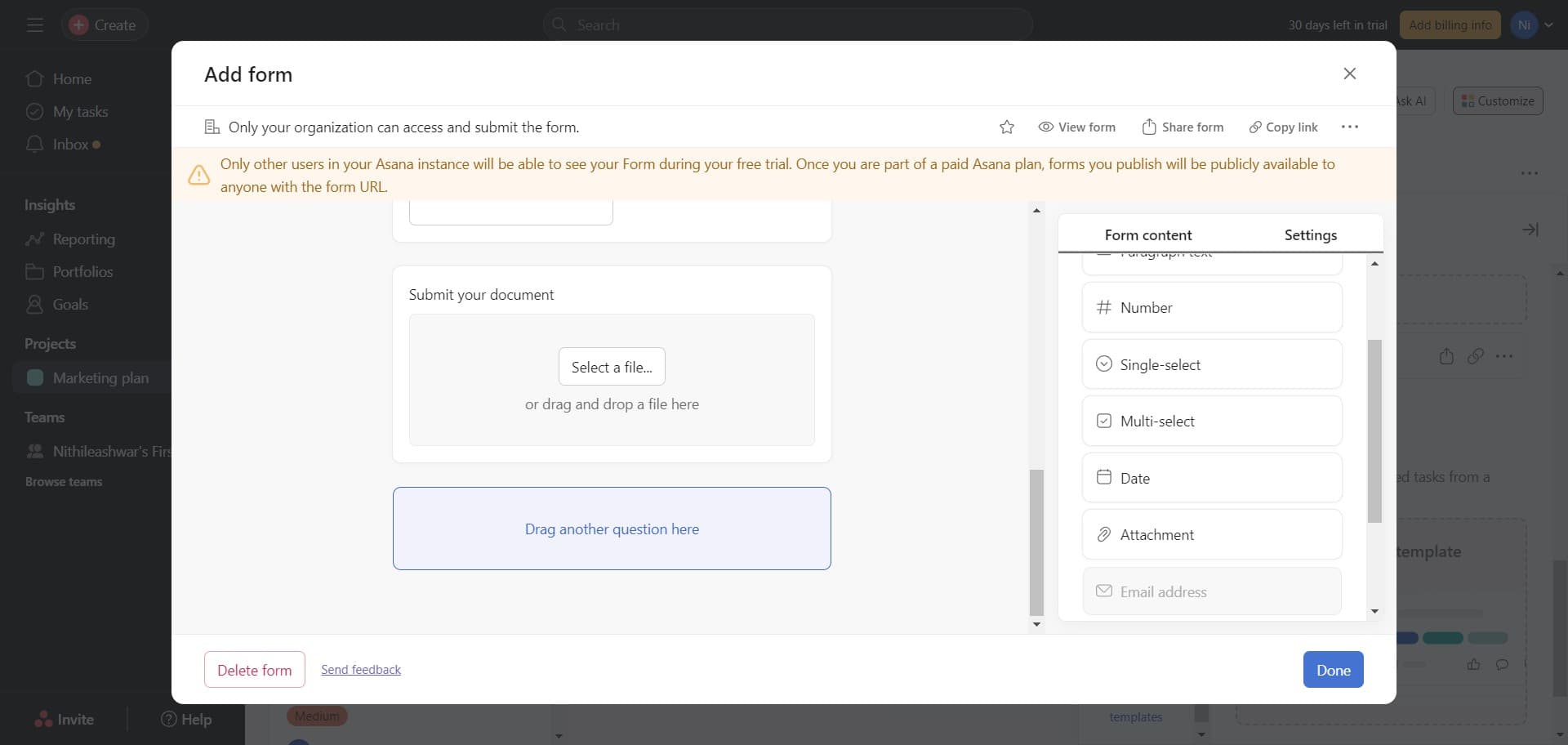
Click on Settings
Open the settings menu to configure properties of your form fields. Here you can customize labels, add helper text, mark fields as required, and adjust other field-specific options.
- 7
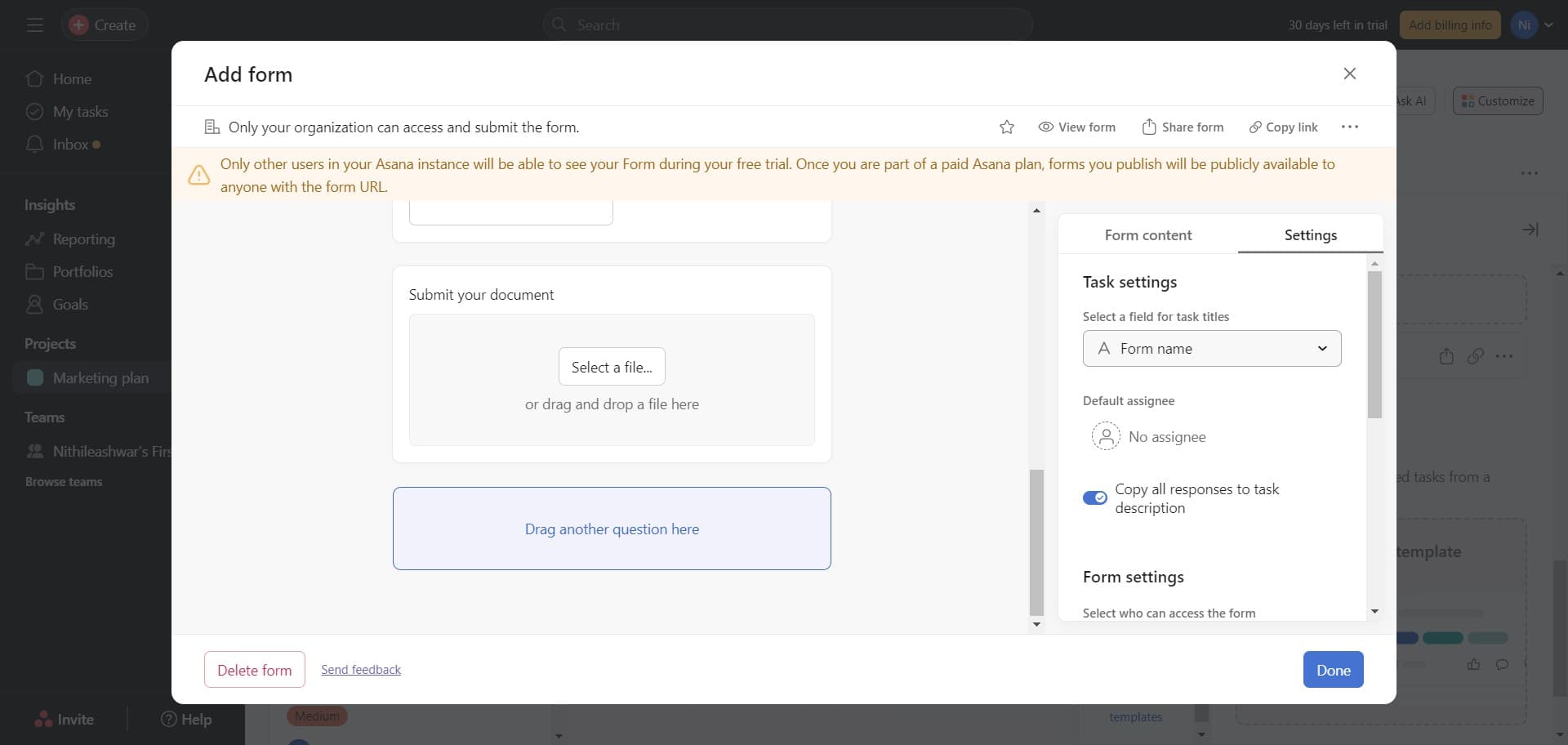
Click on Form name
Enter a descriptive name for your form that clearly indicates its purpose. This name will appear at the top of the form and help respondents understand what information you're requesting.
- 8
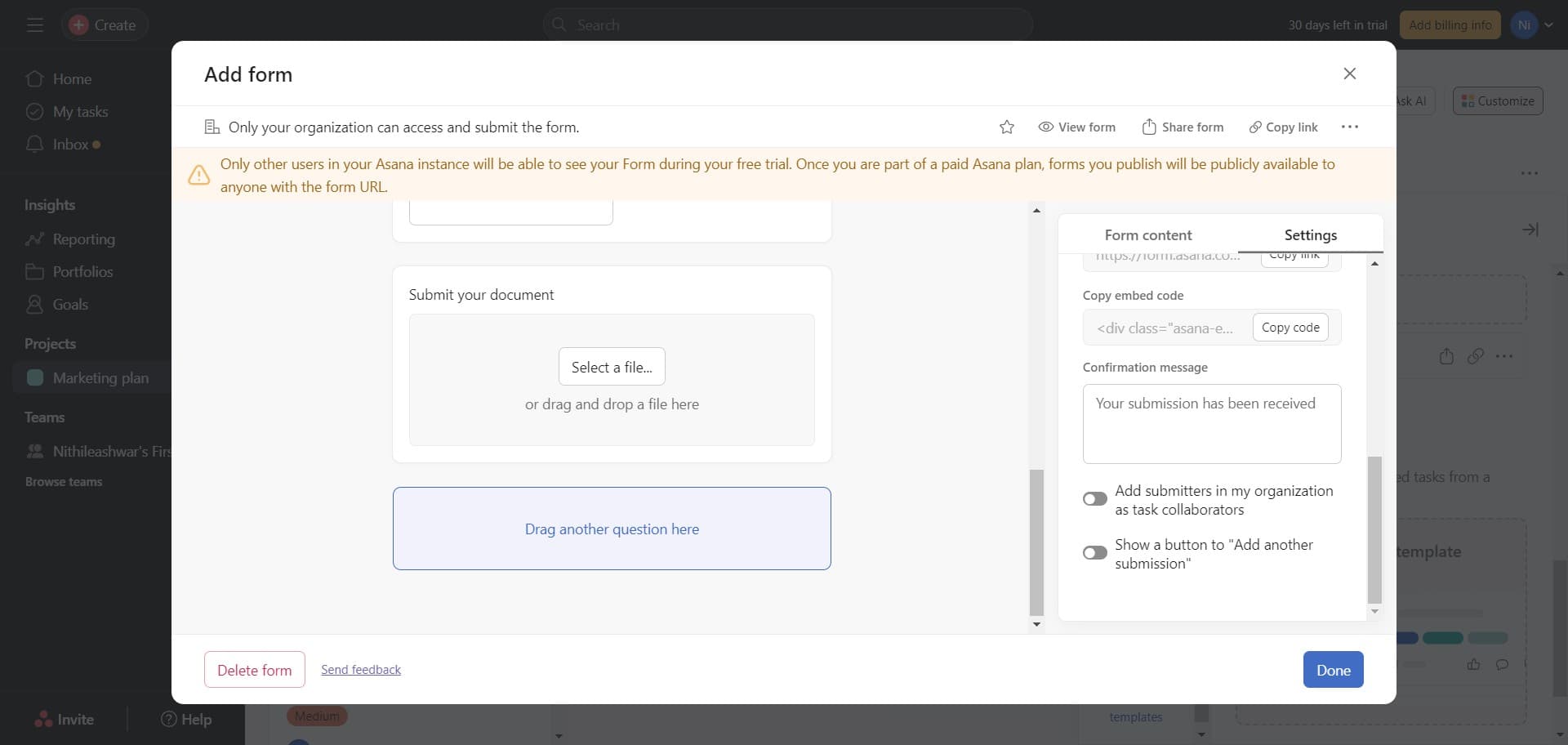
Click on Done
Save your form configuration and complete the setup process. After clicking Done, your form is ready to be used and shared.
- 9
Finalize form setup
Review the form to ensure all fields are configured correctly and the layout looks professional. Make any final adjustments before sharing the form with your team.
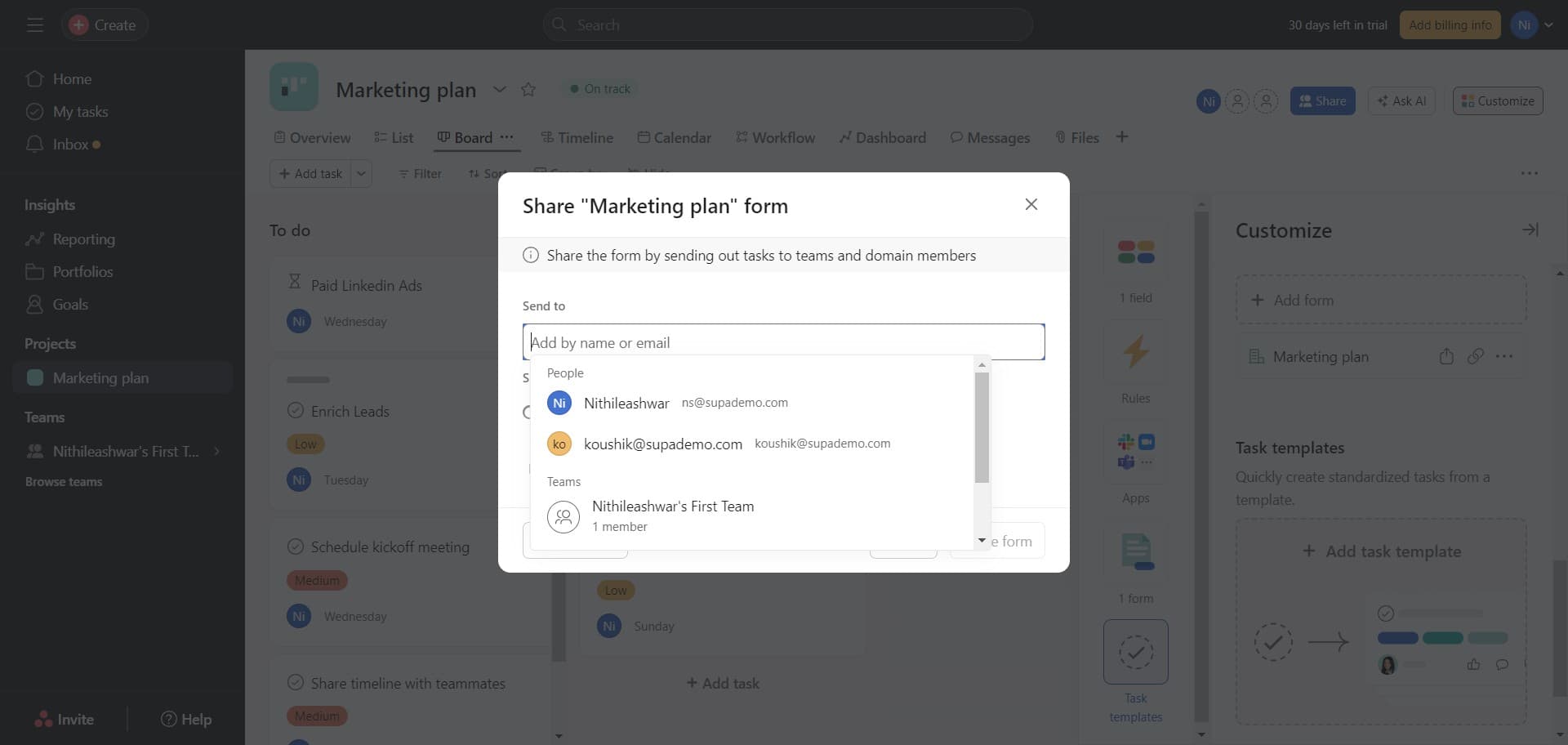
- 10
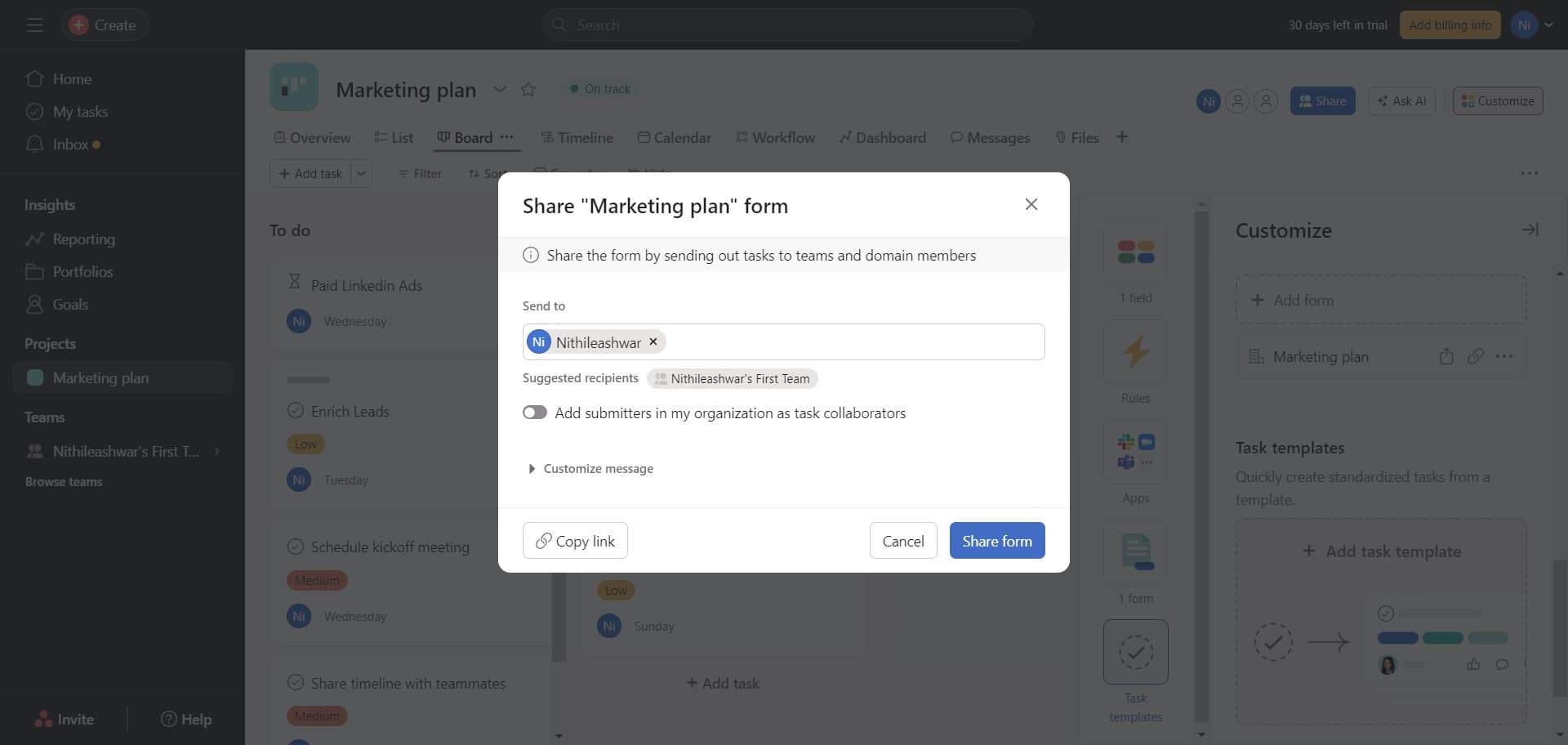
Click on Share form
Distribute your form by clicking the Share form button to generate a shareable link or set permissions. You can then send this link to team members, stakeholders, or external users who need to submit responses.
Frequently asked questions
Common questions about how to create forms in asana.
Yes. When configuring a field in the Settings menu, you can toggle the option to make that field required. This ensures respondents provide information for critical fields before submitting the form.
Asana supports multiple field types including single line text, long text, dropdown menus, multiple choice, date fields, and attachments. Each field type serves different data collection needs depending on your form's purpose.
Form submissions automatically create new tasks in the project you designated when creating the form. Each response becomes a task with the submitted information populated in the corresponding custom fields.
Yes. You can add images, headings, and descriptive text to customize the form's appearance and align it with your branding. These visual elements help make the form more professional and user-friendly.
Use the Share form button to generate a public link that anyone can access without needing an Asana account. This link can be shared via email, messaging platforms, or embedded on your website.