How to share your Asana workspace

Sharing your Asana workspace with team members is essential for collaboration and keeping everyone aligned on projects and tasks. This guide walks you through the process of inviting colleagues to your workspace so they can access shared work and contribute effectively.
Quick summary
In this tutorial, you'll learn how to share your Asana workspace by navigating to the appropriate settings and sending invitations to team members. You'll discover where to find the invite function and how to add collaborators to your workspace.
Why this matters
Sharing your workspace enables team members to view projects, tasks, and deadlines in real time, reducing miscommunication and improving project visibility. By inviting the right people to your workspace, you create a centralized hub where your team can collaborate, update progress, and stay accountable to shared goals.
Step-by-step guide
- 1
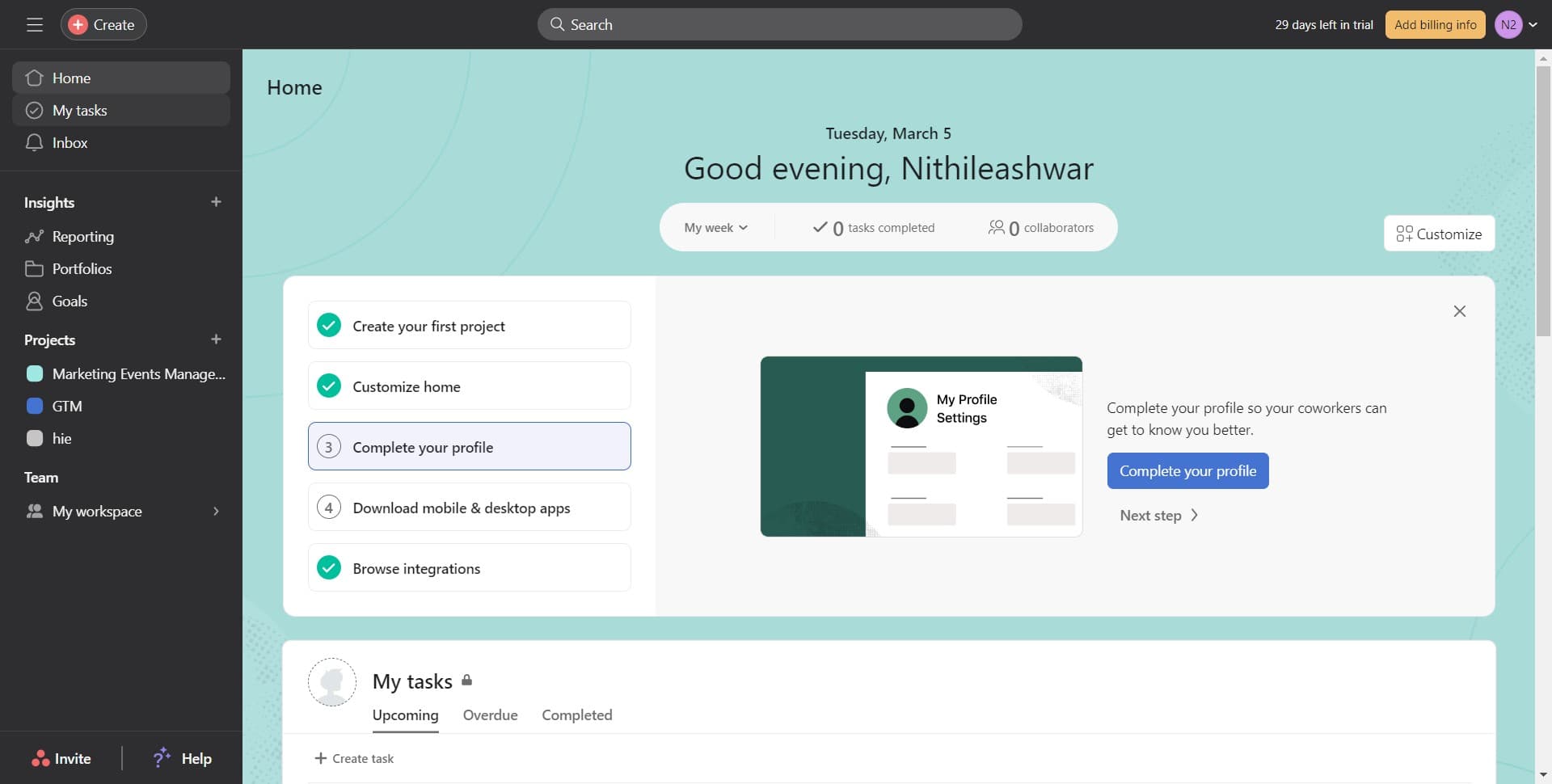
Click on My Tasks
Start by clicking on the 'My Tasks' option in your Asana sidebar. This takes you to your personal task dashboard where you can manage and view your assigned work.
- 2
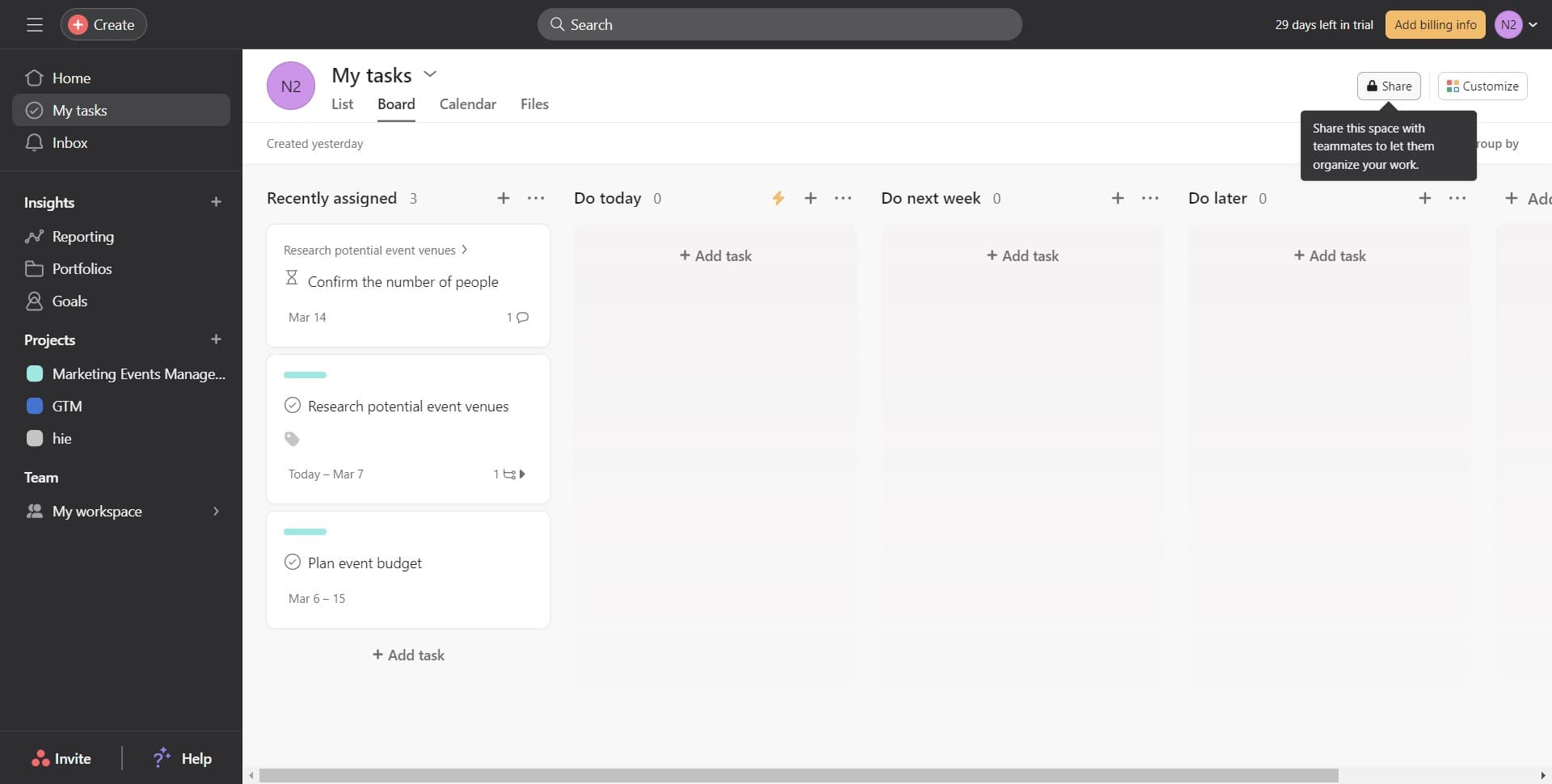
Navigate to workspace settings
From the main menu or dashboard area, locate and click on the settings or workspace management option. This will direct you to the configuration area where you can manage workspace members and permissions.
- 3
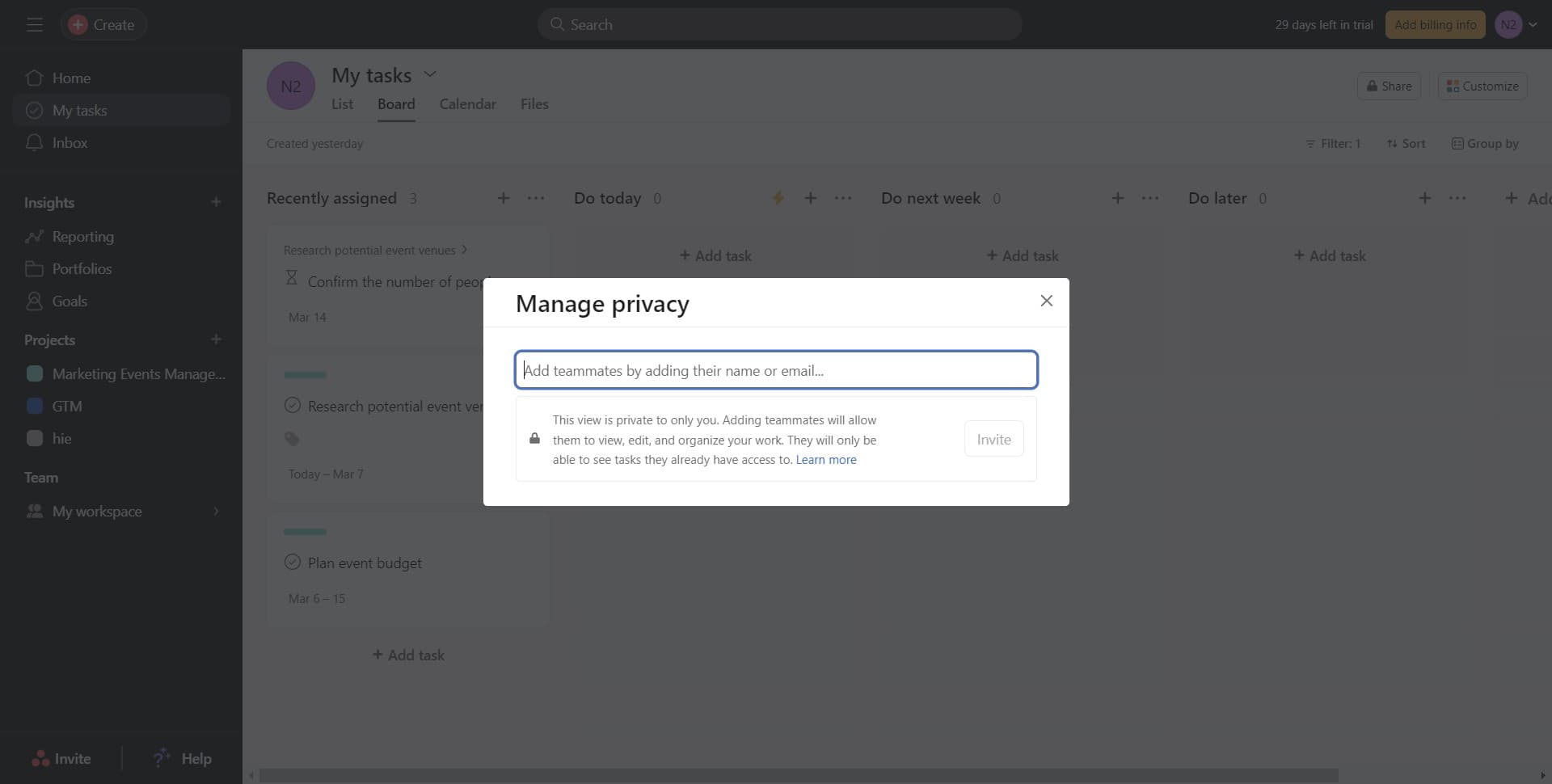
Access the members section
In the workspace settings, find the members or team section where you can see current workspace participants. This is where you'll manage who has access to your workspace.
- 4
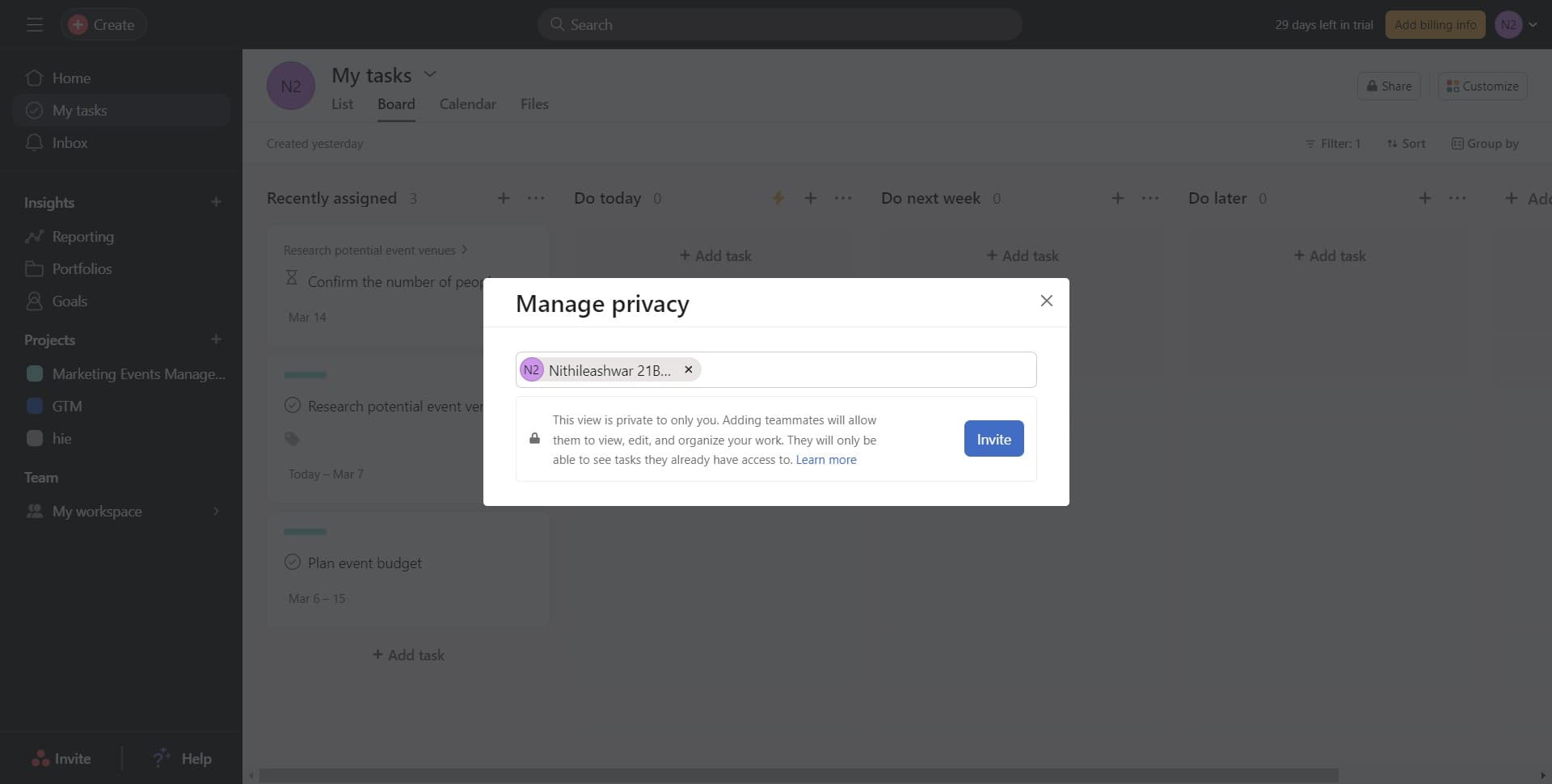
Click on Invite
Click the 'Invite' button to open the invitation dialog. You'll then be able to enter email addresses or select team members to add to your workspace.
Frequently asked questions
Common questions about how to share your asana workspace.
Yes, Asana allows you to set different permission levels for workspace members. You can assign roles such as admin, member, or guest, which control what information and features each person can access. Different project-level permissions can also be configured for more granular control.
When you send an invitation, the person receives an email with a link to join your workspace. Once they accept, they'll have access to projects and tasks based on their assigned permission level. They can then start collaborating on shared work immediately.
Yes, you can invite external users to your Asana workspace. You may want to use the guest role for external collaborators to limit their access to specific projects or information. This ensures external users only see the work relevant to their involvement.
To remove a member, go to workspace settings and find the members section. Locate the person you want to remove and select the option to delete or deactivate them from the workspace. They'll lose access immediately after removal.
Asana's member limits depend on your pricing plan. Free and paid plans have different member allowances. Check your plan details or contact Asana support to confirm the maximum number of team members you can add to your workspace.