How to turn on hacks in Asana

Asana's hacks feature unlocks experimental tools and advanced functionality that can enhance your project management workflow. Enabling hacks gives you access to beta features and customization options designed for power users. This guide walks you through the simple process of turning on hacks in your Asana workspace.
Quick summary
In this tutorial, you'll learn how to navigate to Asana's settings, locate the hacks menu, enable experimental features, and reload your workspace to apply changes. By the end, you'll have access to advanced functionality that can streamline your team's productivity and customization options.
Why this matters
Enabling hacks in Asana allows your team to experiment with cutting-edge features before they become standard, giving you a competitive advantage in how you manage projects. These experimental tools often address specific workflow challenges and can significantly improve efficiency for teams with unique needs. Activating hacks is essential for teams looking to optimize their Asana setup beyond default configurations.
Step-by-step guide
- 1
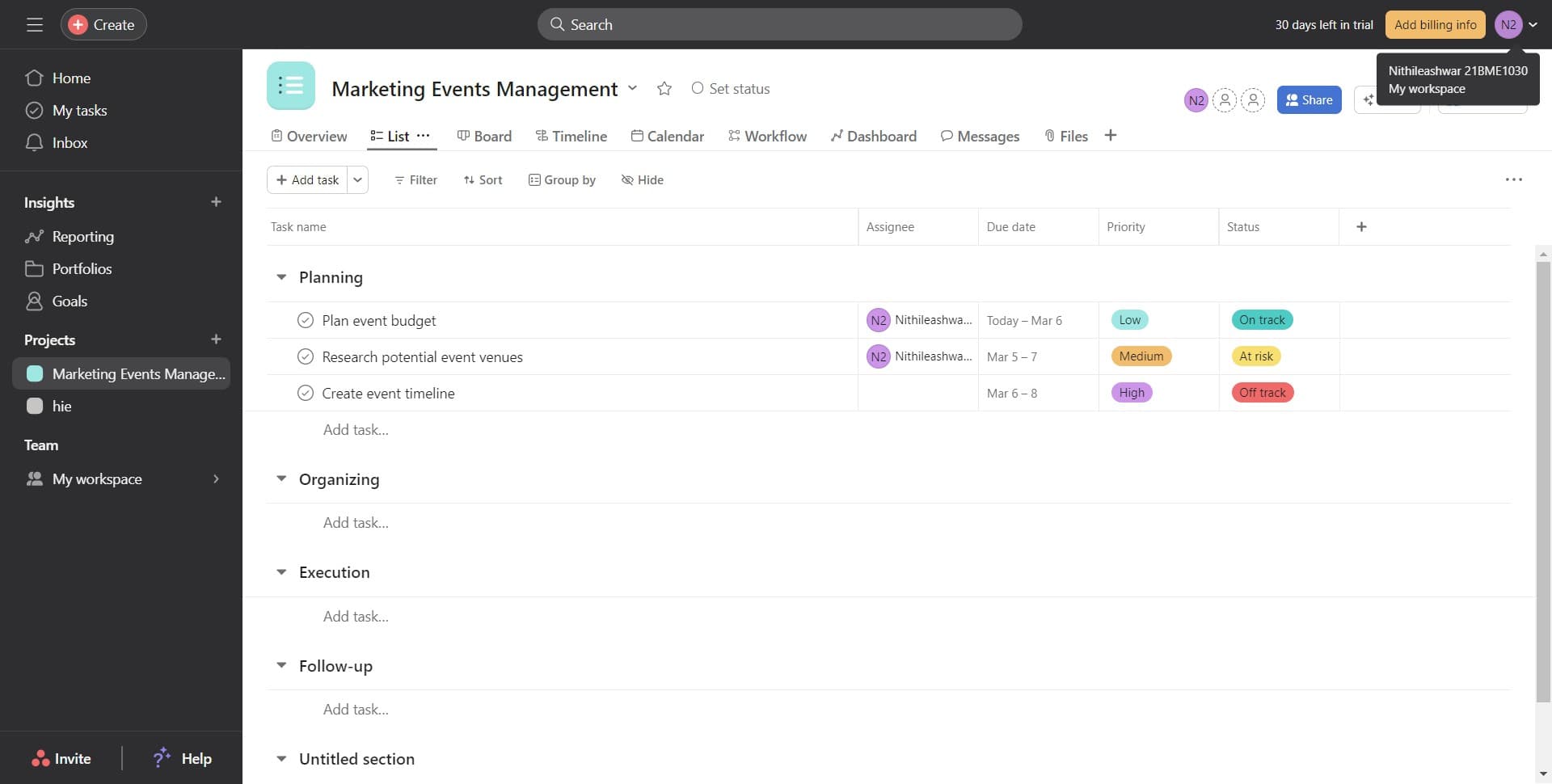
Navigate to account settings
Start by clicking the designated settings access point in your Asana interface. This will direct you to your account and workspace configuration options.
- 2
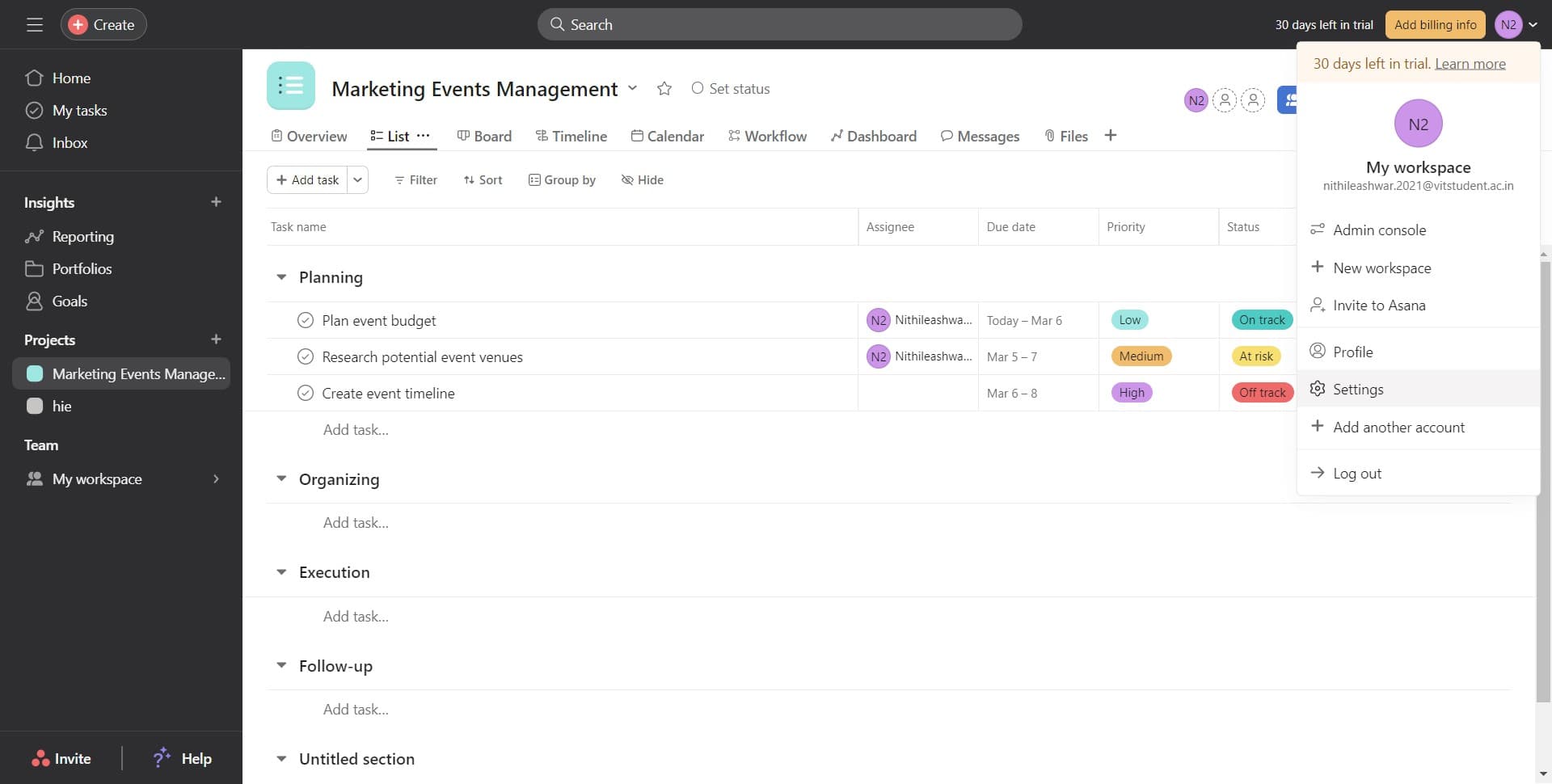
Click on Settings
From the menu or interface, select 'Settings' to open your account preferences and configuration panel. You'll see various customization options for your workspace.
- 3
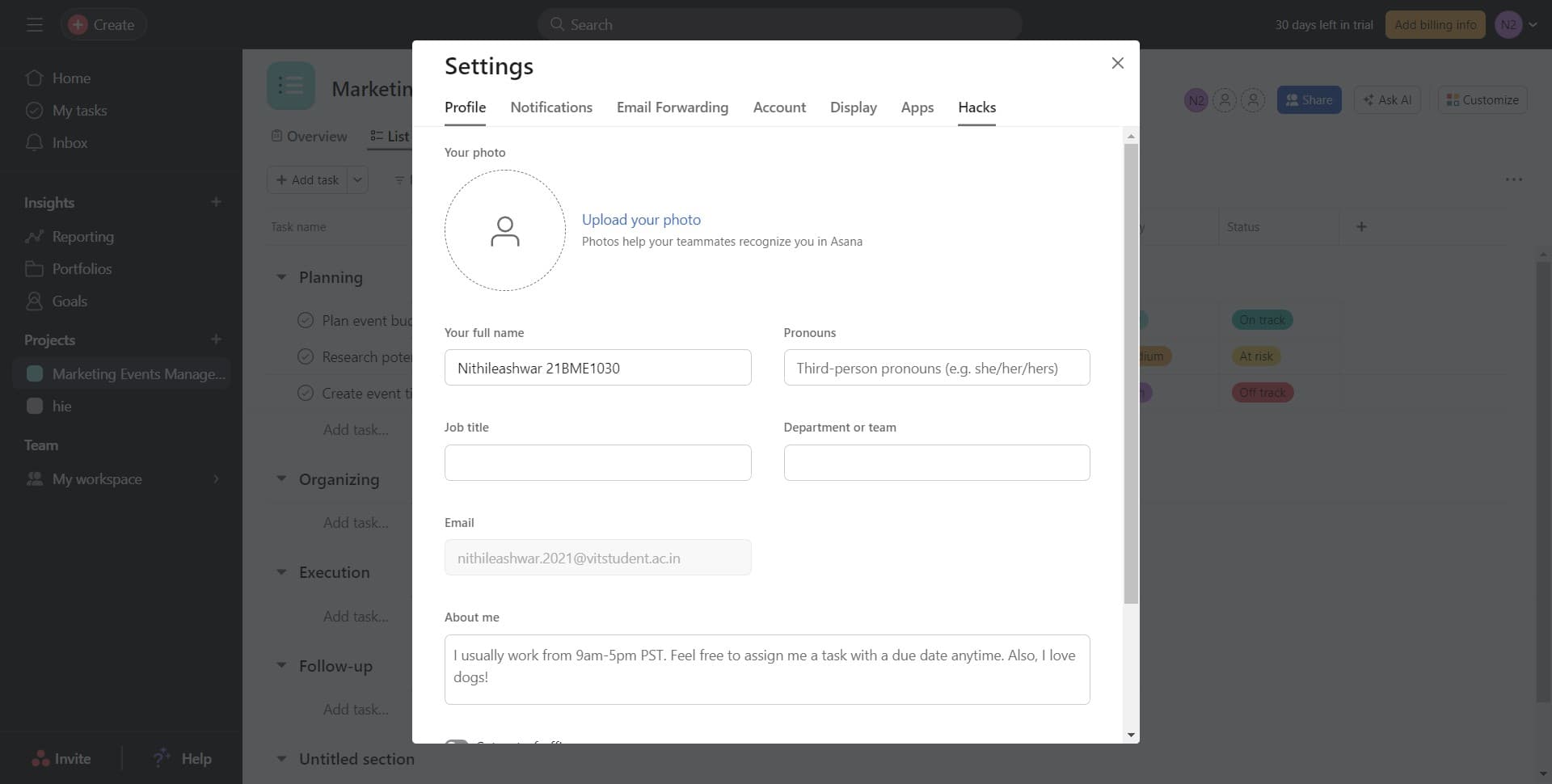
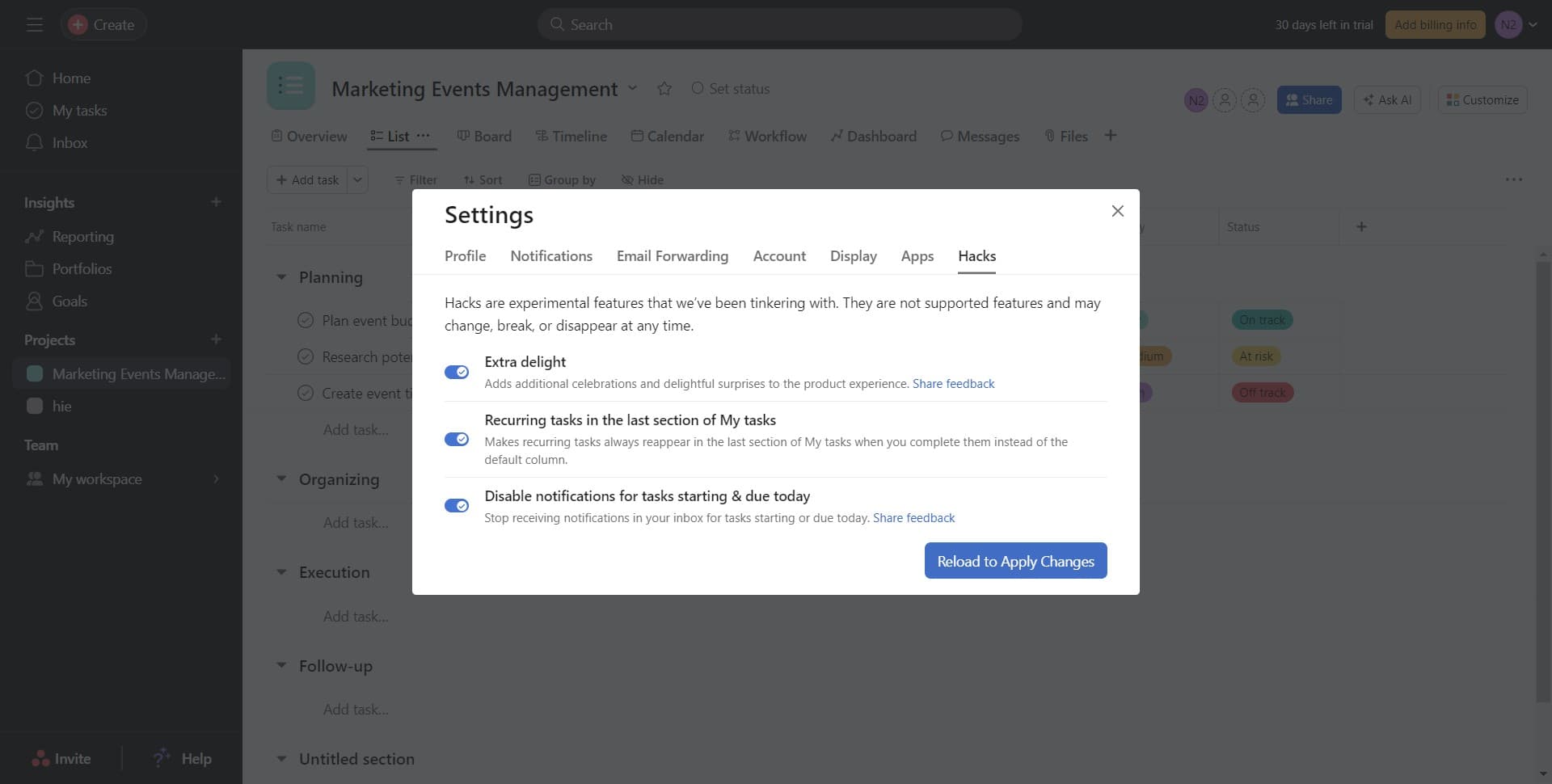
Select Hacks from the menu
Locate and click on 'Hacks' within the settings menu to access experimental features available in Asana. This section displays all available beta tools you can enable.
- 4
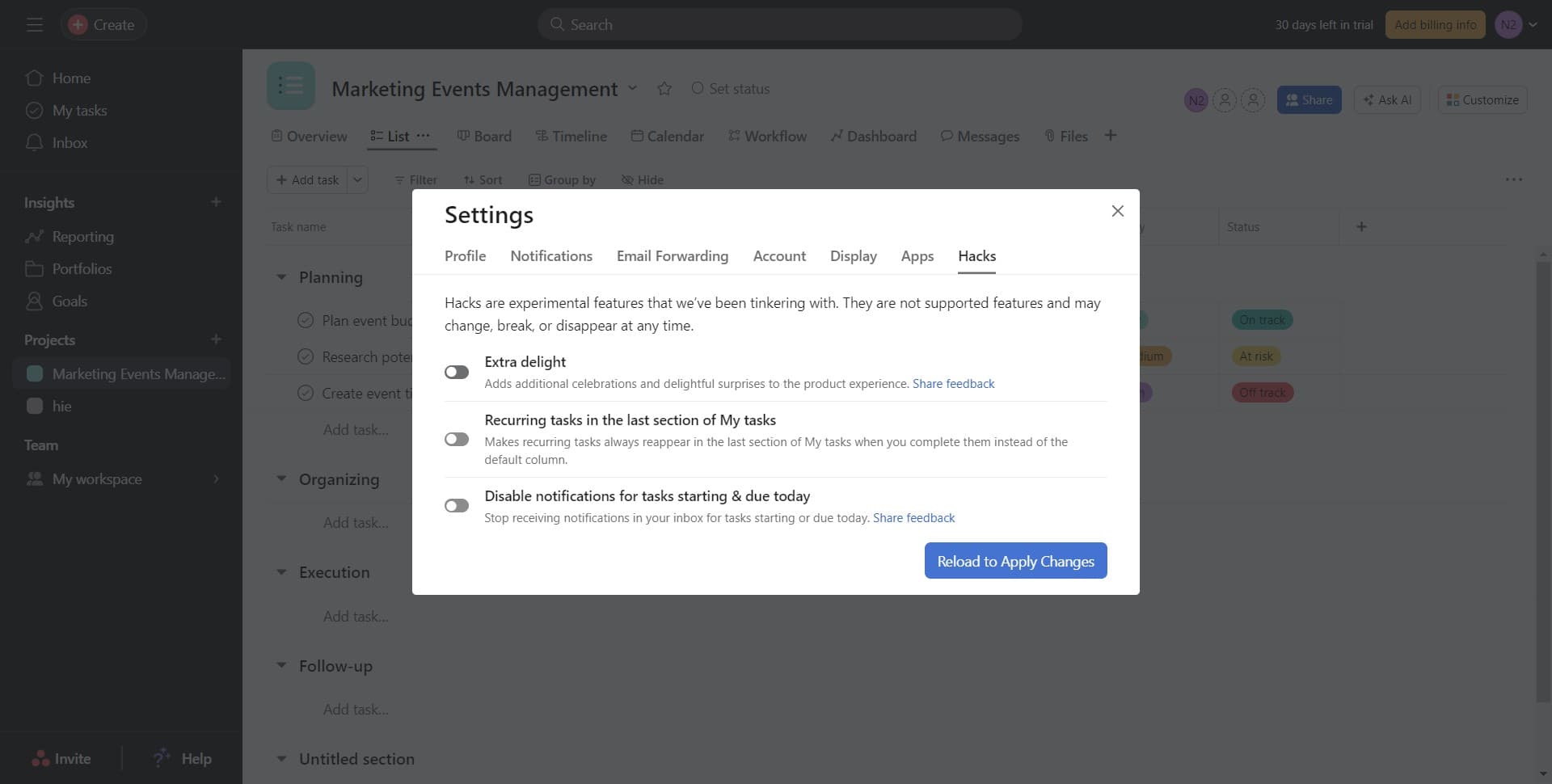
Enable experimental features
Click the toggle or button to activate the hacks you want to use. You'll see confirmation that your selections have been registered.
- 5
Click Reload to Apply Changes
Select 'Reload to Apply Changes' to refresh your Asana workspace and activate the enabled hacks. Your workspace will reload with the new features active.
- 6
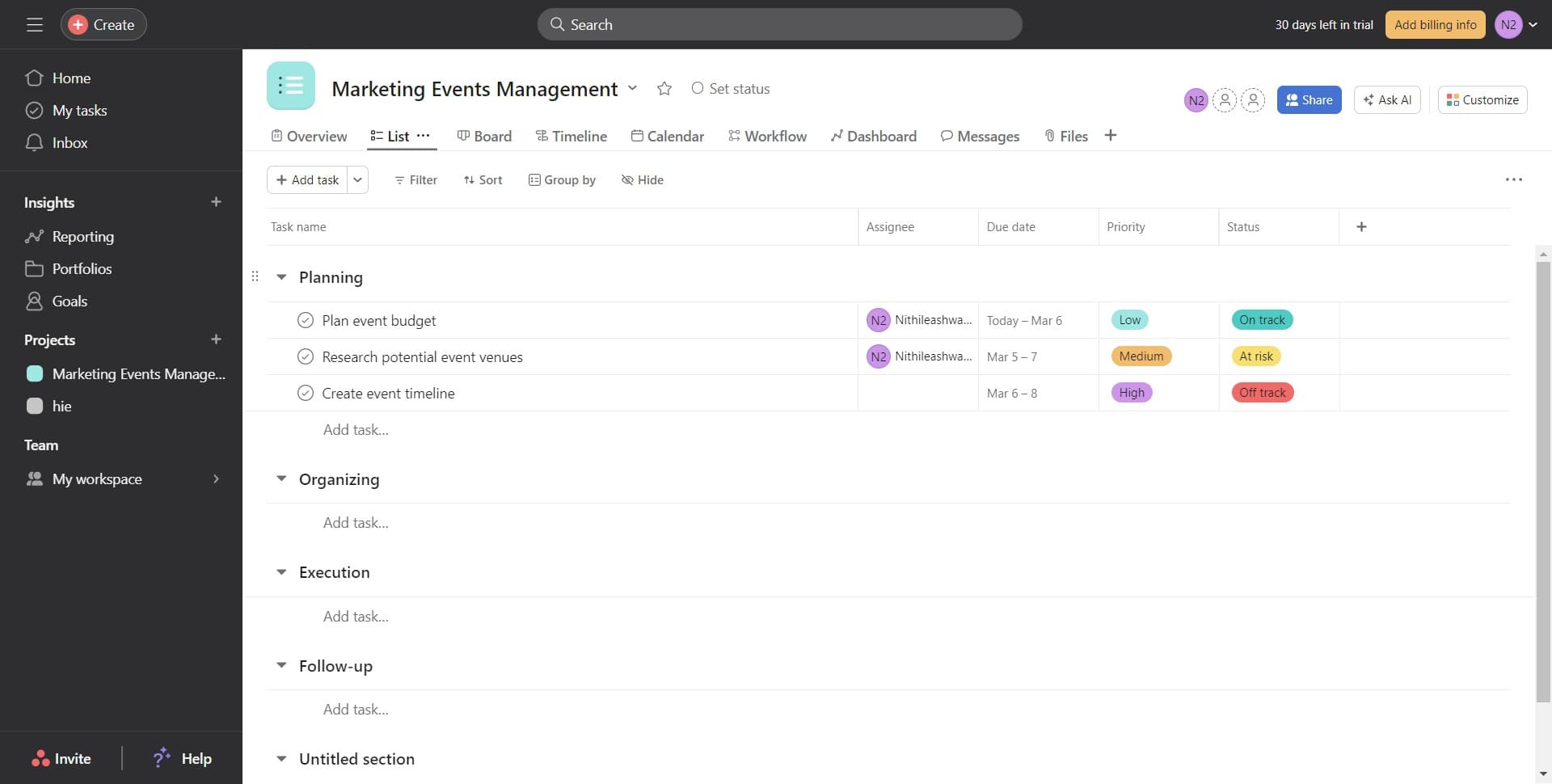
Verify hacks are active in Planning
Navigate to the 'Planning' section to confirm your enabled hacks are now functional and integrated into your workflow. You should see the new experimental features available in your project management interface.
Frequently asked questions
Common questions about how to turn on hacks in asana.
Hacks are experimental features and beta tools that Asana offers to power users who want to access advanced functionality before official release. These features can include workflow enhancements, customization options, and productivity tools designed for specific use cases. Enabling hacks is optional and allows you to test new capabilities within your workspace.
Enabling hacks should not negatively impact your existing projects, as these are experimental features designed to enhance your workflow rather than alter core functionality. However, since hacks are beta features, it's recommended to monitor their performance and disable any that cause issues. You can always toggle hacks on or off depending on your team's needs.
Yes, you can disable hacks at any time by returning to Settings, navigating to Hacks, and toggling off the features you no longer want. After disabling, simply click 'Reload to Apply Changes' again to update your workspace. This gives you complete flexibility to experiment without long-term commitment.
Hack availability may vary depending on your Asana plan level, as some experimental features may be limited to premium or business tier accounts. Check your plan details or contact Asana support to confirm which hacks are available for your specific subscription. Asana regularly updates hack offerings based on user feedback and feature development.
Reloading your workspace refreshes the interface and ensures all newly enabled hacks are properly integrated into your Asana environment. This process synchronizes your workspace with your updated settings and activates the experimental features. Without reloading, the hacks may not display or function correctly in your workspace.