How to Use Attio with Third-Party Tools

Attio is a powerful CRM platform that becomes even more valuable when connected to your existing business tools. This guide walks you through integrating Attio with third-party applications to streamline your workflow and eliminate manual data entry.
Quick summary
In this tutorial, you'll learn how to connect Attio to external tools, configure integrations, and ensure seamless data flow between platforms. By the end, you'll have a unified system where your CRM data syncs automatically with the tools your team already uses.
Why this matters
Manual data entry across multiple platforms wastes time and introduces errors that can impact decision-making. By integrating Attio with third-party tools, you create a single source of truth where information stays synchronized across your entire tech stack, allowing your team to focus on meaningful work instead of data management.
Step-by-step guide
- 1
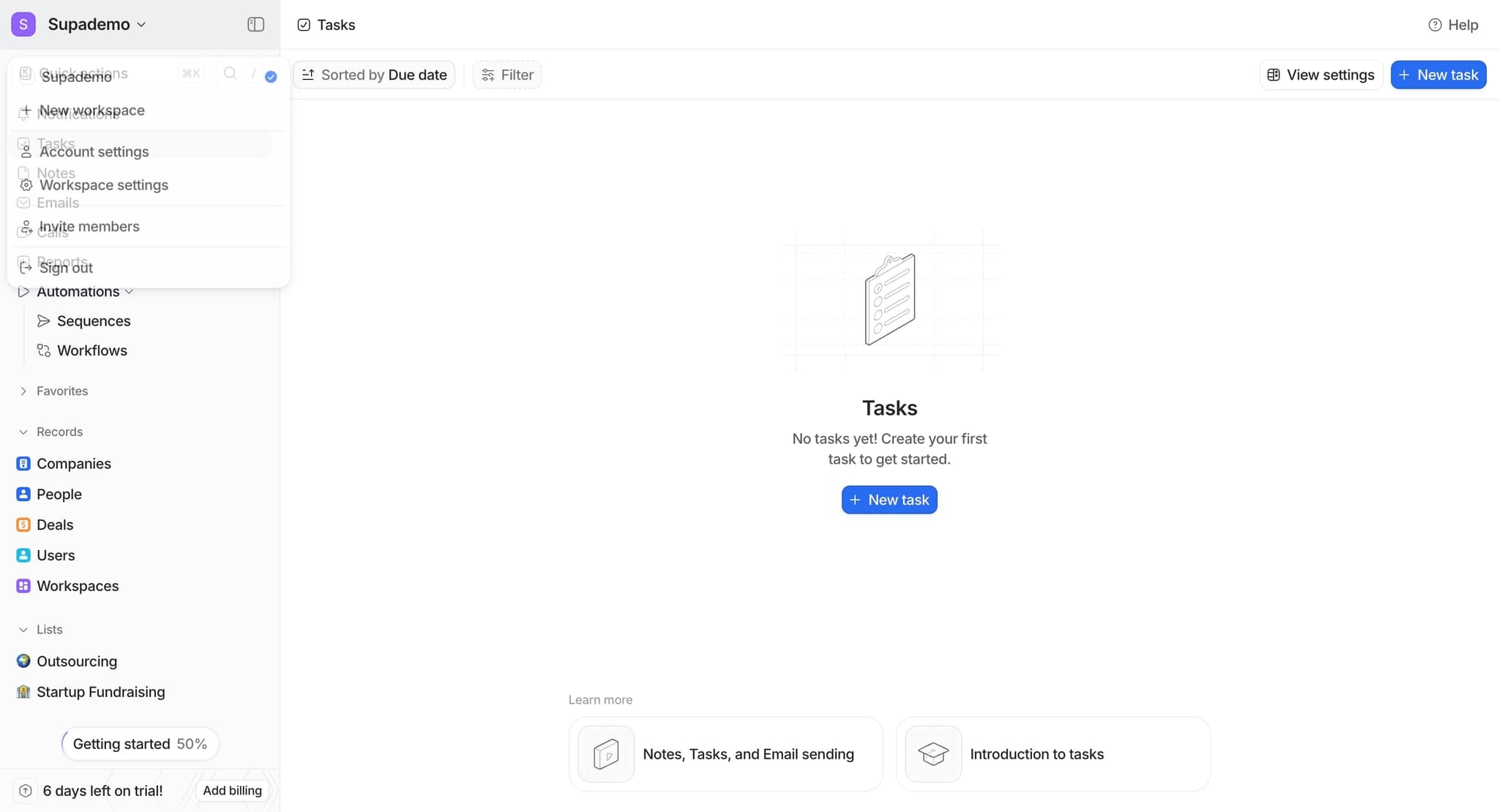
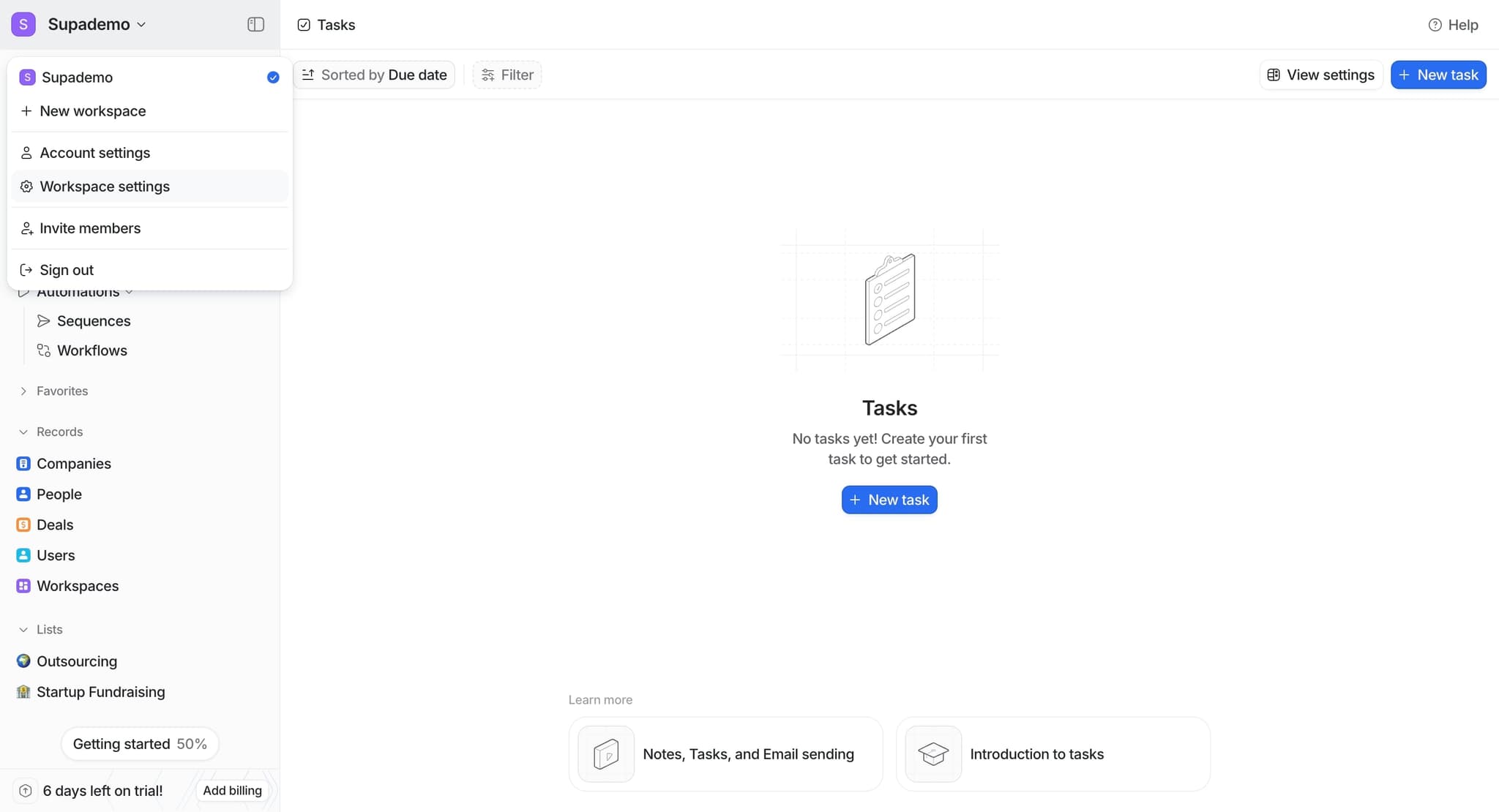
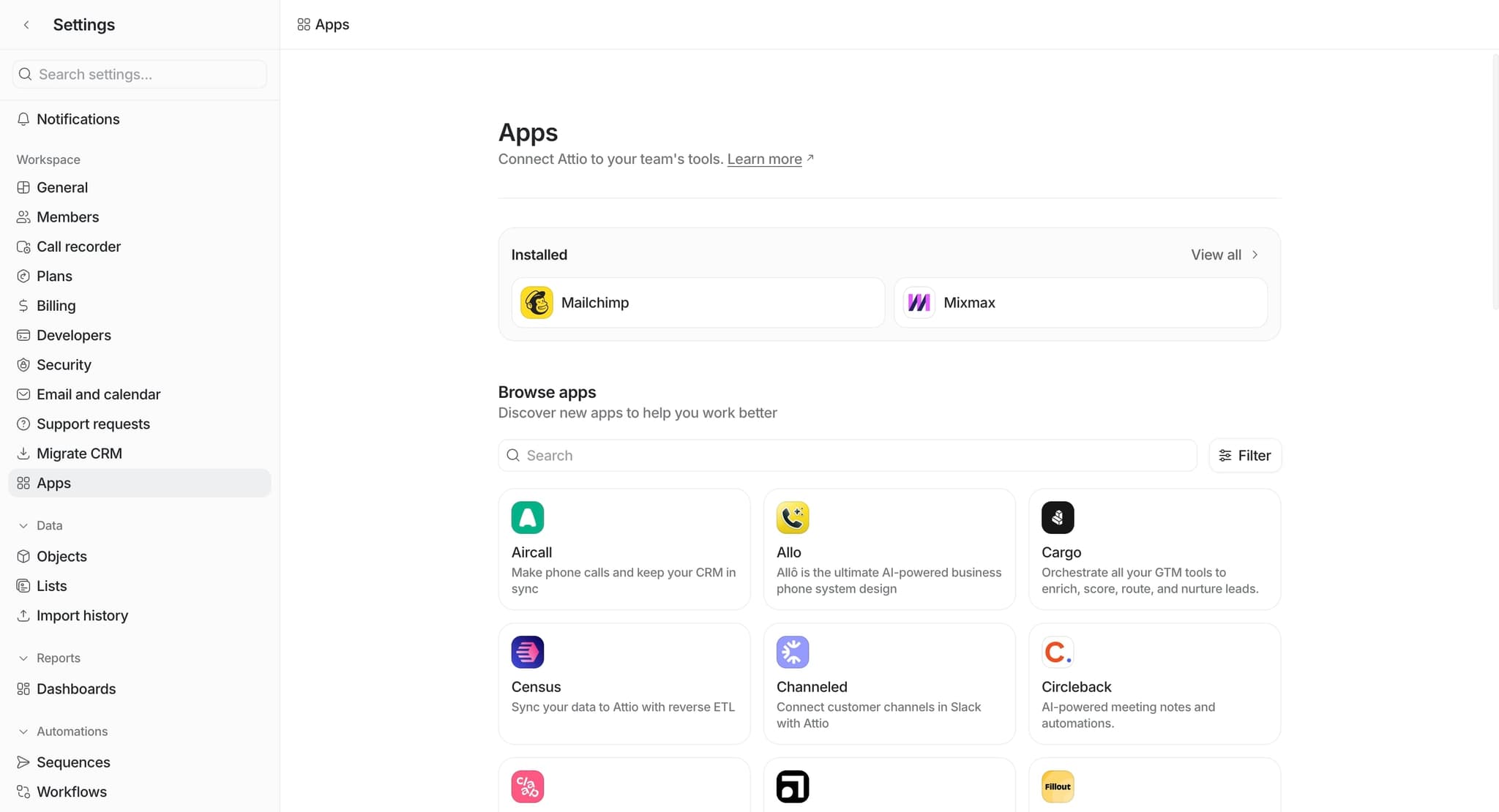
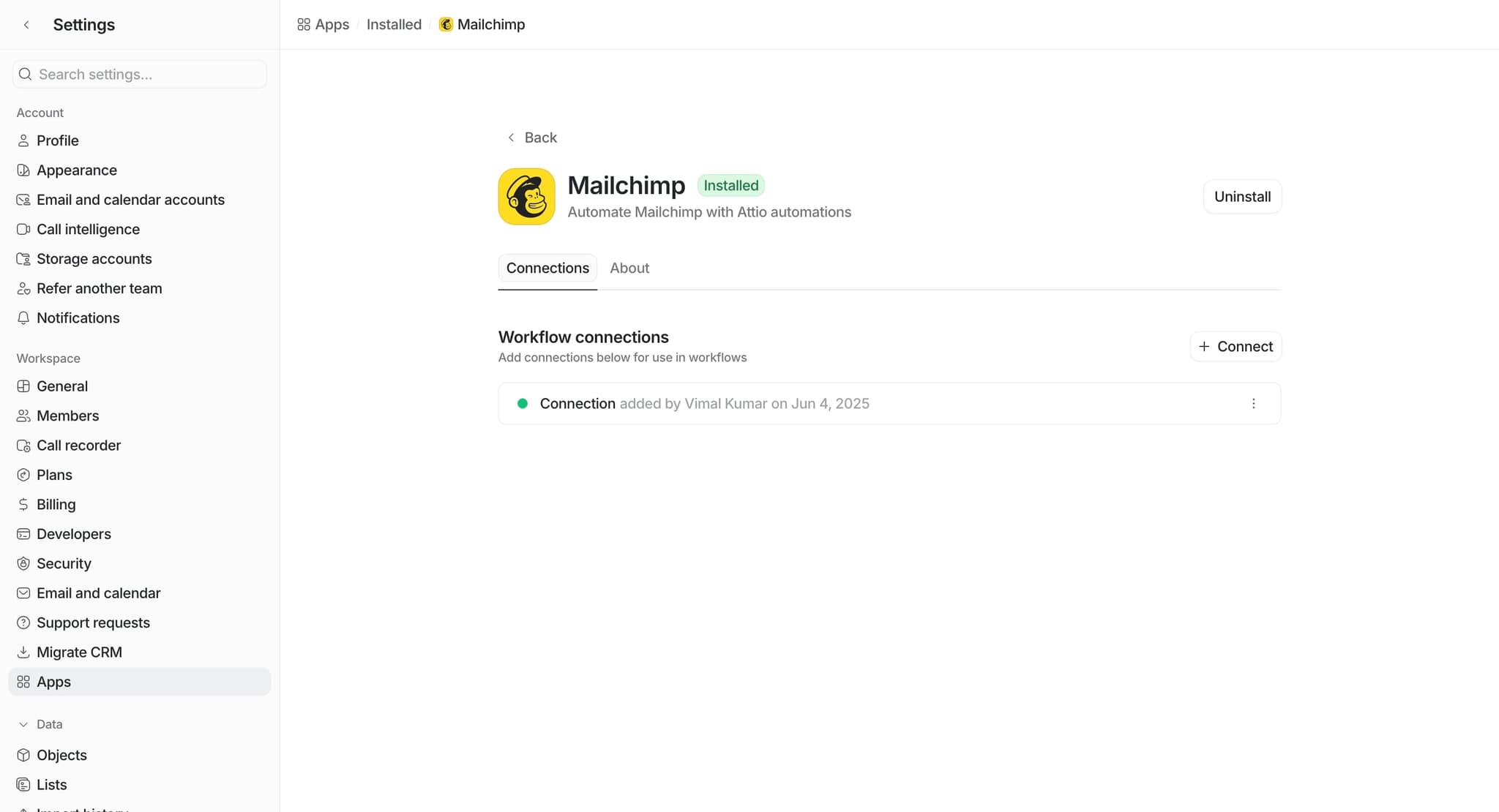
Navigate to the integrations section
Open Attio and locate the integrations or apps marketplace from the main menu or settings area. This is where you'll find all available third-party connections and manage existing integrations.
- 2
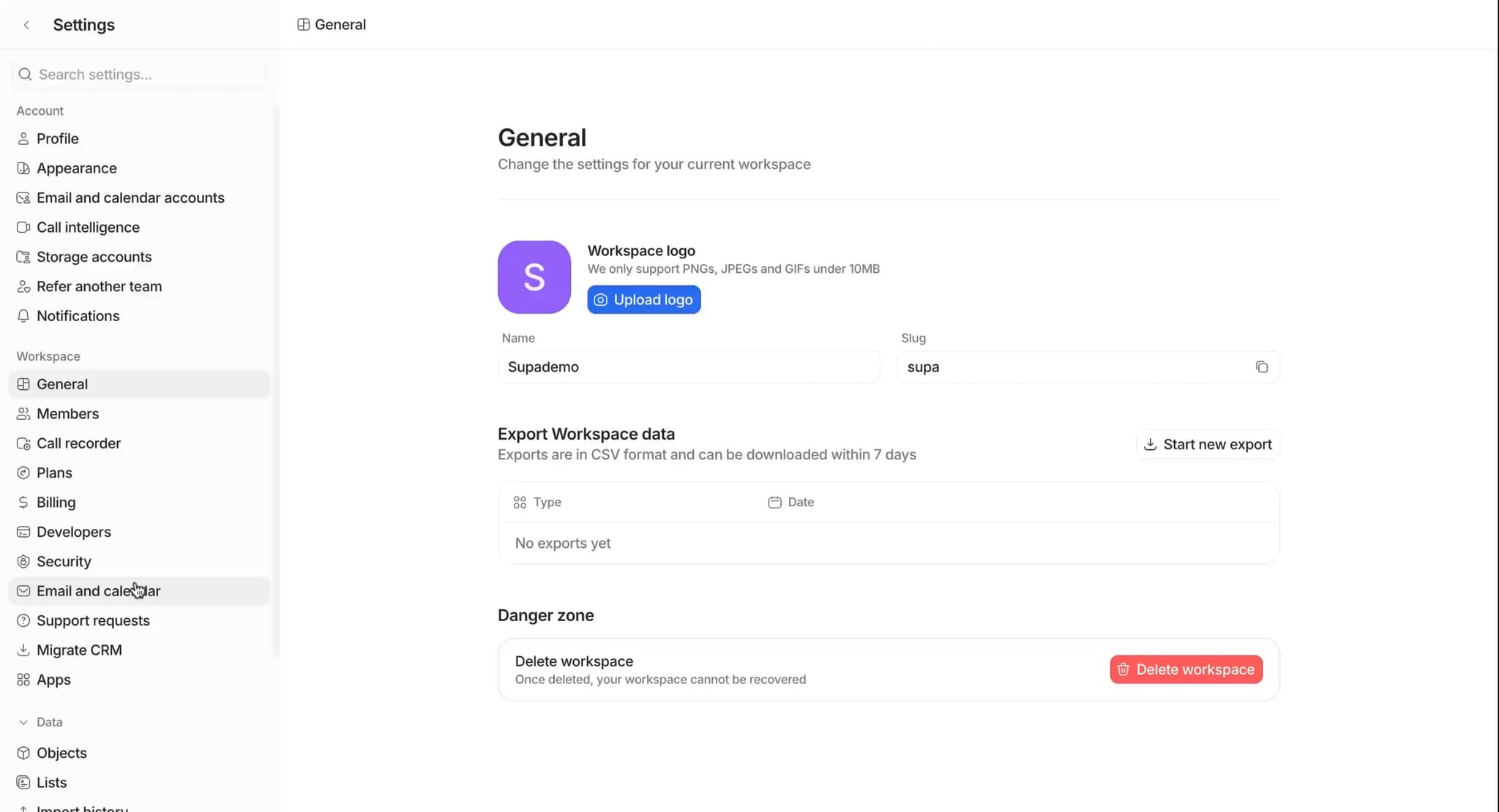
Browse available integrations
Explore the list of pre-built integrations available for your tools. Each integration will show compatibility details, setup requirements, and a brief description of what data can be synced.
- 3
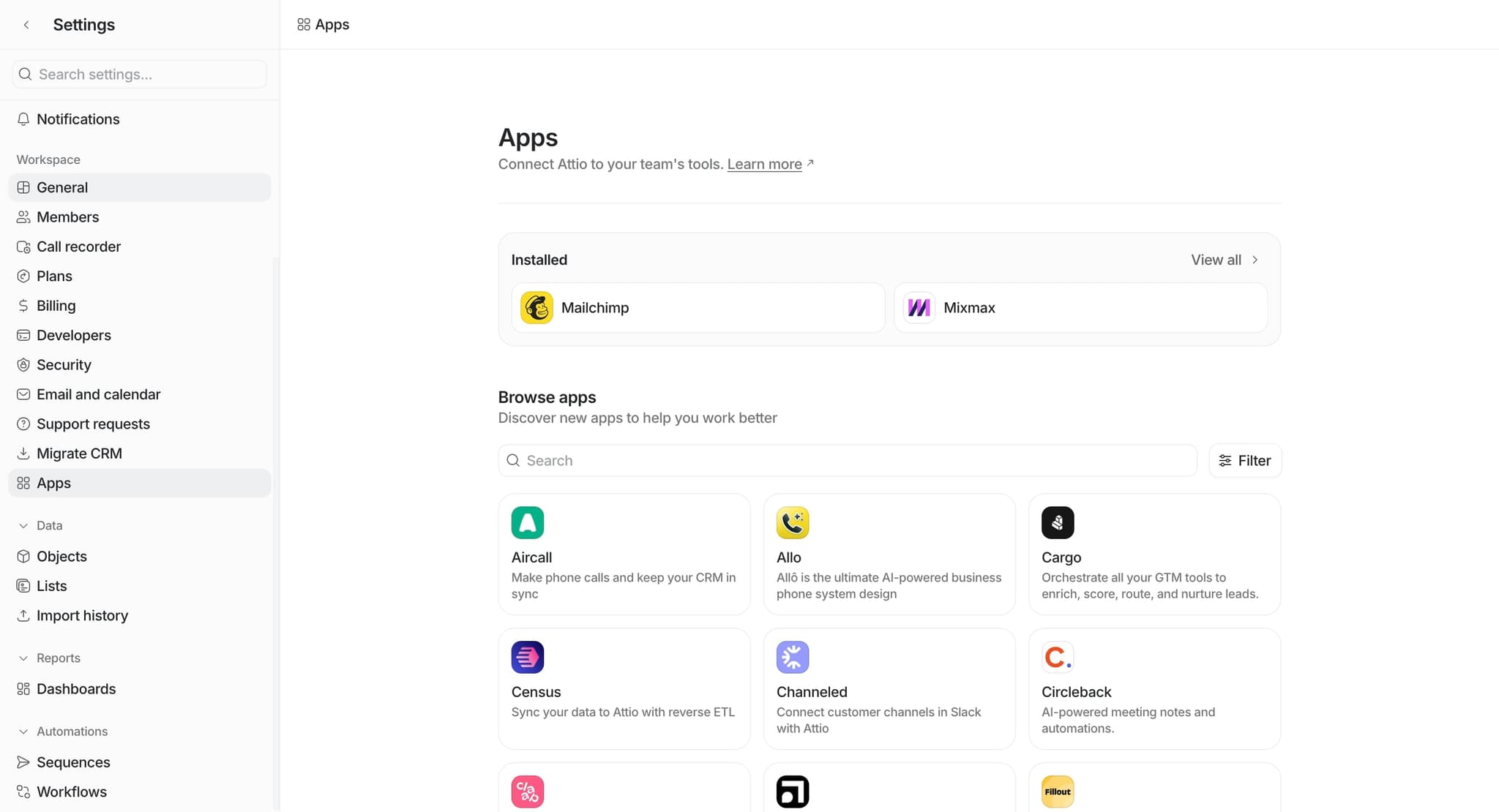
Select your desired tool
Click on the third-party tool you want to connect to Attio. Review the integration details to ensure it meets your business needs and supports the data flows you require.
- 4
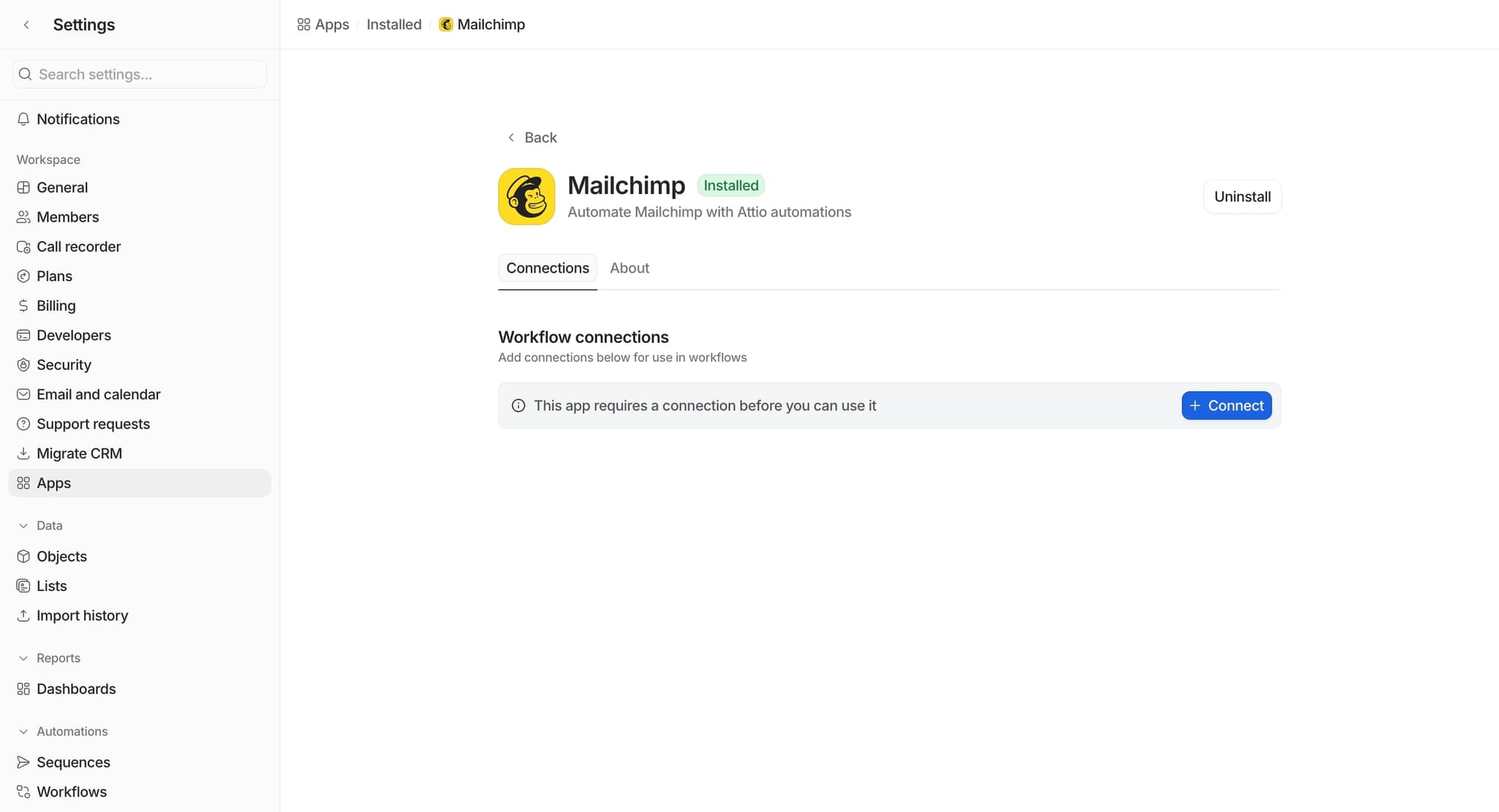
Click the connect button
Select the option to initiate the connection, typically labeled 'Connect,' 'Install,' or 'Enable.' This will begin the authentication process between Attio and the third-party platform.
- 5
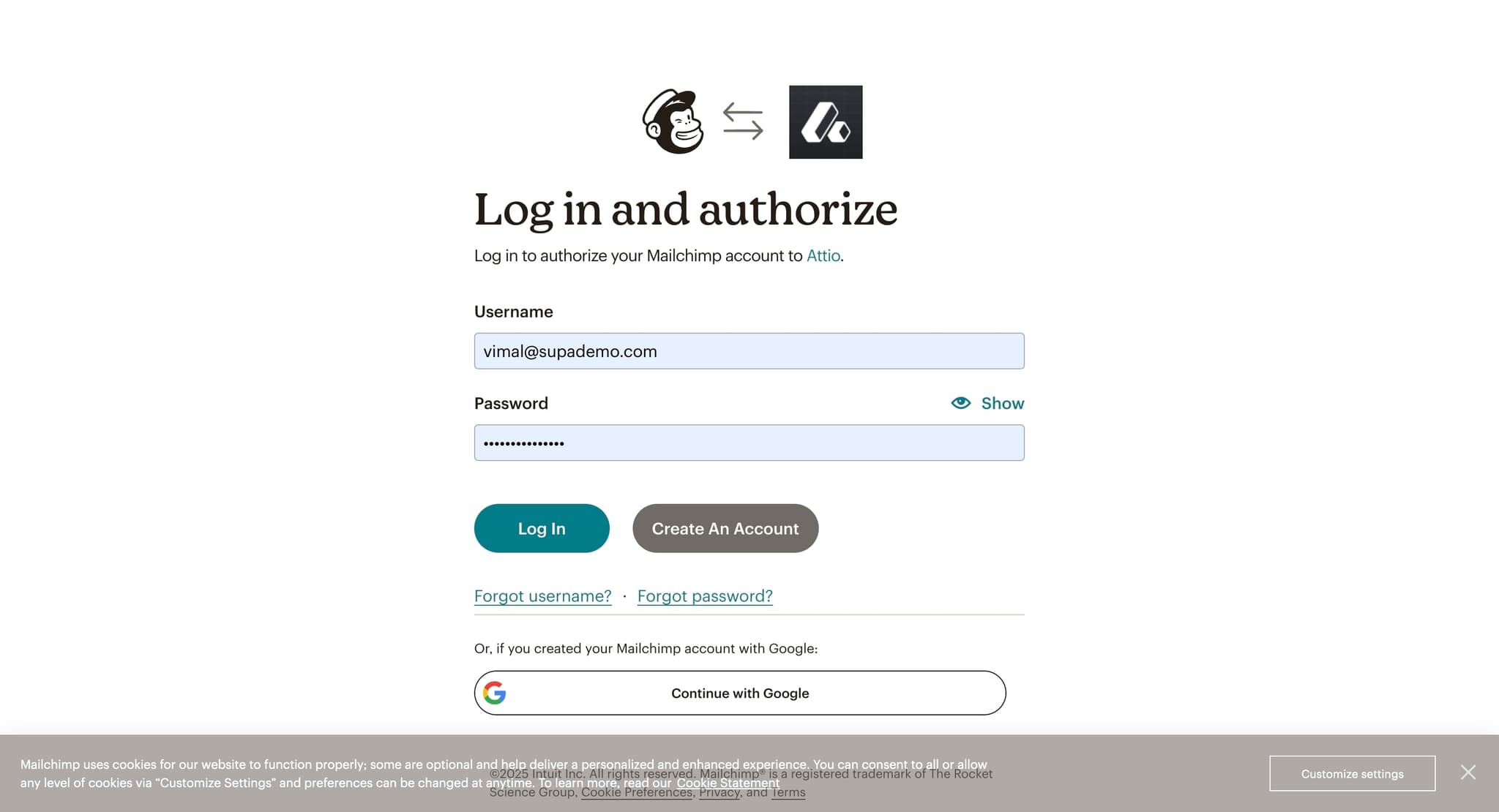
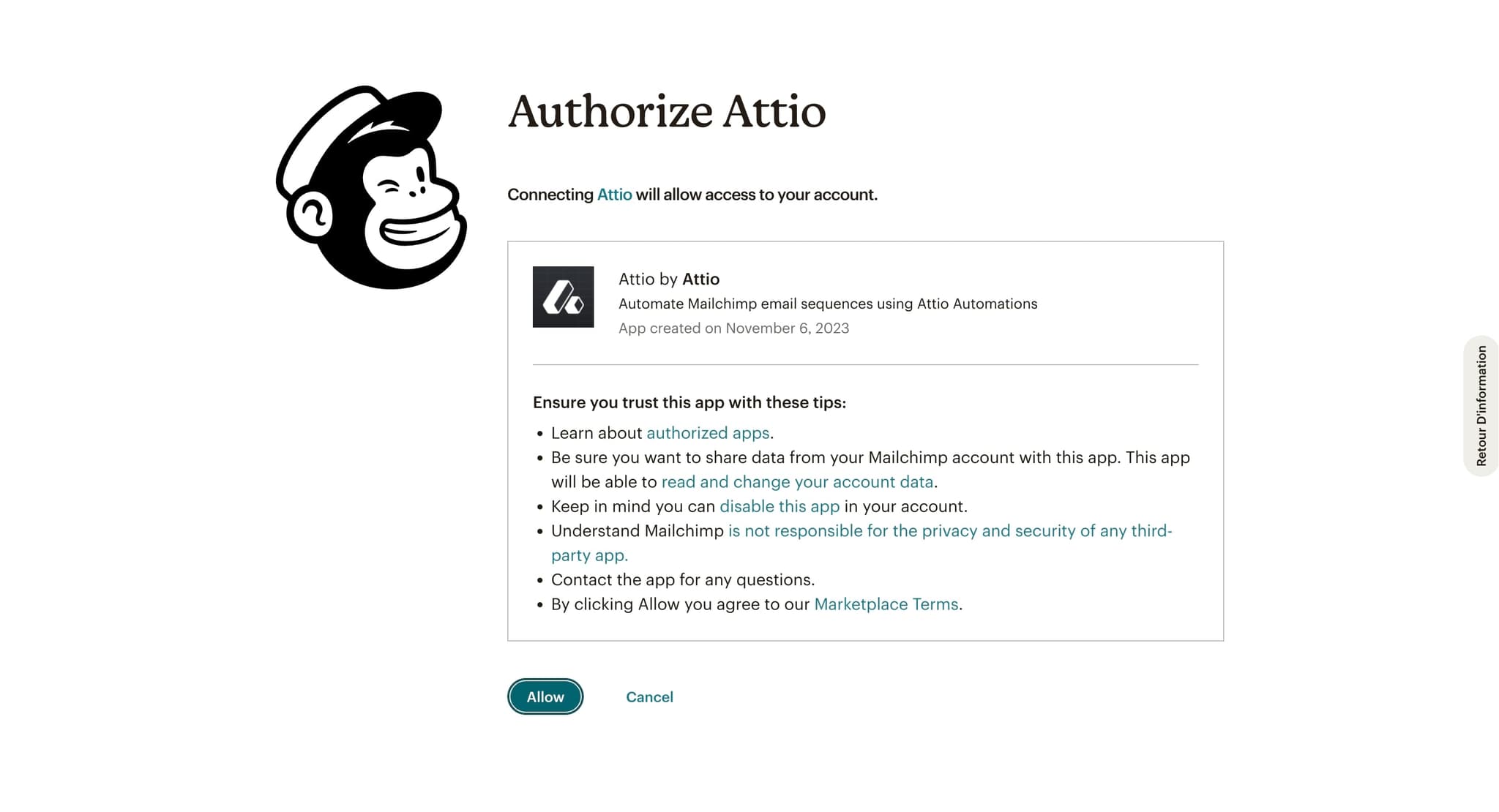
Authenticate with the third-party platform
You'll be redirected to log in to the external tool and grant Attio permission to access your account. Follow the authentication prompts and authorize the requested permissions to proceed.
- 6
Configure data mapping and sync settings
Define which Attio fields should sync with corresponding fields in the third-party tool. Select the direction of sync (one-way or two-way) and specify any filtering rules for which records should be included.
- 7
Set sync frequency and schedules
Choose how often Attio should sync data with the connected tool, such as real-time, hourly, or daily. Adjust any timing preferences based on your team's workflow and data freshness requirements.
- 8
Test the integration
Create a test record or trigger a sync to verify that data flows correctly between Attio and the third-party tool. Monitor the sync logs to confirm there are no errors or data mismatches.
- 9
Enable the integration
Once testing is complete and everything works as expected, activate the integration by switching it to 'Active' or 'Enabled.' The integration will now begin syncing data according to your configured settings.
- 10
Monitor and maintain the connection
Regularly check the integration status, review sync logs for any warnings, and update field mappings if your business processes change. Attio will notify you of any sync failures or authentication issues that need attention.
Frequently asked questions
Common questions about how to use attio with third-party tools.
Most integrations support syncing core data types like contacts, companies, deals, and custom fields. The specific data available depends on each integration's capabilities. Review the integration details page to see exactly which fields and objects are supported for your chosen tool.
Many integrations support two-way sync, where changes in Attio update the third-party tool and vice versa. However, some integrations may only support one-way sync. Check the integration settings to configure the sync direction that works best for your workflow.
Attio follows conflict resolution rules you define during setup, such as prioritizing the most recent change or favoring data from a specific platform. Review your conflict resolution settings in the integration configuration and adjust them if needed to match your business logic.
Check the integration's sync logs in Attio to identify the error message. Common issues include incorrect field mappings, authentication expiration, or API limits. Verify your authentication is current and that field mappings are correct, then manually trigger a sync to retry.
Yes, Attio supports connecting to multiple integrations simultaneously. You can set up separate connections for different tools and manage them all from the integrations dashboard. Just ensure each integration is properly configured to avoid conflicting data flows.