How to Use Comments and Mentions in Attio

Comments and mentions in Attio enable seamless team collaboration by allowing you to discuss records, assign tasks, and notify team members directly within your workflow. This feature keeps conversations contextual and ensures nothing falls through the cracks.
Quick summary
In this tutorial, you'll learn how to add comments to records, mention team members to notify them, and use comments to streamline collaboration on deals, contacts, and other Attio objects. You'll discover how to leverage these tools to improve team communication and accountability.
Why this matters
Using comments and mentions keeps your team aligned and reduces the need for external communication tools. By discussing work directly on records, you create a documented audit trail and ensure everyone stays informed about important updates and decisions.
Step-by-step guide
- 1
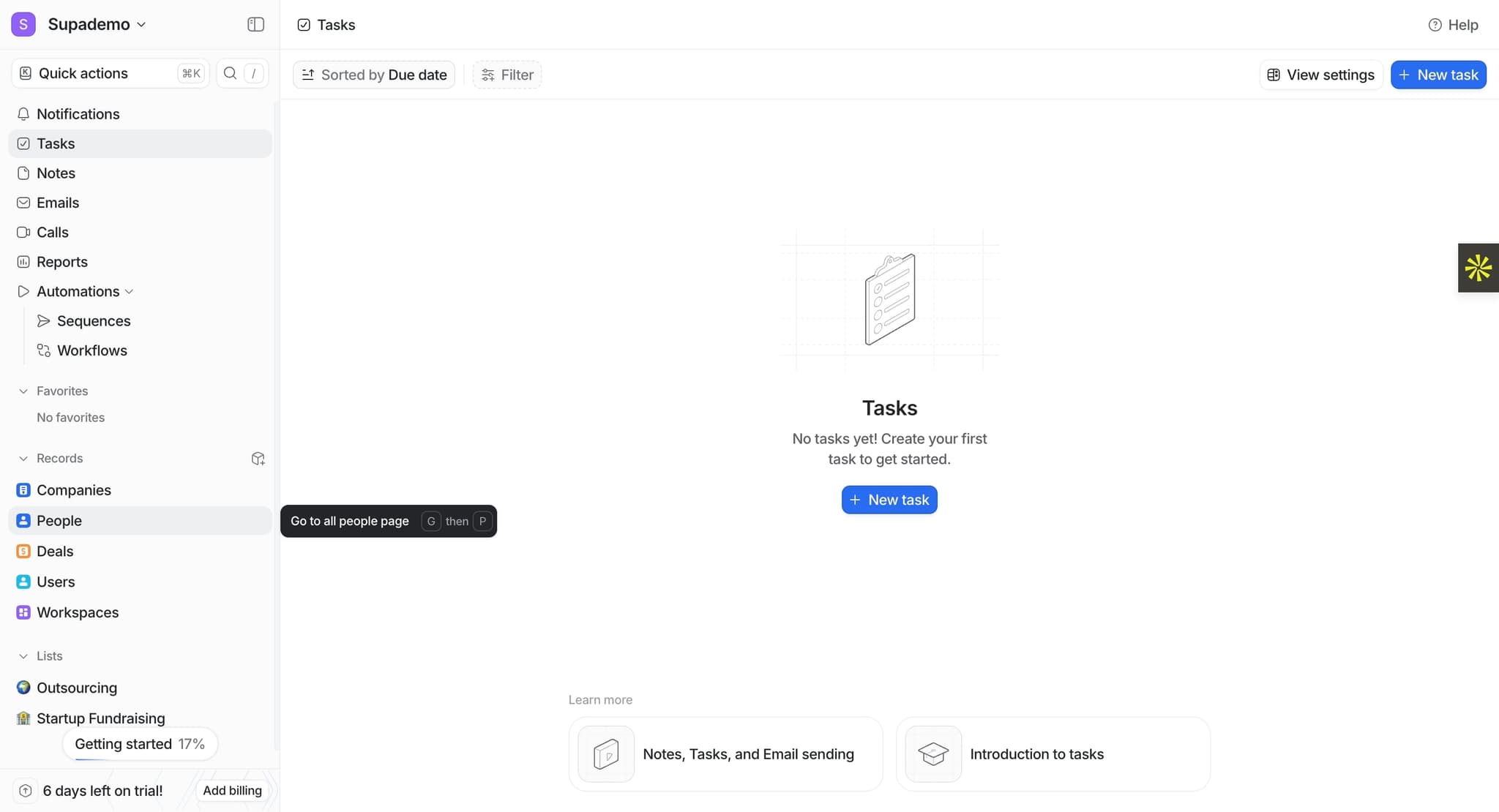
Open an Attio record
Navigate to any record in Attio, such as a deal, contact, or company. You'll see a dedicated comments section, typically located at the bottom or in a side panel of the record view.
- 2
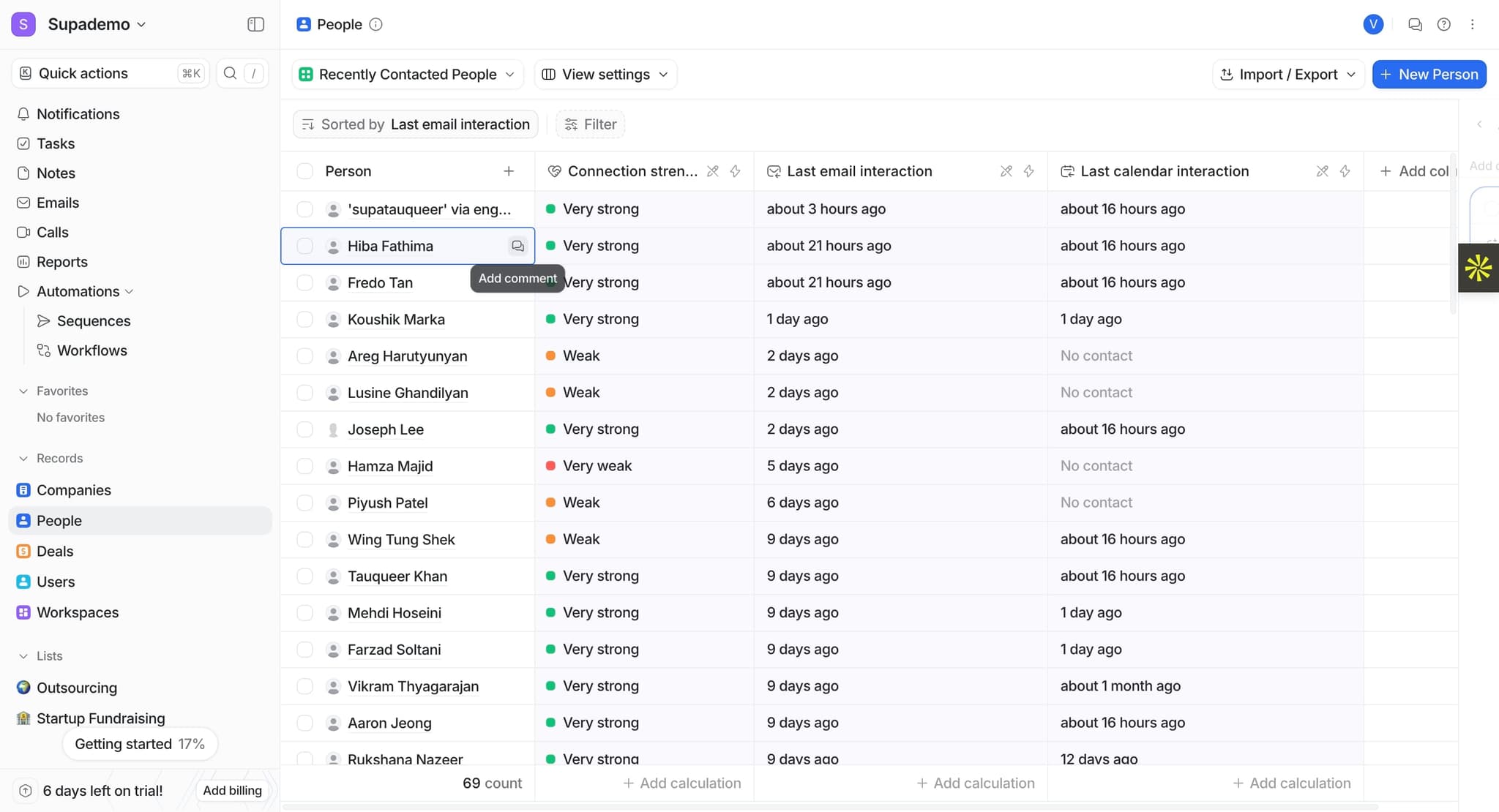
Click the comment input field
Click in the text area where it says 'Add a comment' or similar prompt. This activates the comment field and prepares it for text input.
- 3
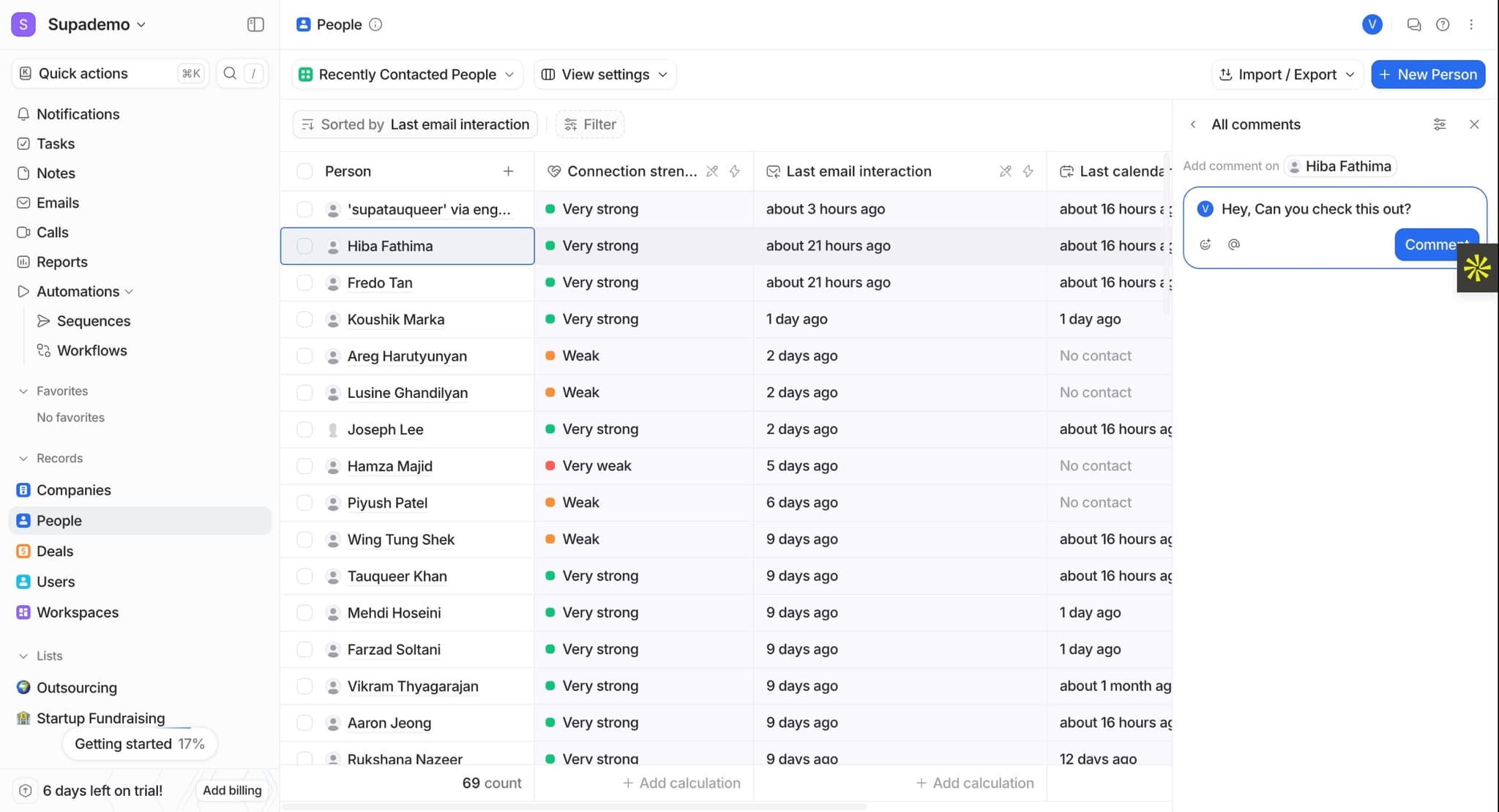
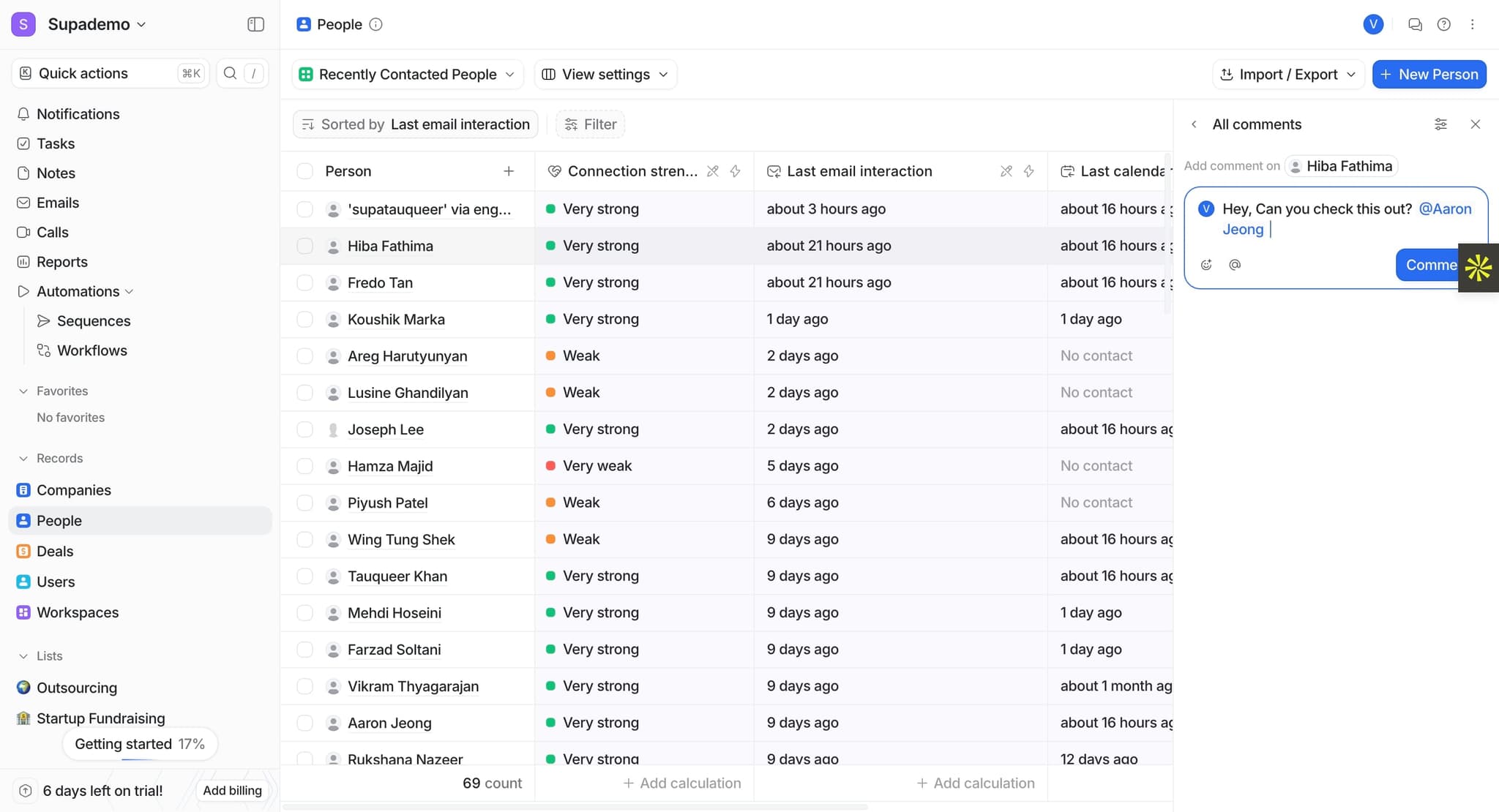
Type your comment
Enter your message or update about the record. You can provide context, ask questions, or share important information that team members should know about this record.
- 4
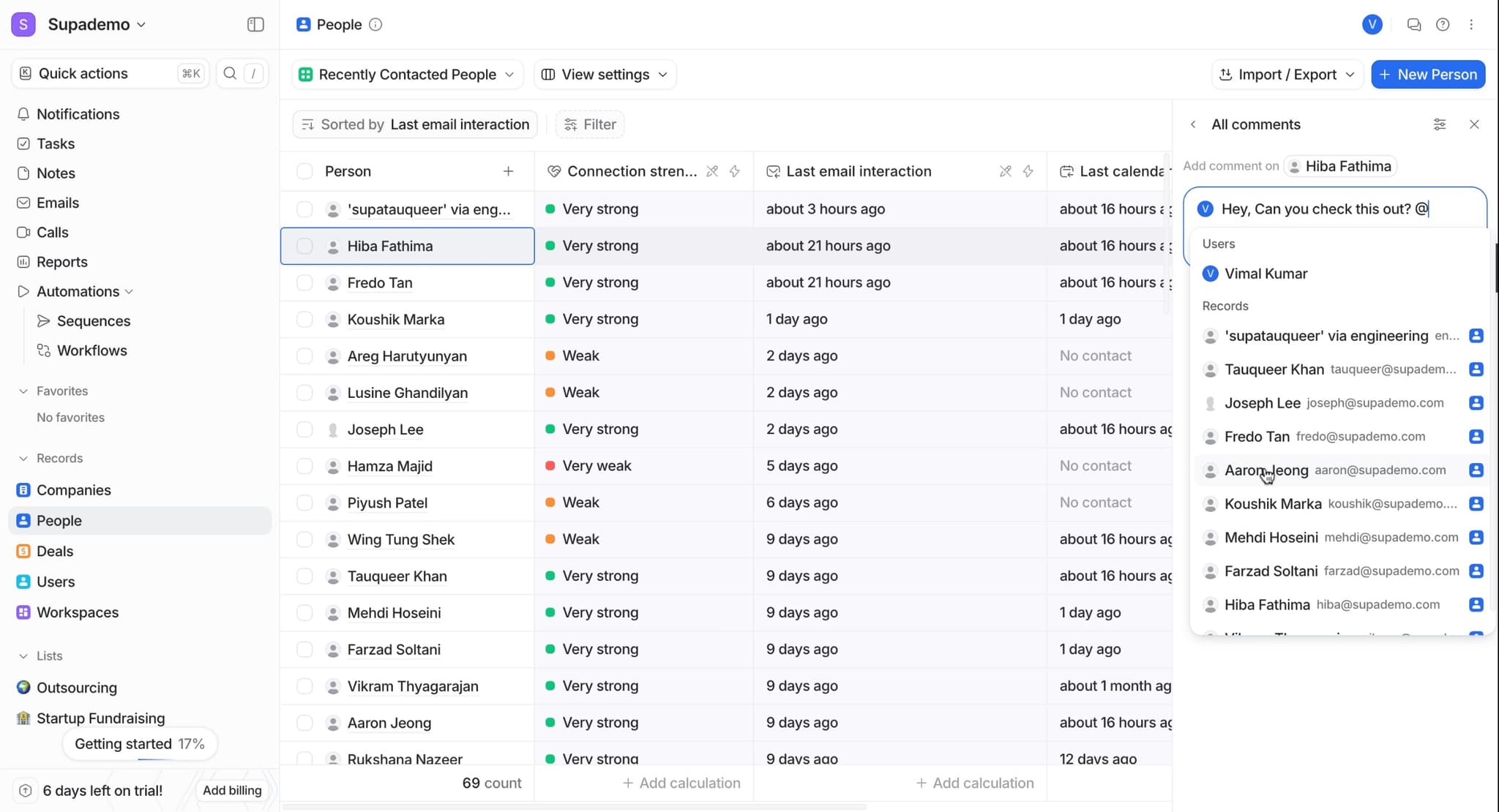
Mention a team member
Type the '@' symbol followed by the team member's name to mention them. Attio will display a dropdown list of team members; select the person you want to notify. They'll receive a notification about the mention.
- 5
Submit the comment
Click the 'Send' or 'Post' button to publish your comment. The comment will appear in the record's activity feed, and any mentioned team members will be notified immediately.
Frequently asked questions
Common questions about how to use comments and mentions in attio.
Yes, most comment systems allow you to edit or delete your own comments. Look for the three-dot menu or edit icon next to your comment. Keep in mind that deleted comments may not be recoverable, so ensure you want to remove it permanently.
When you mention a team member using the '@' symbol, they receive an in-app notification and often an email alert (depending on their notification settings). This ensures they see your comment and can respond promptly if needed.
By default, comments are visible only to your Attio workspace members. External contacts and clients cannot see internal comments unless you explicitly share information with them through other channels.
This depends on your Attio plan and configuration. Many comment fields support file attachments and images. Look for an attachment icon in the comment input area, or check your workspace settings to confirm what file types are allowed.
Use Attio's search functionality to find comments by keyword, record, or team member. You can also review the activity timeline on each record to see all comments in chronological order. Some workspaces offer advanced filters for finding mentions directed at you.