How to Make a PPT Using ChatGPT

Creating a PowerPoint presentation from scratch can be time-consuming, but ChatGPT can accelerate the process by helping you generate content, organize ideas, and structure slides efficiently. This tutorial walks you through using ChatGPT to build a comprehensive PPT on any topic, from initial concept to final upload.
Quick summary
In this tutorial, you'll learn how to leverage ChatGPT to create a PowerPoint presentation by initiating a chat session, specifying your presentation topic, and uploading your generated content into a presentation file. You'll discover how to streamline the entire workflow, from brainstorming to organizing slides with relevant titles and content.
Why this matters
Using ChatGPT for PPT creation saves significant time and mental effort, especially when facing tight deadlines or when you need to organize complex information quickly. This approach is particularly valuable for professionals, educators, and students who need polished presentations without starting from a blank canvas.
Step-by-step guide
- 1
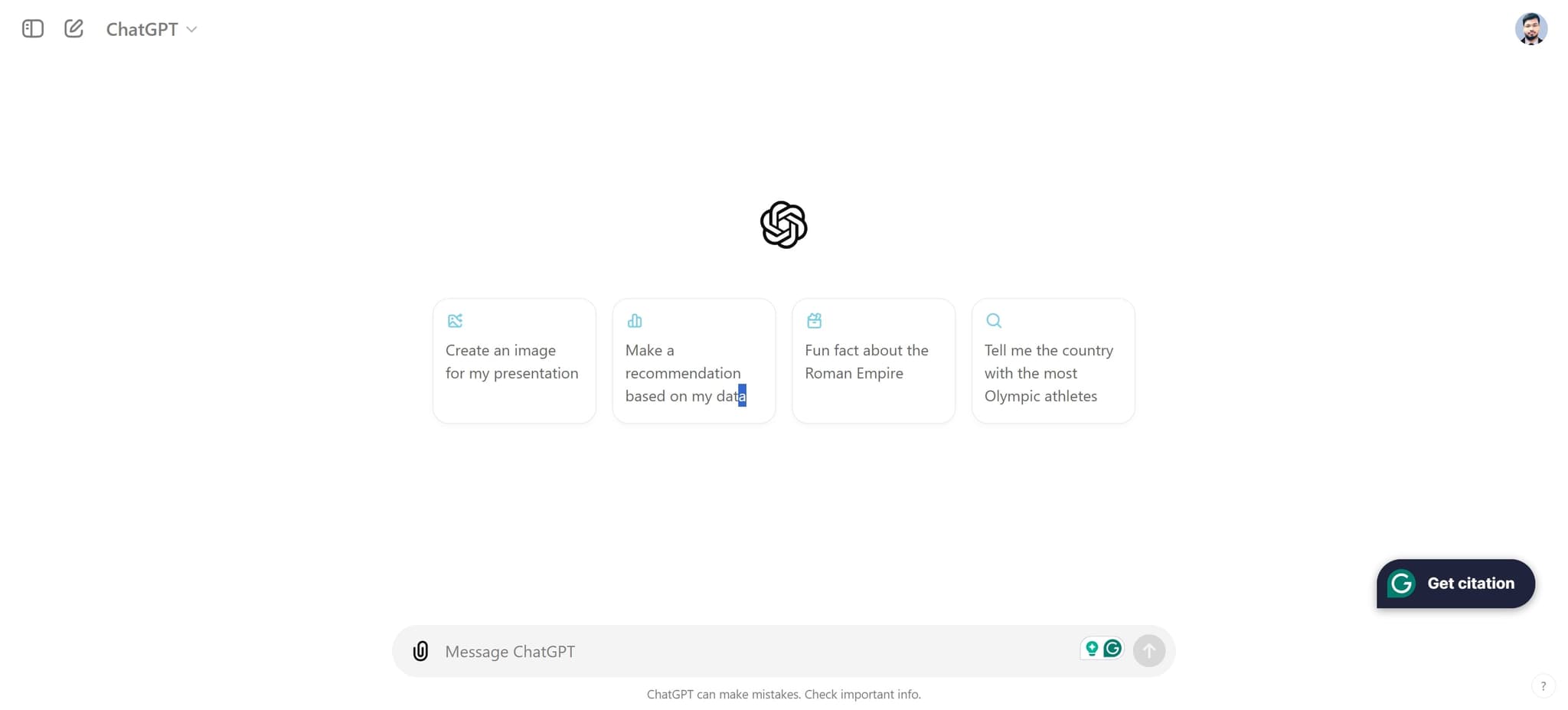
Access ChatGPT and Start a New Chat
Open ChatGPT and locate the element to begin a fresh conversation. This is where you'll interact with the AI to generate your presentation content.
- 2
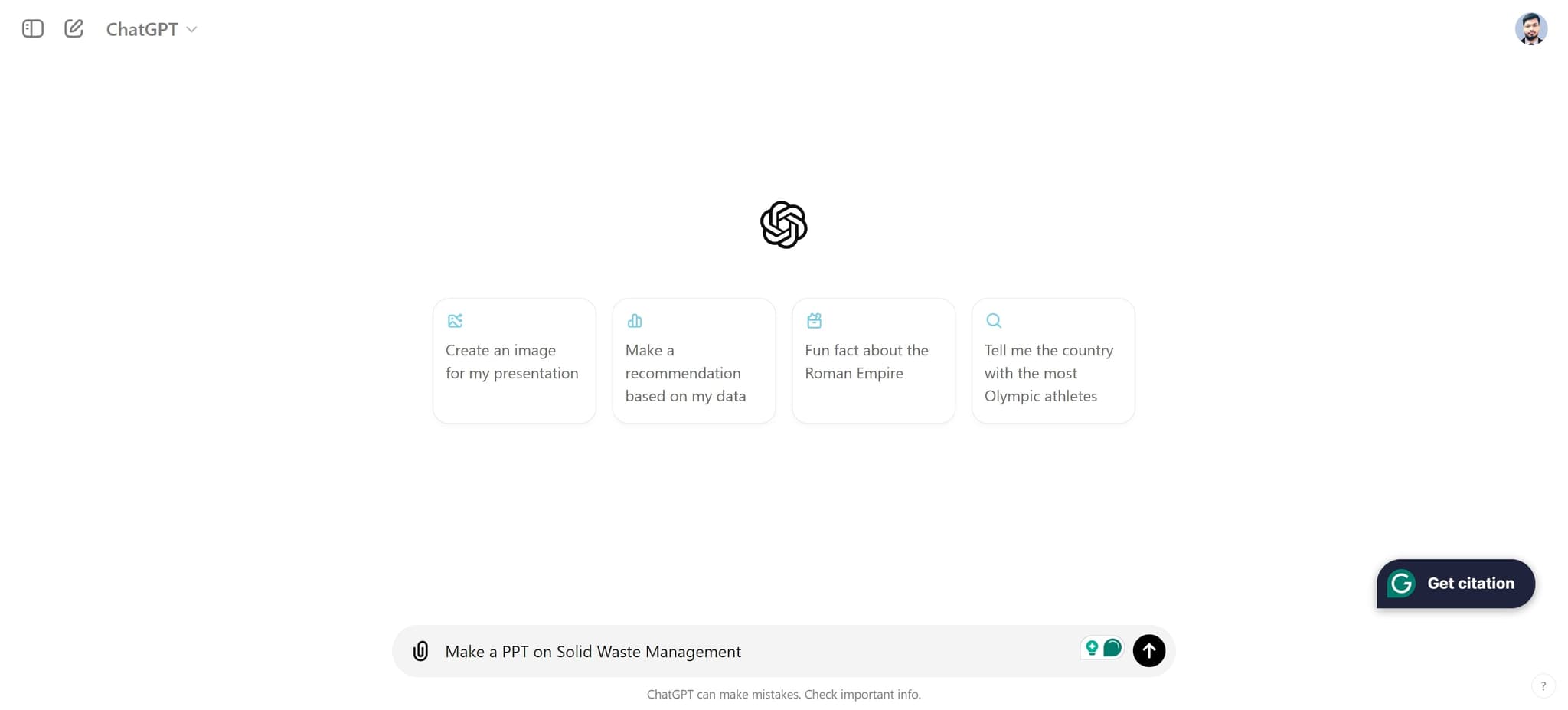
Initiate Your Presentation Request
Click on the input area to start typing your request. You're now ready to ask ChatGPT to help create your PowerPoint content.
- 3
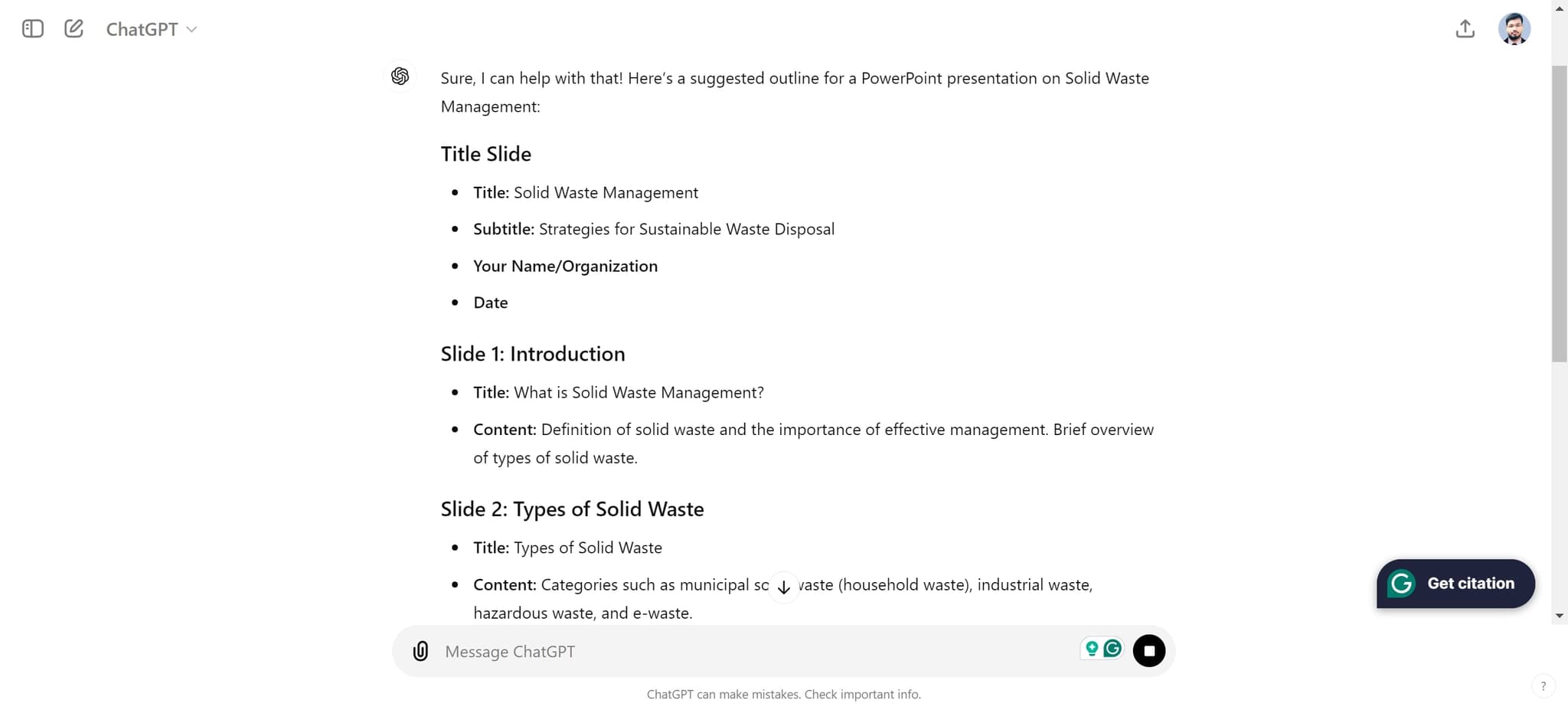
Specify Your Presentation Topic
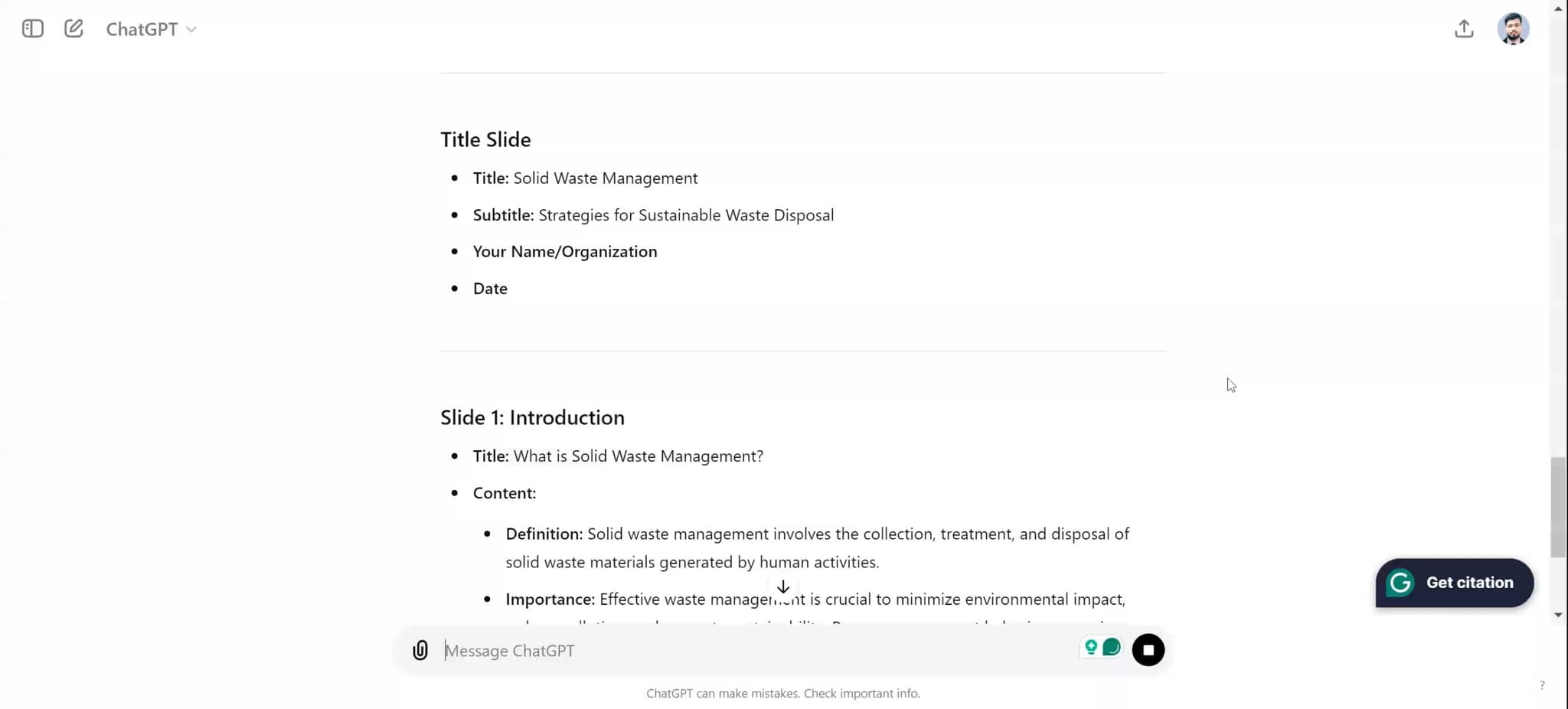
Enter your presentation title or topic, such as 'Solid Waste Management,' into the chat. ChatGPT will use this as the foundation to generate relevant slides, talking points, and structured content.
- 4
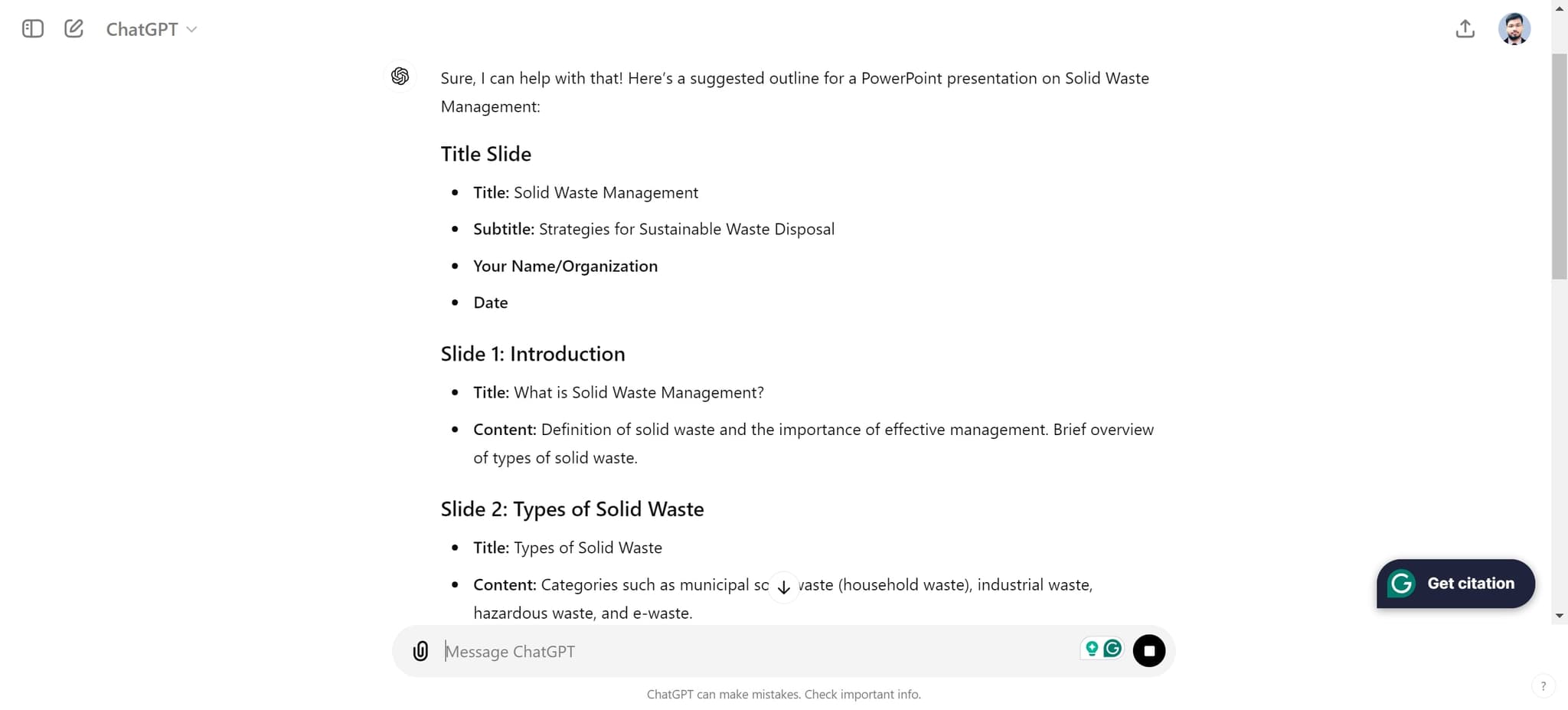
Review and Refine Generated Content
Review the content ChatGPT provides and make any adjustments needed. You can request additional slides, different formatting, or more detailed explanations for specific sections.
- 5
Upload Content to Your Presentation
Copy the generated content and upload it into your PowerPoint file or presentation tool. This finalizes the process and allows you to add visuals, animations, and final polish to your slides.
Frequently asked questions
Common questions about how to make a ppt using chatgpt.
ChatGPT generates the written content, structure, and outline for your presentation, but you'll need to transfer this content into PowerPoint or a similar tool to format it as slides. The AI provides the foundation; you handle the visual presentation in your chosen software.
Be as specific as possible about your topic, audience, and the number of slides you need. Including details like 'a 10-slide presentation for corporate executives on waste management' will help ChatGPT provide more targeted and relevant content.
Yes, absolutely. You can ask ChatGPT to expand sections, simplify language, add more examples, or change the tone to match your audience. The conversational nature of ChatGPT makes it easy to iterate and refine until you're satisfied.
It's best practice to review and customize the content to align with your specific needs and expertise. Add your own insights, verify facts, and tailor examples to your audience for a more authentic and credible presentation.
ChatGPT can recommend types of visuals, charts, and design layouts for each slide, but you'll need to create or source the actual images yourself using design tools like Canva, PowerPoint's built-in features, or stock image libraries.