How to Use ChatGPT to Write an Email

Writing professional emails can be time-consuming, but ChatGPT can help you draft polished messages in seconds. Learn how to leverage AI to compose formal emails that maintain your tone and convey your message clearly.
Quick summary
In this tutorial, you'll discover how to use ChatGPT to write a formal email to your manager about a project update. By following these straightforward steps, you'll be able to generate professional email content quickly and efficiently.
Why this matters
Email communication is crucial in the workplace, and using ChatGPT can save you time while ensuring your message is well-structured and professional. This workflow is especially useful when you're busy or uncertain how to phrase complex updates to leadership.
Step-by-step guide
- 1
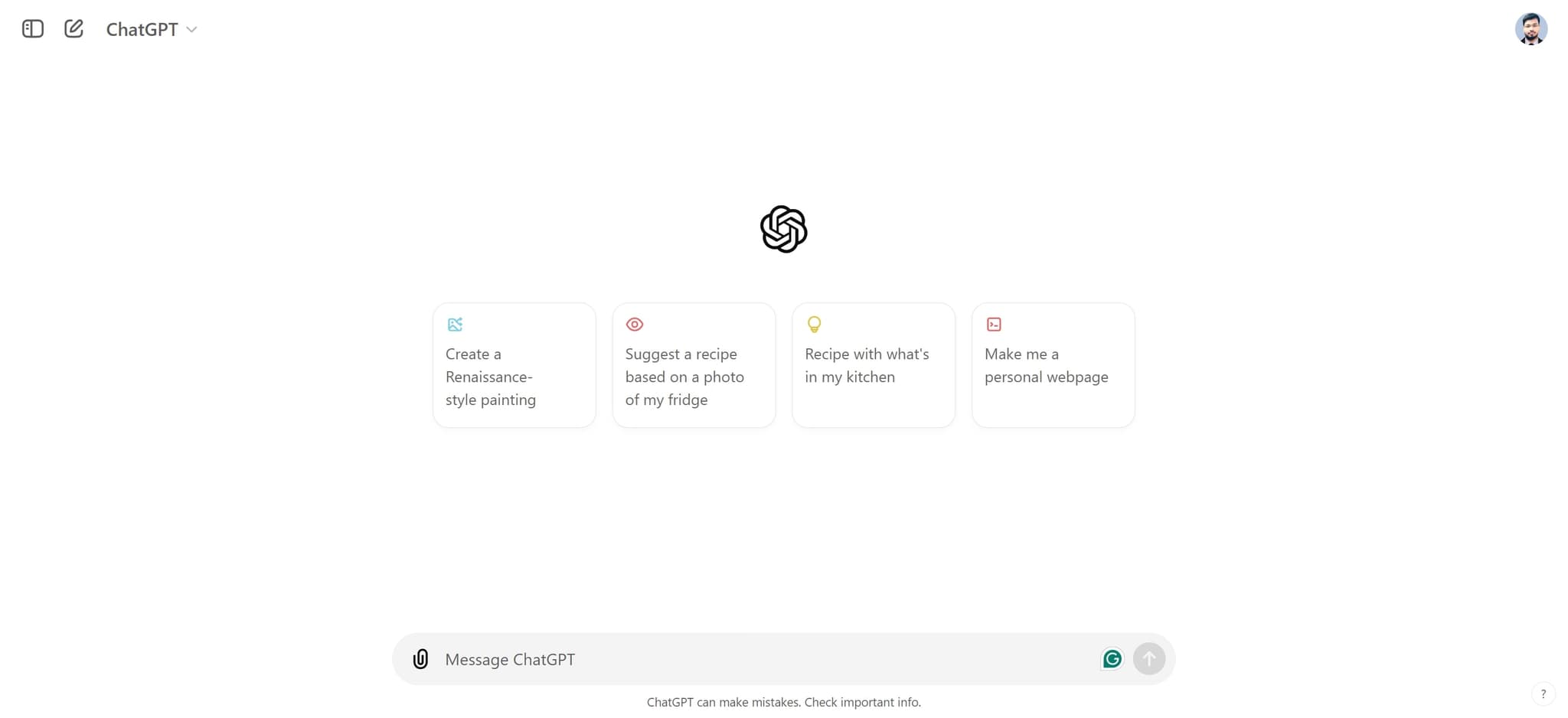
Open ChatGPT interface
Start by clicking on the ChatGPT element to open the main interface. This will load the chat area where you can enter your prompts.
- 2
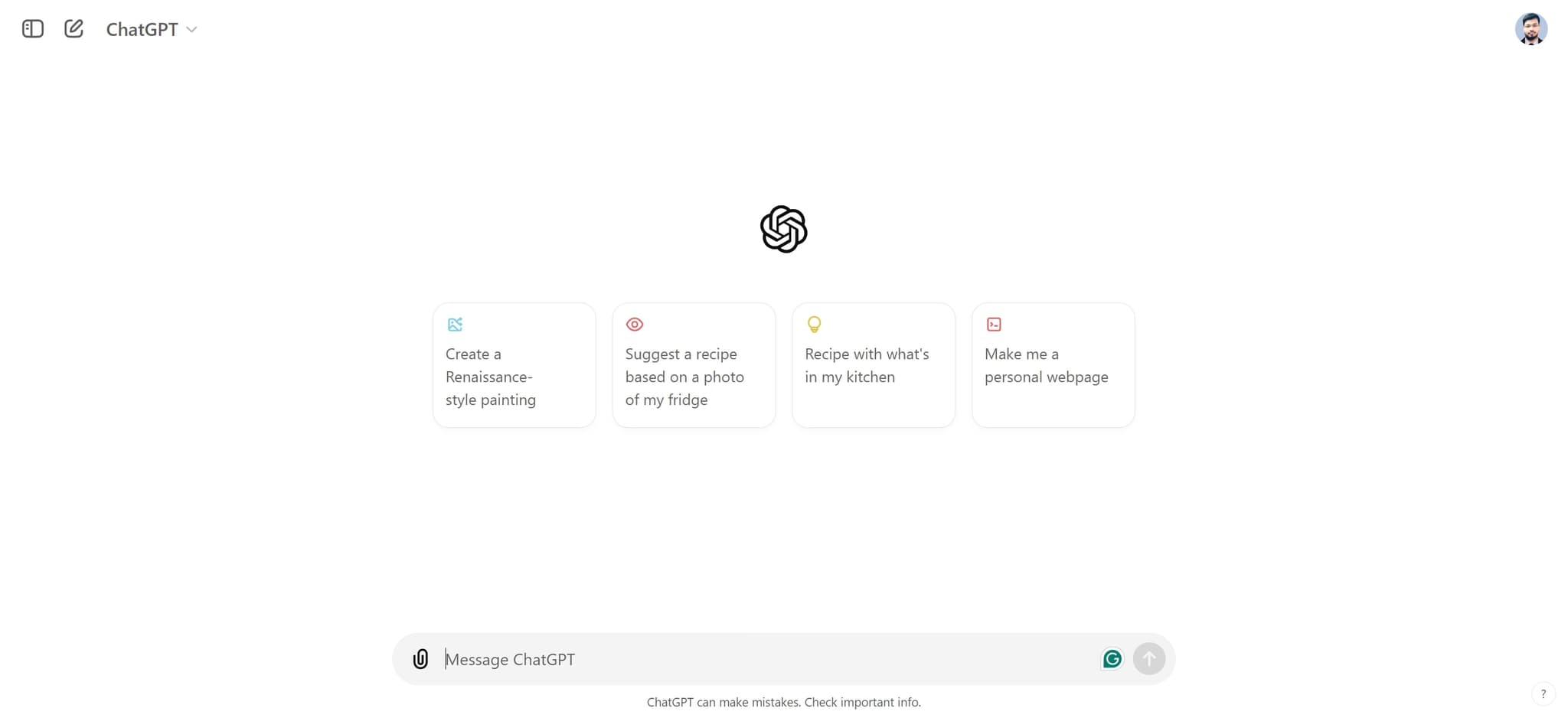
Access the compose area
Click on the text input field to activate ChatGPT's compose area. This is where you'll enter your email writing request.
- 3
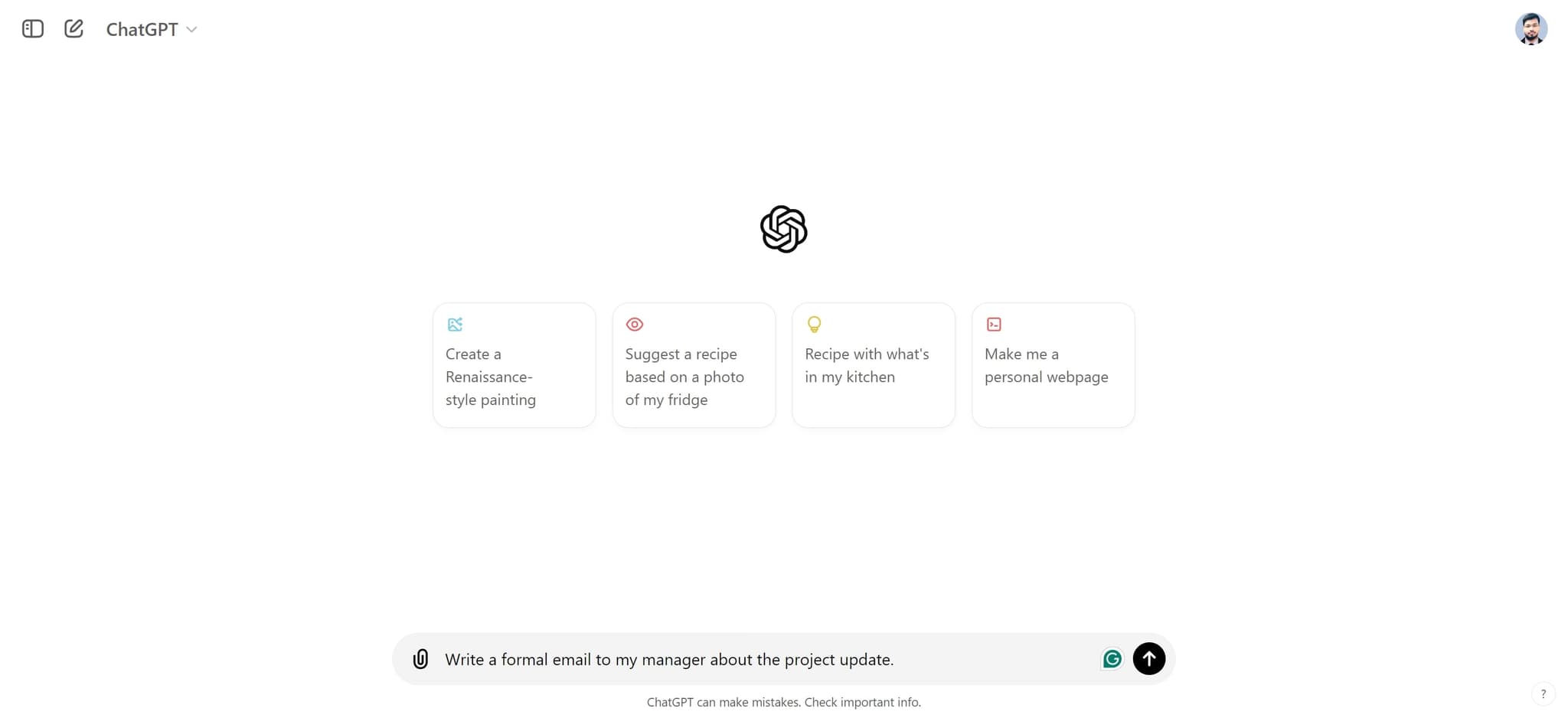
Enter your email request
Type your specific email request, such as 'Write a formal email to my manager about the project update.' Be as detailed as possible about the email's purpose, tone, and key points you want to include.
- 4
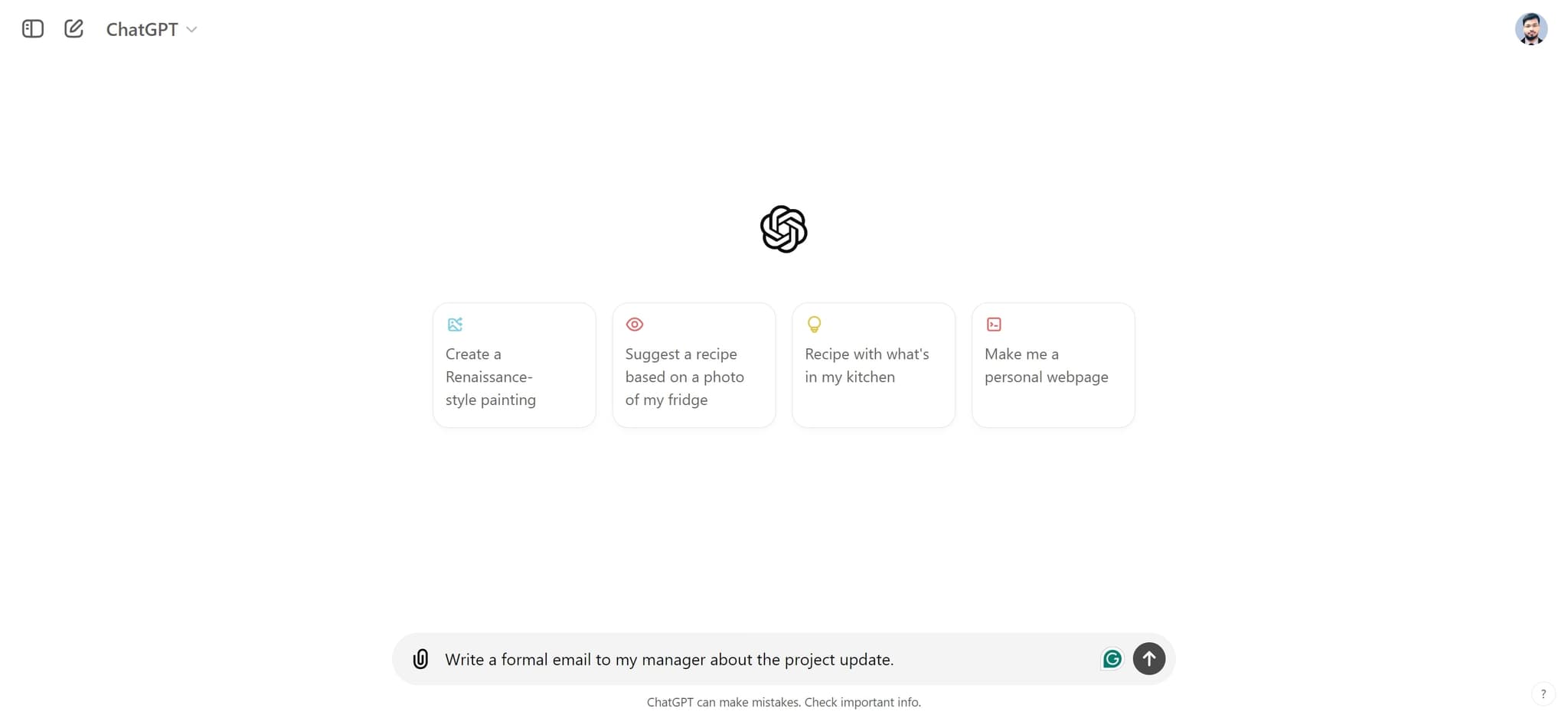
Submit your prompt
Click on the element to send your request to ChatGPT. The AI will process your prompt and generate a draft email.
- 5
Review the generated email
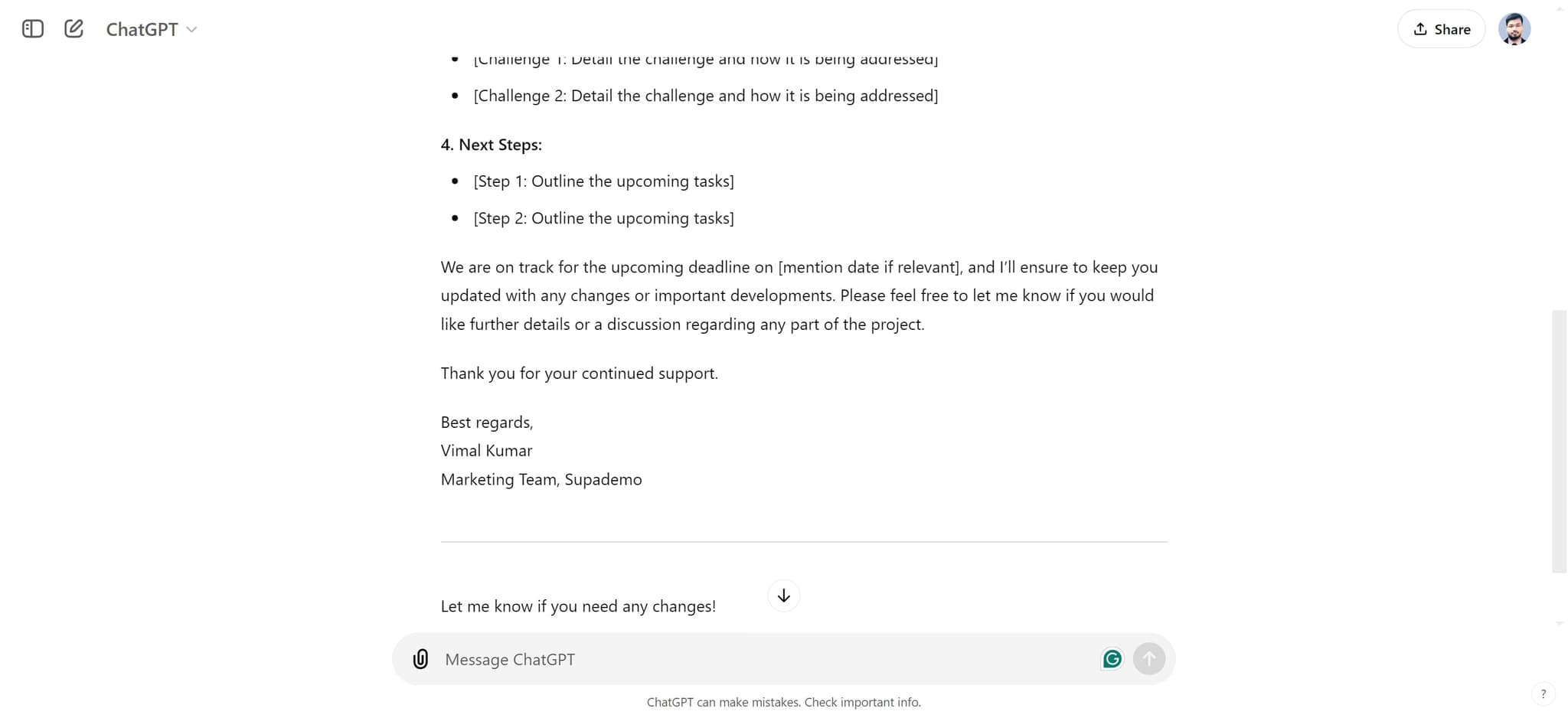
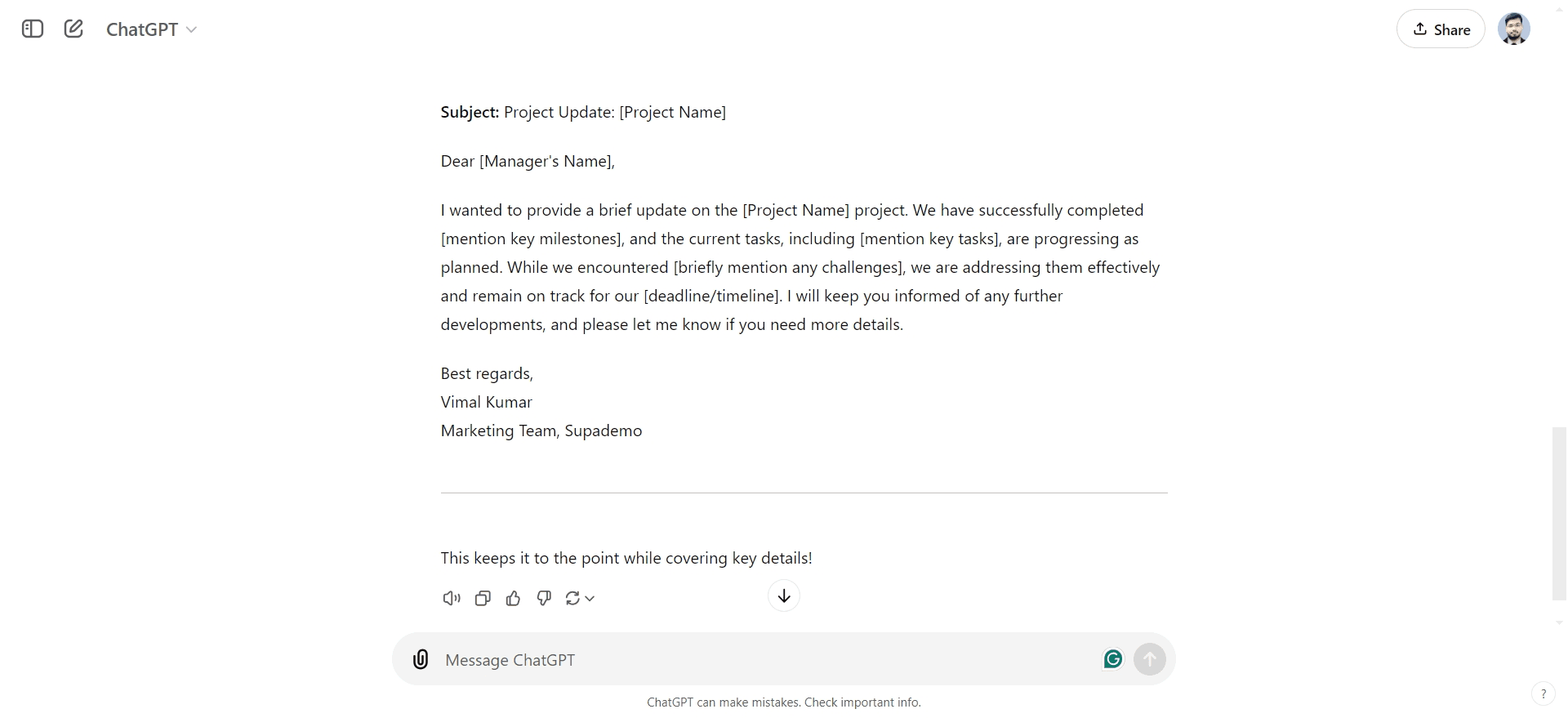
Examine the email draft that ChatGPT has created for you. Check that it covers all necessary points and matches your desired tone and formality level.
- 6
Copy and customize as needed
Once satisfied with the draft, you can copy the text and paste it into your email client, making any personal adjustments or additions to better match your voice.
Frequently asked questions
Common questions about how to use chatgpt to write an email.
Yes, ChatGPT can write formal, casual, promotional, follow-up, and many other types of emails. Simply specify the email type and context in your prompt, and ChatGPT will adjust the tone and style accordingly.
The more specific your prompt, the better the result. Include the recipient, the email's purpose, key points you want to cover, and any relevant context about the project or situation. This helps ChatGPT generate more accurate and relevant content.
While ChatGPT's drafts are typically well-written, it's best practice to review and personalize the email before sending. Add specific details, names, numbers, or project-specific information that ChatGPT may not have, and adjust the tone to match your voice.
Absolutely. You can ask ChatGPT to generate email subject lines as a separate request, or include subject line generation in your original prompt. This ensures your subject line is compelling and relevant to the email content.
You can ask ChatGPT to revise the email with specific feedback. For example, you might request it to be more concise, more detailed, less formal, or to emphasize different points. ChatGPT will regenerate the email based on your refinements.