How to access the editor in ClickUp doc

The ClickUp doc editor is a powerful feature for creating and editing documents directly within your workspace. This guide walks you through accessing the editor so you can start creating, formatting, and collaborating on documents seamlessly.
Quick summary
In this tutorial, you'll learn how to navigate to the ClickUp doc editor from your workspace. You'll discover where to find the doc feature, access the editor interface, and locate the suggestions functionality for collaborative editing.
Why this matters
Accessing the editor quickly is essential for productivity when working with documents in ClickUp. Knowing how to navigate to the editor and find key features like suggestions enables you to streamline your document creation and team collaboration workflows.
Step-by-step guide
- 1
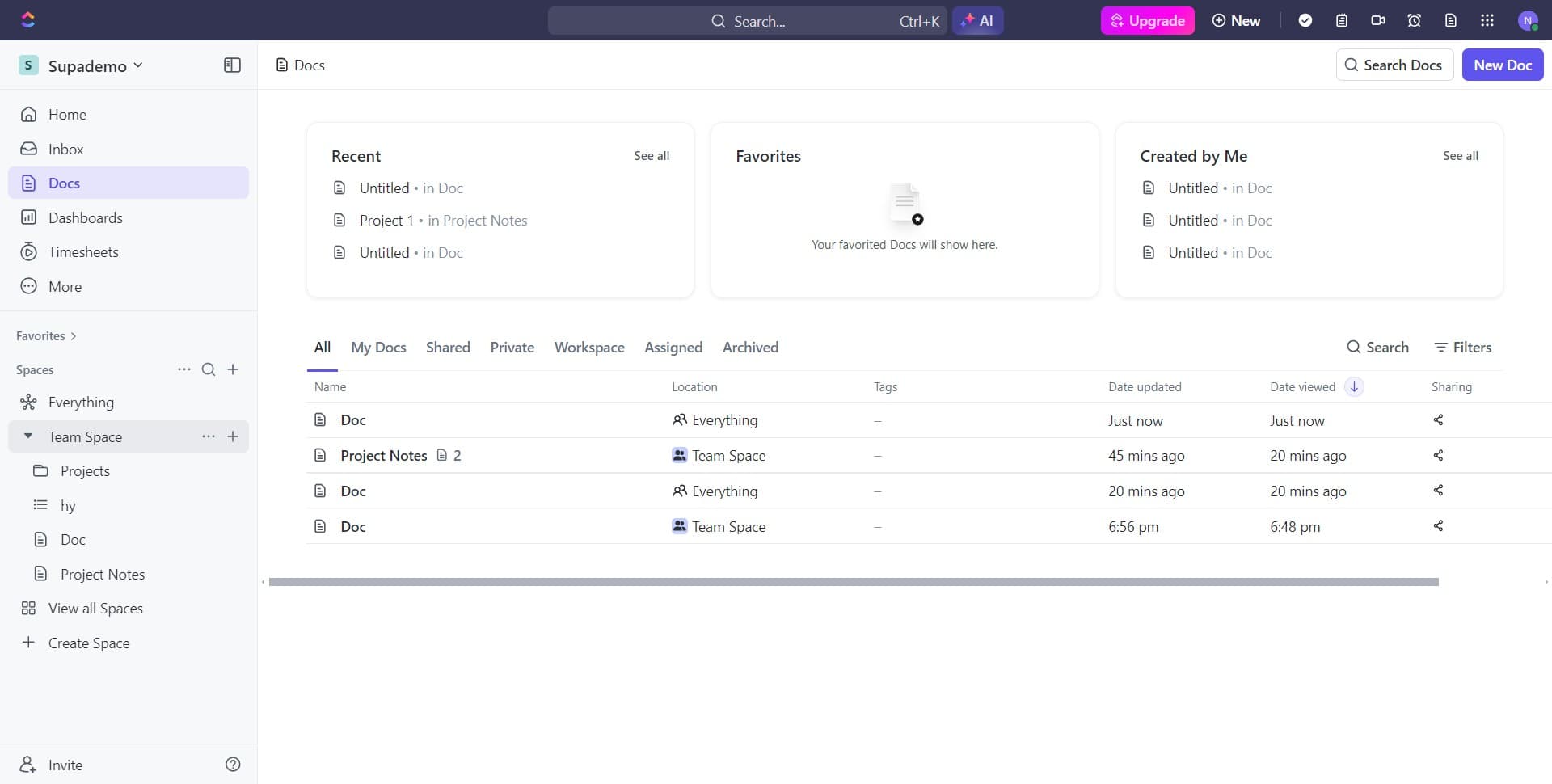
Navigate to the initial menu
Start by clicking on the designated location in your ClickUp interface to open the main menu or dashboard. This is your starting point for accessing different features within ClickUp.
- 2
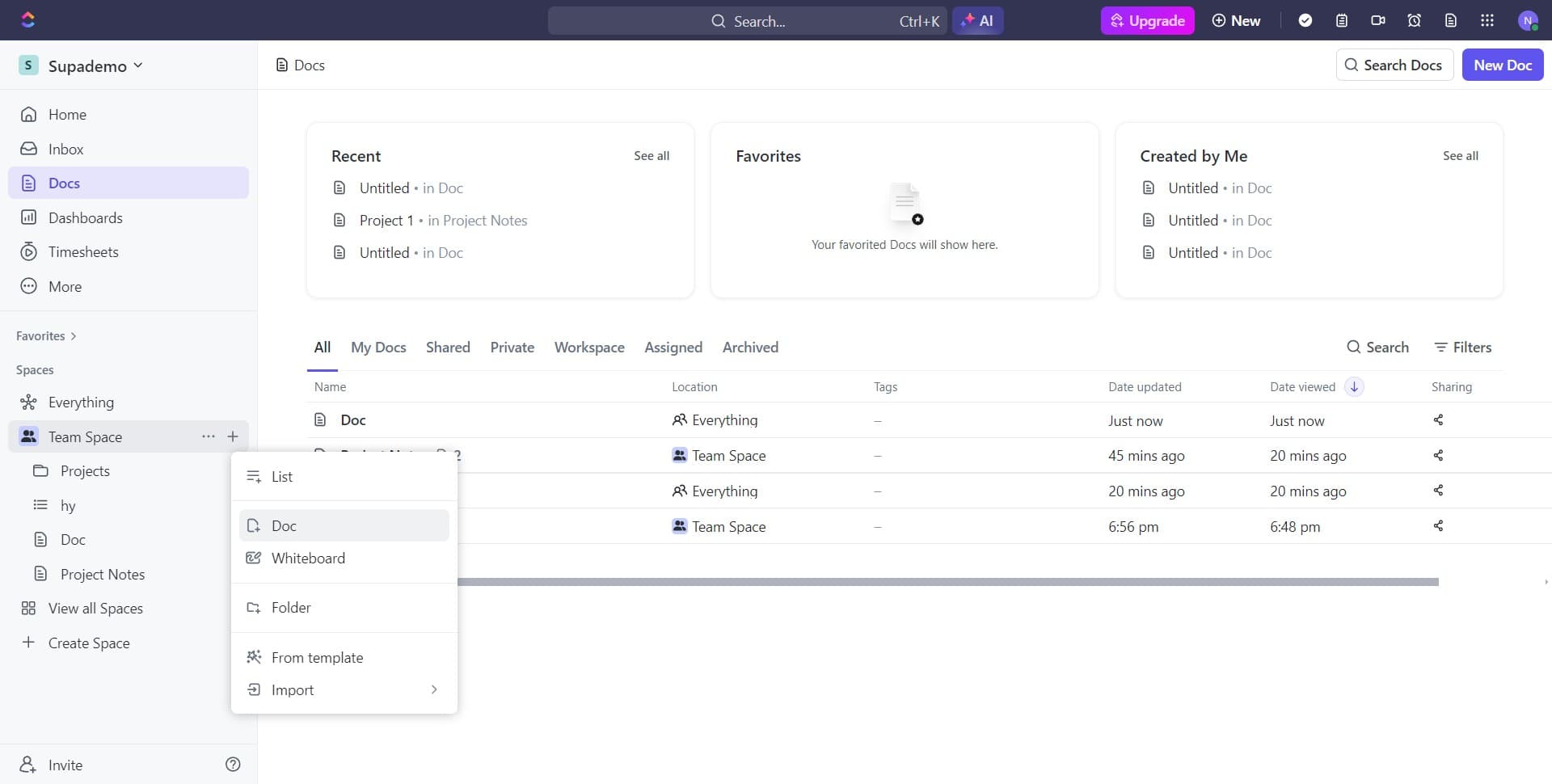
Click on Doc
Select the 'Doc' option from the menu to access the document feature. This will take you to the docs area where you can create or open existing documents.
- 3
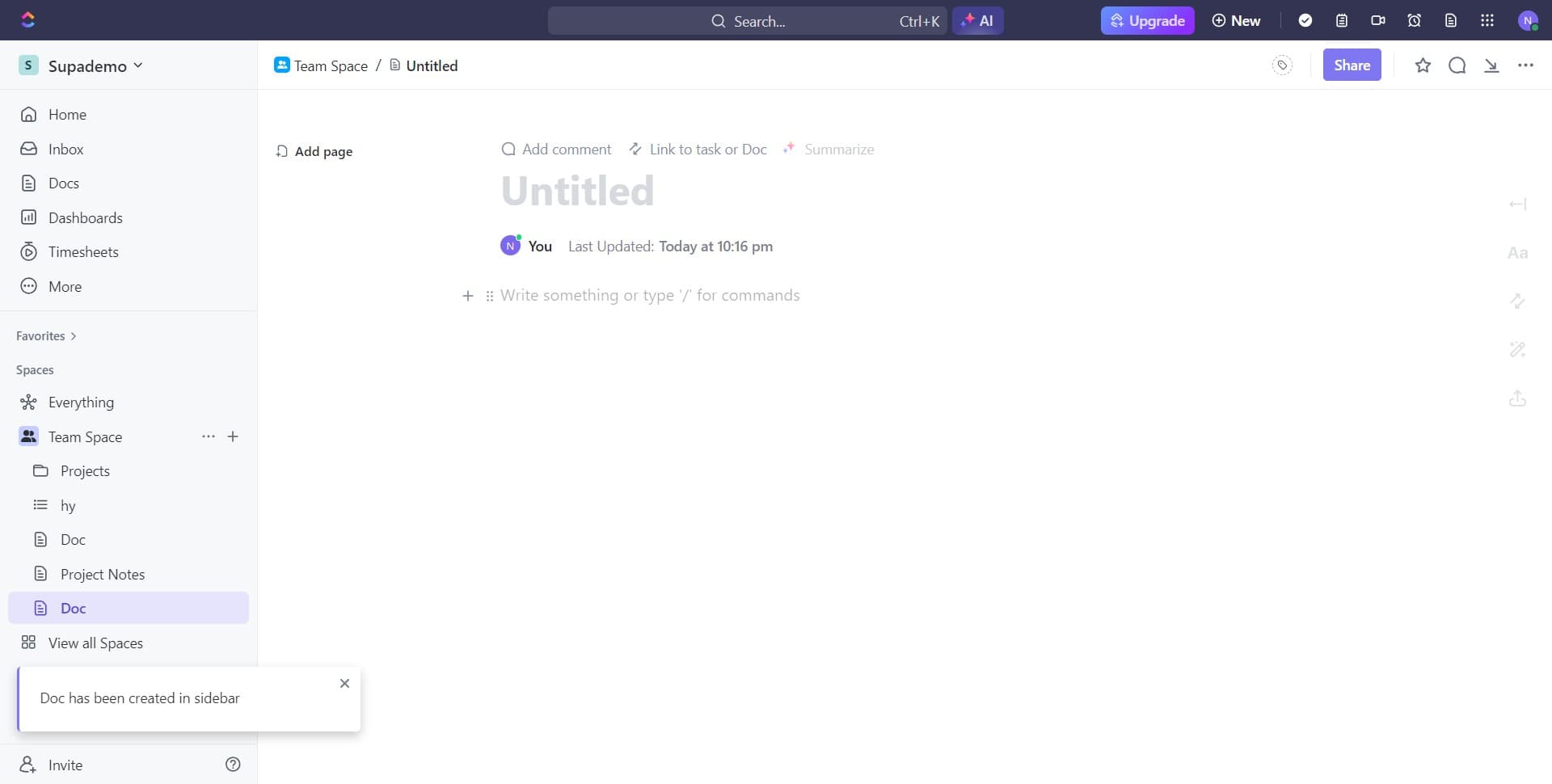
Open the document editor
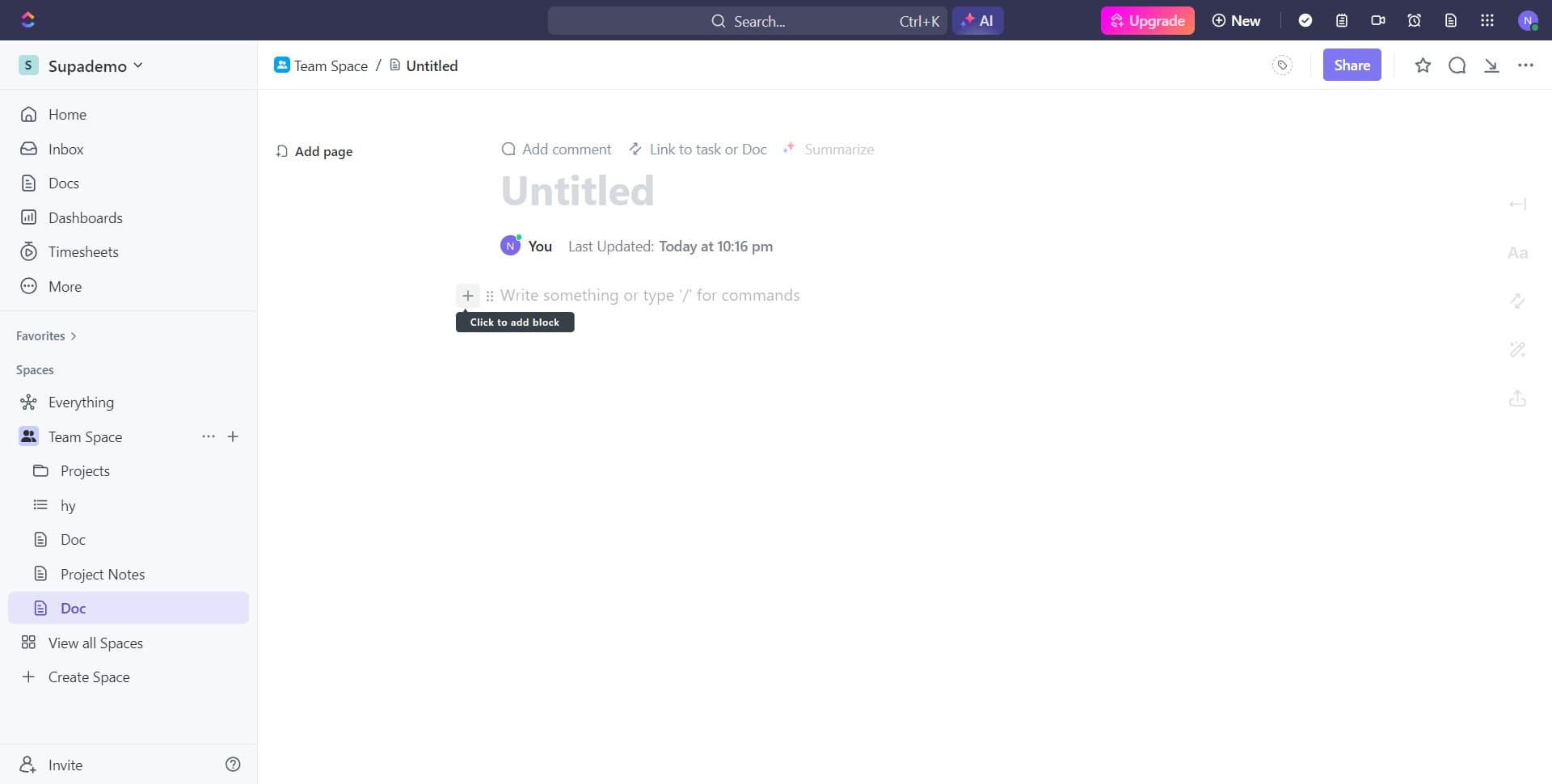
Click on the editor option to open the document editing interface. The editor is where you'll be able to create, format, and modify your document content.
- 4
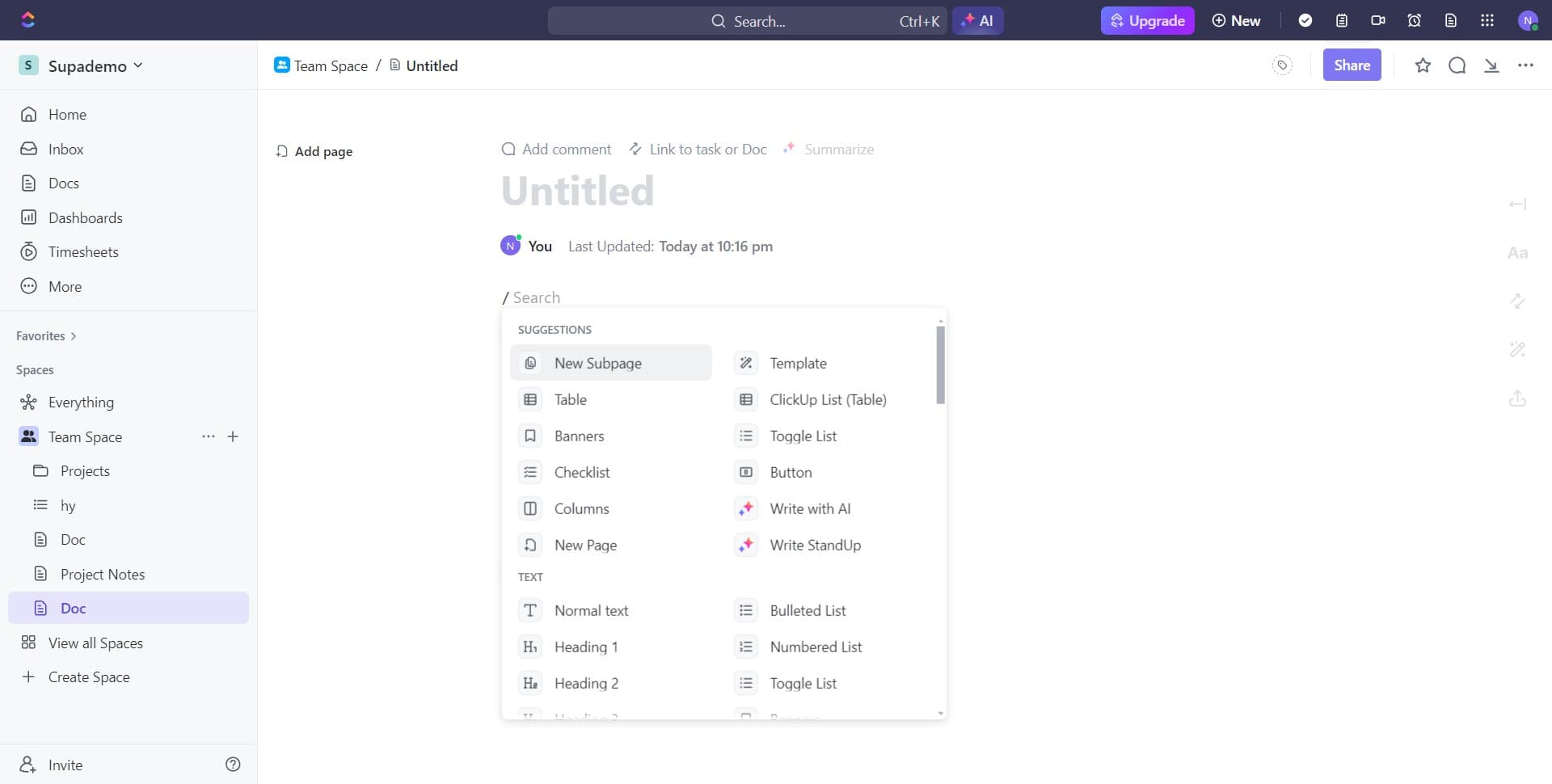
Access the suggestions feature
Click on 'SUGGESTIONS' to view feedback and suggestions from collaborators. This feature allows you to see comments and edits proposed by team members on your document.
- 5
Navigate back to suggestions
Click the designated area to return to or refresh the suggestions panel. This ensures you have the latest feedback and collaborative input visible for your review.
- 6
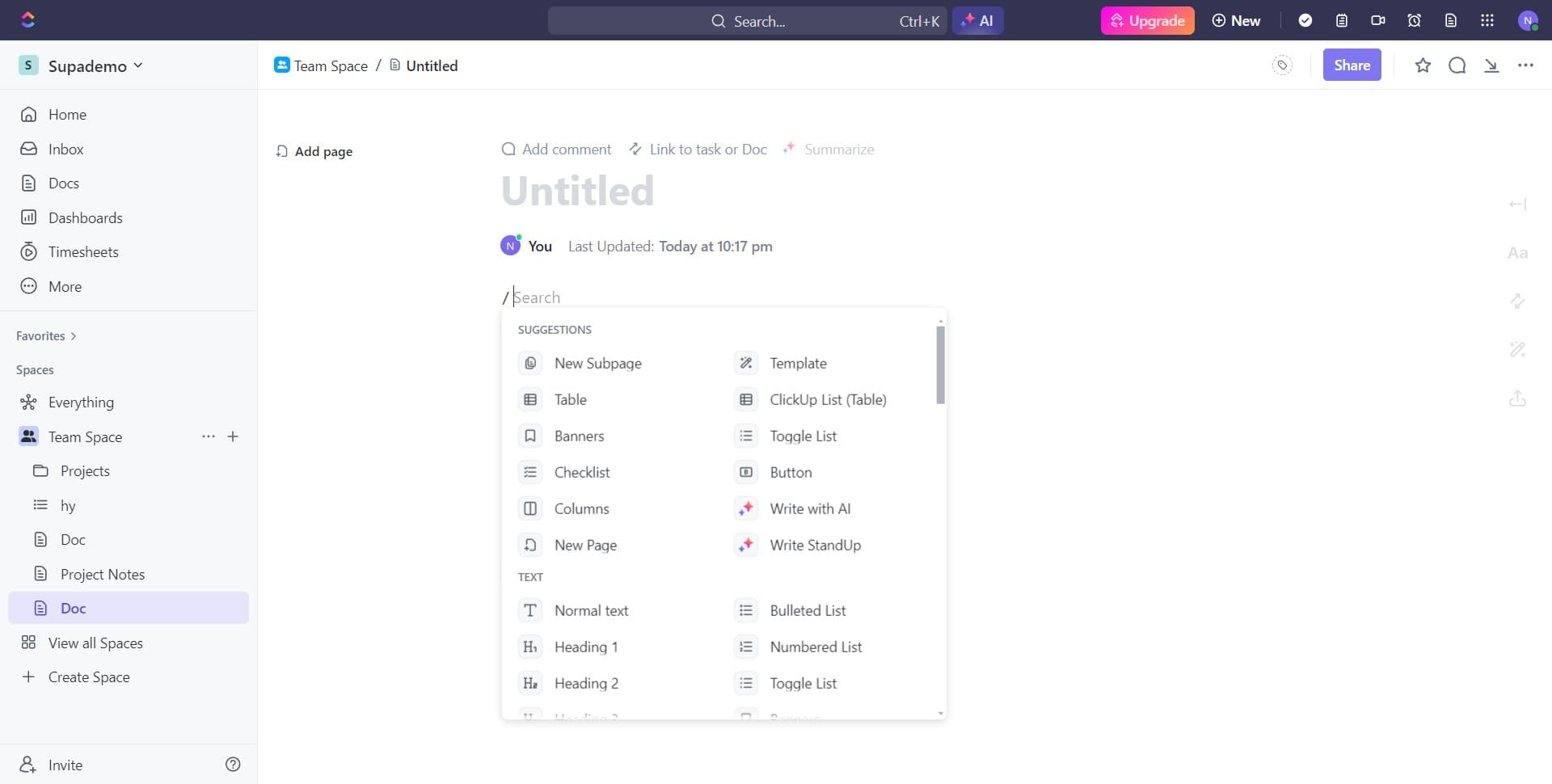
Review suggestions panel
Click on 'SUGGESTIONS' again to finalize your view of all pending suggestions and comments. This gives you a complete overview of all collaborative feedback on your current document.
Frequently asked questions
Common questions about how to access the editor in clickup doc.
The Doc feature is accessible from your main ClickUp menu. You can find it by clicking on the appropriate menu area and selecting 'Doc' from the available options. This will take you to your documents workspace.
After selecting 'Doc' from the menu, click on the editor option to open the editing interface. The editor provides a full set of tools for creating and formatting your document content.
Suggestions are collaborative feedback and edits proposed by team members on your document. You can access them by clicking on the 'SUGGESTIONS' button within the editor, which displays all pending comments and proposed changes.
Yes, you can navigate between the editor and suggestions view by clicking on the relevant buttons. The interface allows you to toggle between editing your document and reviewing collaborative feedback.
While this tutorial focuses on navigating through the menu interface, ClickUp may offer keyboard shortcuts for frequent users. Check your ClickUp settings or help documentation for any available keyboard shortcuts to speed up your workflow.