How to add a cover to your ClickUp doc

Adding a cover to your ClickUp doc enhances its visual appeal and makes it easier to identify at a glance. A custom cover image helps organize your workspace and creates a more polished, professional appearance for your documentation.
Quick summary
In this tutorial, you'll learn how to add a cover image to your ClickUp doc by navigating to the cover settings, uploading a custom image, and applying it to your document. You'll understand the complete workflow from opening your doc to selecting and uploading your preferred cover image.
Why this matters
Adding covers to your ClickUp docs improves visual organization within your workspace and makes documents more instantly recognizable when browsing your task list. A well-chosen cover image can also enhance team collaboration by creating a more engaging and visually structured knowledge base.
Step-by-step guide
- 1
Open the task and access doc settings
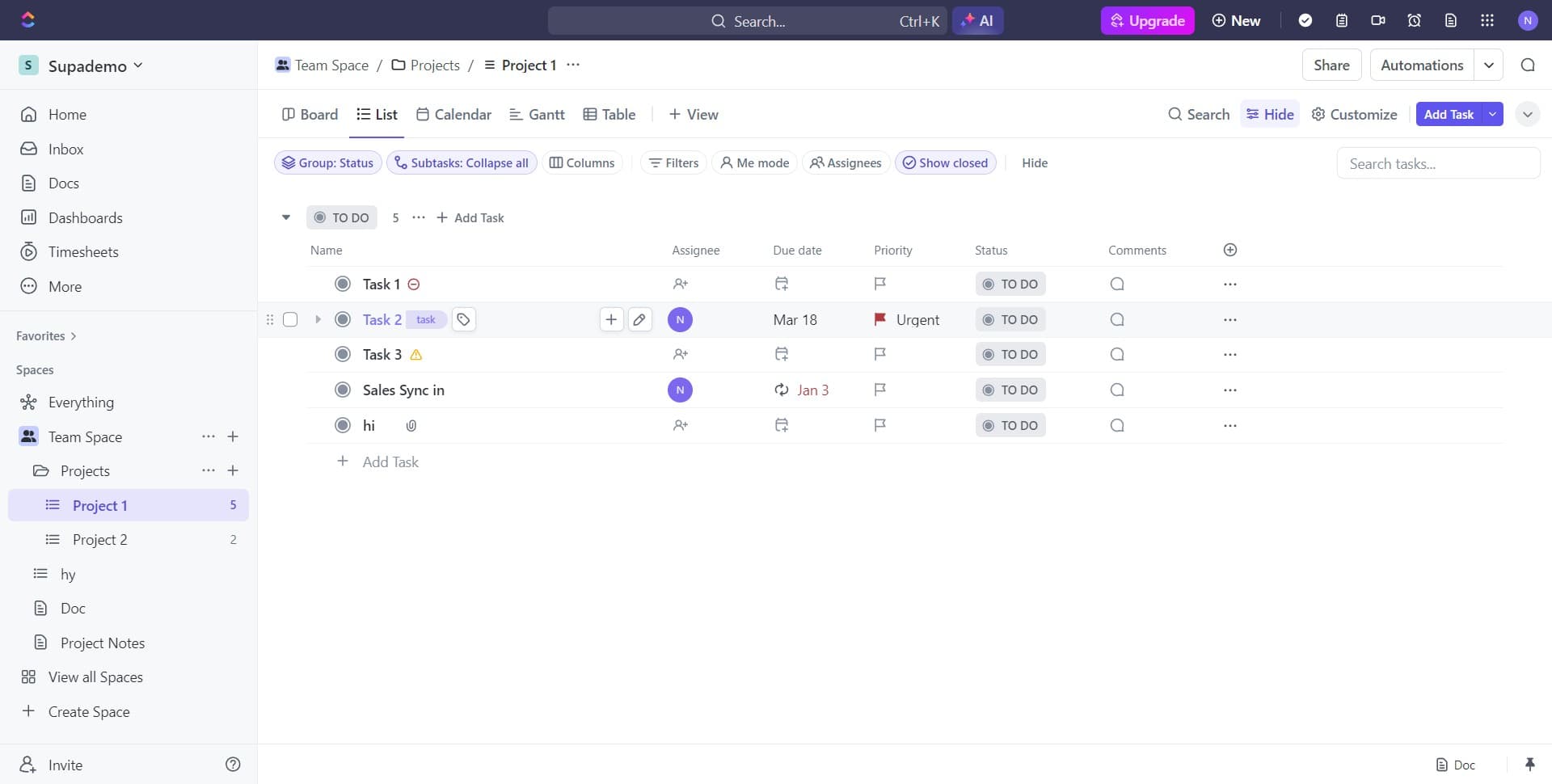
Navigate to Task 2 in your ClickUp workspace to access the document where you want to add a cover. This opens the task details view where you can manage all document properties.
- 2
Navigate to the cover settings section
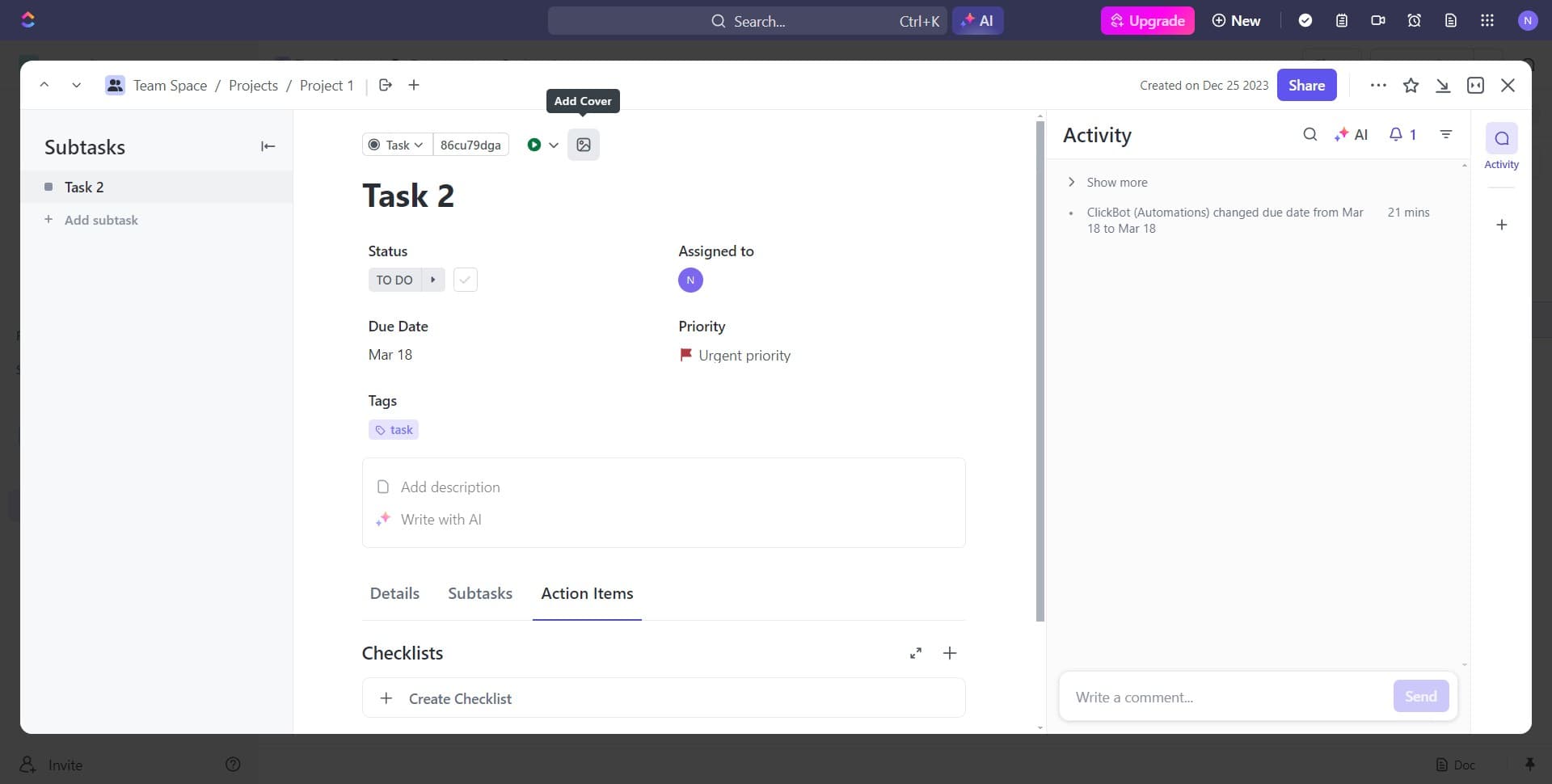
Click on the designated area to access the cover management options within your doc. This reveals the cover-related controls and settings.
- 3
Locate the cover selection interface
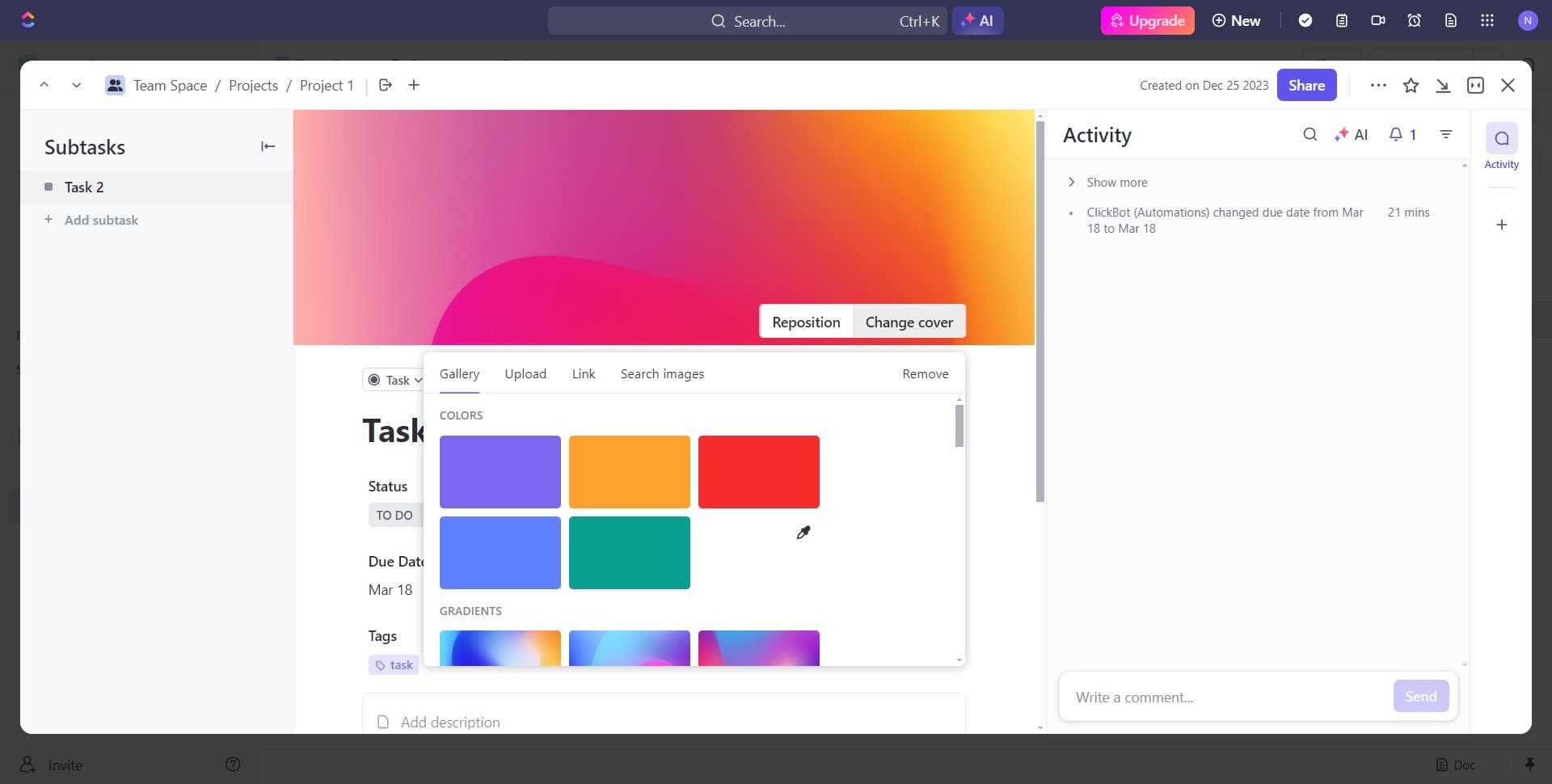
Click to open the cover selection menu where you'll see options for managing your document's cover image. This interface provides access to all cover customization features.
- 4
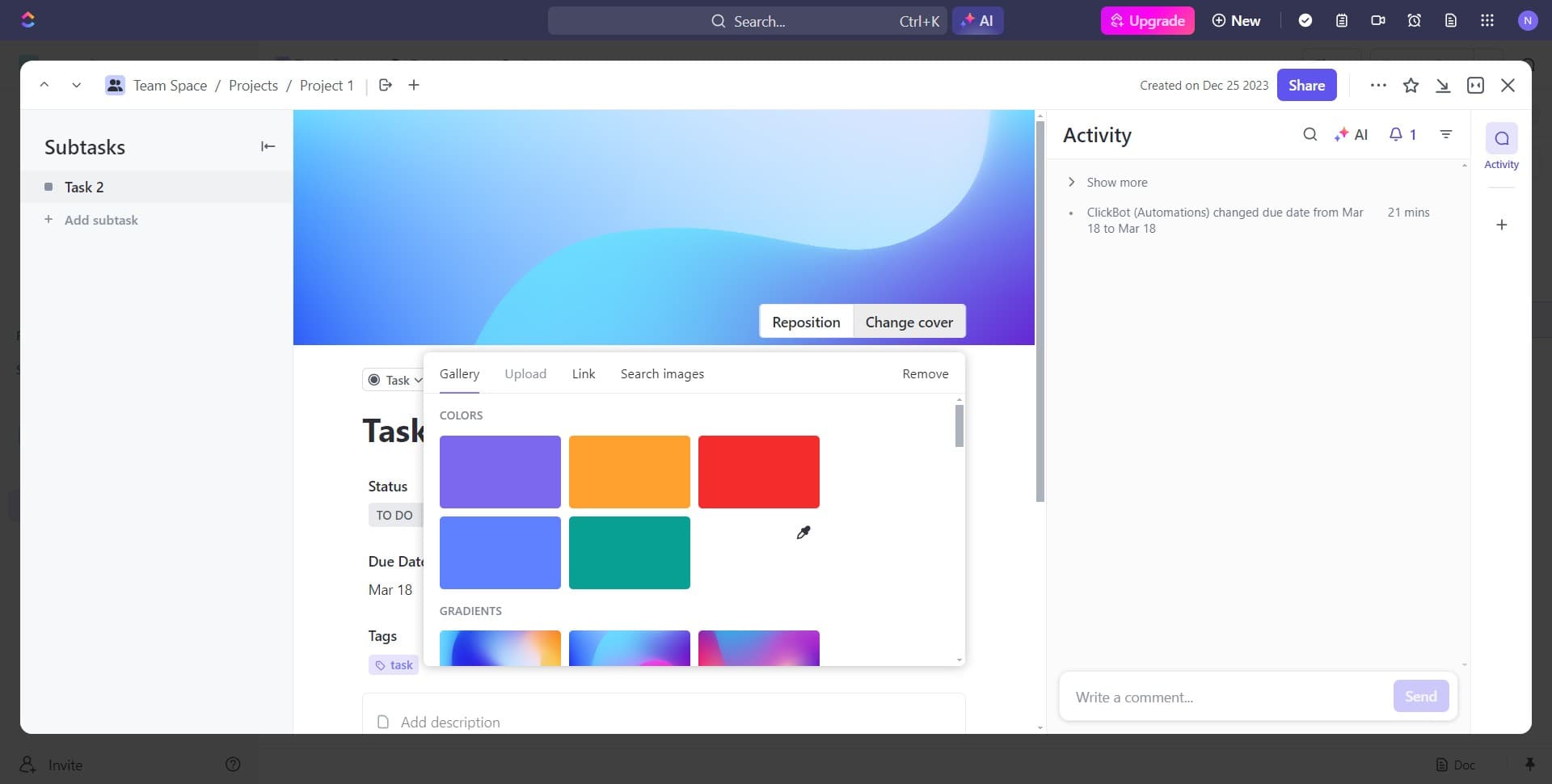
Click on 'Change cover'
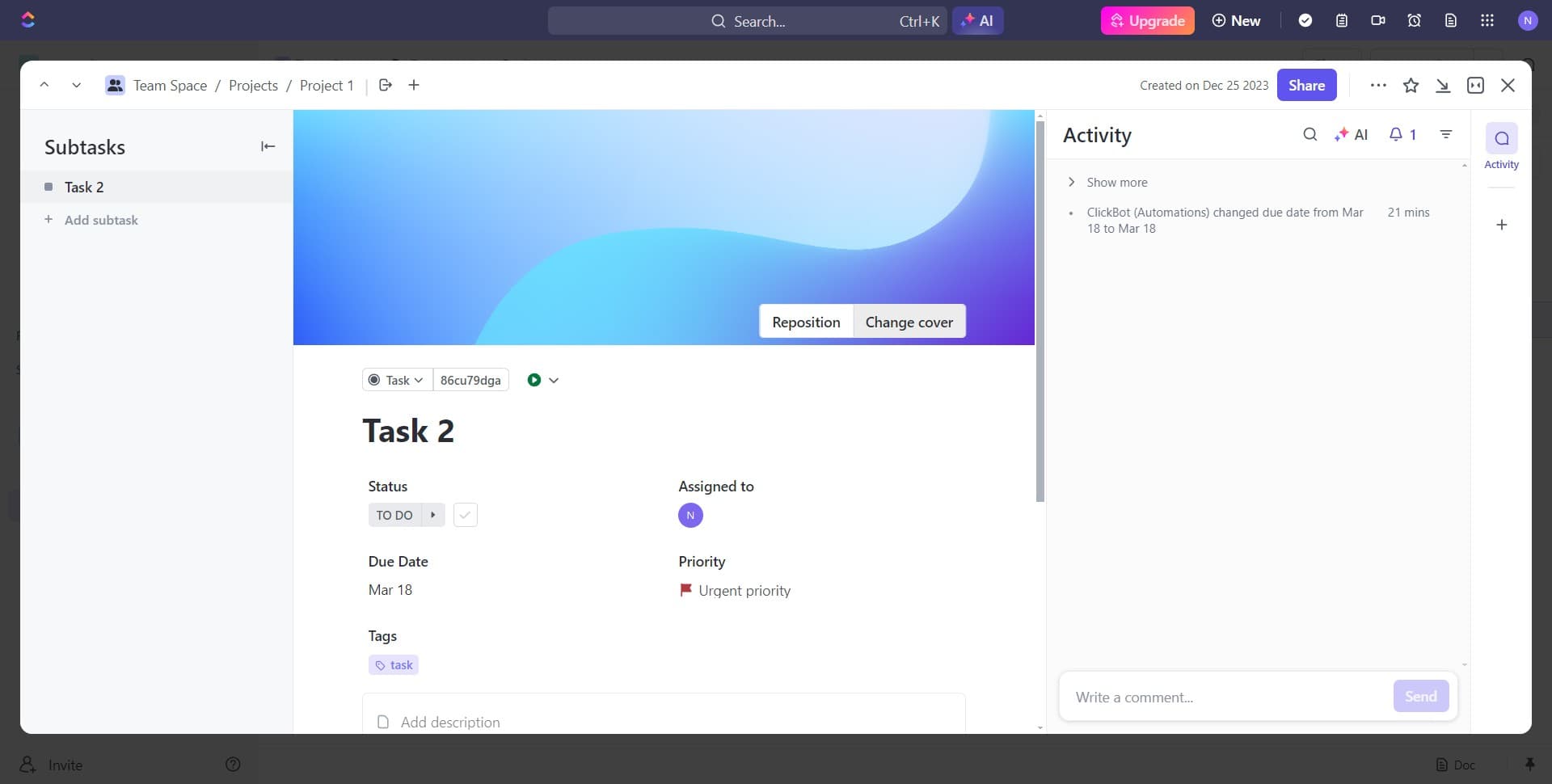
Select the 'Change cover' option to open the cover editing interface. This action allows you to replace or set a new cover image for your doc.
- 5
Select the 'Upload' option
Click on 'Upload' to choose the image upload method. This option lets you add a custom image from your computer or device.
- 6
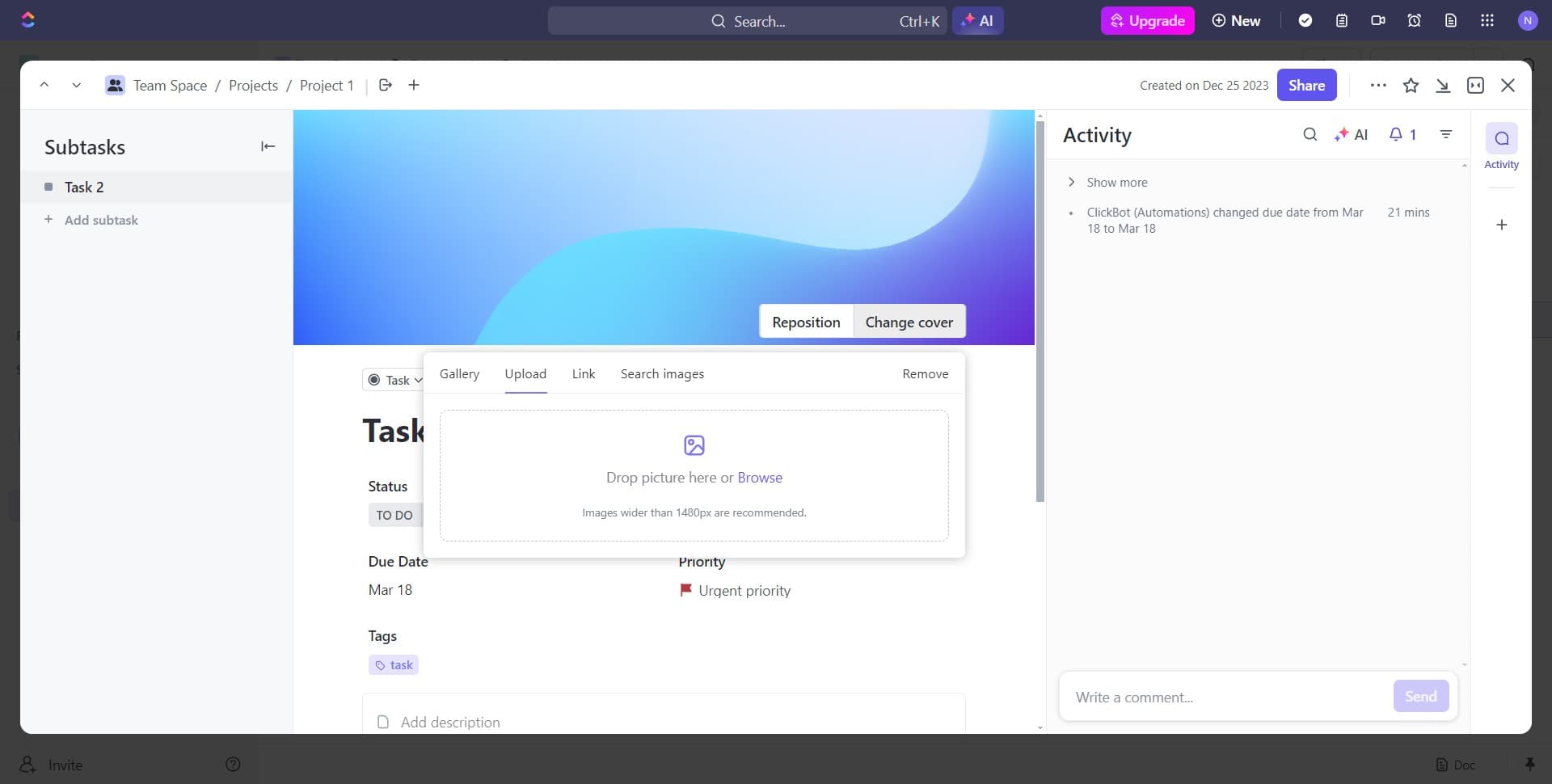
Click 'Browse' to select a file
Click the 'Browse' button to open your file explorer and locate the image you want to use as your cover. Select your desired image file from your local storage.
- 7
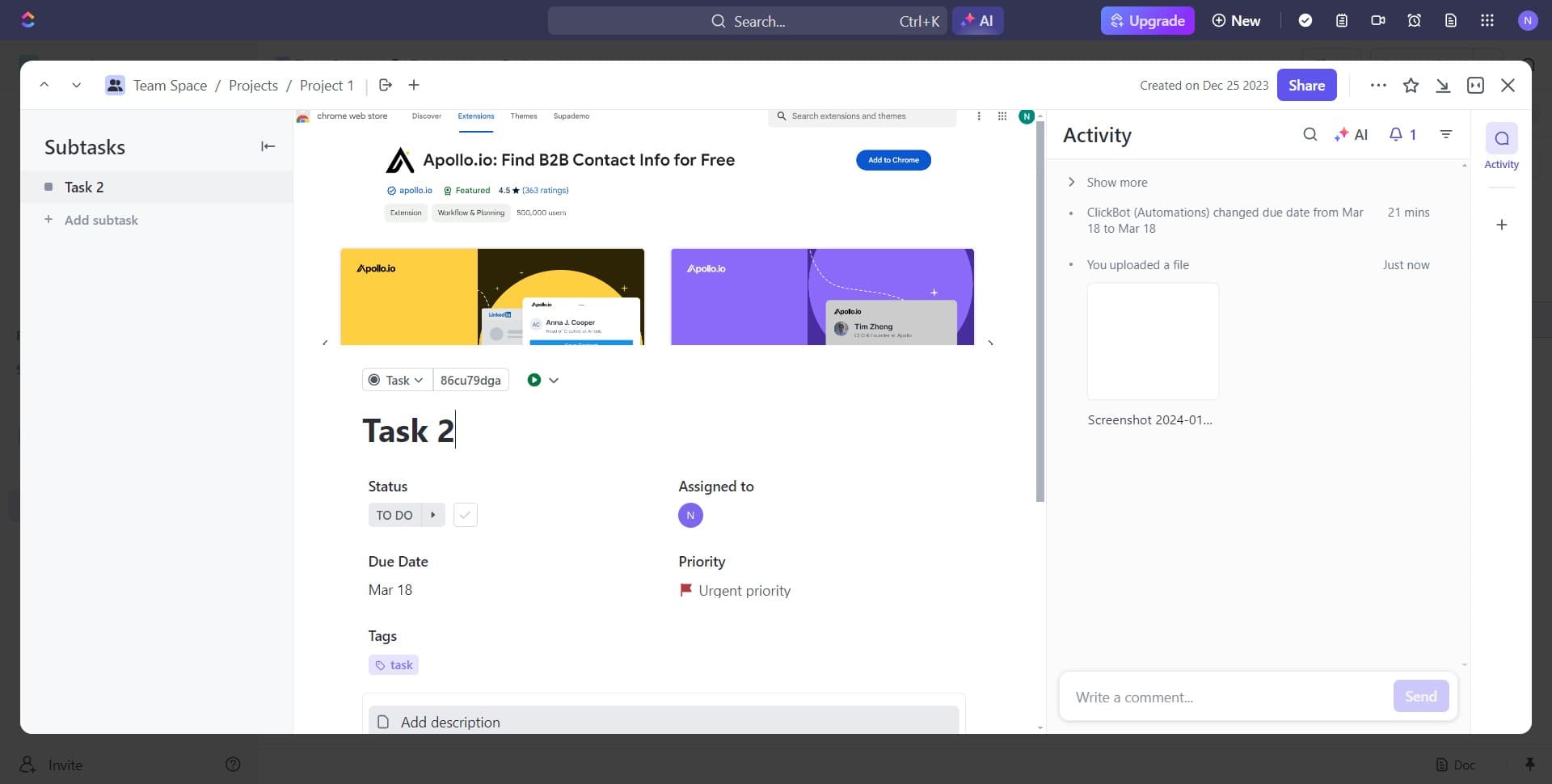
Confirm and apply the cover image
Click to finalize the cover upload and apply the selected image to your ClickUp doc. Your doc now displays the custom cover image in the interface and task list.
Frequently asked questions
Common questions about how to add a cover to your clickup doc.
ClickUp supports common image formats including JPG, PNG, GIF, and WebP files for doc covers. For best results, use high-quality images with appropriate dimensions to ensure they display clearly in your workspace.
Yes, you can upload the same image as a cover for multiple ClickUp docs. Simply repeat the upload process for each doc where you want to apply the same cover image.
To remove a cover, access the cover settings using the same steps and look for a delete or remove option in the cover menu. This will revert your doc to its default appearance without a custom cover image.
While ClickUp typically accepts images up to a reasonable file size, it's best to use optimized images under 5MB for faster loading. Larger images may take longer to upload and display in your workspace.
Cover images display consistently across desktop and mobile versions of ClickUp, though they may be scaled or cropped differently depending on screen size. Test your cover on different devices to ensure it looks appropriate in your preferred viewing context.