How to annotate documents in ClickUp

Document annotation in ClickUp allows you to add comments, feedback, and action items directly to uploaded files, keeping all collaborative input organized in one place. This feature streamlines document review processes and ensures nothing gets lost in communication threads. Learn how to efficiently annotate documents and track actionable feedback within ClickUp.
Quick summary
In this tutorial, you'll learn how to upload a document to ClickUp and add annotations including comments and action items. You'll discover how to create detailed feedback directly on files and organize collaborative input for your team. By the end, you'll be able to manage document reviews efficiently without switching between multiple tools.
Why this matters
Annotating documents directly in ClickUp eliminates the need for external tools and keeps project context intact. When team members can comment and flag action items on documents in real time, approval cycles move faster and accountability becomes clearer. This integrated approach reduces miscommunication and ensures feedback is documented and linked to your project management workflow.
Step-by-step guide
- 1
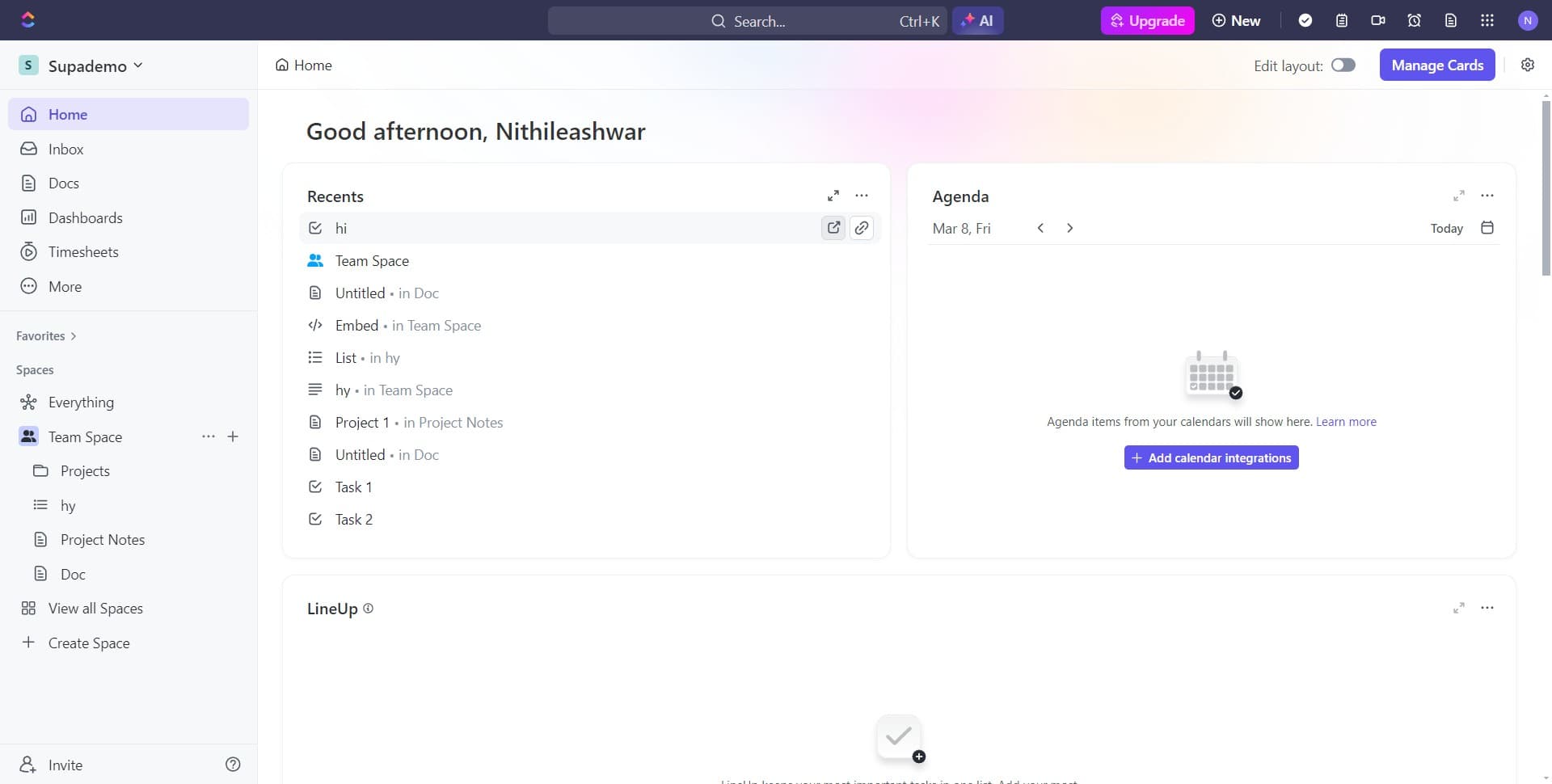
Navigate to document upload area
Start by clicking the designated upload area in ClickUp. This action will prepare the interface for you to add a new document to your workspace.
- 2
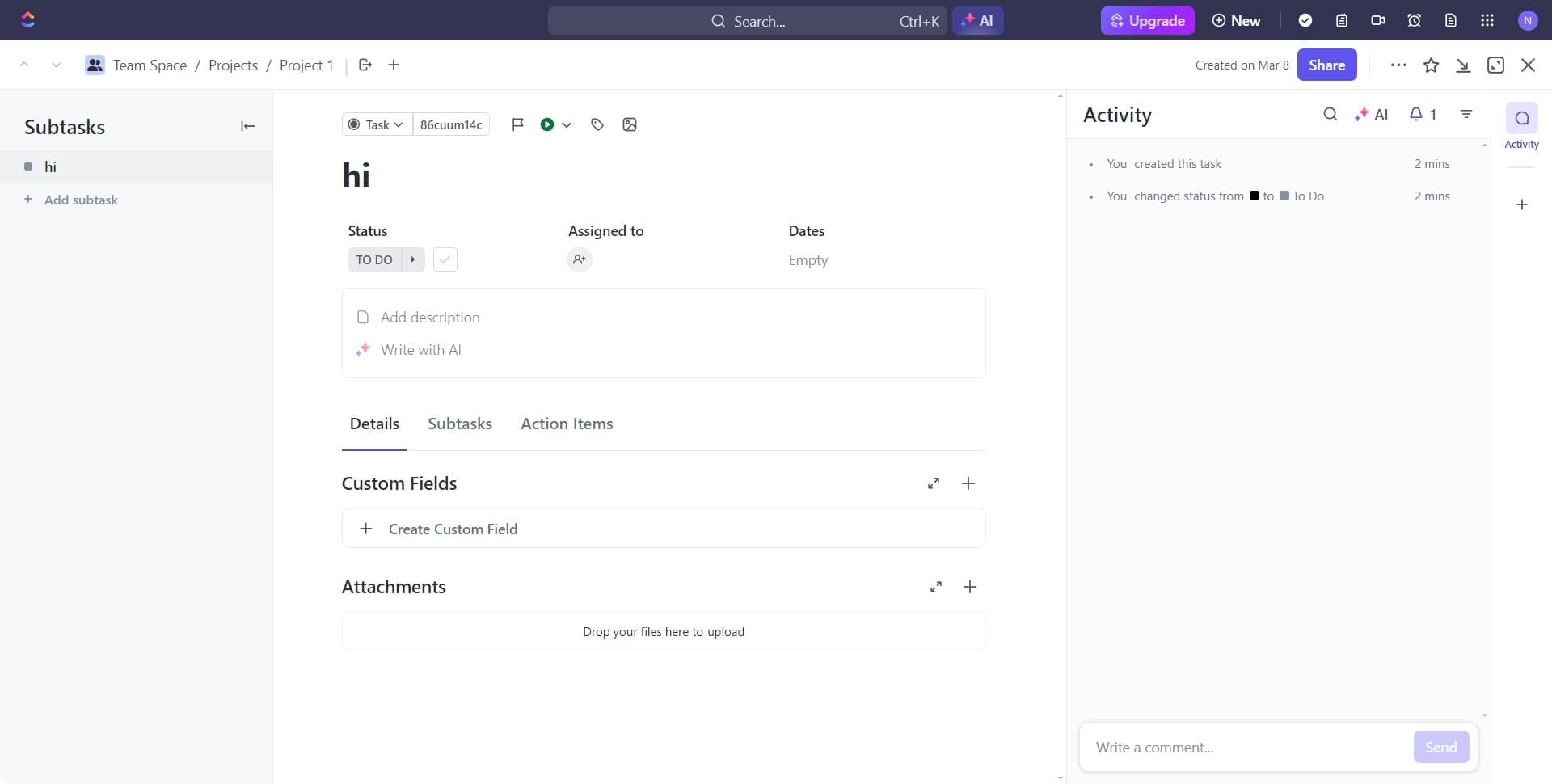
Click on upload option
Select the upload option from the menu that appears. This opens the file selection interface where you can choose which document to work with.
- 3
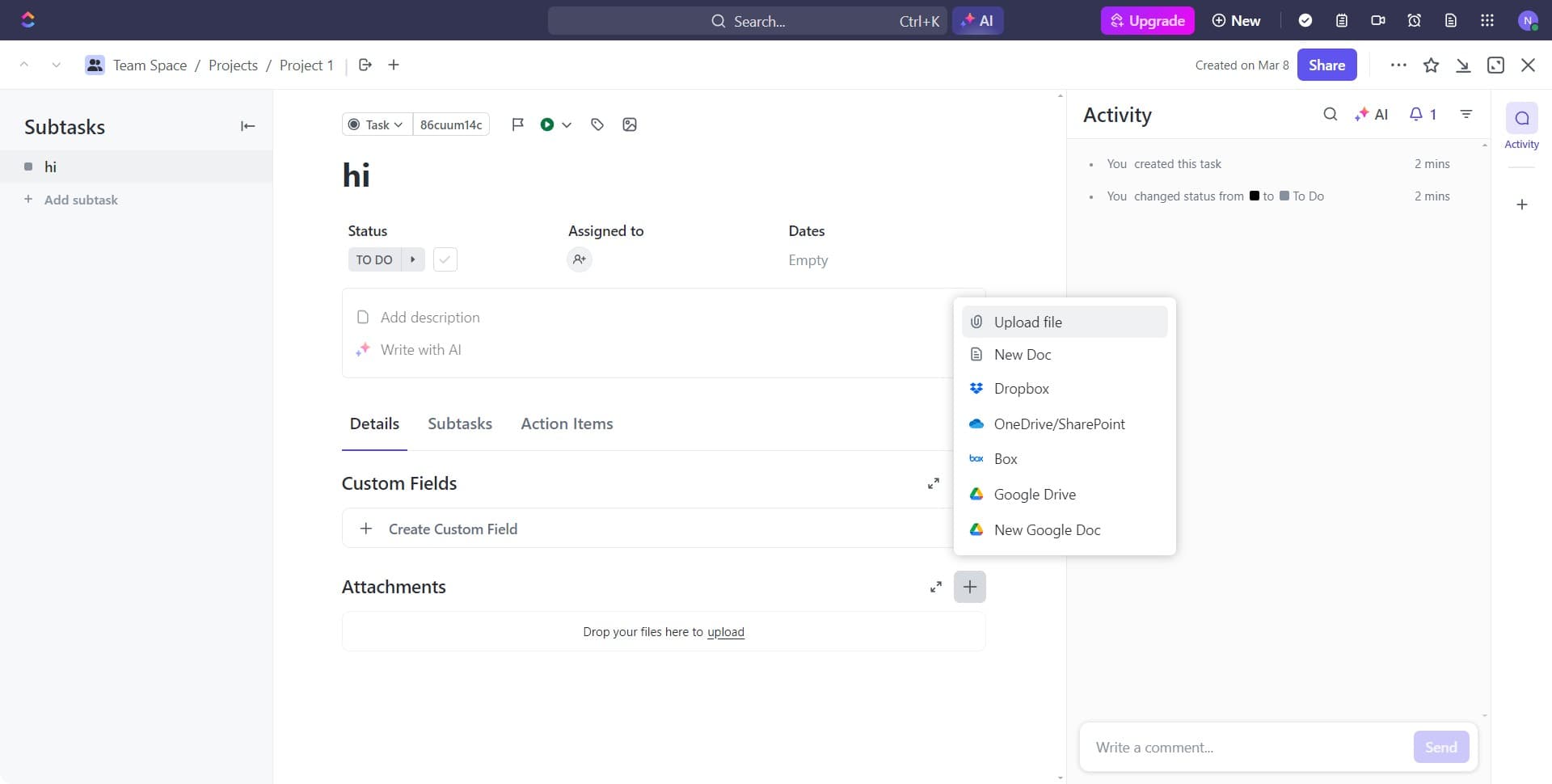
Click on Upload file button
Click the Upload file button to browse your computer and select the document you want to annotate. Choose the file you need to review and confirm the selection.
- 4
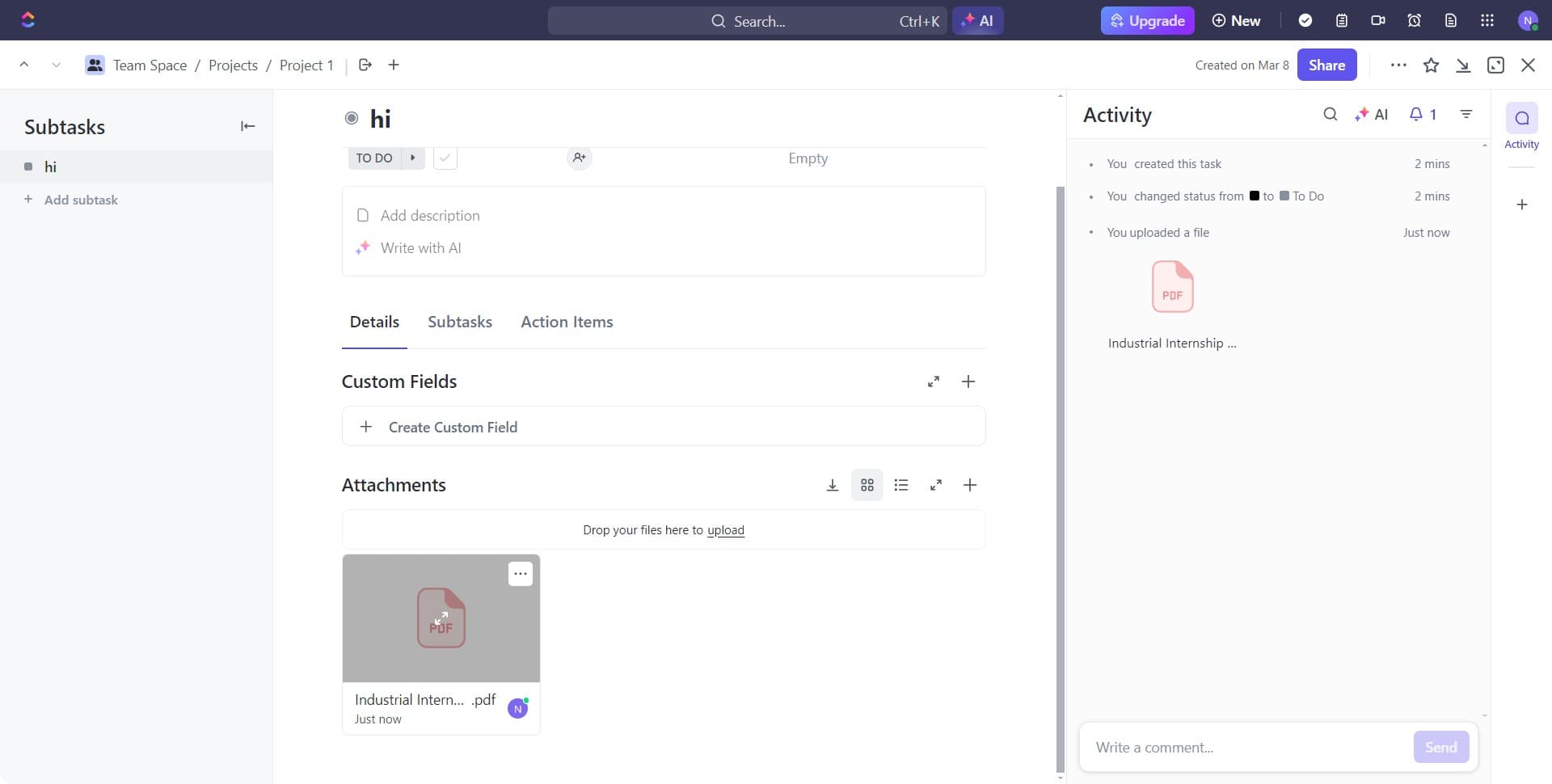
Access the document viewer
Click on the document once it's uploaded to open it in ClickUp's viewer. The document will display in an interface designed for easy annotation and collaboration.
- 5
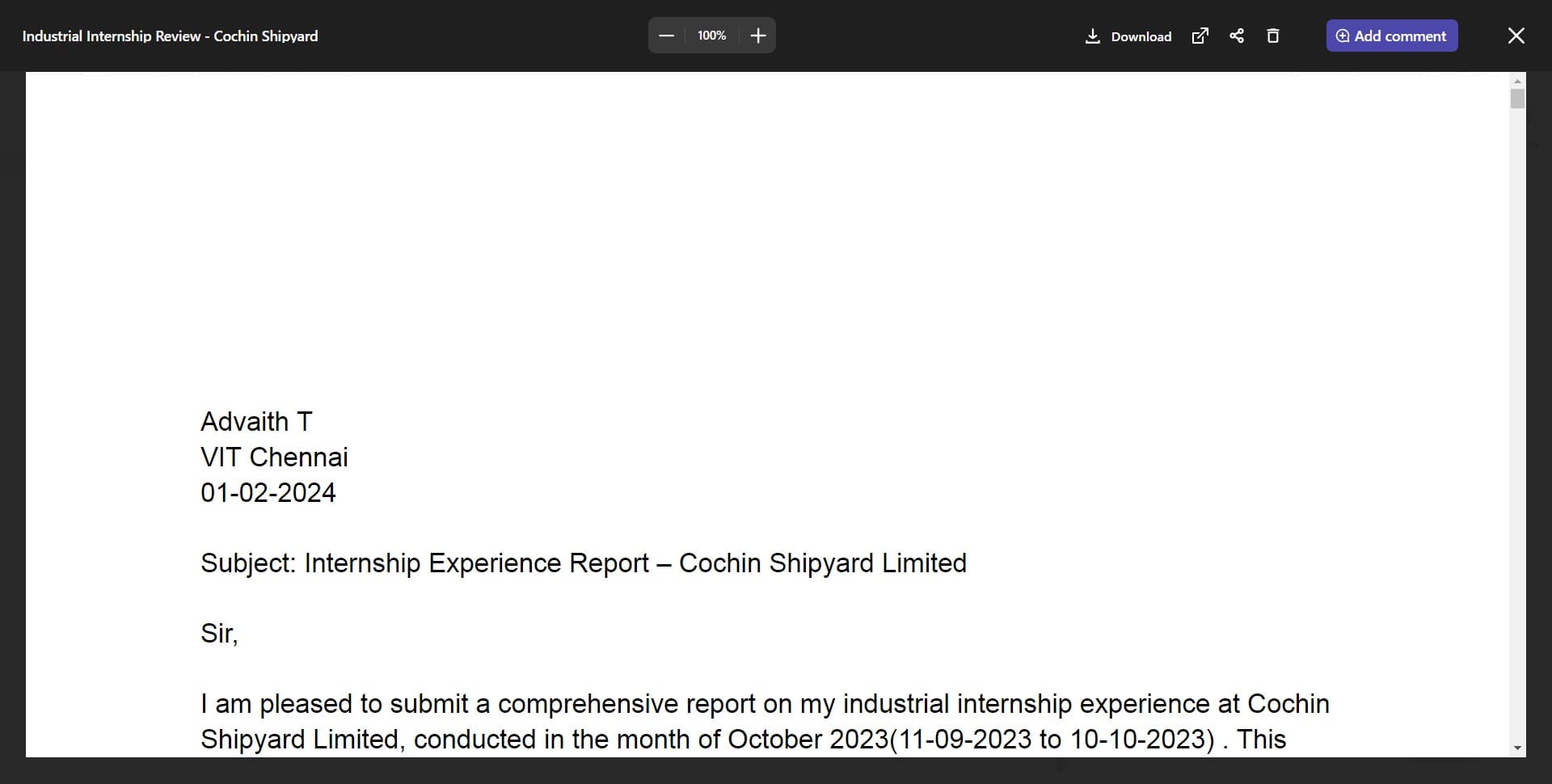
Click on Add comment
Click the Add comment button to begin creating feedback on the document. This will activate the commenting tool and allow you to place annotations at specific locations.
- 6
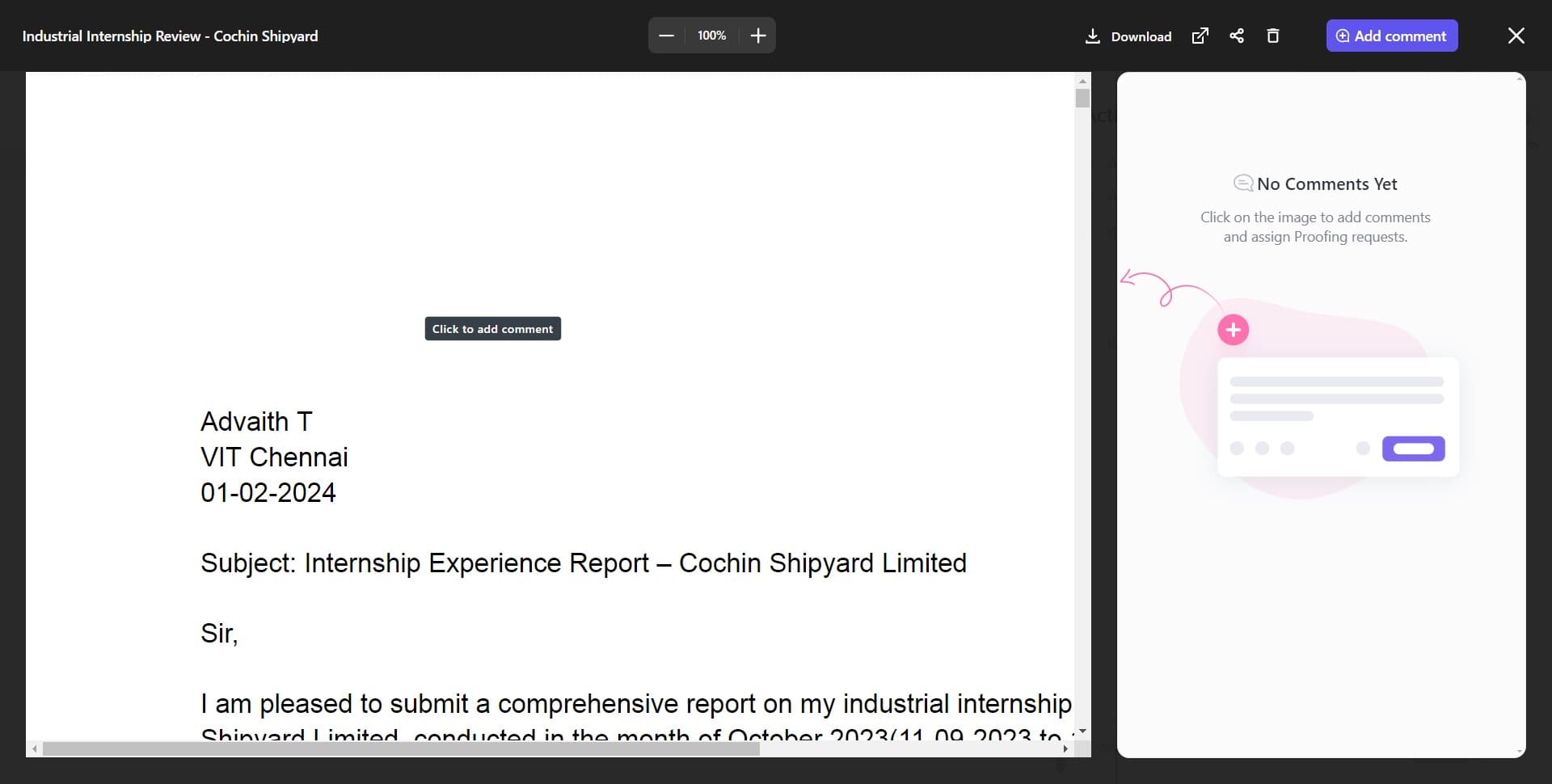
Click to add comment text
Click on the input field that appears and type your annotation or feedback. Be specific about what you're commenting on so team members understand the context of your note.
- 7
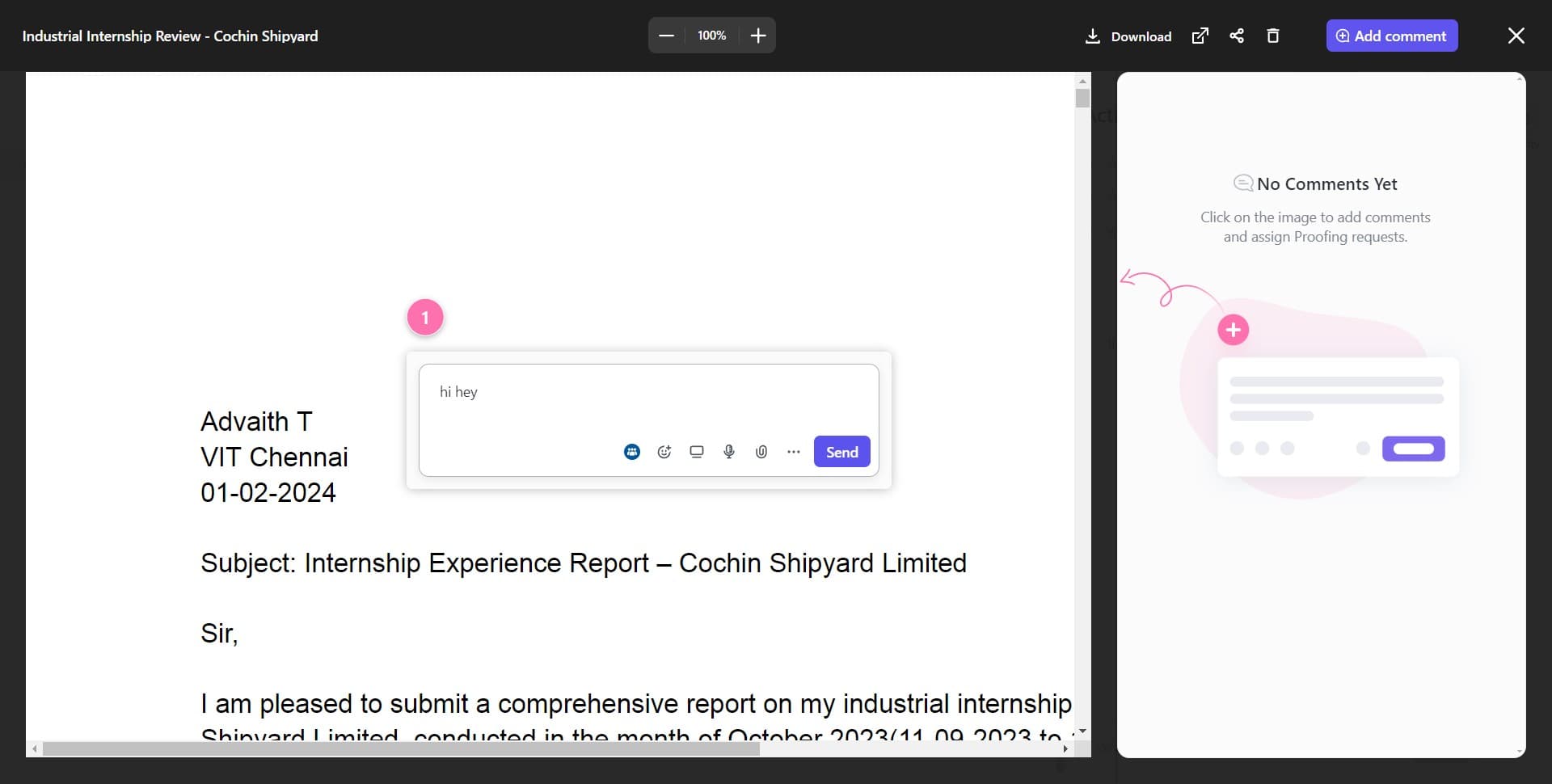
Click Send to post comment
Click the Send button to submit your comment to the document. Your annotation will now be visible to all team members with access to this document.
- 8
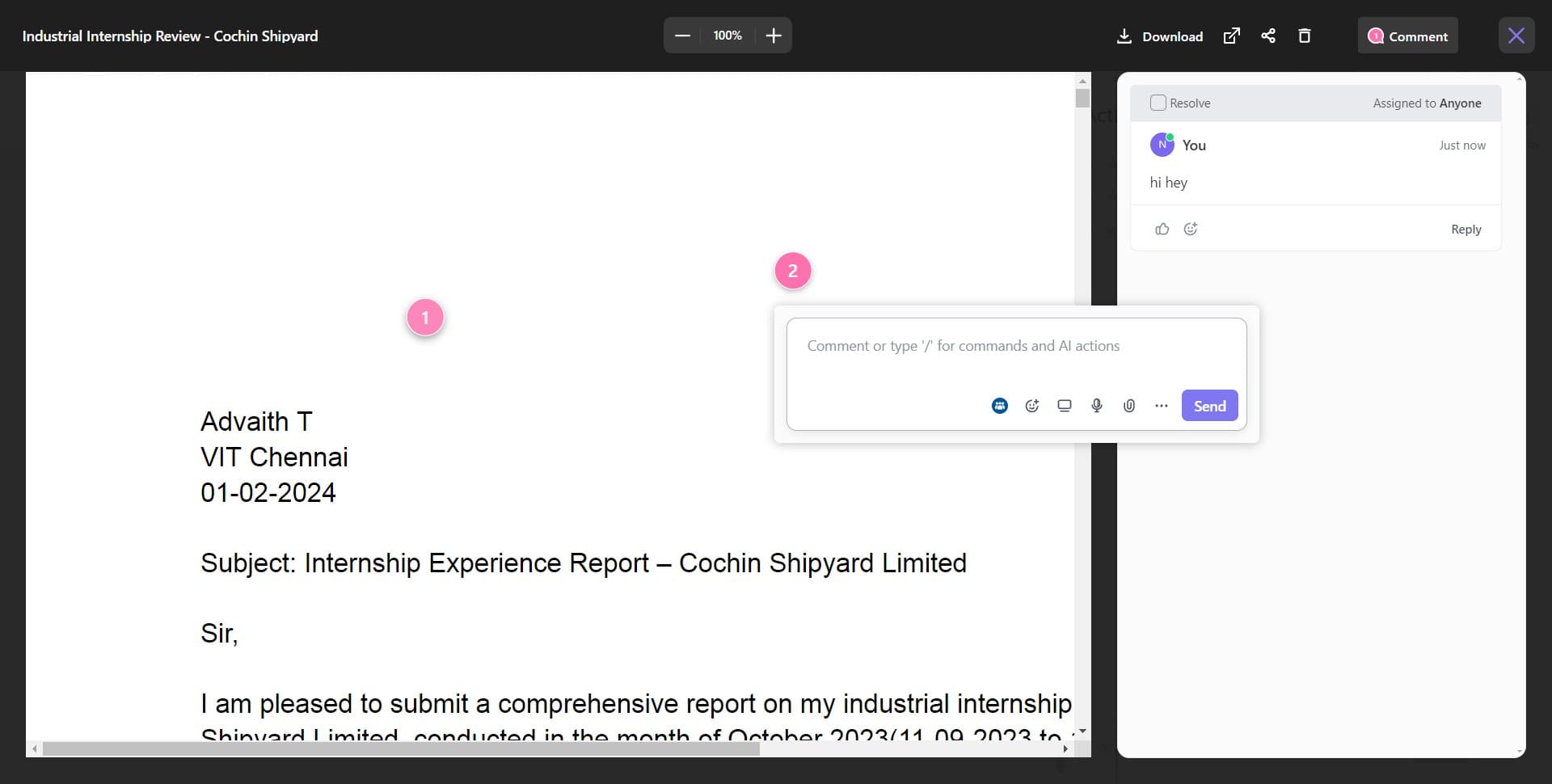
Return to document controls
Click to return to the main document annotation tools. This prepares you to add additional feedback or work with action items.
- 9
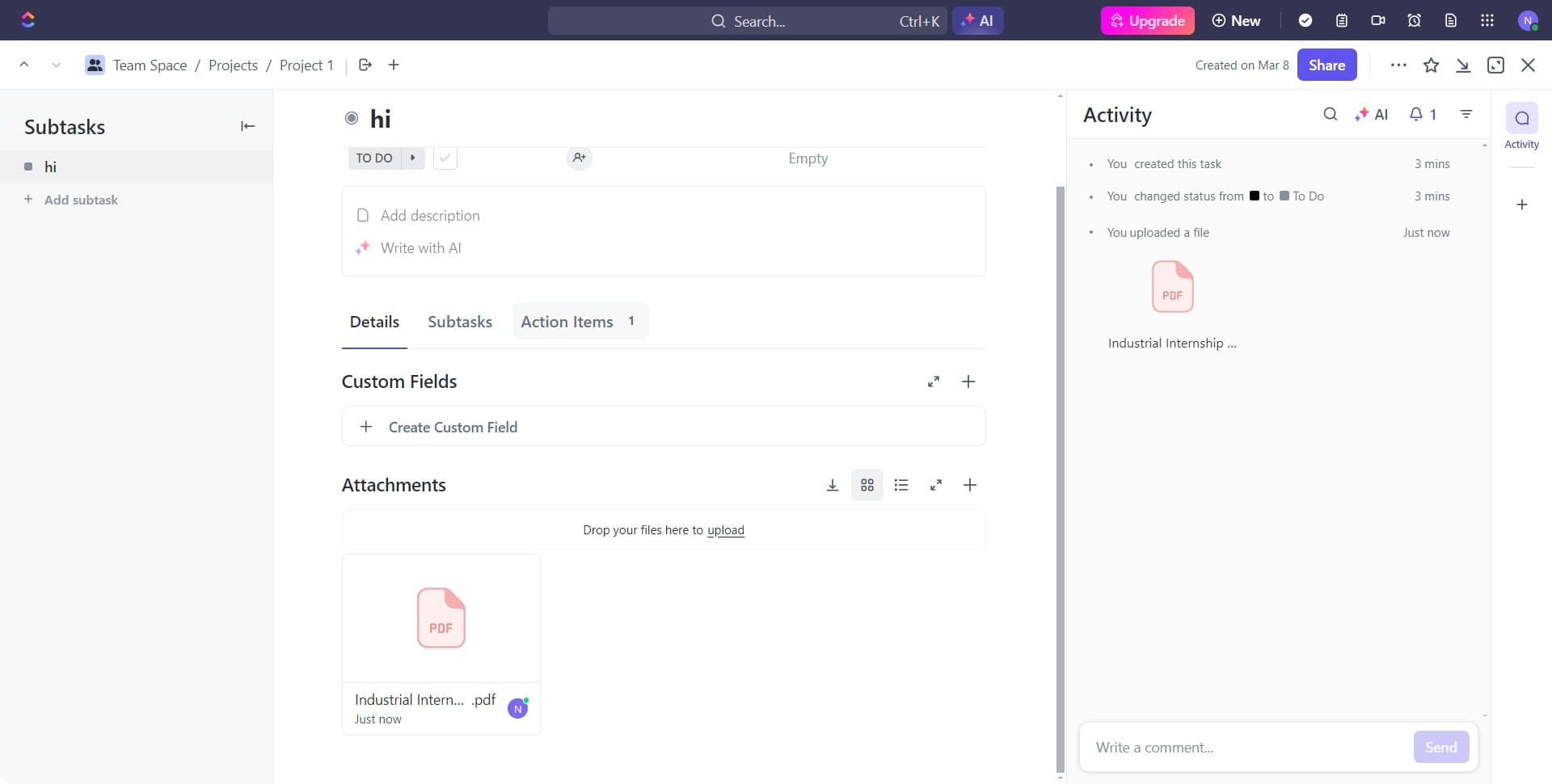
Click on Action Items
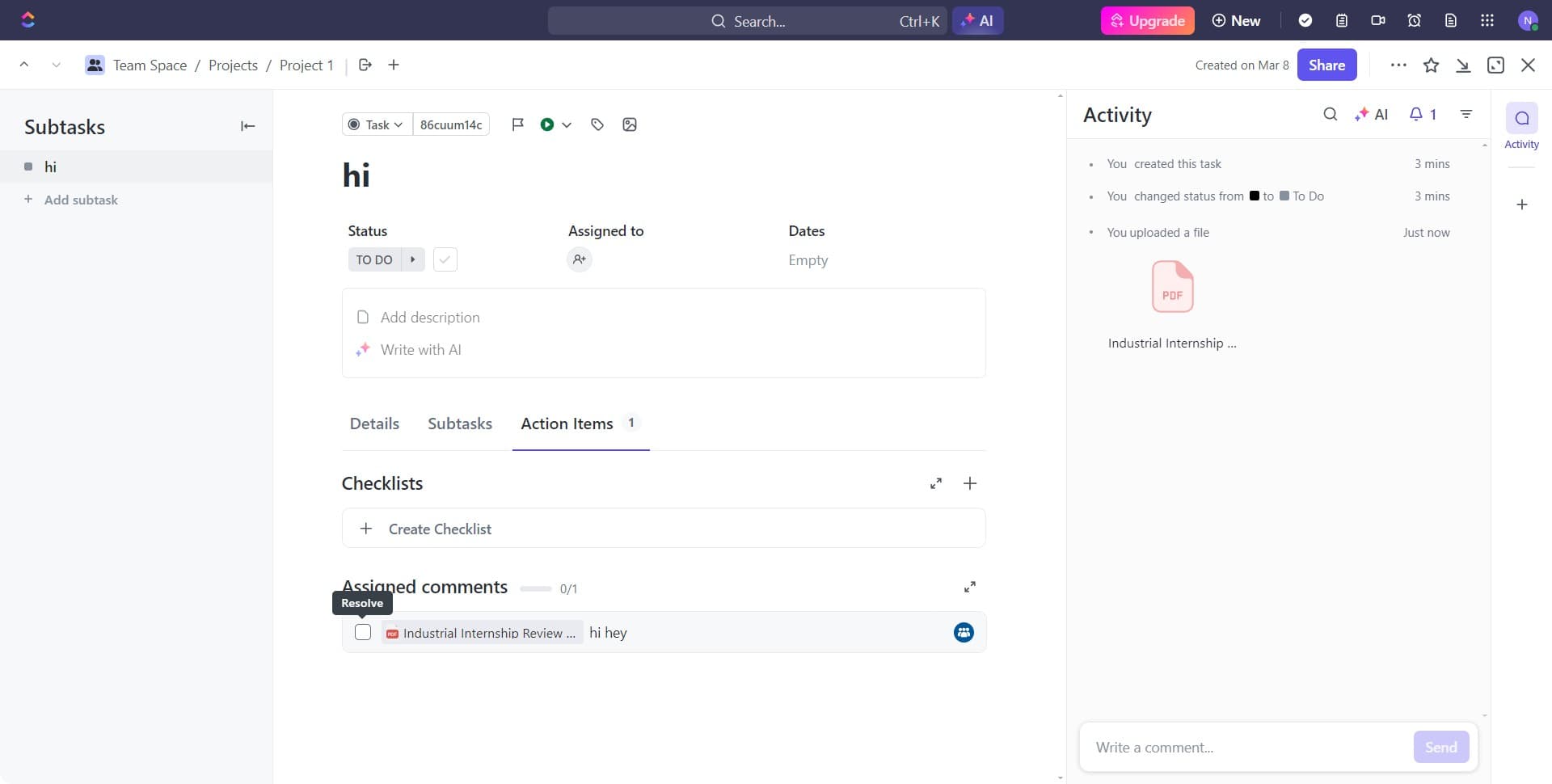
Click the Action Items option to flag specific tasks that need to be completed based on the document review. This creates accountability and ensures follow-up work is tracked.
- 10
Finalize action item setup
Click to complete the action item assignment and close the annotation workflow. Your document is now fully annotated with comments and action items ready for team review.
Frequently asked questions
Common questions about how to annotate documents in clickup.
Yes, ClickUp allows simultaneous collaboration on documents. Multiple team members can add comments and action items to the same file at the same time, making it ideal for group reviews and feedback cycles.
When you create action items from document annotations, you can assign them to specific team members within ClickUp. This ensures accountability and helps track who is responsible for each follow-up task.
ClickUp's search functionality includes document comments and annotations, making it easy to find specific feedback or discussions across your projects. This helps you quickly locate previous decisions or feedback on similar documents.
ClickUp supports annotation on various common file formats including PDFs, images, and documents. Check ClickUp's documentation for the complete list of supported file types and any size limitations for your workspace plan.
ClickUp maintains a complete history of all comments and annotations added to documents. You can view this activity timeline to see who commented when and what feedback was provided throughout the review process.