How to archive and delete a document in ClickUp

Keeping your ClickUp workspace organized means regularly archiving outdated documents and permanently removing items you no longer need. This tutorial walks you through both archiving and deleting documents in ClickUp, helping you maintain a clean and efficient project management environment.
Quick summary
In this tutorial, you'll learn how to archive documents for safekeeping and delete them permanently when necessary. These two workflows ensure you can manage document lifecycles effectively while maintaining workspace clarity.
Why this matters
Archiving and deleting documents in ClickUp prevents clutter, improves team focus on active work, and ensures compliance with data retention policies. Knowing when and how to archive versus delete helps teams maintain organizational standards and reduces cognitive load when navigating projects.
Step-by-step guide
- 1
Locate the document menu
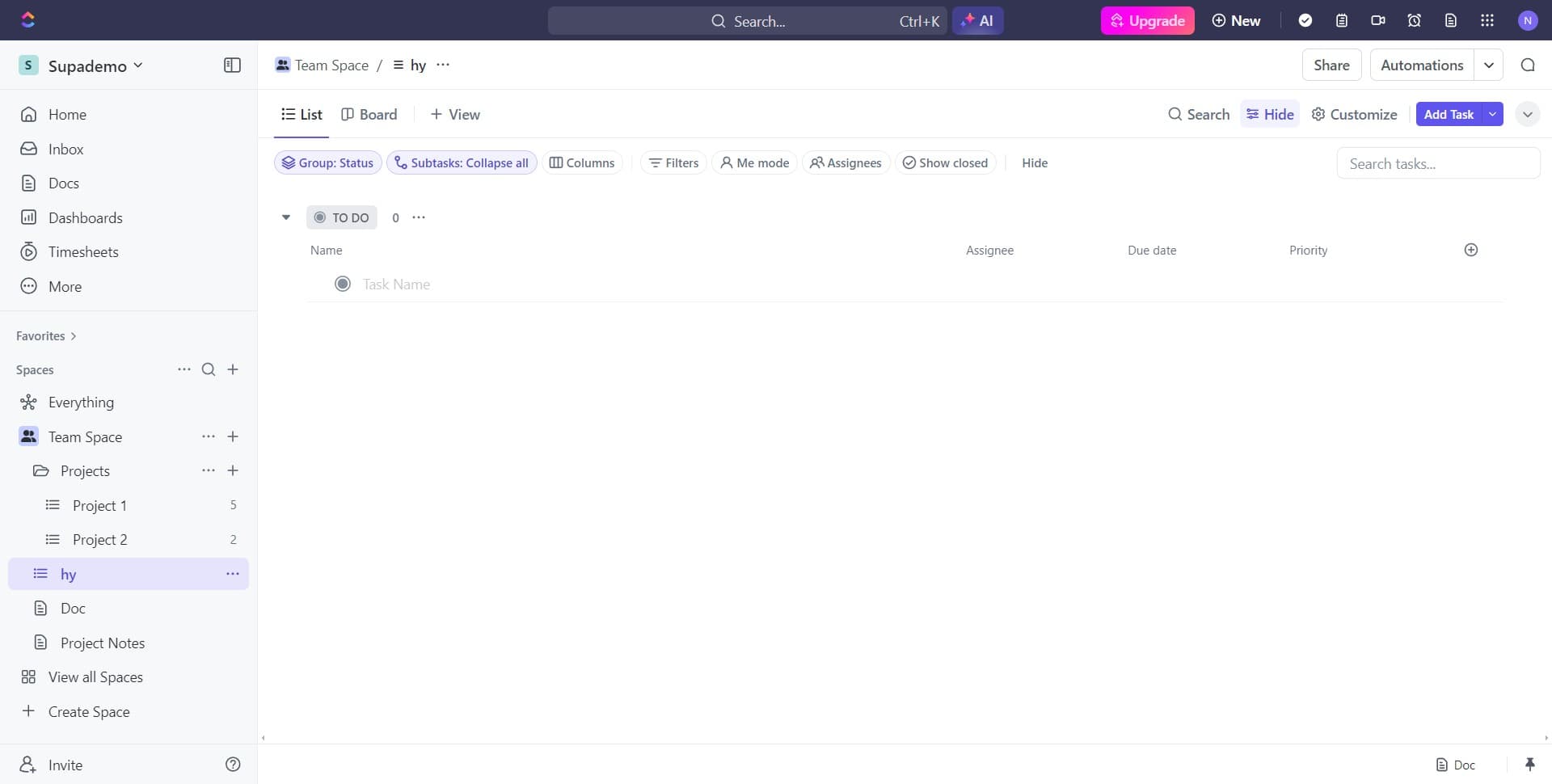
Begin by identifying the document you want to manage in your ClickUp workspace. Click on the menu or options icon associated with the document to reveal available actions.
- 2
Click on Archive option
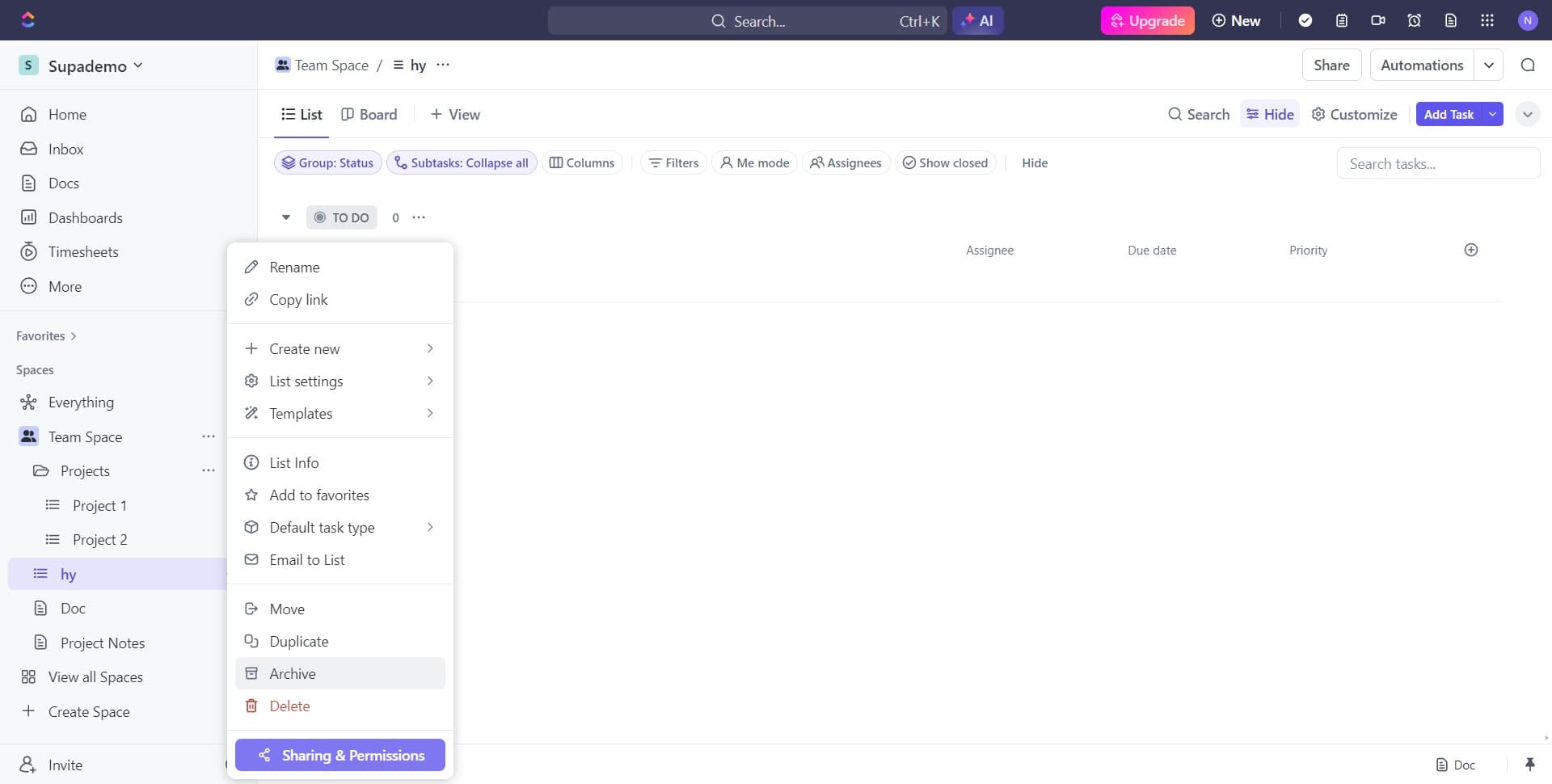
From the menu, select the Archive option to move the document to your archive section. This action preserves the document and its history while removing it from your active workspace view.
- 3
Confirm the archive action
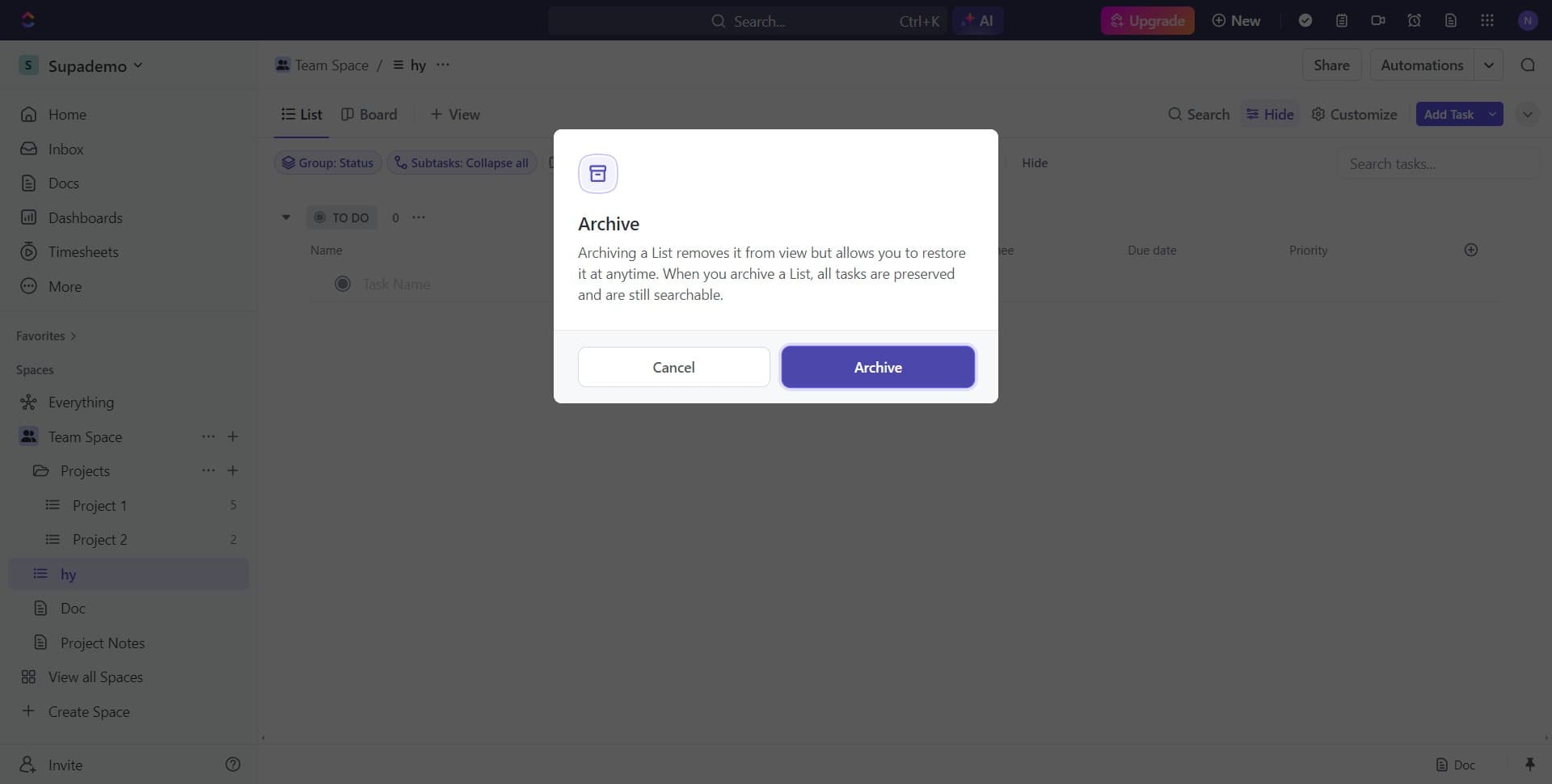
A confirmation prompt will appear. Click Archive again to finalize the archival process. The document is now safely stored and can be restored later if needed.
- 4
Access the deletion menu
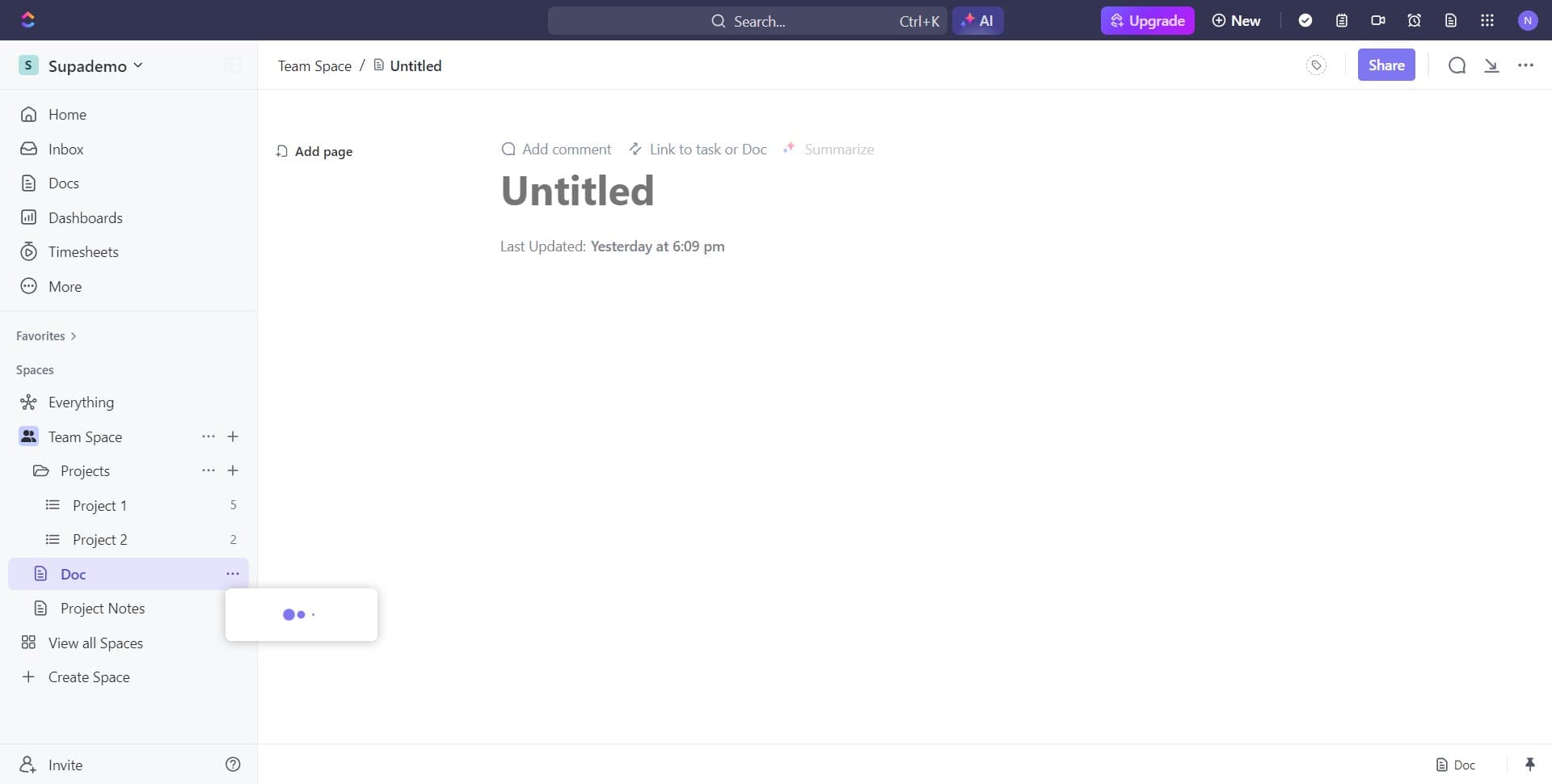
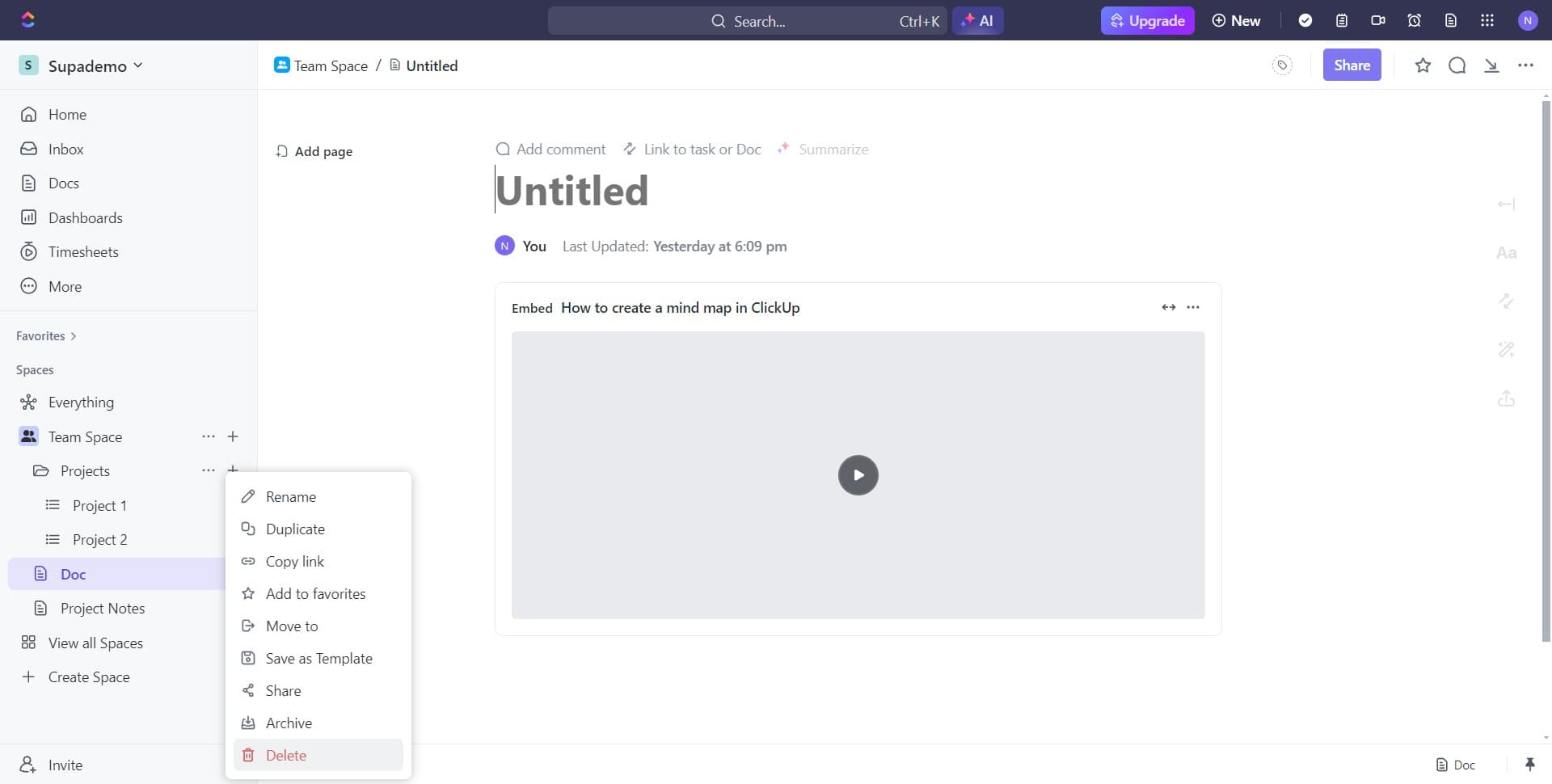
To permanently remove a document, open the menu for the document you wish to delete. Navigate to the deletion options by clicking on the appropriate menu item.
- 5
Click on Delete
Select the Delete option to permanently remove the document from ClickUp. This action cannot be undone, so ensure you no longer need the document before proceeding.
- 6
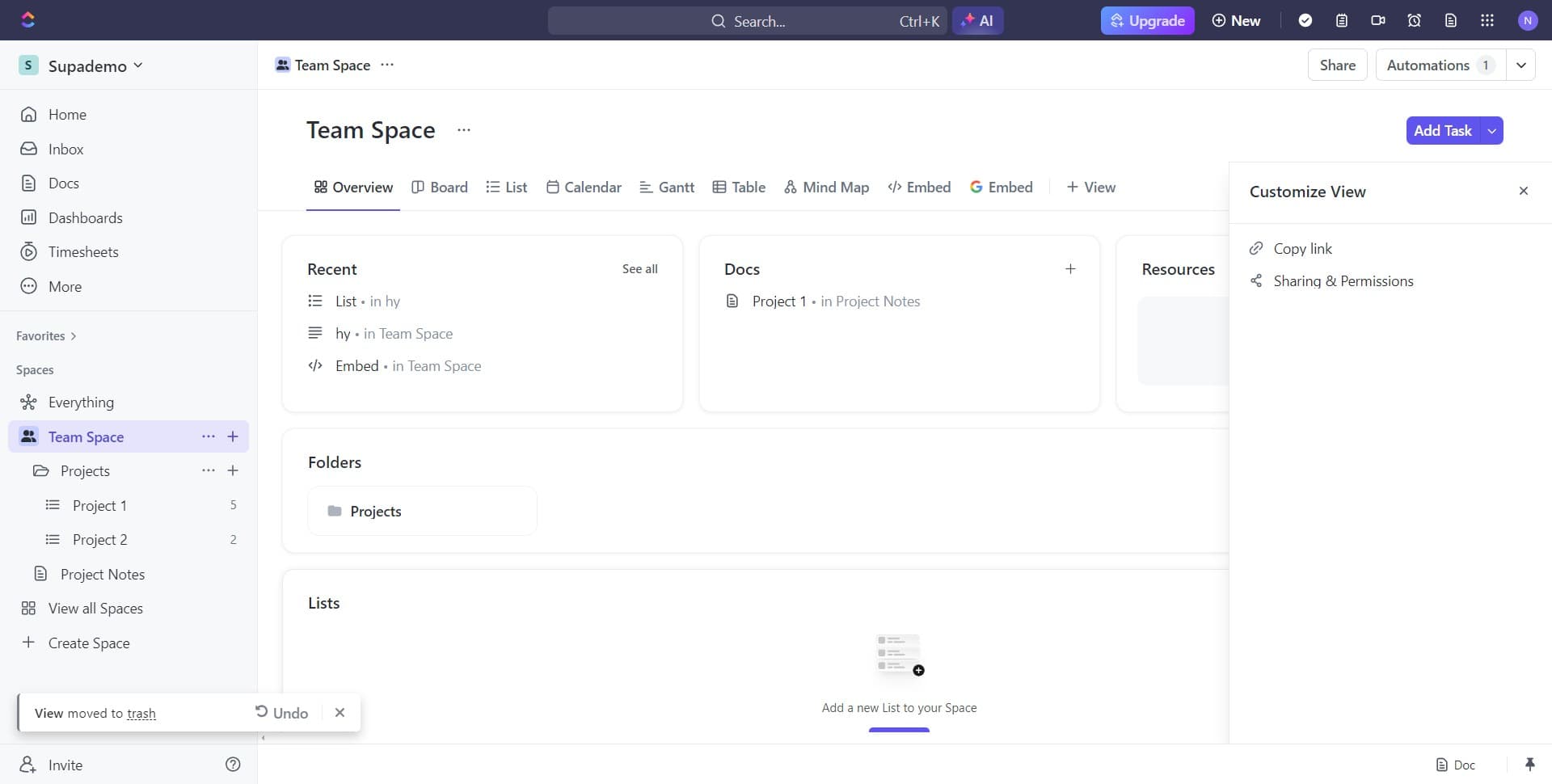
Return to Lists view
After managing your documents, click on Lists to return to your main document or task list view. This confirms the changes have been applied and shows your updated workspace.
Frequently asked questions
Common questions about how to archive and delete a document in clickup.
Archiving preserves your document and its history in a separate archive section, allowing you to restore it later if needed. Deleting permanently removes the document from ClickUp and cannot be undone. Use archiving for documents you might reference again, and deletion for items you're certain you no longer need.
Yes, archived documents can be restored at any time. You can access your archived items through ClickUp's archive section and move them back to your active workspace. This makes archiving ideal for keeping historical records accessible.
No, deleted documents are permanently removed and cannot be recovered. ClickUp does not maintain backups of deleted items. Always double-check that you no longer need a document before clicking the delete option.
ClickUp typically allows you to select multiple items and perform batch actions. Check your ClickUp plan and version for bulk archive or delete capabilities, as these features may vary depending on your subscription level.
Archiving moves the document out of the primary workspace view, so it won't appear in regular lists unless team members specifically access the archive section. Team members with appropriate permissions can still view and restore archived documents, but they won't see them in day-to-day work.