How to integrate Slack with ClickUp

Connecting Slack with ClickUp enables seamless communication between your task management and messaging platforms. This integration allows you to receive ClickUp notifications directly in Slack, create tasks from Slack messages, and keep your team synchronized without switching between applications.
Quick summary
In this tutorial, you'll learn how to integrate Slack with ClickUp by navigating to the App Center, selecting the Slack integration, and authorizing the connection. By the end, your Slack workspace will be fully connected to ClickUp, enabling real-time notifications and task creation directly from your chat.
Why this matters
Integrating Slack with ClickUp eliminates context switching and keeps your team informed about project updates where they already communicate. This workflow is essential for teams that rely on Slack for daily collaboration and need instant visibility into task changes, deadlines, and project progress without leaving their messaging platform.
Step-by-step guide
- 1
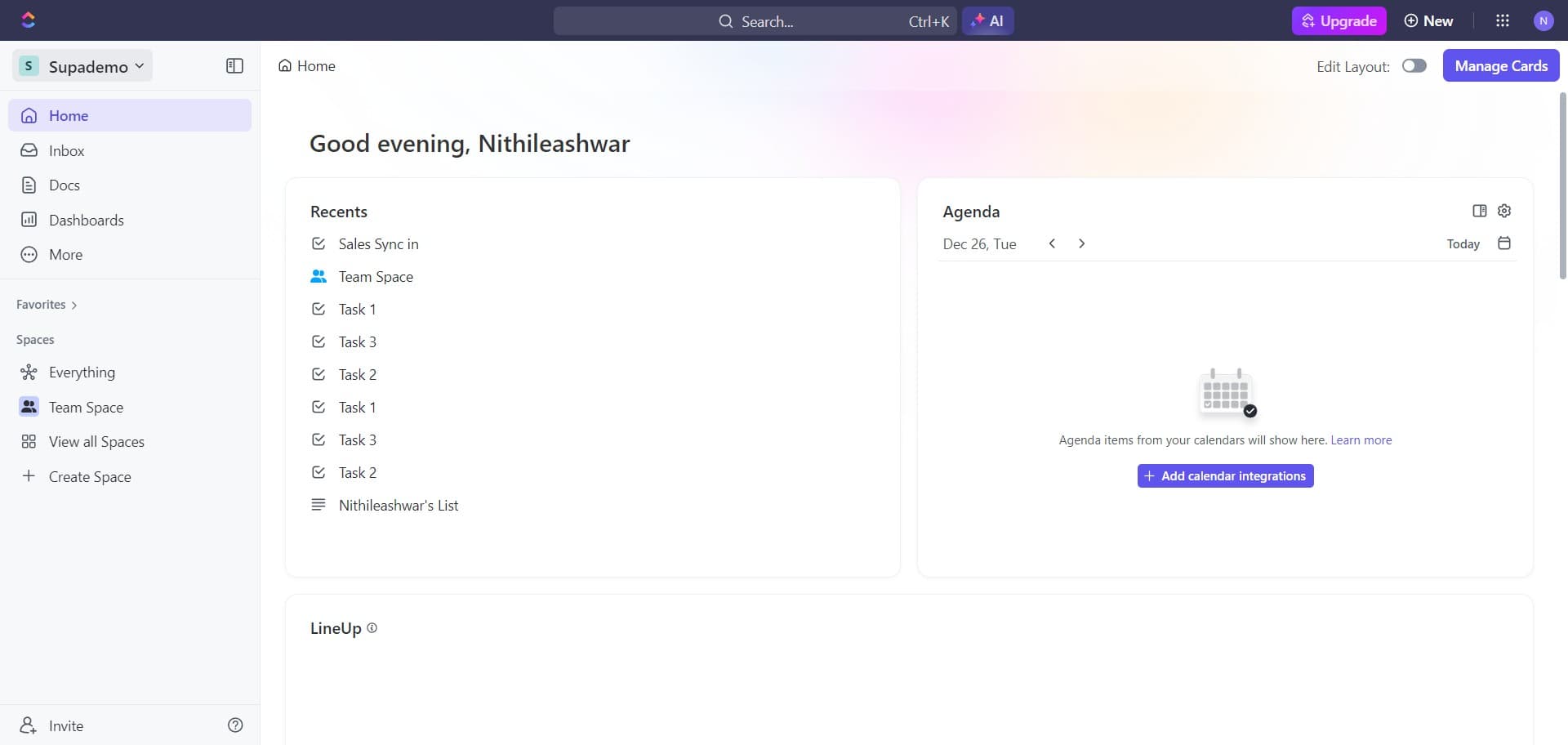
Navigate to settings area
Begin by locating and clicking the initial setup area in ClickUp. This will guide you toward the integration options available in your workspace.
- 2
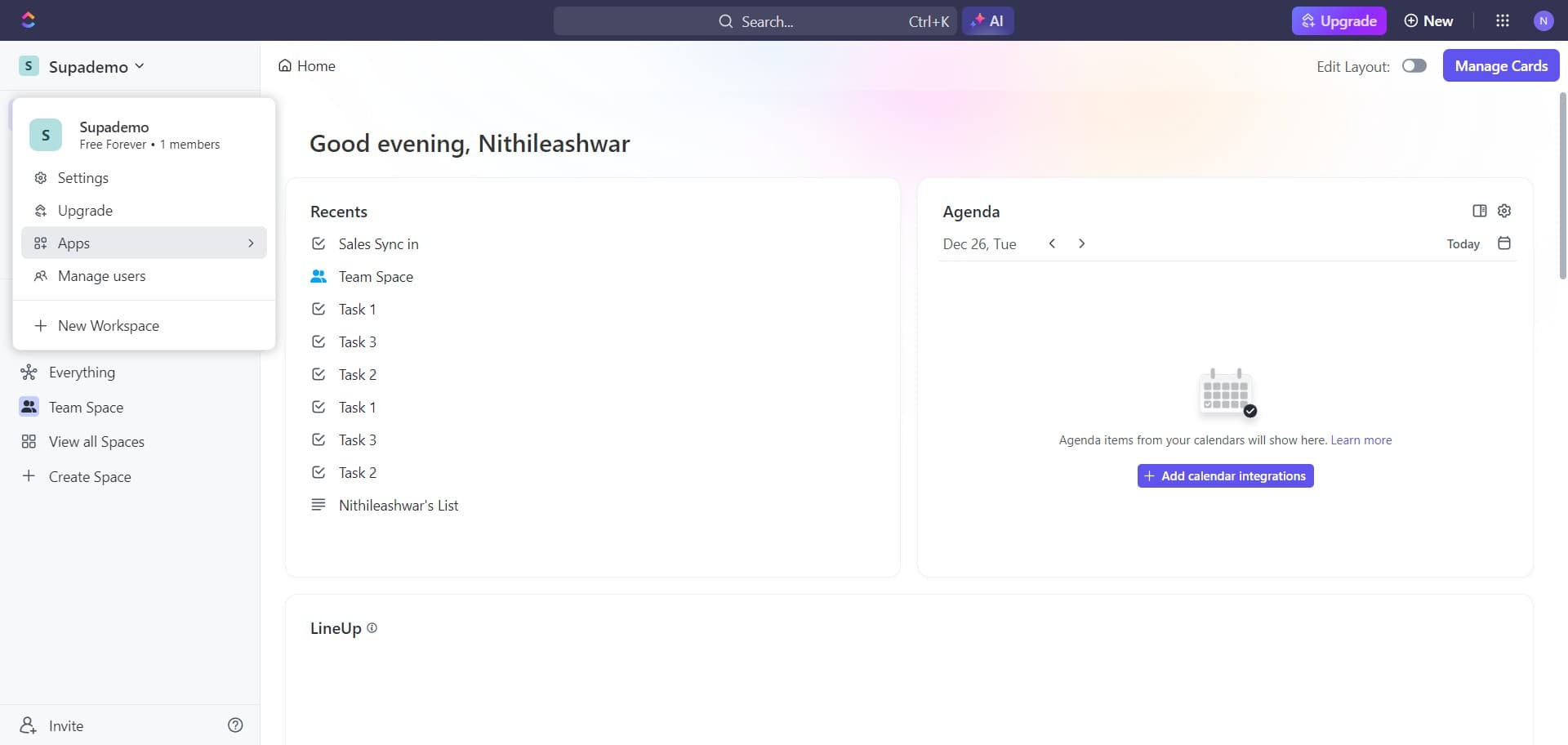
Access integration menu
Click through to reach the integration management section. You should now see options to connect various third-party tools and services to your ClickUp workspace.
- 3
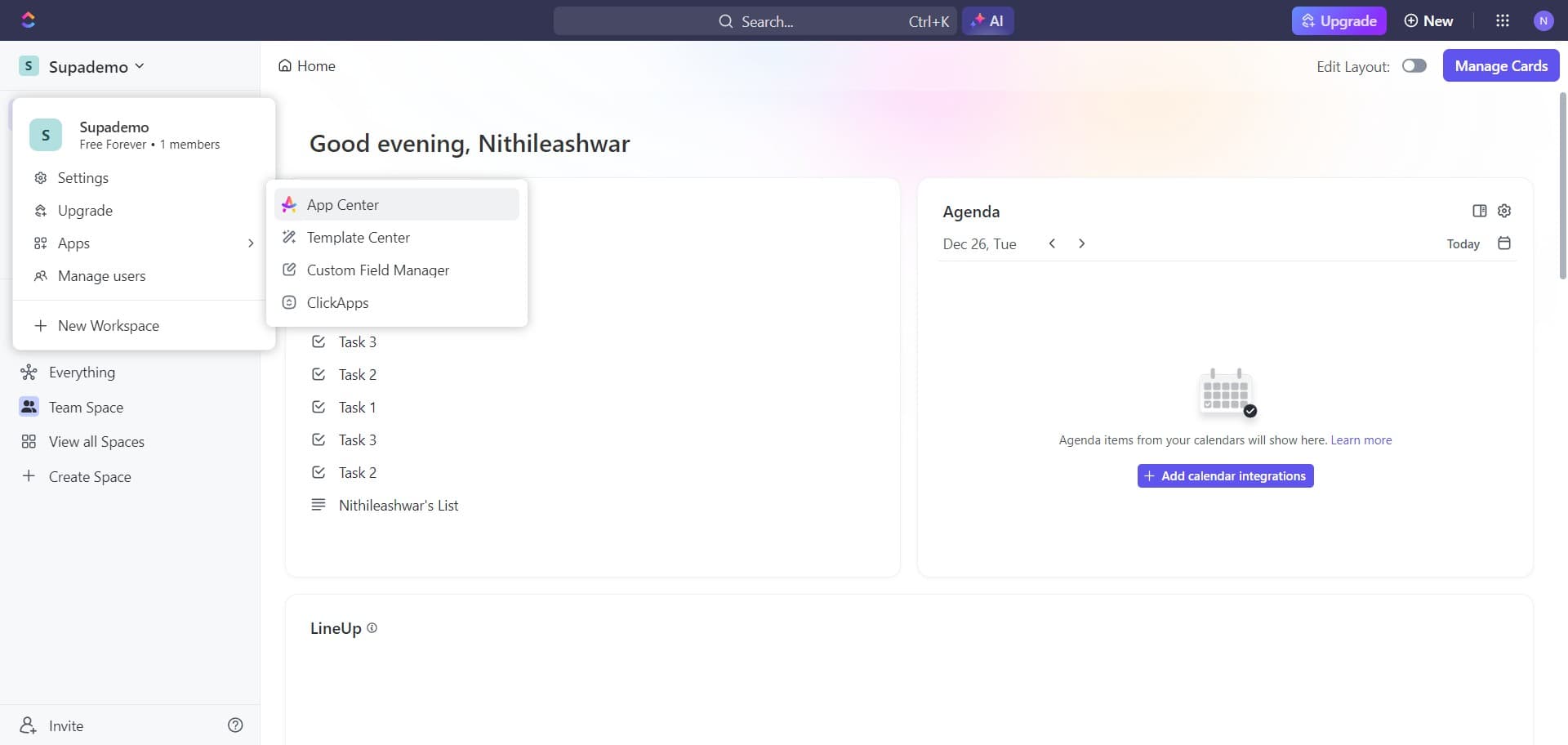
Open the App Center
Click on 'App Center' to access ClickUp's marketplace of available integrations. This is where you'll find all pre-built connectors and extensions for your workspace.
- 4
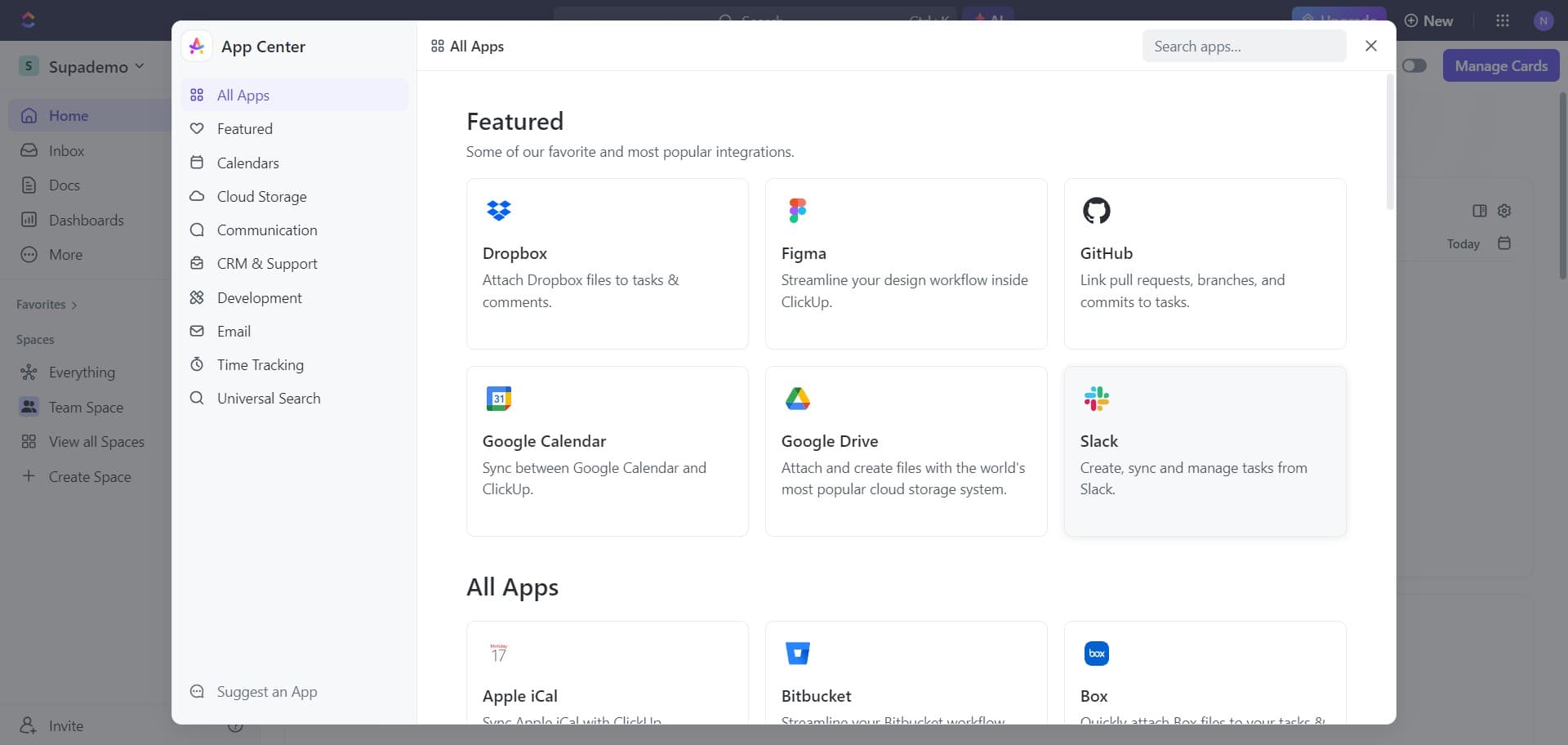
Select Slack integration
Locate and click on 'Slack' from the list of available apps in the App Center. This will open the Slack integration details and connection options.
- 5
Initiate Slack connection
Click on 'Connect Slack' to begin the authorization process. ClickUp will prepare to request permission to access your Slack workspace.
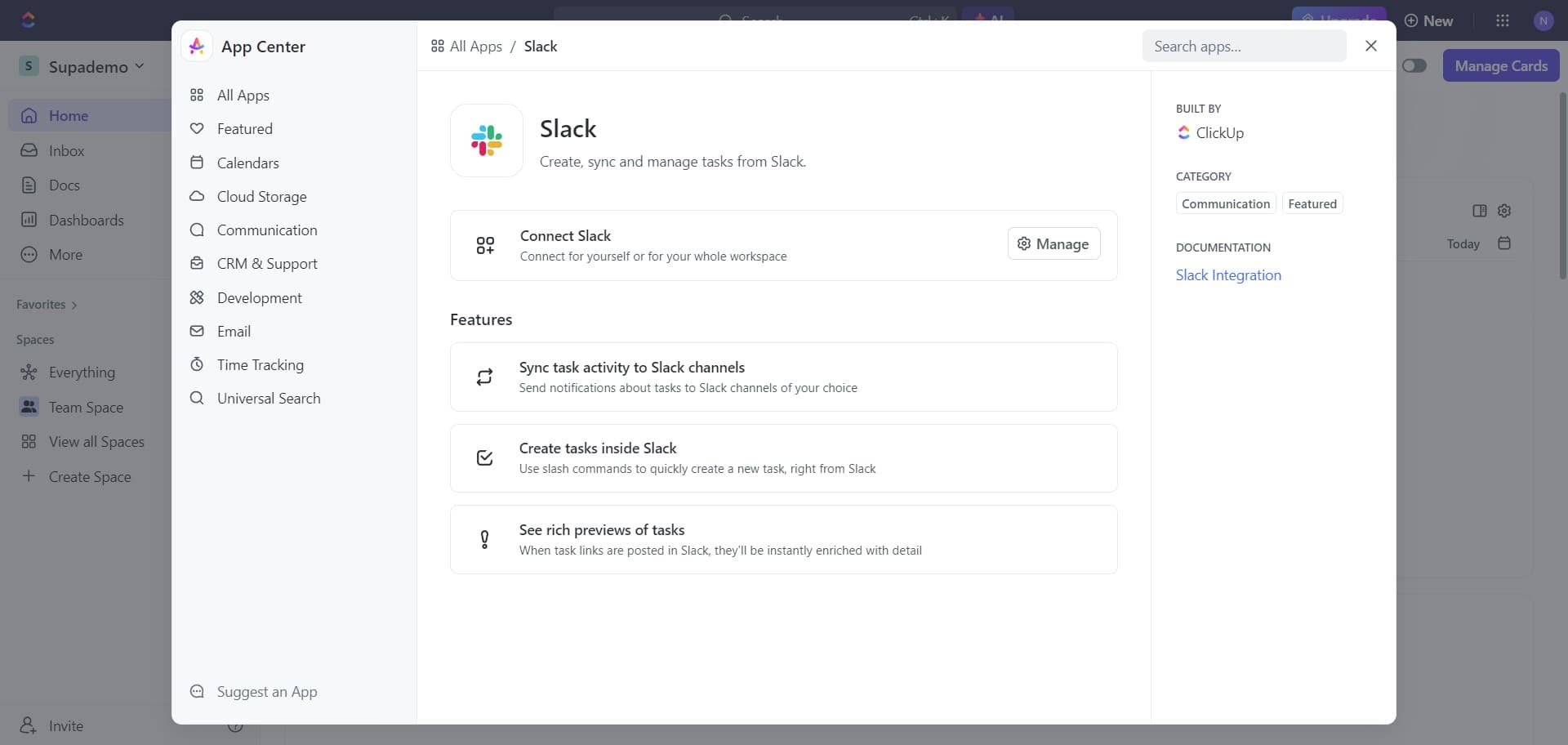
- 6
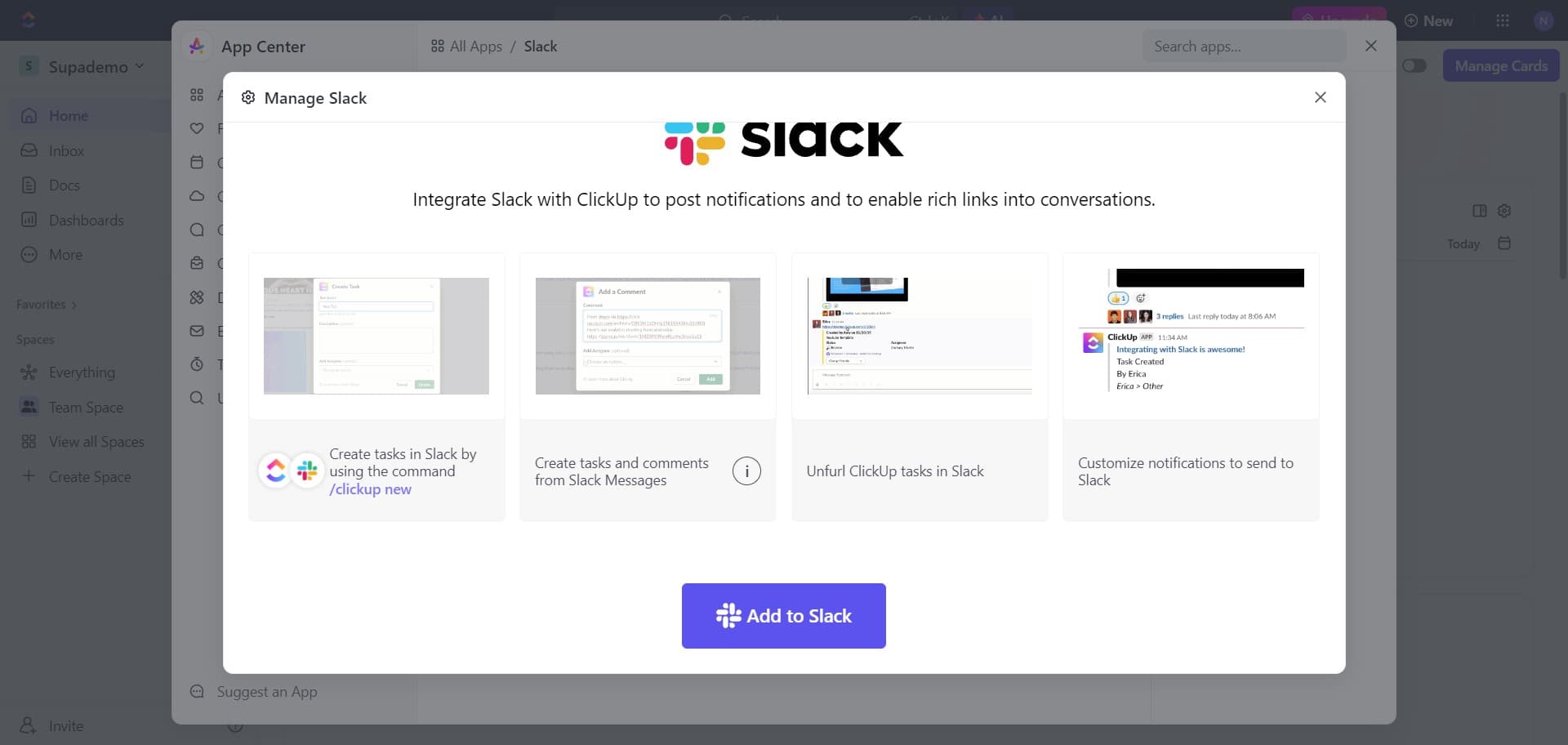
Authorize with Add to Slack
Click on 'Add to Slack' to grant ClickUp permission to integrate with your Slack workspace. You'll be redirected to Slack's authorization screen where you can review permissions and confirm the connection.
Frequently asked questions
Common questions about how to integrate slack with clickup.
ClickUp requires permissions to post messages to your Slack channels and access basic workspace information. These permissions enable notifications to be sent to relevant channels and allow task creation from Slack. You'll see all requested permissions during the authorization process before confirming the connection.
Yes, after completing the integration, you can configure which ClickUp workspaces, spaces, and notification types send messages to specific Slack channels. Most teams set up dedicated channels for different project notifications to keep communication organized.
ClickUp can typically integrate with one Slack workspace per ClickUp workspace. If you need to connect to multiple Slack workspaces, you may need to set up separate ClickUp workspaces or contact ClickUp support for enterprise solutions.
If you disconnect the integration, ClickUp will no longer send notifications to Slack and you won't be able to create tasks from Slack messages. You can reconnect at any time by following the same integration steps. Previous notifications will remain in Slack, but no new ones will be sent.
Yes, once the integration is active, you can use Slack commands or message reactions to create ClickUp tasks. The specific features available depend on your ClickUp subscription plan and the configuration you set up after connecting the two platforms.