How to Select all tasks in ClickUp

Selecting all tasks in ClickUp is a powerful way to manage your entire project workflow at once. Whether you need to bulk-update task statuses, assign multiple tasks, or organize your workload, this feature saves time and streamlines your project management process.
Quick summary
In this tutorial, you'll learn how to quickly select all tasks in ClickUp using the built-in selection feature. By following these straightforward steps, you'll be able to apply bulk actions across your entire task list efficiently.
Why this matters
Bulk task selection is essential for teams managing large projects or multiple workflows simultaneously. Being able to select all tasks at once allows you to apply consistent updates, reassign work, or change statuses across your entire project without handling each task individually.
Step-by-step guide
- 1
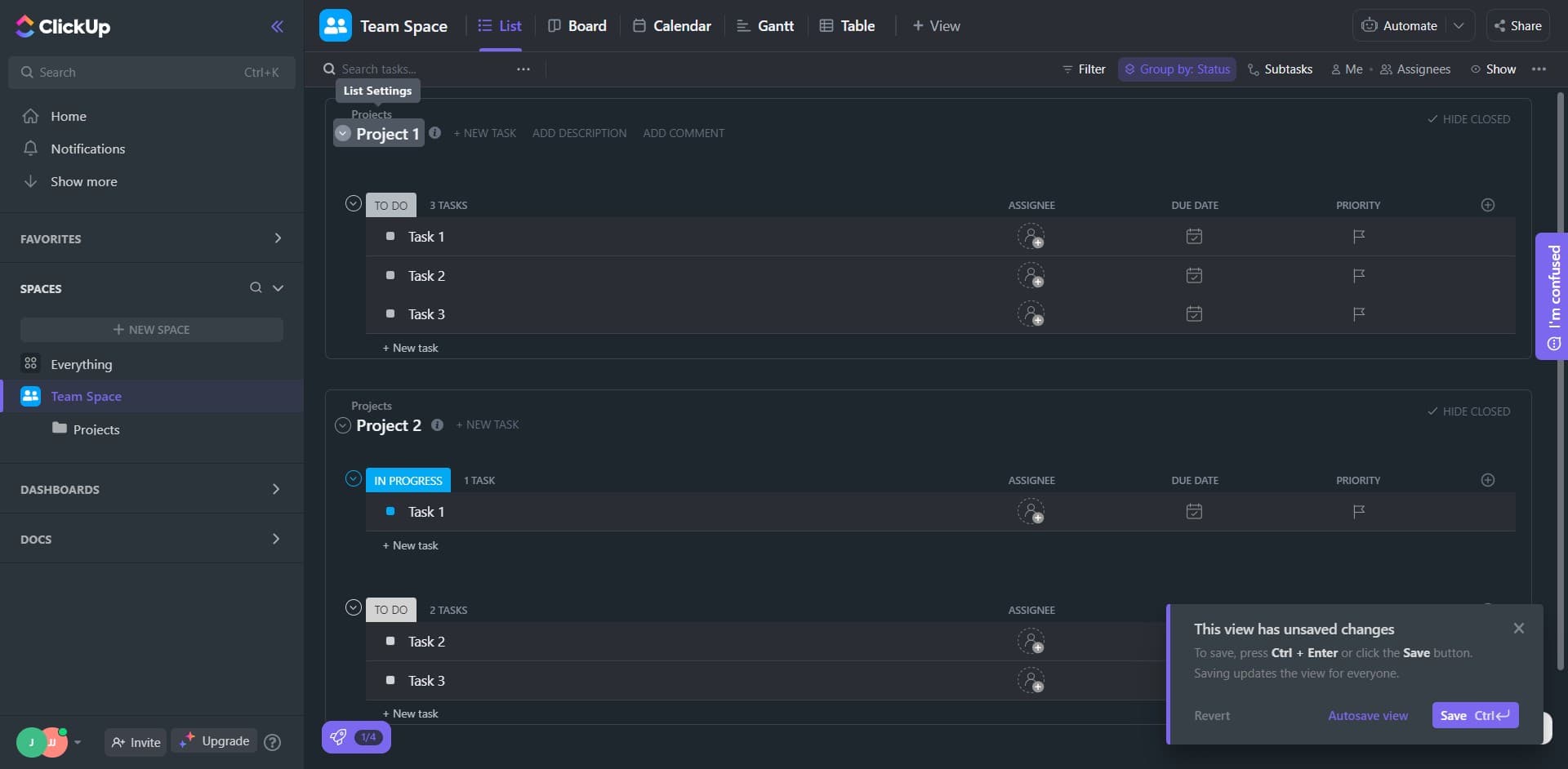
Click the selection trigger
Start by locating and clicking the designated selection area in your ClickUp interface. This action activates the bulk selection mode for your current view.
- 2
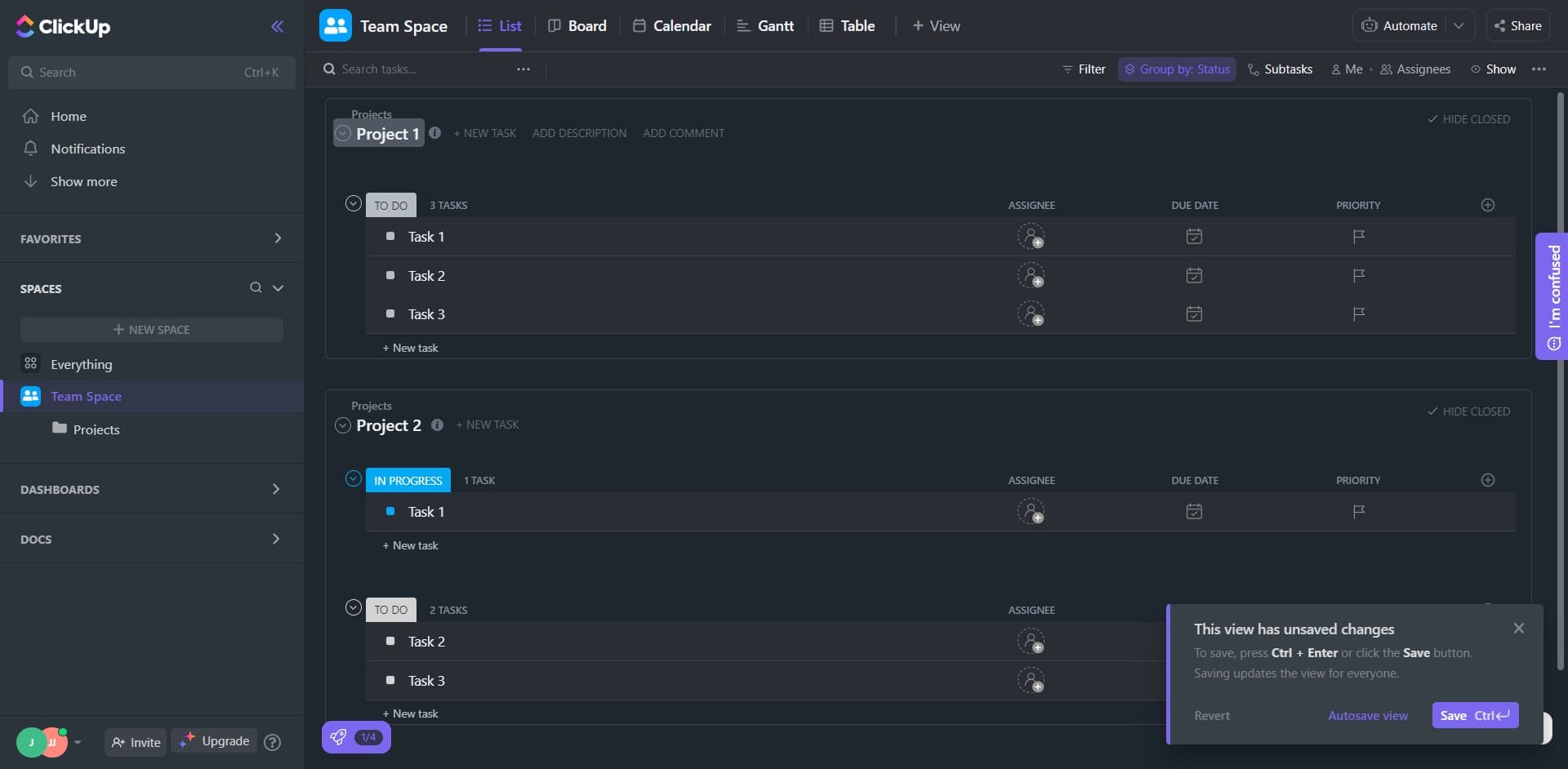
Click on Project 1
Navigate to the specific project where your tasks are located by clicking on 'Project 1'. This ensures you're selecting tasks from the correct project scope.
- 3
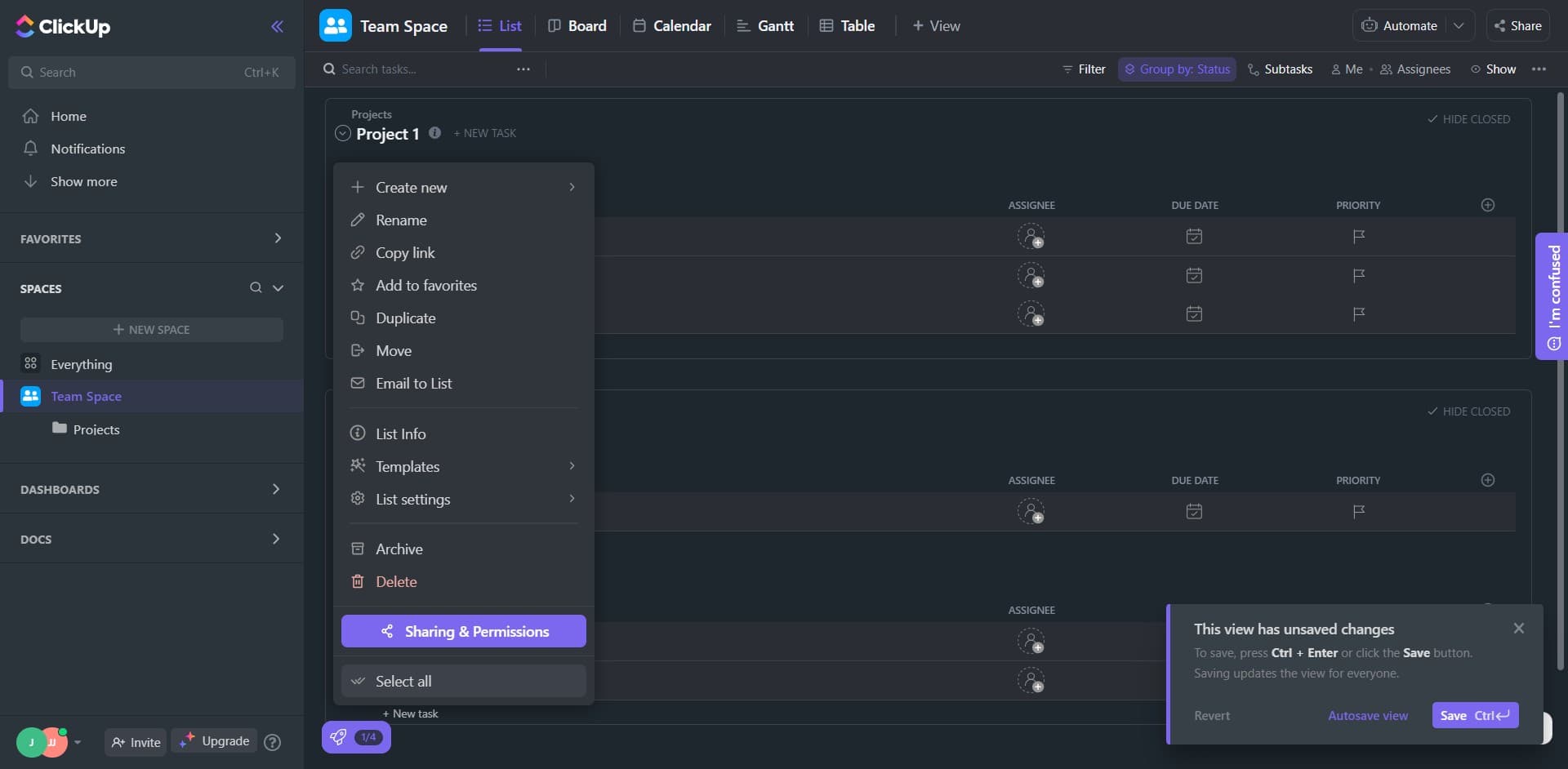
Click on Select all
Click the 'Select all' option to instantly select every task in your project. Once activated, all tasks will be highlighted and ready for bulk actions such as status updates, assignments, or other modifications.
Frequently asked questions
Common questions about how to select all tasks in clickup.
The select all feature typically works within the current project view you're accessing. To select tasks across multiple projects, you may need to use ClickUp's advanced filtering or search capabilities to group tasks by custom criteria, then apply bulk actions to those filtered results.
After selecting all tasks, you can perform various bulk actions including changing task status, assigning team members, adding or removing tags, updating priority levels, and modifying custom fields. The available actions depend on your ClickUp plan and workspace configuration.
The select all feature typically only applies to tasks visible in your current view. If you have filters applied that hide archived or completed tasks, those tasks won't be selected. Check your view settings and filters to ensure you're selecting the intended task set.
Most ClickUp views have a 'Deselect all' option that appears once you've made a selection. You can also click elsewhere in the interface or press the Escape key to clear your bulk selection quickly.
ClickUp can handle bulk selection of hundreds of tasks, though performance may vary depending on your workspace size and internet connection. If you experience slowdowns when performing actions on very large selections, consider breaking the bulk operation into smaller batches.