How to set a recurring task in ClickUp

Recurring tasks in ClickUp help you automate repetitive work and maintain consistent workflows without manual re-creation. This guide walks you through setting up a weekly recurring task so your team stays on top of regular activities like meetings, reviews, and check-ins.
Quick summary
In this tutorial, you'll learn how to create a recurring task in ClickUp by navigating to your calendar, selecting a task, setting the recurrence frequency to weekly, and saving your changes. By the end, you'll have a task that automatically repeats on your specified schedule.
Why this matters
Recurring tasks eliminate the need to manually create the same task week after week, reducing administrative overhead and ensuring nothing falls through the cracks. This is especially valuable for teams managing regular syncs, status updates, and maintenance work that happens on a predictable schedule.
Step-by-step guide
- 1
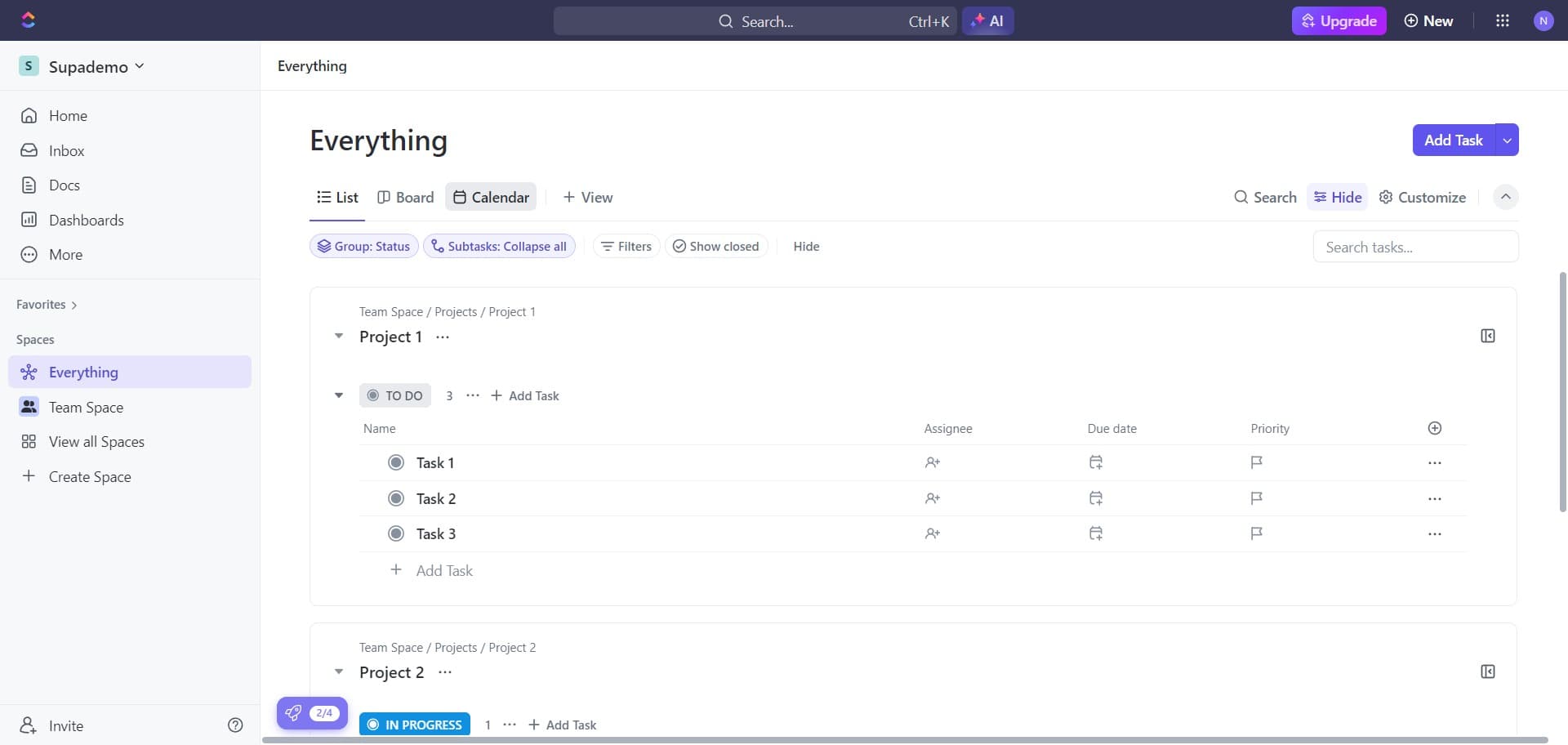
Navigate to Calendar view
Start by clicking on the Calendar option in ClickUp's main navigation. This view displays all your tasks in a calendar format, making it easy to visualize and manage your schedule.
- 2
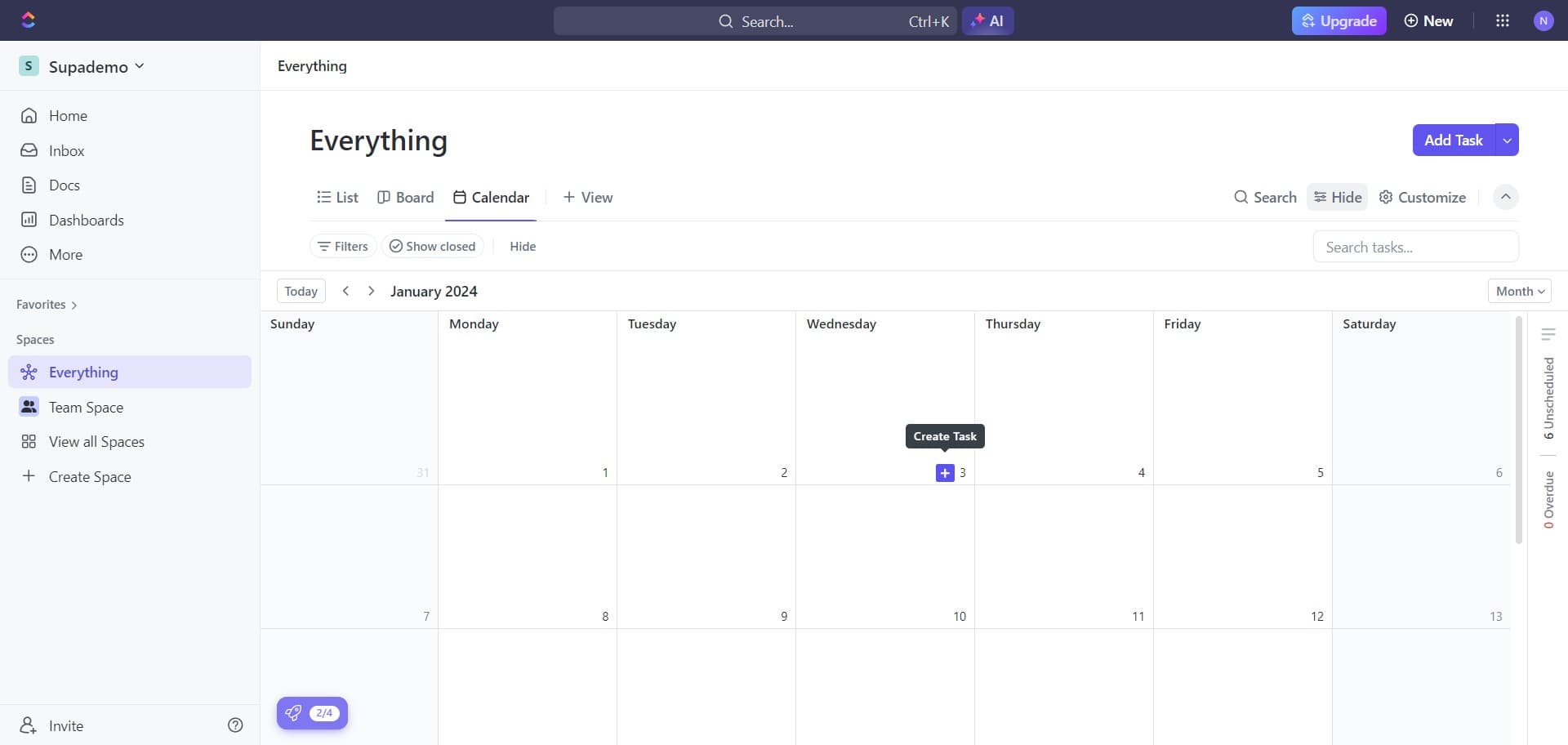
Access task creation menu
Click on the designated area to open the task creation or selection interface. This prepares ClickUp to receive your task configuration.
- 3
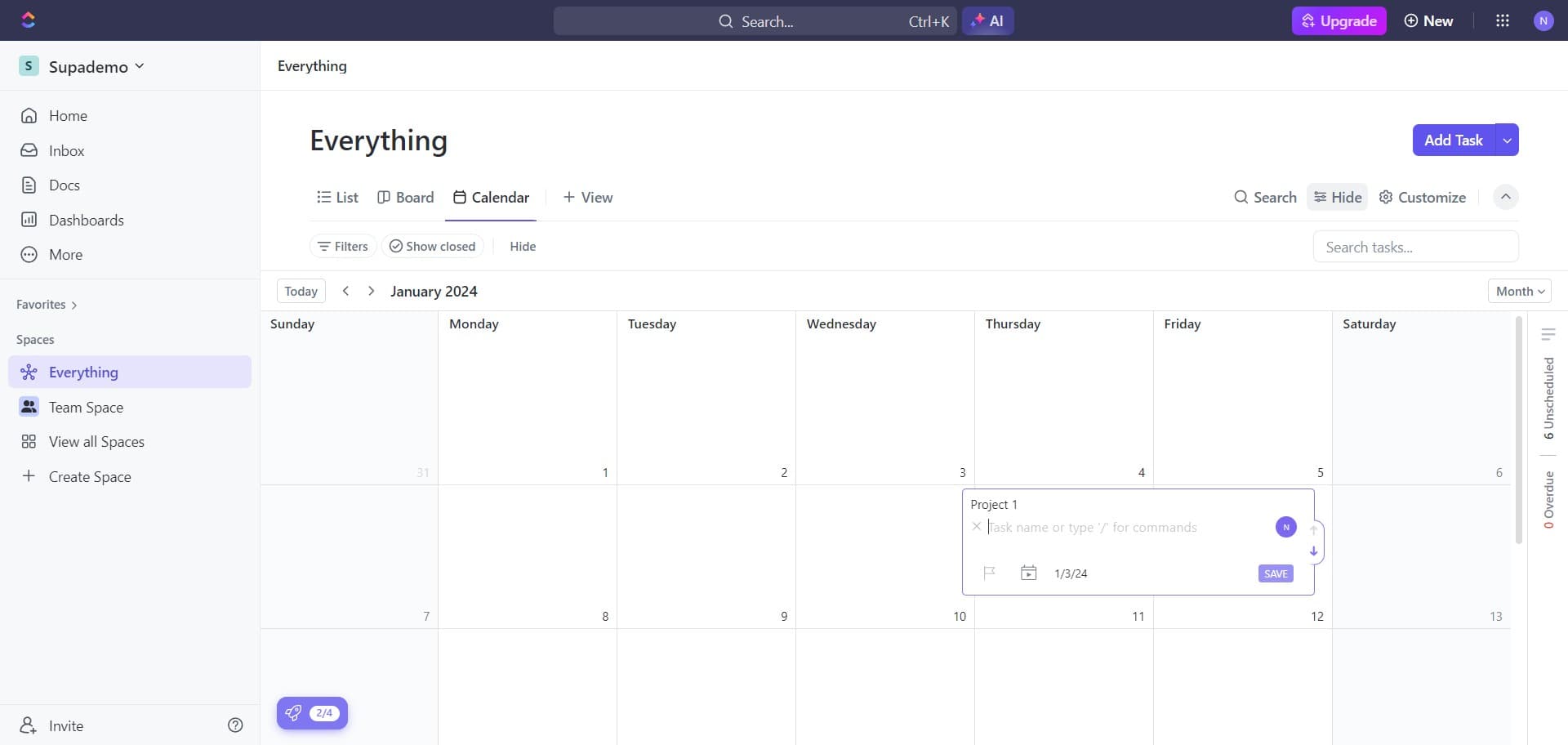
Confirm task creation action
Click to proceed with creating or editing your task. This ensures the platform is ready to accept your recurring task settings.
- 4
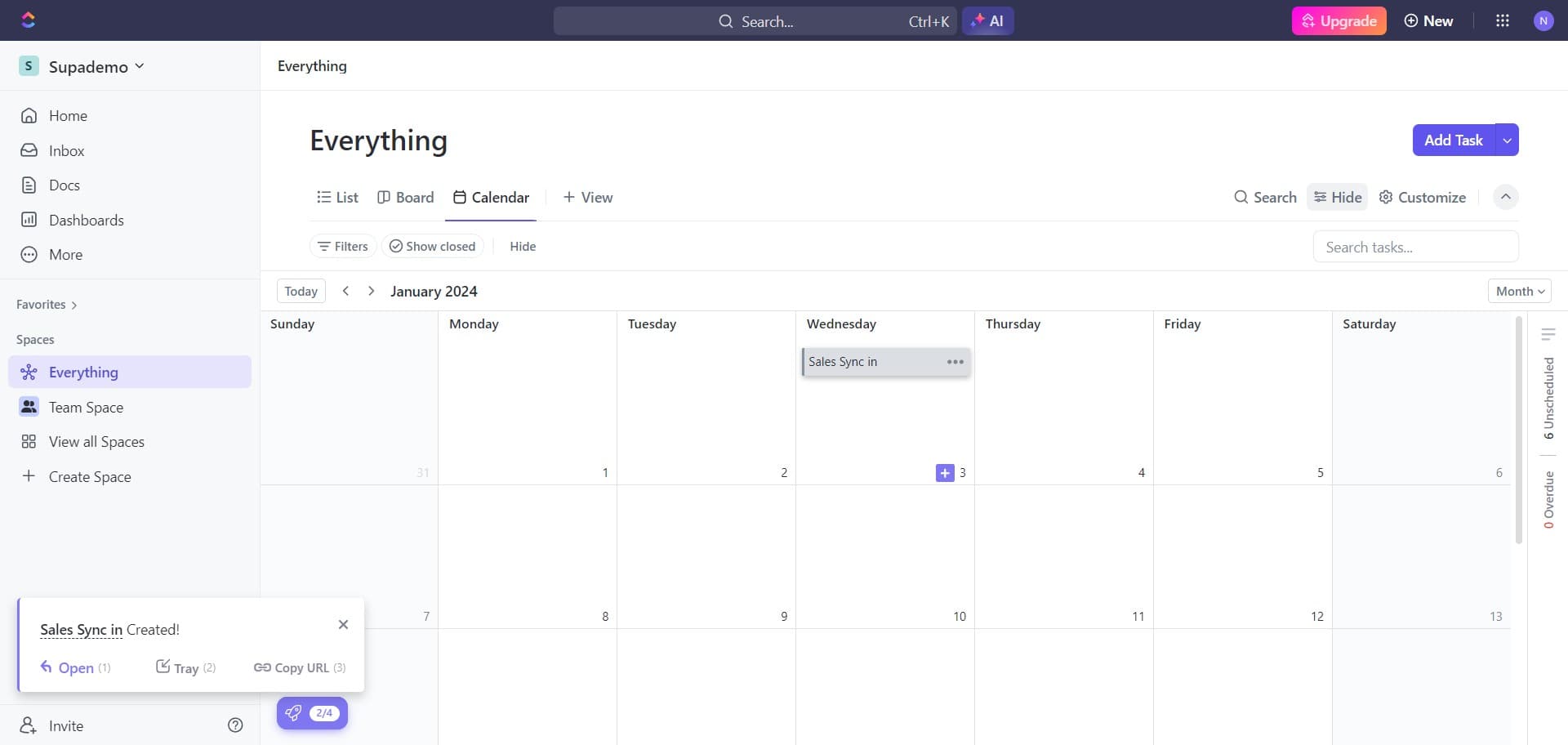
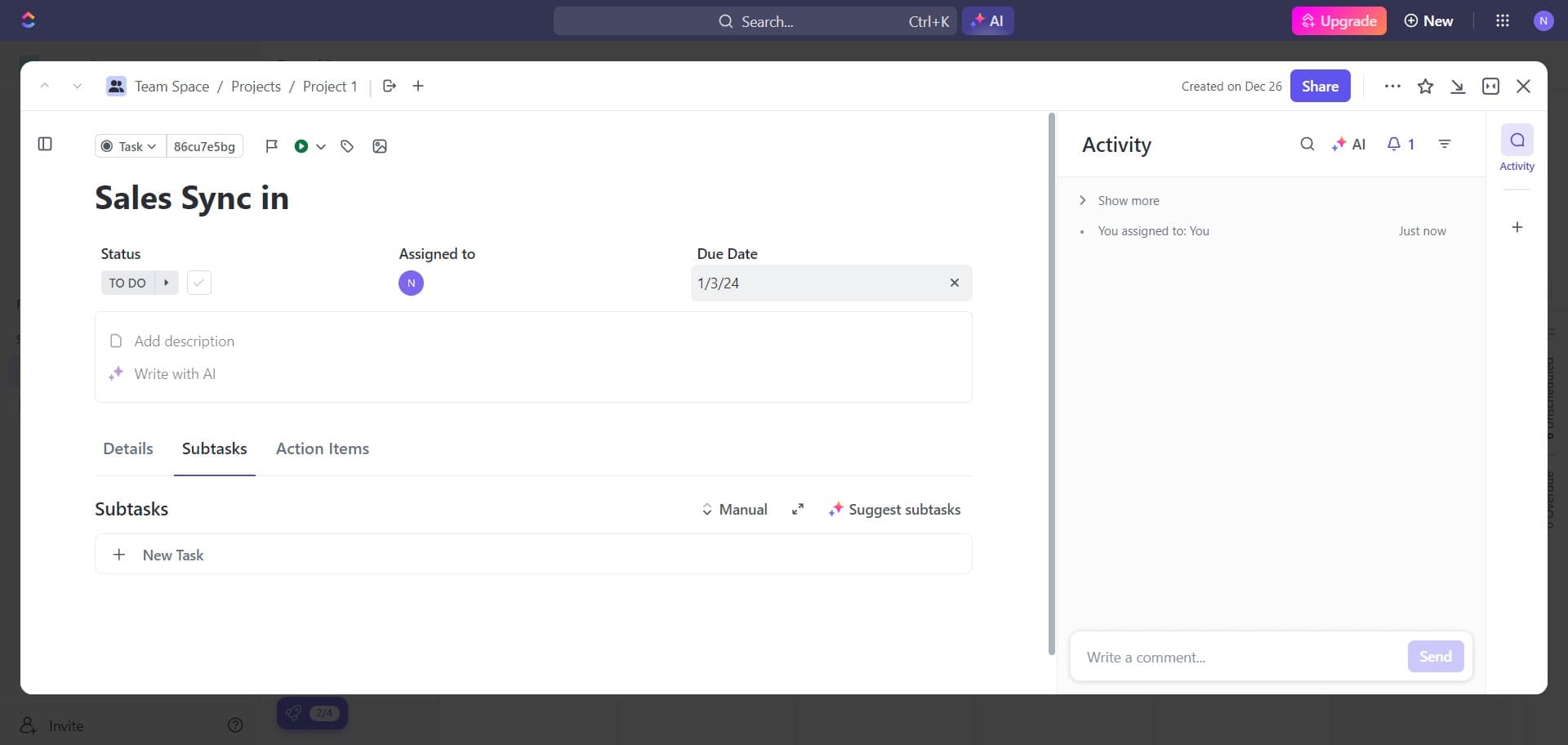
Select your task name
Click on the task labeled Sales Sync in to select or create this specific recurring task. You'll now be able to configure its recurrence settings.
- 5
Set the task date
Click on the date 1/3/24 to establish when this recurring task should begin. This date serves as the starting point for all future recurrences.
- 6
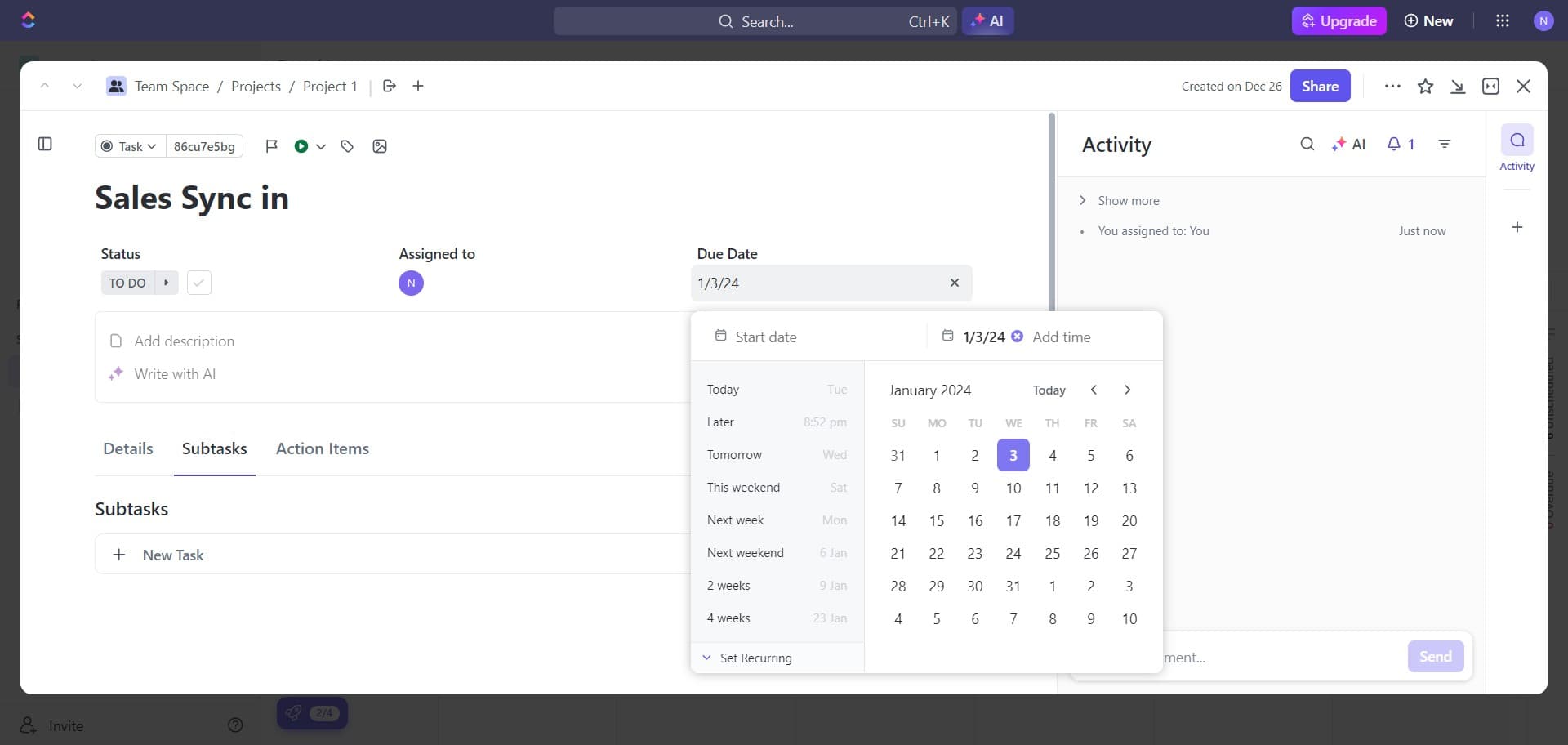
Access recurrence settings
Click on the appropriate field or button to open the recurrence configuration options. This section allows you to define how often the task should repeat.
- 7
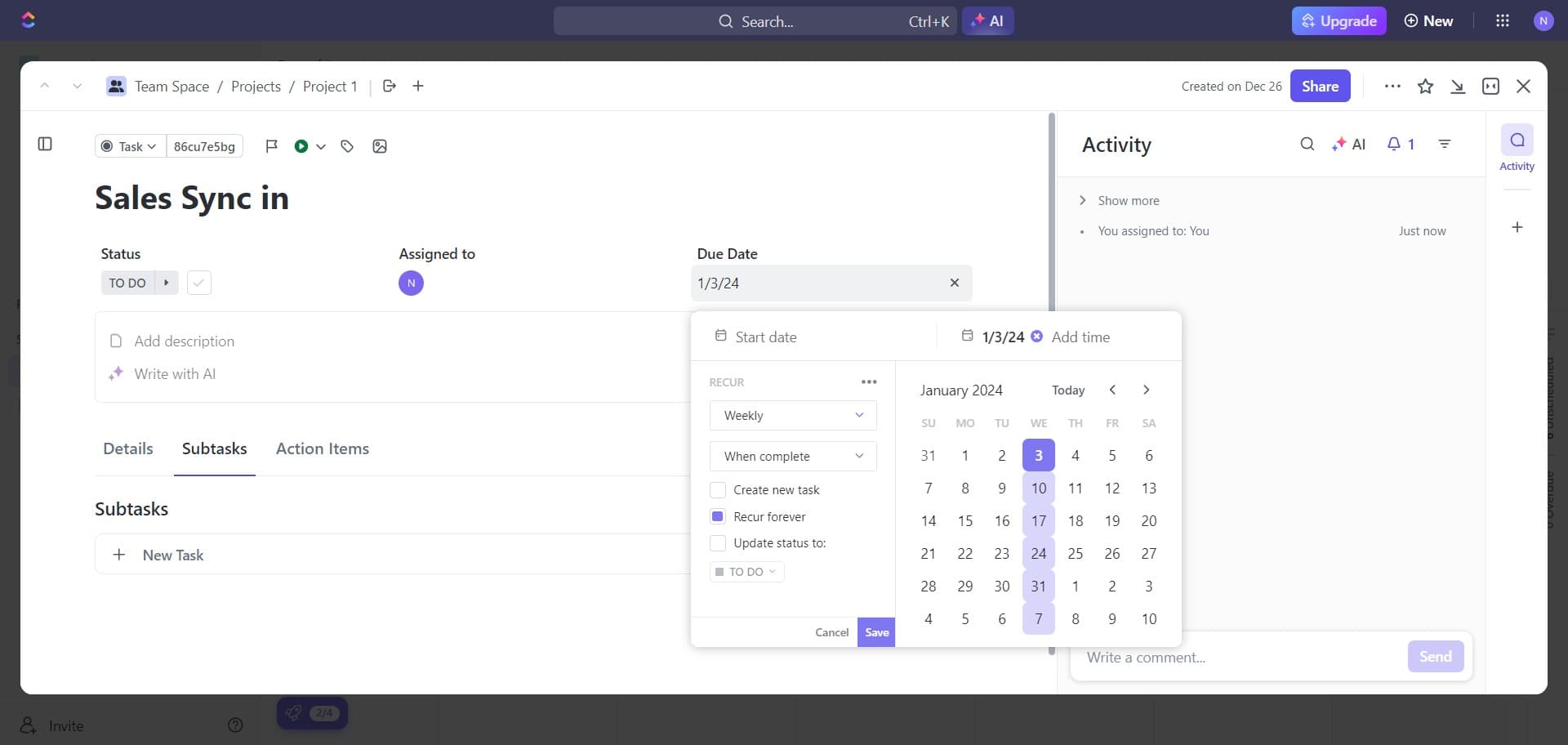
Choose Weekly recurrence
Click on Weekly to set your task to repeat every week. This is the standard interval for recurring meetings and regular check-ins like sales syncs.
- 8
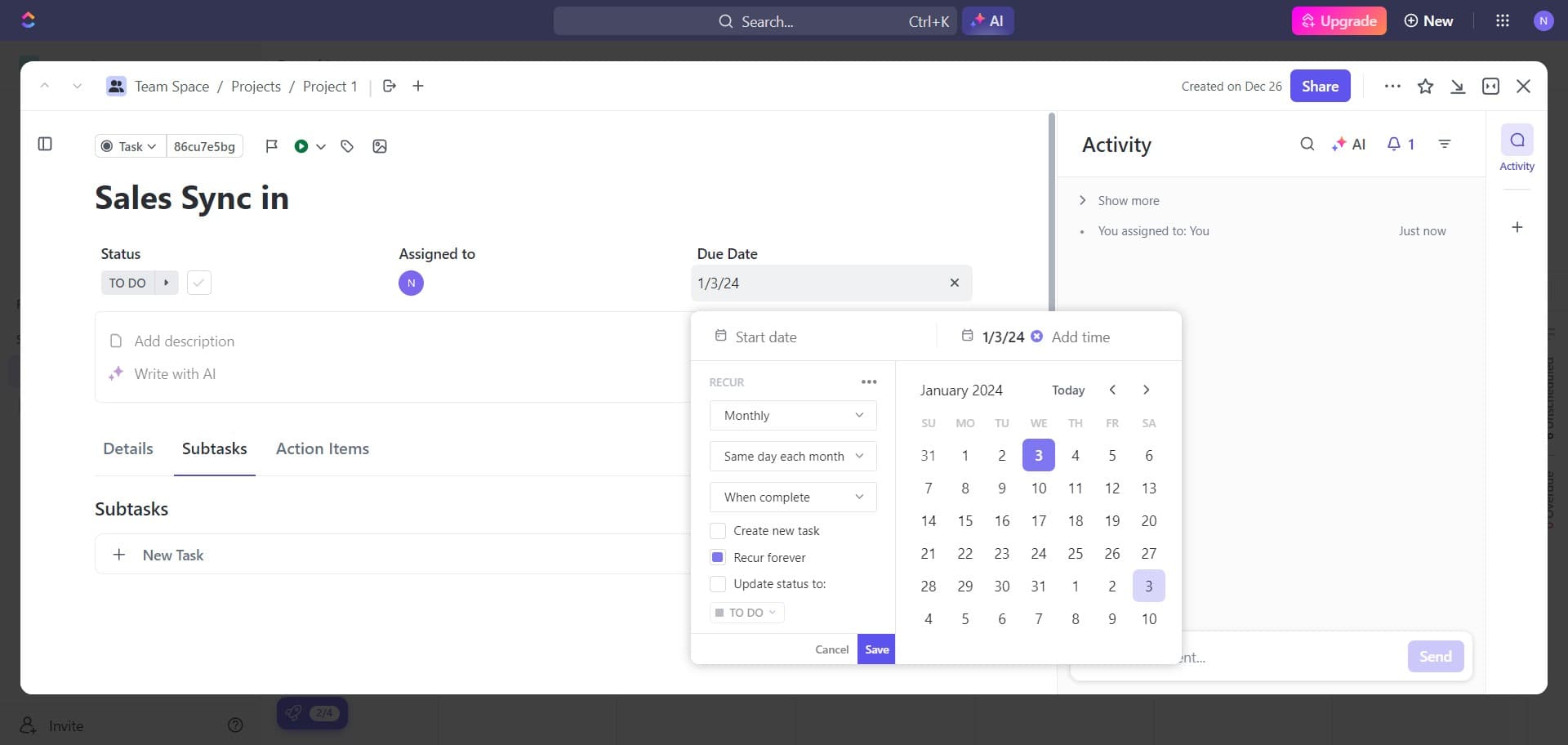
Save your recurring task
Click on Save to confirm and store all your recurring task settings. ClickUp will now schedule this task to repeat weekly starting from your selected date.
- 9
Verify task in calendar view
Click to refresh or confirm the task appears in your calendar. The recurring task is now active and will appear on subsequent weeks.
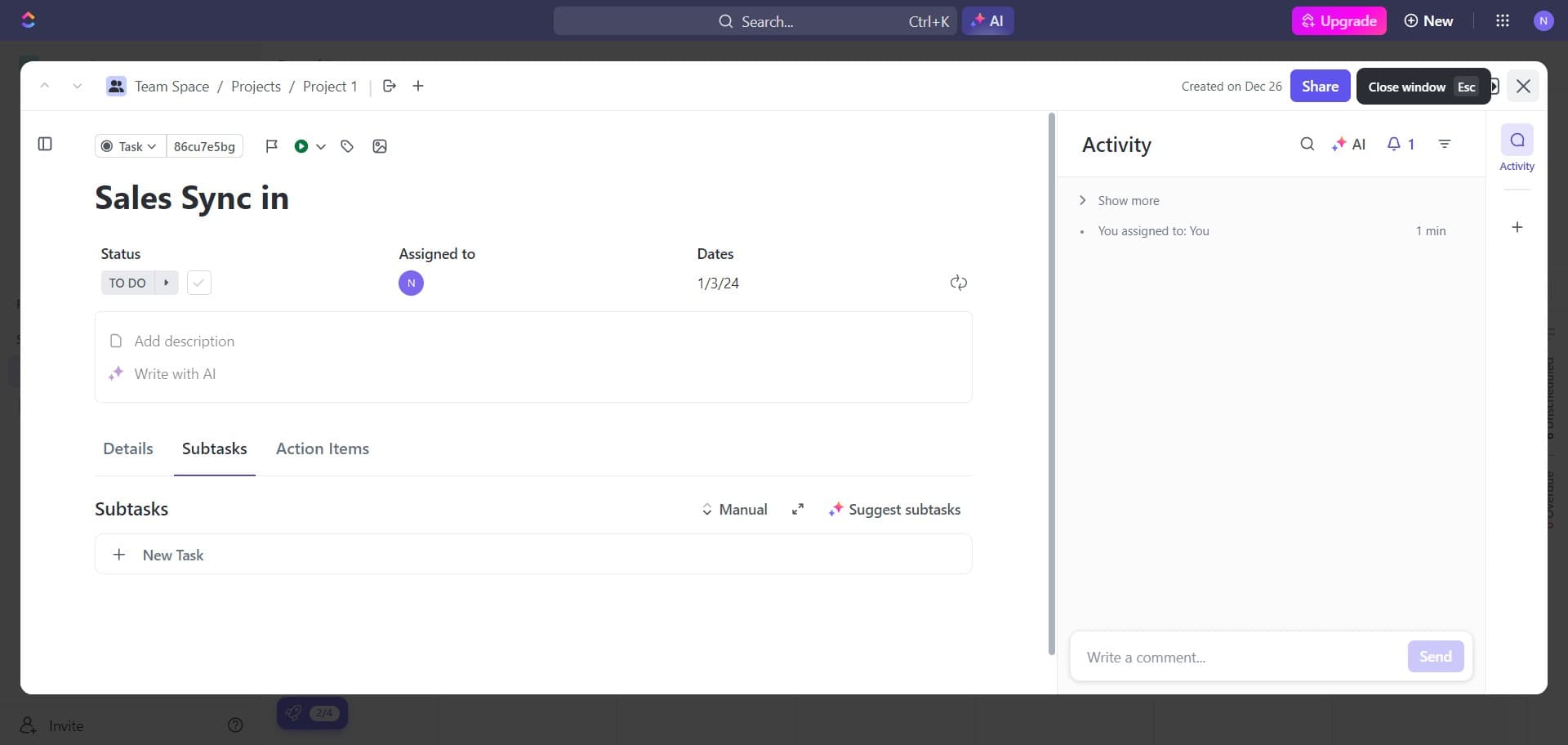
- 10
Return to main calendar
Click to close any detail panels and return to the full calendar view. You can now see your recurring task integrated into your schedule.
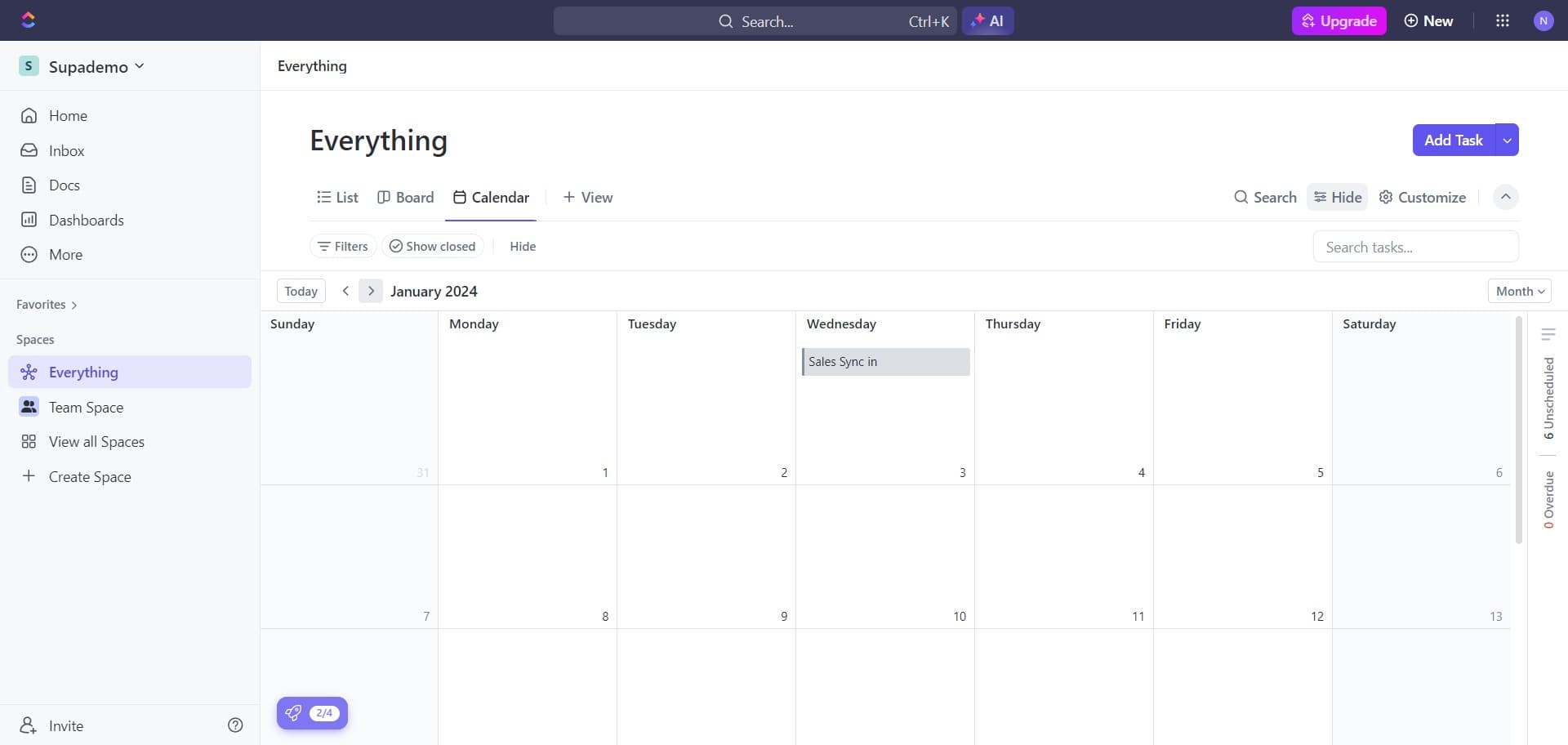
- 11
Confirm current date context
Click on Today February 2024 to reset your calendar view to the current date. This ensures you're viewing your recurring tasks in the proper timeline context.
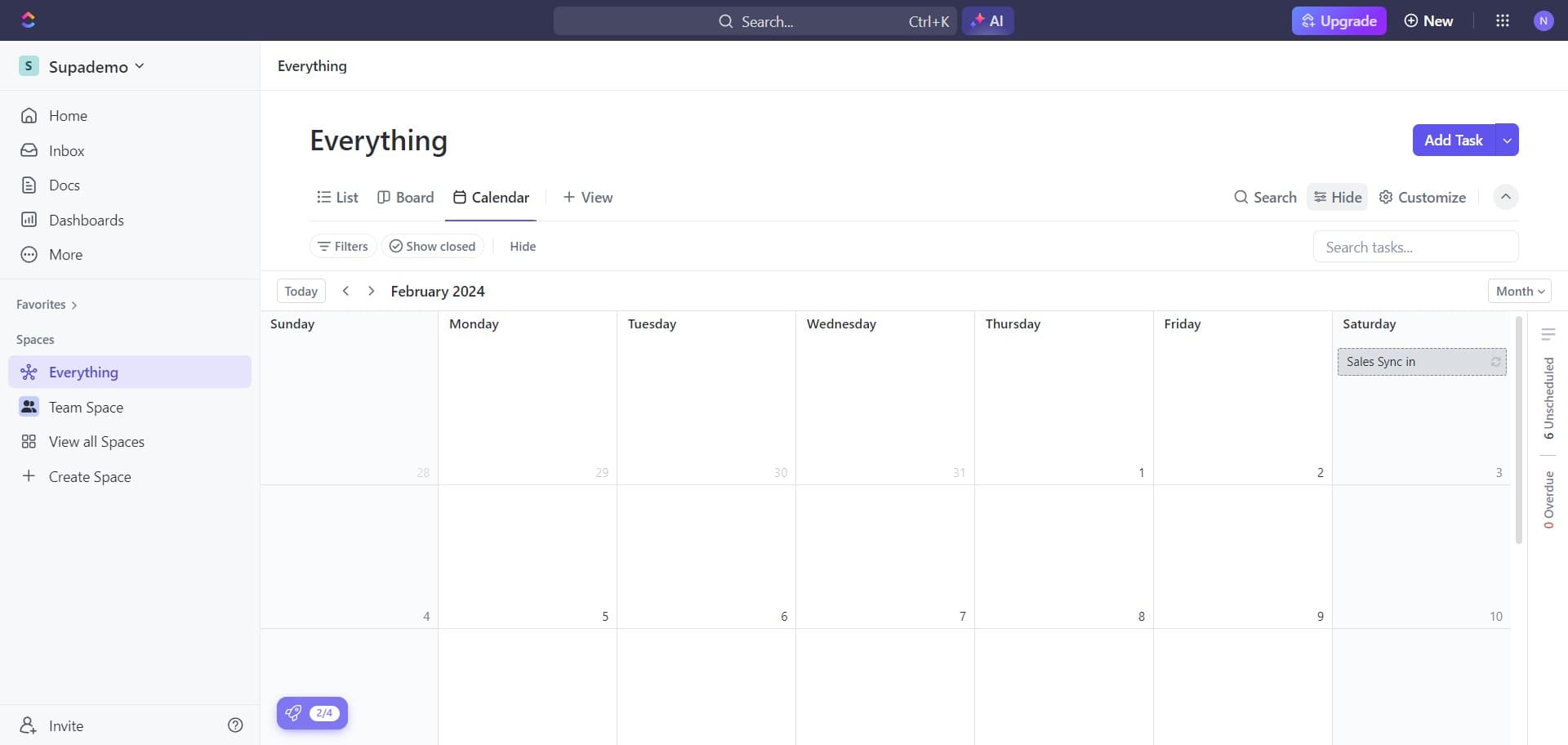
Frequently asked questions
Common questions about how to set a recurring task in clickup.
Yes, ClickUp supports multiple recurrence patterns including daily, bi-weekly, monthly, and custom intervals. When you access the recurrence settings, you'll see all available frequency options to choose from based on your task needs.
When a recurring task reaches its due date, it appears in your calendar and task lists. ClickUp will automatically generate the next instance of the task based on your recurrence settings, ensuring the cycle continues uninterrupted.
Yes, you can modify individual instances of a recurring task without affecting the entire series. ClickUp will prompt you to choose whether to edit just that occurrence or all future occurrences when you make changes.
You can end a recurring task by editing it and removing or updating the recurrence settings. You can also set an end date for the recurrence so the task stops repeating after a specific date.
Yes, ClickUp allows you to assign recurring tasks to multiple team members or set them as team tasks. When you create the recurring task, use the assignee field to add all relevant team members who should be responsible for completing it.