How to set permissions in pulse view on ClickUp

Controlling who can view and edit your Pulse in ClickUp is essential for maintaining data security and team organization. This guide walks you through setting permission levels to ensure only the right people have access to your Pulse view.
Quick summary
In this tutorial, you'll learn how to navigate to Pulse permissions in ClickUp and restrict access to administrators only. By the end, you'll understand how to control visibility and editing capabilities for your team's Pulse data.
Why this matters
Setting proper permissions in Pulse ensures sensitive project information stays protected and prevents unauthorized edits. This is particularly important in larger teams where not everyone needs access to all workspace data.
Step-by-step guide
- 1
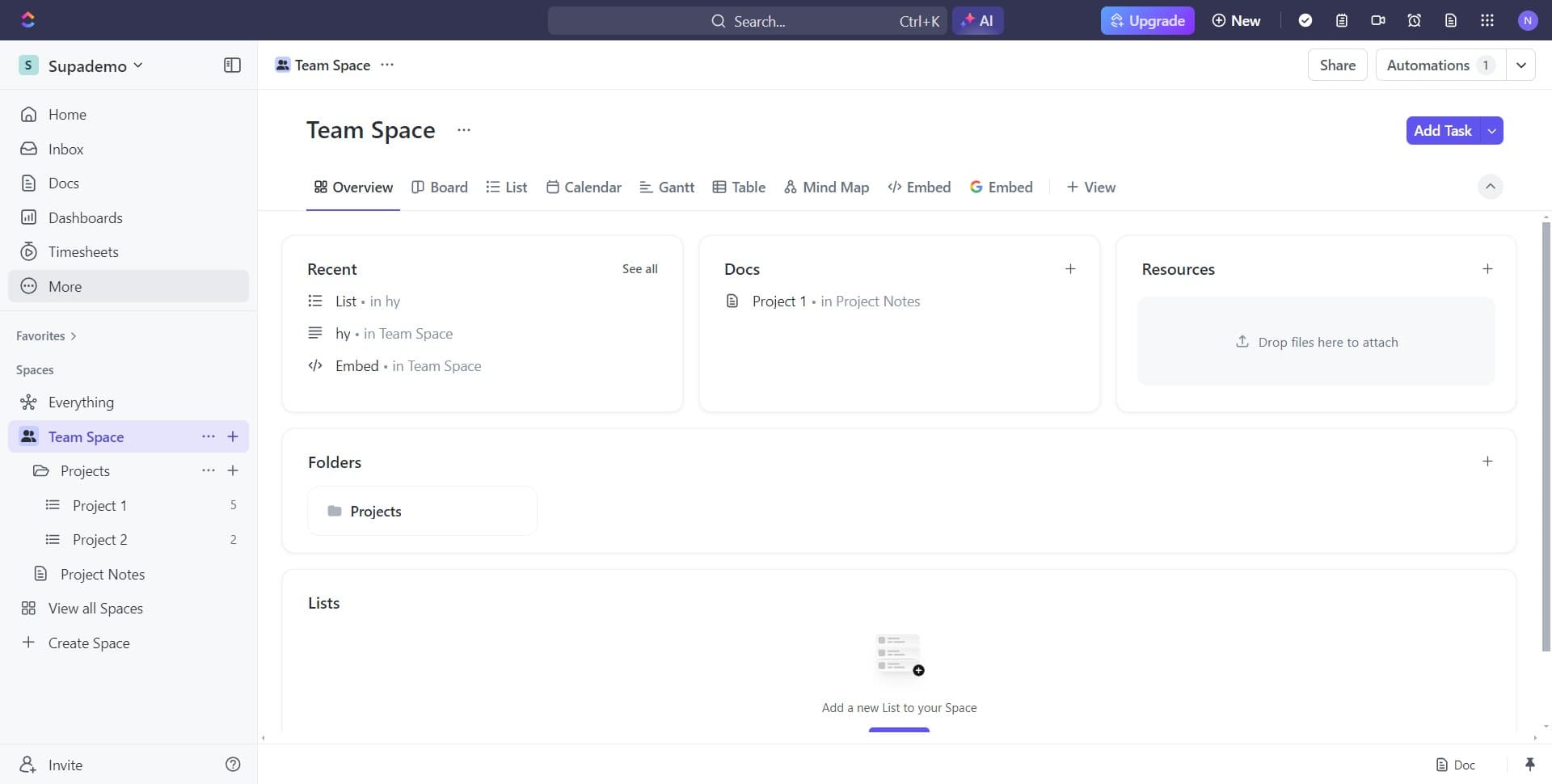
Click on More options menu
Start by locating and clicking the "More" button, typically represented by three dots or a similar icon. This opens a dropdown menu with additional configuration options for your view.
- 2
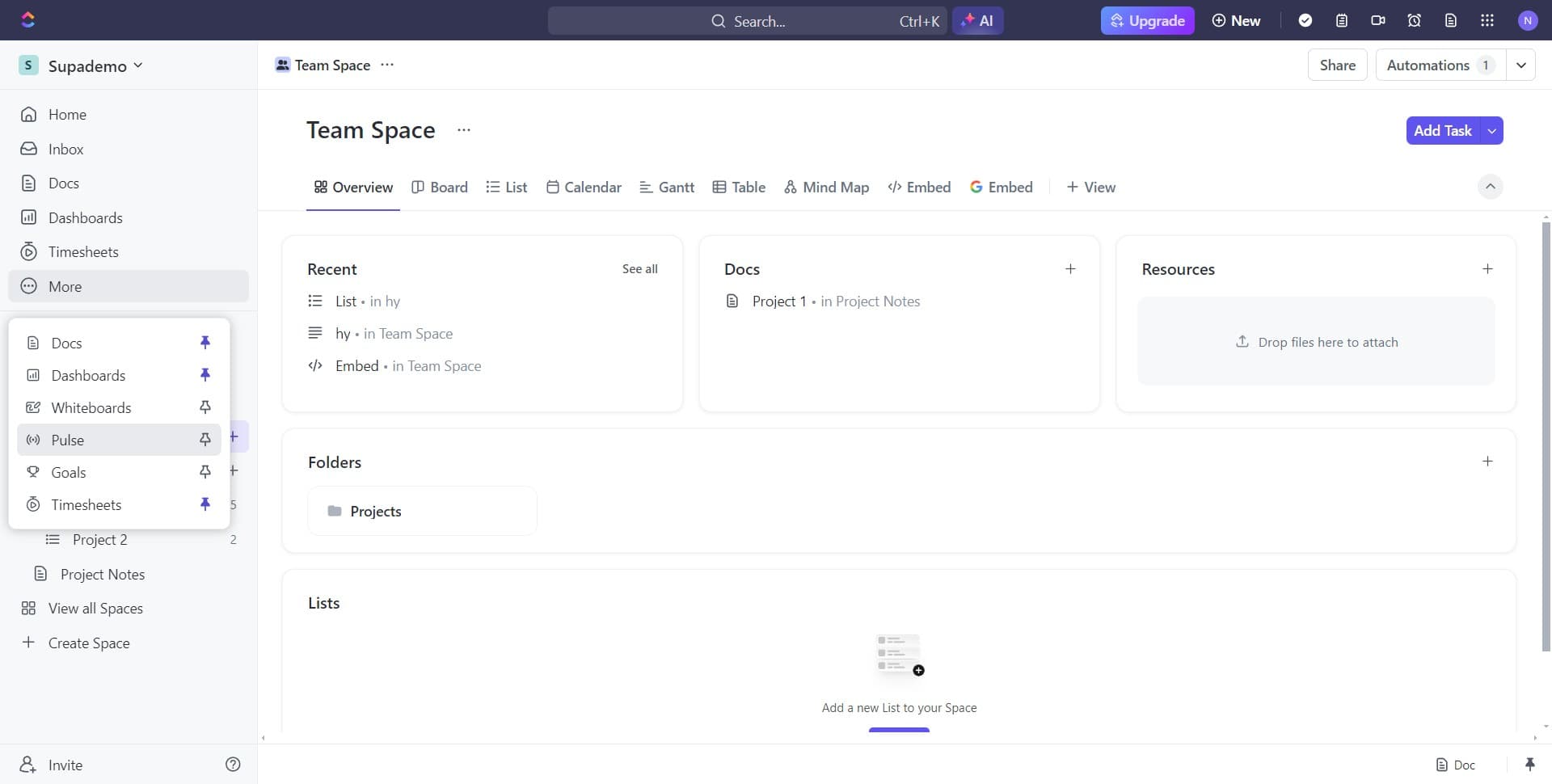
Select Pulse from the menu
From the dropdown menu, click on "Pulse" to access the Pulse view settings. This will open or navigate to the Pulse feature for your current workspace or project.
- 3
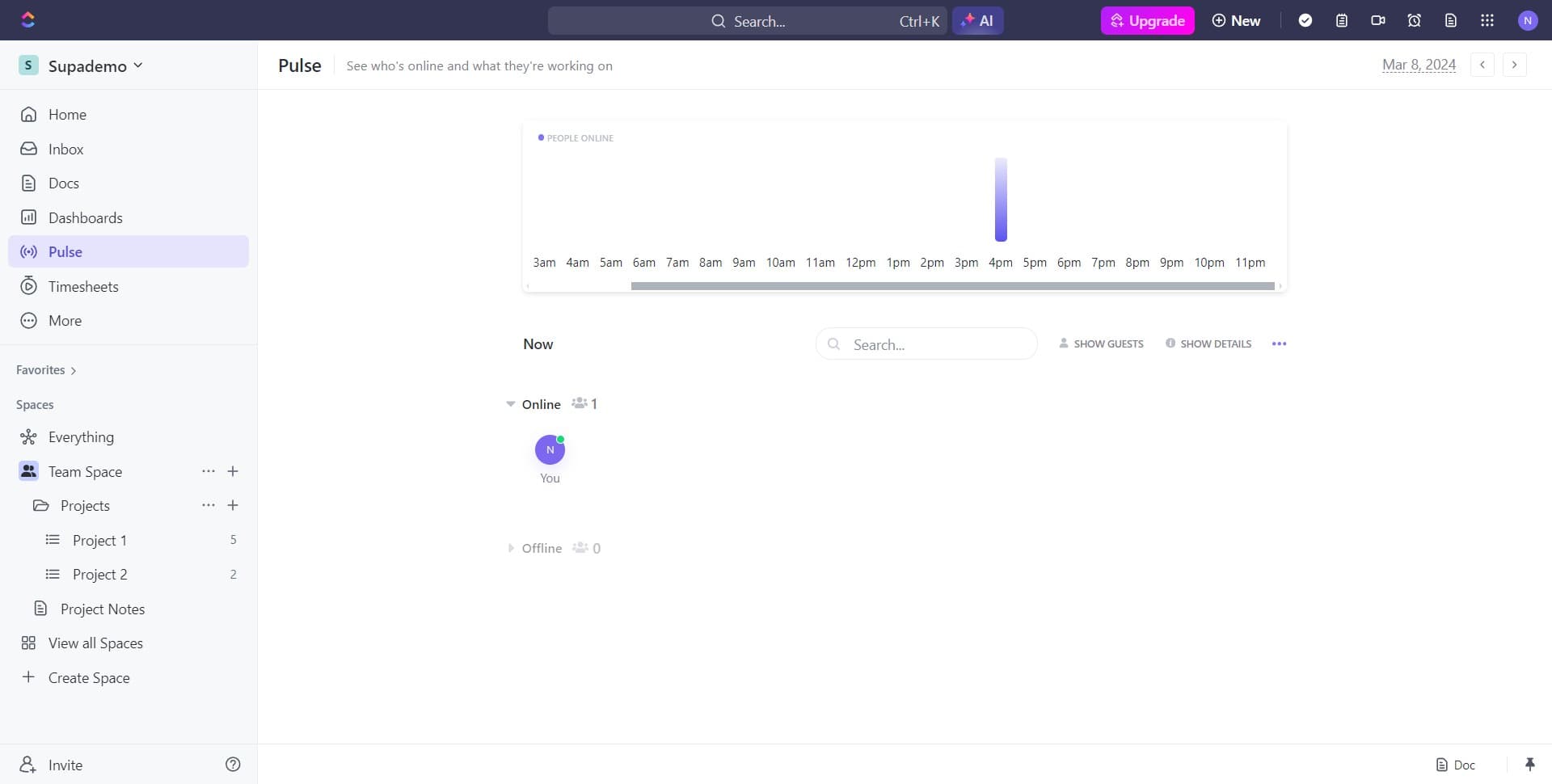
Access view settings
Click on the designated area to open the view settings or configuration panel. This step prepares you to modify permissions for the Pulse view.
- 4
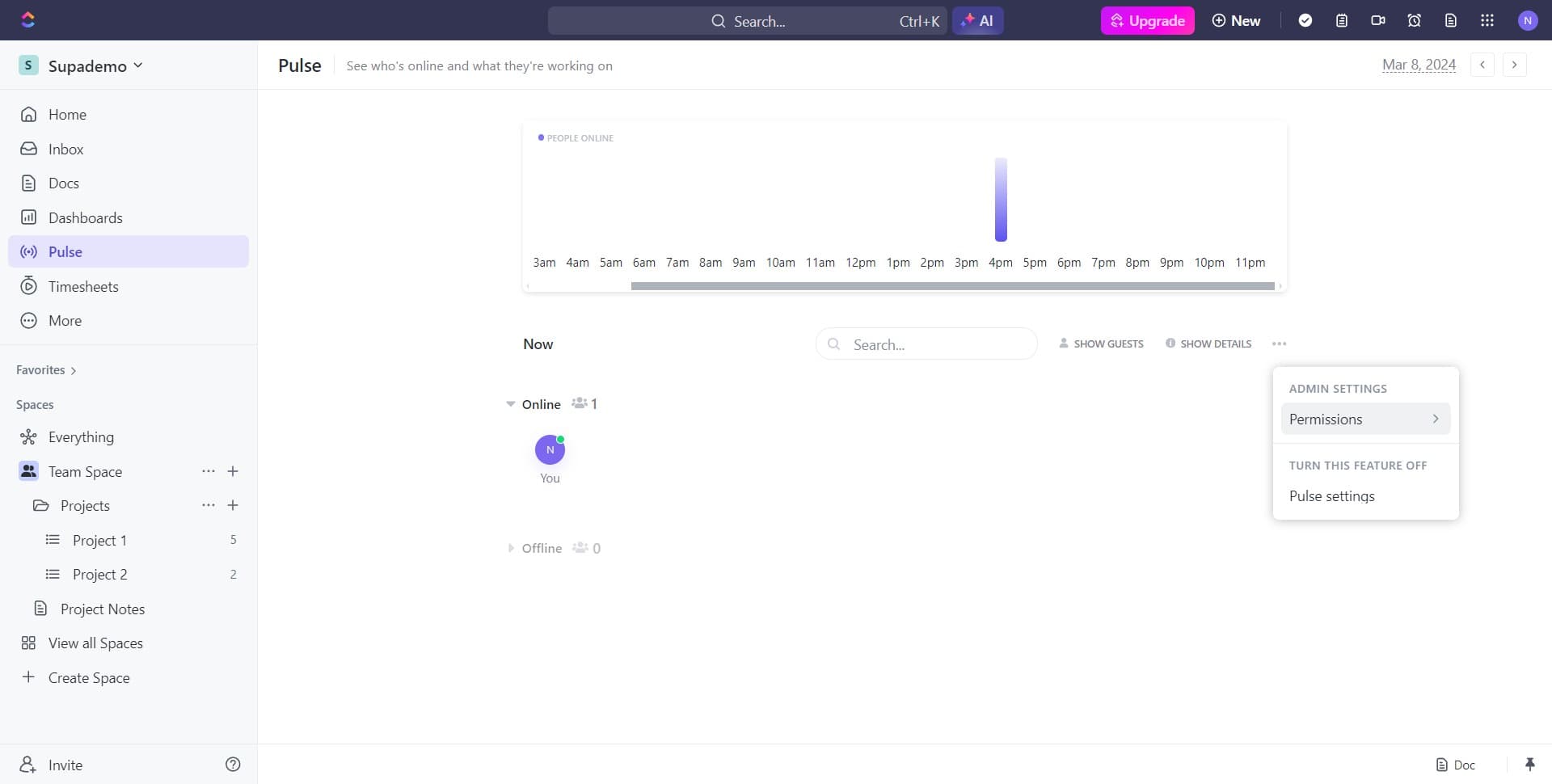
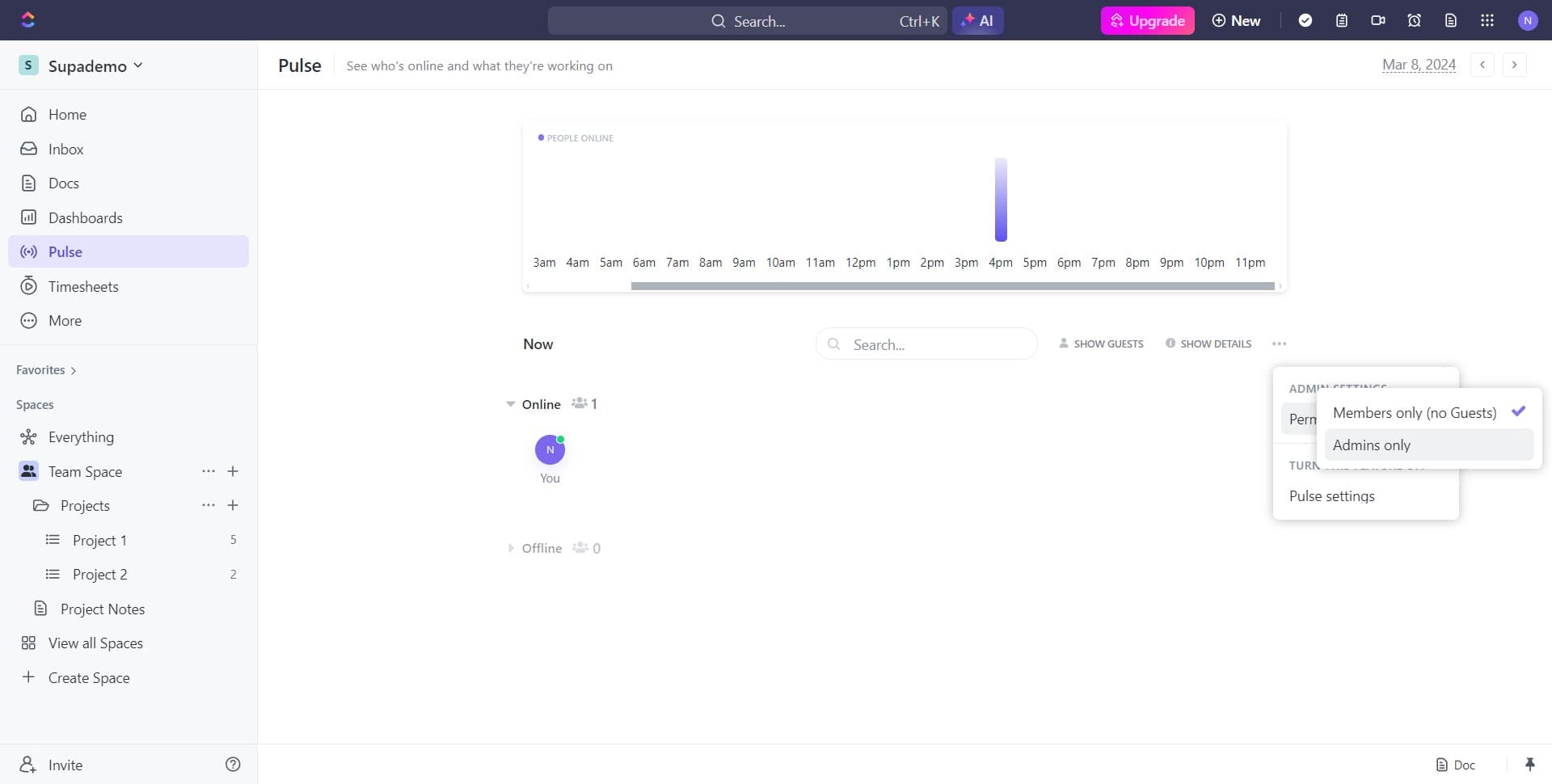
Click on Permissions
Click the "Permissions" option to access the permission controls. This section allows you to define who can view and interact with this Pulse view.
- 5
Select Admins only restriction
Click on "Admins only" to set the most restrictive permission level. This ensures that only administrators in your workspace can access and modify this Pulse view.
- 6
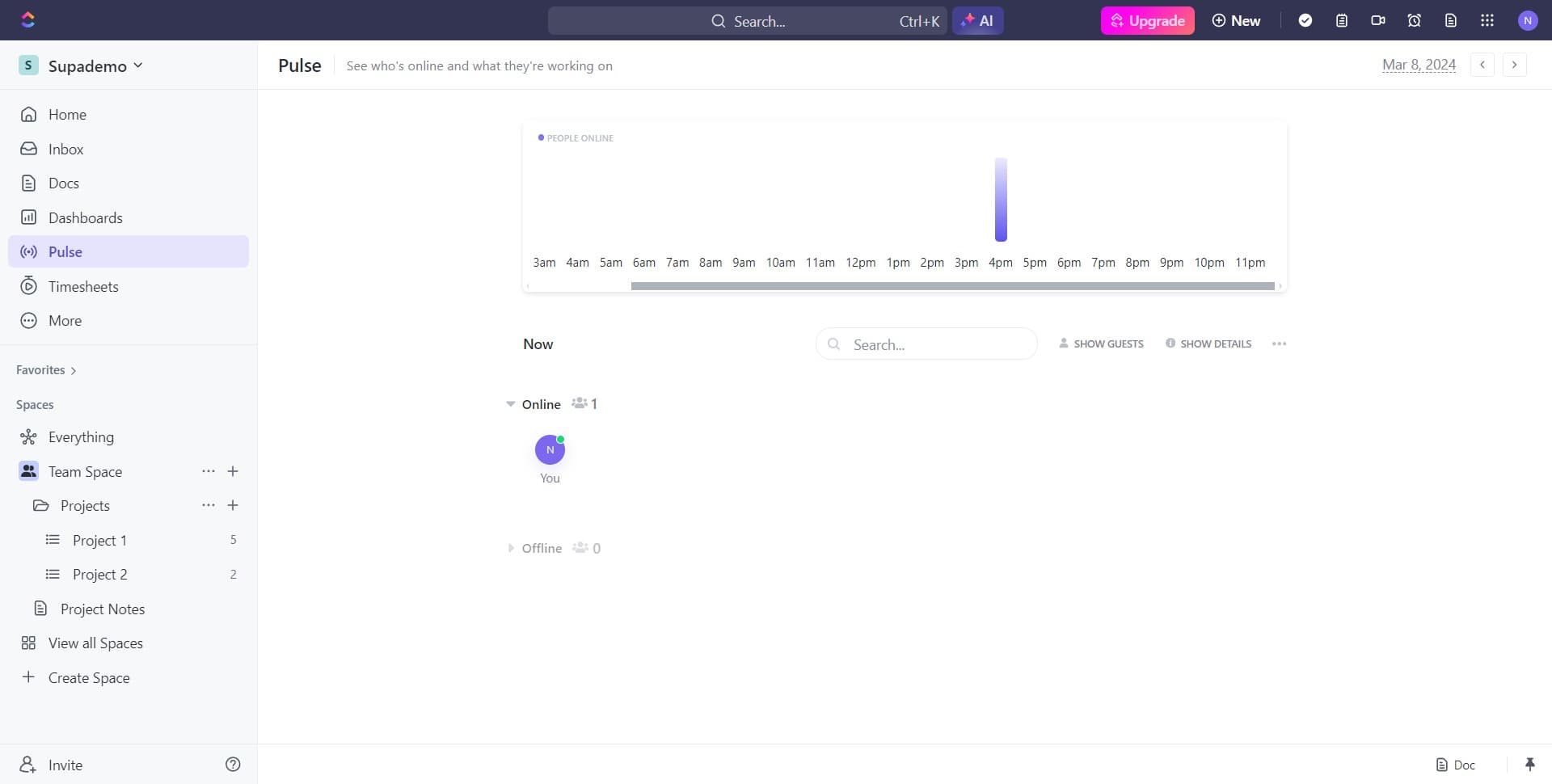
View and manage people online
Click on "PEOPLE ONLINE 1..." to see who currently has access and is viewing the Pulse. This displays active users and helps you monitor who is using the view in real-time.
Frequently asked questions
Common questions about how to set permissions in pulse view on clickup.
ClickUp Pulse typically offers several permission levels including public access, team access, and admin-only access. The "Admins only" option is the most restrictive, limiting view and edit capabilities to administrators exclusively. You may also have options to share with specific people or teams depending on your workspace configuration.
Yes, you can modify permissions at any time by returning to the Permissions section in Pulse settings. Simply follow the same steps and select a different permission level or add specific people or teams as needed. Changes take effect immediately.
Viewing permissions determine who can see the Pulse data, while editing permissions control who can make changes to it. When you restrict to "Admins only," typically both viewing and editing are limited to administrators only. More granular control may be available depending on your ClickUp plan.
You can check who has access by clicking on the "PEOPLE ONLINE" section in the Permissions area. This shows you active users currently viewing the Pulse. You can also review the permissions settings to see which groups or individuals have been granted access.
Yes, depending on your ClickUp plan and settings, you can usually modify the permission level to share with specific people, teams, or departments instead of restricting to admins only. Return to the Permissions section and select the appropriate sharing option for your needs.