How to add a legend to your chart in Google Sheets

Adding a legend to your Google Sheets chart helps viewers understand what each data series represents. A well-placed legend improves chart readability and makes your data visualization more professional. This guide walks you through the process of customizing your chart's legend position and appearance.
Quick summary
In this tutorial, you'll learn how to add and customize a legend in Google Sheets by accessing the chart customization menu and selecting your preferred legend position. You'll discover how to toggle the legend on and position it strategically within your chart for maximum clarity.
Why this matters
Legends are essential for multi-series charts, as they provide a clear reference for what each color or line represents. Without a legend, viewers may struggle to interpret your data correctly. Proper legend placement ensures your charts are self-explanatory and professional-looking.
Step-by-step guide
- 1
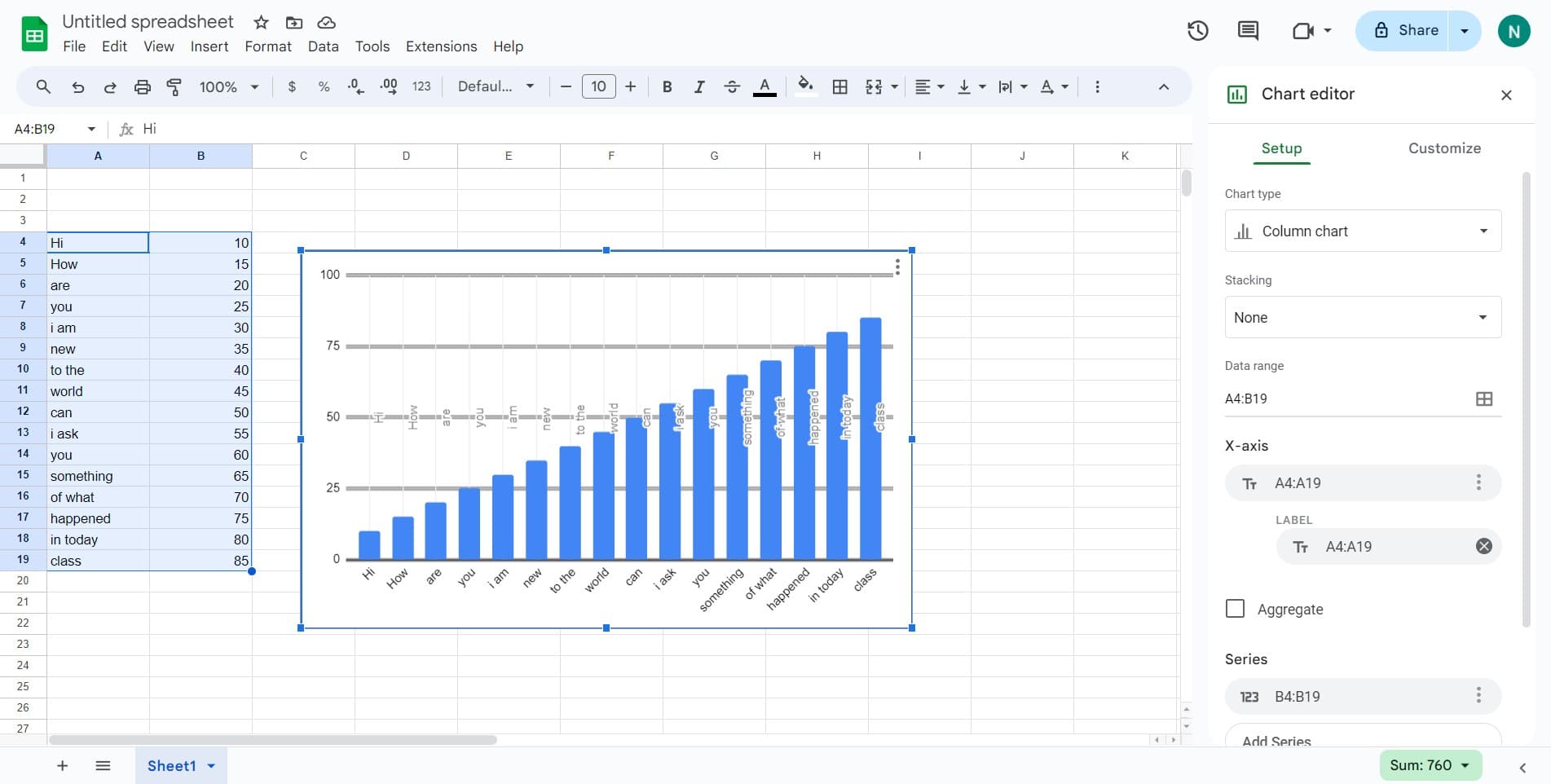
Select your chart
Click on the chart you want to modify. The chart will be selected and ready for editing.
- 2
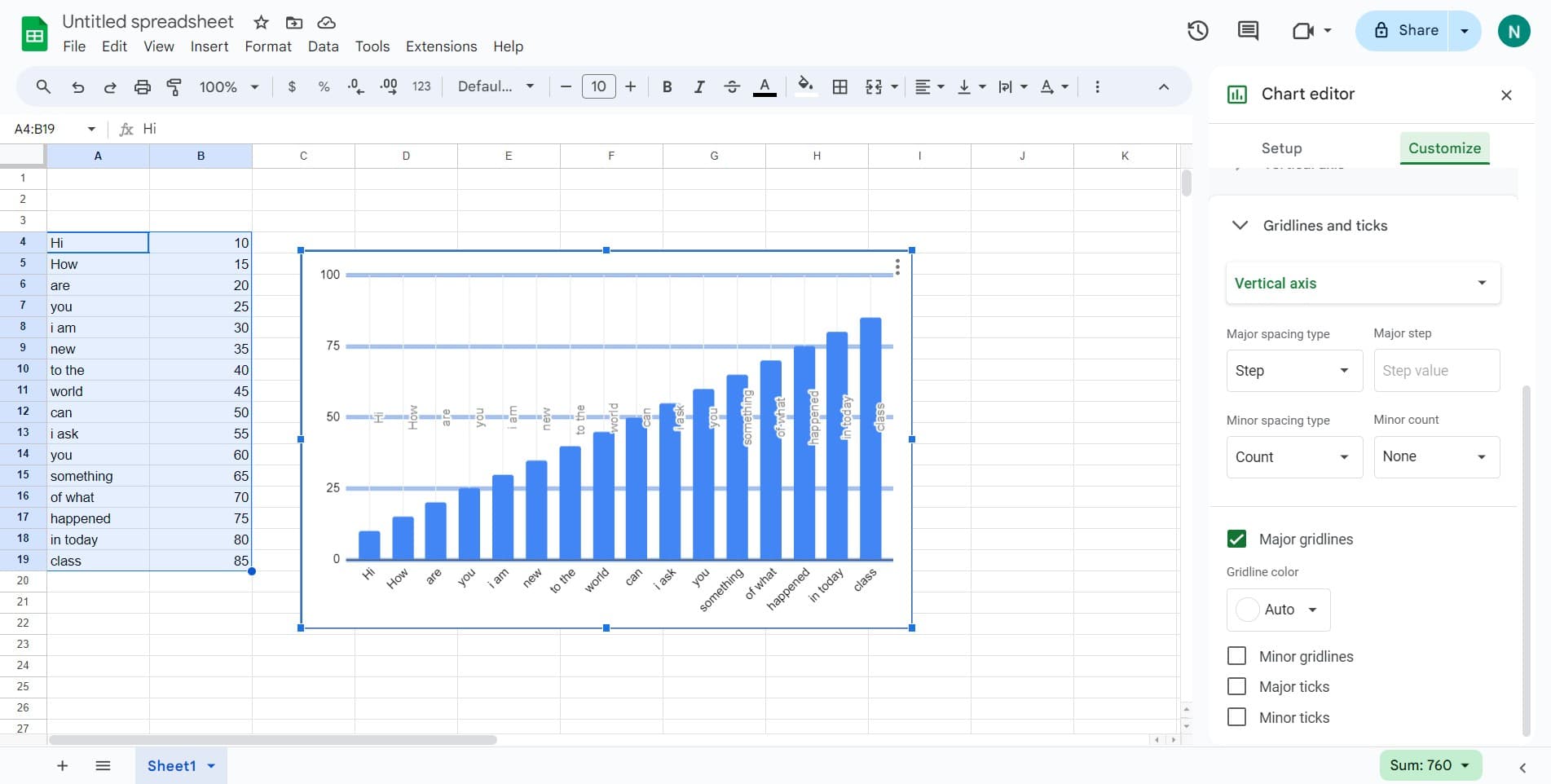
Open the Customize menu
Click on the 'Customize' option to access the chart customization panel where all formatting options are available.
- 3
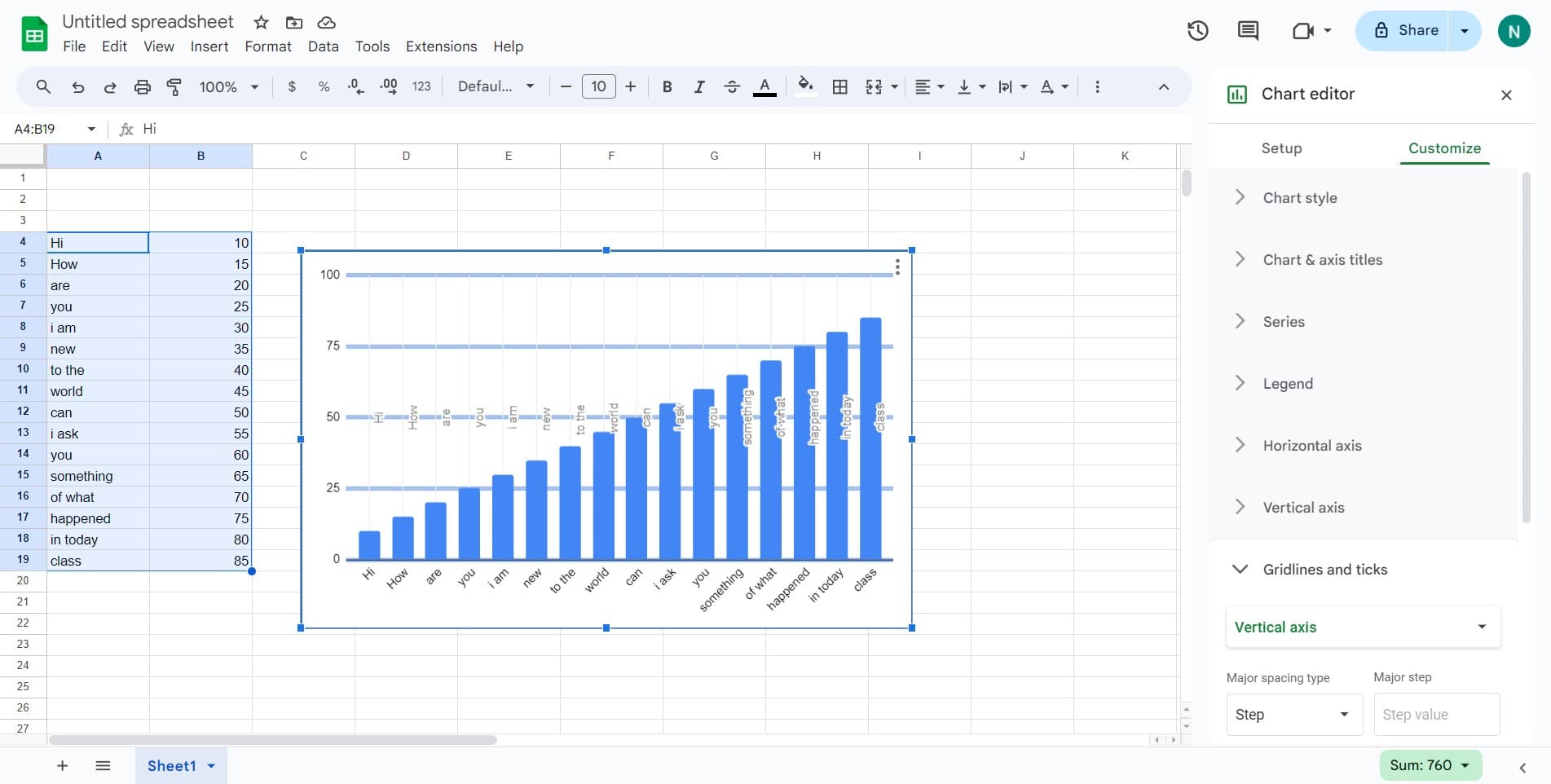
Navigate to Legend settings
Click on 'Legend' in the customization menu to reveal legend-specific options and controls.
- 4
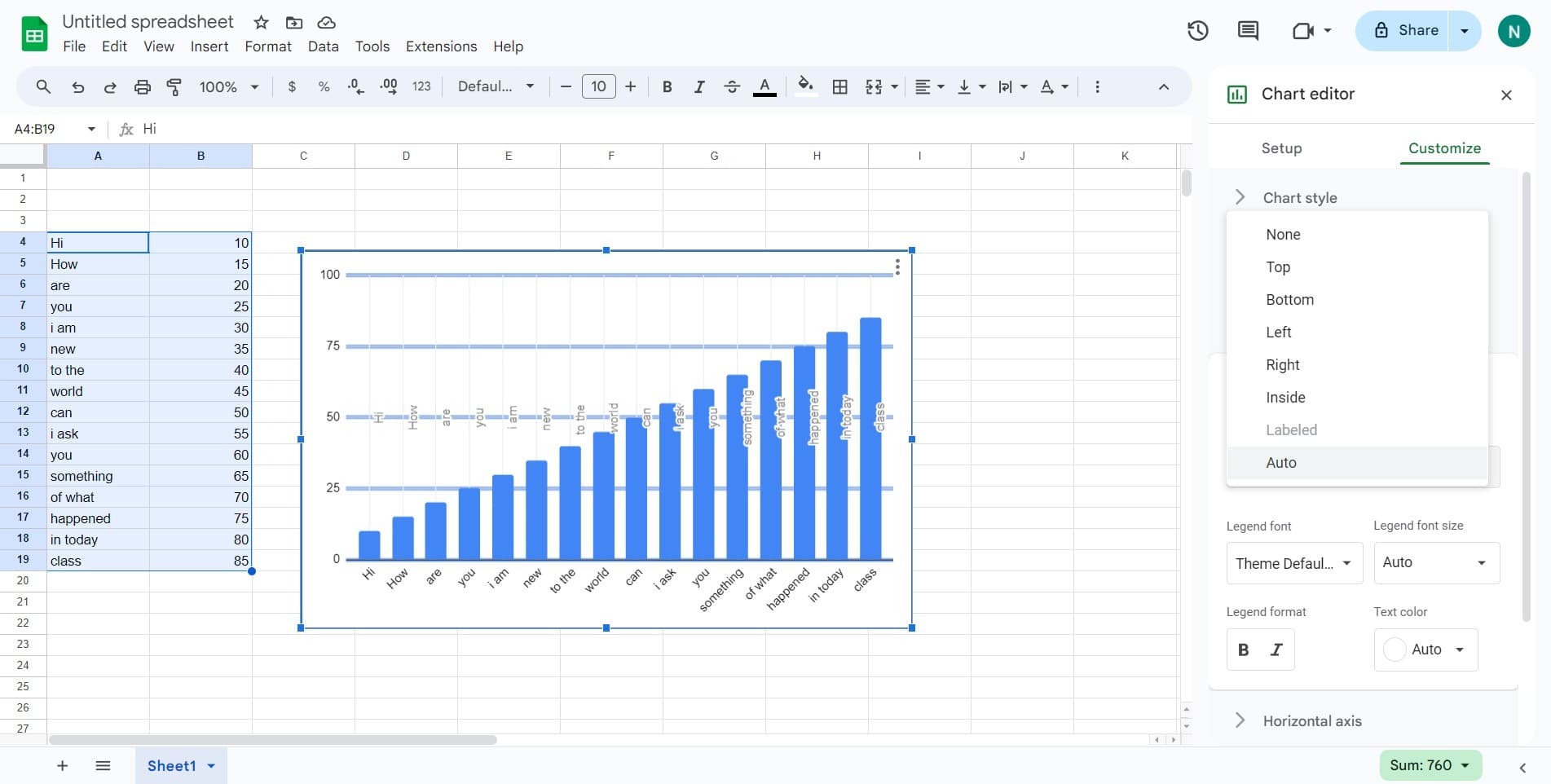
Enable legend display
Click on 'Auto' to enable the legend and allow Google Sheets to automatically determine which data series to display in the legend.
- 5
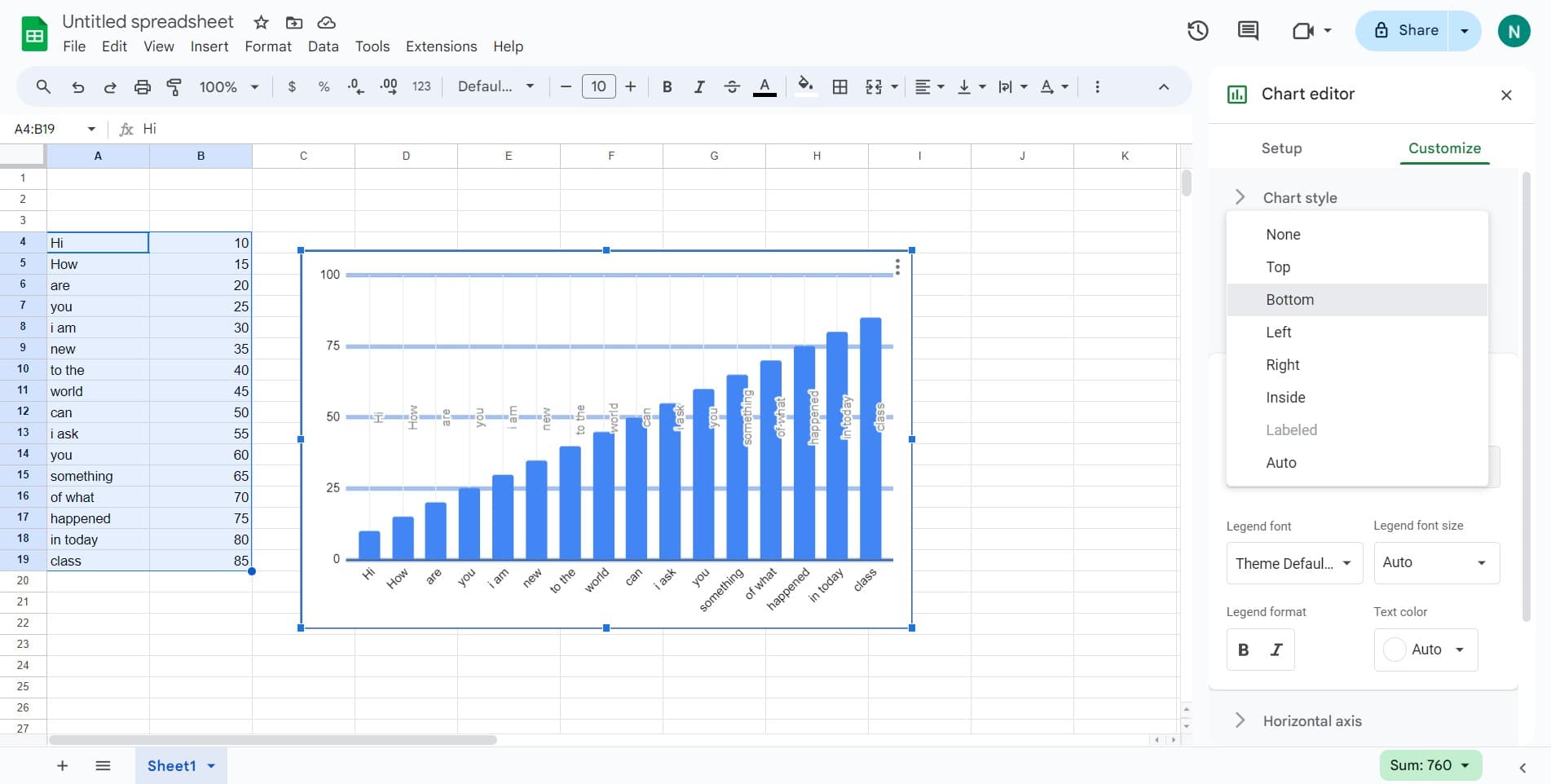
Position legend at bottom
Click on 'Bottom' to position your legend below the chart area, which is a common and readable placement for most chart types.
- 6
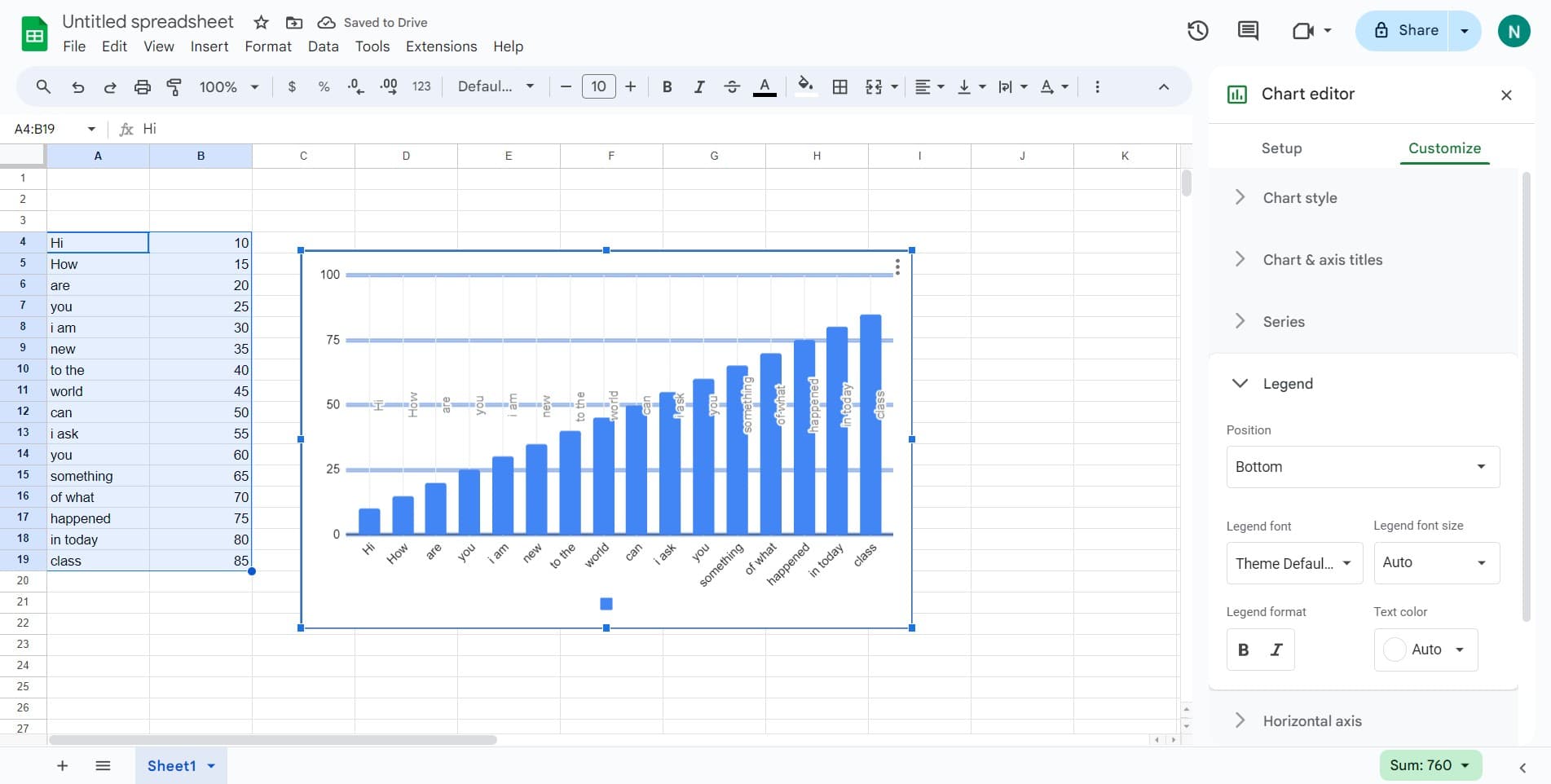
Apply first customization
Click to confirm and apply your legend settings. The chart will update to reflect the new legend position.
- 7
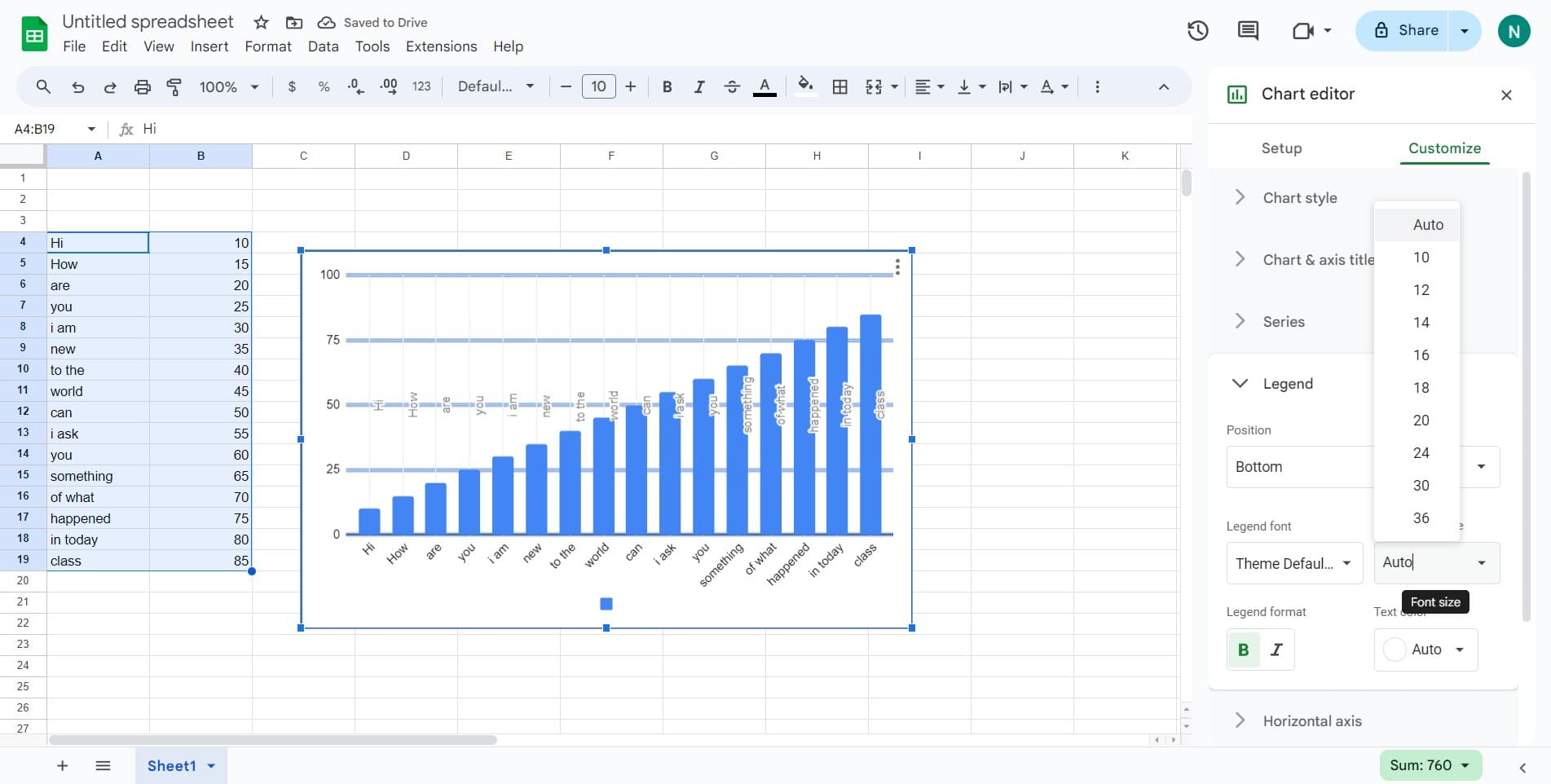
Verify chart appearance
Click to review how your chart looks with the new legend. Check that all data series are clearly labeled and the legend doesn't obscure important data points.
- 8
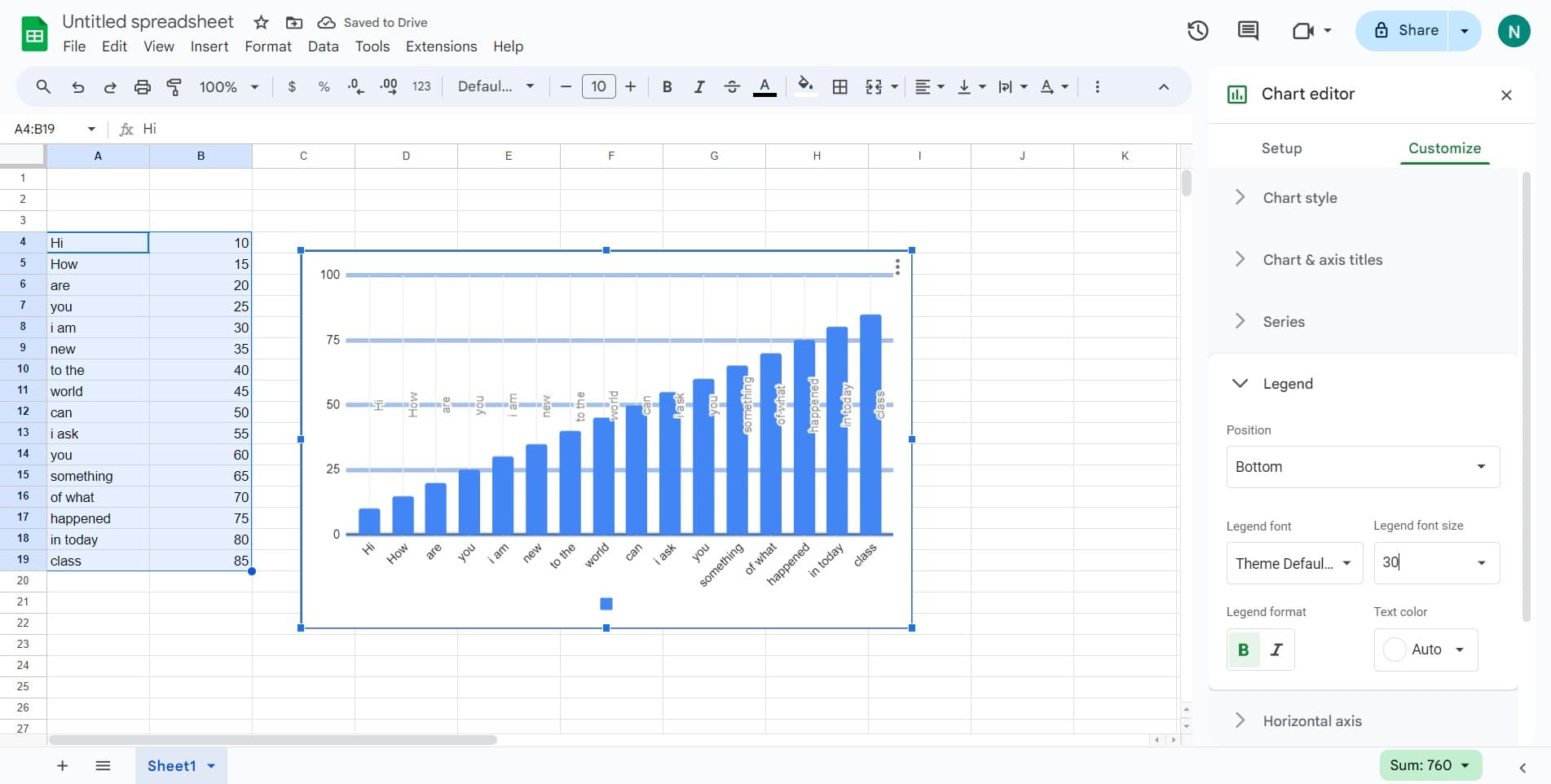
Finalize changes
Click to save and finalize all modifications to your chart. Your chart is now ready with a properly positioned and formatted legend.
Frequently asked questions
Common questions about how to add a legend to your chart in google sheets.
Yes, Google Sheets offers multiple legend positions. In the Legend customization menu, you'll find options for Bottom, Top, Left, and Right placement. Simply select your preferred position based on your chart's layout and data density.
For single-series charts, a legend is optional and may add unnecessary clutter. However, if you want to label what the series represents for clarity, you can keep it enabled. The 'Auto' setting will intelligently determine whether a legend is necessary.
Return to the Customize menu and click on Legend. You'll see options to disable or hide the legend entirely. Select 'None' to remove the legend from your chart.
Yes, Google Sheets allows extensive legend customization. In the Legend menu, you can adjust font size, font color, and other formatting options to match your chart's overall design and readability needs.
Yes, the legend position will appear in your printed output exactly as it displays on screen. Ensure your legend placement doesn't overlap with important data points before printing or exporting your chart.