How to do multiplication in Google Sheets

Multiplication is one of the most common calculations you'll perform in Google Sheets. Whether you're calculating totals, scaling values, or working with financial data, knowing how to multiply cells efficiently will save you time and reduce errors.
Quick summary
In this tutorial, you'll learn how to use the MULTIPLY function in Google Sheets to multiply two or more values together. You'll discover how to structure the formula and apply it to your spreadsheet data.
Why this matters
Mastering multiplication in Google Sheets is essential for anyone working with budgets, inventory, pricing, or any data analysis that requires scaling or combining numeric values. Using built-in functions ensures accuracy and makes your spreadsheets more maintainable and professional.
Step-by-step guide
- 1
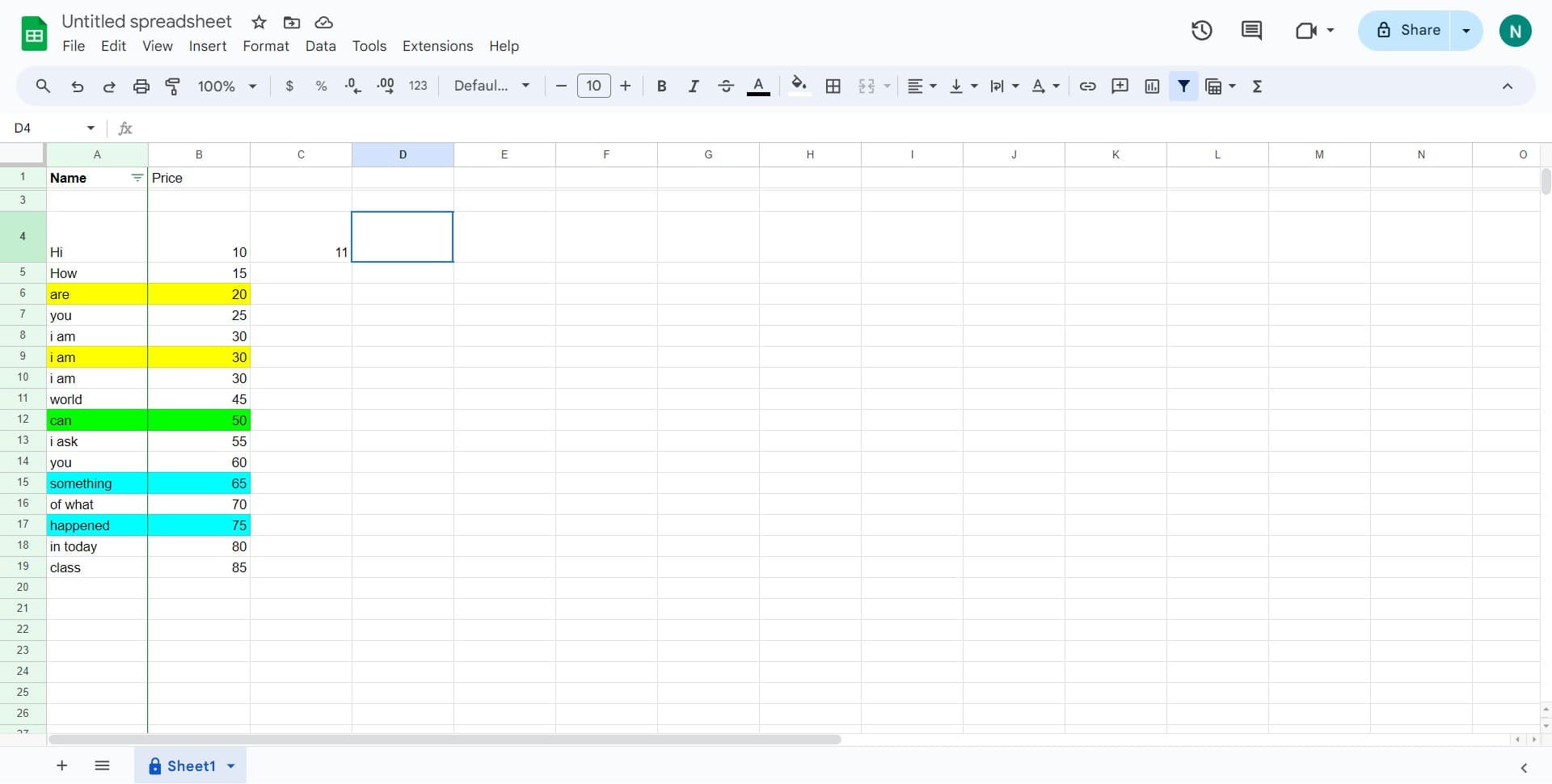
Click on an empty cell
Select the cell where you want your multiplication result to appear. This will be where Google Sheets displays the calculated product.
- 2
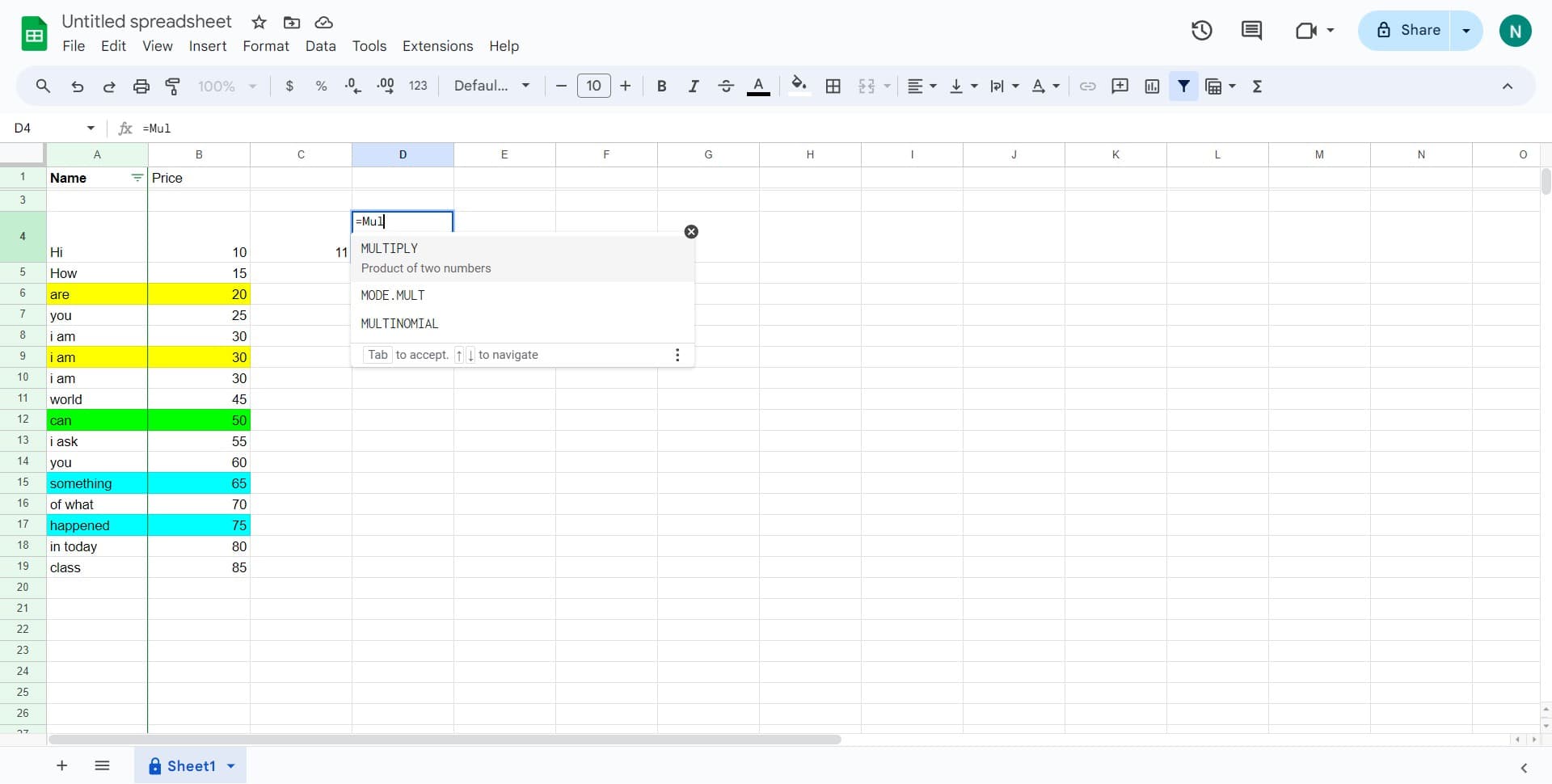
Click on MULTIPLY function
Navigate to the MULTIPLY function from the menu or insert it directly into your selected cell. This function will allow you to multiply the values you specify.
- 3
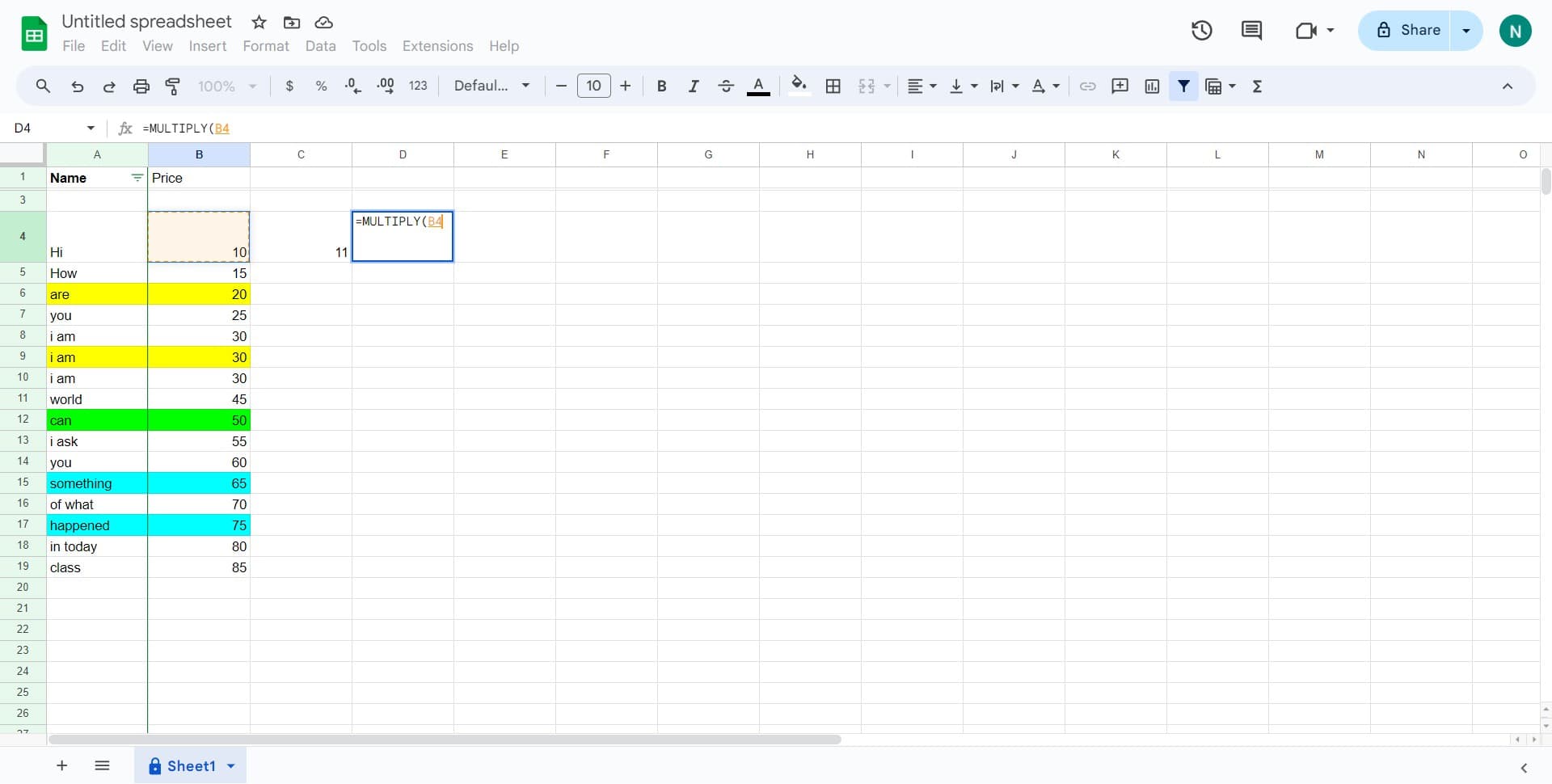
Enter first number or cell reference
Type or select the first value you want to multiply. You can enter a specific number or reference a cell containing a numeric value.
- 4
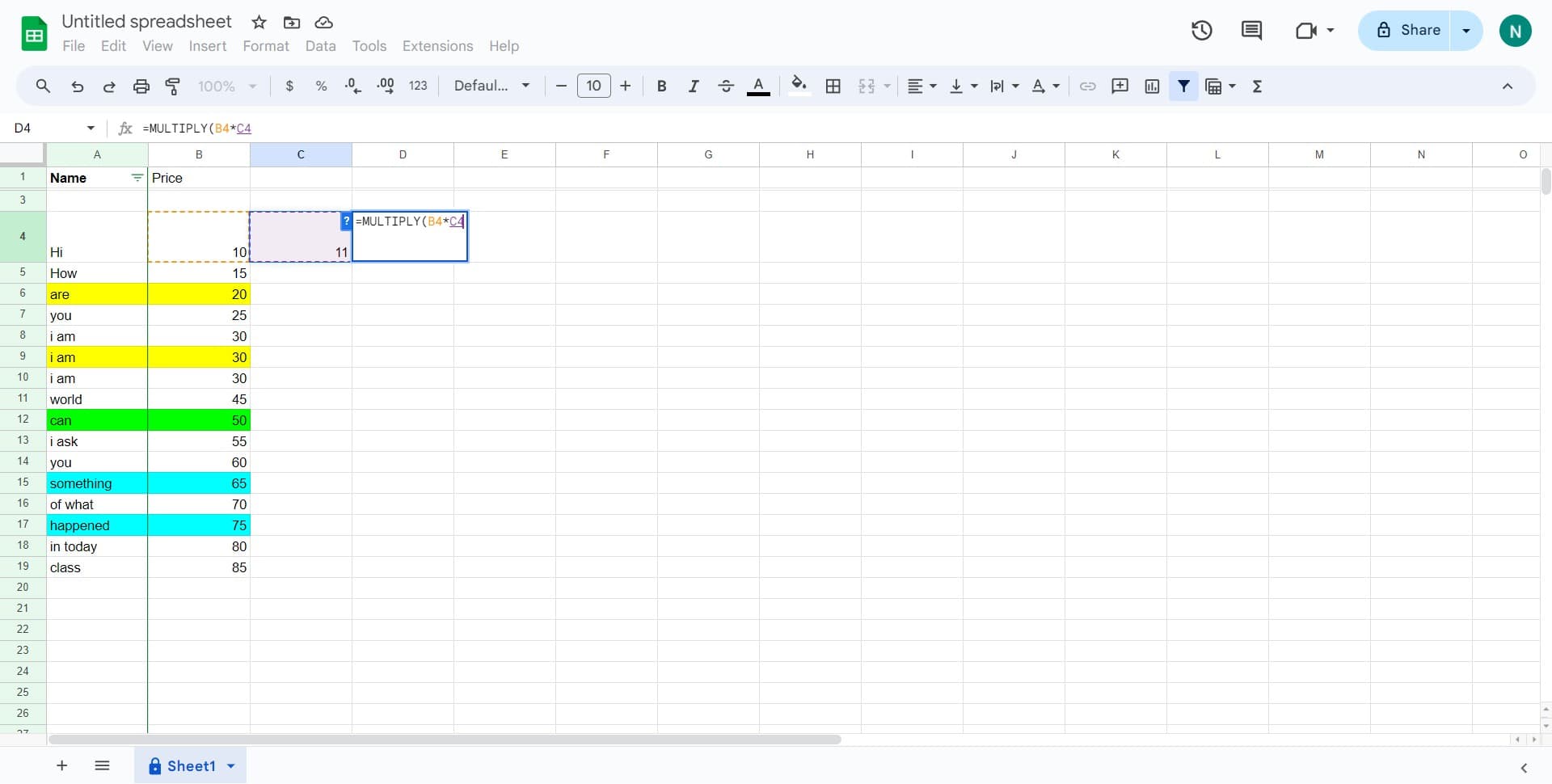
Enter second number or cell reference
Type or select the second value to multiply. Complete your formula and press Enter to execute the calculation and see your result.
Frequently asked questions
Common questions about how to do multiplication in google sheets.
Yes, you can multiply multiple values in a single formula. Use the format =MULTIPLY(value1, value2, value3...) and add as many values as needed. Google Sheets will calculate the product of all values in sequence.
Both =MULTIPLY(A1, B1) and =A1*B1 produce the same result. The MULTIPLY function is more readable in complex formulas, while the asterisk operator is faster to type and more commonly used.
Enter your MULTIPLY formula in the first cell of your results column, then copy the formula down to all rows. Google Sheets will automatically adjust the cell references for each row while keeping the constant value fixed.
Multiplying any number by zero results in zero. If a referenced cell is empty, Google Sheets treats it as zero, so your result will also be zero. Make sure your data is complete before using MULTIPLY.
Yes, MULTIPLY works with negative numbers just like standard multiplication. A negative times a positive equals a negative, and a negative times a negative equals a positive.