How to resize all columns in Google Sheets

Resizing columns in Google Sheets is essential for improving readability and ensuring all your data is visible at a glance. Whether you're working with wide text entries or numeric data, adjusting column widths helps create a more organized and professional-looking spreadsheet.
Quick summary
In this tutorial, you'll learn how to resize all columns in Google Sheets efficiently. By following a few simple steps, you'll be able to adjust your column widths to fit your content perfectly, making your data easier to read and navigate.
Why this matters
Properly sized columns prevent data from being cut off or hidden, reducing the need for horizontal scrolling and making your spreadsheet more accessible to collaborators. This is particularly important when sharing sheets with team members or presenting data to stakeholders who need to see everything clearly at first glance.
Step-by-step guide
- 1
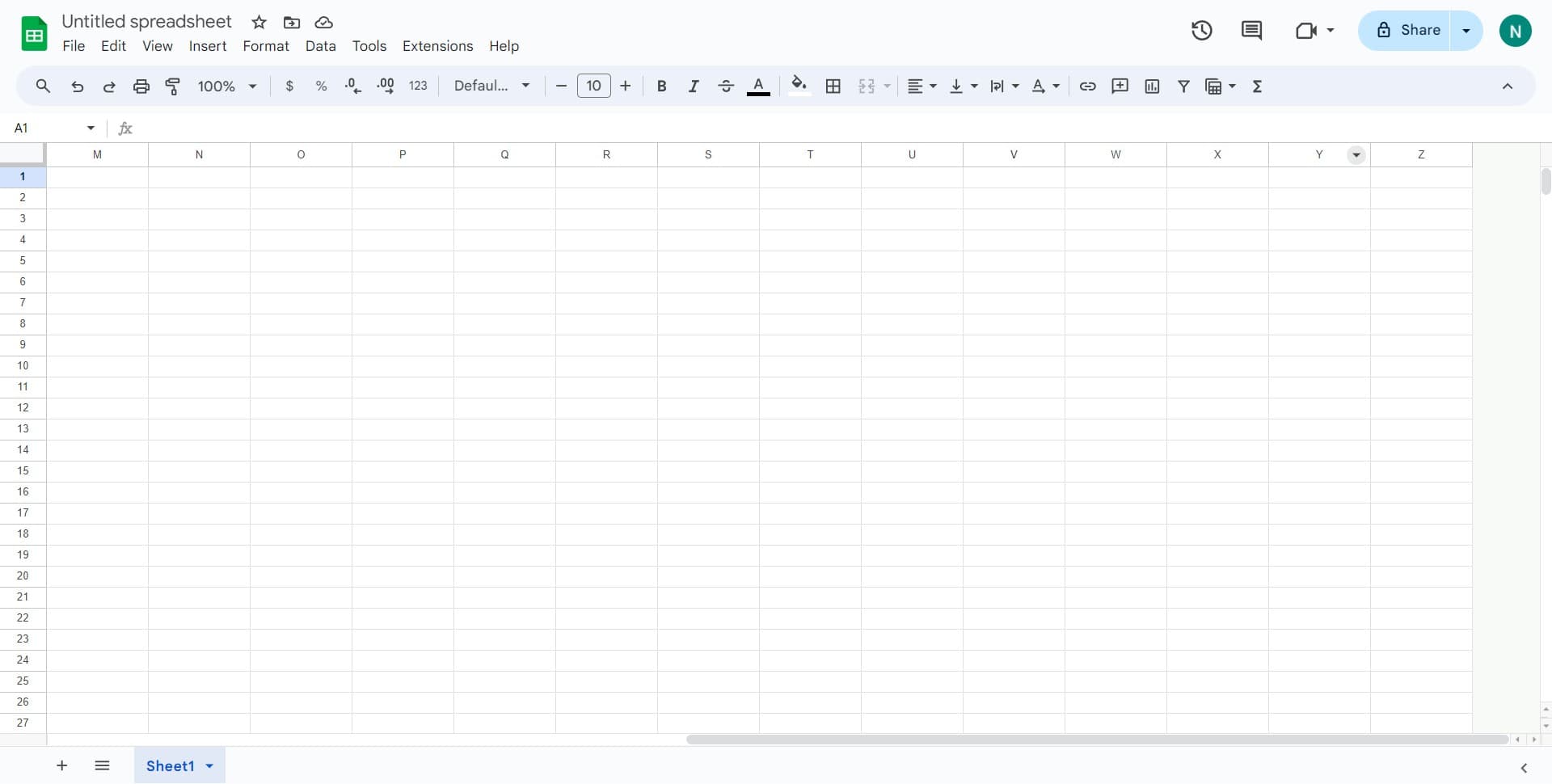
Click the column selector
Begin by clicking on the column header area to select the columns you want to resize. This action prepares your sheet for the resizing operation.
- 2
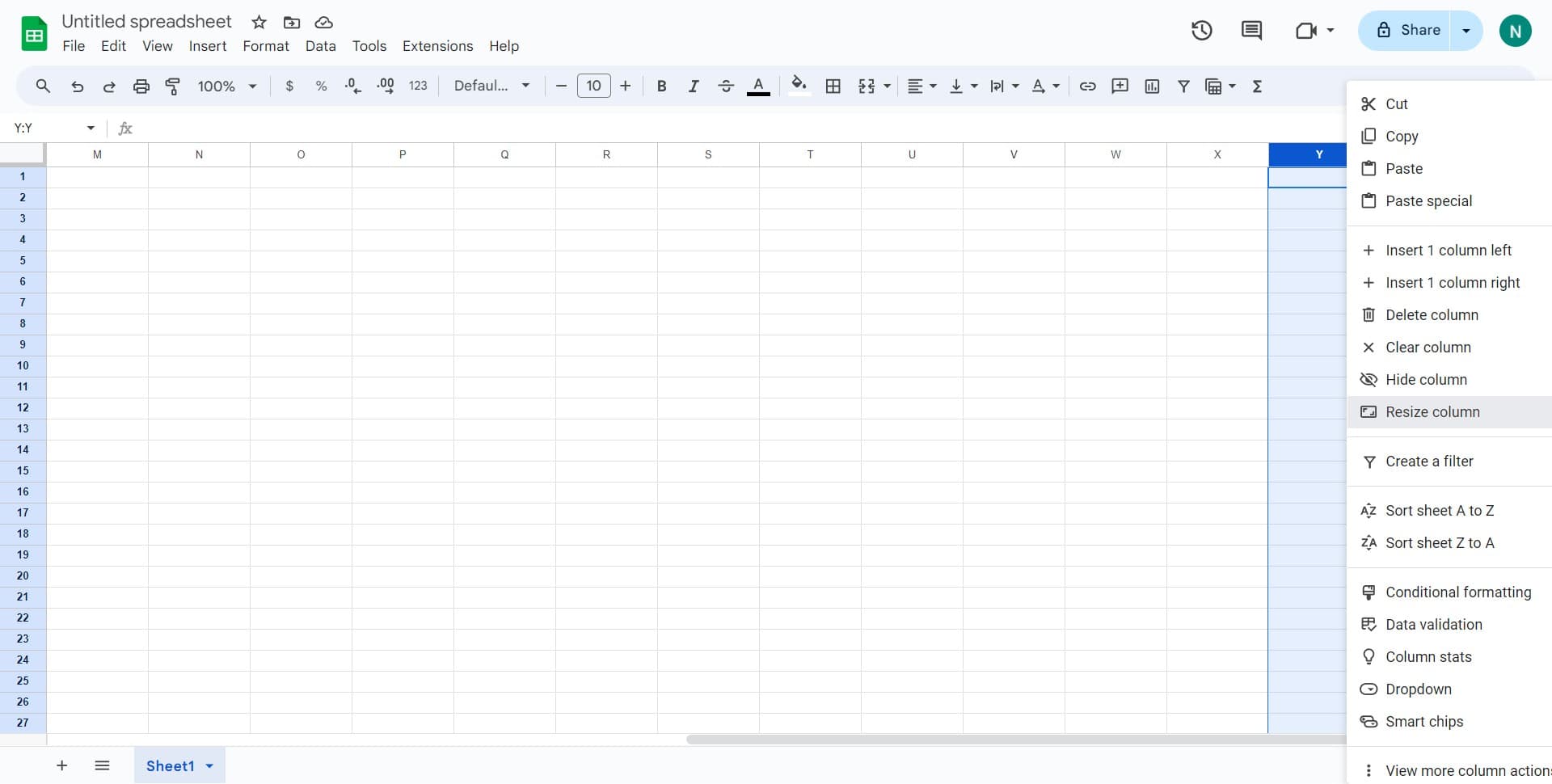
Click on 'Resize column'
Look for the 'Resize column' option in the menu that appears. This option allows you to adjust the width of your selected columns to match your content.
- 3
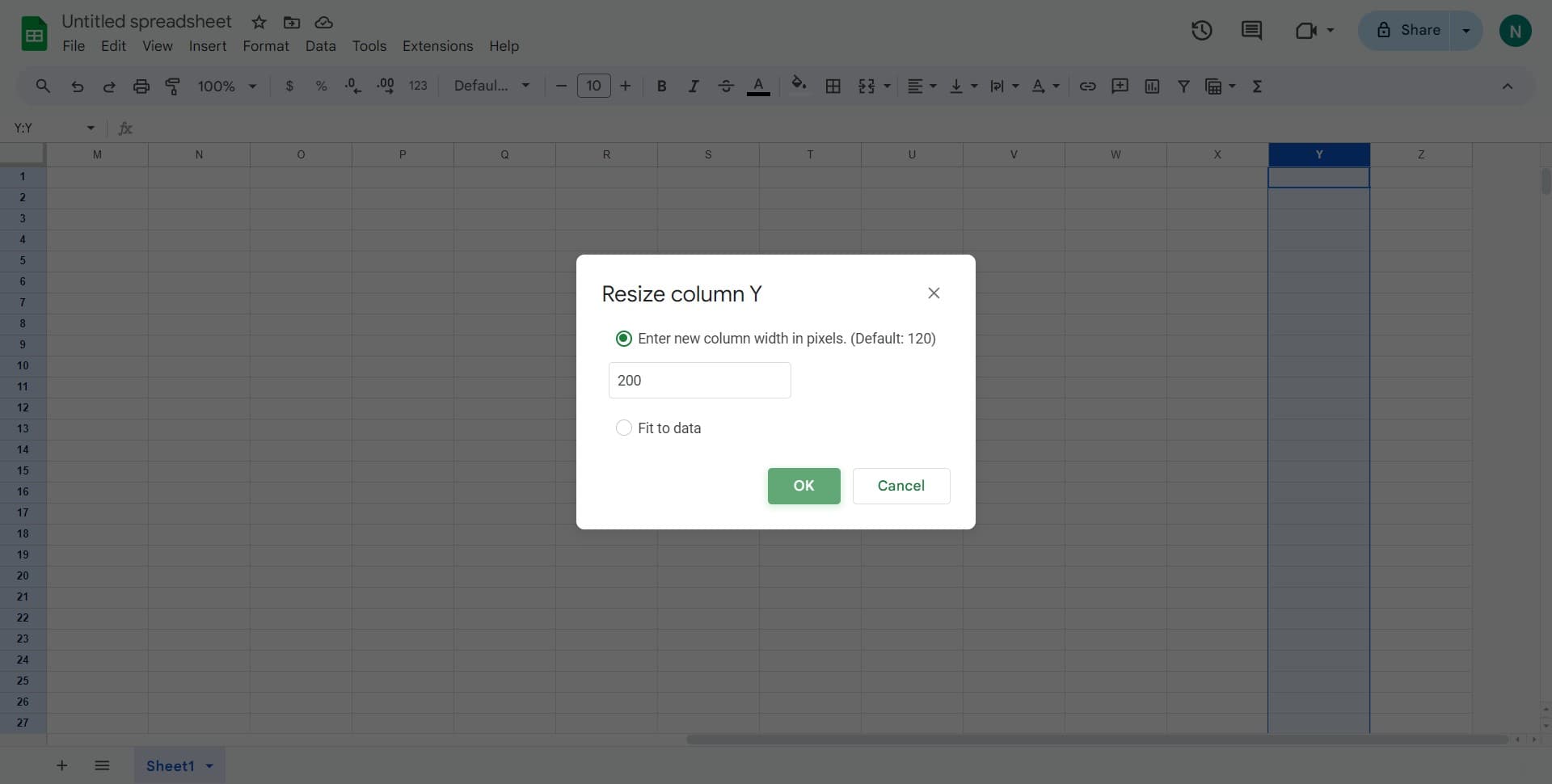
Click 'OK' to apply changes
Confirm your resize operation by clicking the 'OK' button. Your columns will now be adjusted to the optimal width for displaying your data.
Frequently asked questions
Common questions about how to resize all columns in google sheets.
Yes, you can select multiple columns before using the resize function. Simply click on the first column header, then hold Shift and click on the last column you want to include to select a range, or use Ctrl/Cmd+Click to select individual columns.
The 'Resize column' feature automatically adjusts the column width to fit the content of the cells. It analyzes the longest entry in each selected column and sets the width accordingly, eliminating excess empty space.
Yes, Google Sheets allows you to set custom widths. Right-click on the column header and select 'Column width' to enter a specific pixel measurement for precise control over your layout.
No, resizing columns is purely a formatting change that only affects how your data is displayed. Your actual data remains unchanged and unaffected by any column width adjustments.
Click the select-all button in the top-left corner where the row and column headers meet to select the entire sheet. Then use the 'Resize column' function to automatically adjust all columns to fit their content simultaneously.