How to set margins in Google Sheets

Setting custom margins in Google Sheets is essential for controlling how your data appears when printed. Whether you need narrow margins to fit more content on a page or wide margins for better readability, Google Sheets provides flexible options to meet your needs.
Quick summary
In this tutorial, you'll learn how to access the print settings in Google Sheets and adjust margins to match your document requirements. You'll explore preset margin options like Normal and Wide, and discover how to set custom margin values for precise control.
Why this matters
Proper margin configuration ensures your printed spreadsheets look professional and are easy to read. Incorrect margins can waste paper, cut off important data, or create unnecessary blank space—making margin adjustment a critical step in the print preparation process.
Step-by-step guide
- 1
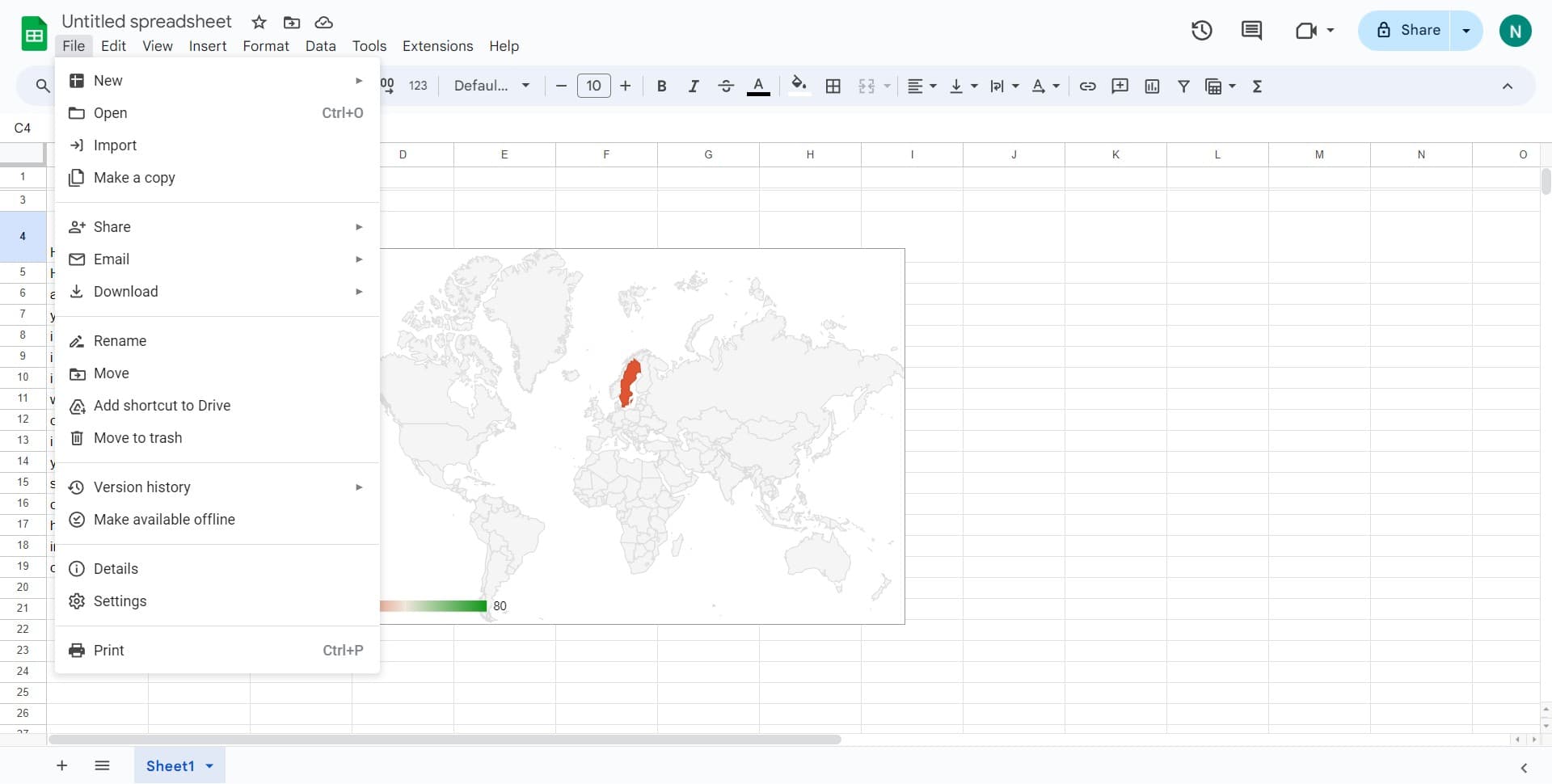
Click on File
Open the File menu at the top left of your Google Sheets window. This menu contains all document-level options, including print settings.
- 2
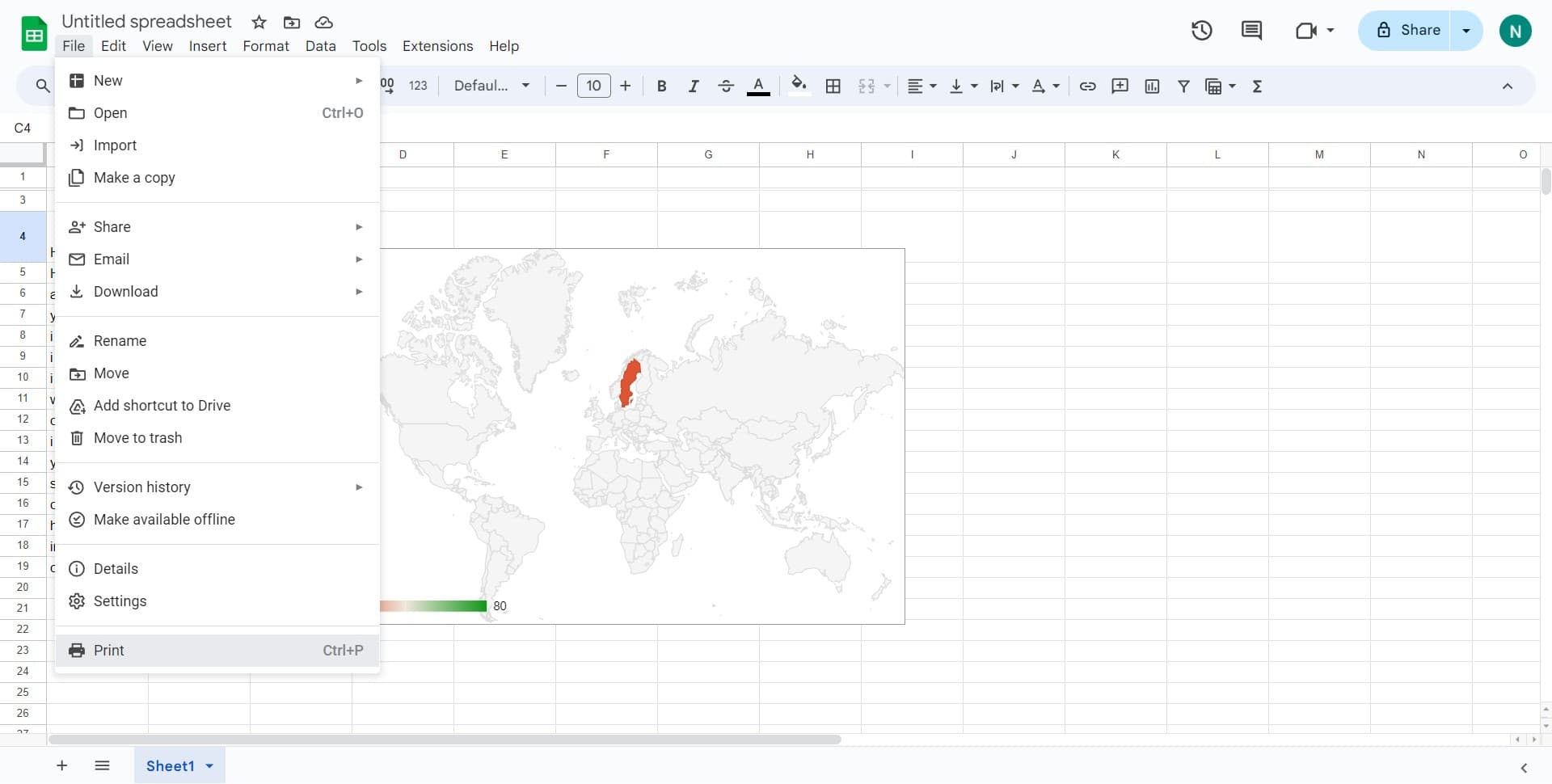
Click on Print
Select Print from the dropdown menu. This opens the print preview and settings dialog where you can configure how your spreadsheet will appear on paper.
- 3
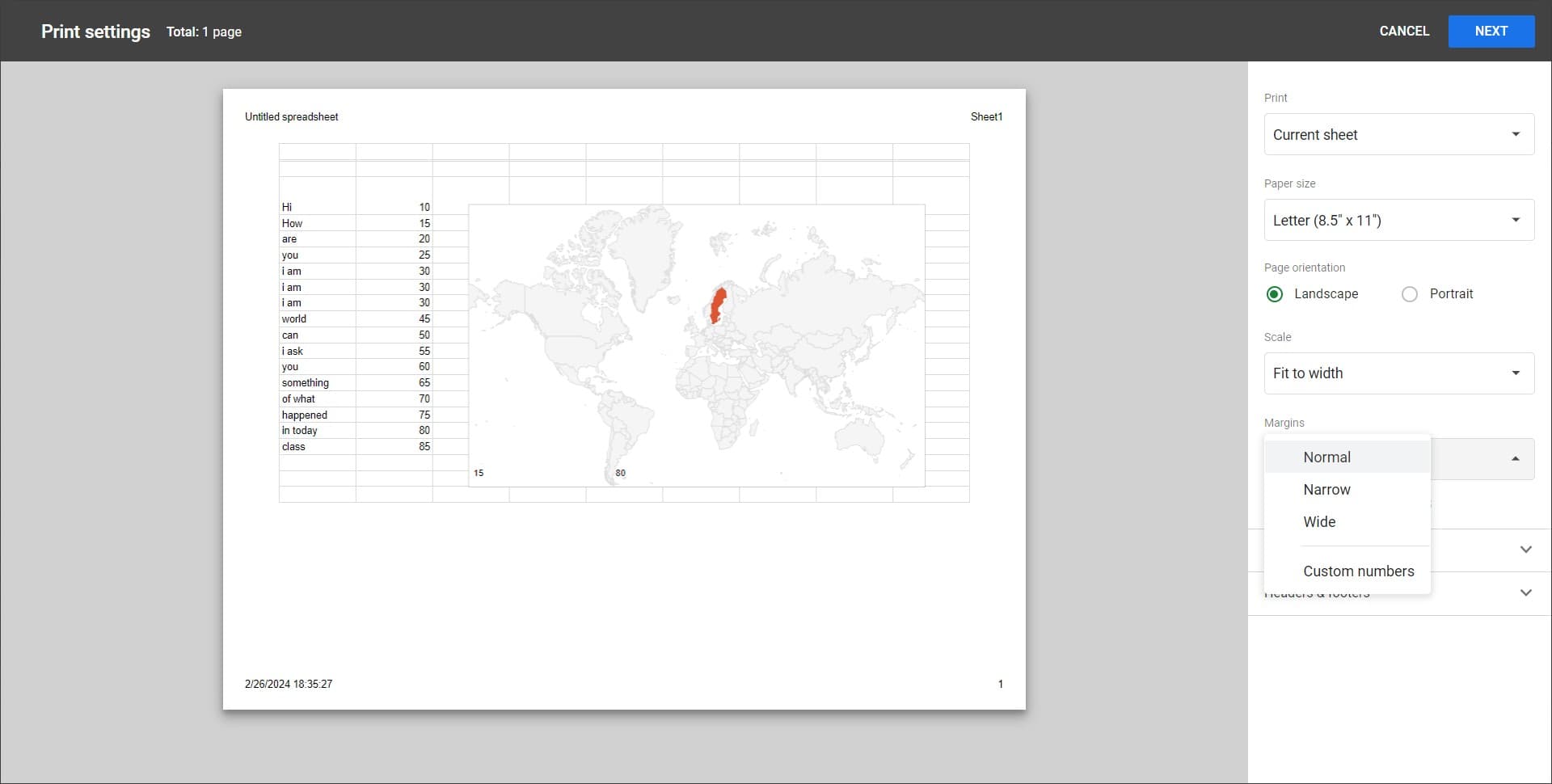
Click on Margins dropdown
In the print settings panel, locate the Margins section. Click on the dropdown menu that currently shows the default margin setting to reveal available margin options.
- 4
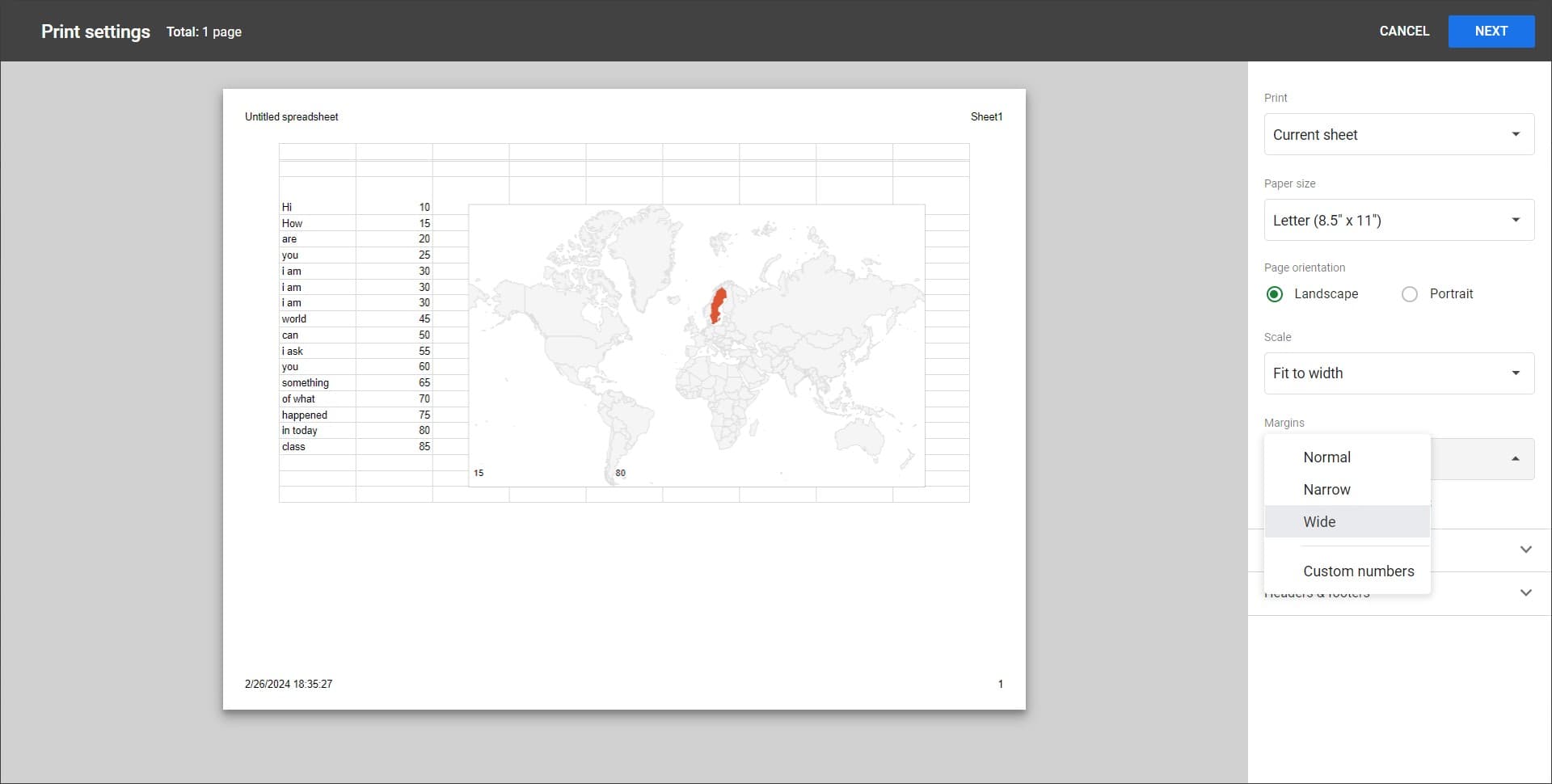
Select Wide margins
Choose Wide from the preset margin options. This applies larger margins around all edges of your printed page, providing extra white space for a cleaner appearance.
- 5
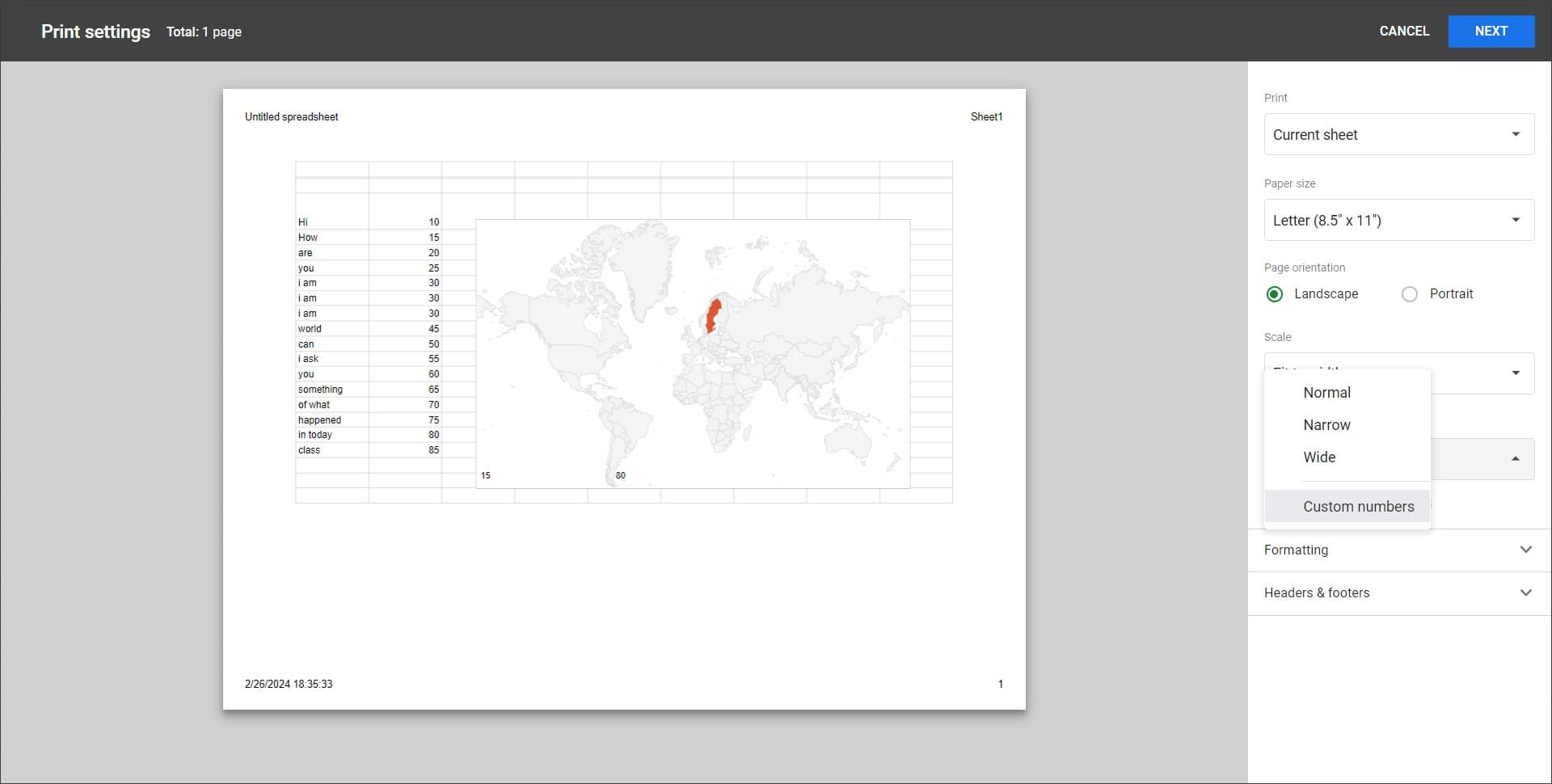
Click on Custom numbers
Select Custom numbers from the margins dropdown to unlock the ability to set specific margin values. This option allows you to define top, bottom, left, and right margins individually.
- 6
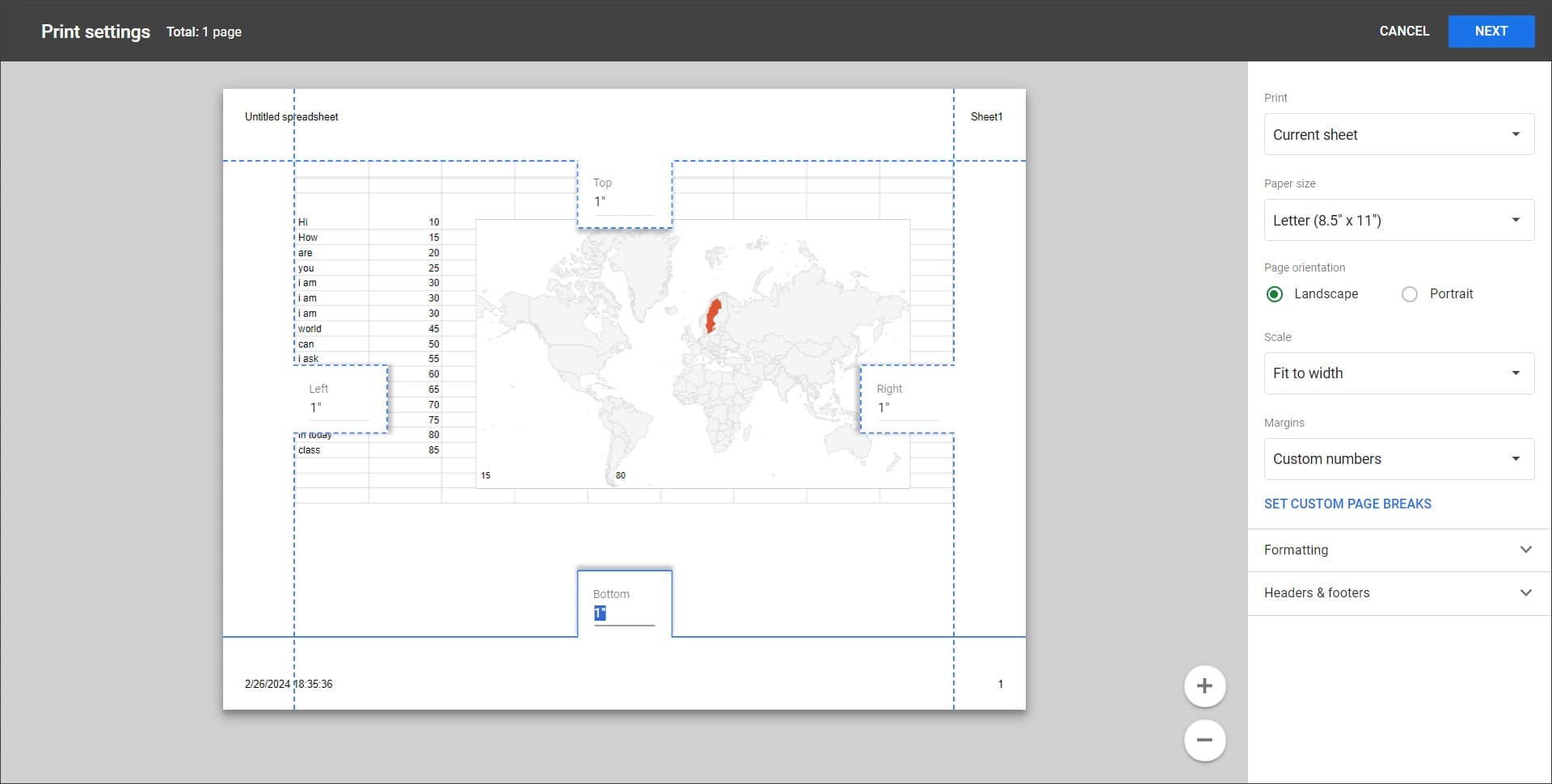
Enter custom margin values
Input your desired margin measurements in inches or centimeters for each side of the page. You can adjust top, bottom, left, and right margins independently to match your exact requirements.
- 7
Apply and print settings
Review your margin changes in the print preview on the left side of the dialog. Once satisfied with the layout, proceed to print your document or save the settings for future use.
Frequently asked questions
Common questions about how to set margins in google sheets.
Google Sheets doesn't permanently save custom margin presets across documents, but you can create a template with your preferred margin settings and duplicate it for future projects. Alternatively, you'll need to set custom margins each time you print if they differ from the preset options.
Google Sheets typically uses inches as the default unit for margins, but you can often switch to centimeters or other units depending on your location and browser settings. Check your regional settings if you need to change the measurement unit.
Most printers have a minimum unprintable area and won't allow margins set to zero or negative values. If you set margins too small, your printer may automatically adjust them to its minimum printable margin, potentially cutting off content.
No, margin adjustments only affect the printed output. Your spreadsheet will appear the same on screen regardless of what margins you set in the print settings. Margins are purely a printing concern.
Normal margins use standard sizing (typically 0.75 inches), while Wide margins are significantly larger (typically 1 inch or more) and provide extra white space around your content. Choose based on whether you prioritize fitting content on fewer pages or maximizing readability.