How to set up a calendar template in Google sheets

Creating a calendar template in Google Sheets saves time and provides a reusable structure for planning and scheduling tasks. This guide walks you through accessing Google Sheets, navigating to templates, and selecting a calendar layout that fits your needs.
Quick summary
In this tutorial, you'll learn how to set up a calendar template by accessing your Google Drive, locating the template gallery, and choosing a calendar template that matches your workflow. By the end, you'll have a ready-to-use calendar structure ready for customization.
Why this matters
Using a pre-built calendar template eliminates the need to manually format cells and create date structures from scratch. This approach accelerates project planning, event management, and resource allocation while maintaining consistent formatting across your organization.
Step-by-step guide
- 1
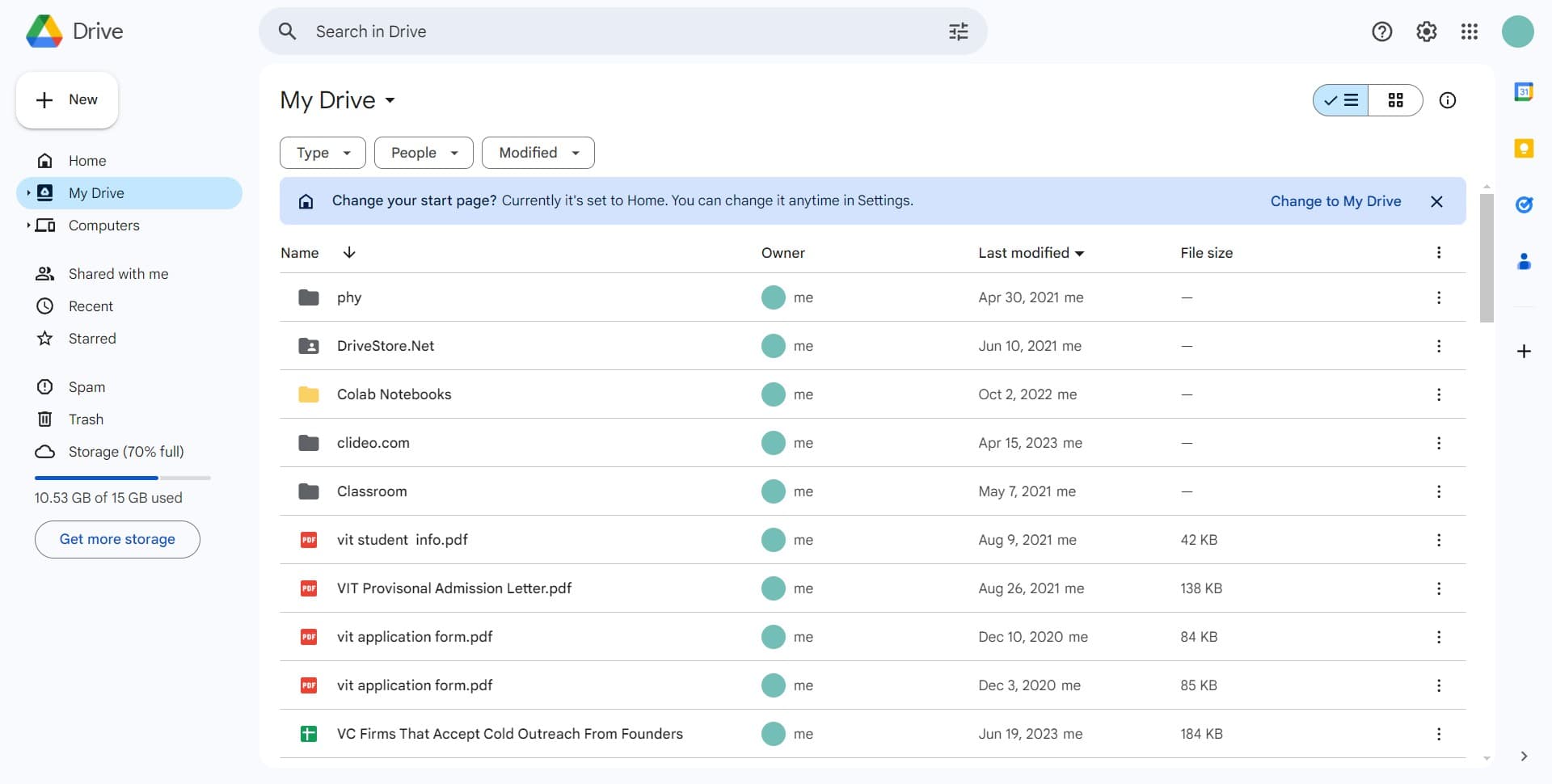
Click on My Drive
Open Google Sheets and navigate to your My Drive section. This is your personal workspace where you can access existing files and create new ones.
- 2
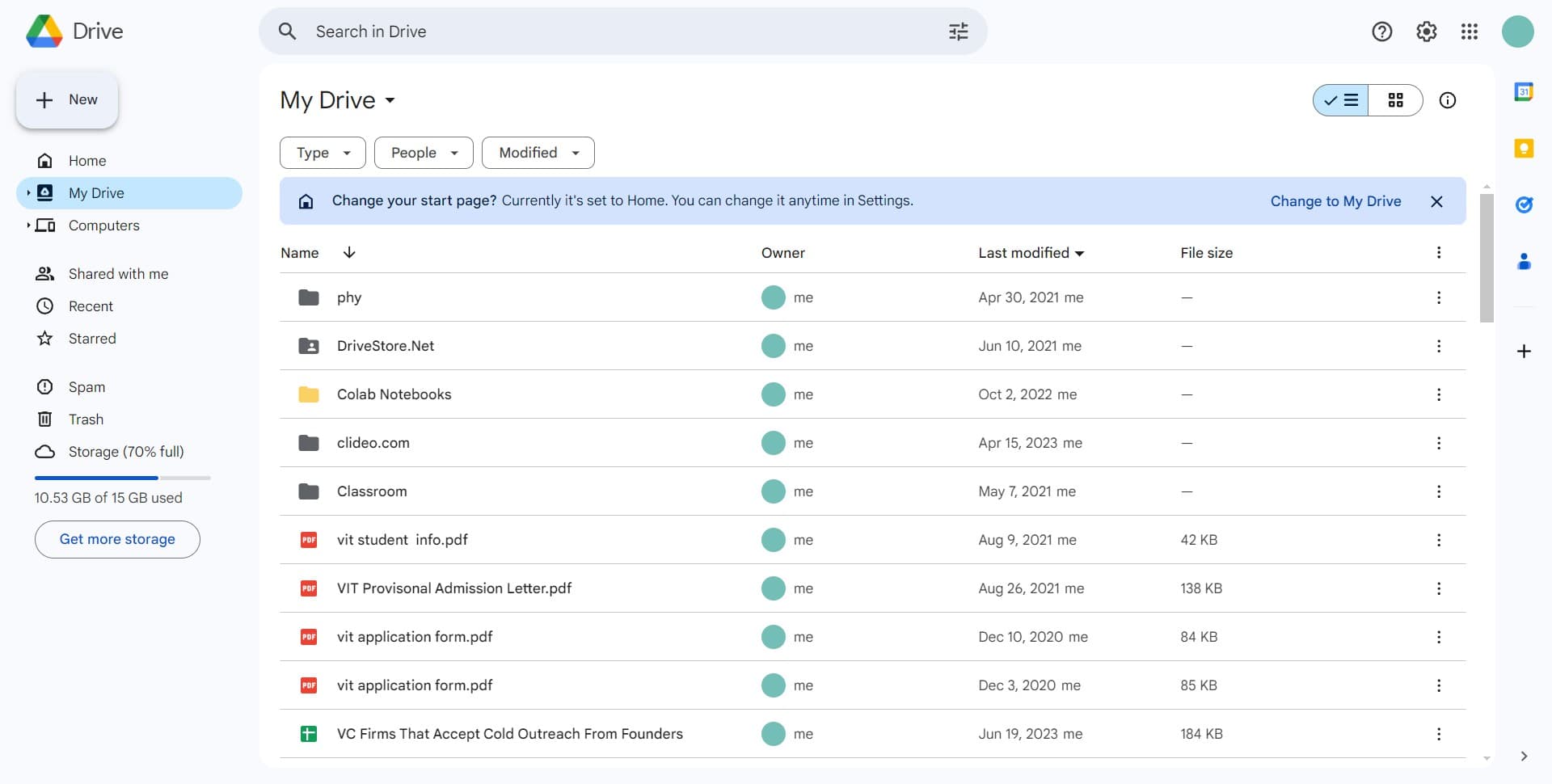
Click the create button
Look for the create or new file button in the left sidebar or top menu. This action opens options for creating different types of documents in Google Sheets.
- 3
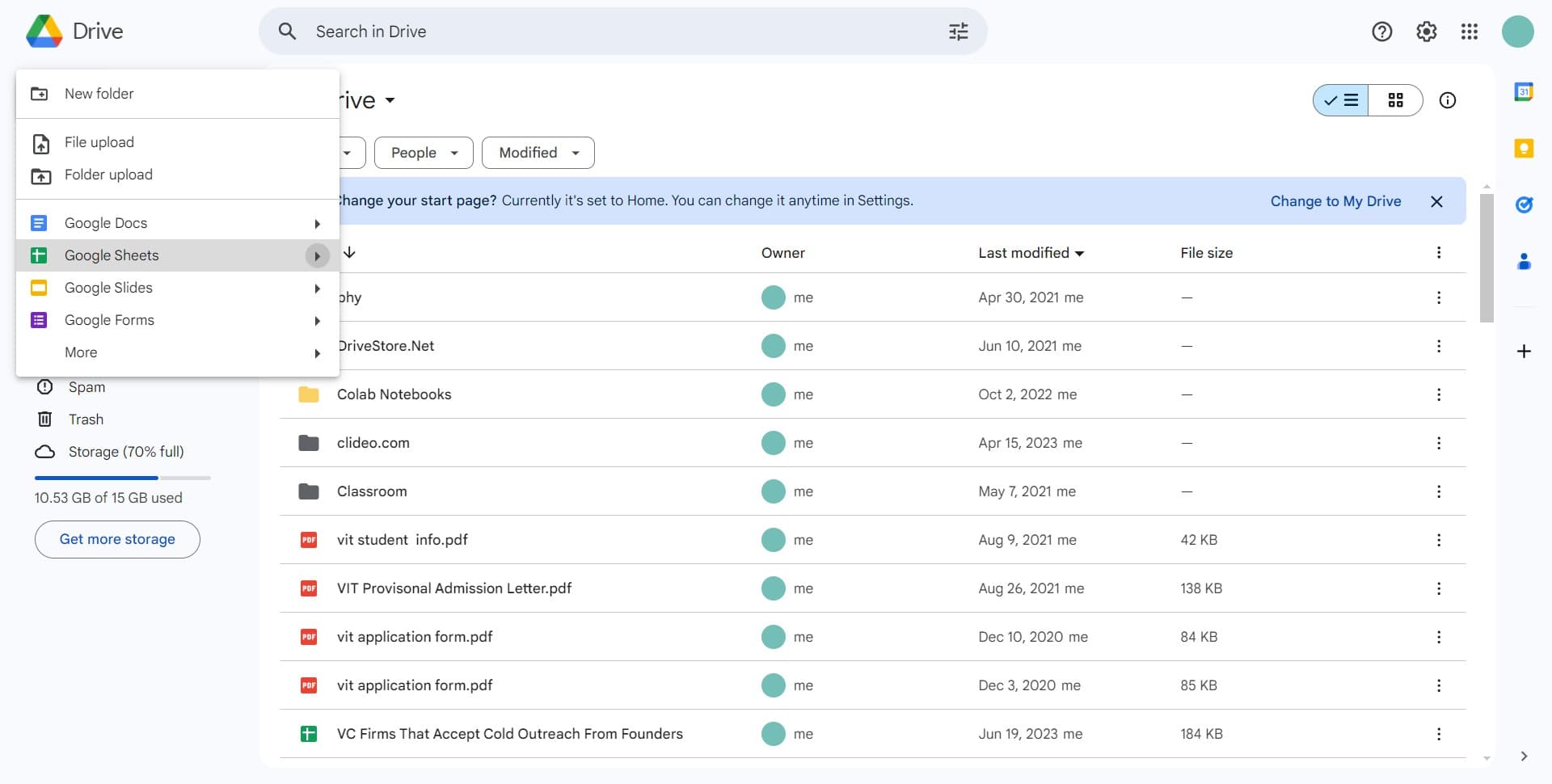
Navigate to the templates section
Find and select the templates option from the menu that appears. This displays the full gallery of available templates for various spreadsheet needs.
- 4
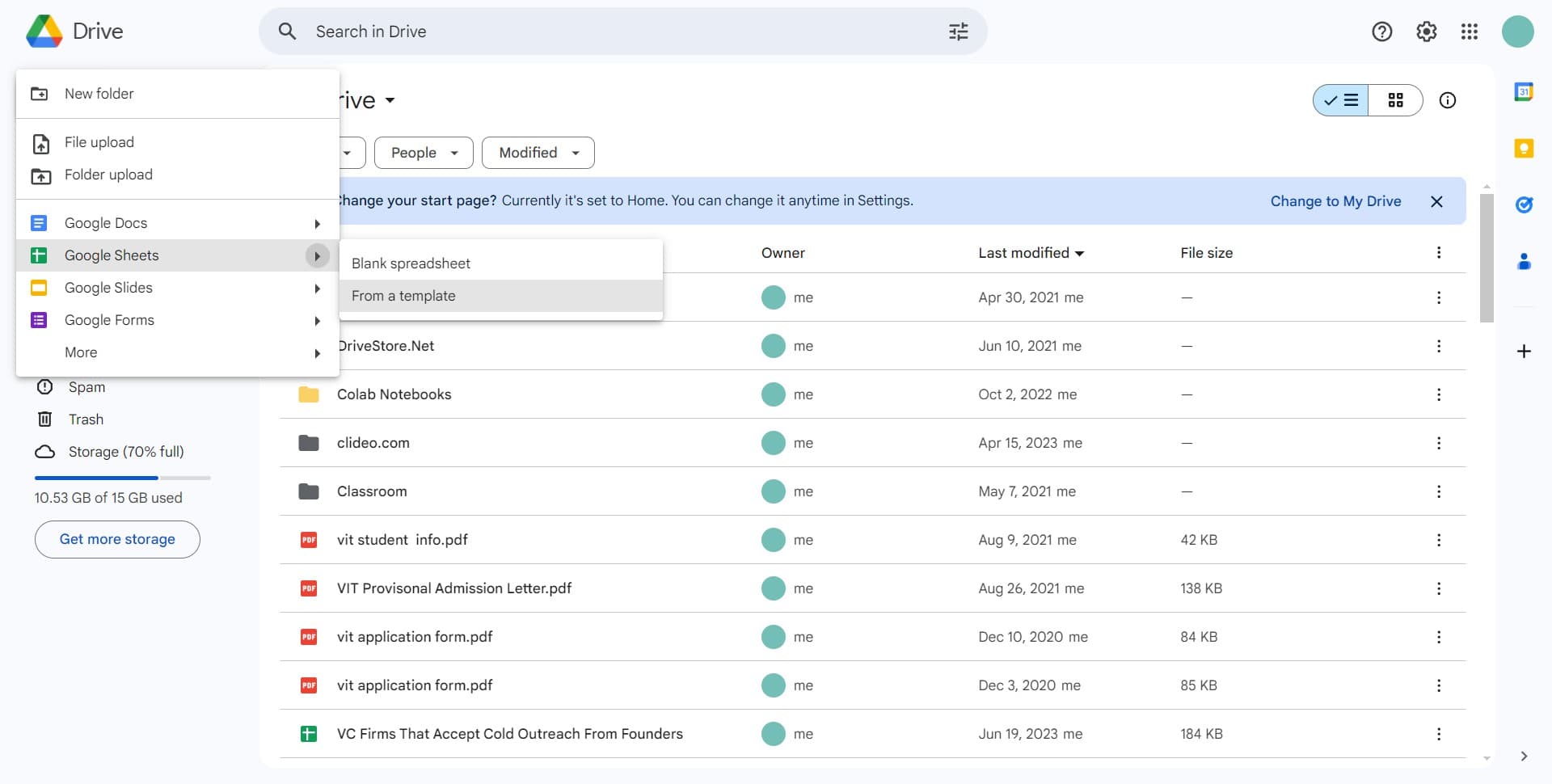
Click on From a template
Select the option to browse templates or create from a template. This opens the template gallery where you can search and preview different designs.
- 5
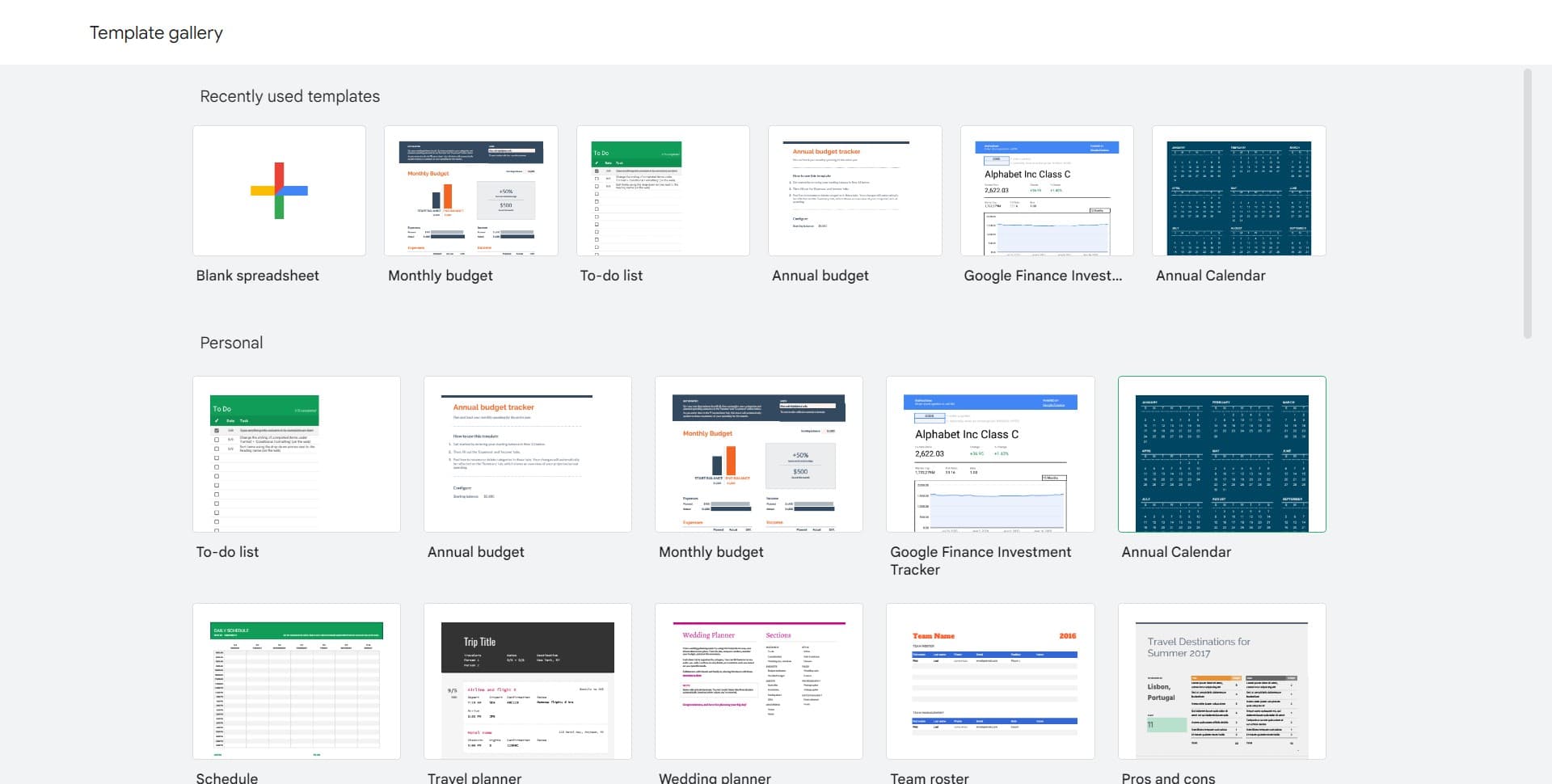
Select a calendar template
Browse the available templates and click on the calendar or image option that matches your layout preference. Google Sheets will create a new spreadsheet based on your selected template.
Frequently asked questions
Common questions about how to set up a calendar template in google sheets.
Yes, calendar templates in Google Sheets are fully customizable. You can modify colors, fonts, add events, adjust dates, and restructure sections to match your specific requirements. All formatting and content can be edited just like any standard spreadsheet.
Calendar templates must be accessed online through Google Drive to create them. However, once created, your calendar spreadsheet can be downloaded for offline use or edited offline if you have Google Sheets offline enabled.
Absolutely. After creating a calendar from a template, you can share the spreadsheet with team members by clicking the Share button and setting appropriate permissions. Team members can then view or edit the calendar based on the access level you assign.
Google Sheets offers various calendar templates including monthly calendars, yearly overviews, event planning calendars, and project timelines. The available options depend on what Google currently offers in their template gallery, which is regularly updated.
Using a template is more efficient for most users as it provides pre-formatted cells, date structures, and professional layouts. Creating from scratch is only necessary if you need a highly specialized calendar design that doesn't match any available templates.