How to Unmerge Customer Profiles in Gorgias

Customer profile merging in Gorgias can sometimes happen unintentionally, or you may need to separate profiles that were incorrectly combined. This guide walks you through the process of unmerging customer profiles to restore them to their individual accounts.
Quick summary
In this tutorial, you'll learn how to locate merged customer profiles in Gorgias and successfully unmerge them back into separate accounts. You'll understand when and why unmerging is necessary and how to execute the process without losing customer data.
Why this matters
Unmerging customer profiles is critical for maintaining accurate customer records and ensuring that order history, communication threads, and support tickets are properly attributed. When profiles are incorrectly merged, it can lead to confusion in customer service interactions and skewed analytics about individual customer behavior.
Step-by-step guide
- 1
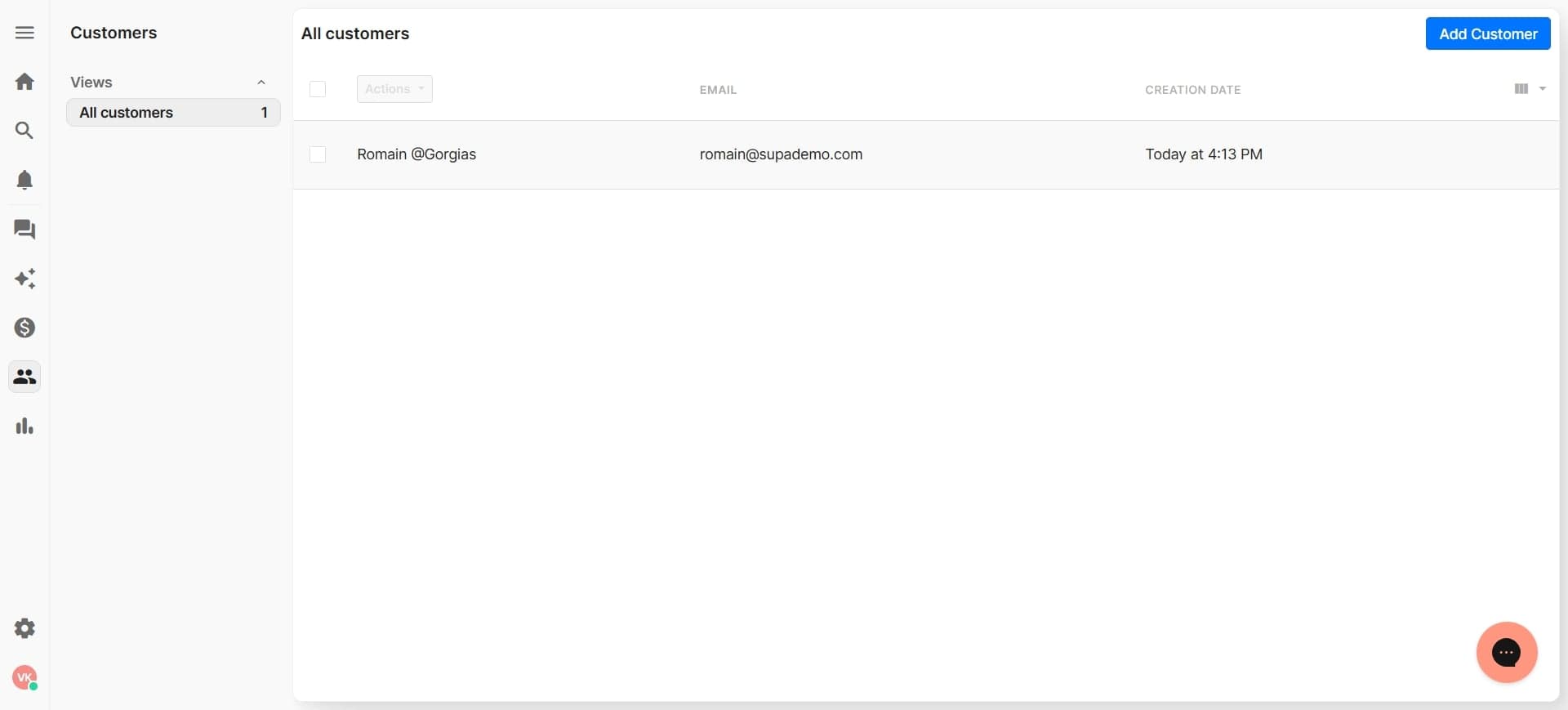
Navigate to Customers section
Log into your Gorgias account and locate the Customers section in the main navigation menu. Click on Customers to access the customer database where you can search for and manage all customer profiles.
- 2
Search for the merged profile
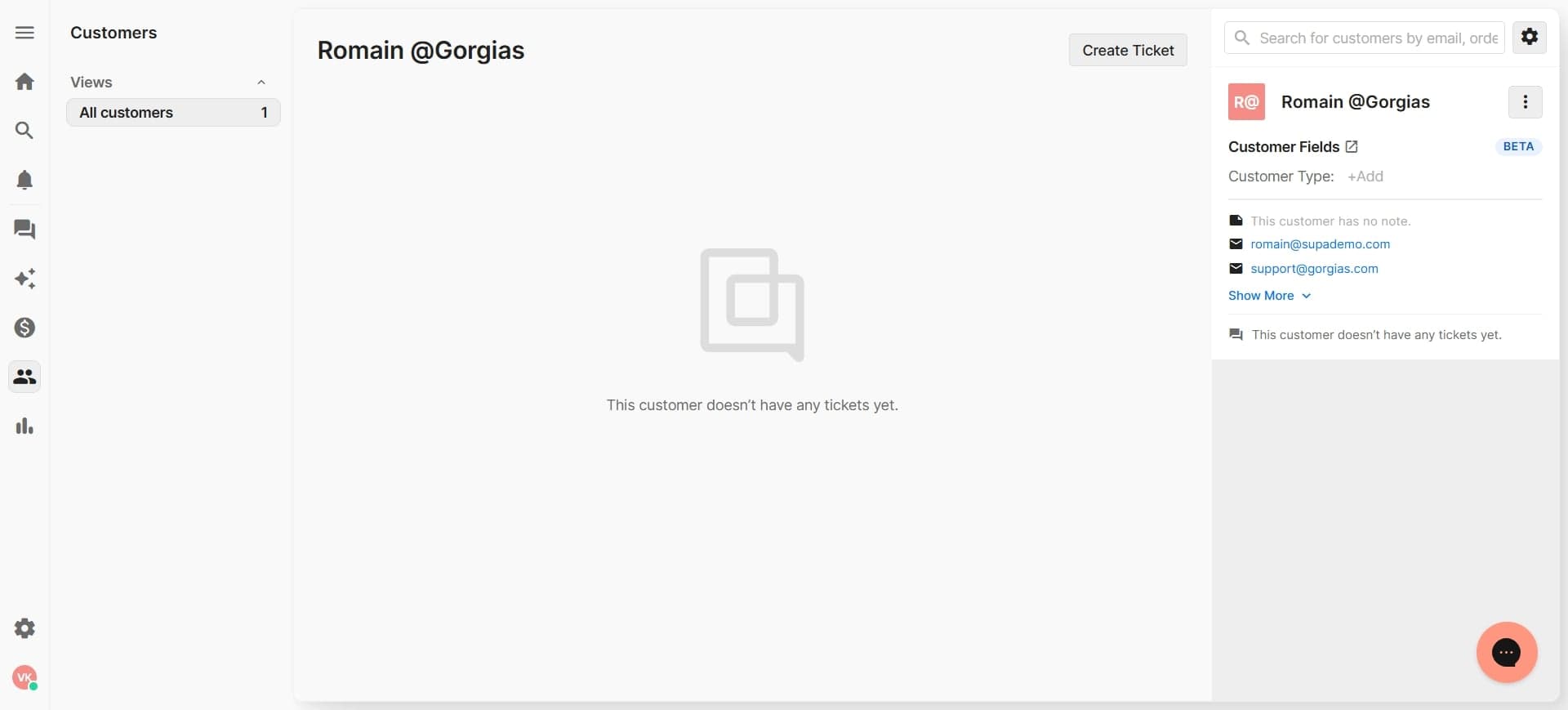
Use the search bar to find the customer profile that contains merged accounts. Enter the customer's name, email, or phone number to quickly locate the profile you need to unmerge.
- 3
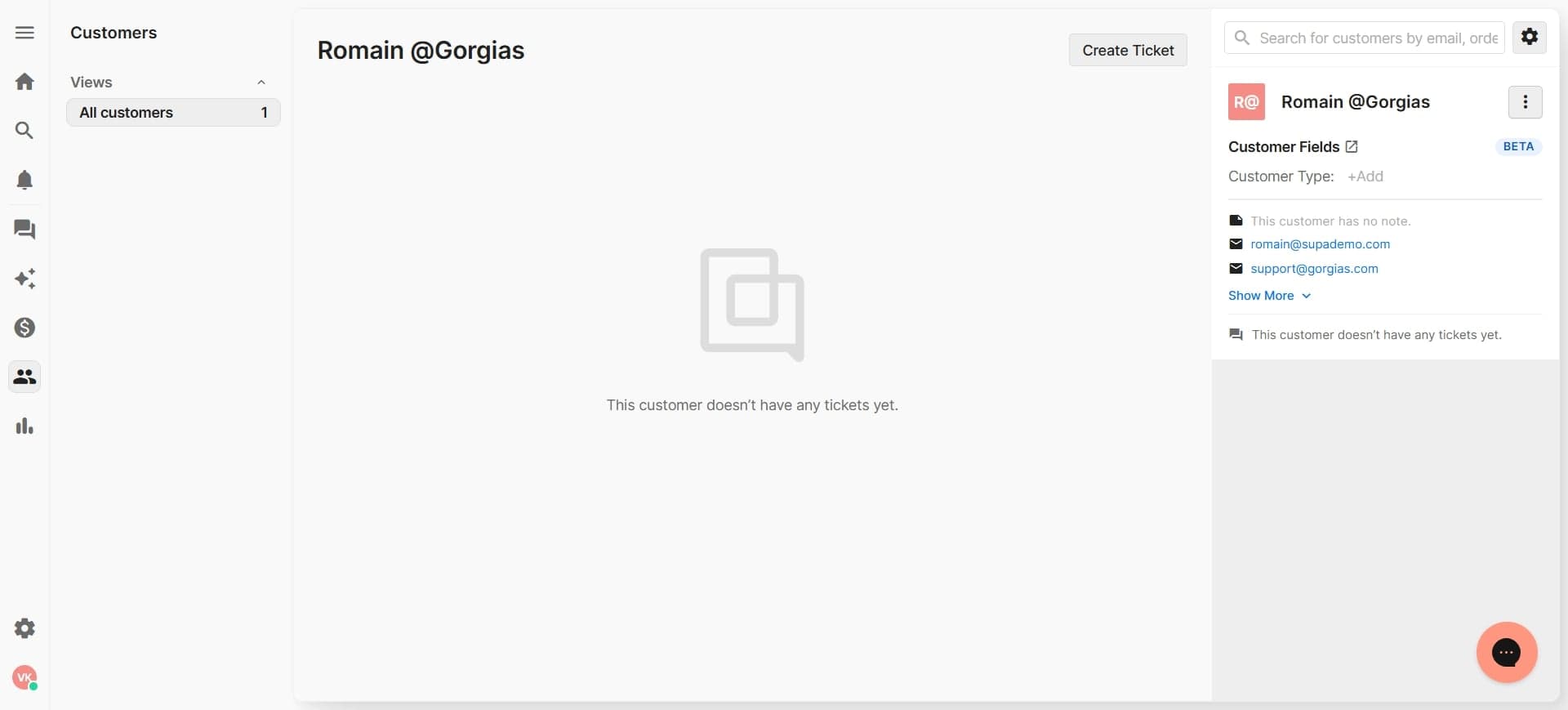
Open the customer profile
Click on the customer profile name or record to open the full customer details page. This will display all information associated with that profile, including order history, interactions, and linked accounts.
- 4
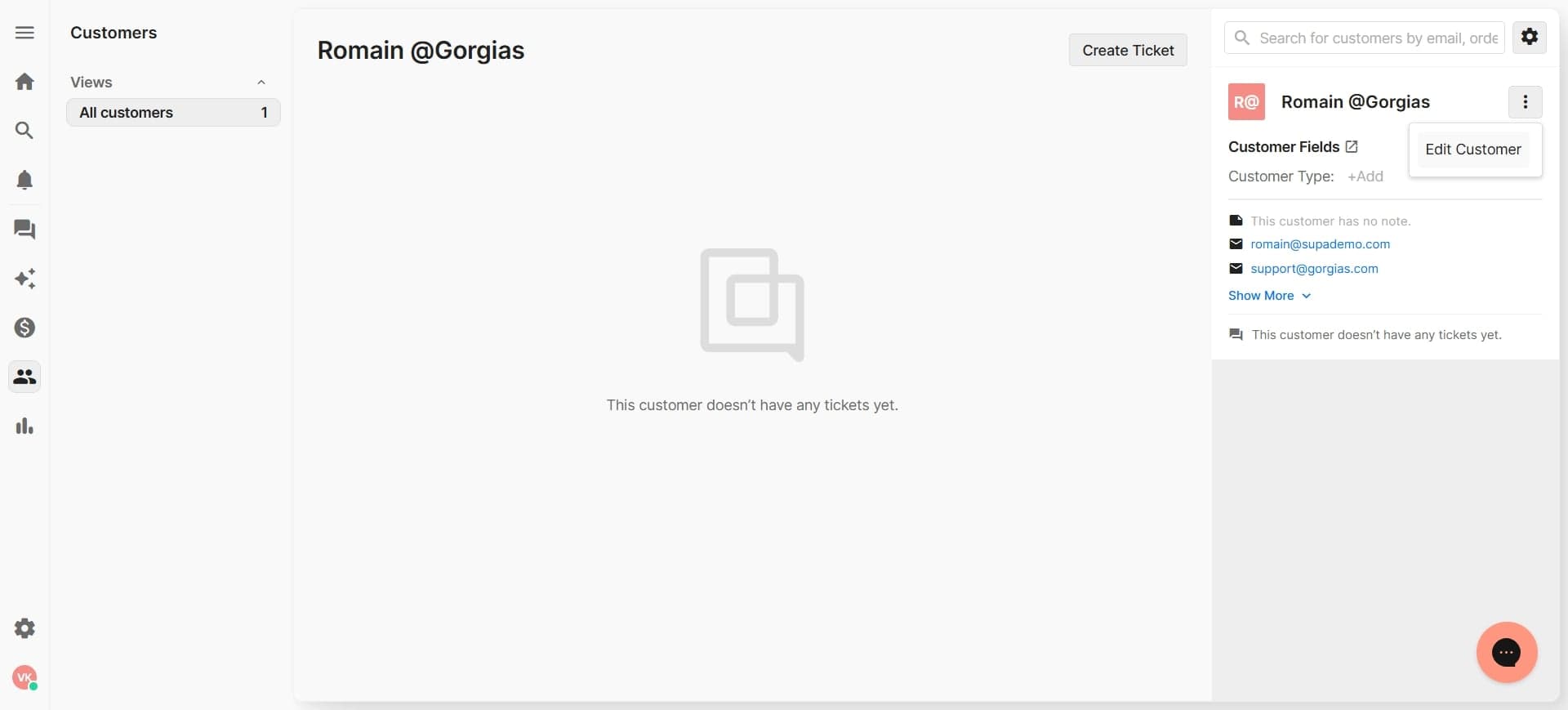
Access profile settings or actions menu
Look for a settings icon, gear icon, or actions menu (typically represented by three dots) on the customer profile page. Click this button to reveal options for managing the customer record.
- 5
Select unmerge or separate profiles option
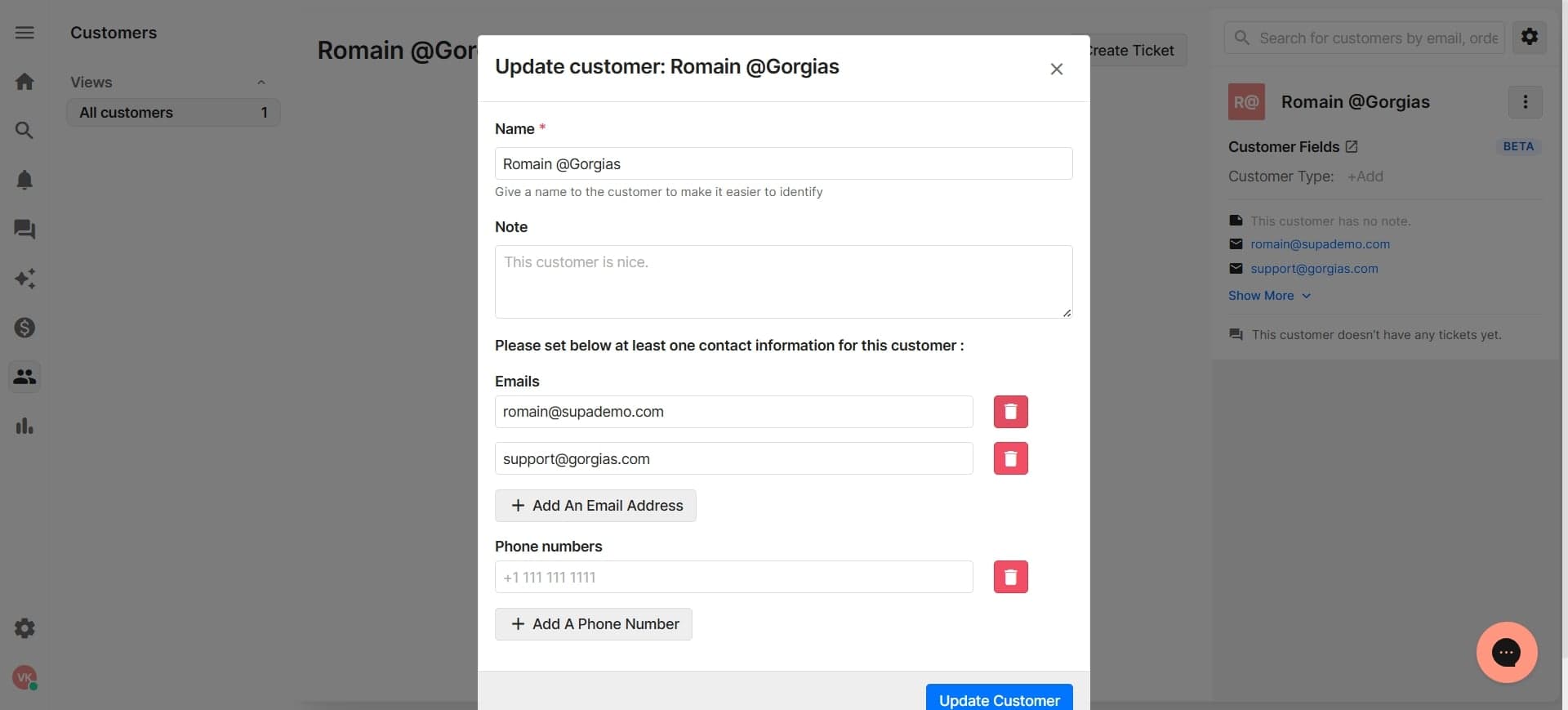
From the dropdown menu, find and click on the unmerge or separate profiles option. This action will display a list of all profiles that have been merged into the current record.
- 6
Review merged profile entries
Examine the list of merged profiles carefully to identify which accounts need to be separated. Gorgias will show you details about each merged profile so you can confirm you're unmerging the correct accounts.
- 7
Select profiles to unmerge
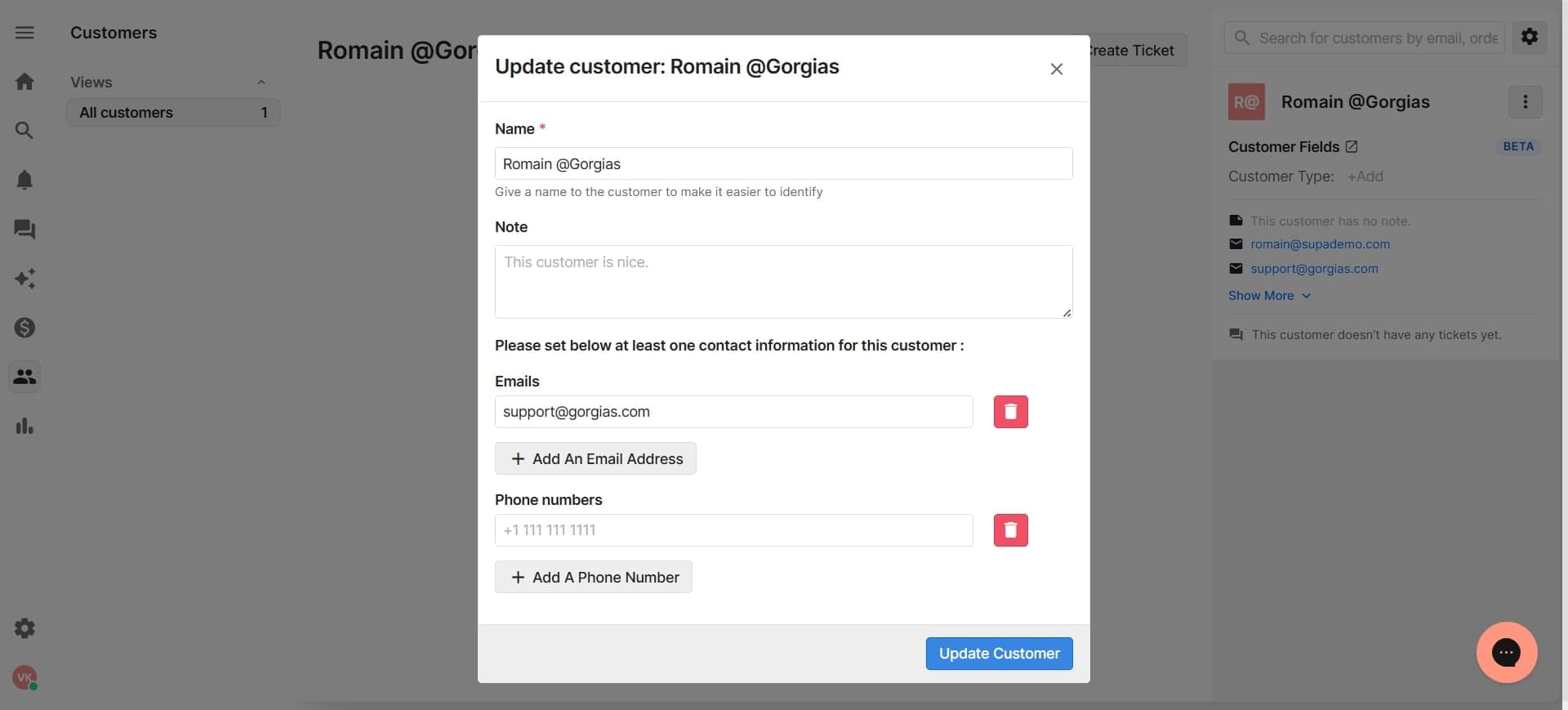
Check the boxes next to the profile or profiles you want to separate from the current customer record. You can unmerge one or multiple profiles depending on your needs.
- 8
Confirm the unmerge action
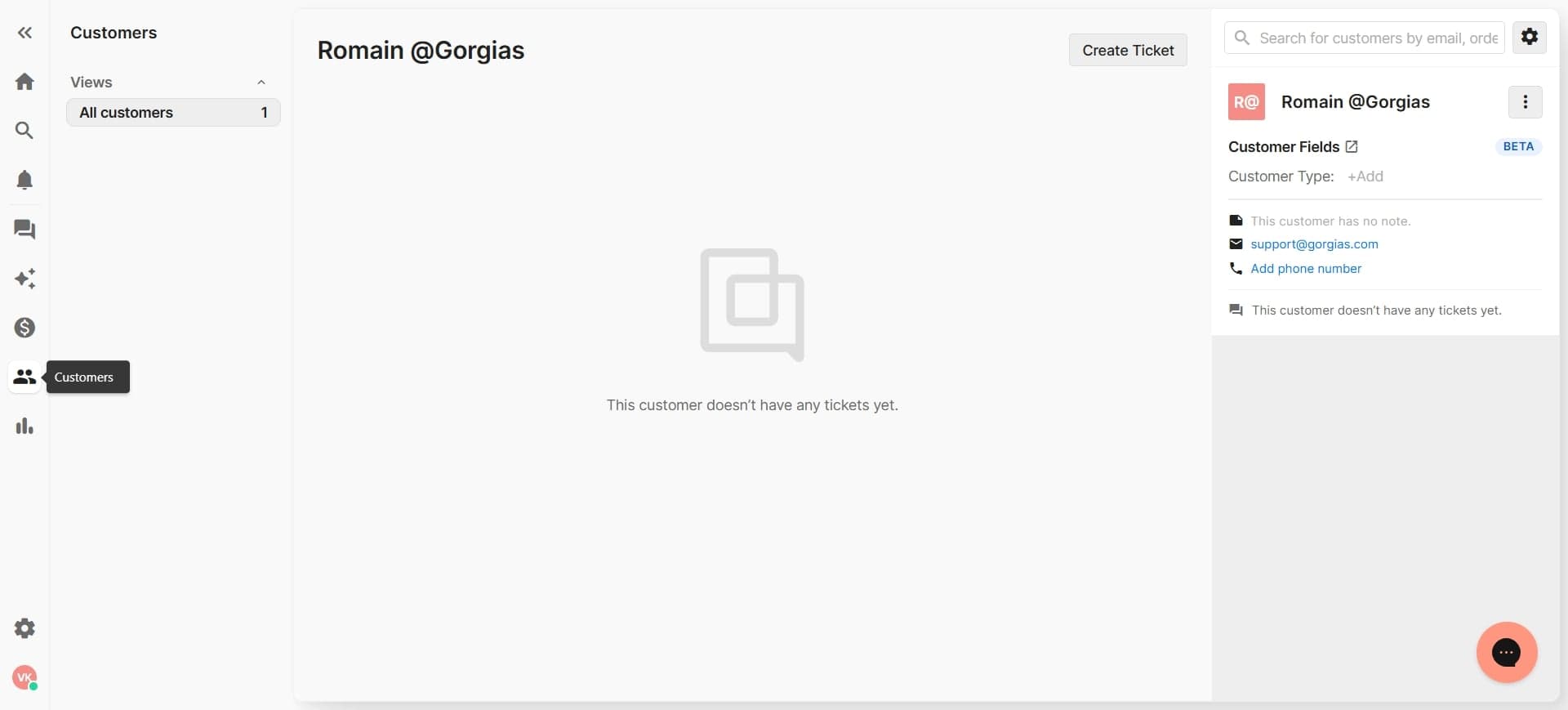
Click the confirm or unmerge button to proceed with separating the selected profiles. Gorgias will ask you to verify this action since it affects customer data organization.
- 9
Verify separation in customer records
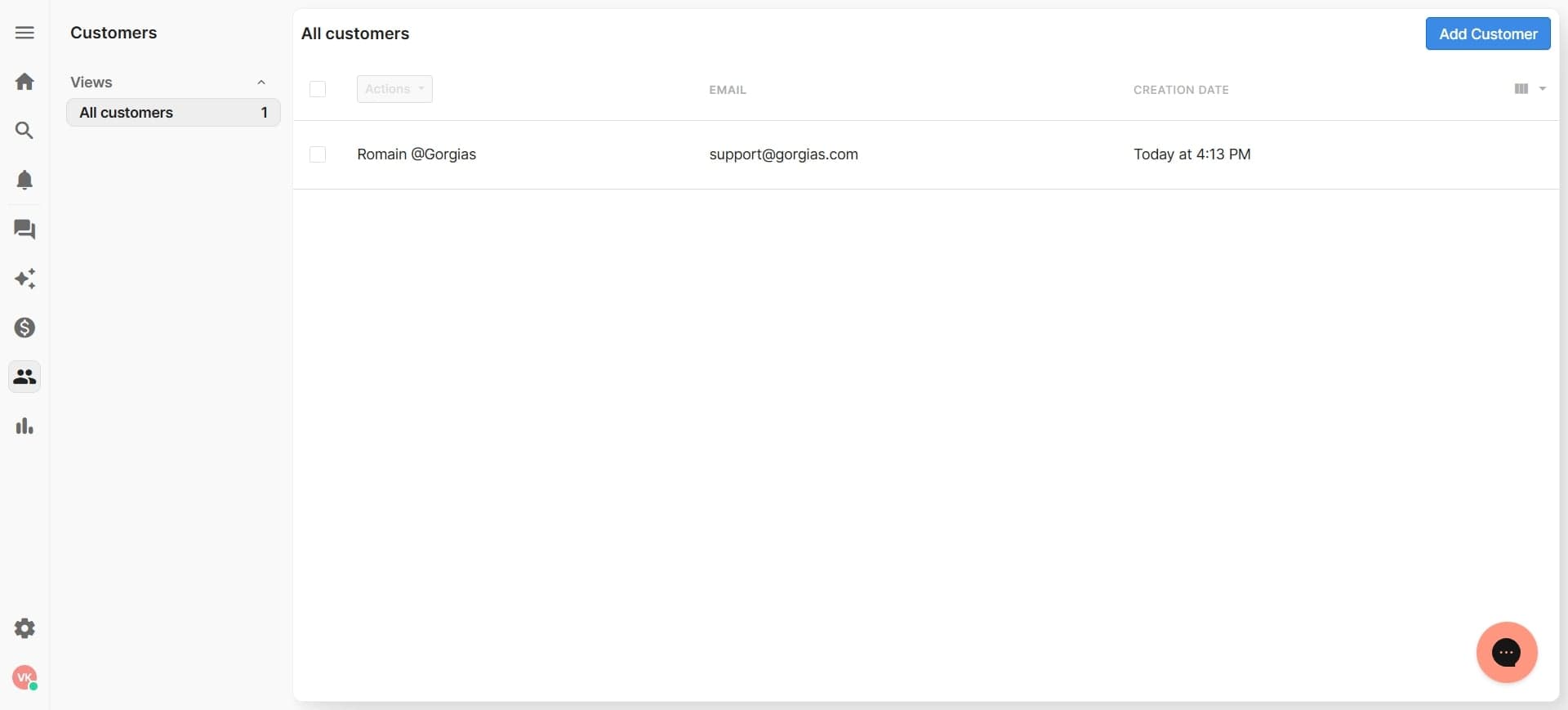
Once the unmerge process completes, navigate back to the Customers section and search for both the original profile and the newly separated profile. Confirm that both profiles now exist as independent records with their respective data intact.
- 10
Update customer information if needed
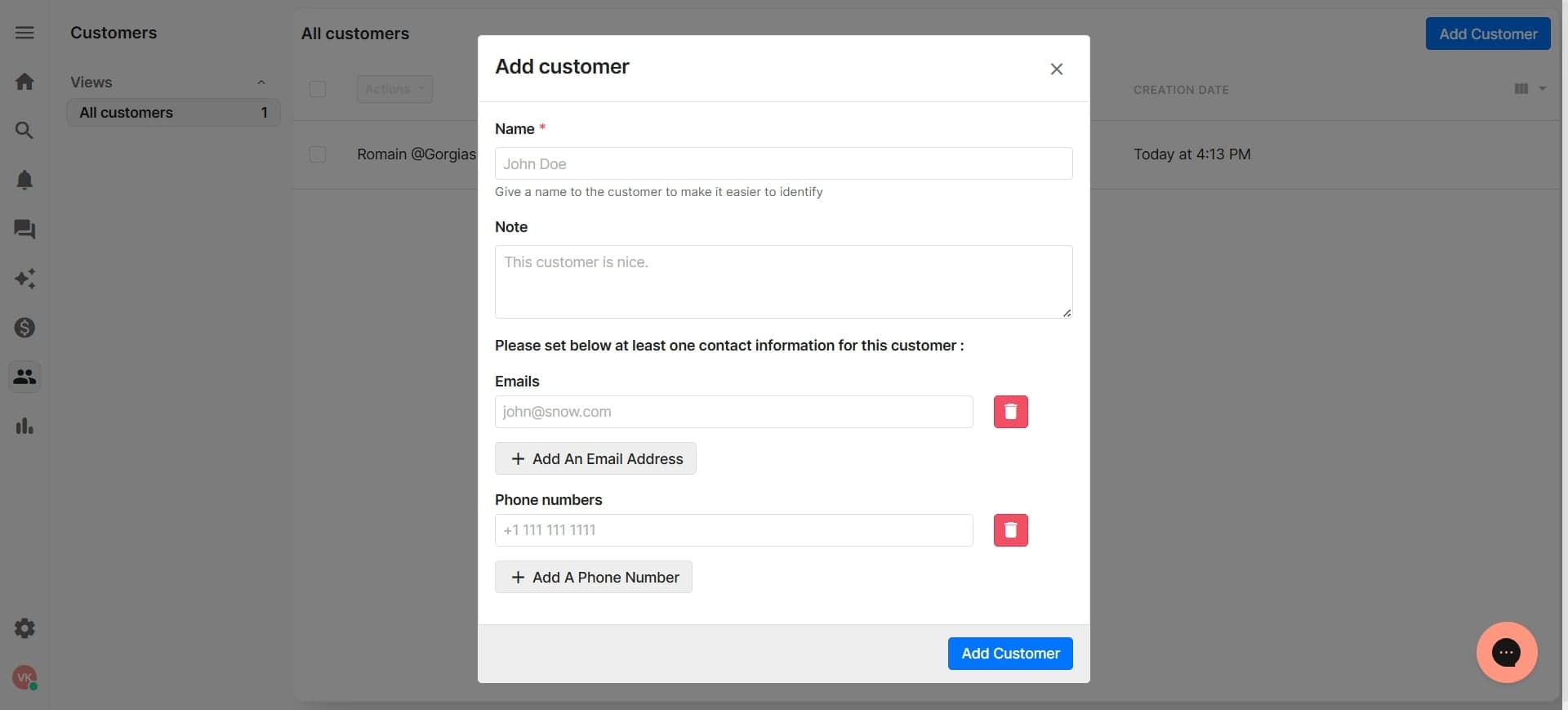
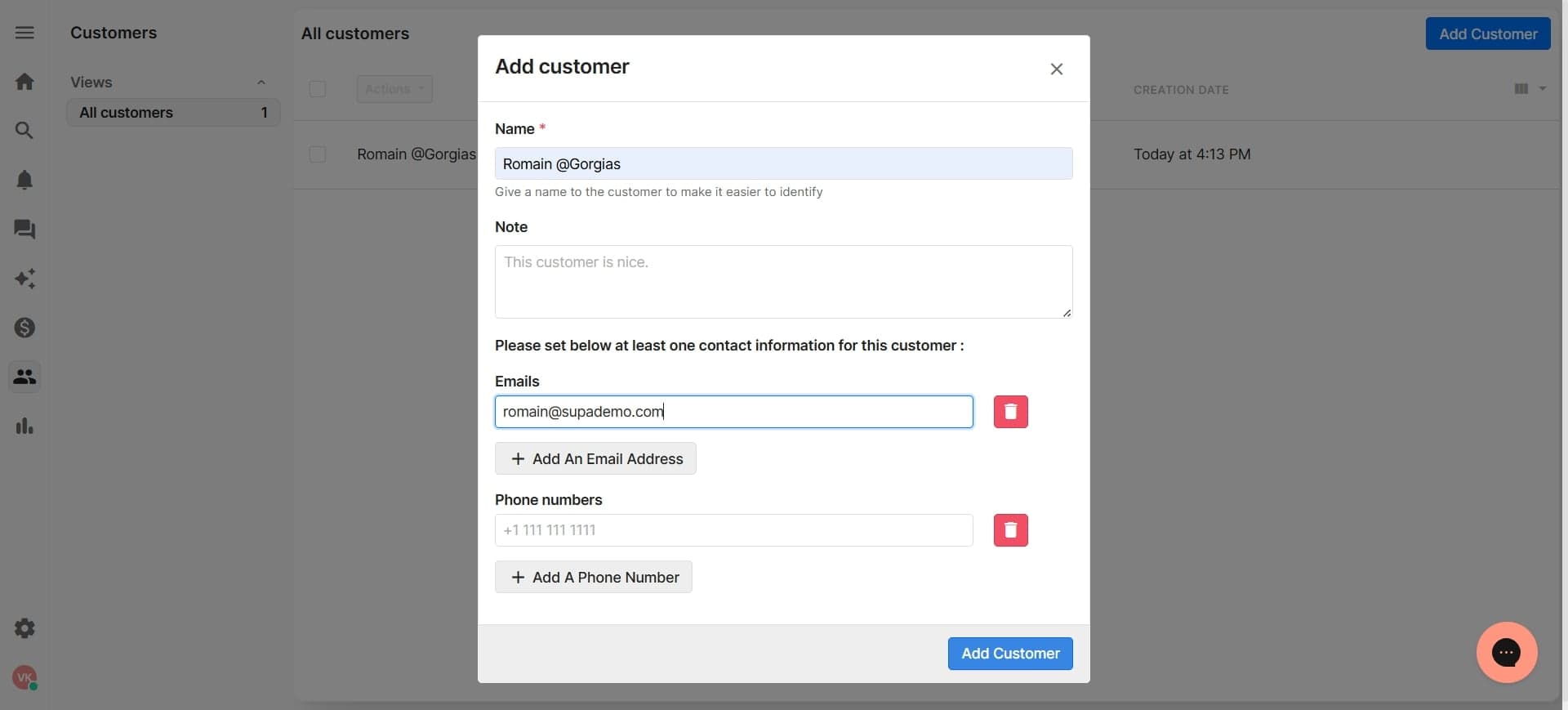
Review both unmerged profiles to ensure all contact information, order history, and notes are correct and properly attributed. Make any necessary corrections to customer details to maintain data accuracy.
Frequently asked questions
Common questions about how to unmerge customer profiles in gorgias.
No, unmerging profiles does not cause data loss. All customer information, order history, and communication records associated with each profile are preserved. The unmerge process simply separates the linked accounts back into individual records.
Yes, Gorgias allows you to select and unmerge multiple profiles in a single action. Simply check the boxes next to all profiles you want to separate and confirm the unmerge action.
If you accidentally unmerge profiles, you can merge them back together using Gorgias's merge function. Contact Gorgias support if you need assistance undoing the change or if you're unsure how to re-merge the accounts.
When viewing a customer profile, you can check the profile settings or actions menu to see if there are any merged profiles listed. If the unmerge option is available and shows linked profiles, then that customer record contains merged accounts.
Unmerging does not delete or lose support tickets or orders, but they remain attributed to their original profile. You may need to review and manually reassign tickets or notes to the correct unmerged profile if necessary.