How to Add the LastPass Extension to Chrome

Adding the LastPass extension to Chrome gives you secure password management directly in your browser. This guide walks you through the installation process so you can start protecting your passwords immediately.
Quick summary
In this tutorial, you'll learn how to download and install the LastPass extension from the Chrome Web Store and set it up for use. By the end, you'll have LastPass integrated into your Chrome browser and ready to manage your passwords.
Why this matters
Installing the LastPass extension streamlines your password management workflow by providing instant access to your vault while browsing. Having LastPass integrated into Chrome eliminates the need to manually copy and paste passwords, improving both security and convenience.
Step-by-step guide
- 1
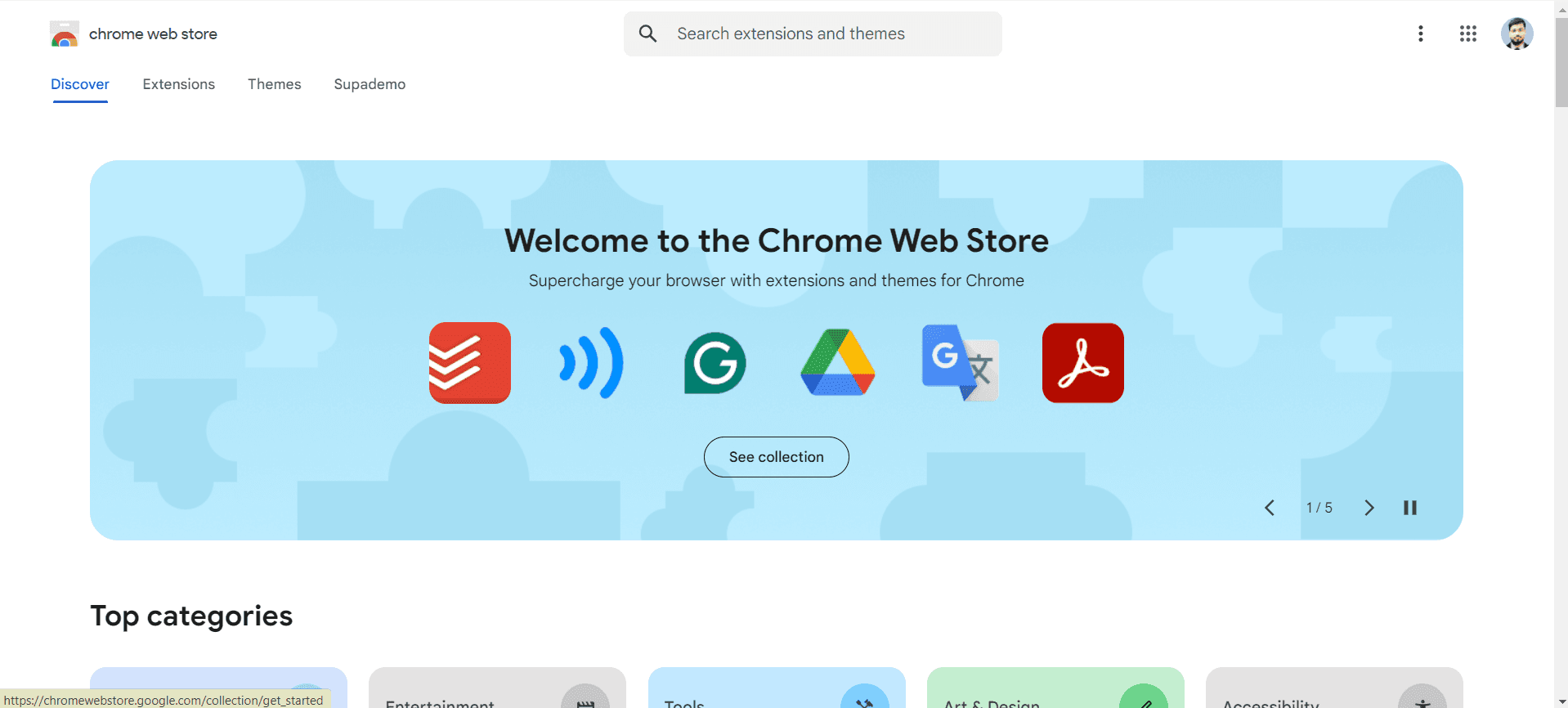
Open Chrome Web Store
Launch Google Chrome and navigate to the Chrome Web Store. You can do this by searching for "LastPass Chrome extension" or going directly to the extensions marketplace.
- 2
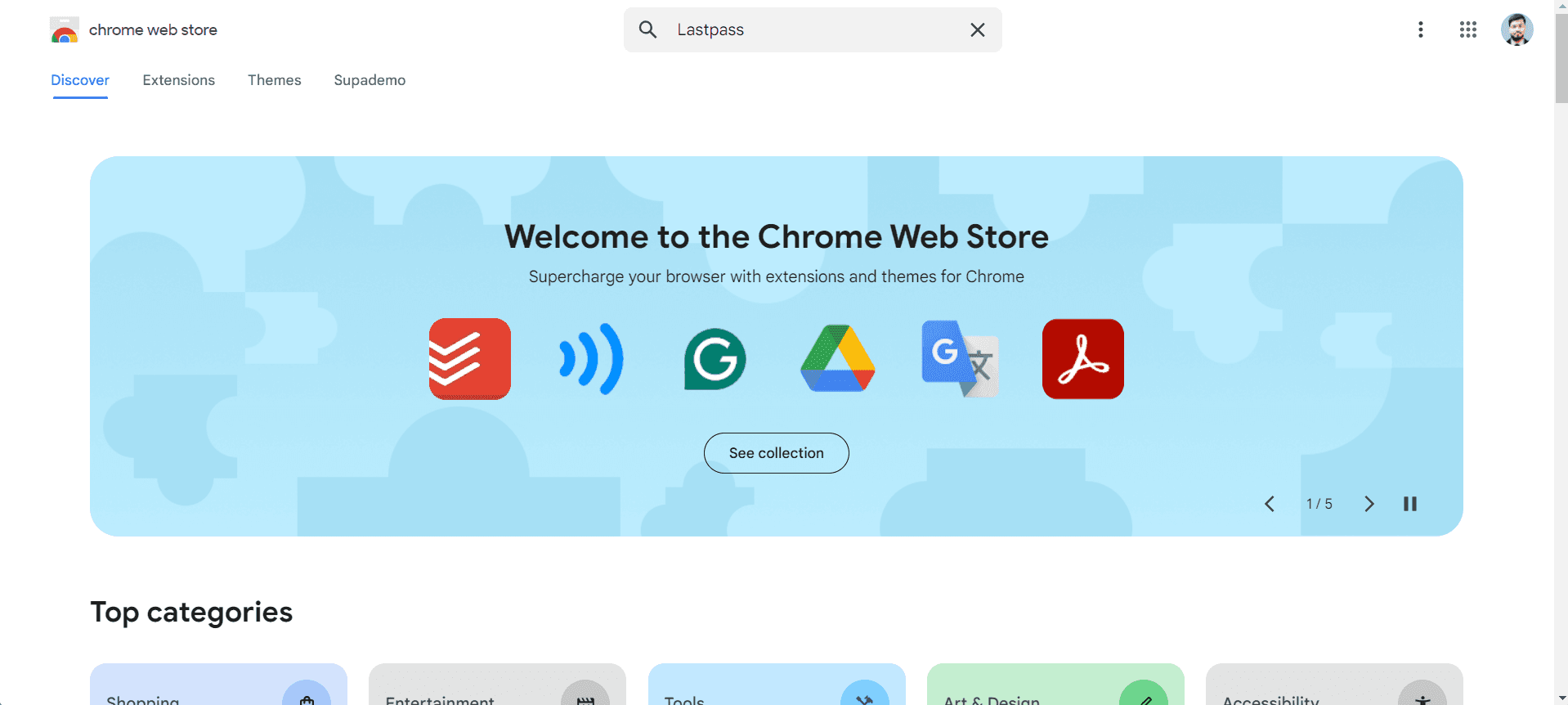
Search for LastPass extension
Use the search bar in the Chrome Web Store to find the official LastPass extension. Look for the extension with the LastPass logo to ensure you're installing the correct, verified version.
- 3
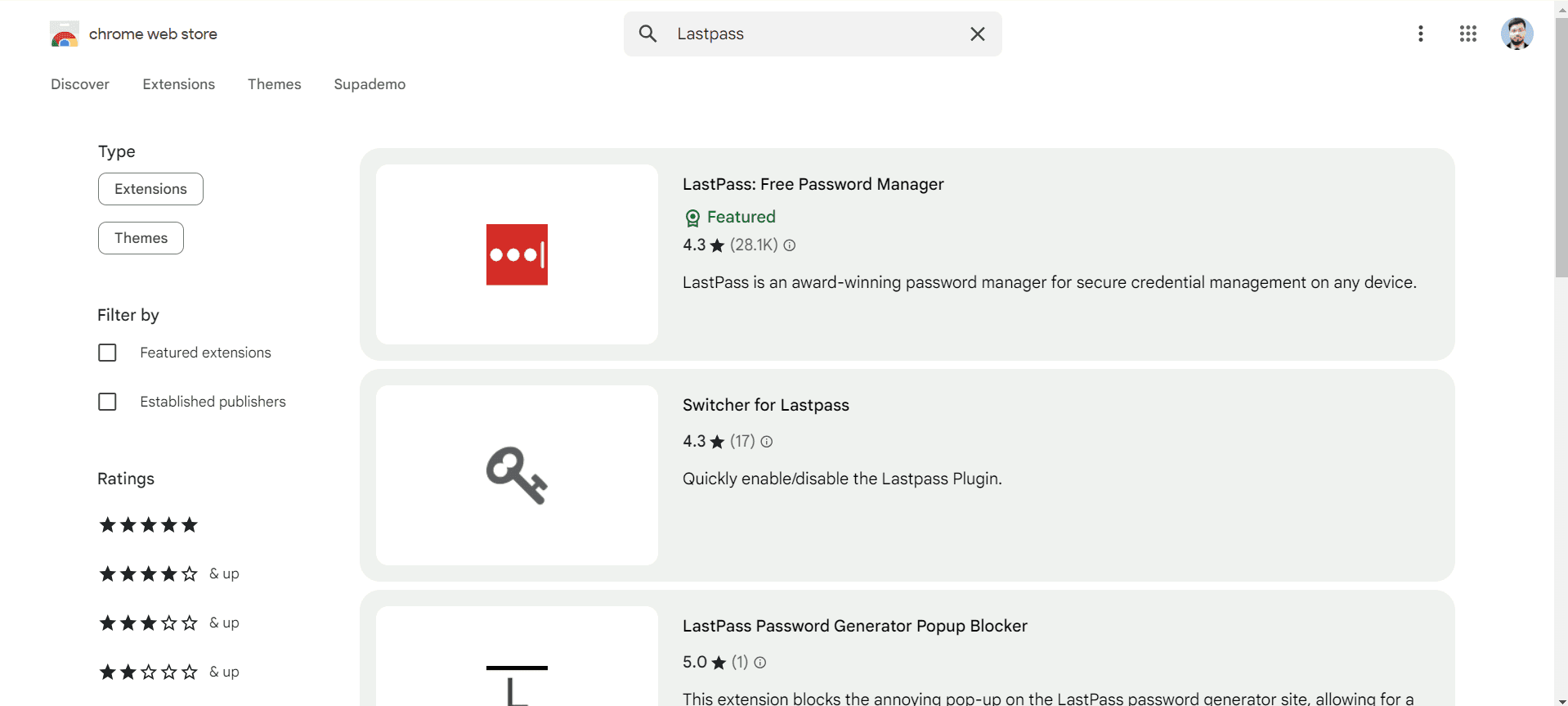
Click Add to Chrome
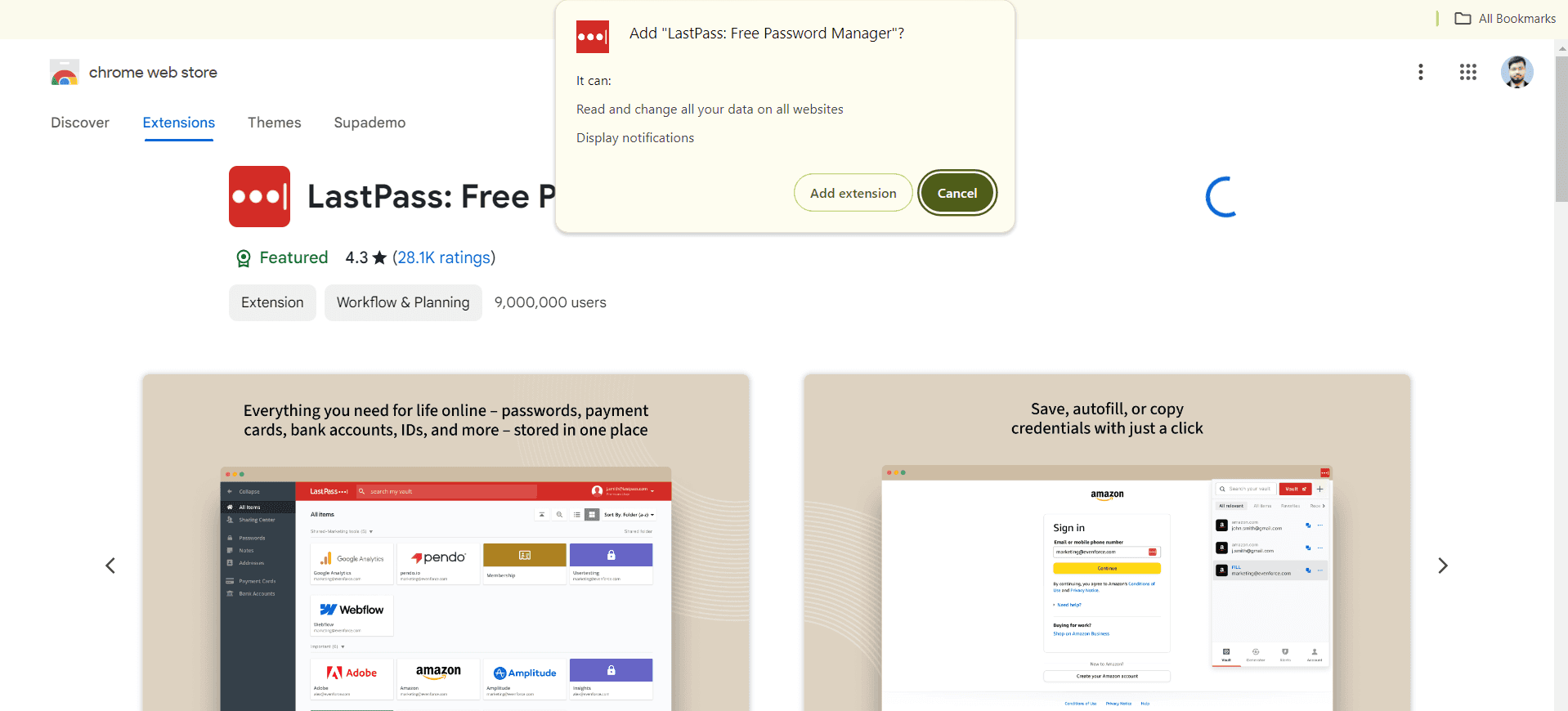
On the LastPass extension page, click the "Add to Chrome" button. A confirmation dialog will appear asking you to confirm the installation.
- 4
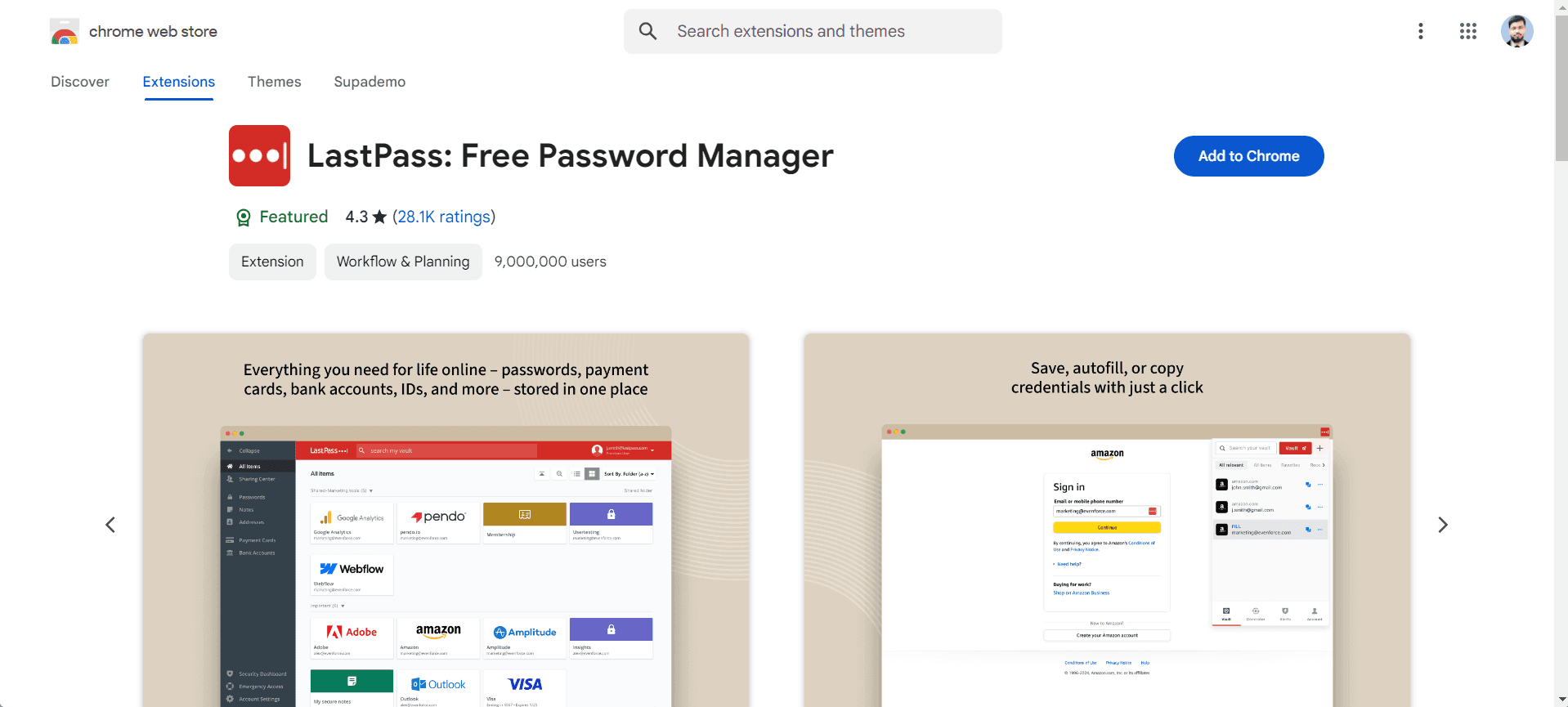
Confirm permissions
Review the permissions that LastPass needs to function properly, then click "Add extension" to complete the installation. Chrome will add LastPass to your browser toolbar.
- 5
Sign in to your LastPass account
Click the LastPass icon in your Chrome toolbar and sign in with your LastPass master password. Once authenticated, your extension is ready to use and will begin syncing your passwords.
Frequently asked questions
Common questions about how to add the lastpass extension to chrome.
Yes, the basic LastPass extension is available for free in the Chrome Web Store. LastPass also offers a premium subscription with additional features like advanced security tools and priority support, but the core extension functionality is free to use.
Always install from the official Chrome Web Store and verify the extension is published by LastPass, Inc. The official extension will have a blue verification badge and significant number of downloads and reviews from users.
Yes, once you sign in to your LastPass account, the extension will automatically detect login forms and offer to fill in your saved credentials. You can enable or disable auto-fill in the LastPass settings if you prefer manual control.
Yes, you can install the LastPass extension on multiple Chrome profiles. Each profile maintains its own separate LastPass sign-in, allowing you to use different accounts if needed.
Check that you have sufficient permissions in Chrome and that your browser is up to date. If installation still fails, try clearing your browser cache and cookies, then attempt installation again. You can also contact LastPass support for additional troubleshooting.