How to Export LastPass Passwords

Exporting your LastPass passwords allows you to back up your credentials, migrate to another password manager, or maintain a secure offline record. This guide walks you through the export process step by step, ensuring you can safely access and transfer your password data.
Quick summary
In this tutorial, you'll learn how to export all your passwords from LastPass using the built-in export feature. You'll navigate to Advanced Options and complete the export process to download your credentials in a secure format.
Why this matters
Exporting your passwords is essential for data portability, disaster recovery, and switching between password managers without losing access to your accounts. Having a backup of your credentials ensures you're never locked out of your digital life due to service changes or account issues.
Step-by-step guide
- 1
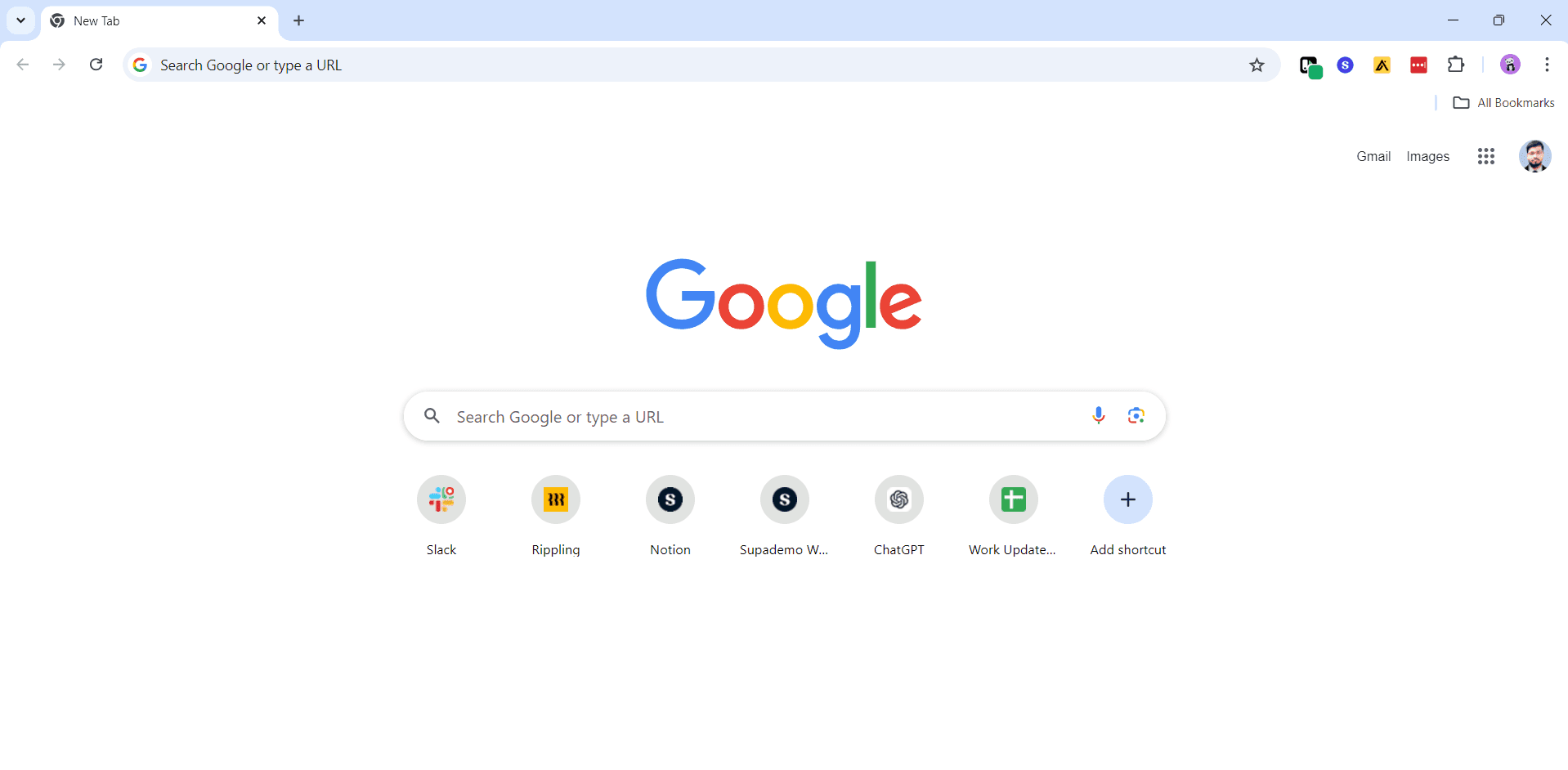
Upload your credentials
Begin by uploading your credentials into LastPass. This ensures all your password data is synchronized and ready for export.
- 2
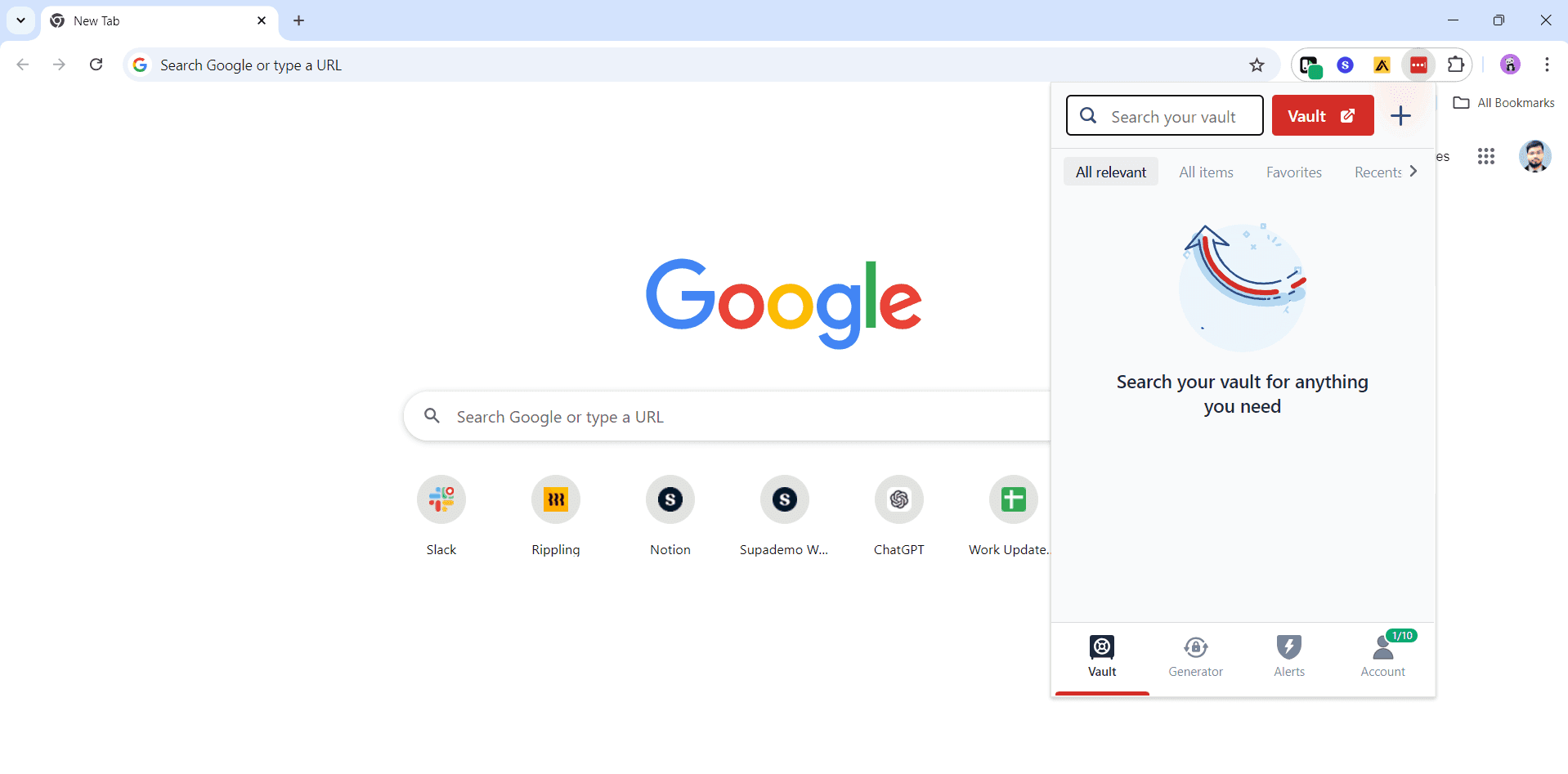
Upload your credentials again
Confirm the upload of your credentials to LastPass. This step verifies that all your data has been properly synced before proceeding to export.
- 3
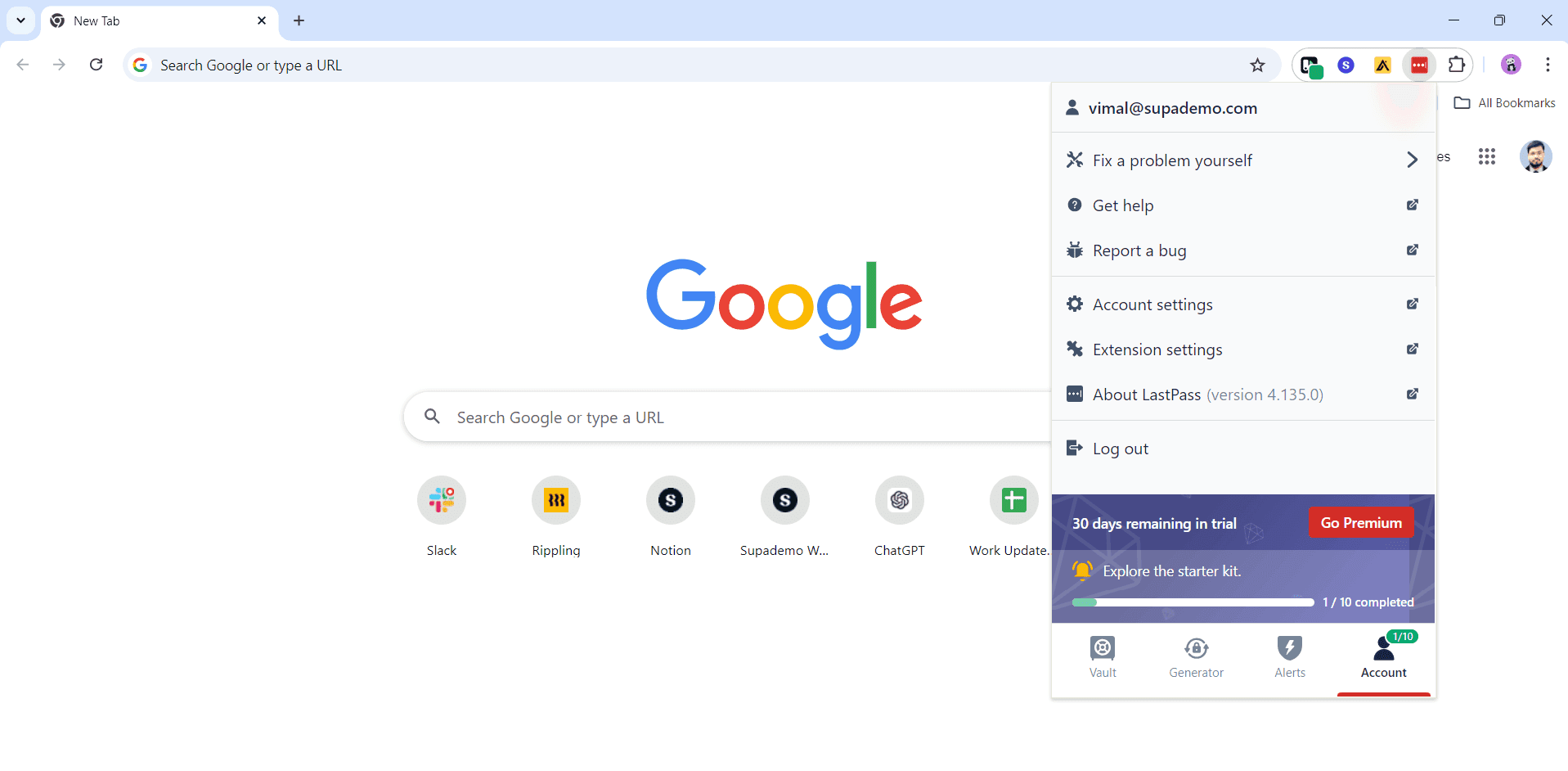
Upload your credentials once more
Complete the final upload step to ensure all password entries and associated data are fully loaded into your LastPass account.
- 4
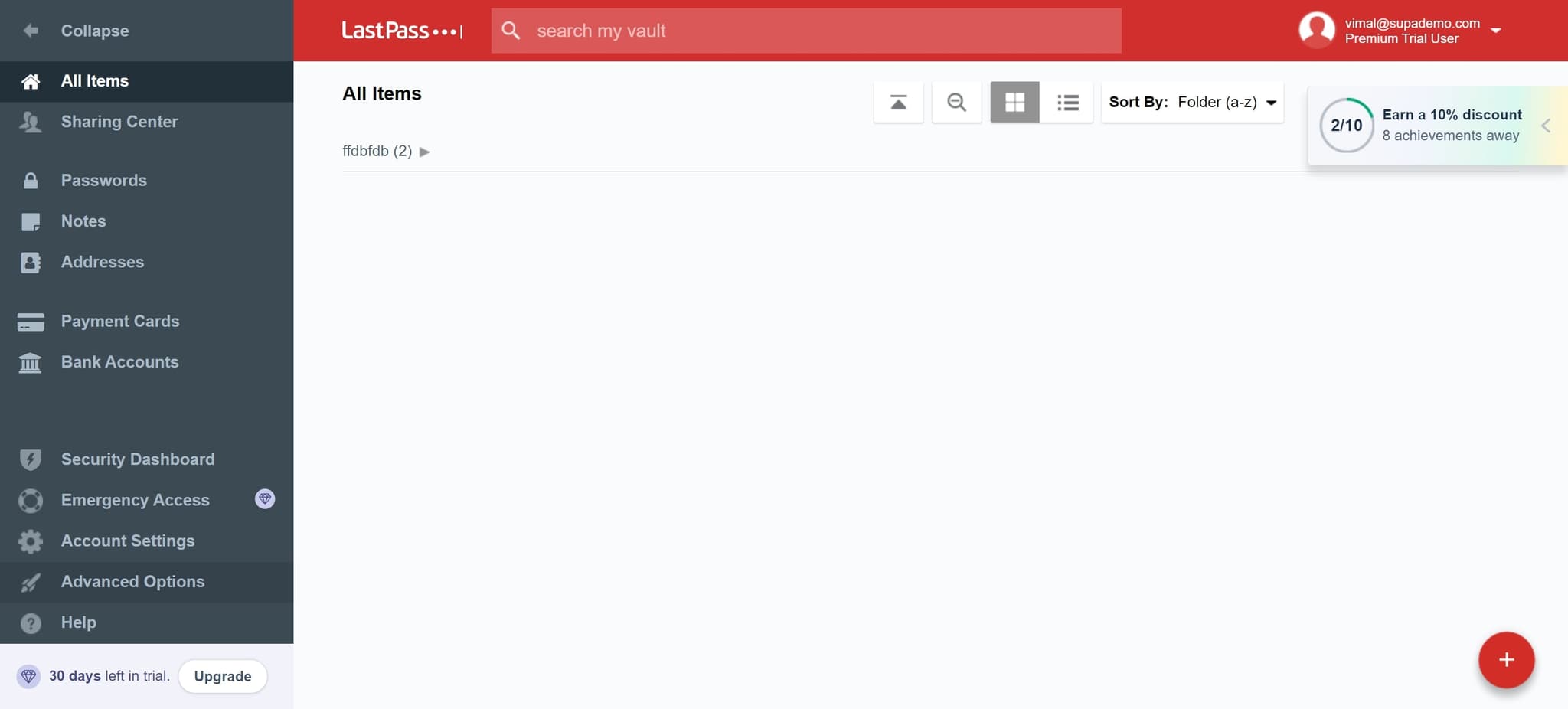
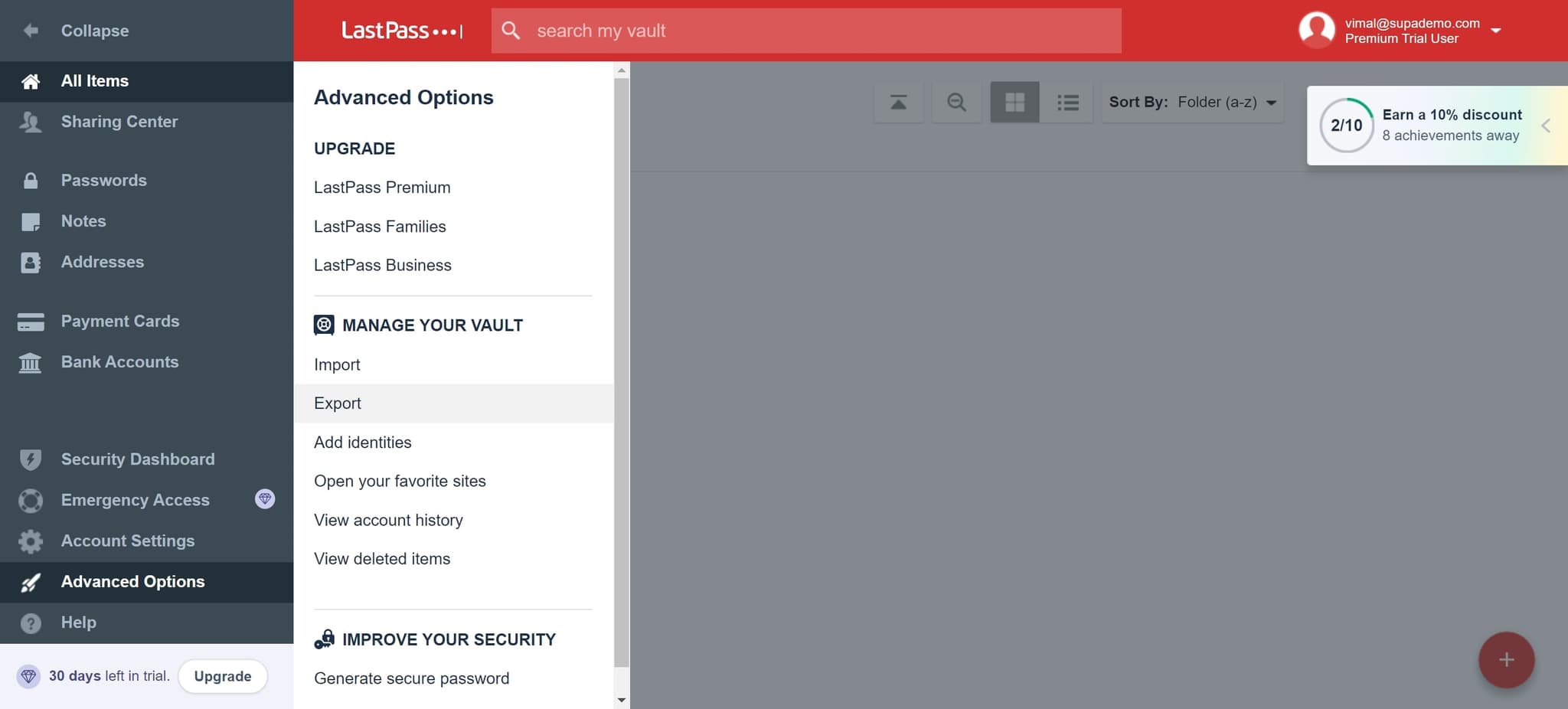
Click on Advanced Options
Locate and click the Advanced Options button within the LastPass interface. This will reveal additional features, including the export functionality.
- 5
Click on Export
Select the Export option from the Advanced Options menu. LastPass will prepare your passwords for download in a secure format that you can save to your device.
Frequently asked questions
Common questions about how to export lastpass passwords.
LastPass typically exports passwords in CSV format, which is a widely compatible file type that can be imported into most password managers. The file will contain your usernames, passwords, URLs, and other associated account information in columns.
Exporting passwords is safe as long as you store the exported file securely. Keep the file on an encrypted device or encrypted storage, and delete it once you've imported it into another system. Never share the export file with others or leave it in unsecured locations.
The standard LastPass export function downloads all stored passwords at once. If you need to export specific credentials, you may need to export all passwords and then manually delete the ones you don't need from the file before importing elsewhere.
No, exporting passwords only creates a copy of your data. Your passwords will remain safely stored in your LastPass account, and the export process does not remove or modify anything in your vault.
After downloading, you can import the file into another password manager, store it as a backup on an encrypted device, or both. Once you've successfully imported the data elsewhere, securely delete the export file from your device to minimize the risk of unauthorized access.