How to Remove LastPass from Chrome

Removing the LastPass extension from Chrome is a straightforward process that takes just a few minutes. Whether you're switching to a different password manager or no longer need the service, this guide walks you through each step to cleanly uninstall the extension from your browser.
Quick summary
In this tutorial, you'll learn how to completely remove the LastPass extension from Google Chrome. We'll cover locating the extension in your browser, accessing the removal options, and confirming the uninstallation to ensure it's fully deleted.
Why this matters
Removing unused browser extensions helps improve browser performance, reduces security surface area, and declutters your browsing experience. If you've switched password managers or no longer use LastPass, uninstalling it prevents unnecessary resource consumption and maintains a cleaner browser environment.
Step-by-step guide
- 1
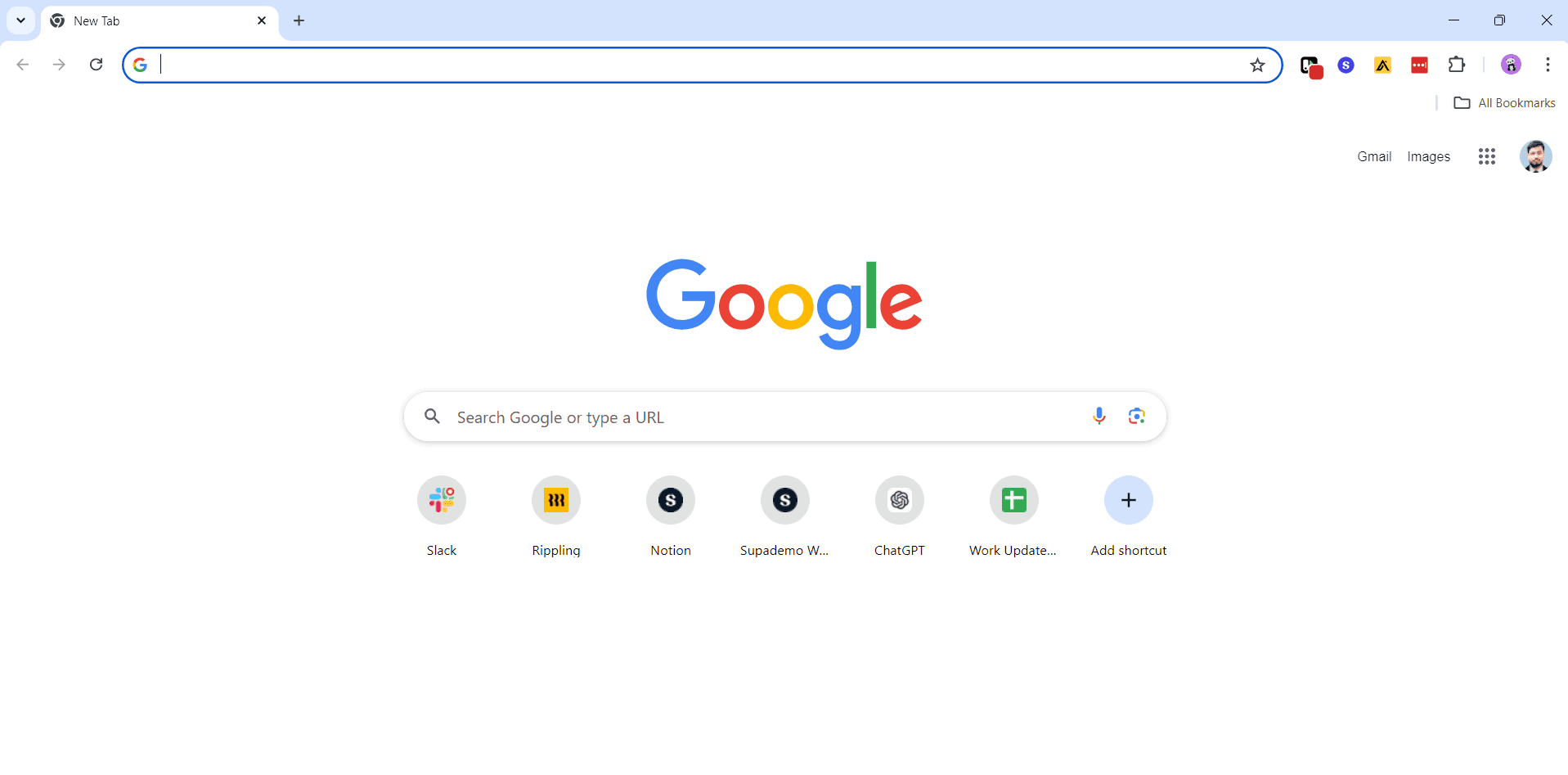
Open Chrome Extensions Menu
Click the three-dot menu icon in the top-right corner of Chrome, then select 'More tools' and choose 'Extensions'. This opens your extensions dashboard where all installed extensions are listed.
- 2
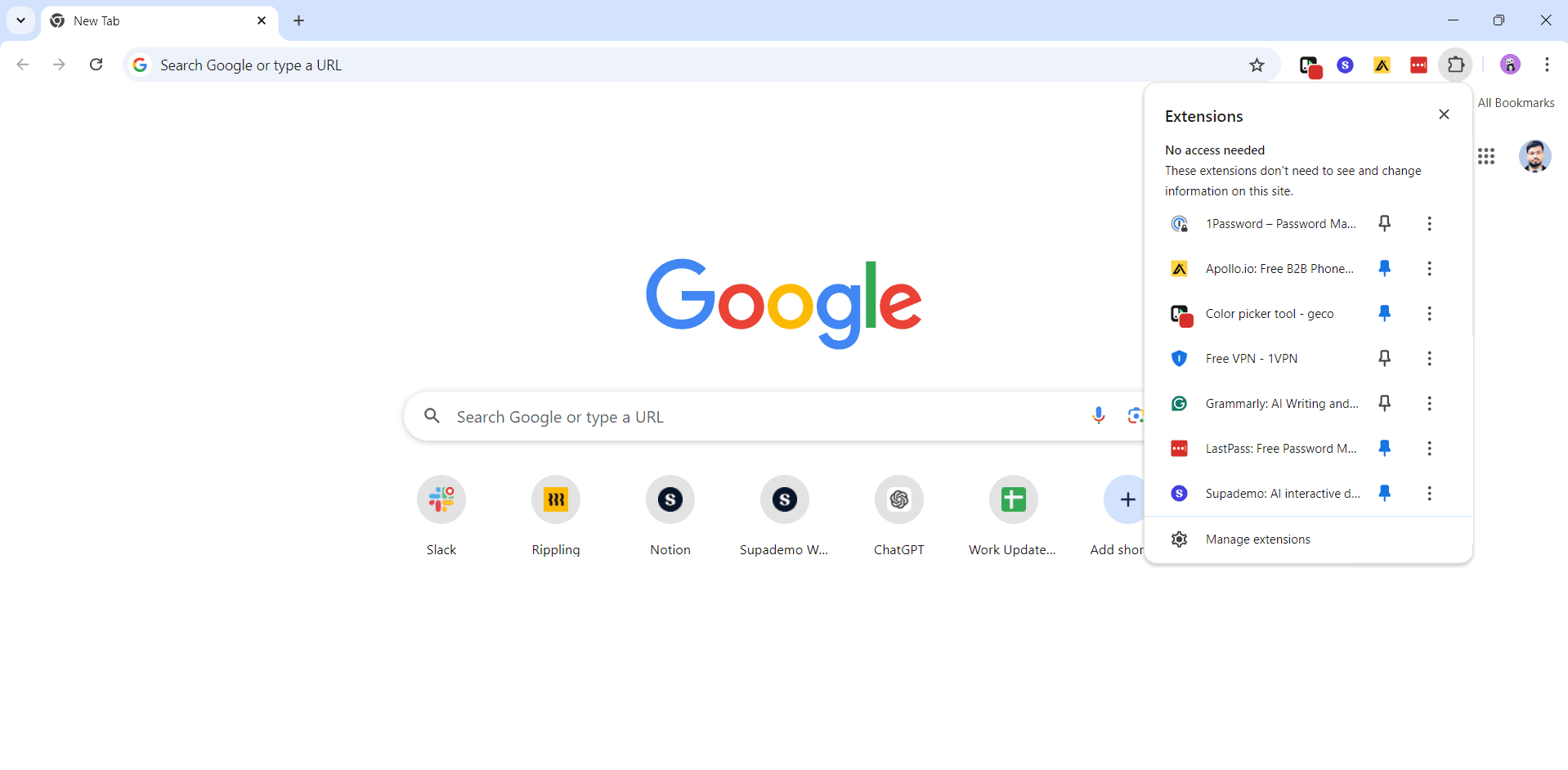
Locate LastPass Extension
Scroll through your extensions list to find LastPass. You'll see the LastPass icon and name displayed along with a toggle switch and more options button on the right side of the entry.
- 3
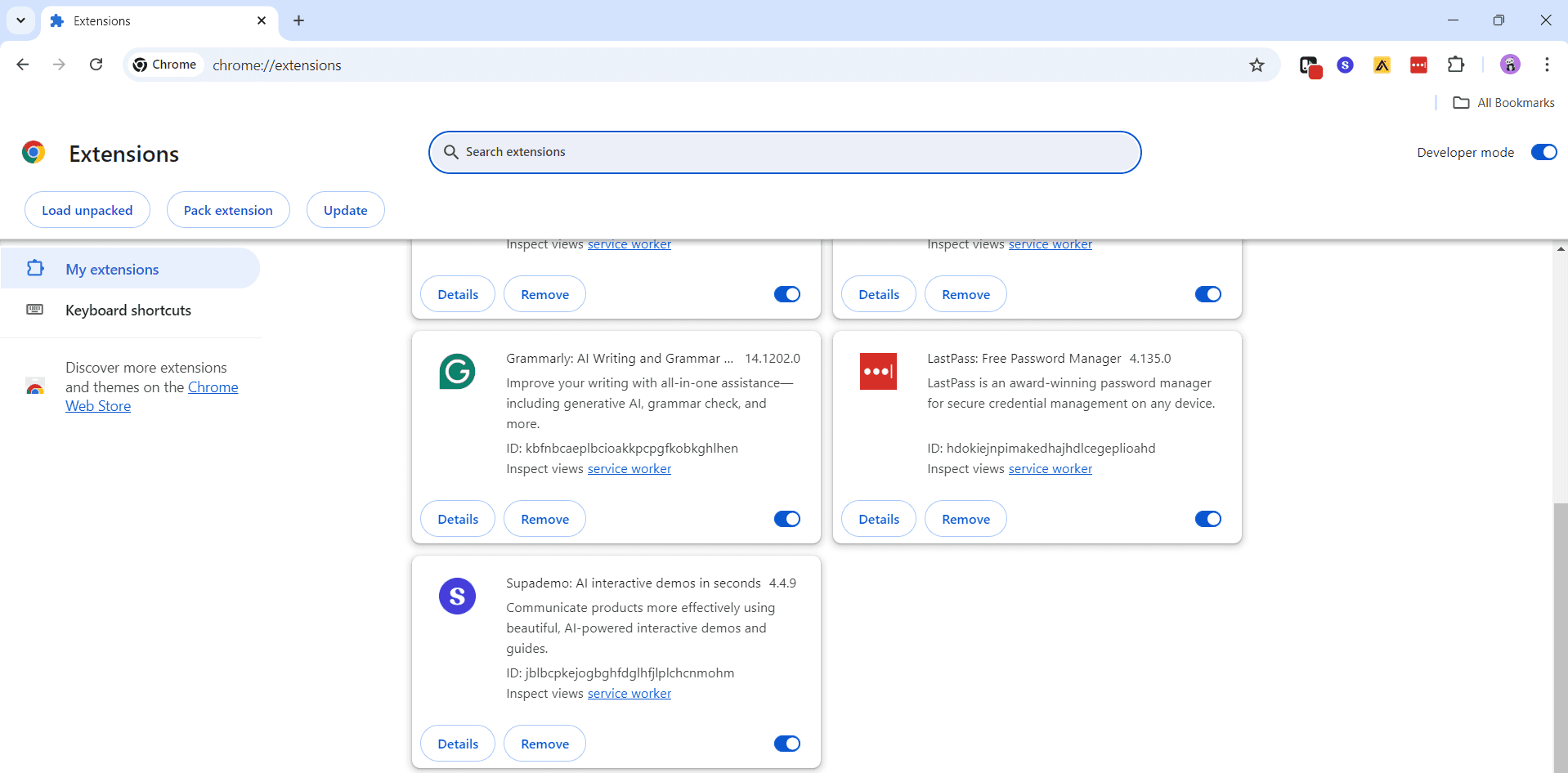
Click Remove Button
Click the three-dot menu icon on the LastPass extension card, then select 'Remove from Chrome'. A confirmation popup will appear asking you to verify the removal action.
- 4
Confirm Removal
Click 'Remove' in the confirmation dialog to proceed with uninstalling the extension. Chrome will immediately remove LastPass from your browser and clear any associated data.
- 5
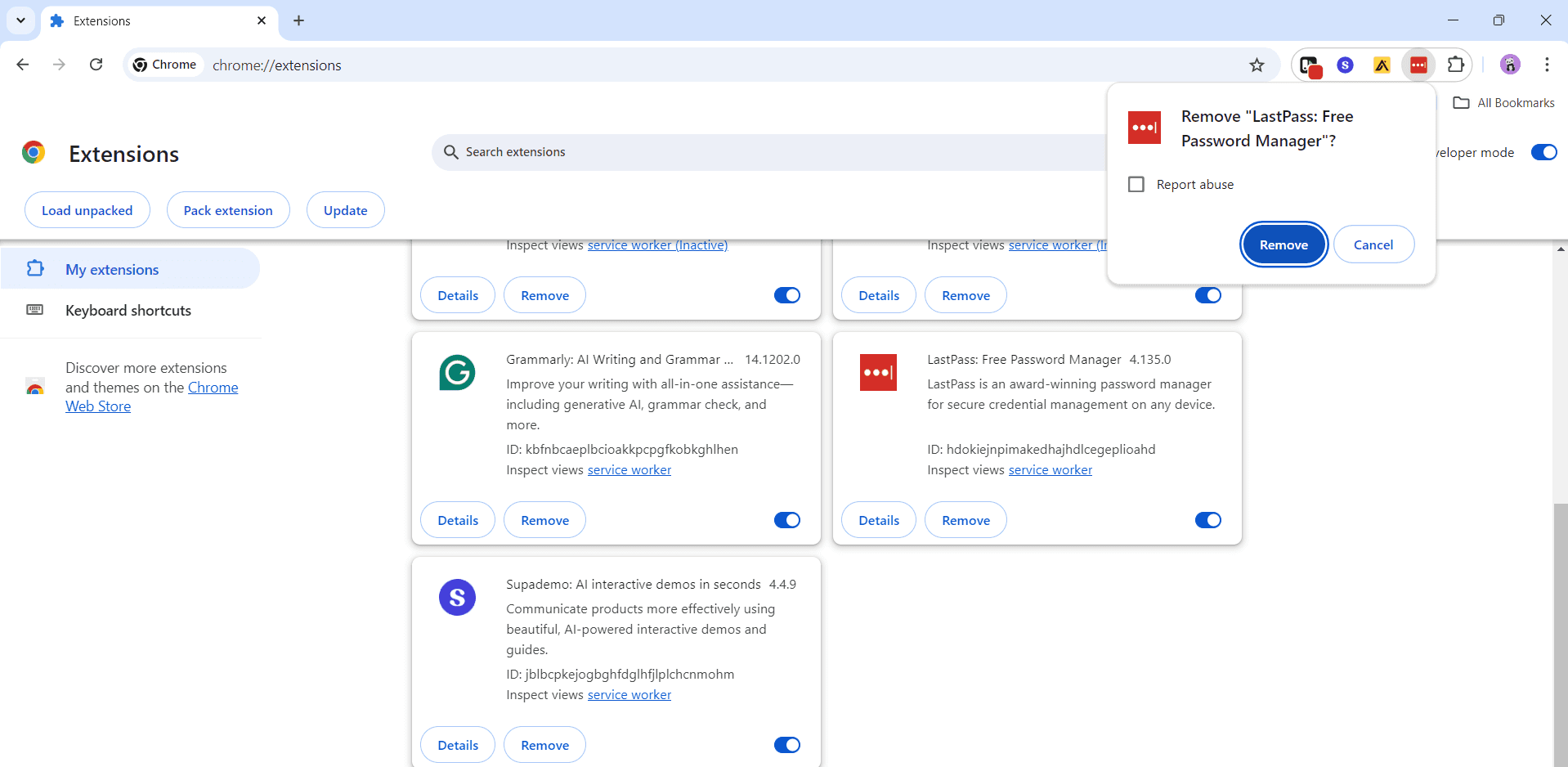
Verify Uninstallation
Return to your extensions list to confirm that LastPass is no longer displayed. The extension should be completely gone from your Chrome browser, and you may notice improved performance.
Frequently asked questions
Common questions about how to remove lastpass from chrome.
No, uninstalling the LastPass extension from Chrome does not delete your passwords. Your passwords remain safely stored in your LastPass vault. If you reinstall the extension or access LastPass through their website or another browser, you can still retrieve them.
Yes, absolutely. You can reinstall LastPass anytime by visiting the Chrome Web Store, searching for LastPass, and clicking 'Add to Chrome'. Your vault data will still be accessible once you log back in with your master password.
LastPass-specific autofill functionality will stop working immediately after uninstallation. However, any passwords or information you manually saved to Chrome's native password manager will remain intact and continue to work with autofill.
Uninstalling LastPass from Chrome only affects that browser. If you use LastPass on Firefox, Safari, Edge, or other browsers, you'll need to remove it separately from each one using that browser's extension management interface.
If LastPass appears to still be installed, try refreshing your extensions page or restarting Chrome. If the issue persists, clear your browser cache and cookies, then check the extensions list again. As a last resort, completely close and reopen Chrome.