How to Connect LinkedIn to HubSpot

Connecting LinkedIn to HubSpot allows you to manage your LinkedIn social presence directly from your HubSpot account, enabling seamless social media marketing and lead engagement. This integration streamlines your workflow by centralizing your social accounts and content management in one platform. Learn how to establish this connection in just a few simple steps.
Quick summary
In this tutorial, you'll learn how to connect your LinkedIn account to HubSpot by navigating through the marketing settings and authorizing the connection. You'll access the social accounts section, select LinkedIn, grant permissions, and complete the setup process. By the end, your LinkedIn account will be fully integrated with HubSpot.
Why this matters
Connecting LinkedIn to HubSpot enables you to schedule posts, monitor social engagement, and track lead interactions from a single dashboard. This integration saves time by eliminating the need to switch between multiple platforms and provides better insights into your social media performance. For teams managing social media strategy alongside sales and marketing, this connection is essential for maintaining consistent messaging and coordinating campaigns.
Step-by-step guide
- 1
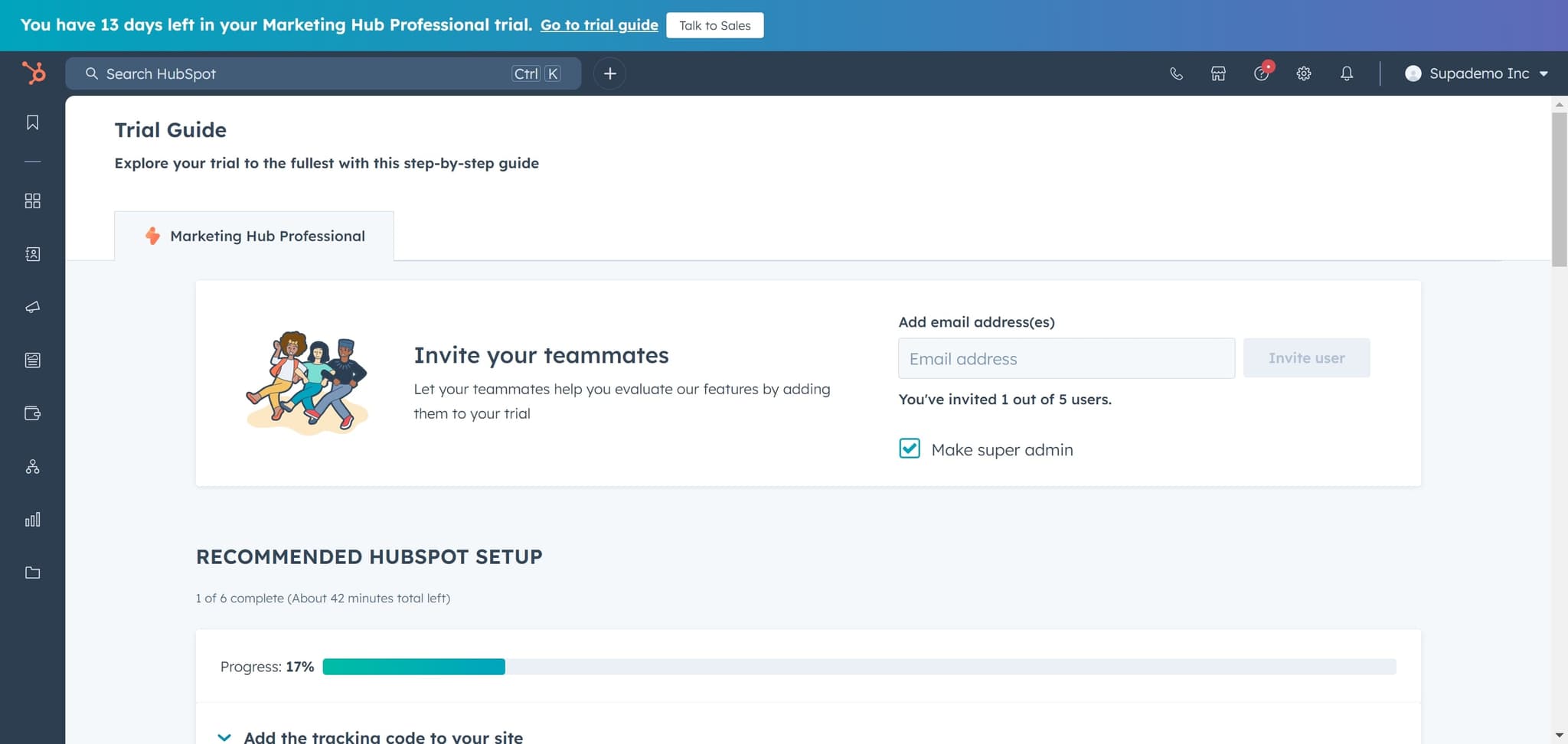
Open the Trial Guide
Start by clicking on the 'Trial Guide' option. This will launch the setup wizard that guides you through connecting external accounts to HubSpot.
- 2
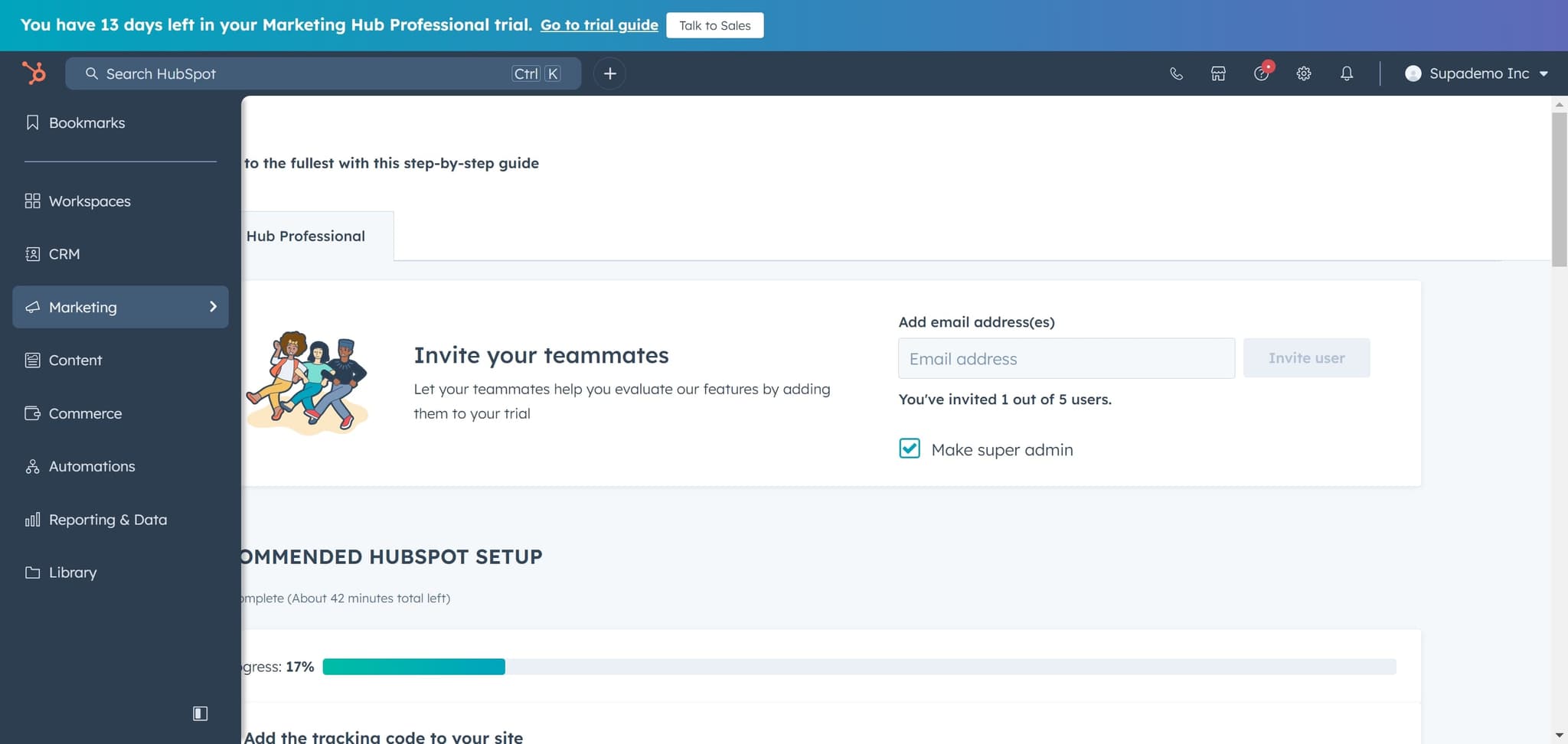
Navigate to Marketing
Click on the 'Marketing' section. This will take you to the marketing tools and integrations area where you can manage social accounts.
- 3
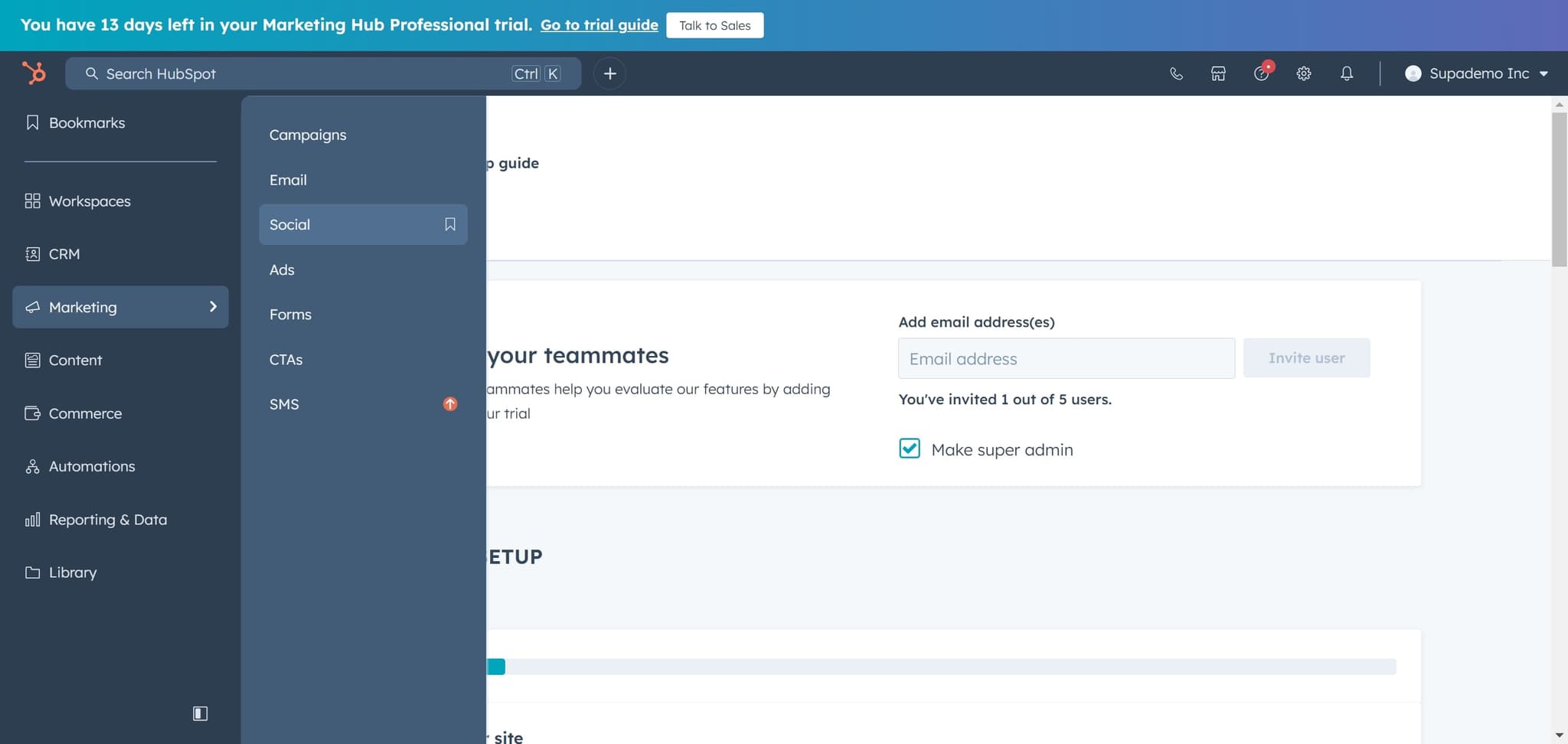
Select Social Settings
Click on 'Social' to access the social media integration section. Here you'll find all available social platforms you can connect to HubSpot.
- 4
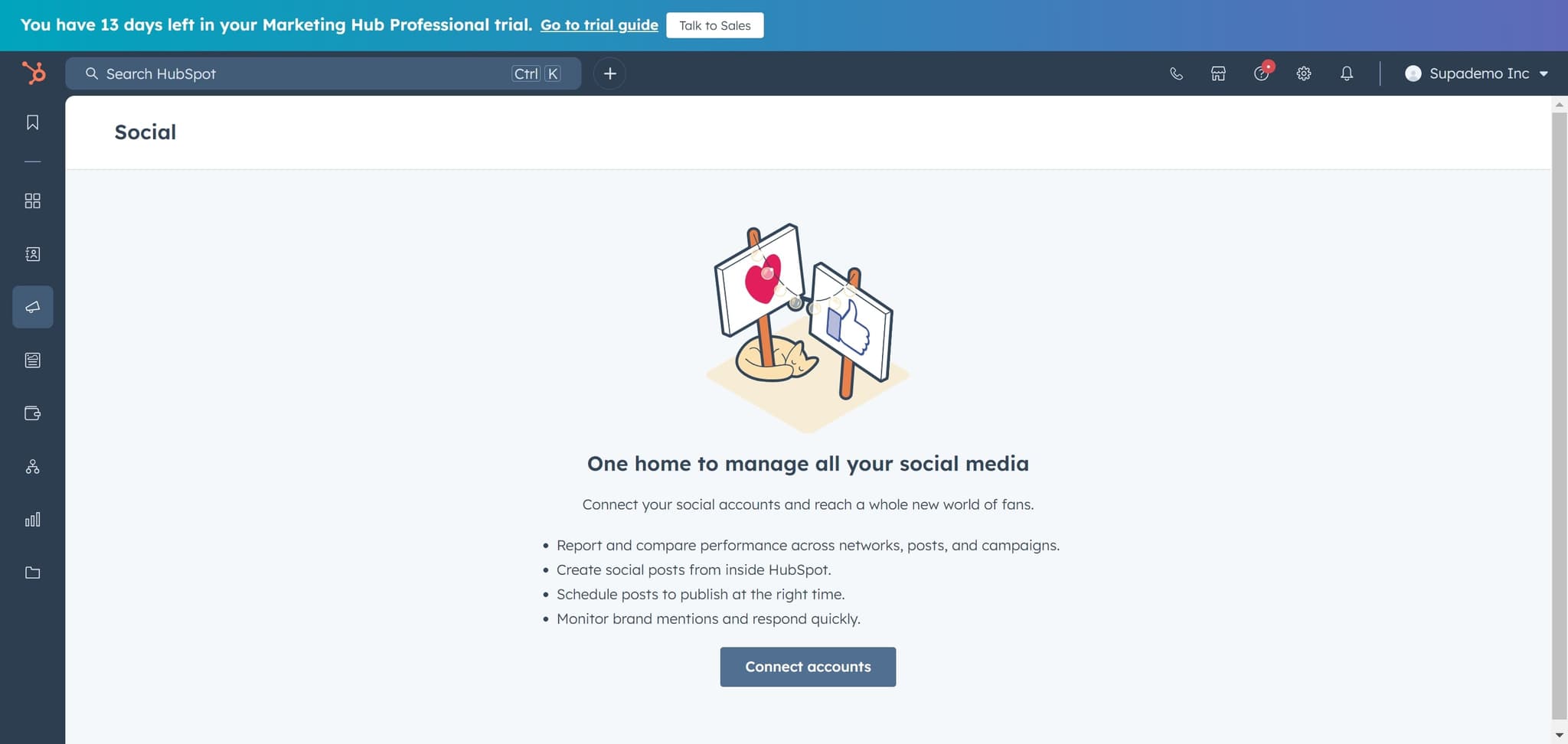
Click Connect Accounts
Select 'Connect accounts' to initiate the account connection process. This opens the interface where you can add new social media platforms.
- 5
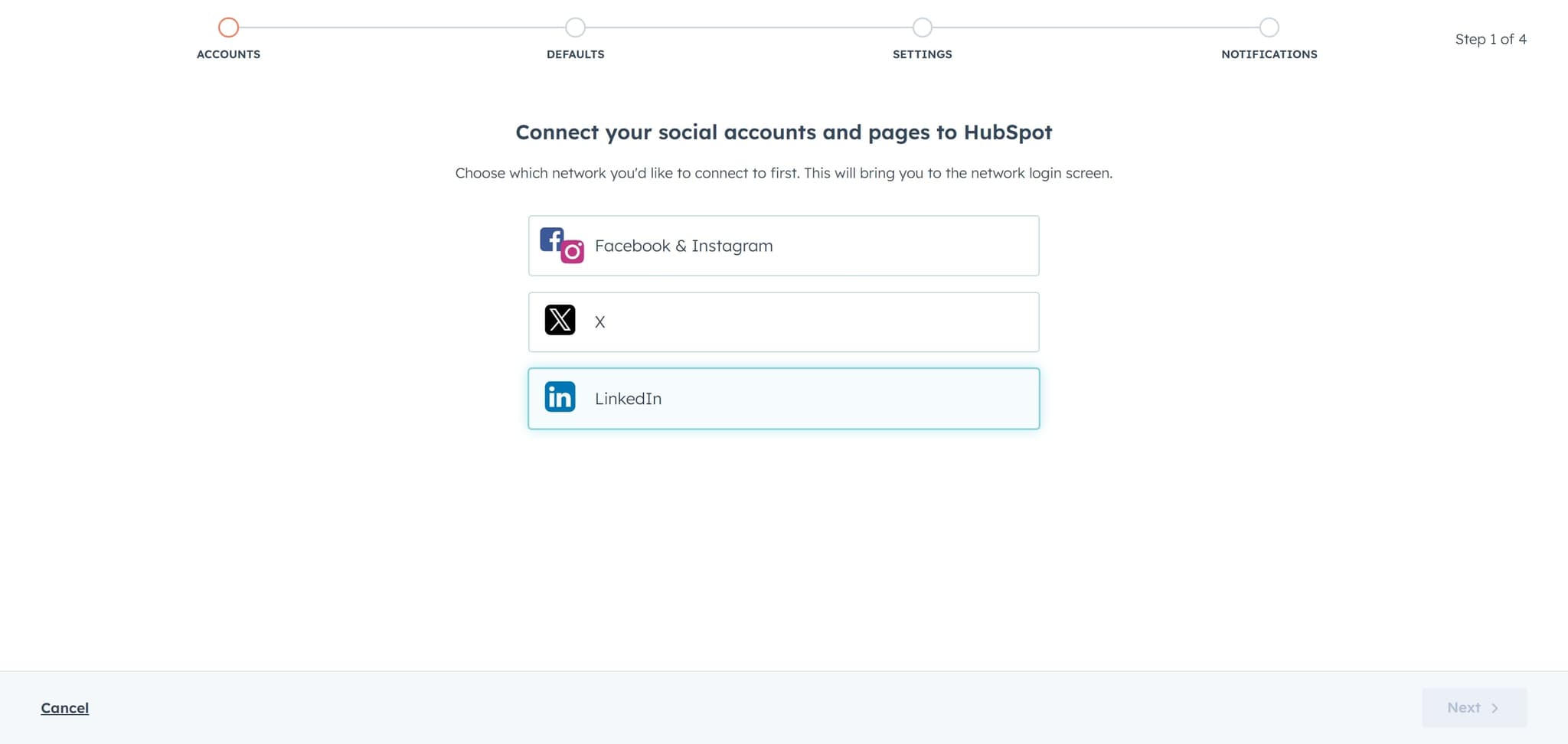
Choose LinkedIn as Platform
Click on 'LinkedIn' from the list of available platforms. This will prepare HubSpot to establish a connection with your LinkedIn account.
- 6
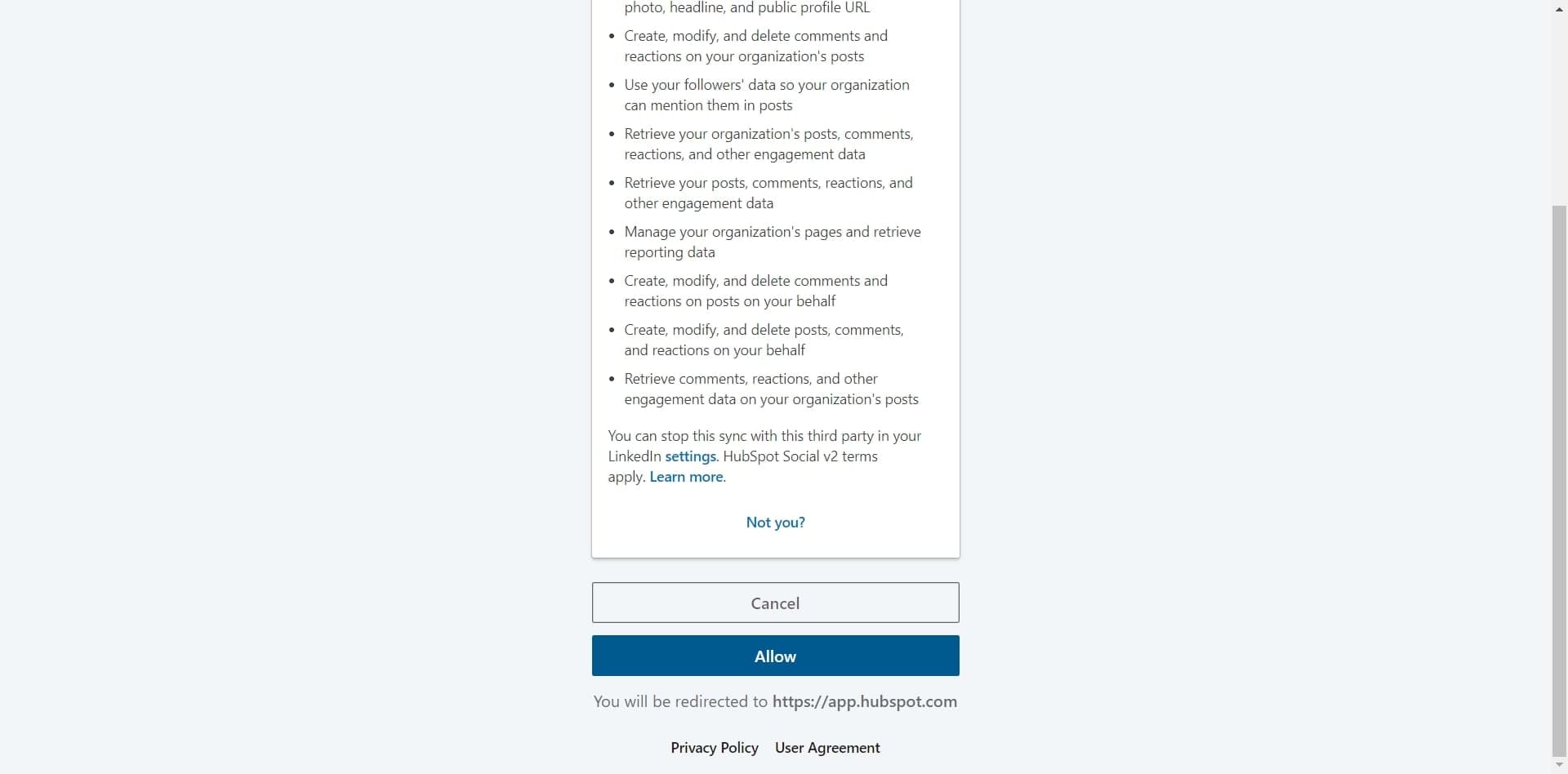
Grant Permission to HubSpot
Click 'Allow' to authorize HubSpot to access your LinkedIn account. This permission is necessary for HubSpot to manage your LinkedIn presence on your behalf.
- 7
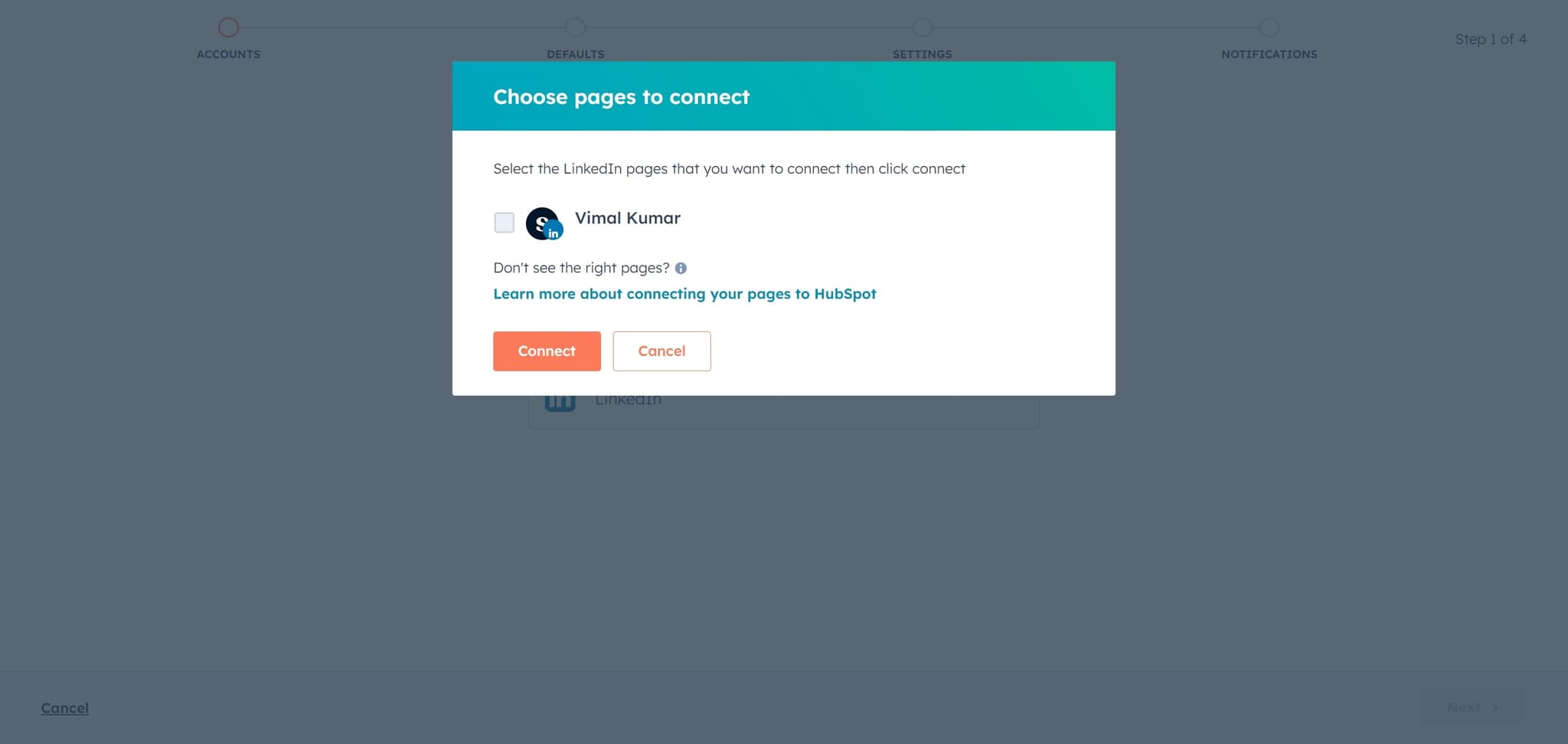
Verify the Connection Element
Click on the displayed connection element to confirm the link between your accounts. This ensures the proper handshake between LinkedIn and HubSpot.
- 8
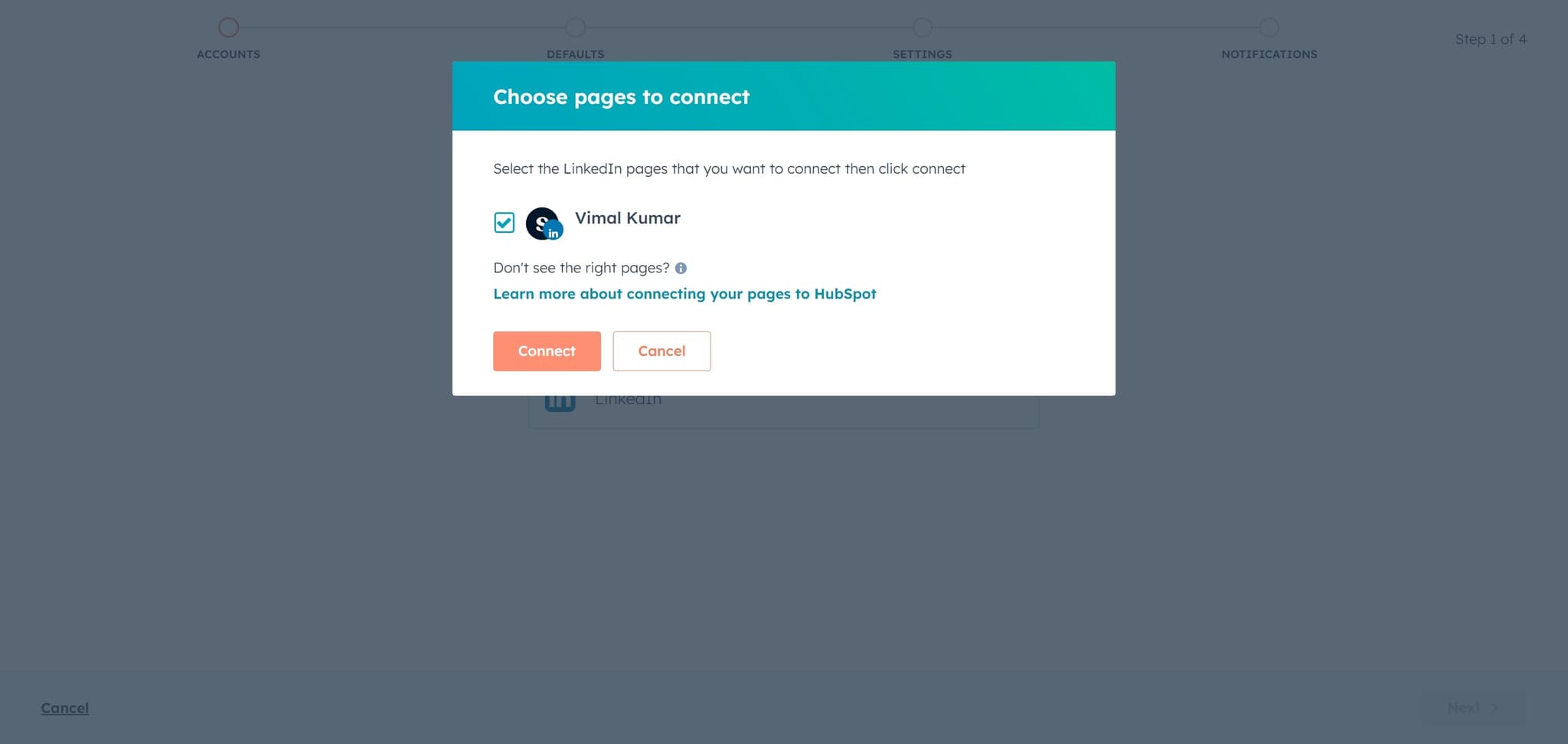
Complete the Connection
Click 'Connect' to finalize the integration. HubSpot will now have access to manage your LinkedIn activities.
- 9
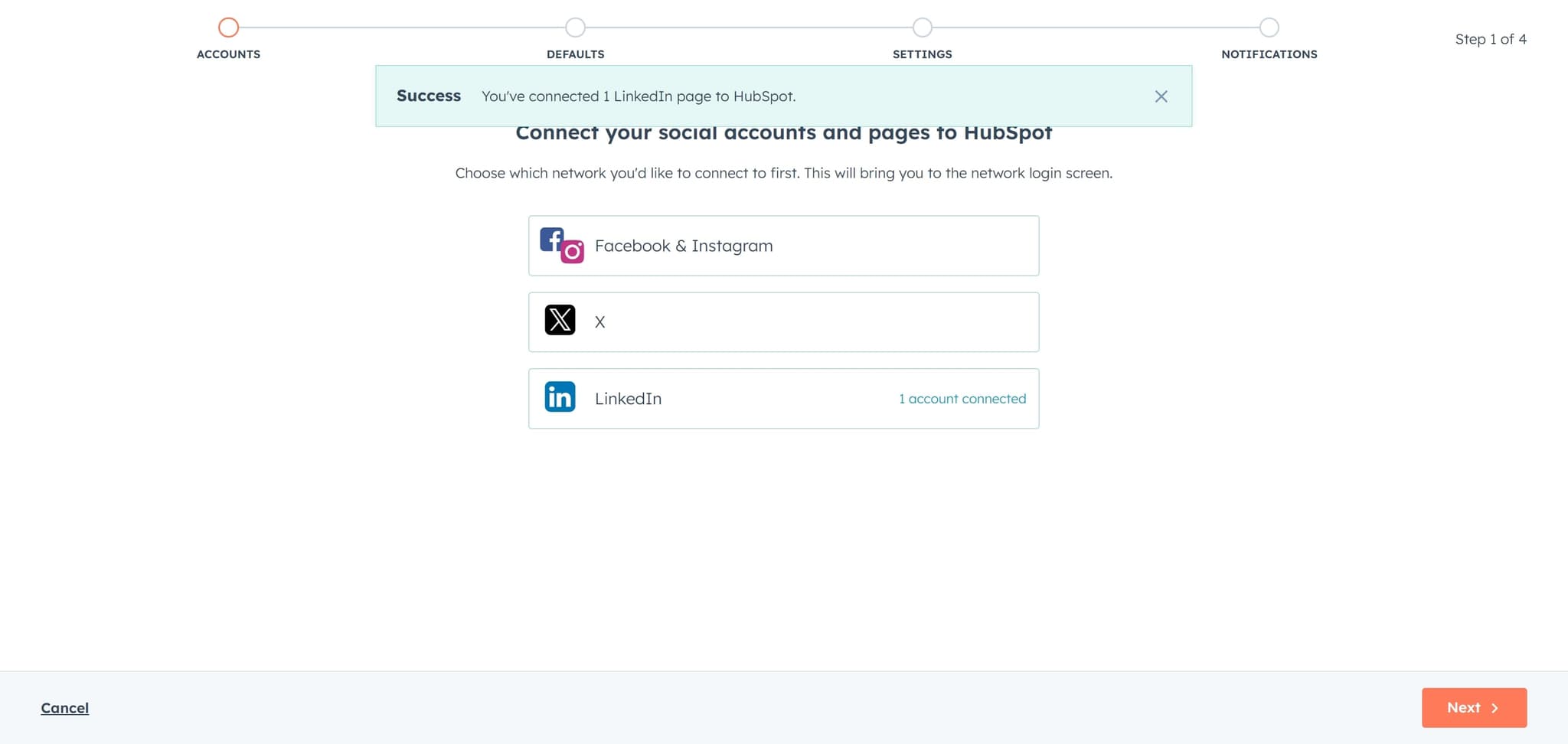
Confirm Social Account Integration
Click on 'Connect your social accounts and pages to HubSpot' to complete the setup process. Your LinkedIn account is now ready to use within HubSpot's social management tools.
Frequently asked questions
Common questions about how to connect linkedin to hubspot.
HubSpot requires permission to access your LinkedIn profile, manage posts, and view social analytics. When you click 'Allow', you're granting HubSpot the ability to publish content, schedule posts, and track engagement metrics on your behalf. These permissions are standard for social media management tools and can be revoked at any time through LinkedIn's settings.
Yes, HubSpot allows you to connect multiple LinkedIn accounts and pages. Simply repeat the connection process for each additional account through the Social section. Each account will be managed separately within your HubSpot dashboard, giving you flexibility to manage different LinkedIn profiles or company pages.
Once connected, you can schedule LinkedIn posts, publish content directly from HubSpot, monitor social engagement and comments, and track performance metrics. You can also connect LinkedIn engagement to your CRM records to better understand how prospects interact with your social content. This integration enables more coordinated social media strategy alongside your sales and marketing efforts.
No, HubSpot does not store your LinkedIn password. Instead, it uses OAuth authentication, which securely authorizes HubSpot to access your account without requiring your password. This is a secure industry standard that protects your account credentials while allowing third-party applications to perform authorized actions.
If the connection fails, ensure you're logged into the correct LinkedIn account and that your account has the necessary administrative permissions. Try clearing your browser cache and cookies, then repeat the connection process. If problems persist, check that your LinkedIn account isn't restricted or locked, and verify that you're using a supported browser.