How to optimize your LinkedIn profile with a custom banner from Canva

Your LinkedIn profile banner is one of the first visual elements visitors notice, making it a powerful opportunity to reinforce your personal brand. This guide walks you through creating a custom banner using Canva and uploading it to LinkedIn. By following these steps, you'll enhance your professional presence with a polished, branded banner in minutes.
Quick summary
In this tutorial, you'll learn how to design a custom LinkedIn banner in Canva using the platform's built-in templates and dimensions, then upload it directly to your LinkedIn profile. You'll discover how to select the correct banner size specification and seamlessly integrate your new design into your profile.
Why this matters
A professional custom banner differentiates your profile from generic defaults and communicates your expertise or personal brand at a glance. LinkedIn visitors form impressions within seconds, and a thoughtfully designed banner reinforces credibility and makes your profile more memorable. This investment in visual branding can increase engagement and help you stand out in recruiter and network searches.
Step-by-step guide
- 1
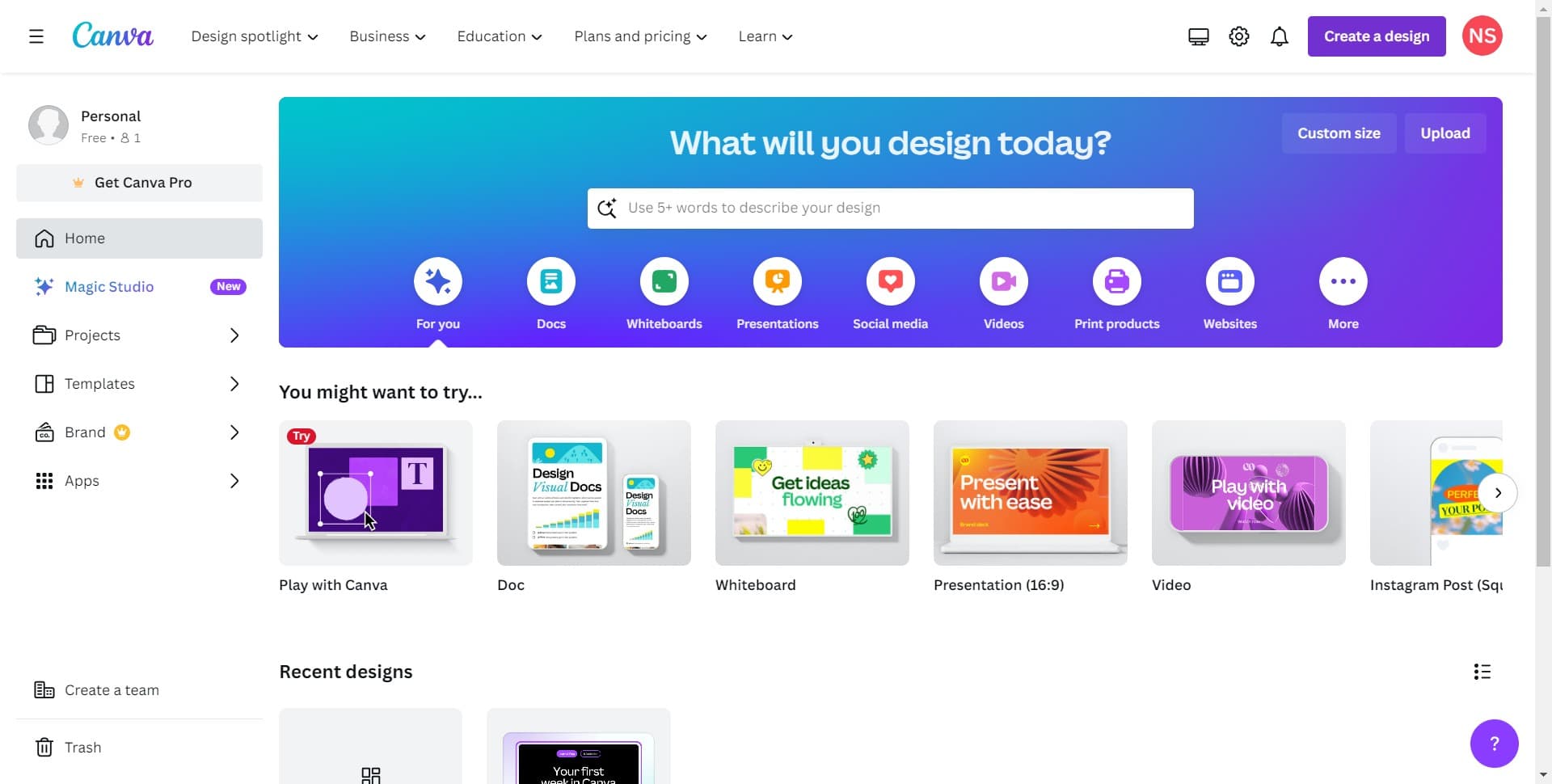
Click on Create a Design
Open Canva and locate the 'Create a design' button on the homepage or dashboard. This action launches Canva's design editor where you'll begin building your custom banner.
- 2
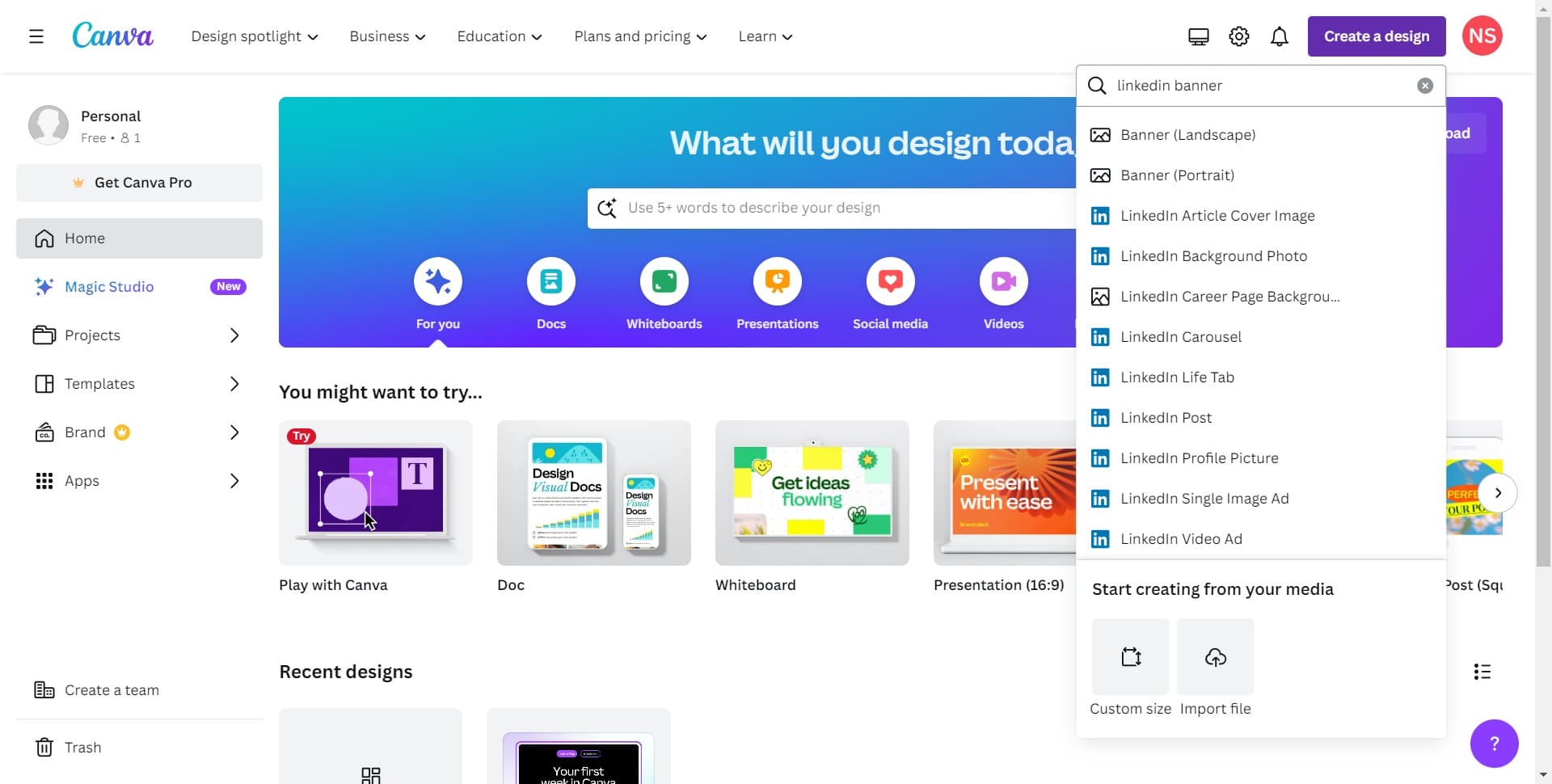
Navigate to Design Selection
Once you've clicked to create a design, you'll be presented with template options or a blank canvas. Proceed to the next step to access LinkedIn-specific banner dimensions.
- 3
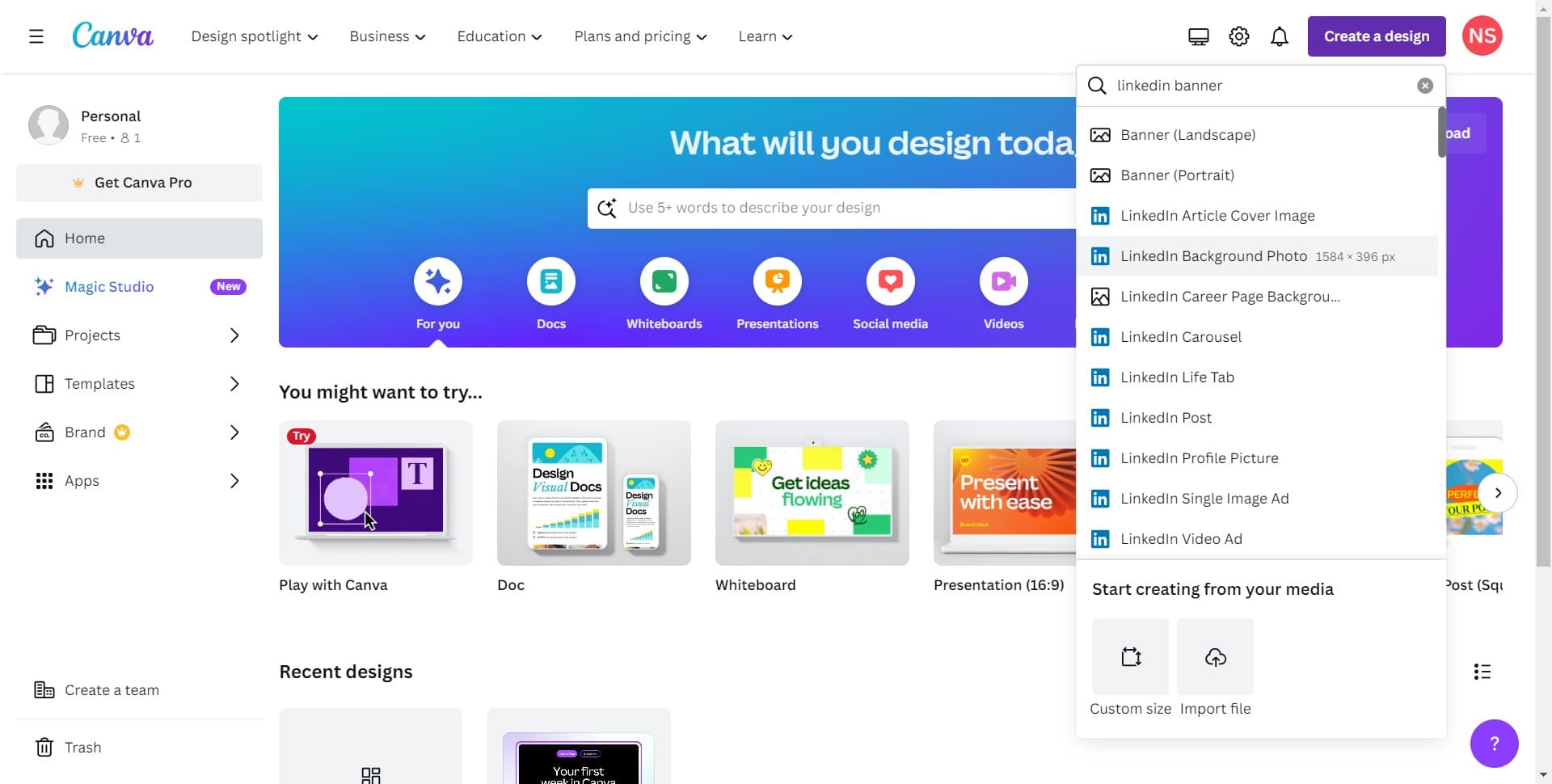
Select the LinkedIn Banner Size
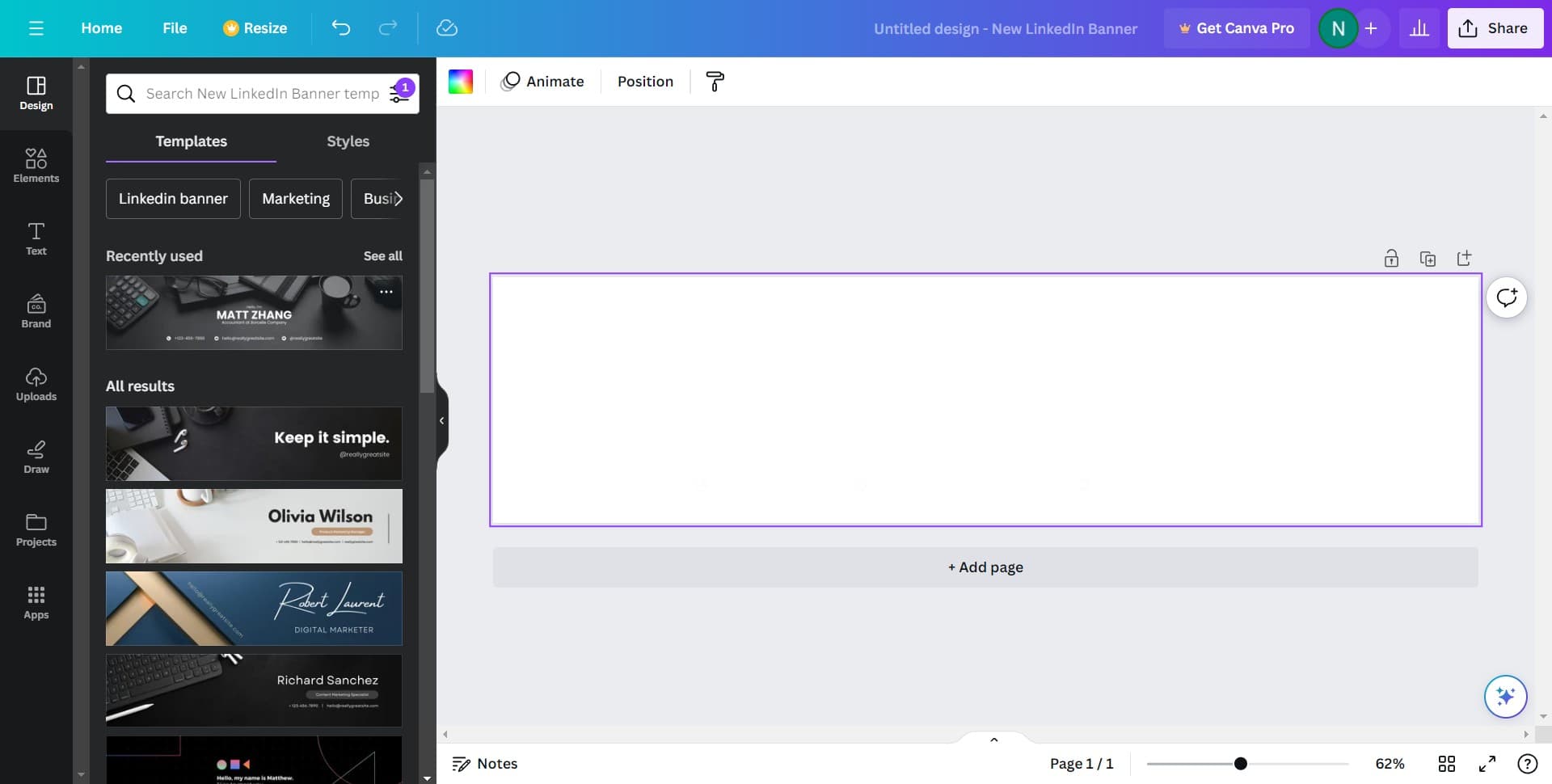
Choose the 1584 × 396 px template size, which is the official dimension for LinkedIn profile banners. This ensures your design will display correctly without cropping or stretching on your LinkedIn profile.
- 4
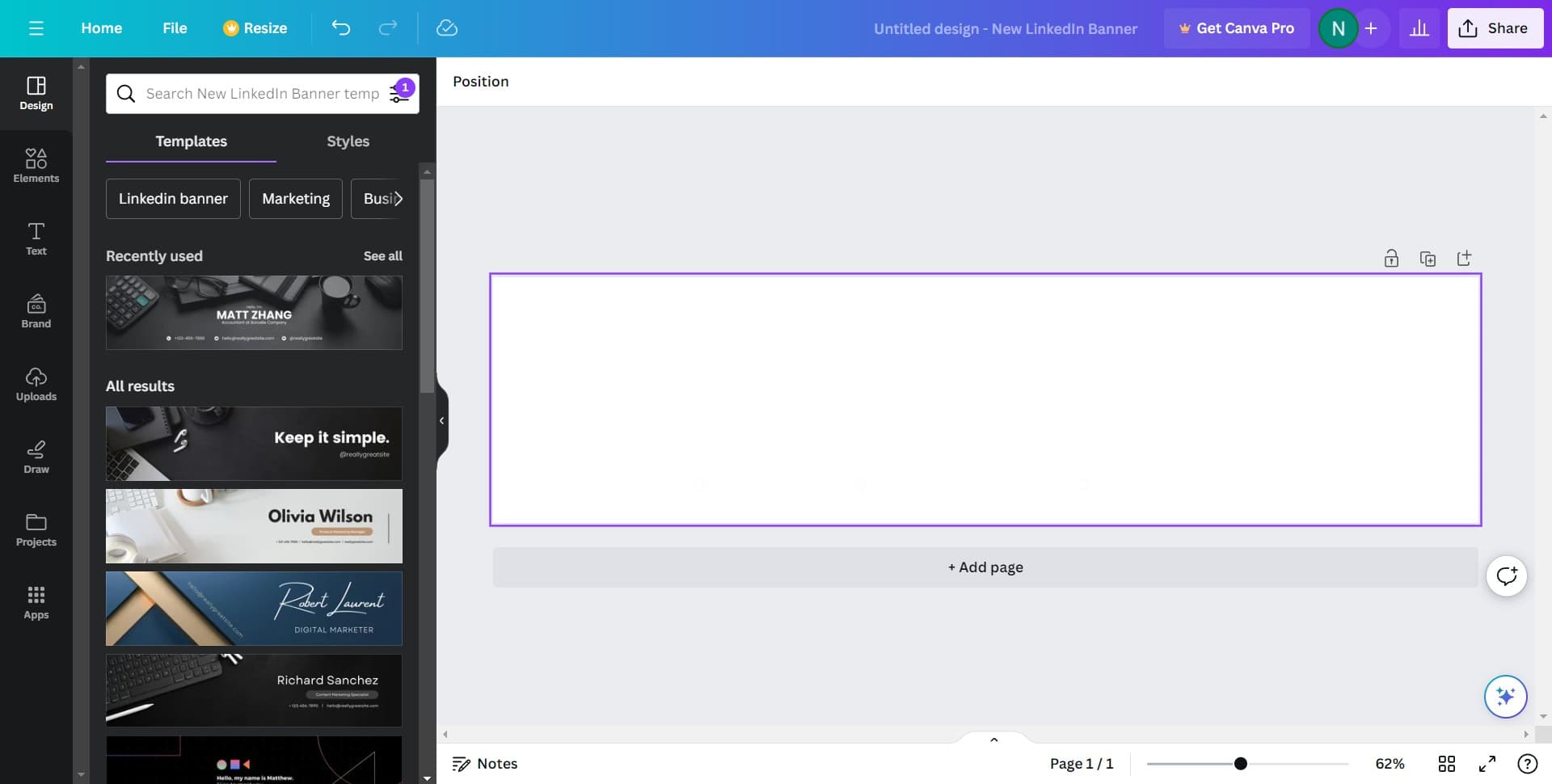
Upload Your First Image
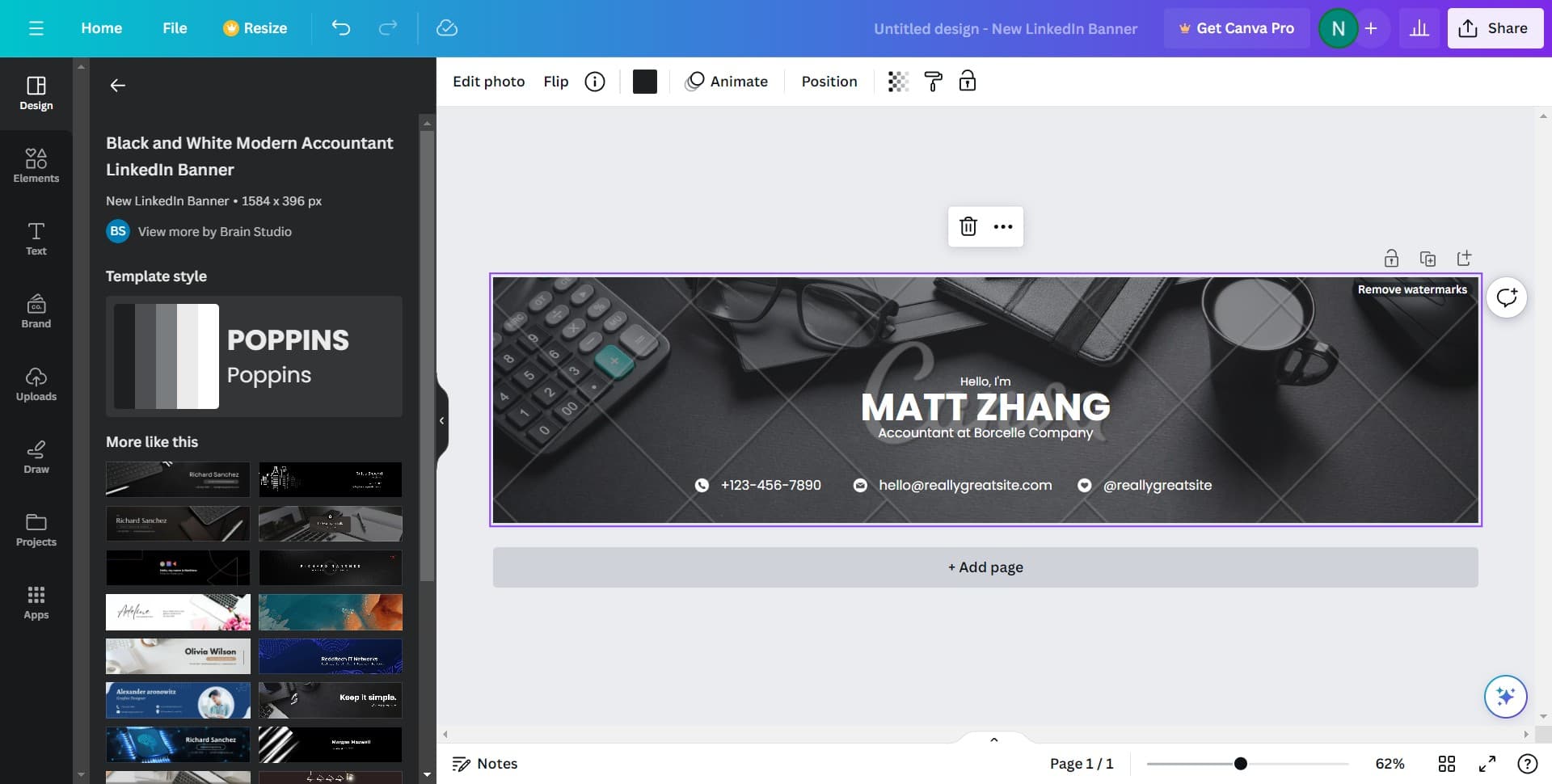
Click the upload option to add your first image asset to the banner design. Select a high-quality image from your computer that aligns with your professional brand or theme.
- 5
Upload Additional Design Elements
Continue uploading additional images, icons, or graphical elements as needed to build out your banner composition. Each upload adds another layer to customize and arrange within your design.
- 6
Add More Visual Assets
Upload further design elements to enhance your banner's visual impact. This may include logos, decorative graphics, or complementary images that reinforce your professional identity.
- 7
Incorporate Additional Graphics
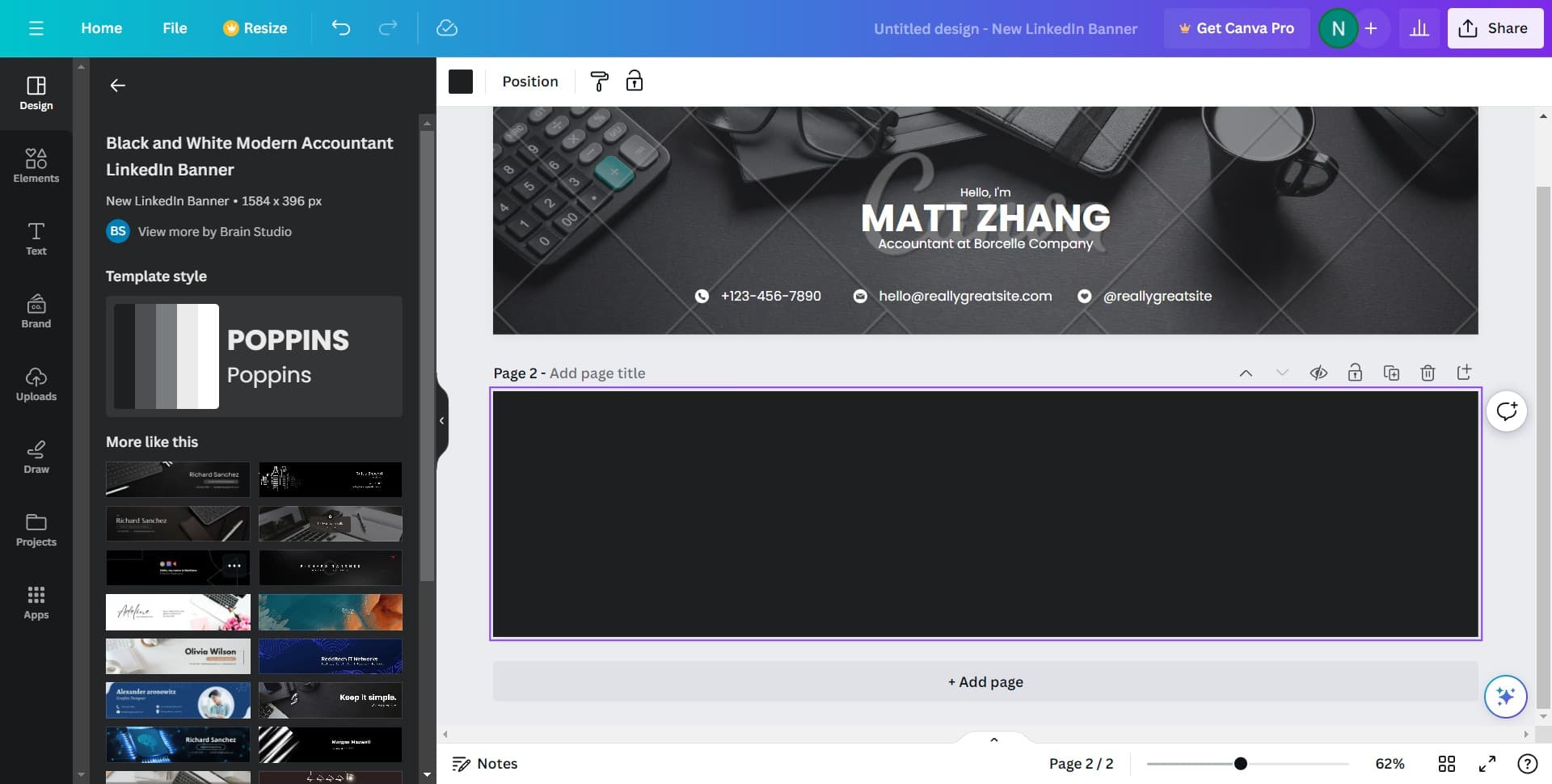
Continue adding any remaining images or design components that complete your banner vision. Ensure all elements are positioned clearly and contribute to an uncluttered, professional appearance.
- 8
Upload Final Design Assets
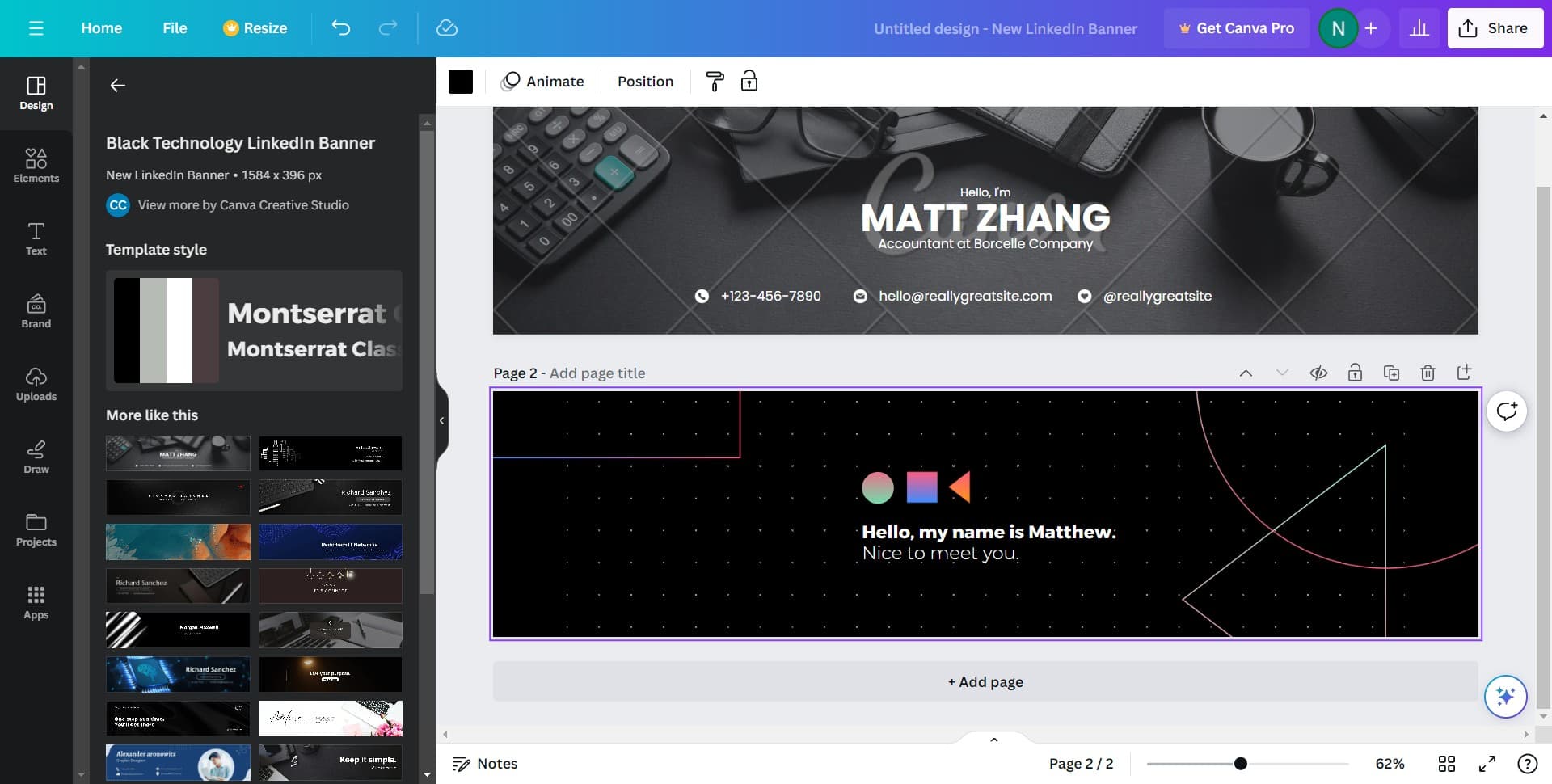
Add any final images or graphical touches to perfect your banner layout. Once all elements are in place, you're ready to finalize and download your design.
- 9
Complete Your Banner Design
Finish uploading any last design assets and arrange all elements to your satisfaction. Review the overall composition to ensure it looks professional and visually balanced.
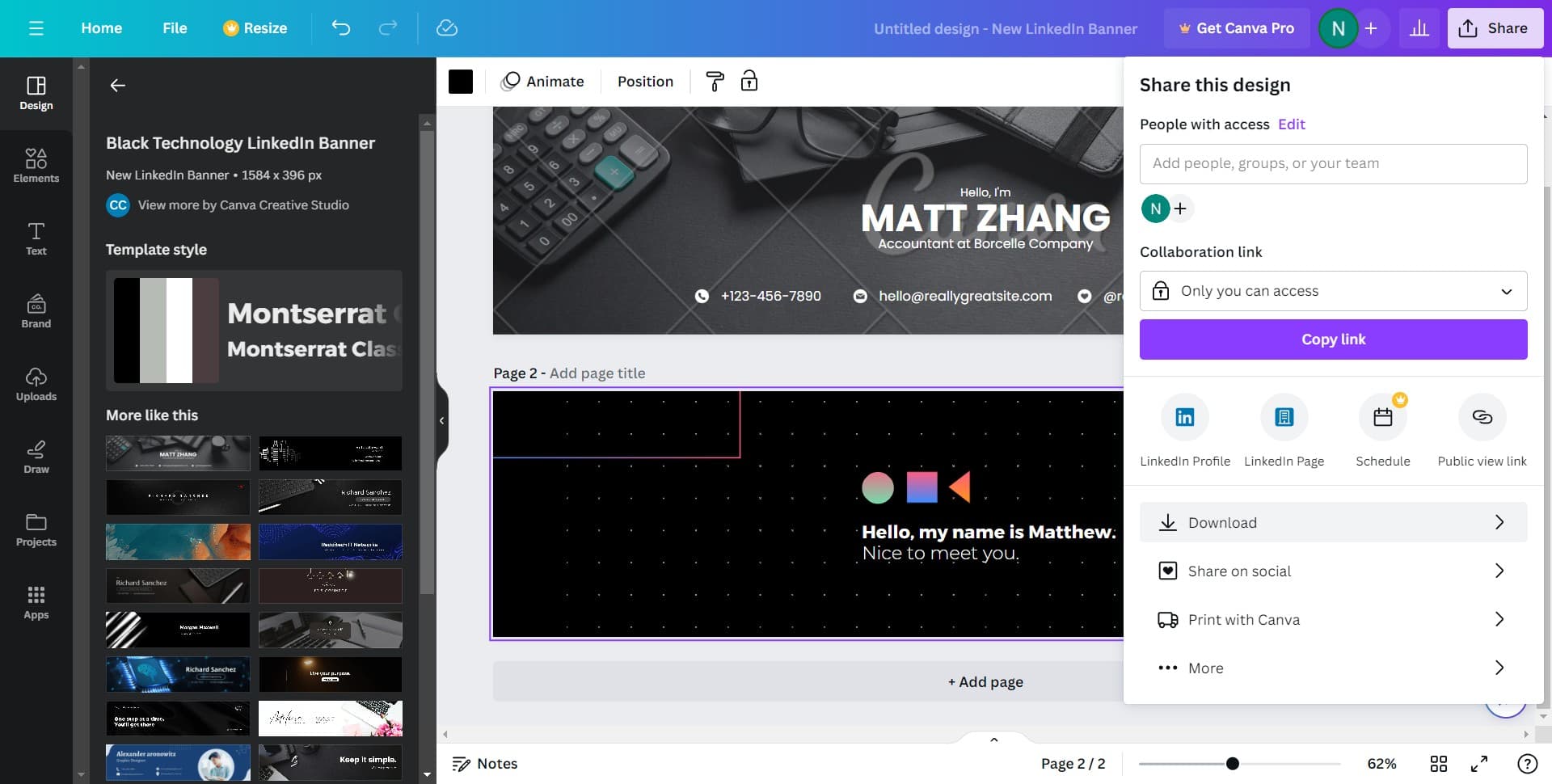
- 10
Download and Apply to LinkedIn
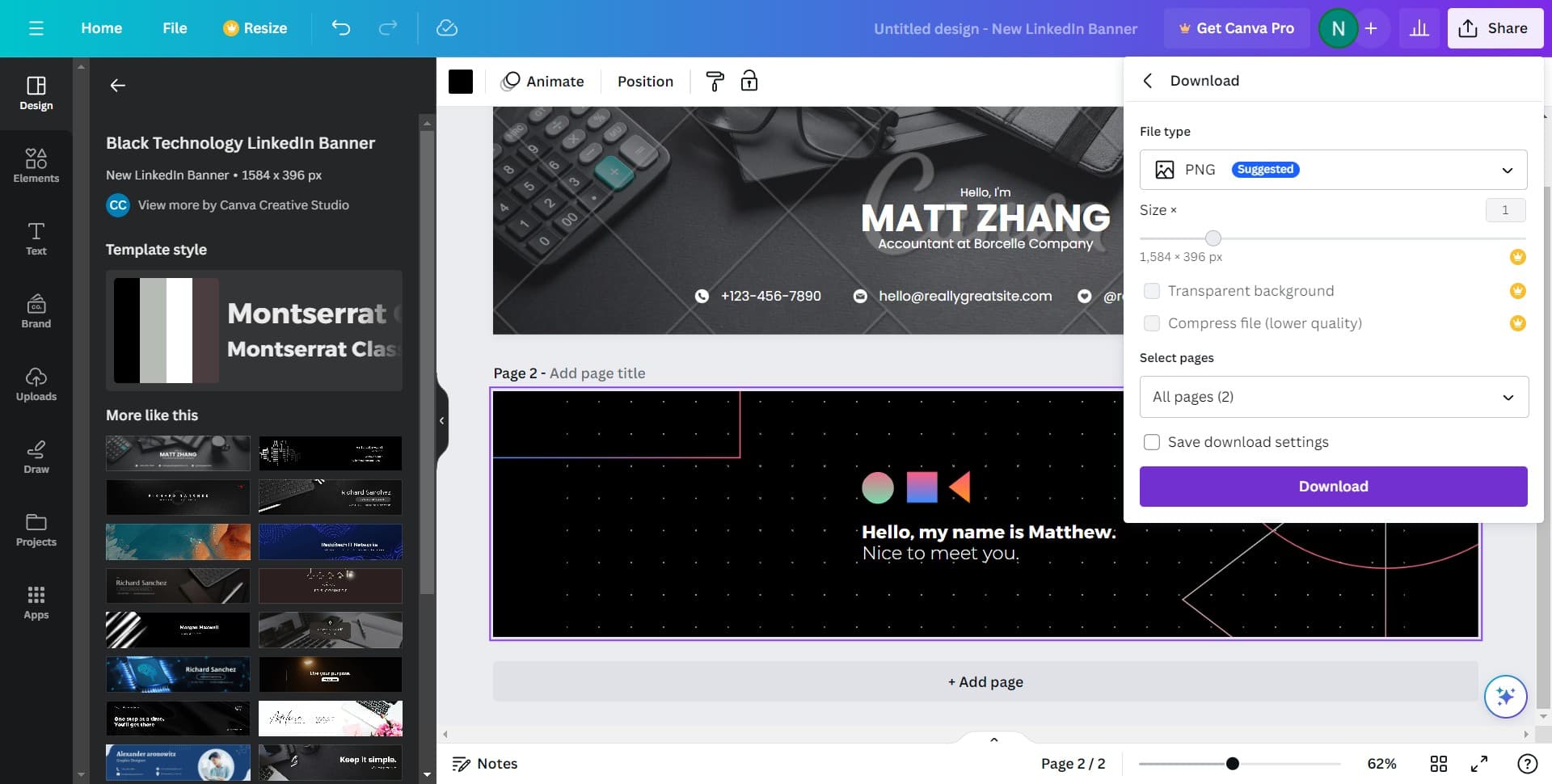
Once your banner design is complete, download the final file from Canva. Navigate to your LinkedIn profile settings and upload this image as your new profile banner to instantly update your professional appearance.
Frequently asked questions
Common questions about how to optimize your linkedin profile with a custom banner from canva.
The official LinkedIn profile banner dimension is 1584 × 396 pixels. Using this exact size ensures your banner displays correctly without distortion or unwanted cropping. Canva offers this size as a preset template, making it easy to design at the correct dimensions.
Yes, personal photos can work well in LinkedIn banners if they're professional and high-quality. Consider using a headshot, a professional environment, or an image that represents your industry. Avoid casual or cluttered backgrounds that distract from your professional message.
Update your banner whenever your professional goals, role, or brand messaging shifts significantly. Many professionals refresh their banners seasonally or when launching a new initiative. Keeping your banner current signals active engagement and helps your profile stay relevant.
Yes, text can be an effective element in your banner, especially for headlines or key messages. Keep text minimal and readable at smaller sizes, since mobile users will see a condensed version. Ensure sufficient contrast between text and background for accessibility.
Download your banner as a PNG or JPG file from Canva. Both formats are widely supported and maintain quality. PNG is ideal if your design has transparency, while JPG works well for photographic or complex imagery.