How to Unblock Someone on LinkedIn

Blocking someone on LinkedIn prevents them from viewing your profile, contacting you, or seeing your posts. If you've had a change of circumstances and want to reconnect with a previously blocked contact, unblocking them is a straightforward process that restores their access to your profile.
Quick summary
In this tutorial, you'll learn how to unblock someone on LinkedIn by navigating to your blocked members list and removing them from your block list. We'll walk you through each step to help you manage your LinkedIn connections effectively.
Why this matters
Unblocking someone on LinkedIn is important when professional relationships evolve or misunderstandings are resolved. Being able to quickly unblock contacts allows you to maintain flexibility in your professional network and re-establish connections when it makes sense for your career.
Step-by-step guide
- 1
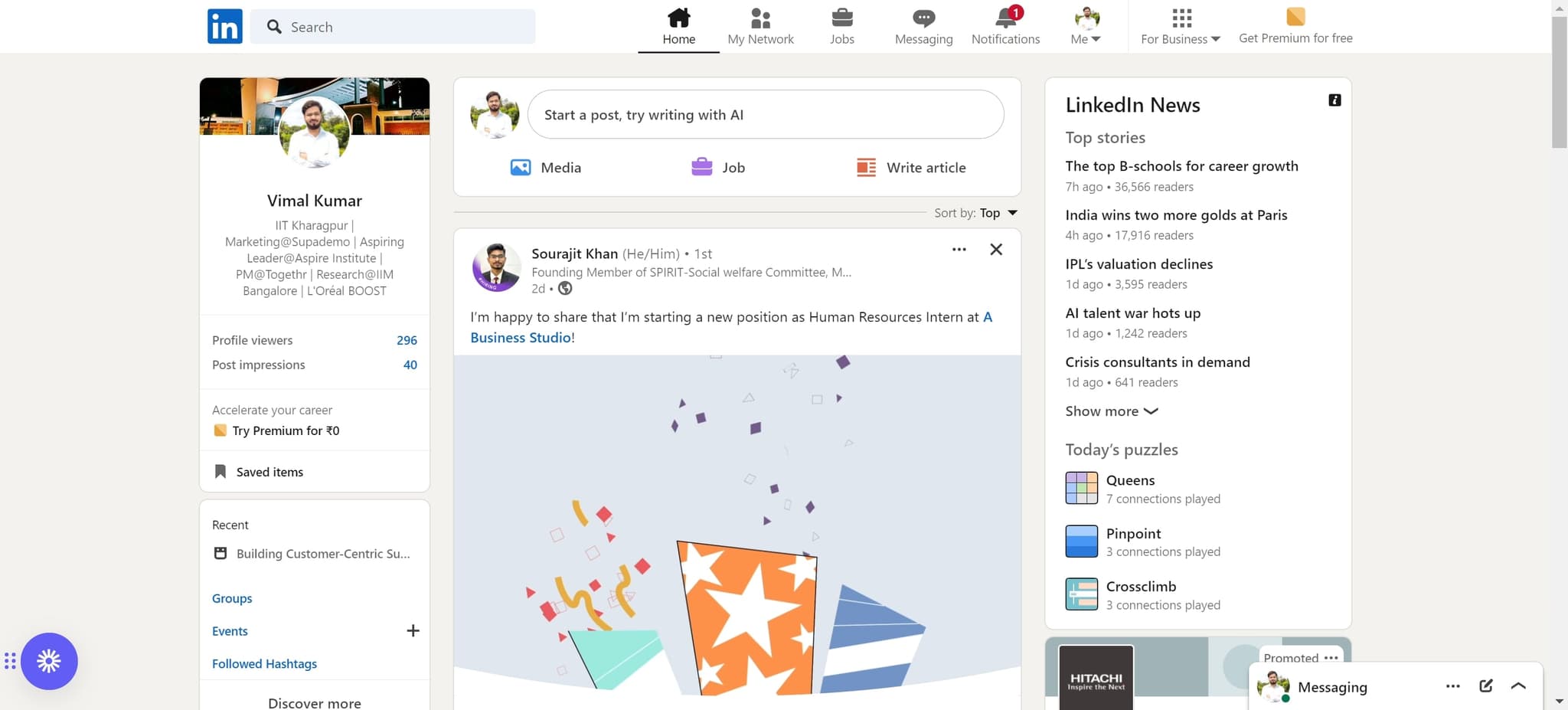
Click the profile menu icon
Start by clicking on the profile or menu icon, typically located in the top navigation area of your LinkedIn homepage. This opens your account menu where you can access settings.
- 2
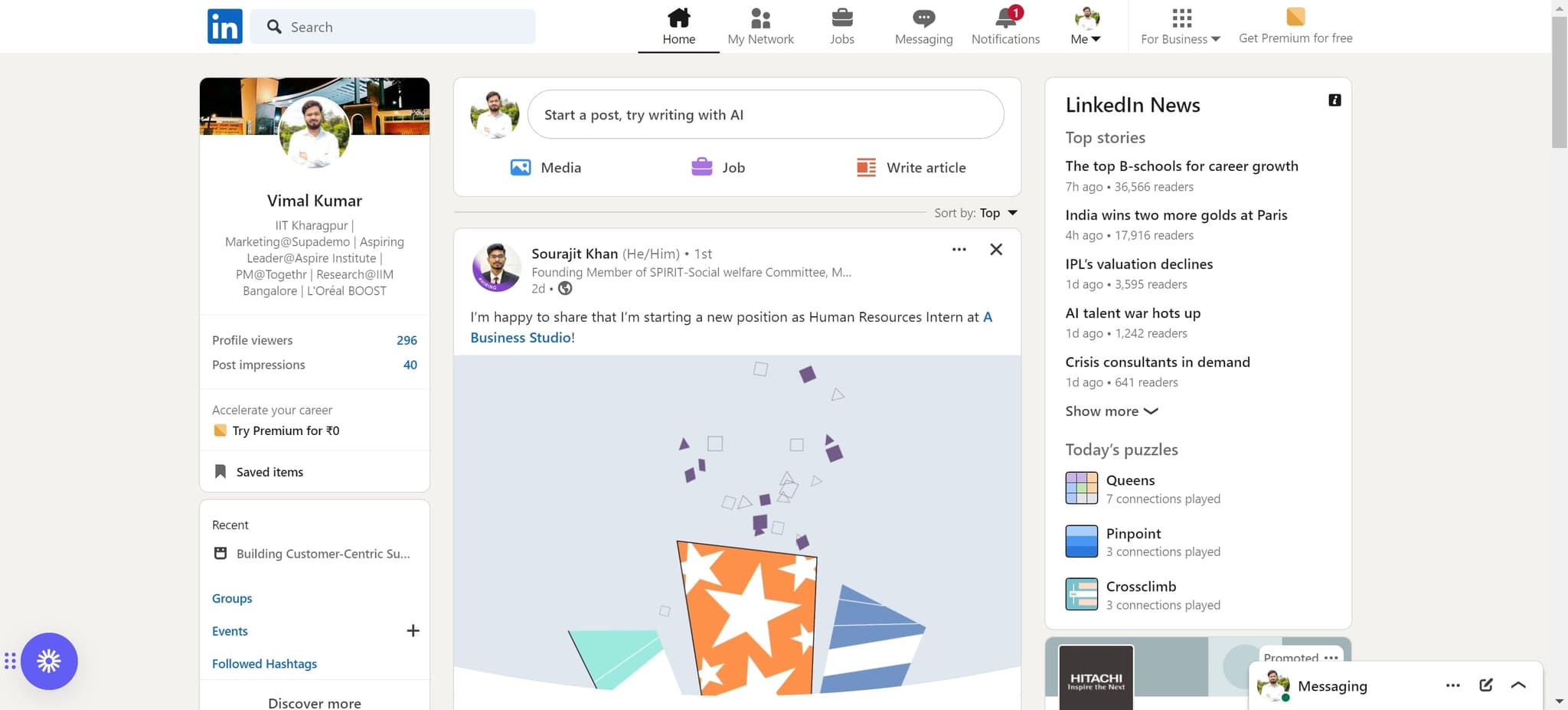
Navigate to settings menu
Click on the menu option that appears after selecting your profile icon. This takes you closer to your account settings and privacy controls.
- 3
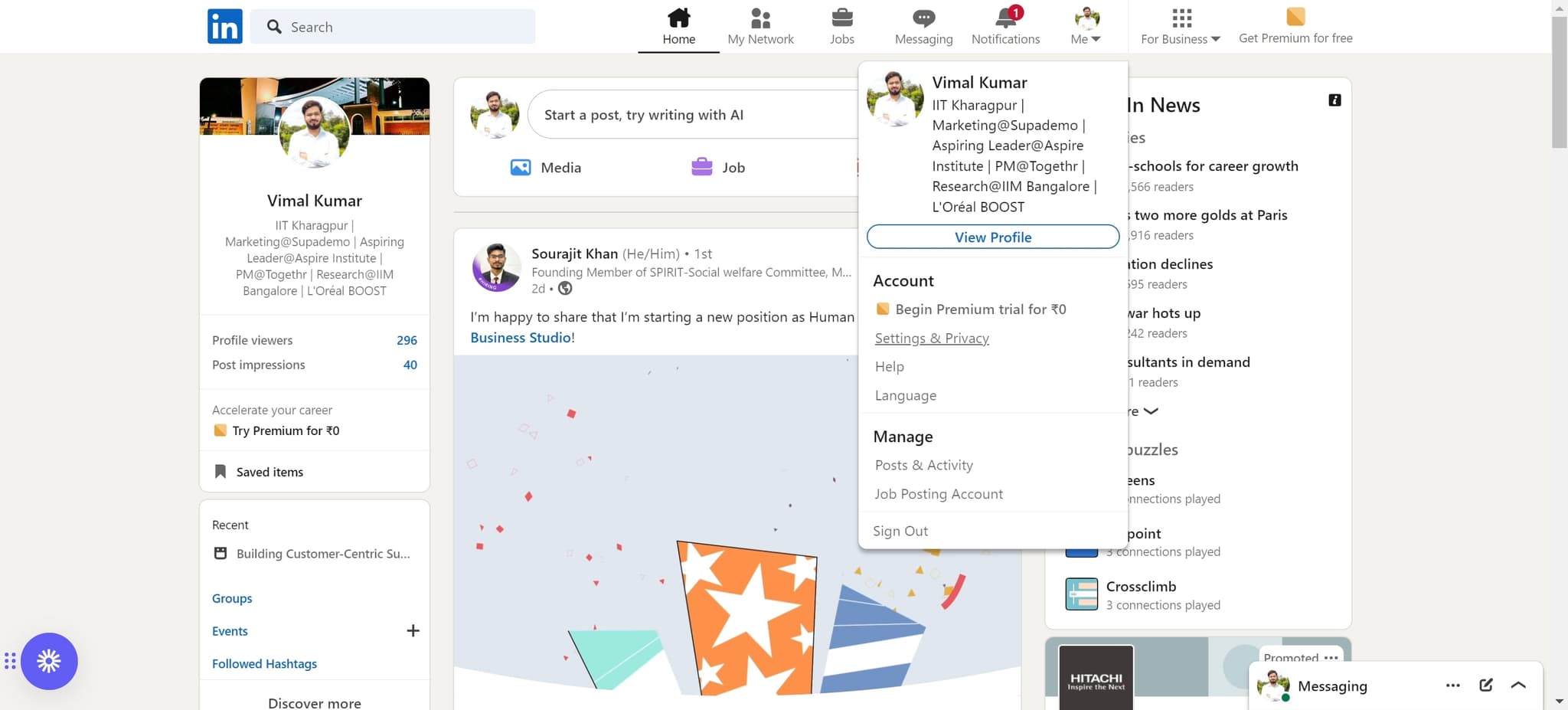
Click on Settings & Privacy
Select 'Settings & Privacy' from the dropdown menu. This section contains all the controls for managing your account preferences and who can interact with you on LinkedIn.
- 4
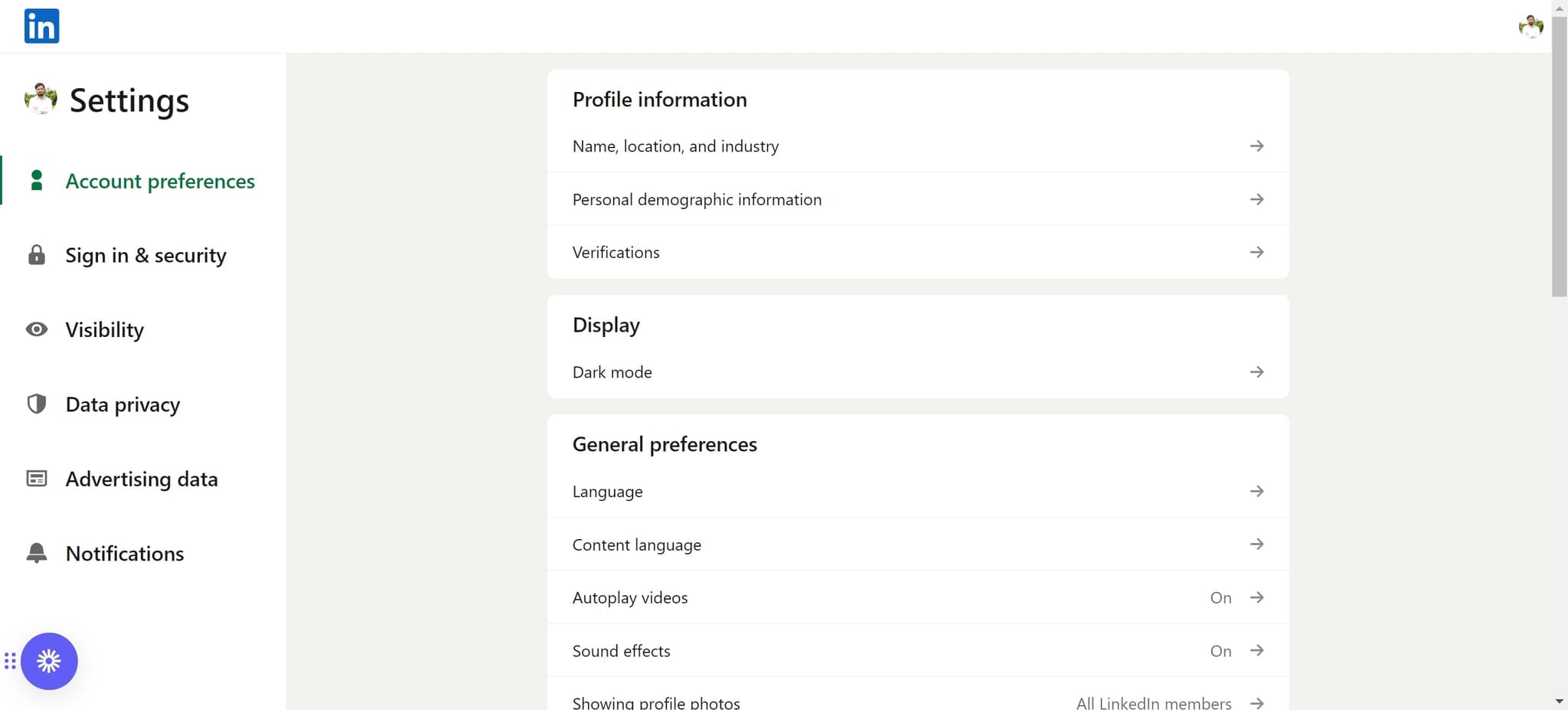
Select Visibility option
Click on 'Visibility' to access privacy-related settings. This area controls who can see your profile and manages your blocked connections.
- 5
Access blocked members list
Click on the appropriate section to view your list of blocked members. LinkedIn will display all the profiles you've previously blocked.
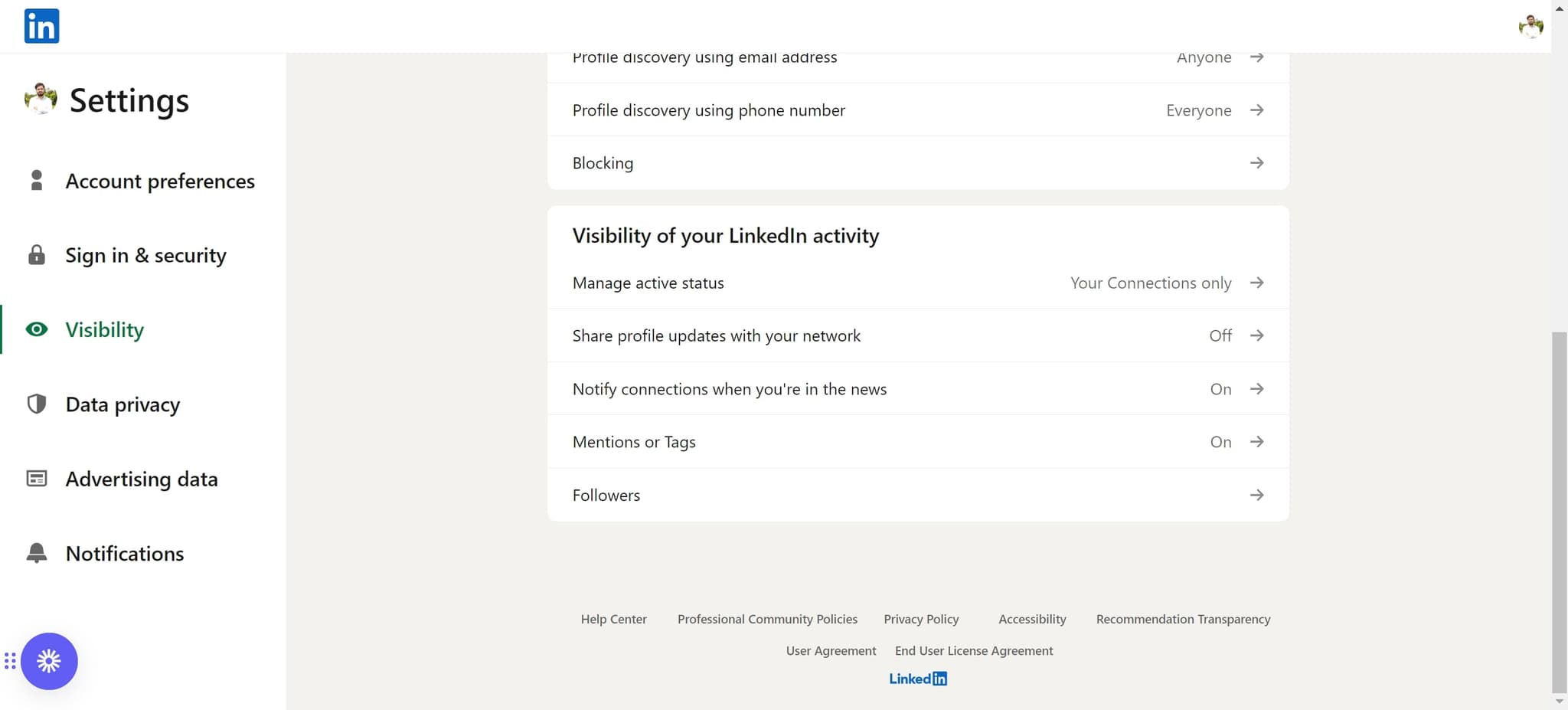
- 6
Locate the member to unblock
Find the person you want to unblock in your blocked members list. You may need to scroll through the list or use a search function if you have multiple blocked contacts.
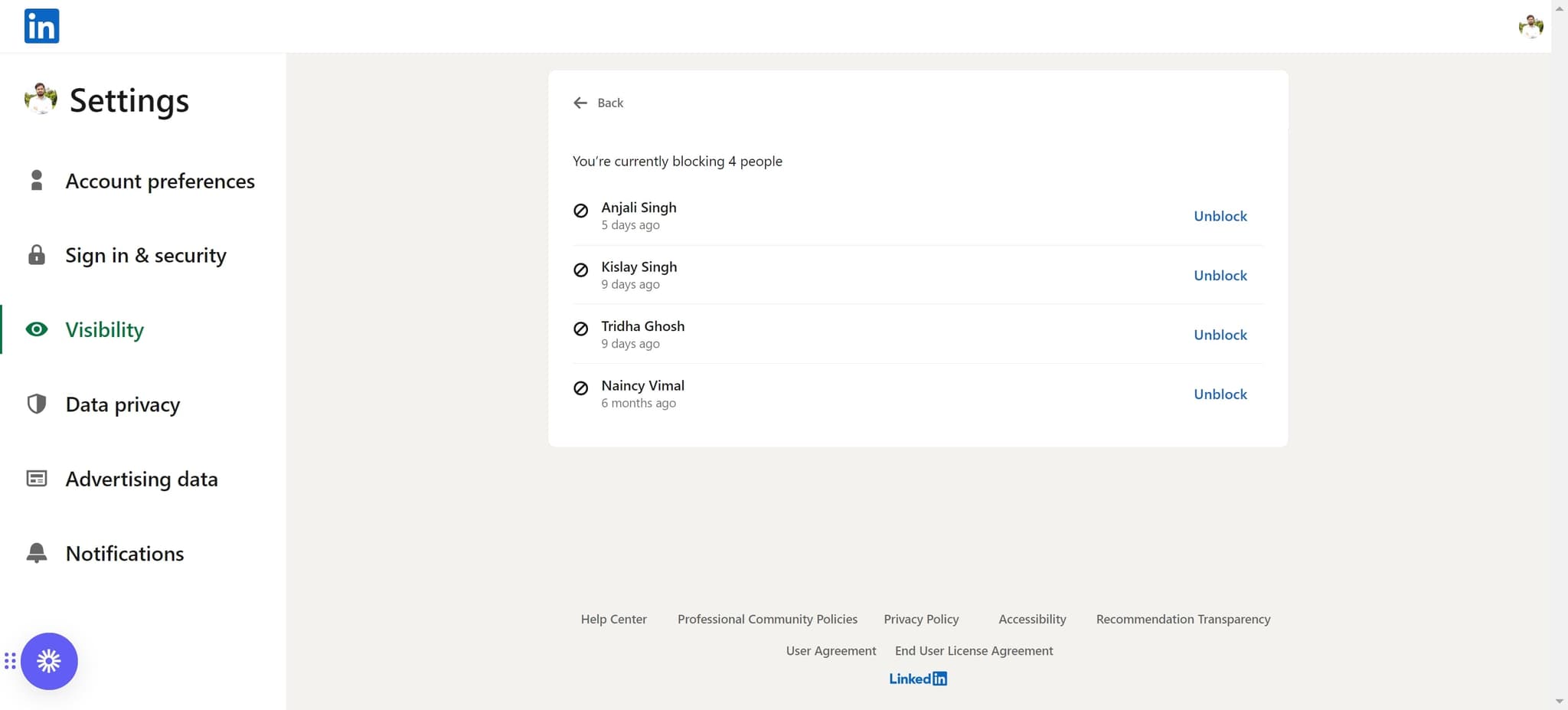
- 7
Select the blocked member
Click on the member's profile or select them from the list. This highlights them and prepares you to take action on their block status.
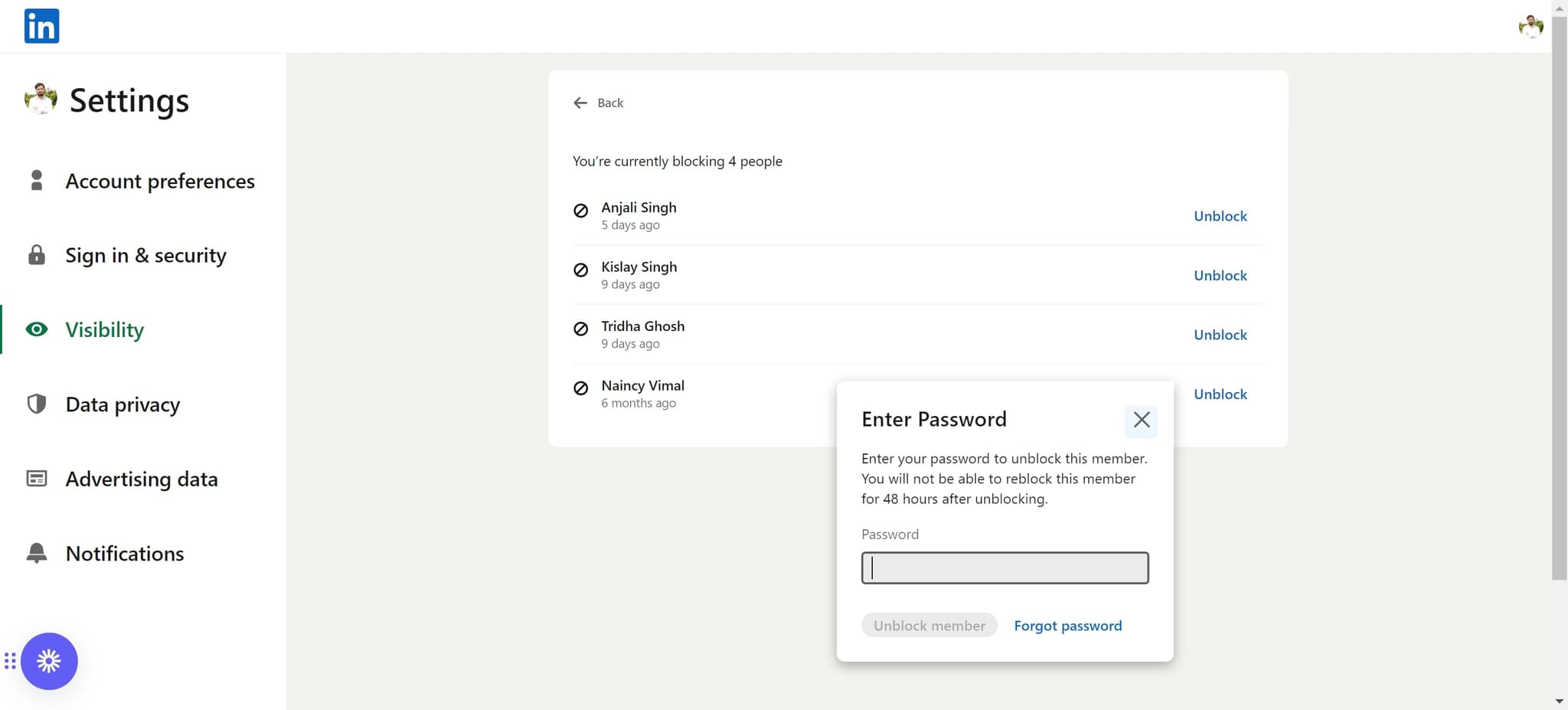
- 8
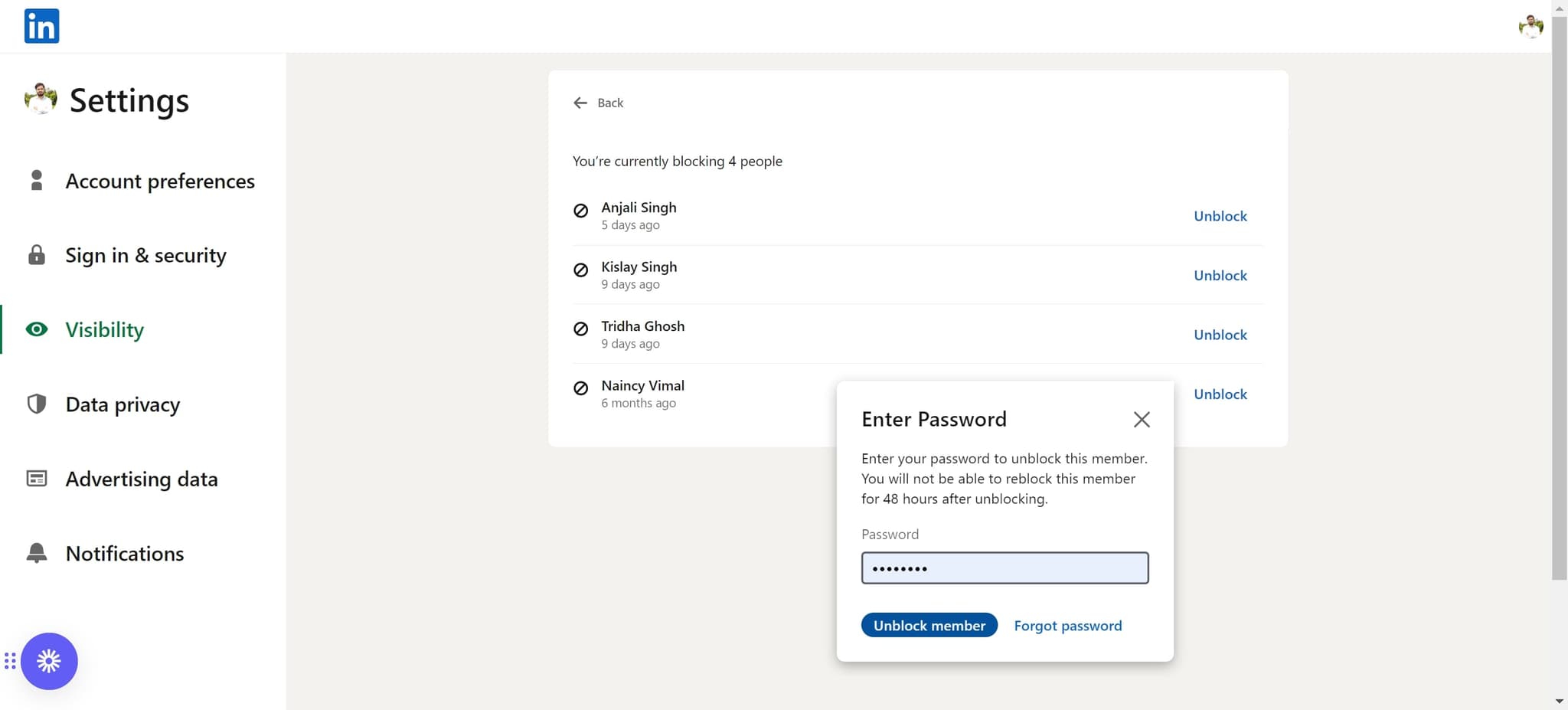
Click Unblock member
Select the 'Unblock member' button or option next to the person's name. Once confirmed, they will be removed from your block list and can access your profile again.
Frequently asked questions
Common questions about how to unblock someone on linkedin.
No, LinkedIn does not notify users when they are unblocked. The person will only know if they attempt to visit your profile and find that access has been restored. There is no notification sent to alert them of the change.
Yes, you can block someone again at any time by visiting their profile and selecting the block option. There is no limit to how many times you can block or unblock the same person on LinkedIn.
Past messages remain deleted and are not restored when you unblock someone. However, the person can message you again after being unblocked, and you'll be able to receive and respond to new messages from them.
Your blocked members list is located in Settings & Privacy under the Visibility section. This is a dedicated area where LinkedIn displays all profiles you've currently blocked, making it easy to manage your blocked contacts.
No, there is no limit to the number of people you can unblock on LinkedIn. You can unblock as many contacts as needed, and the process is the same for each person on your blocked list.