How to Edit a Loom Video

Editing a Loom video allows you to refine your recordings, remove mistakes, and create polished content without re-recording. This guide walks you through the essential editing features in Loom to enhance your video quality and messaging.
Quick summary
In this tutorial, you'll learn how to access Loom's editing tools, upload your video content, and make adjustments to create a professional final product. By the end, you'll be able to navigate the editing interface and prepare your video for sharing.
Why this matters
Video editing is critical for removing dead air, correcting errors, and ensuring your message is clear and concise. Well-edited videos maintain viewer engagement and present a more professional appearance, making them more effective for training, marketing, or communication purposes.
Step-by-step guide
- 1
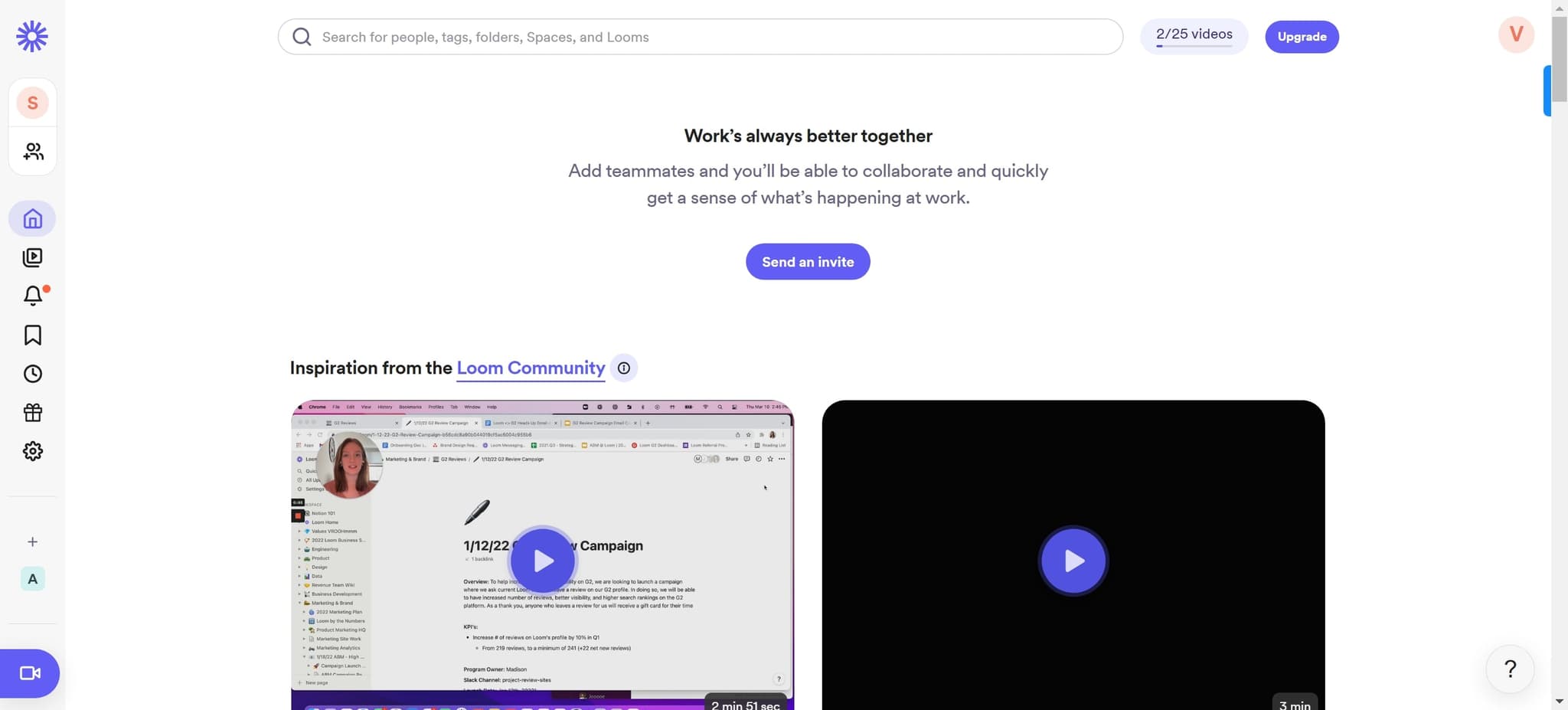
Access the editing interface
Begin by clicking on the element to enter the Loom editing workspace. This will open the main editing interface where all your video editing tools and options are available.
- 2
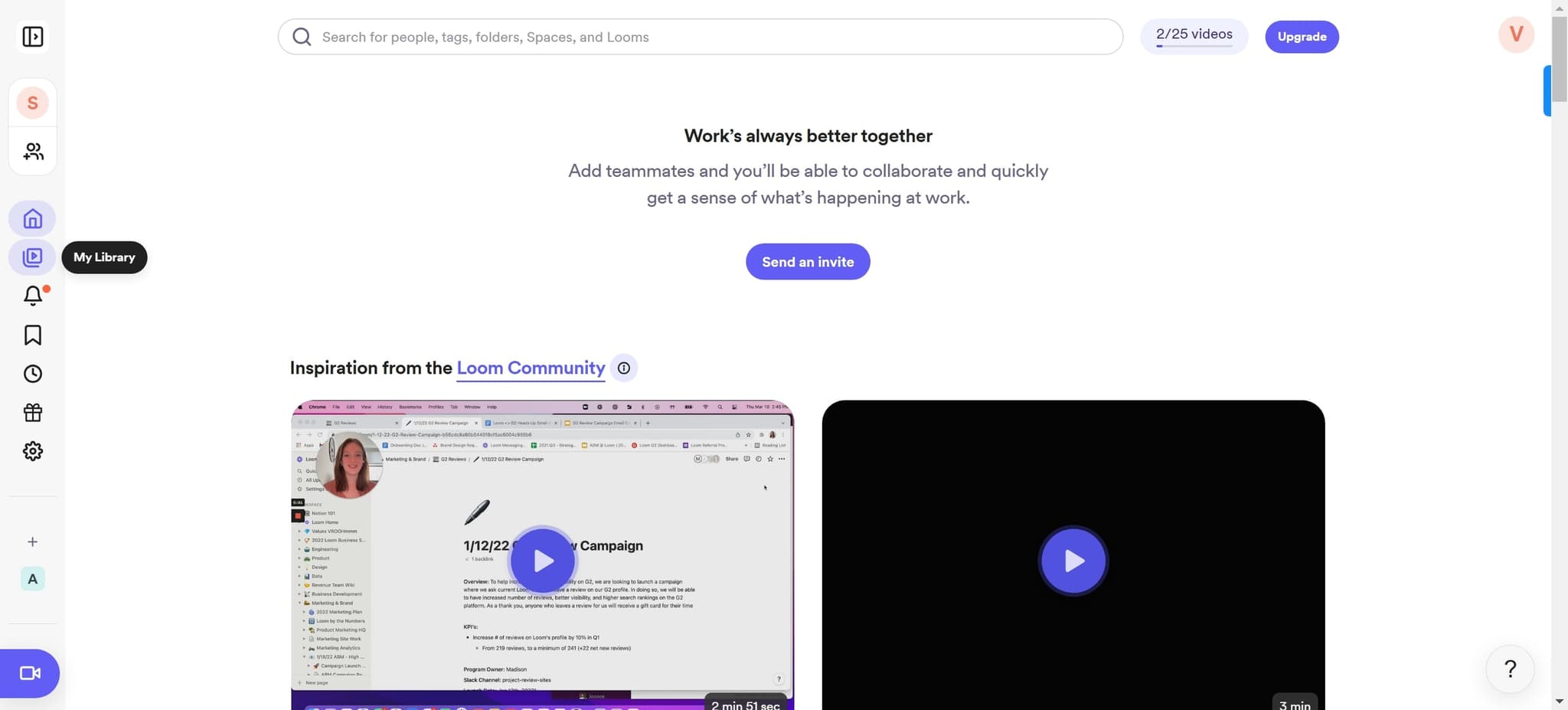
Navigate to editing options
Click on the next element to proceed to the editing menu. You'll see additional controls and options for modifying your video content.
- 3
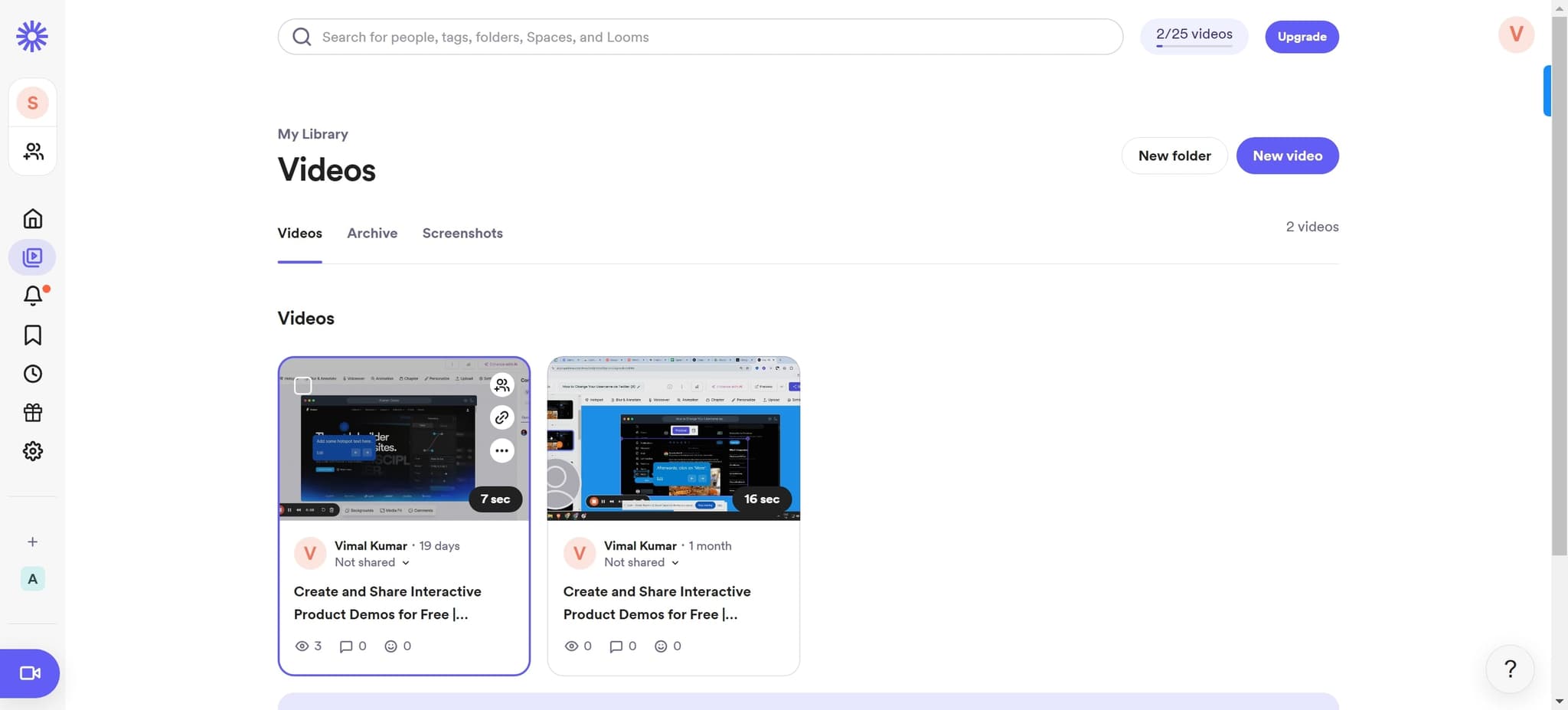
Select your video project
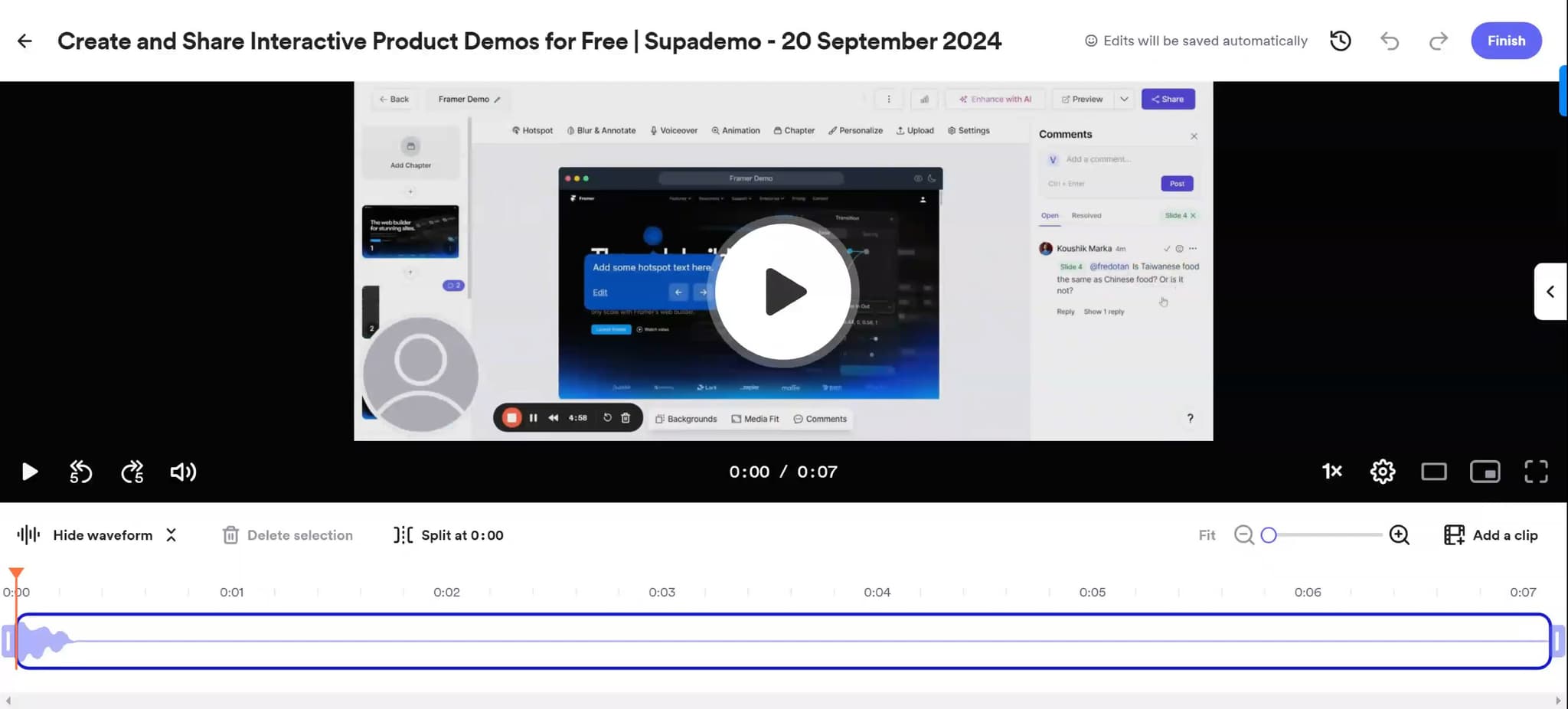
Click on "Create and Share Interactive Product Demos for Free | Supade..." to access your specific video project. This will load your video content into the editor for modification.
- 4
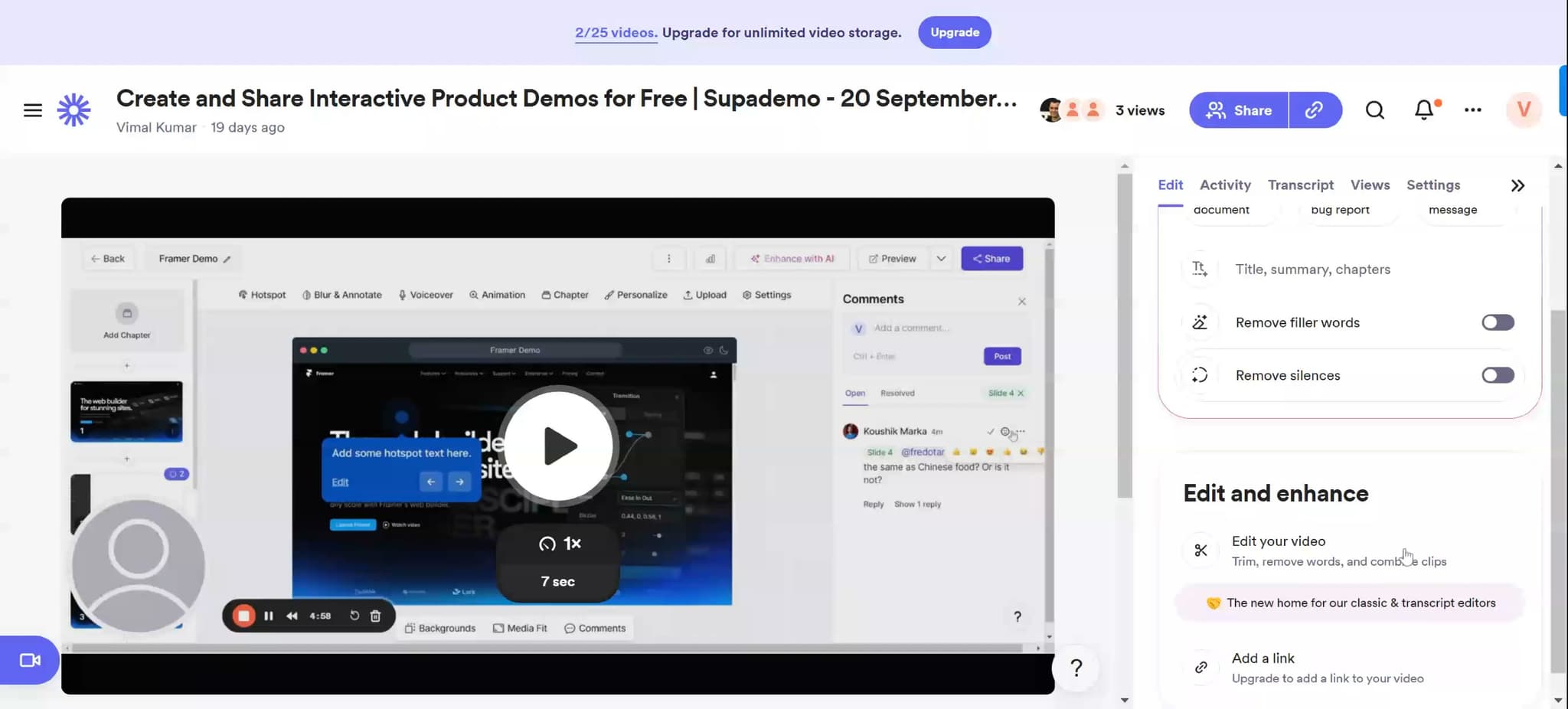
Upload your first media asset
Click the Upload button to begin adding media files to your project. Select the file from your computer that you want to include in your edited video.
- 5
Upload additional media assets
Click Upload again to add more media files as needed for your project. You can continue uploading multiple assets to build out your complete video.
- 6
Finalize media uploads
Complete your final media upload by clicking Upload one more time. Once all assets are uploaded, you'll be ready to arrange and edit them within your video.
Frequently asked questions
Common questions about how to edit a loom video.
Yes, Loom's editing interface allows you to remove unwanted sections from your recording. You can select specific portions of your video and delete them to create a tighter, more focused final product.
Loom supports common video and media formats including MP4, MOV, and other standard video files. Check Loom's current documentation for the complete list of supported formats to ensure compatibility.
After uploading your media, Loom's editing tools typically include caption and text overlay options. You can add text elements during the editing process to enhance clarity and engagement.
Loom generally works with one project at a time within the editor. If you need to edit multiple videos, you'll need to save and export your current project, then start a new editing session for the next video.
If an upload fails, check your file size and internet connection first. Try uploading again, or if the problem persists, consider compressing your media file or checking Loom's support documentation for troubleshooting steps.