How to Embed a Loom Video in an Email

Embedding Loom videos directly in emails makes it easy to share interactive video content with your audience without requiring them to click external links. This guide walks you through the process of embedding a Loom video in an email, enabling you to create more engaging email communications.
Quick summary
In this tutorial, you'll learn how to embed a Loom video in an email by uploading your video, configuring the embedding settings, and finalizing the attachment. By the end, you'll be able to seamlessly integrate video content into your email messages for better engagement.
Why this matters
Video content in emails significantly increases click-through rates and viewer engagement compared to text-only messages. Embedding Loom videos directly keeps viewers in their inbox while delivering your message, reducing friction and improving the chances they'll watch your content. This is especially valuable for product demos, tutorials, and personalized video messages.
Step-by-step guide
- 1
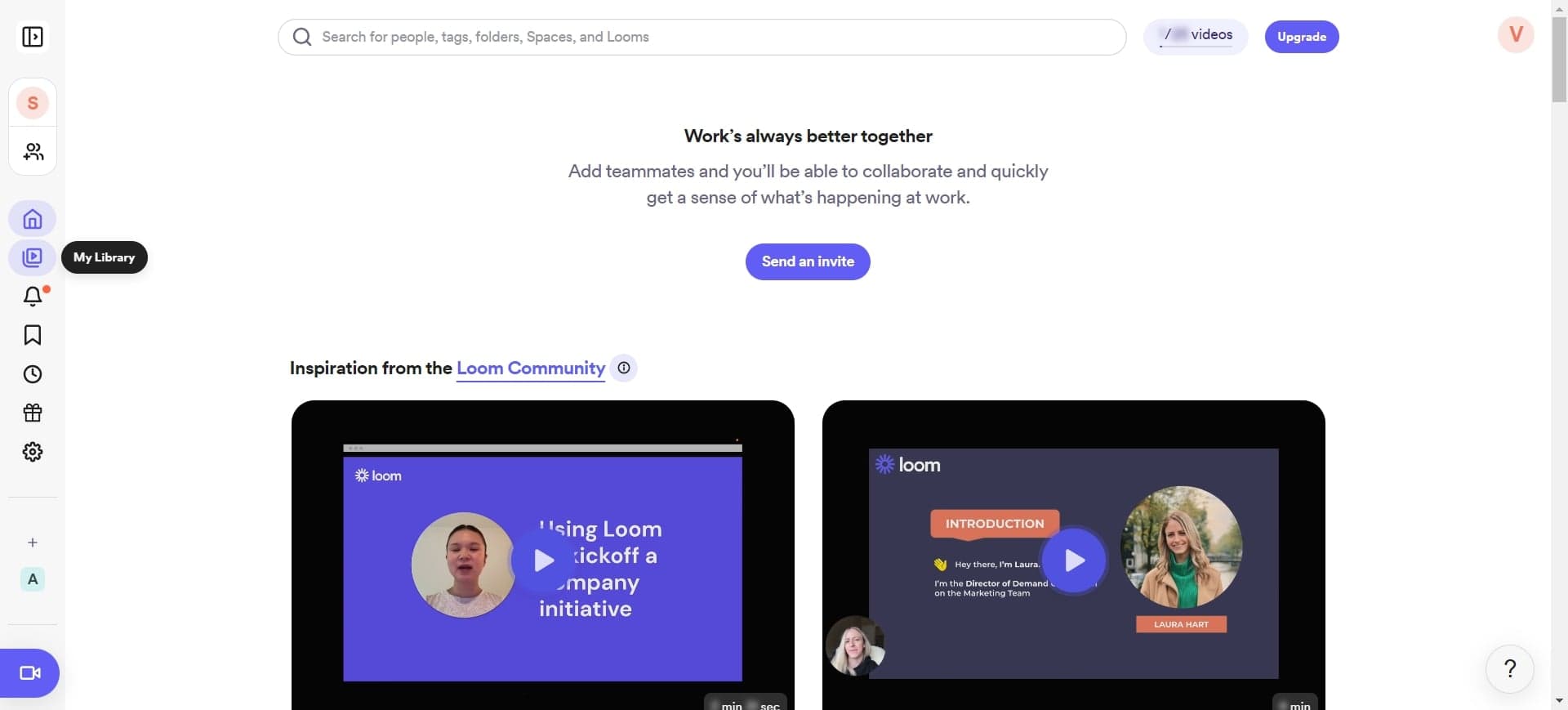
Click on the element
Start by locating and clicking the appropriate element in your Loom interface or email editor that will allow you to add video content. This opens the attachment or embedding menu where you can begin the upload process.
- 2
Upload your video
Select the Upload option to begin transferring your Loom video file. Choose the video you want to embed from your device or Loom library, and wait for the upload to complete before proceeding to the next step.
- 3
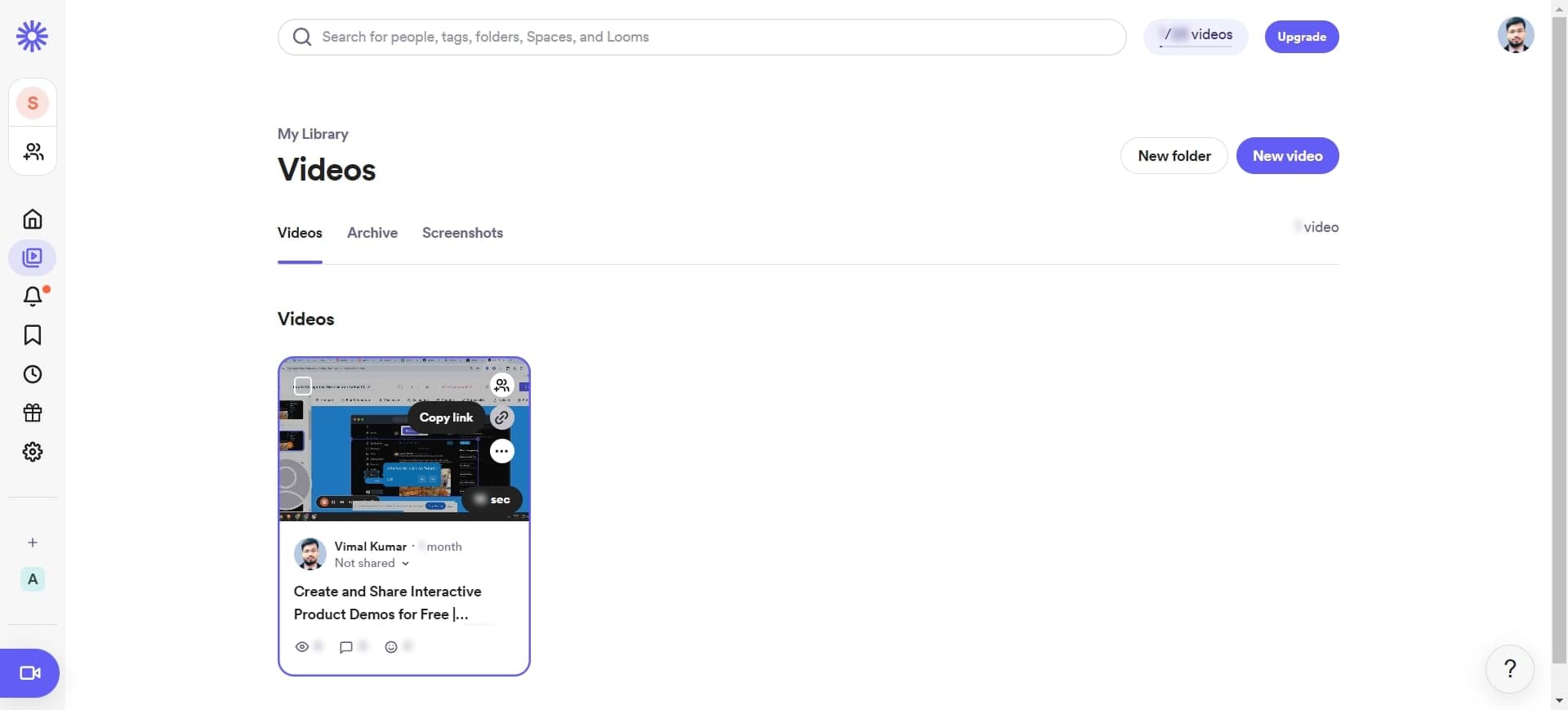
Configure embedding settings
Click on the designated area to access the video embedding configuration options. Here you can adjust how the video will appear in the email, such as thumbnail size and playback behavior.
- 4
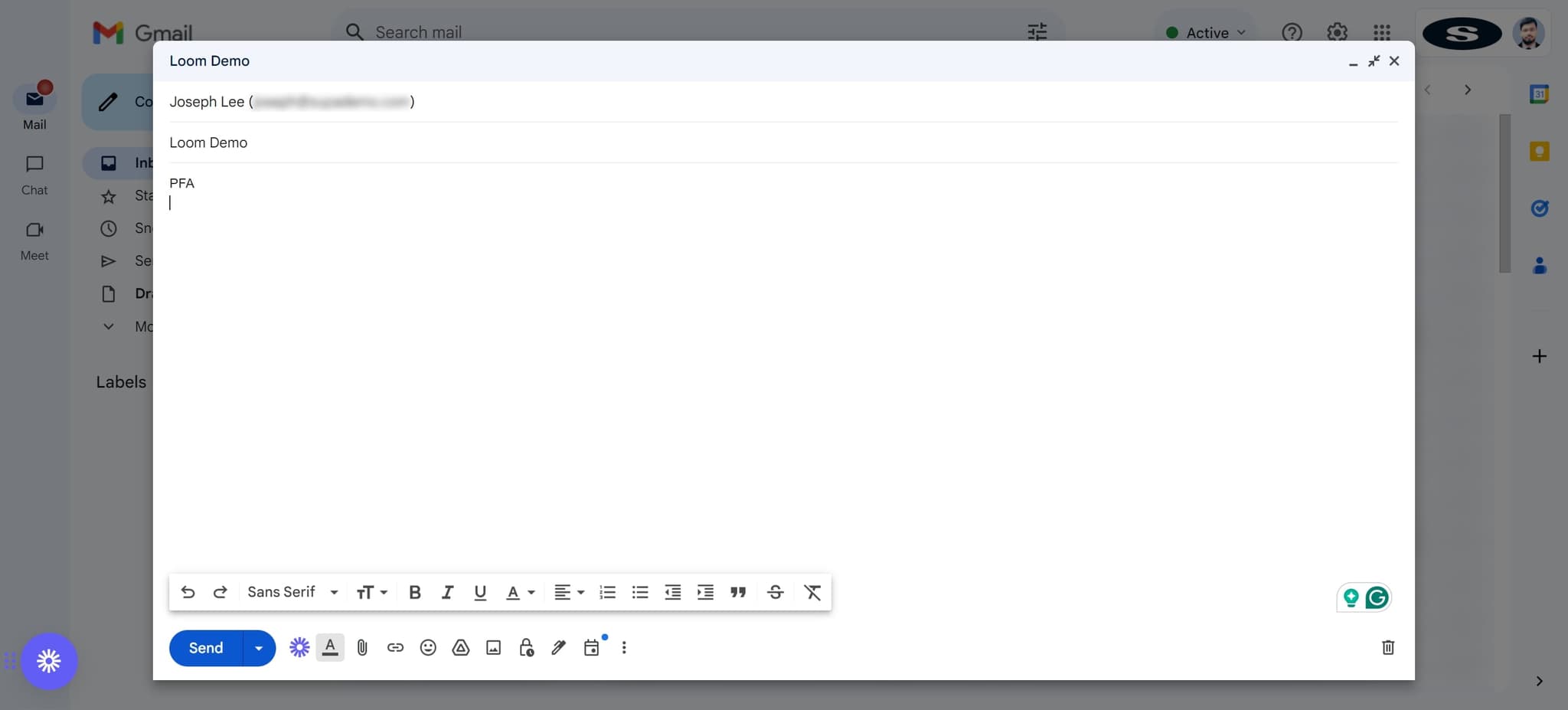
Click on PFA to finalize
Click the PFA button to complete the embedding process and attach your video to the email. This finalizes all settings and prepares your email with the embedded Loom video ready to send.
Frequently asked questions
Common questions about how to embed a loom video in an email.
Most email clients support embedded video playback, though support varies by client. Some recipients may see a thumbnail or preview that requires a click to play, while others can play the video directly in their inbox. Gmail, Outlook, and Apple Mail offer good embedded video support.
Loom automatically formats videos for email compatibility. The platform typically uses MP4 or web-optimized video formats that work across major email clients. You don't need to manually convert your Loom recordings.
Embedded videos can increase file size, which may trigger spam filters if the email exceeds size limits set by email providers. Most providers allow 20-50MB attachments. Consider using linked thumbnails as an alternative if file size becomes an issue.
Test your email across different email clients like Gmail, Outlook, and Apple Mail before sending to your full list. You can also include a fallback link in the email body so recipients can watch the video if their email client doesn't support embedded playback.
Loom provides analytics for videos shared via link, but embedded videos in email may not provide the same level of tracking depending on your email service. For detailed engagement metrics, consider using a hybrid approach with a clickable thumbnail linked to your Loom video.