How to add a content to your campaign in Mailchimp

Adding content to your Mailchimp campaign is a fundamental step in creating engaging email marketing messages. This guide walks you through the process of inserting images and uploading assets to enhance your campaign's visual appeal and effectiveness.
Quick summary
In this tutorial, you'll learn how to add image content to your Mailchimp campaign by selecting the image option, uploading your file, and confirming the upload. By the end, you'll be able to seamlessly integrate visual elements into your email campaigns.
Why this matters
Visual content significantly improves email engagement rates and helps communicate your message more effectively. Adding images directly within Mailchimp streamlines your campaign creation workflow and ensures your content is properly optimized for email delivery.
Step-by-step guide
- 1
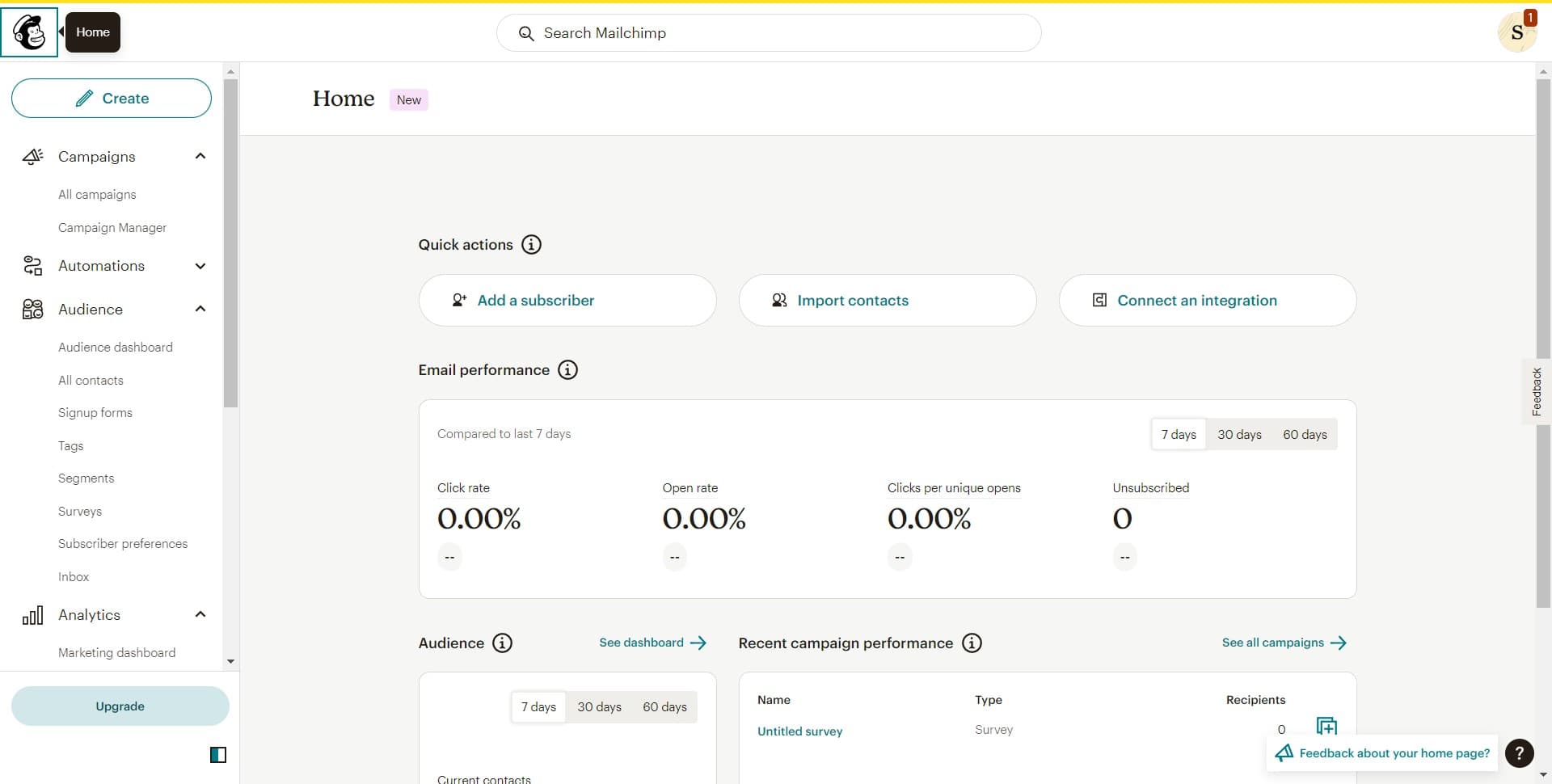
Click on the Image option
In the Mailchimp campaign editor, locate and click on the "Image" button or icon in the content toolbar. This action opens the image insertion interface where you can upload visual assets for your campaign.
- 2
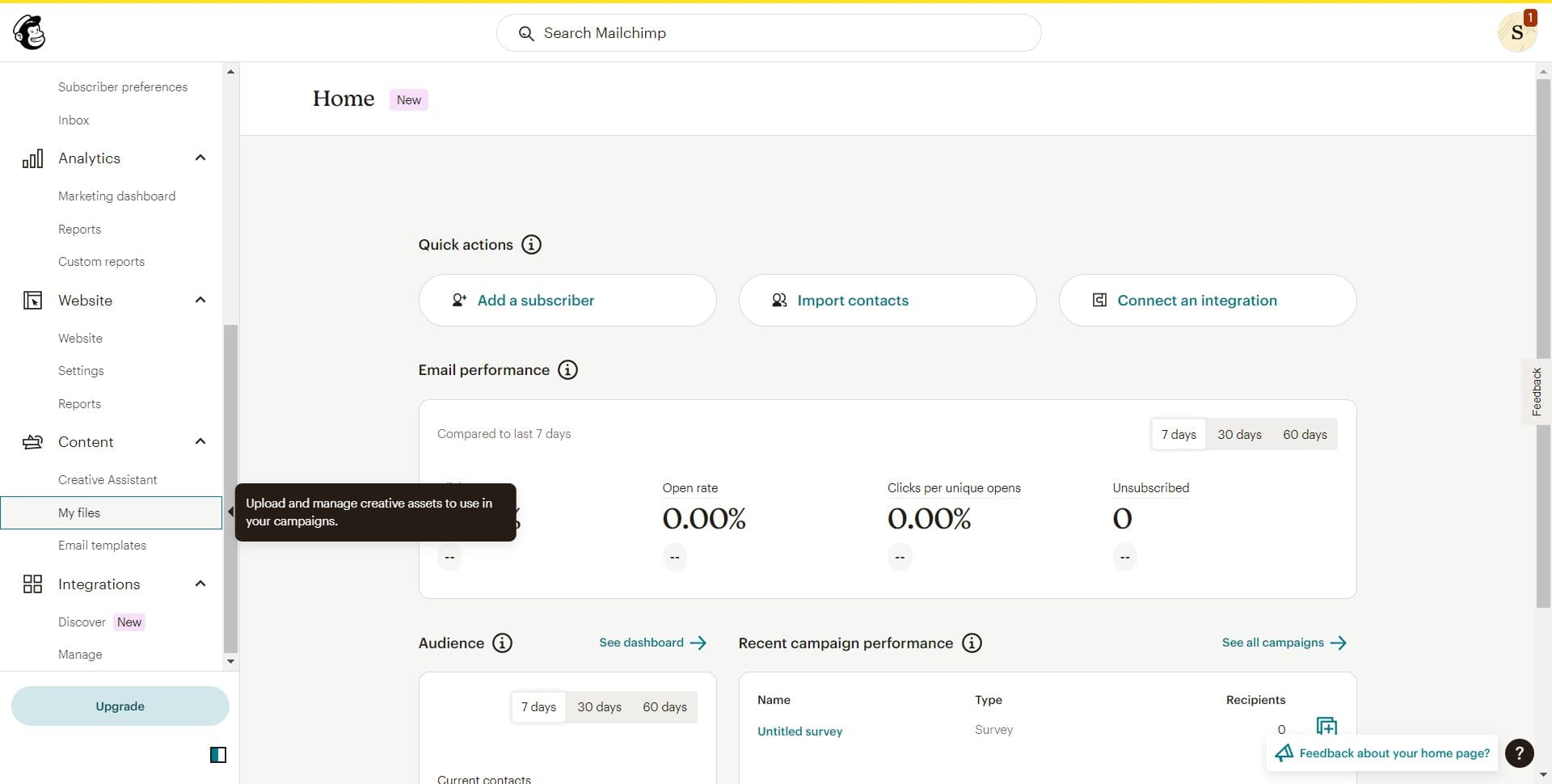
Select Upload to add file
Choose the "Upload" option from the available image source choices. This allows you to upload an image file directly from your computer rather than selecting from a URL or library.
- 3
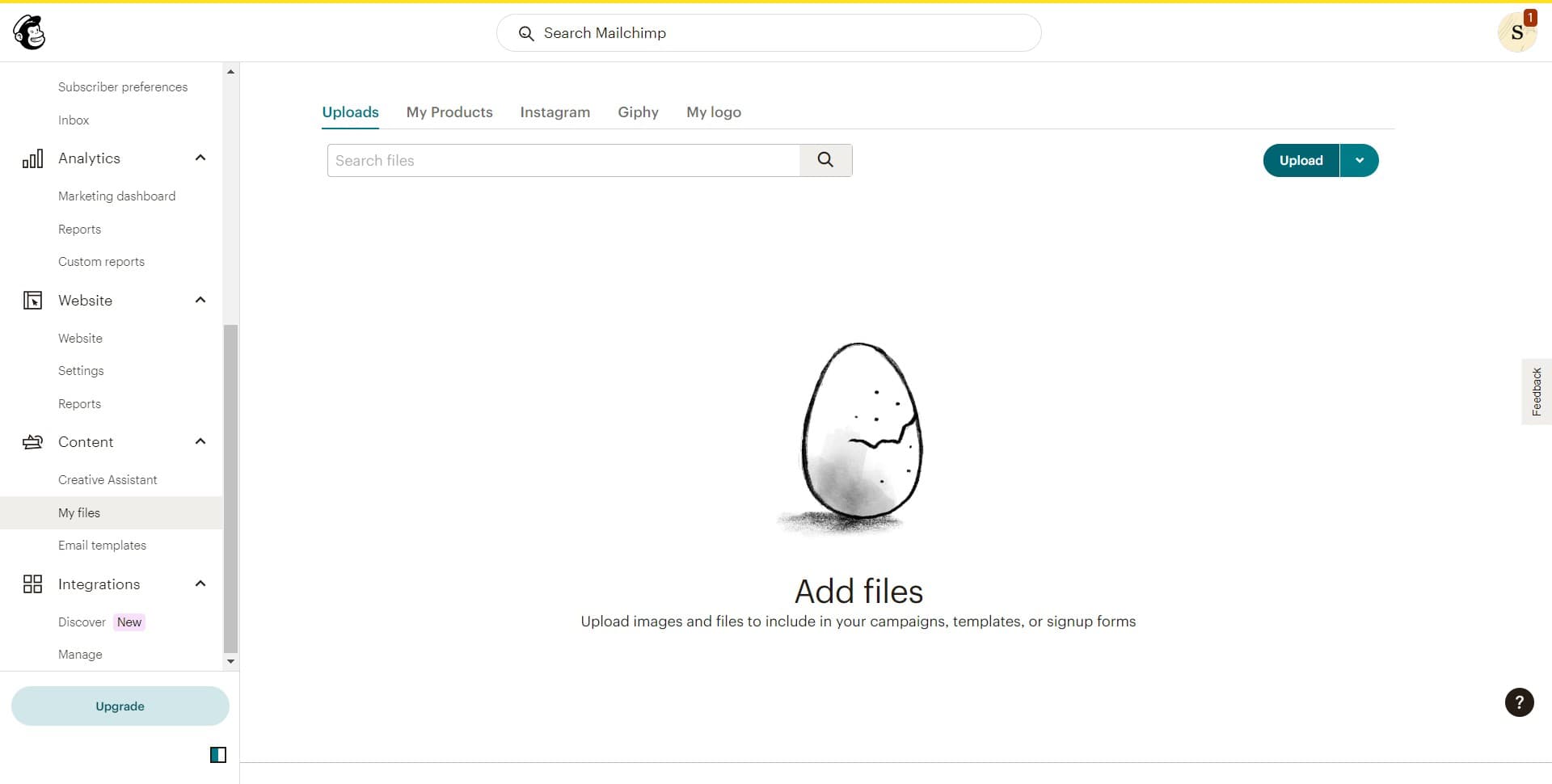
Click the Upload button
Click the "Upload" button to open your file browser and select the image you want to add to your campaign. Navigate to your desired image file and prepare to confirm the selection.
- 4
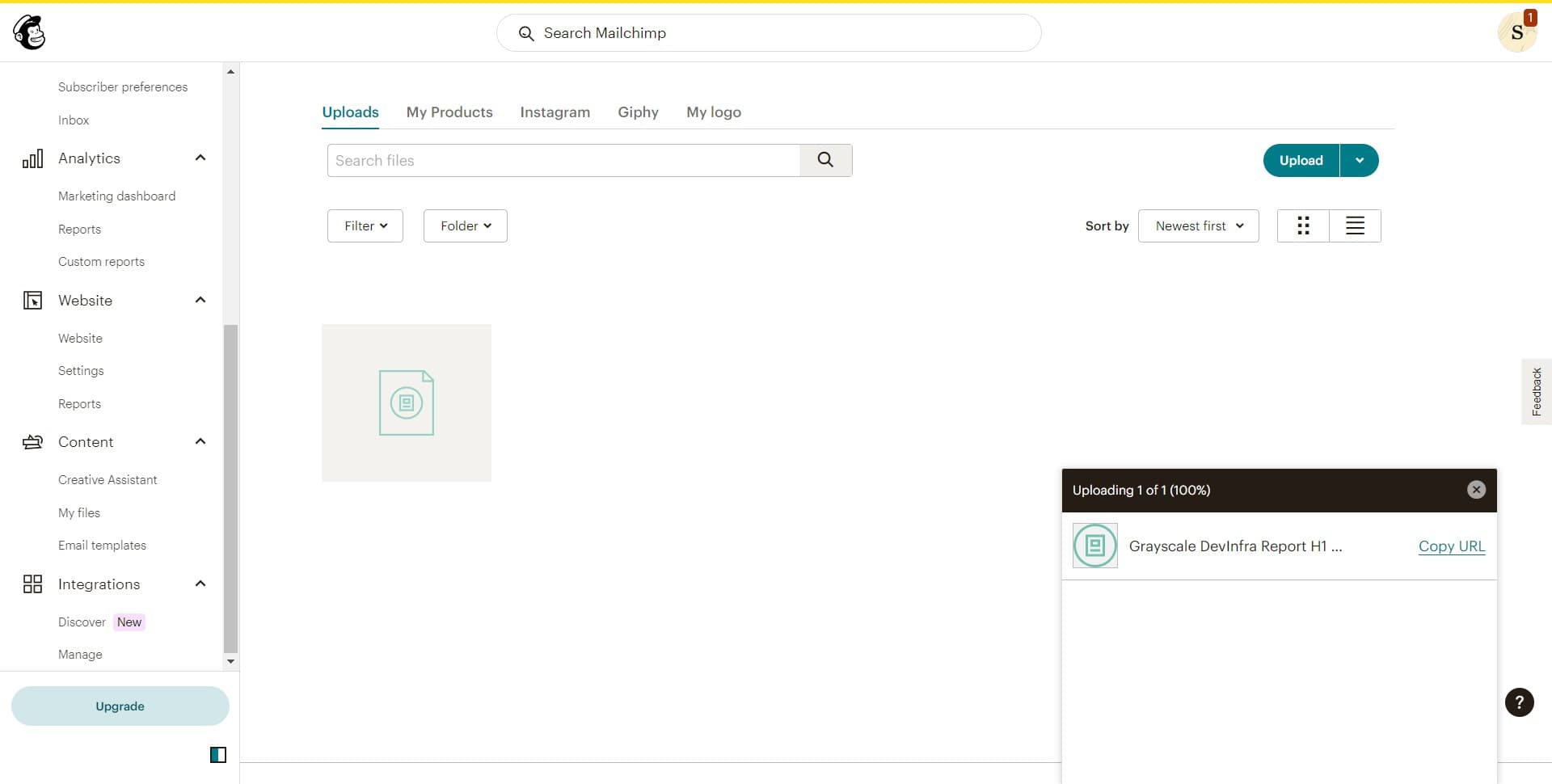
Confirm and complete upload
Click the confirmation button or follow the final prompt to complete the image upload process. Your image will now be inserted into your campaign content, ready for resizing and formatting as needed.
Frequently asked questions
Common questions about how to add a content to your campaign in mailchimp.
Mailchimp supports common image formats including JPG, PNG, GIF, and WebP. For best results in email clients, use JPG or PNG formats with a maximum file size of 5MB. Ensure your images are optimized for email to maintain fast loading times and compatibility across devices.
Yes, after uploading an image to your campaign, you can resize it by dragging the corners or edges of the image within the editor. Mailchimp also provides basic editing options like cropping and alignment to customize how your image appears in the final email.
Mailchimp doesn't impose a strict limit on the number of images per campaign, but keep in mind that too many images can increase email file size and slow down loading. Best practice is to balance visual content with text and aim for email sizes under 100KB for optimal deliverability.
If an image fails to upload, first check that the file format is supported and the file size is under 5MB. Try uploading again, and if the issue persists, consider compressing the image or converting it to a different format like PNG or JPG. If problems continue, contact Mailchimp support for assistance.
Yes, adding alt text to images is important for accessibility and email deliverability. After uploading an image, you can click on it and add descriptive alt text in the image properties panel. This helps recipients with screen readers and displays text if images don't load in certain email clients.