How to add a subscriber in Mailchimp

Adding subscribers to your Mailchimp audience is a fundamental task for building your email list and growing your marketing reach. This tutorial walks you through the process of manually adding a single subscriber using Mailchimp's quick actions feature.
Quick summary
In this tutorial, you'll learn how to add a new subscriber to your Mailchimp audience in just a few clicks. You'll access the quick actions menu and navigate through the subscriber form to complete the setup.
Why this matters
Manually adding subscribers is useful for importing contacts from events, conversations, or other direct sources that aren't yet in your system. This workflow ensures you can quickly onboard new contacts and begin building relationships through email campaigns.
Step-by-step guide
- 1
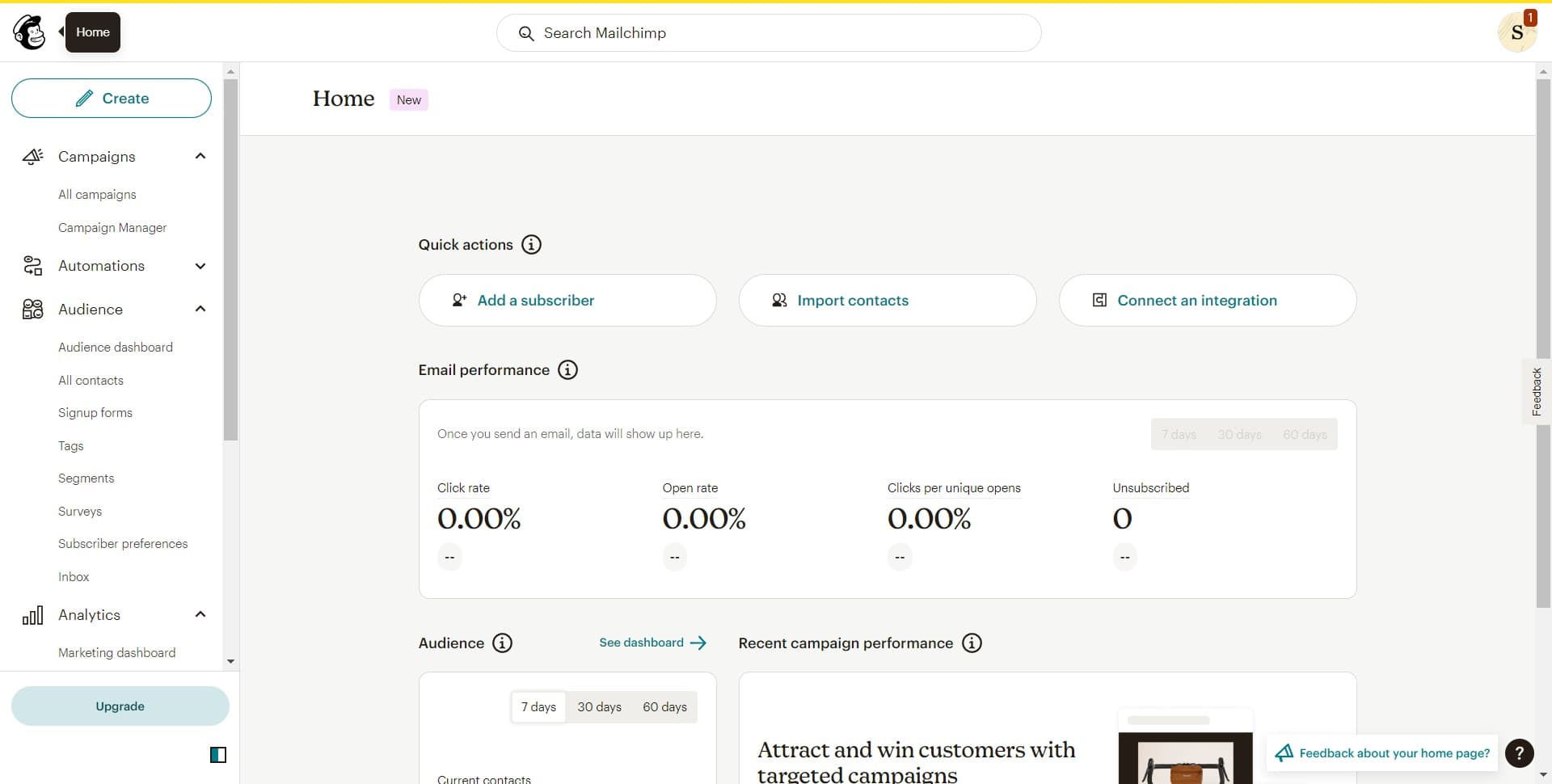
Access the Quick Actions menu
Click on the 'Quick actions' option in your Mailchimp dashboard. This menu provides shortcuts to common tasks, including adding new subscribers to your audience.
- 2
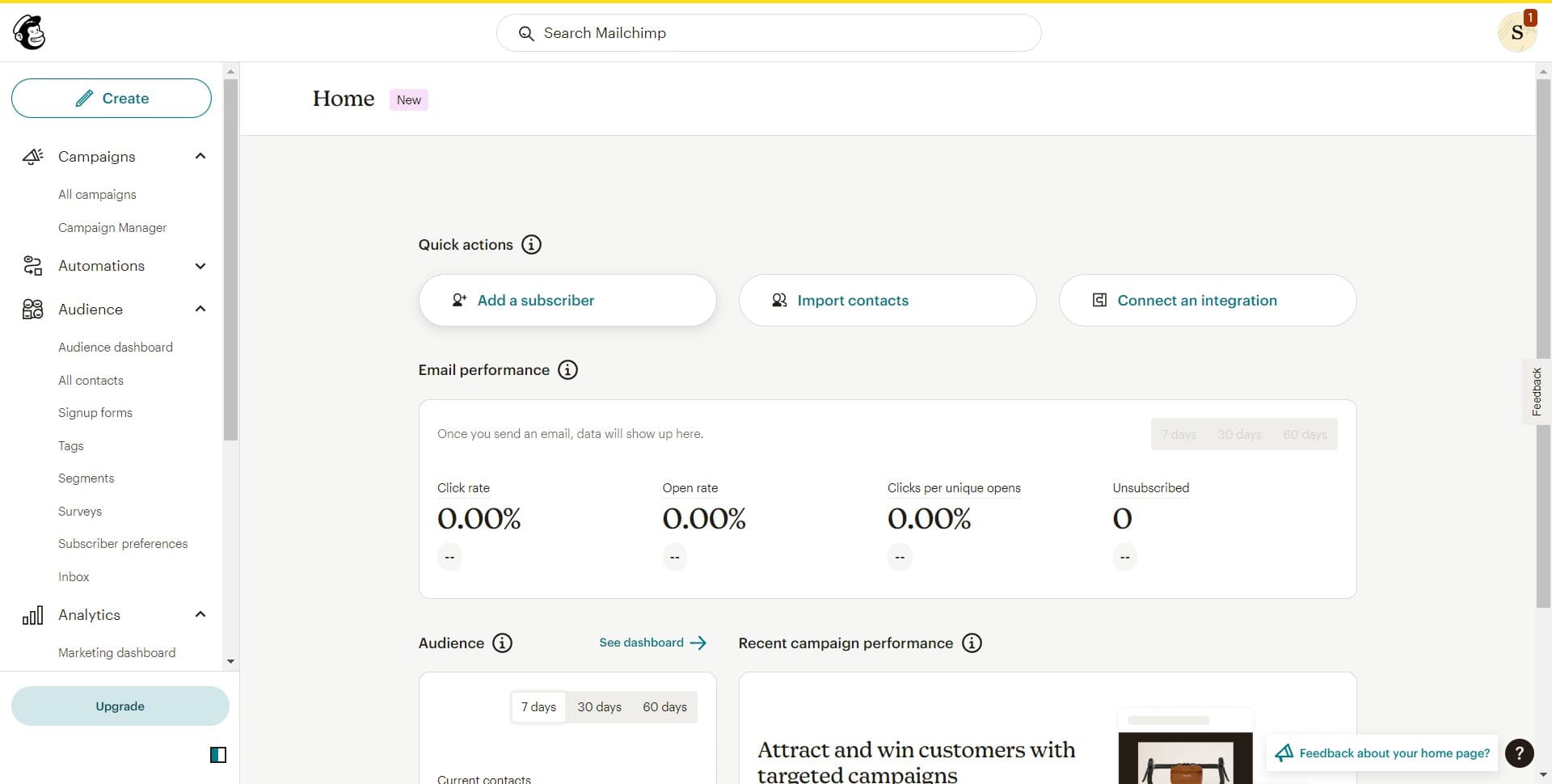
Select Add a Subscriber
Click on 'Add a subscriber' from the Quick actions dropdown. This opens a form where you can enter the new contact's information.
- 3
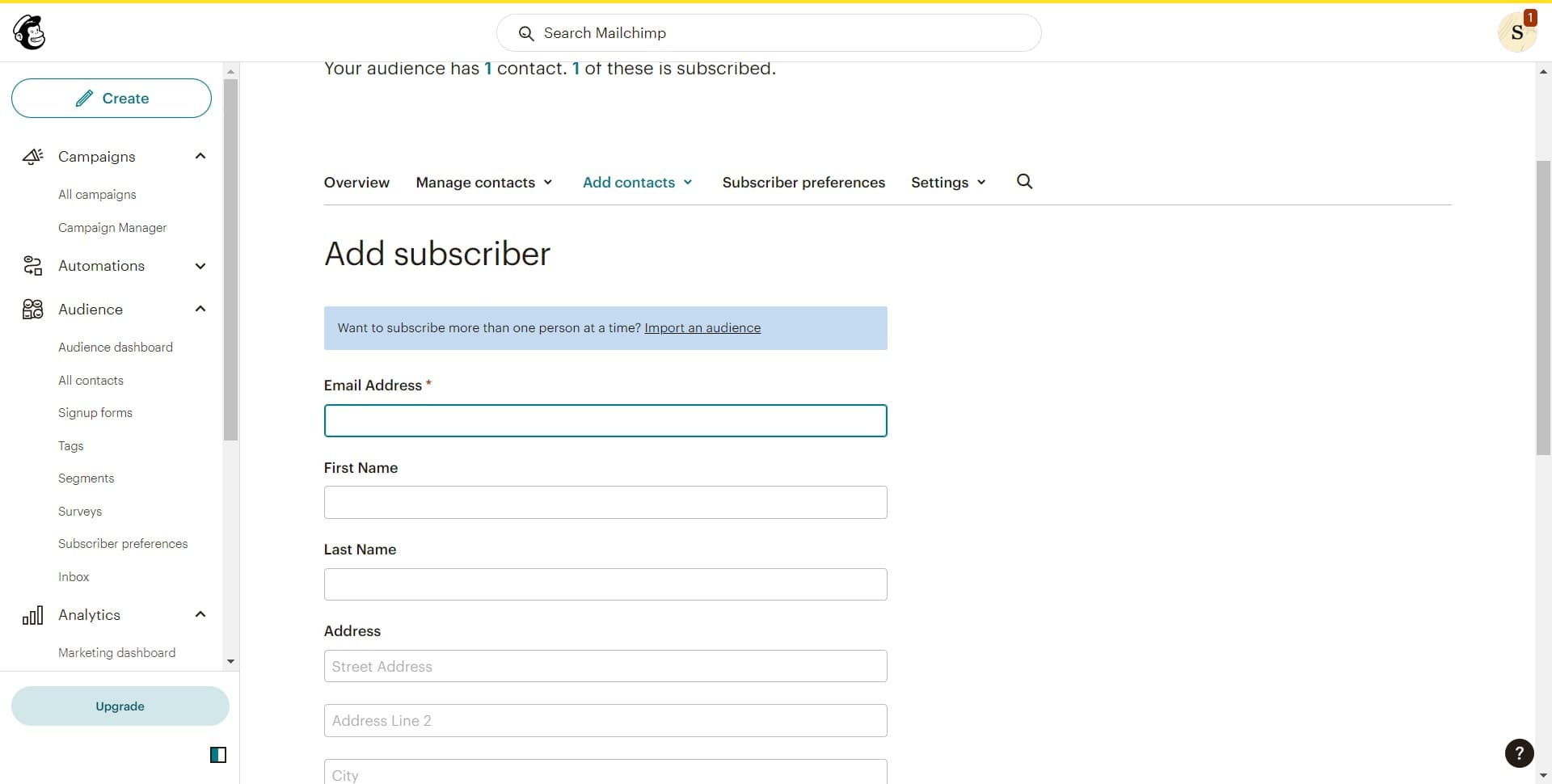
Enter subscriber details
Fill in the required information for the new subscriber, such as email address and any additional fields your audience requires. Review the form carefully to ensure all data is accurate before proceeding.
- 4
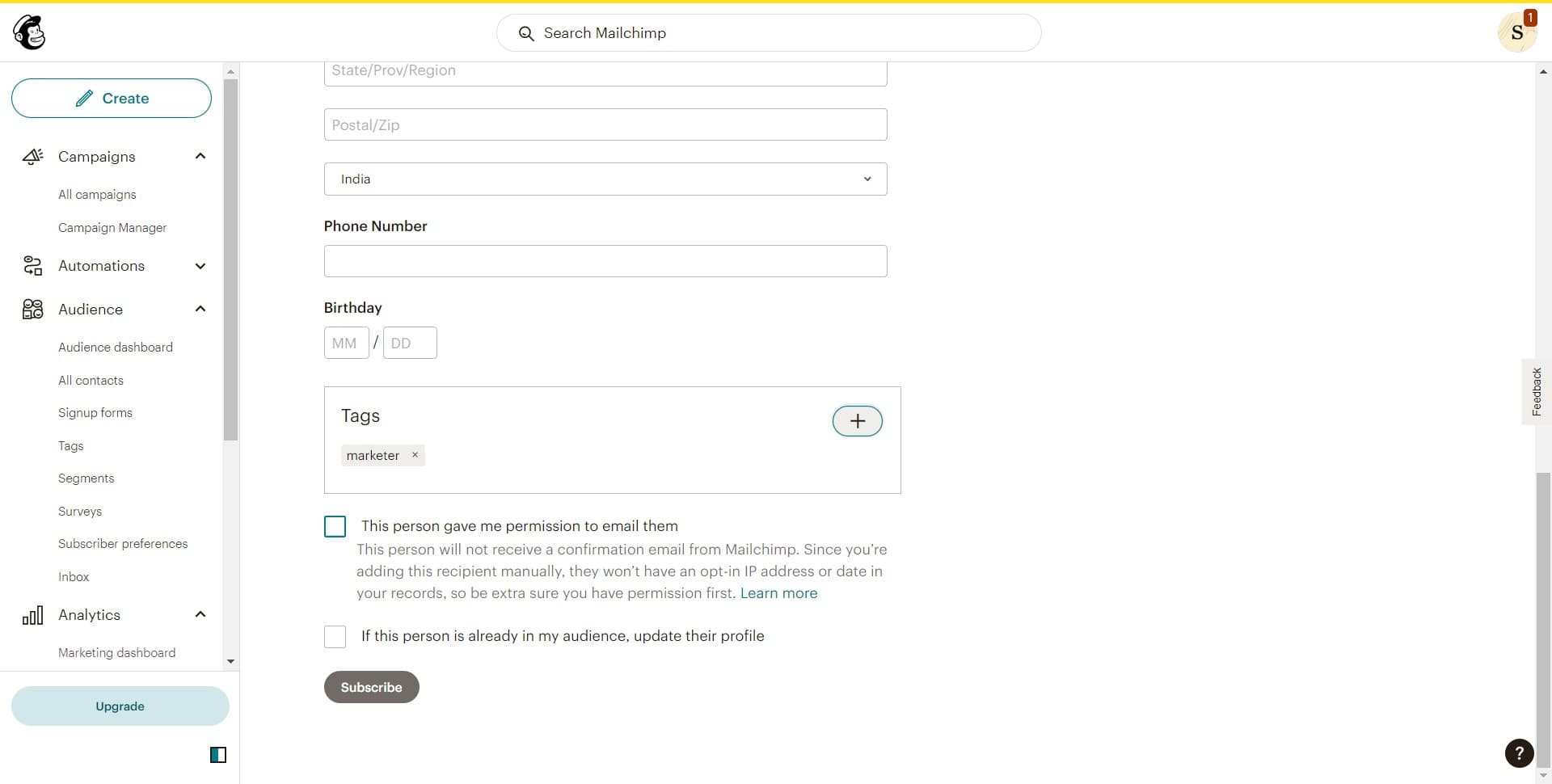
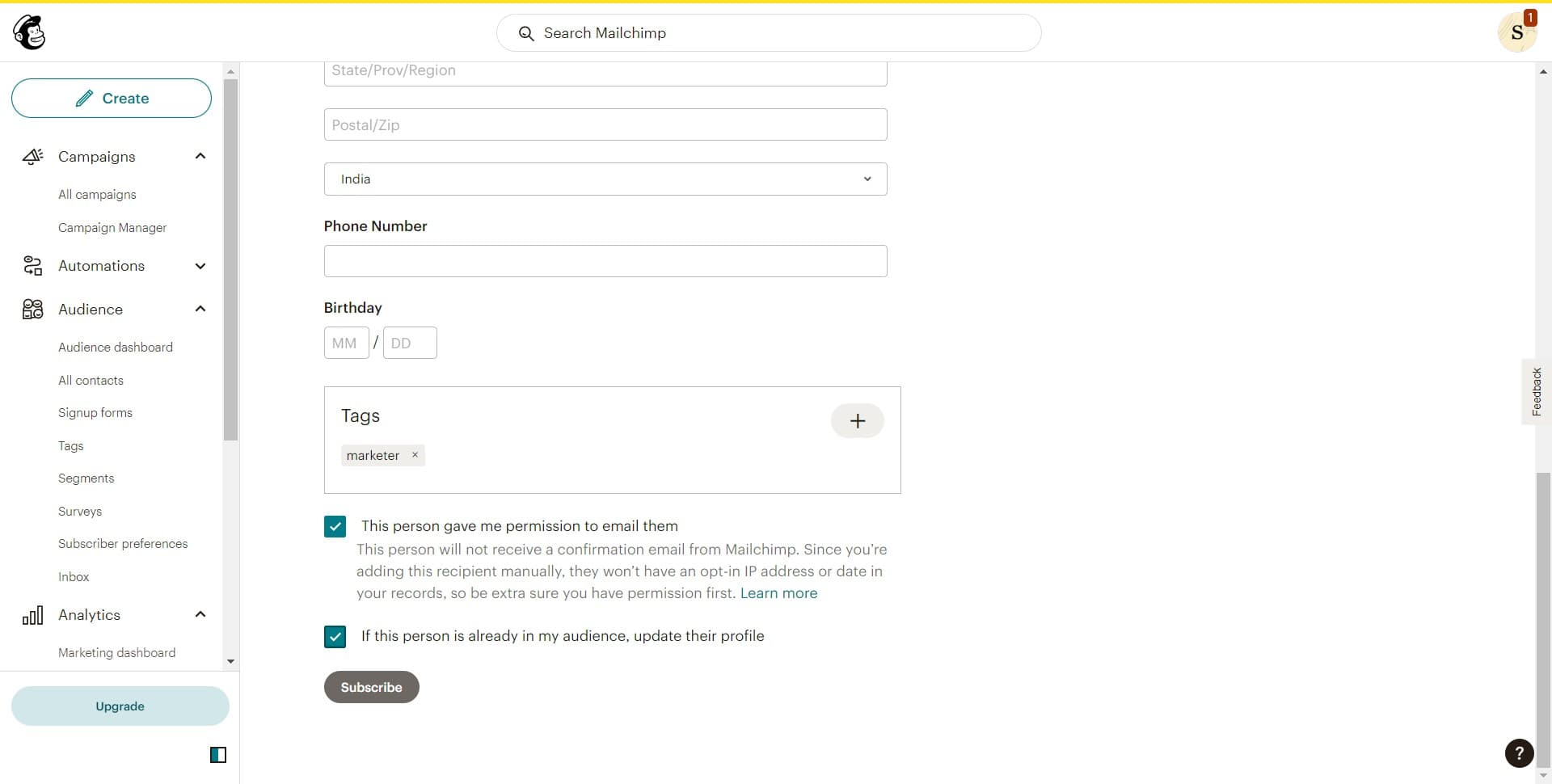
Configure subscriber preferences
Set the subscriber's status, tags, and any other relevant preferences based on your marketing needs. These settings determine how the subscriber will receive communications from your campaigns.
- 5
Confirm and save the subscriber
Click the confirmation button to complete the process and add the subscriber to your audience. The new contact will now appear in your subscriber list and be available for future campaigns.
Frequently asked questions
Common questions about how to add a subscriber in mailchimp.
Yes, while this tutorial covers manual single subscriber addition, Mailchimp also supports bulk importing through CSV files or integrations. For adding multiple subscribers, the import feature is more efficient than manually adding them one by one.
At minimum, you'll need a valid email address. Depending on your Mailchimp audience setup, you may also need to provide additional fields such as first name, last name, or custom fields you've configured.
Yes, when adding a subscriber, you can set their status to subscribed, unsubscribed, cleaned, or pending. The status determines their eligibility for receiving your email campaigns.
Mailchimp will notify you if the email address already exists in your audience. You can then choose to update the existing subscriber's information or cancel the action to avoid duplicates.
Yes, you can assign tags and segments to a new subscriber during the creation process. This helps you organize contacts and target them with specific campaigns based on their characteristics.