How to add an integration to your Mailchimp Account

Integrating third-party applications with your Mailchimp account expands your marketing capabilities and streamlines your workflow. This guide walks you through connecting X (formerly Twitter) to Mailchimp, enabling you to sync data and automate campaigns across platforms.
Quick summary
In this tutorial, you'll learn how to add an integration to your Mailchimp account by navigating to the integrations section and connecting X. By the end, you'll have X fully connected and ready to use with your Mailchimp campaigns.
Why this matters
Integrating social media platforms like X with Mailchimp allows you to reach your audience across multiple channels and create more cohesive marketing strategies. This connection enables automated posting, audience syncing, and better campaign tracking across both platforms.
Step-by-step guide
- 1
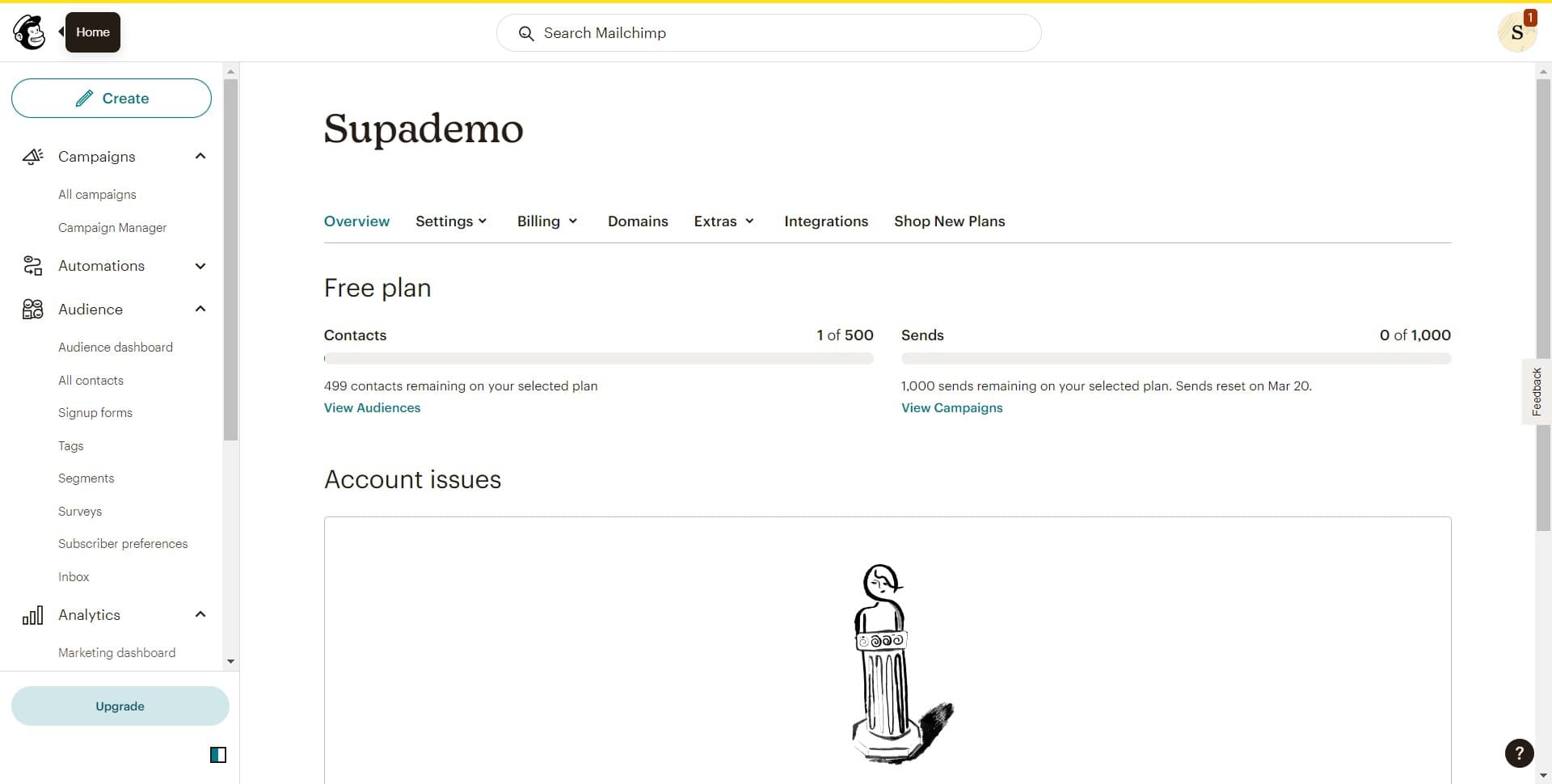
Click on the Image section
Start by locating and clicking on the Image option in your Mailchimp dashboard. This section typically contains media and integration settings for your account.
- 2
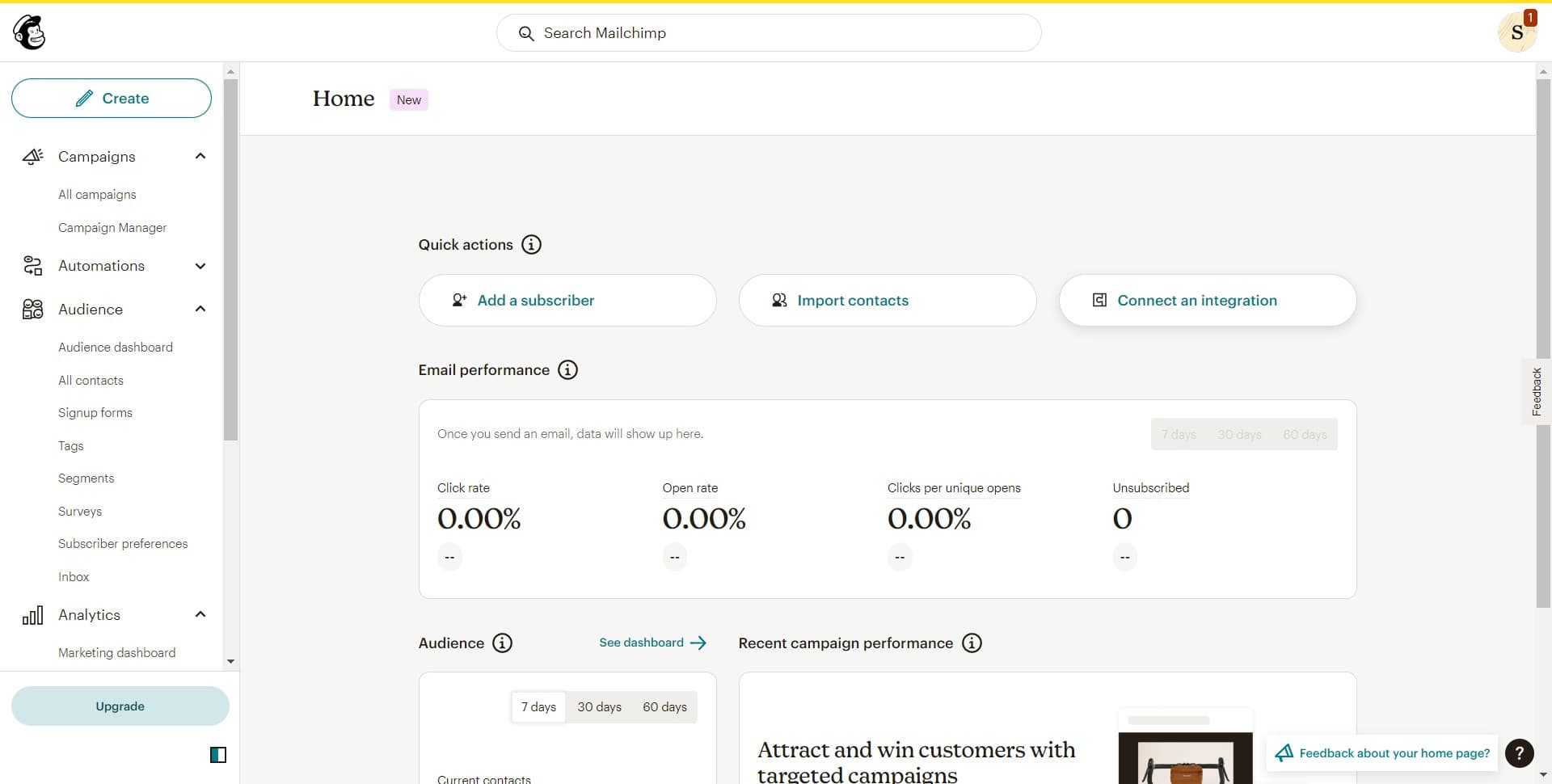
Select Connect an integration
Look for the Connect an integration option within the Image section. Clicking this will open the available integrations you can add to your Mailchimp account.
- 3
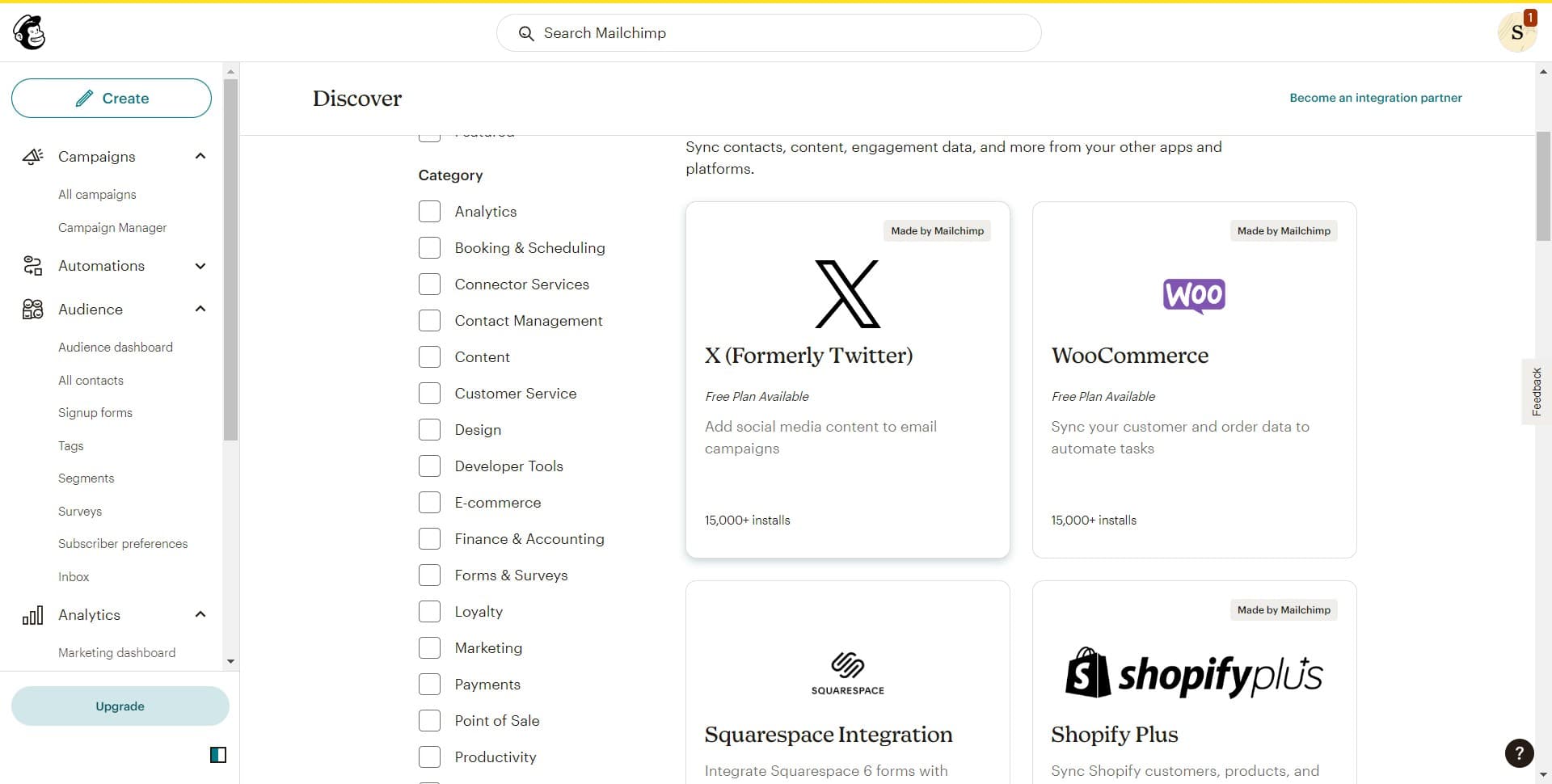
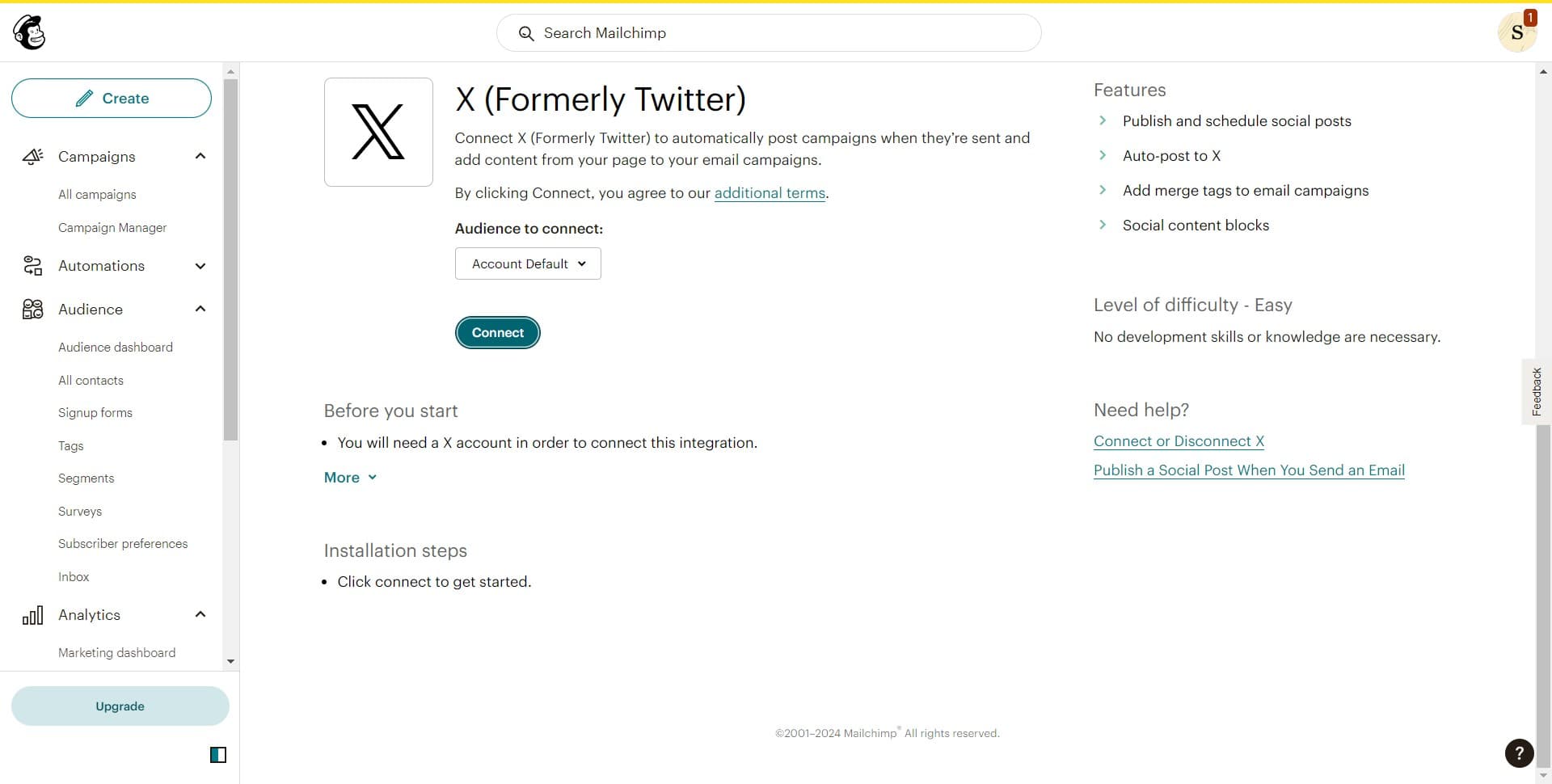
Choose X (Formerly Twitter)
From the list of available integrations, locate and select X (Formerly Twitter). This identifies which social platform you want to connect to your Mailchimp account.
- 4
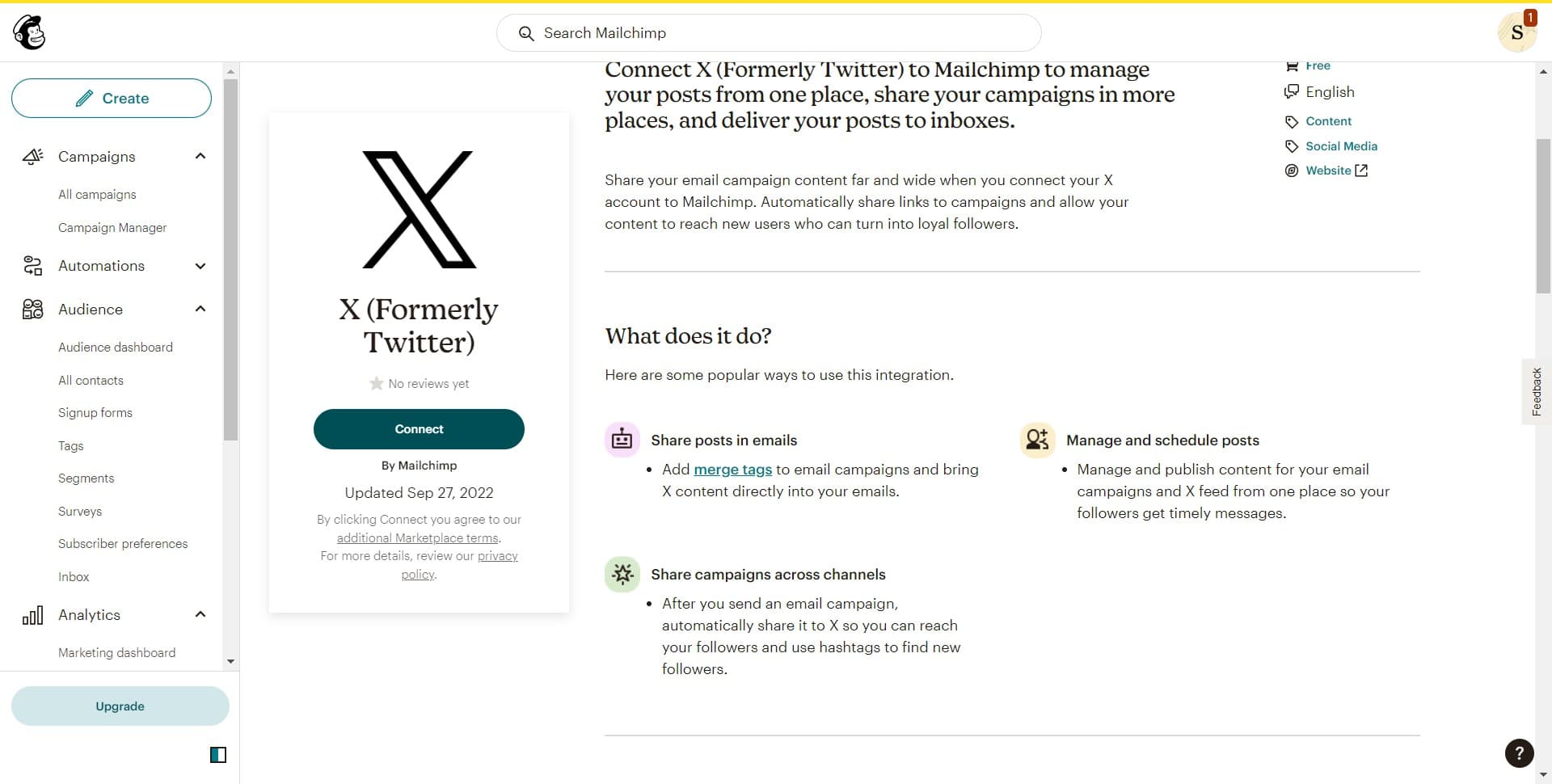
Click Connect on the integration card
Click the Connect button that appears on the X integration card. This initiates the connection process and prepares the authentication steps.
- 5
Confirm the connection request
Click Connect again on the confirmation screen to finalize the integration. You may be prompted to authorize Mailchimp to access your X account during this step.
Frequently asked questions
Common questions about how to add an integration to your mailchimp account.
Integrating X allows you to amplify your email campaigns on social media, track cross-platform engagement, and reach your audience where they're most active. This integration also enables you to automate posting and manage your social presence more efficiently alongside your email marketing efforts.
You'll need to have admin or owner access to both your Mailchimp account and your X account. When you initiate the connection, you'll be asked to authorize Mailchimp to access your X profile, which requires you to be logged into X.
Yes, you can disconnect X from Mailchimp at any time by revisiting the integrations section and selecting the option to remove or disconnect the X integration. This will stop any automated posting or data syncing between the two platforms.
Once connected, you'll be able to use X features within your Mailchimp campaigns, such as sharing content to your X account, tracking social engagement, and potentially automating posts. The integration is now active and ready to use in your marketing workflows.
Most standard integrations like X are included with your Mailchimp plan at no additional cost. However, some premium or third-party integrations may have their own fees. Check your plan details or contact Mailchimp support for information about specific integrations.