How to add subscriber preferences in Mailchimp

Subscriber preferences in Mailchimp allow your audience to control how often they receive emails and what types of content they're interested in. This feature improves engagement and reduces unsubscribes by giving subscribers granular control over their communication preferences.
Quick summary
In this tutorial, you'll learn how to build and publish a preferences center in Mailchimp that lets your subscribers manage their email frequency and content interests. By the end, your preferences center will be live and accessible to your audience.
Why this matters
A well-configured preferences center reduces list decay and improves email deliverability by respecting subscriber preferences. It also decreases unsubscribe rates since subscribers can adjust their settings instead of leaving your list entirely.
Step-by-step guide
- 1
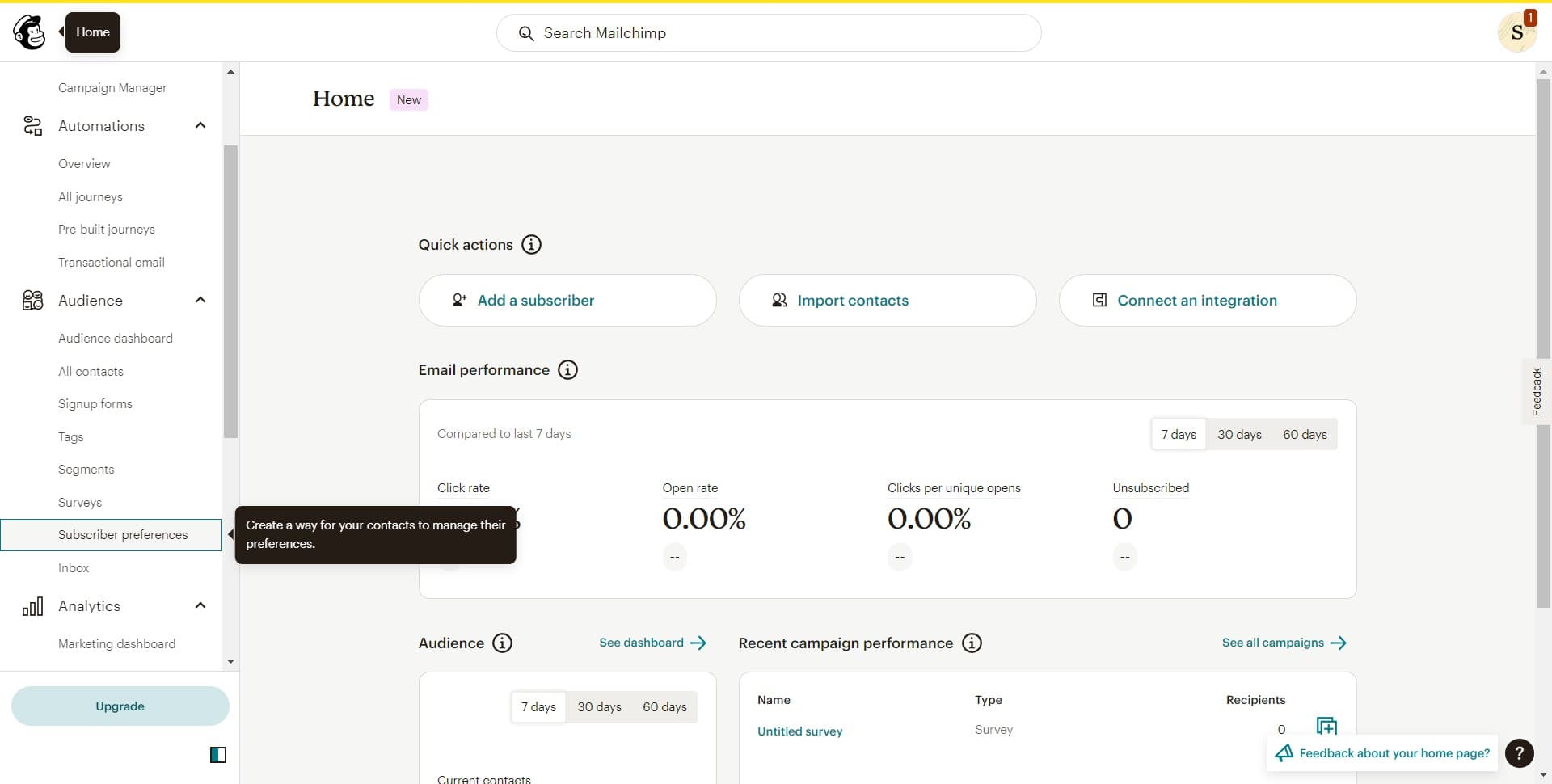
Access subscriber preferences
Navigate to the Subscriber preferences section in your Mailchimp account. This is where you'll manage all settings related to how your audience controls their communication.
- 2
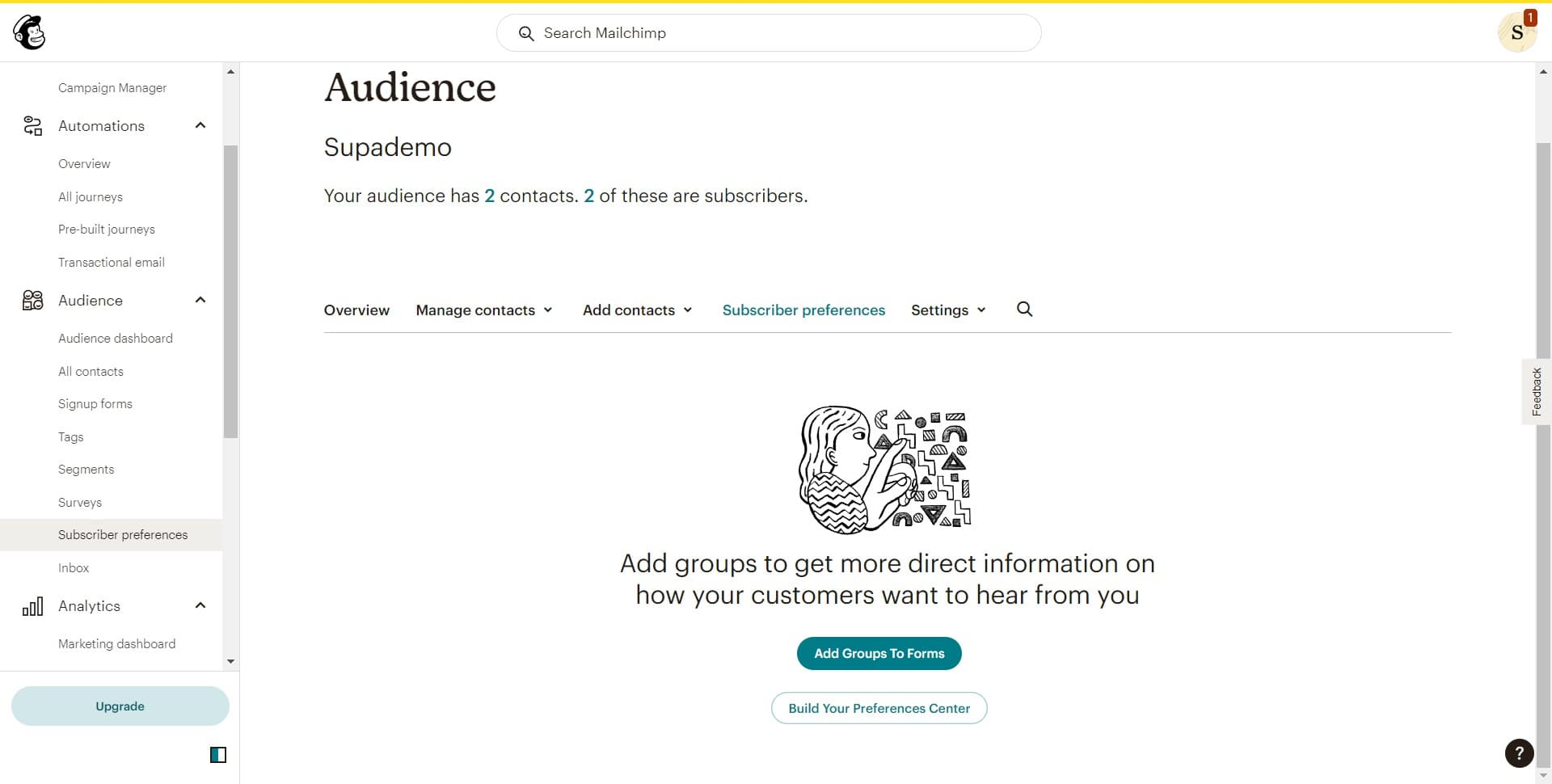
Build your preferences center
Click on 'Build Your Preferences Center' to start creating a customized form. This tool lets you define which preference options subscribers will see.
- 3
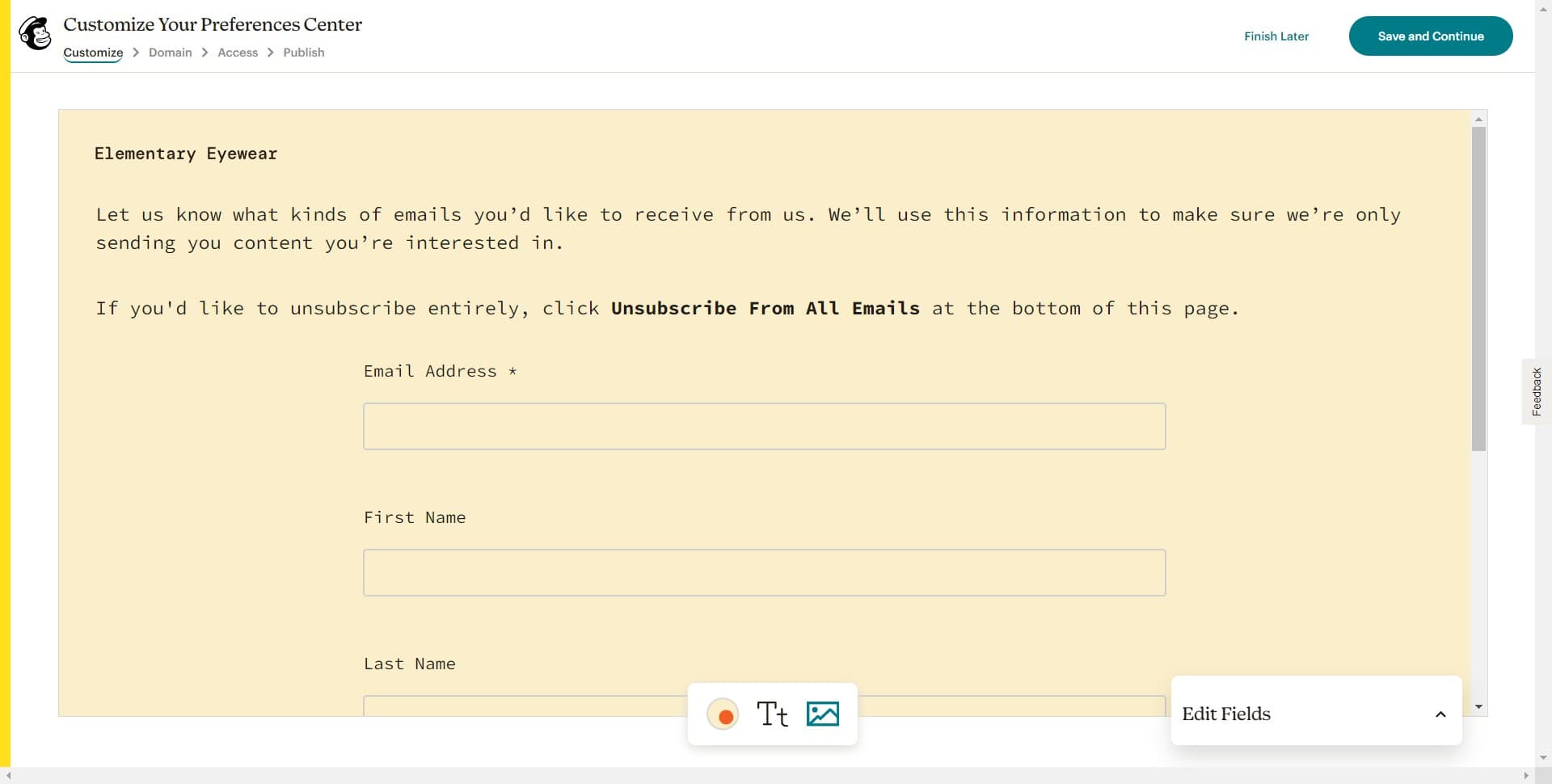
Configure preference options
Select and arrange the preference options you want to offer your subscribers, such as email frequency or content categories. Customize the layout and messaging to match your brand.
- 4
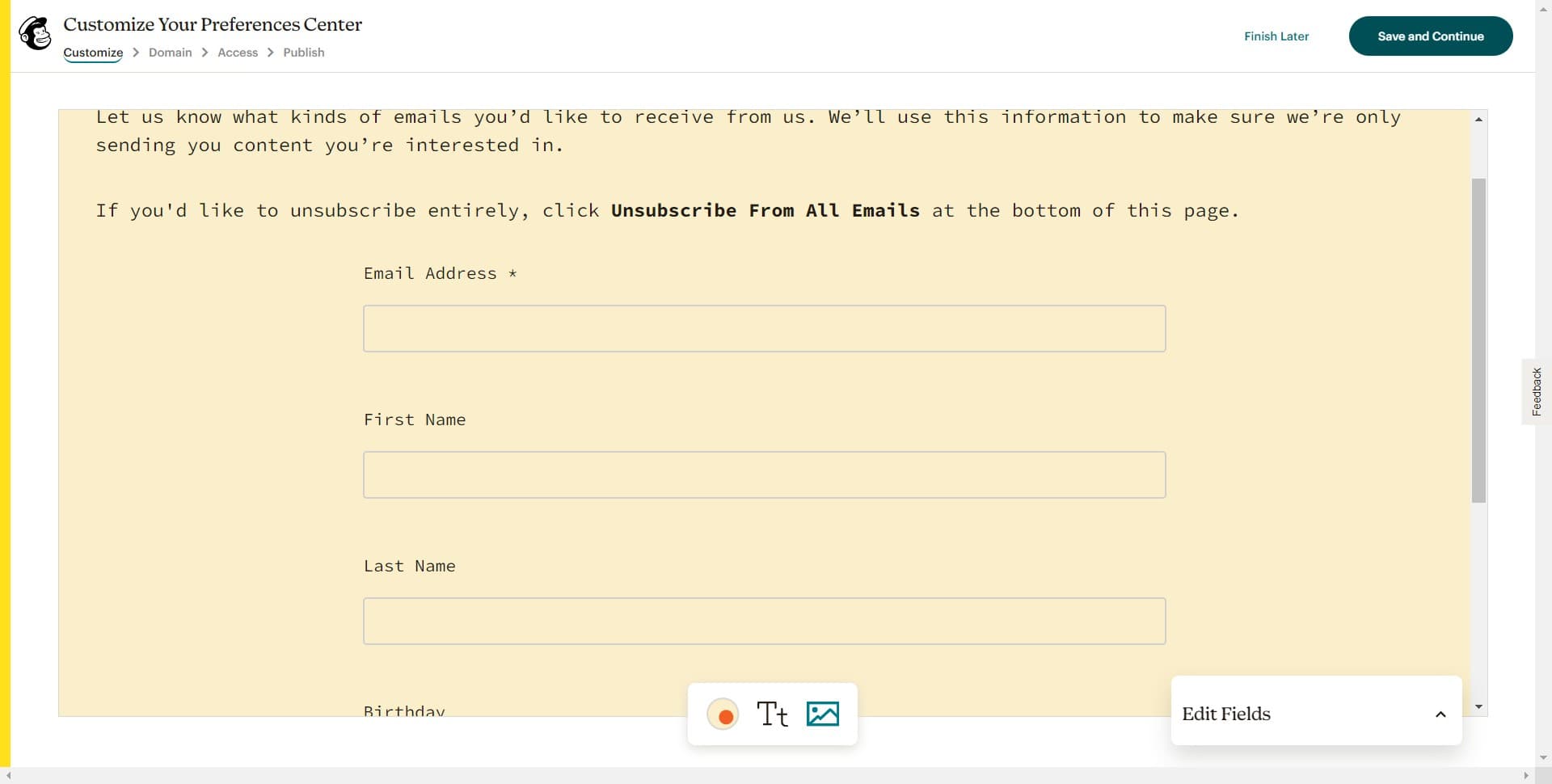
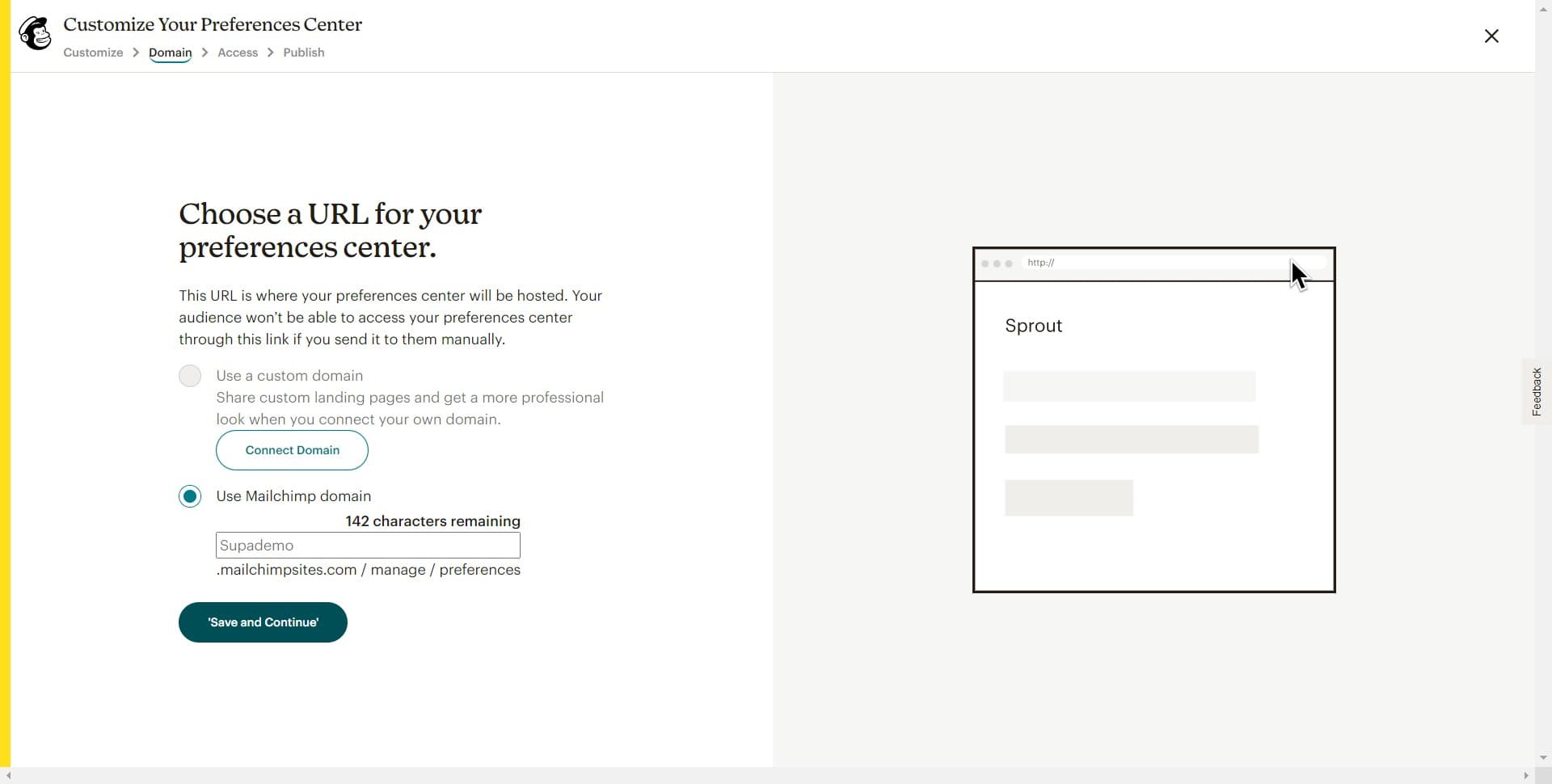
Save and continue setup
Click 'Save and Continue' to confirm your preference options and move to the next configuration step. Your settings will be preserved as you advance.
- 5
Finalize preferences configuration
Click 'Save and Continue' again to finalize your preferences center configuration. This ensures all your choices are recorded before publishing.
- 6
Proceed to publishing
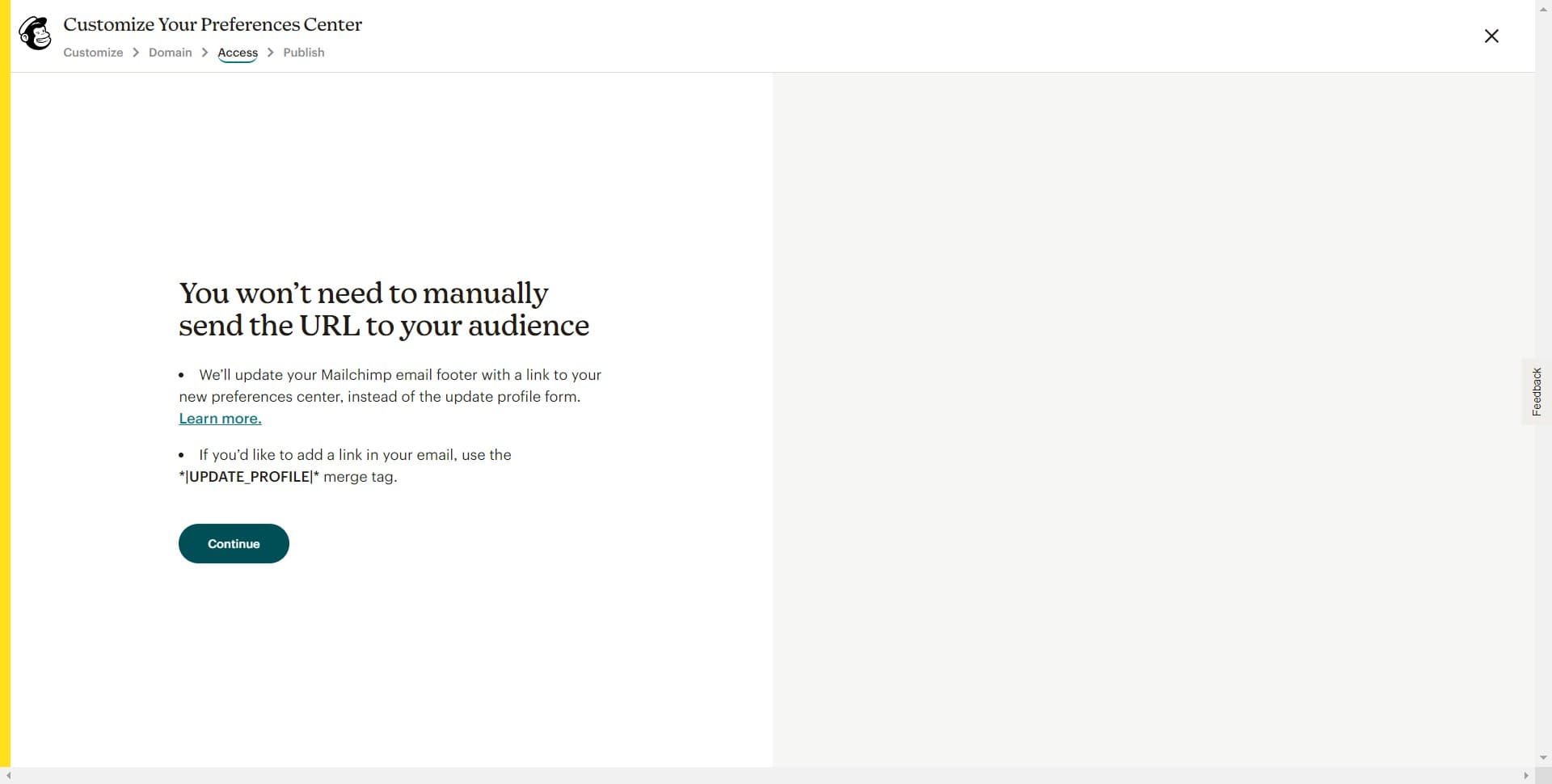
Click 'Continue' to advance to the final stage where you can review and publish your preferences center. This step confirms you're ready to make it live.
- 7
Publish the preferences center
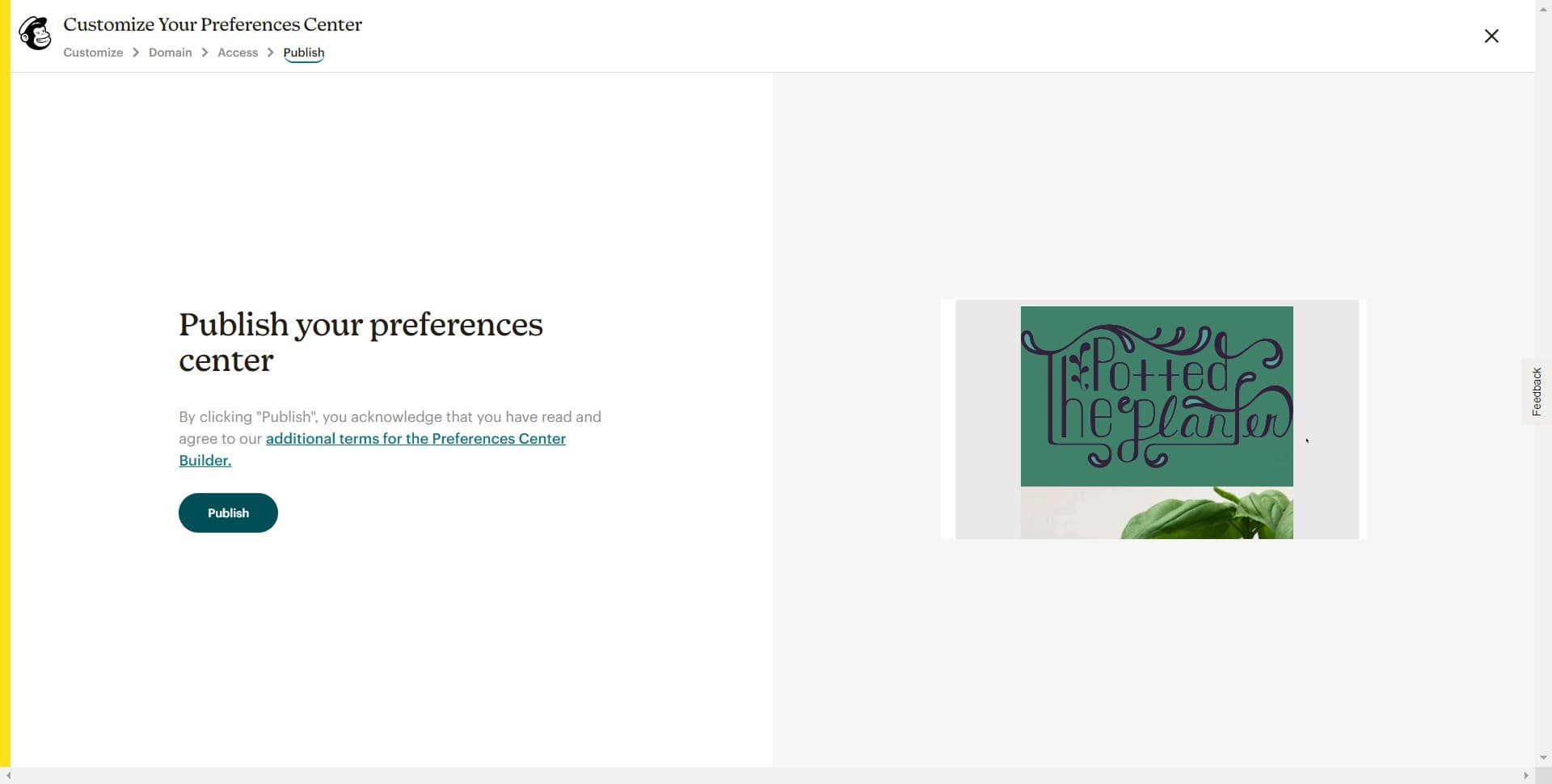
Click 'Publish' to make your preferences center live and accessible to your subscribers. Once published, subscribers can access it via email links or your website.
- 8
Return to dashboard
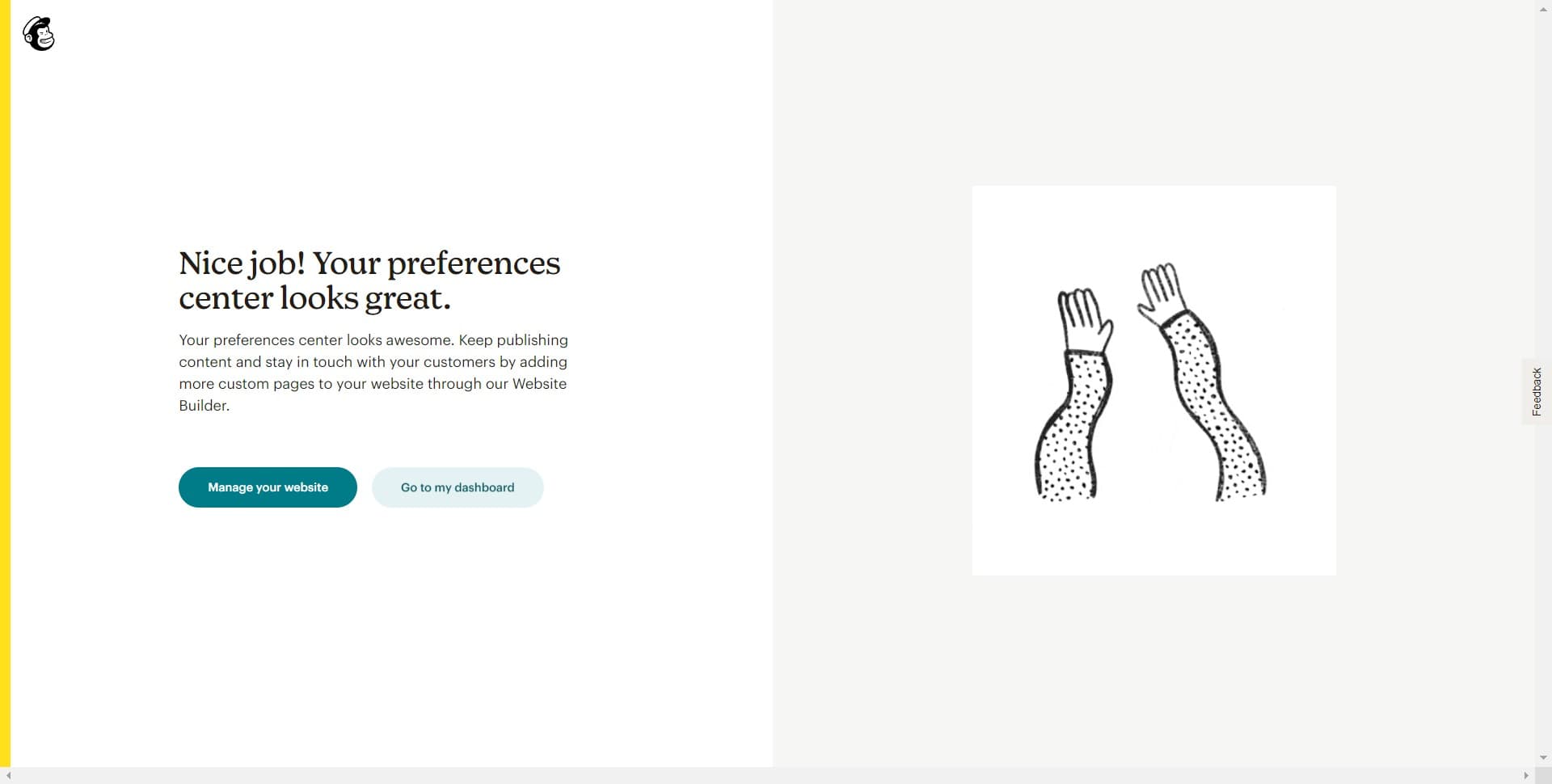
Click 'Go to my dashboard' to return to your main Mailchimp dashboard. Your preferences center is now active and ready for use.
Frequently asked questions
Common questions about how to add subscriber preferences in mailchimp.
Yes, once published, subscribers can access your preferences center through links in your emails or on your website. Mailchimp provides embed codes and direct URLs you can share with your audience to manage their preferences anytime.
You can offer multiple preference types, including email frequency (daily, weekly, monthly), content categories (newsletters, promotions, updates), and communication channels. Mailchimp's builder lets you customize which options appear on your preferences center.
Publishing the preferences center won't automatically change any subscriber settings. However, subscribers who access it going forward can update their own preferences, which may reduce email frequency or change what they receive.
Yes, you can edit your preferences center at any time by returning to the Subscriber preferences section. Changes you make will apply to all future interactions, though existing subscriber preferences won't be overwritten.
After publishing, Mailchimp provides an embed code that you can paste into your website's HTML. You can also share the direct link to the preferences center in your email signature, footer, or as a standalone link on your site.