How to add tags in Mailchimp

Tags in Mailchimp help you organize and segment your contacts based on specific criteria, making it easier to run targeted campaigns and manage your audience effectively. This guide walks you through the process of creating and managing tags in your Mailchimp account.
Quick summary
In this tutorial, you'll learn how to create tags in Mailchimp, upload contact lists with tags, and view your tagged contacts. By the end, you'll be able to organize your audience efficiently and use tags to improve your email marketing strategy.
Why this matters
Tags are essential for audience segmentation in Mailchimp, allowing you to group contacts by interests, behavior, or custom criteria without creating separate lists. This enables more personalized communication, better campaign performance, and easier management of large contact databases.
Step-by-step guide
- 1
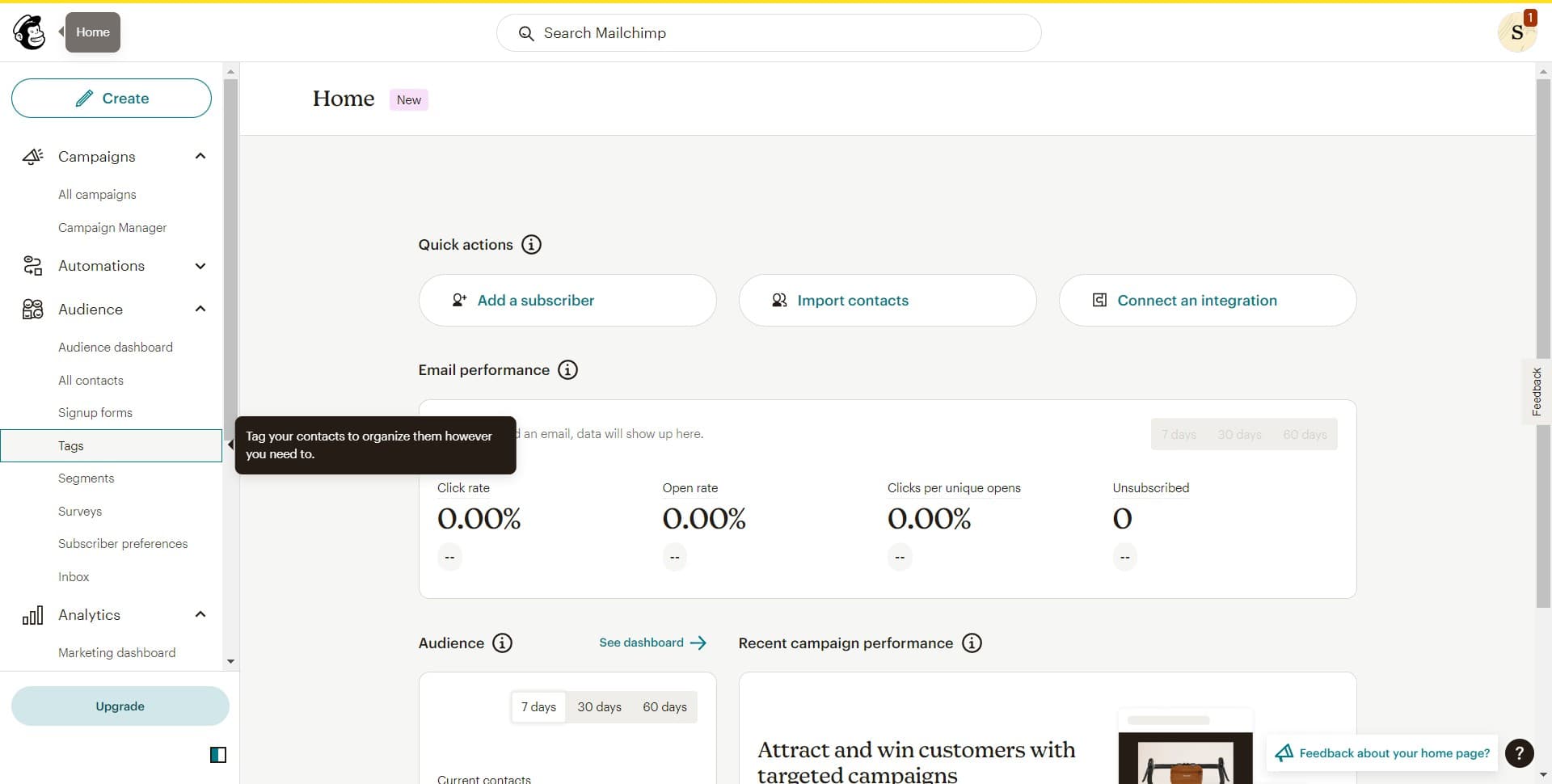
Navigate to the Tags section
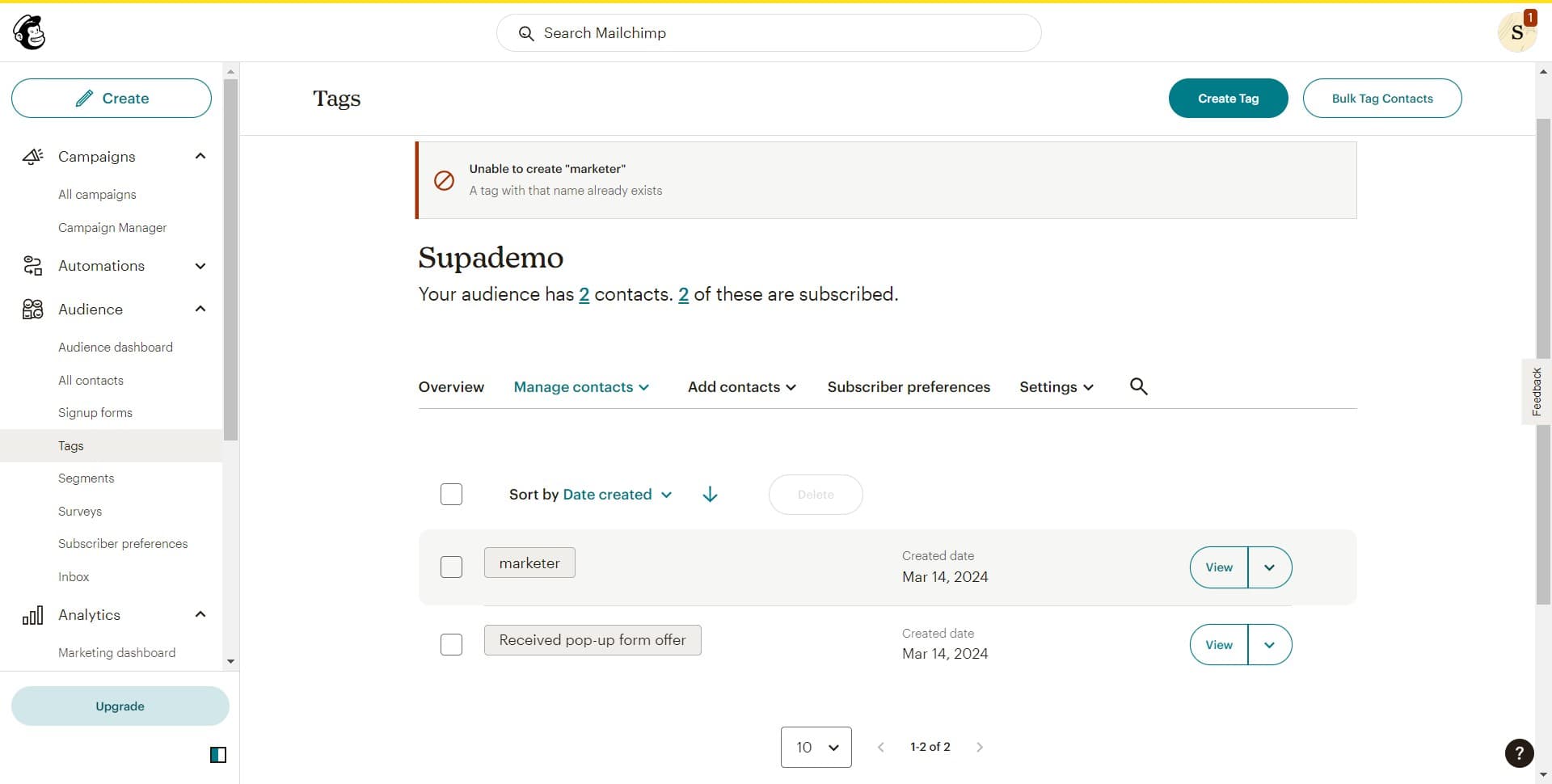
From your Mailchimp dashboard, locate and click on the 'Tags' option in the main navigation menu. This will take you to your tags management page where you can view and create new tags.
- 2
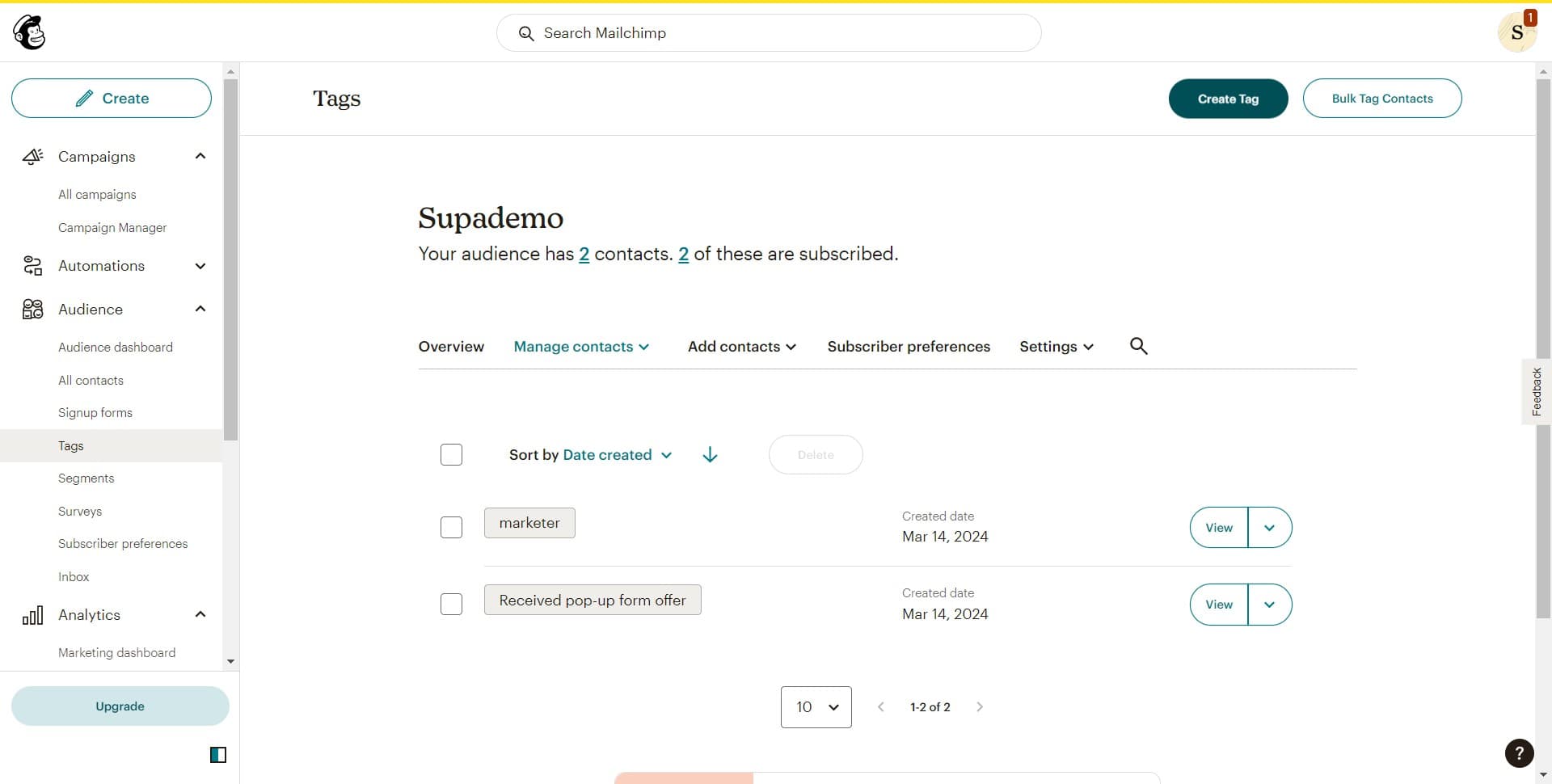
Click on Create Tag
On the Tags page, click the 'Create Tag' button to begin setting up a new tag. This will open a form where you can define the tag's name and properties.
- 3
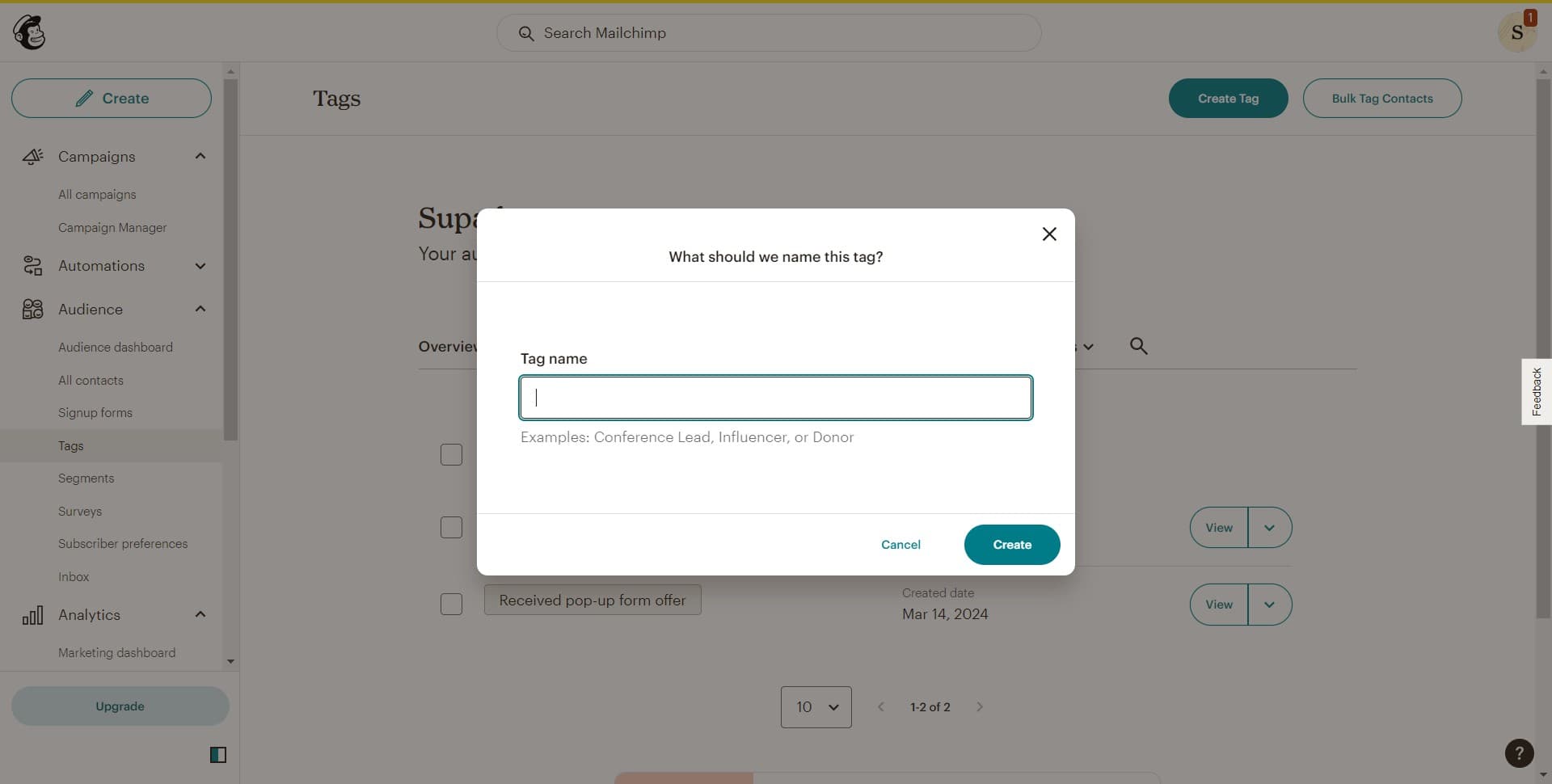
Enter the tag details
In the form that appears, enter a descriptive name for your tag that clearly identifies the segment or category it represents. Make sure the name is concise and meaningful for your team's use.
- 4
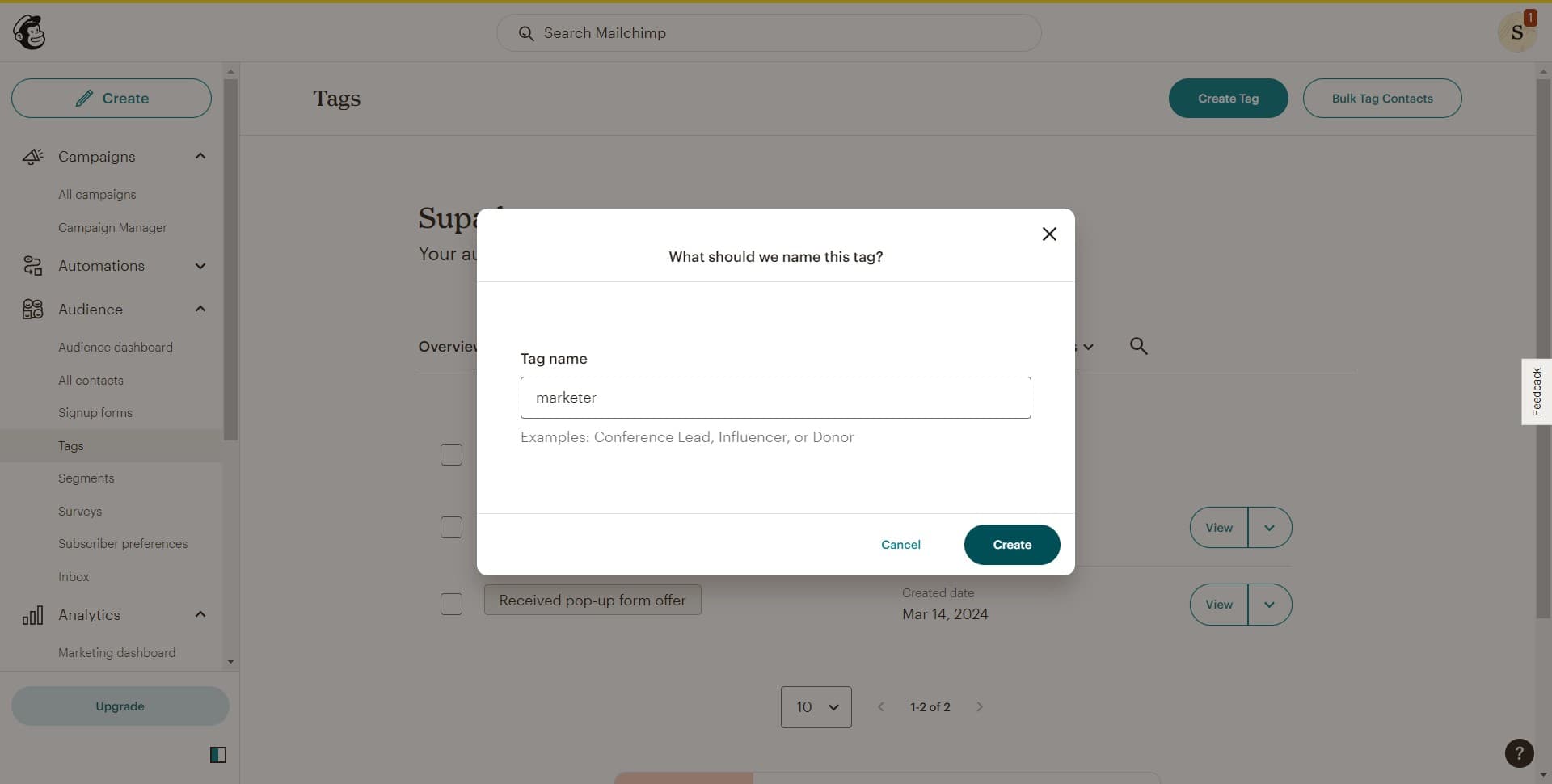
Confirm tag creation
Click the 'Create' button to finalize your new tag. The tag will now be available for use across your Mailchimp account for organizing and segmenting contacts.
- 5
Assign tags to contacts
Use the form or upload feature to assign your newly created tag to relevant contacts in your list. This step links specific contacts to the tag you've created.
- 6
Upload tagged contacts
If importing contacts with tags, use the 'Upload' option to add a CSV or other file format containing your contact data with associated tags. Mailchimp will process the file and apply the tags to the appropriate contacts.
- 7
View your tagged contacts
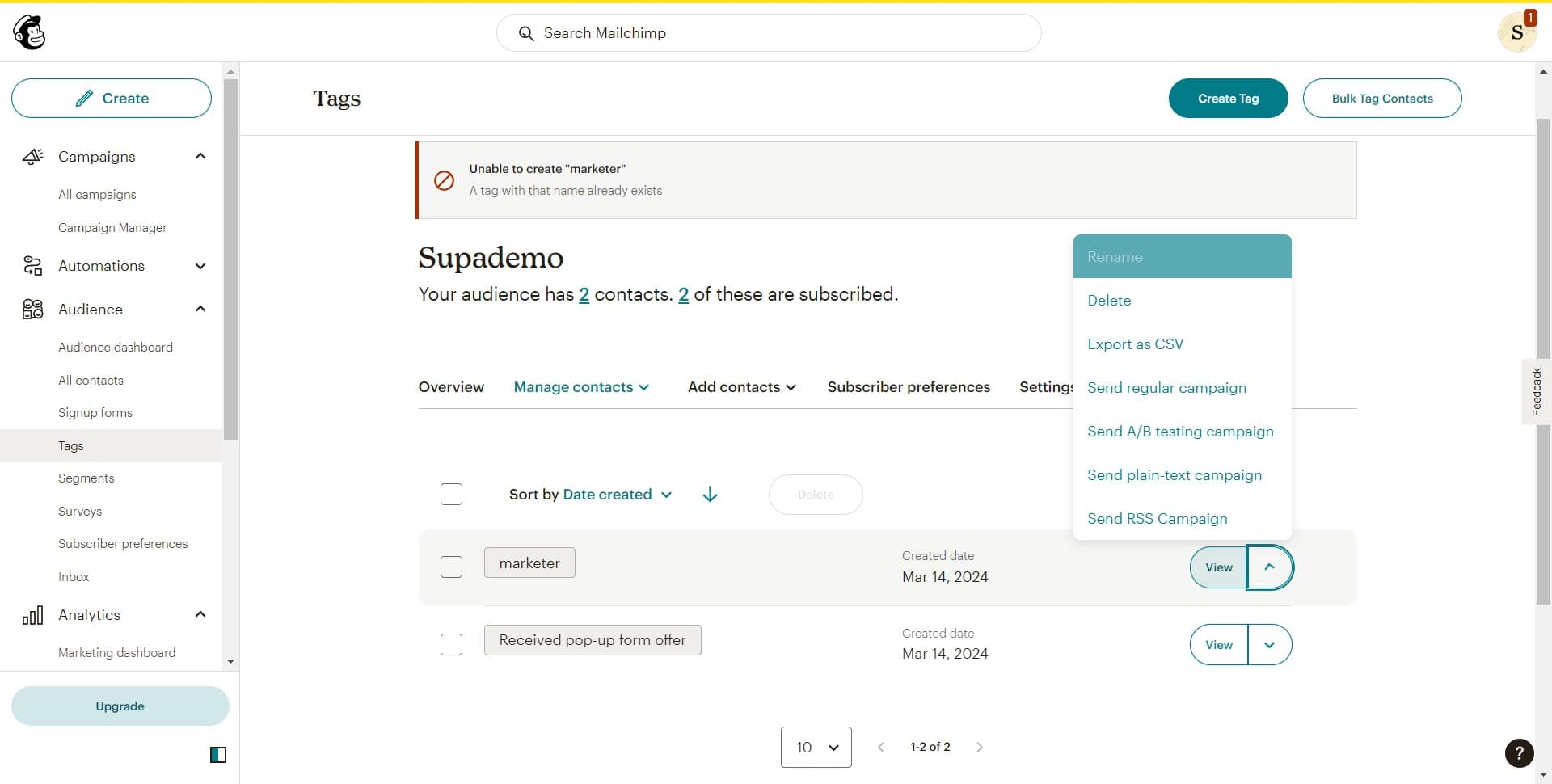
Click on 'View' to see all contacts associated with a specific tag. This allows you to verify that your tags have been applied correctly and review the segmented audience.
Frequently asked questions
Common questions about how to add tags in mailchimp.
Yes, tags are designed to be applied to multiple contacts. You can assign a single tag to as many contacts as needed, making it easy to create broad or specific audience segments based on shared characteristics.
Tags and groups serve similar purposes but have key differences. Groups are predefined by your list structure, while tags are more flexible and can be created and applied dynamically. Tags allow for more granular segmentation across your entire account.
Yes, you can edit or delete tags after creation. However, deleting a tag will remove it from all contacts it was assigned to. It's recommended to plan your tagging strategy before bulk applying tags to avoid confusion later.
Mailchimp allows you to create a large number of tags depending on your plan. There's typically no hard limit on tag creation, but it's best to keep your tagging system organized and avoid excessive duplication for easier management.
Yes, tags are powerful for automation. You can create automations triggered by tag assignments or send campaigns to specific tagged segments. This enables you to deliver more targeted content based on how contacts are tagged in your system.