How to create a template in Mailchimp

Email templates in Mailchimp streamline your marketing efforts by providing reusable designs for campaigns. This guide walks you through creating a custom template from scratch, enabling you to maintain brand consistency across all your email communications.
Quick summary
In this tutorial, you'll learn how to create a template in Mailchimp by navigating to the template builder, uploading custom assets, selecting a layout, and saving your work. By the end, you'll have a ready-to-use template for future campaigns.
Why this matters
Creating templates saves time and ensures consistency across your email marketing campaigns. Custom templates allow you to establish a professional brand presence and reduce repetitive design work, letting you focus on content and strategy instead.
Step-by-step guide
- 1
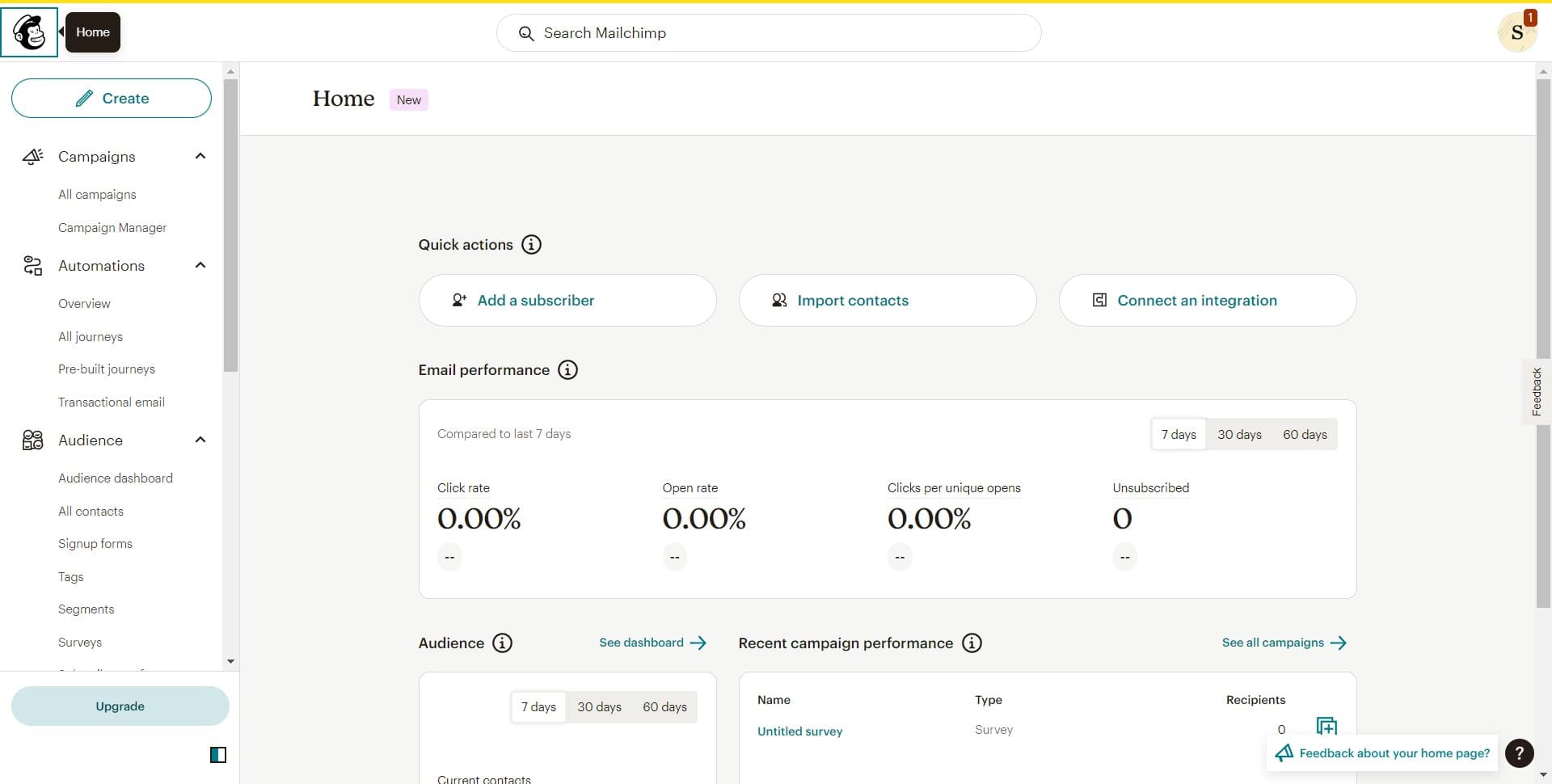
Click on Image
Begin by locating and clicking the Image option in your Mailchimp interface. This allows you to start adding visual elements to your template.
- 2
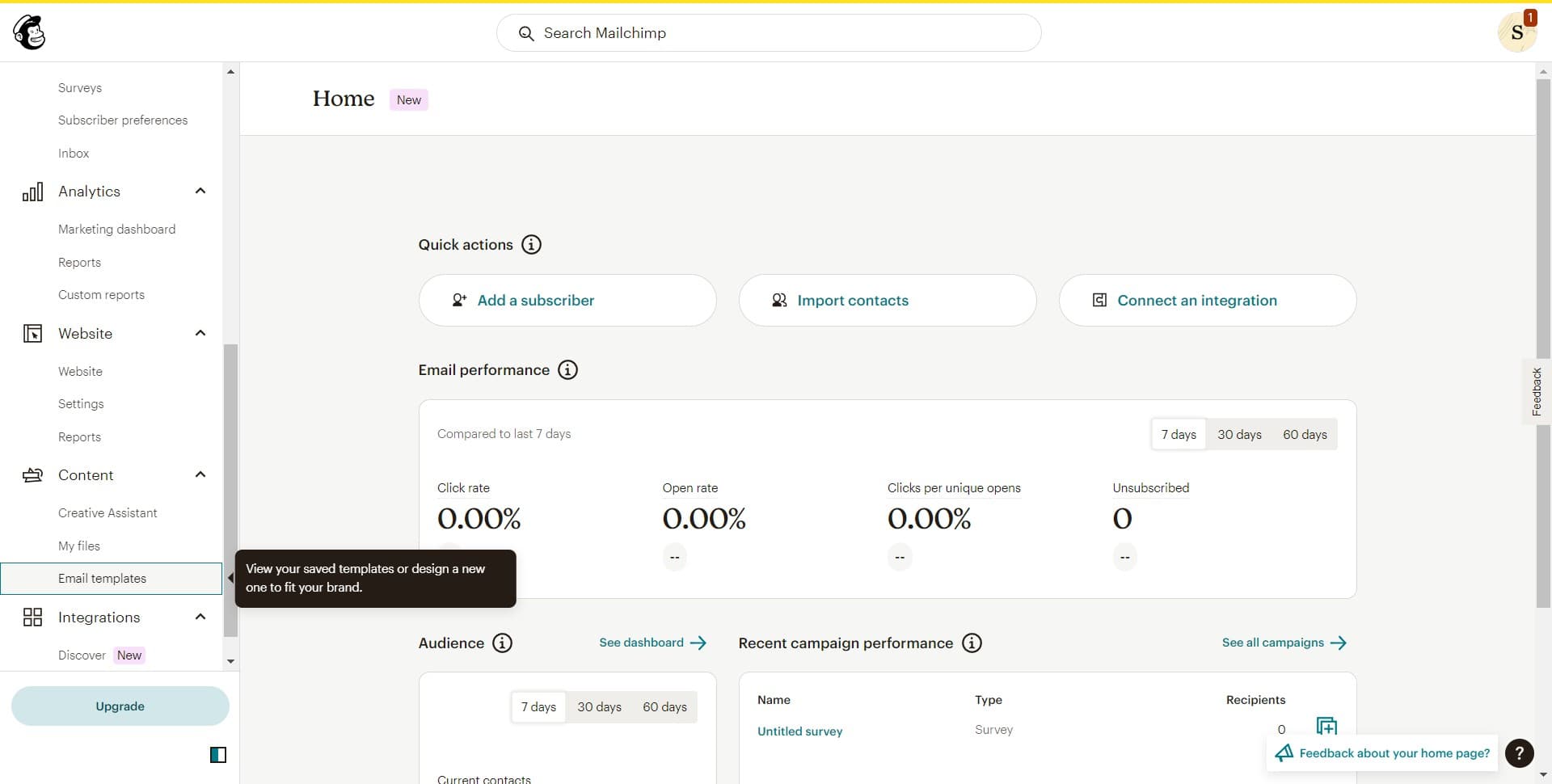
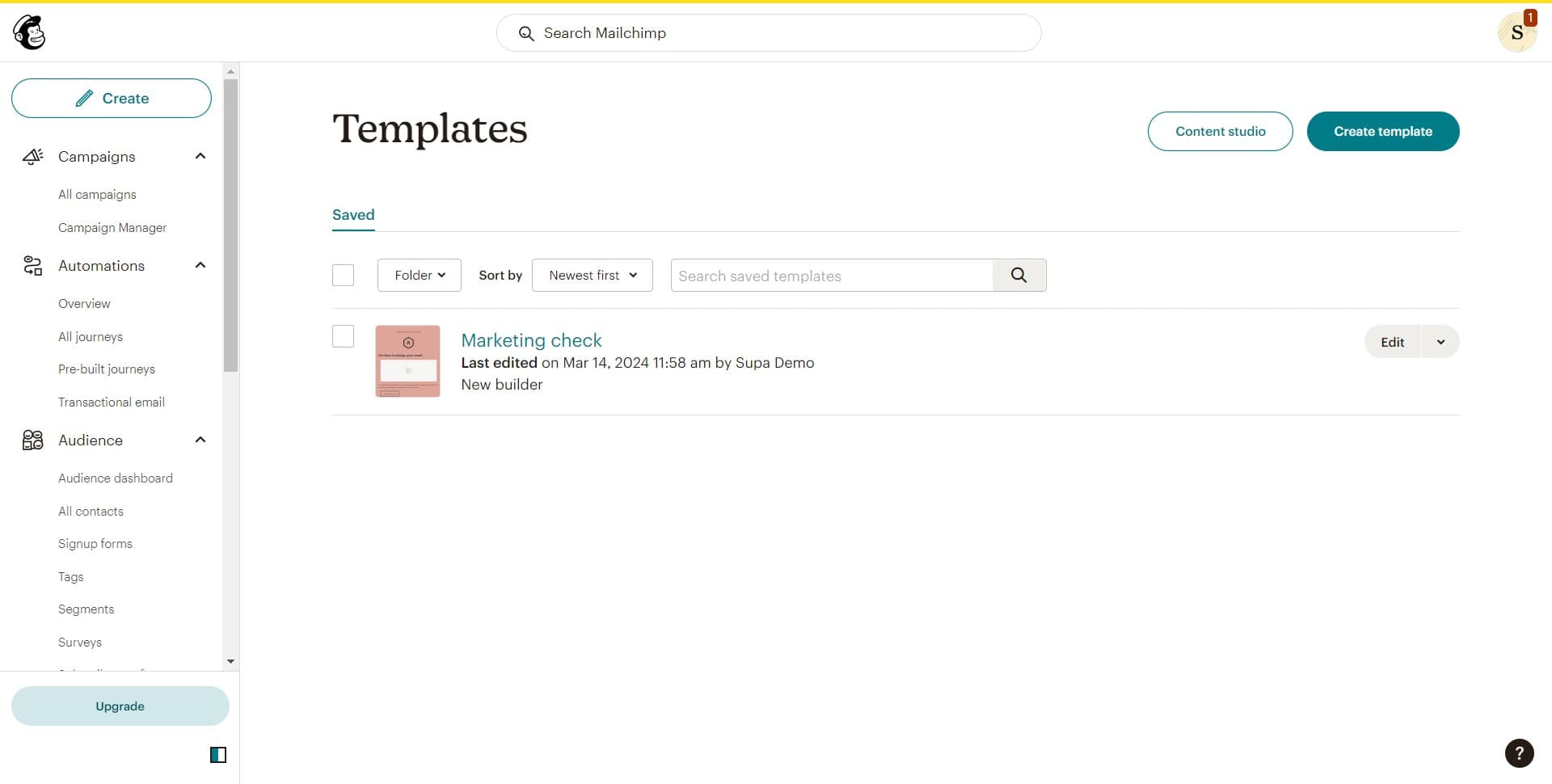
Click on Email templates
Navigate to the Email templates section where all your saved and available templates are stored. This is your hub for managing template designs.
- 3
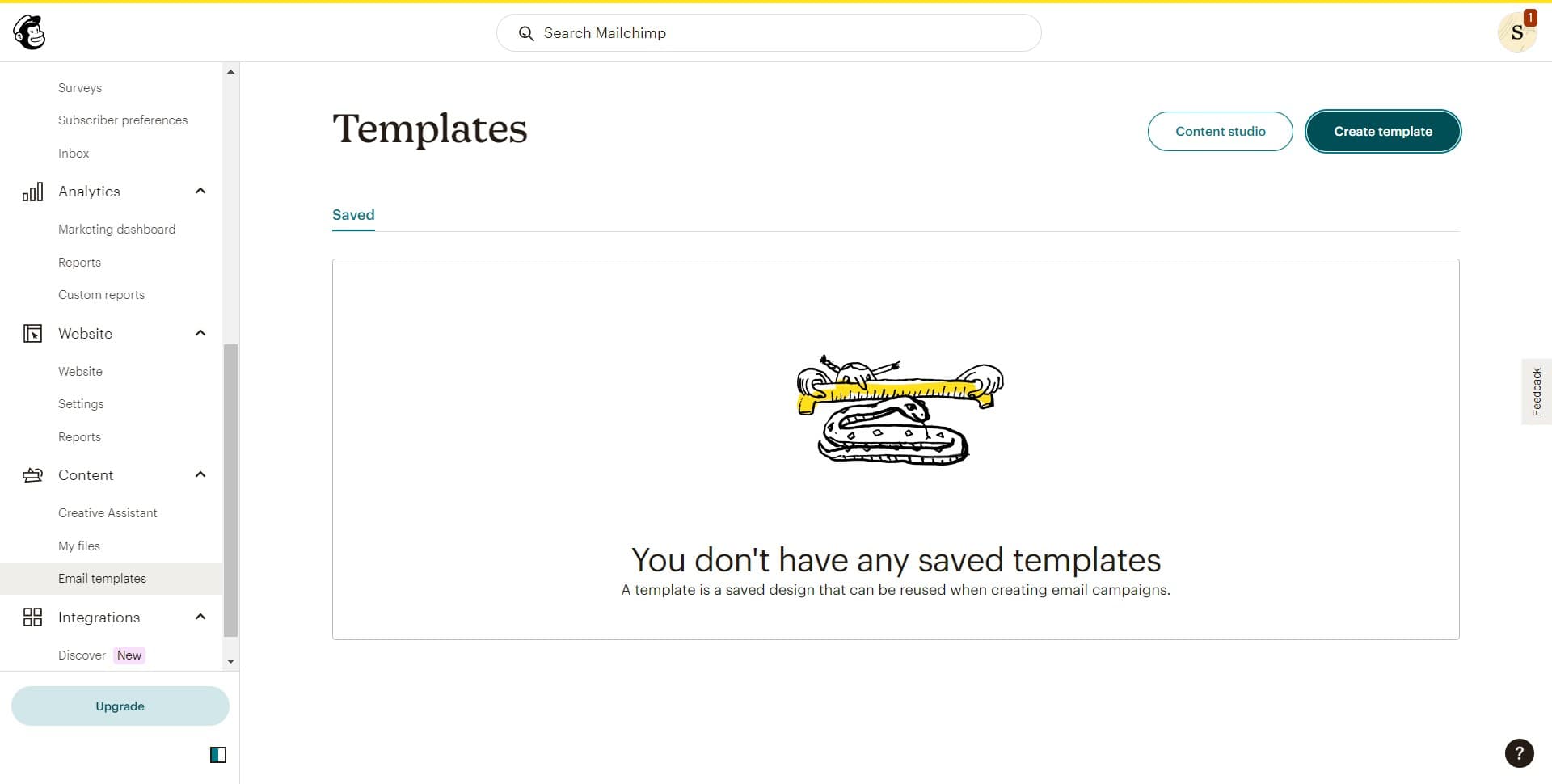
Click Create template
Select the Create template button to start building a new template from scratch. You'll be guided into the template builder where you can customize your design.
- 4
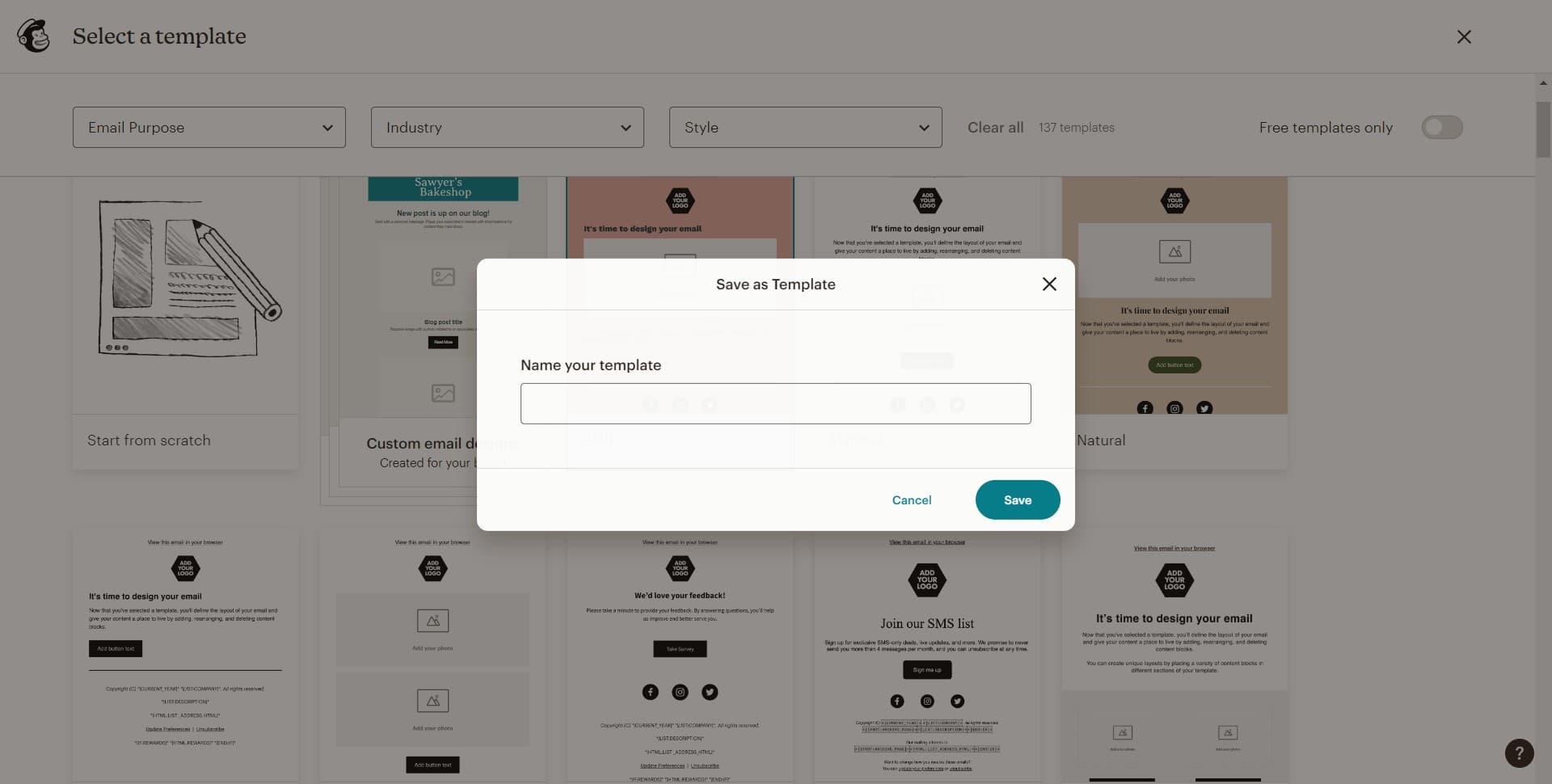
Upload your content
Click the upload area to add images, logos, or other media files to your template. This step allows you to incorporate branded assets that define your template's visual identity.
- 5
Upload media files
Complete the upload process by selecting and confirming your media files. Once uploaded, these assets become available for use throughout your template.
- 6
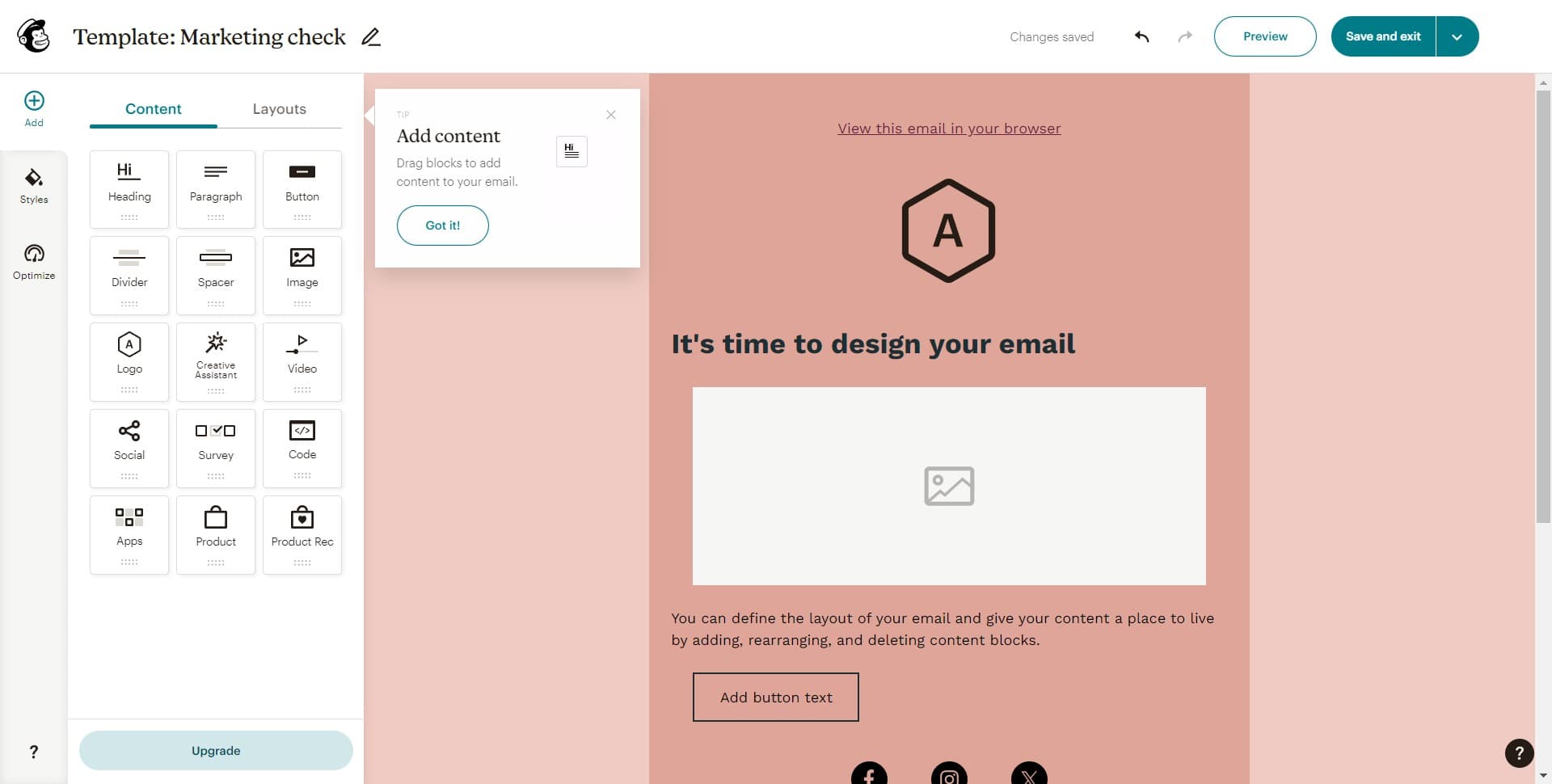
Click on Content Layouts
Access the Content Layouts section to choose or customize the structure of your template. This determines how your content will be organized and displayed in emails.
- 7
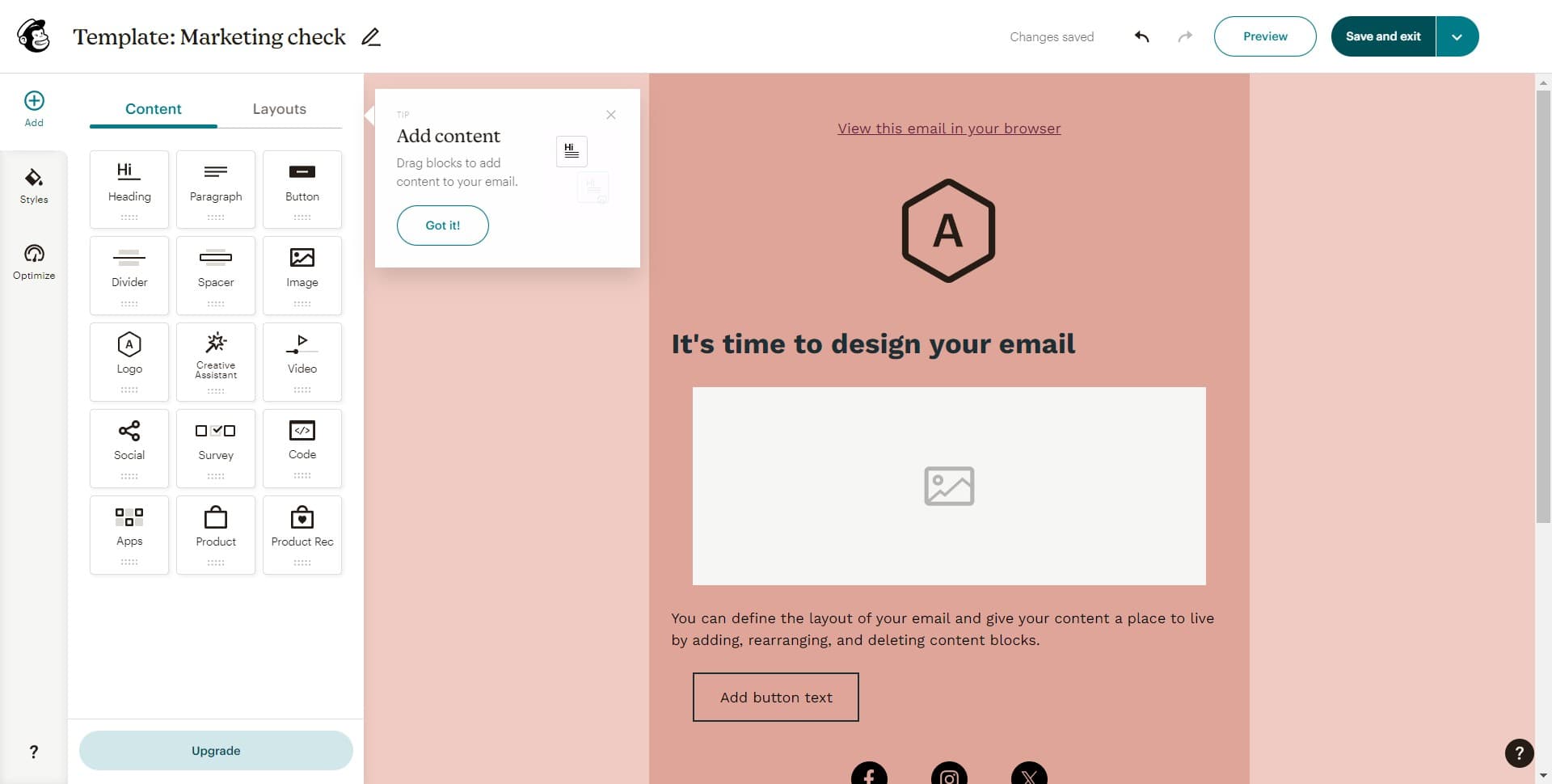
Click Save and exit
Save your template by clicking the Save and exit button. Your template is now stored and ready to be used in future campaigns.
- 8
Preview your template
Review the template preview to ensure all elements are correctly positioned and your design meets your standards. This final check helps confirm everything looks professional before use.
Frequently asked questions
Common questions about how to create a template in mailchimp.
Yes, you can edit your templates at any time. Simply navigate to your Email templates section, select the template you want to modify, and make your changes. Save your updates when you're done.
Mailchimp accepts common image formats including JPG, PNG, and GIF for template assets. Check Mailchimp's documentation for the latest supported formats and file size limits.
Absolutely. Templates are designed to be reusable across all your campaigns. Once created, you can select your template whenever you start a new campaign, saving you design time.
Mailchimp's built-in layout templates are designed with mobile responsiveness in mind. When previewing your template, check the mobile preview option to ensure it looks good on smaller screens before finalizing.
A template is a reusable design framework that you save for future use, while a campaign is a single email sent to your audience using that template. Templates streamline the campaign creation process.