How to create a new audience in Mailchimp

Creating a new audience in Mailchimp allows you to organize and segment your contacts for more targeted email campaigns. This tutorial walks you through the process of setting up a fresh audience from your Mailchimp dashboard, enabling you to build a foundation for effective email marketing.
Quick summary
In this tutorial, you'll learn how to navigate to your contacts and create a new audience in Mailchimp. You'll discover the key menu options and actions needed to establish a dedicated audience for your subscribers.
Why this matters
Organizing contacts into separate audiences helps you send relevant, personalized messages to different groups of subscribers. This segmentation improves engagement rates and ensures your campaigns reach the right people with the right content.
Step-by-step guide
- 1
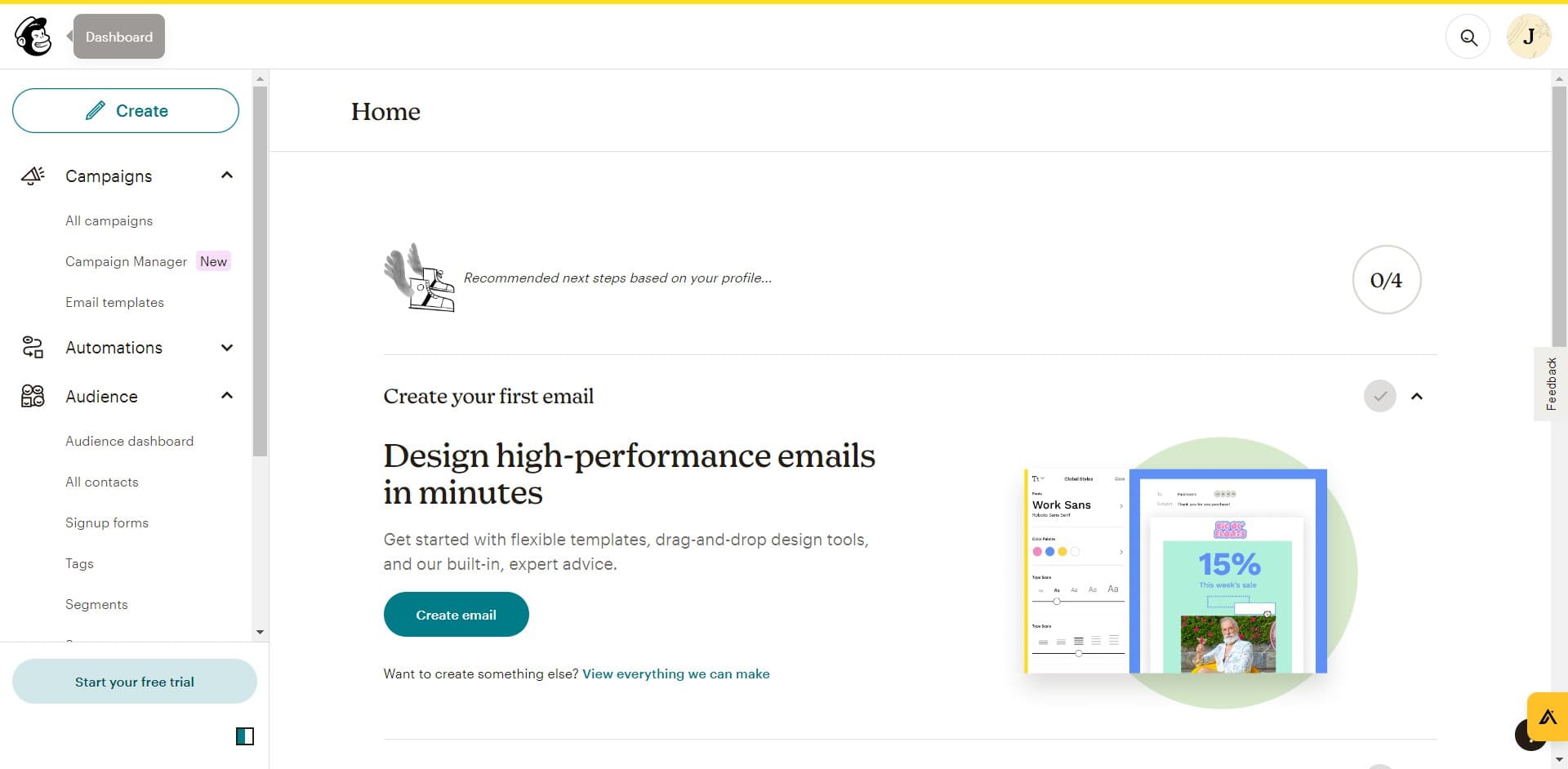
Click on Home
Start by clicking the Home button to access your main Mailchimp dashboard. This takes you to the central hub where you can access all account features and navigation options.
- 2
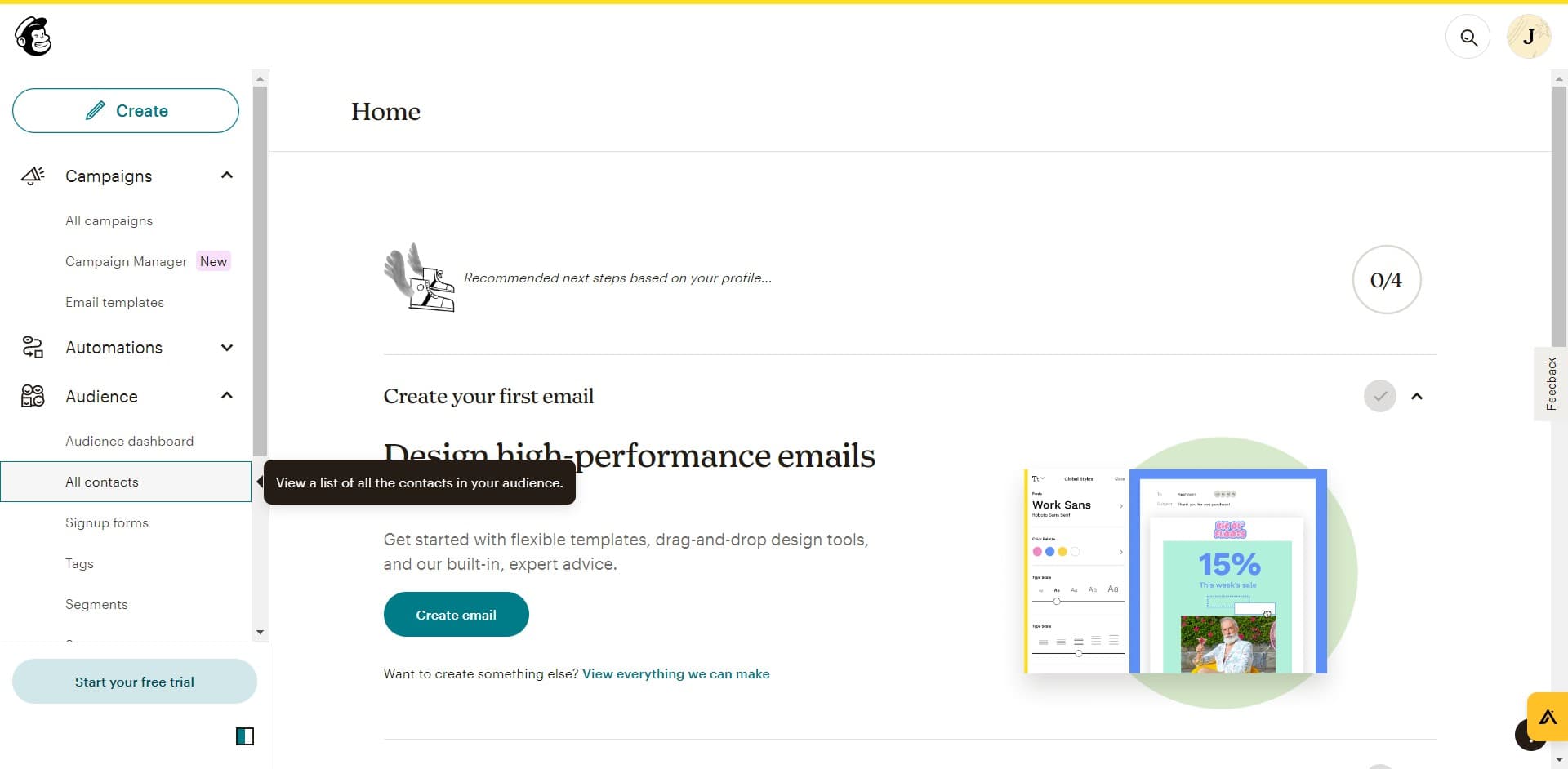
Click on All contacts
From the dashboard, locate and click on the All contacts option in the navigation menu. This section displays all your existing contacts and provides access to audience management tools.
- 3
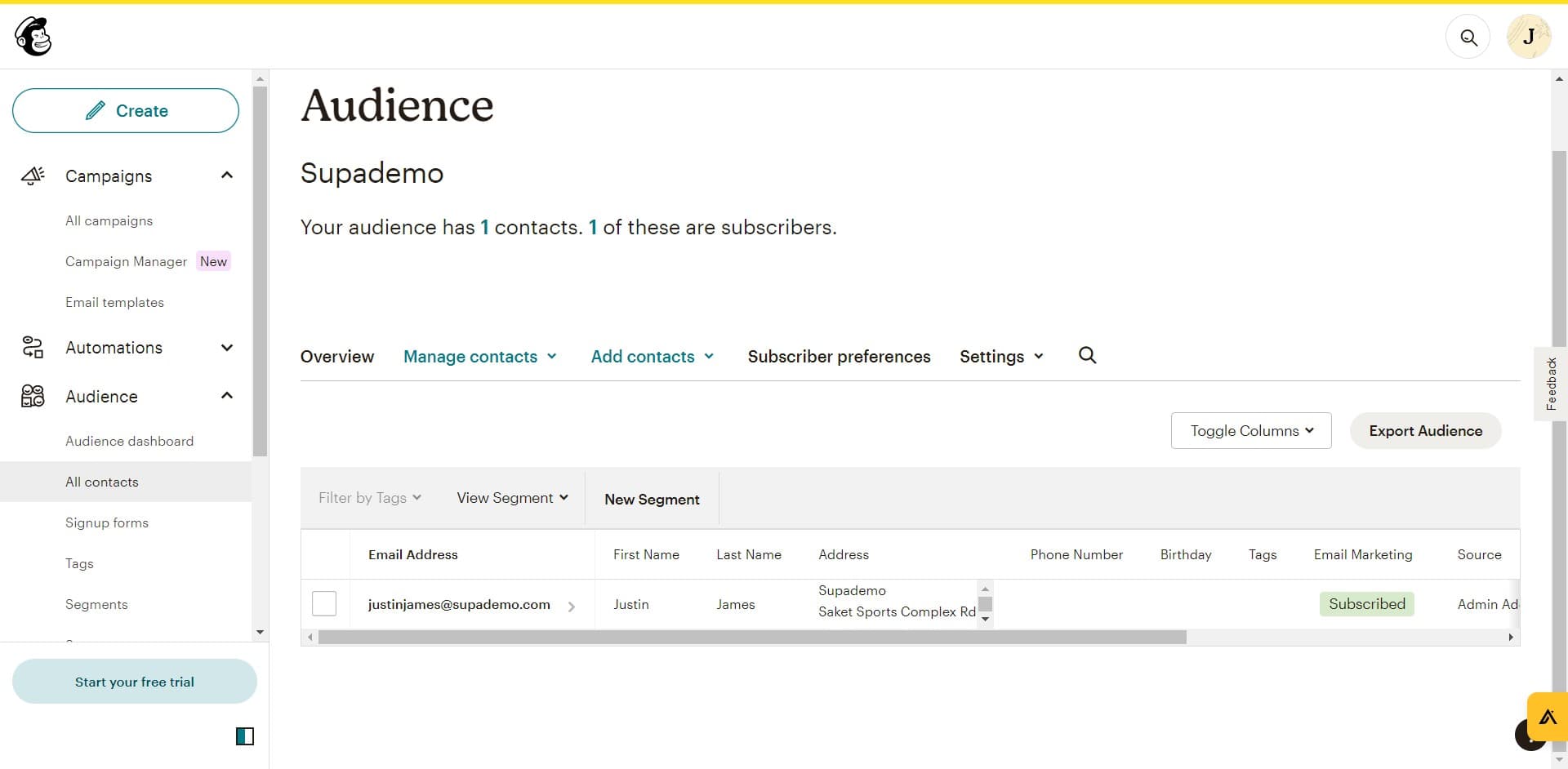
Access the audience creation menu
Click on the designated button to open the audience creation interface. This menu contains all the options you need to set up your new audience.
- 4
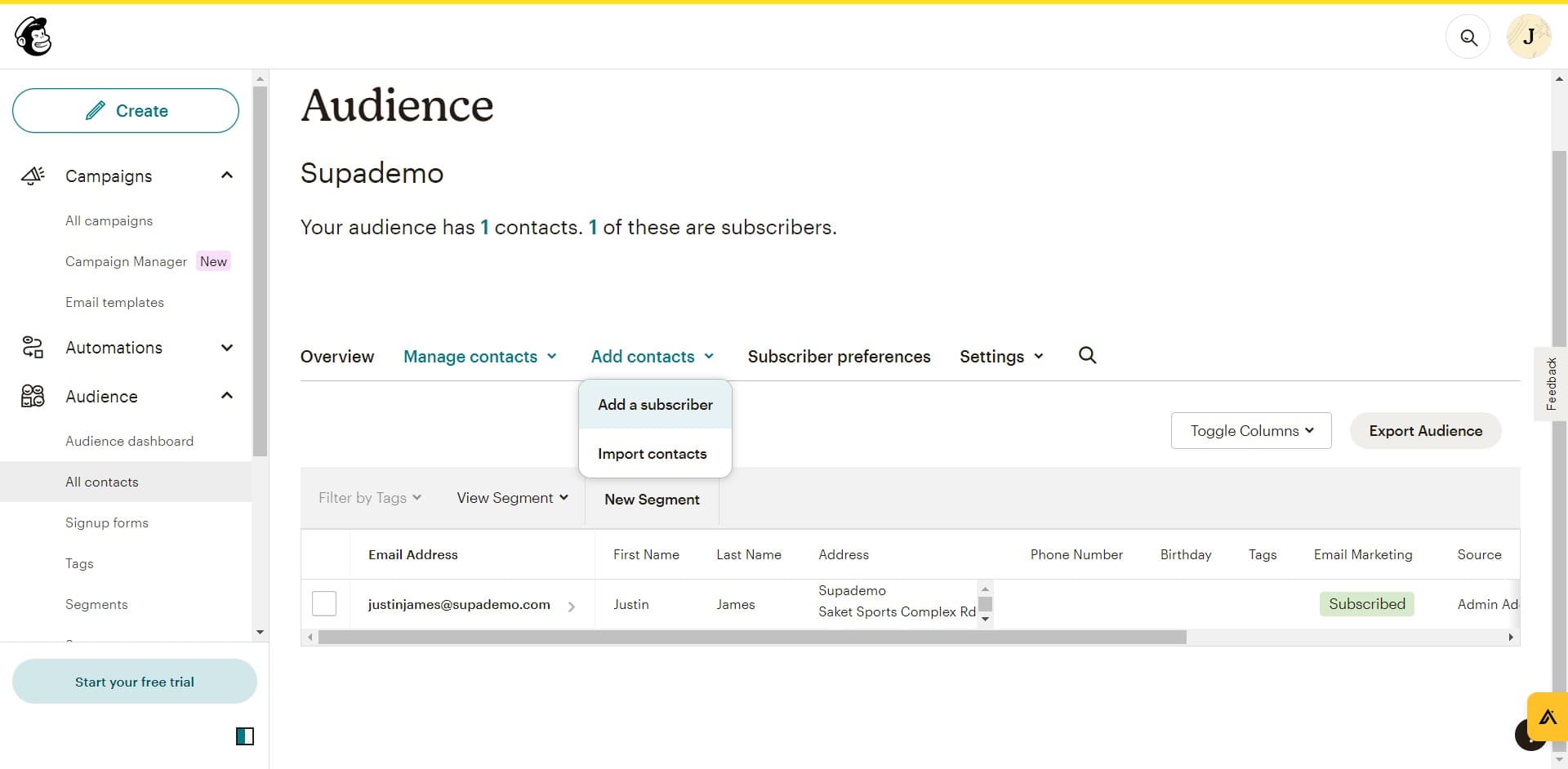
Configure audience settings
In this step, you'll input the basic details for your audience, such as the audience name and default contact information. Follow the prompts to customize these settings according to your email marketing needs.
- 5
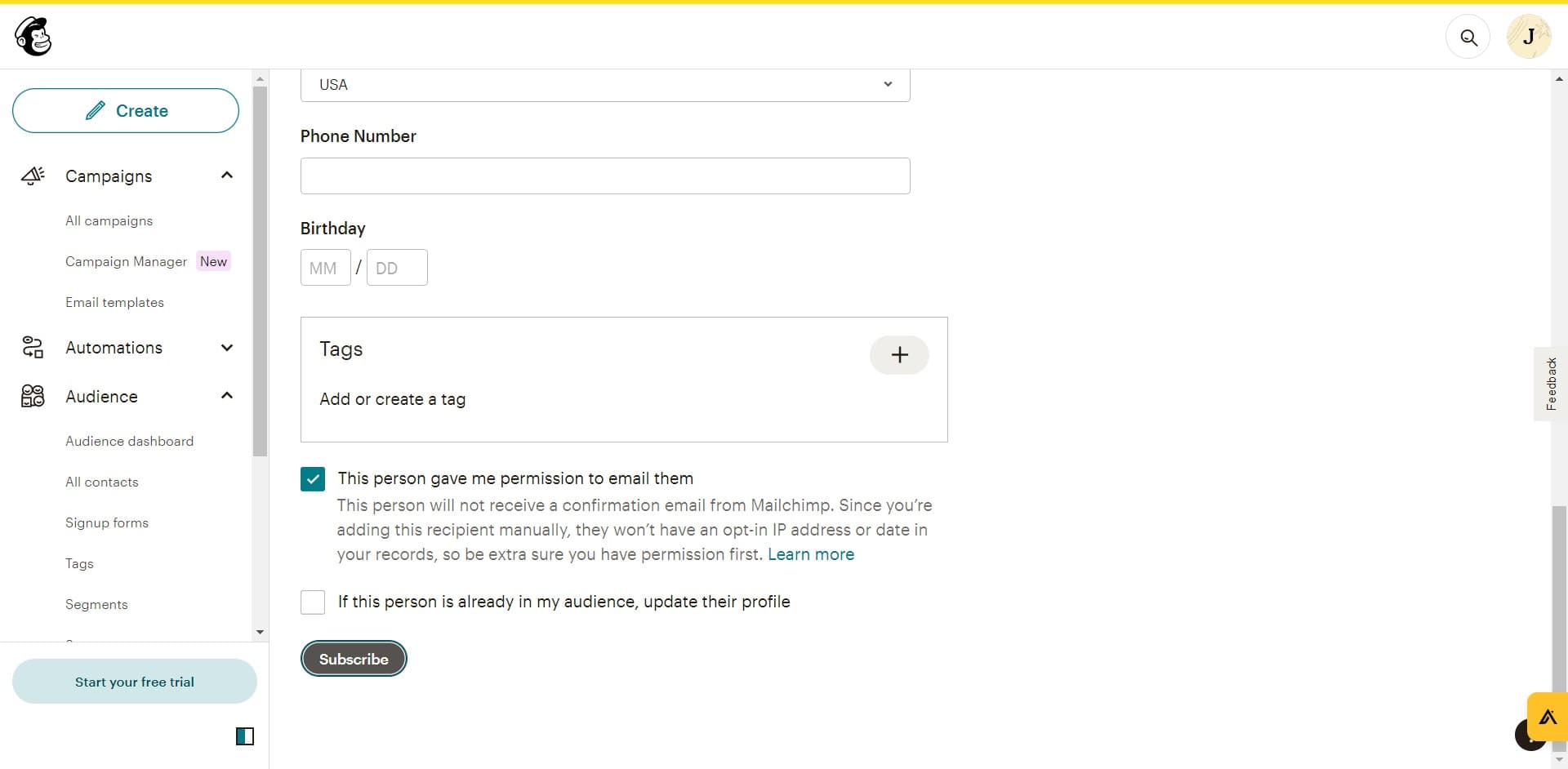
Complete the audience setup
Finalize your audience creation by reviewing the configuration and clicking the confirmation button. Your new audience will be created and ready to receive contacts and campaigns.
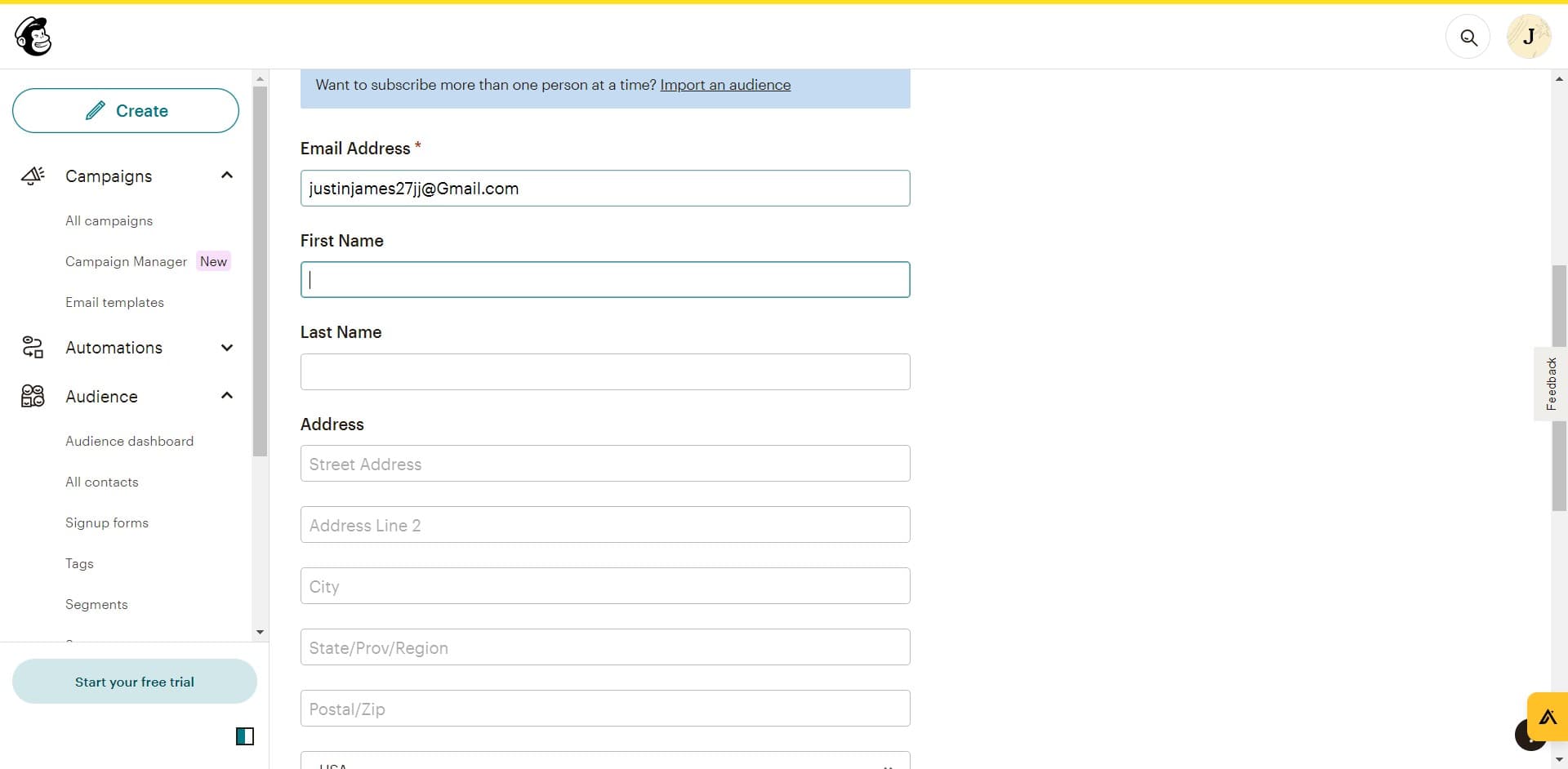
- 6
Confirm audience creation
After confirmation, Mailchimp will display a success message and redirect you to your new audience dashboard. You can now begin adding contacts or importing lists to this audience.
Frequently asked questions
Common questions about how to create a new audience in mailchimp.
An audience in Mailchimp is a collection of contacts that you manage and send emails to. Each audience is separate and has its own contact list, campaigns, and performance metrics, allowing you to organize subscribers by different criteria or purposes.
Yes, you can create as many audiences as needed depending on your Mailchimp plan. Multiple audiences are useful for separating different customer groups, products, or brands within a single Mailchimp account.
After creating an audience, you can add contacts by importing a list, manually entering them, or using signup forms. You can also connect integrations that automatically sync contacts from other platforms into your audience.
Yes, you can delete an audience from your audience settings. Be aware that deleting an audience also removes all associated contacts and campaign history, so proceed with caution.
At minimum, collect email addresses for your contacts. You can also gather additional information like first name, last name, phone number, and custom fields relevant to your business needs.