How to customize your sign up form in Mailchimp

Mailchimp's sign up forms are a powerful way to grow your email list and capture subscriber information. This guide walks you through customizing a sign up form to match your brand and collect the data you need from your audience.
Quick summary
In this tutorial, you'll learn how to navigate Mailchimp's form creation tools, select your target audience, and preview your customized sign up form before deploying it. By the end, you'll have a fully configured form ready to drive subscriptions.
Why this matters
A well-customized sign up form increases conversion rates and ensures you're collecting relevant subscriber information from day one. Taking the time to properly configure your form prevents costly mistakes and helps you build a higher-quality email list that aligns with your marketing goals.
Step-by-step guide
- 1
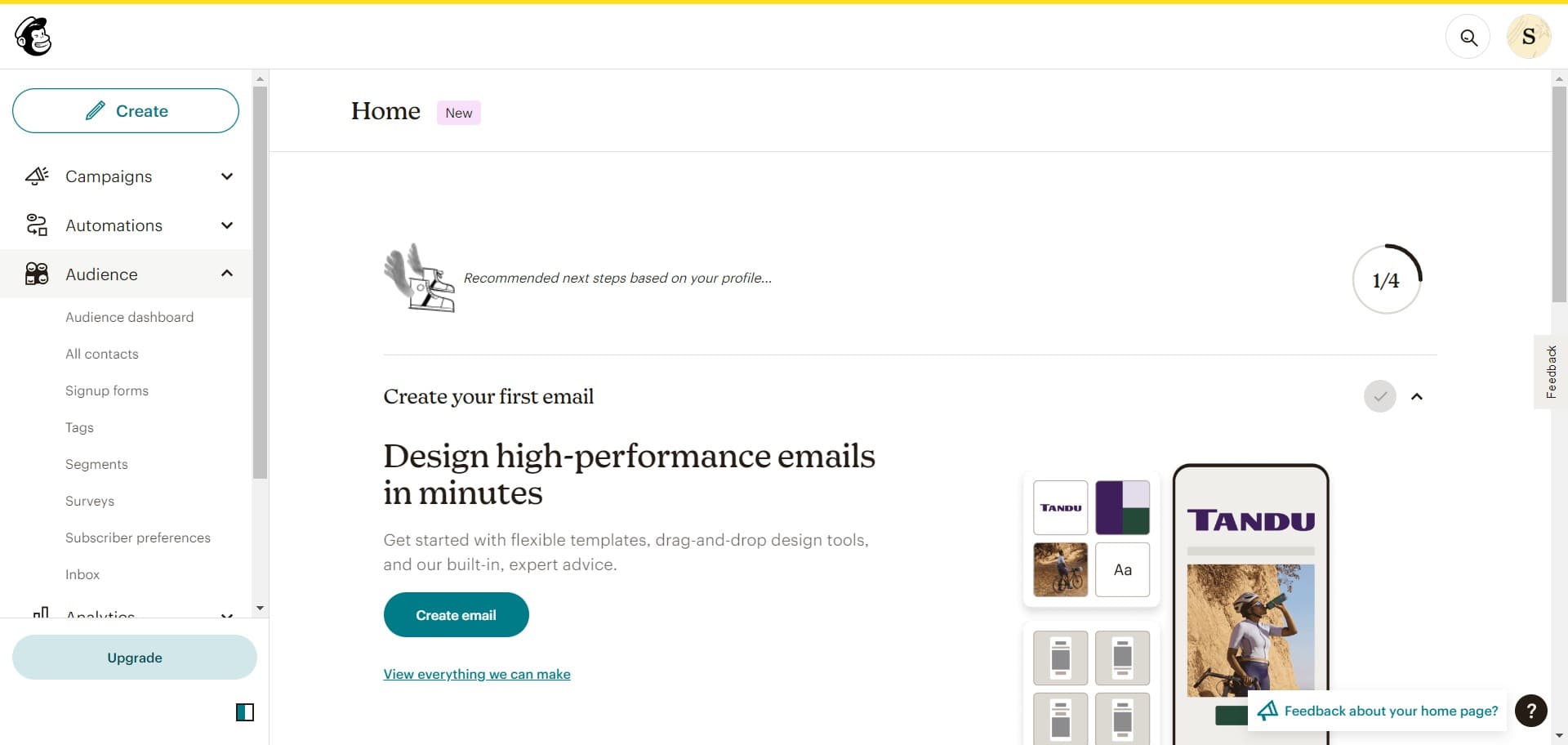
Click on Audience
Start by navigating to the main Mailchimp dashboard and locate the Audience section in the left navigation menu. This is where you'll manage all audience-related tasks, including form creation and customization.
- 2
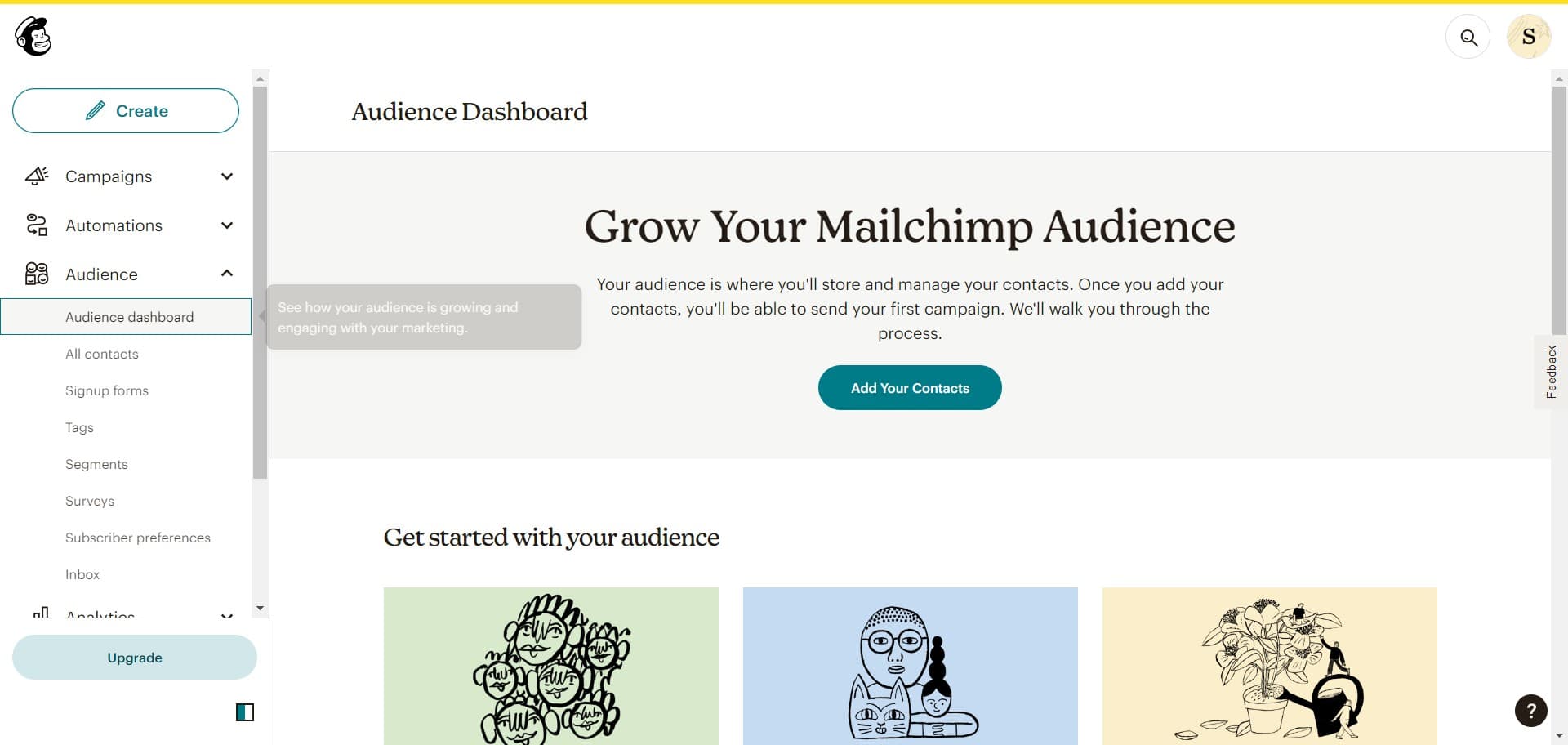
Click on Audience dashboard
Within the Audience section, select Audience dashboard to access an overview of your subscribers and audience management tools. This dashboard serves as your central hub for audience operations.
- 3
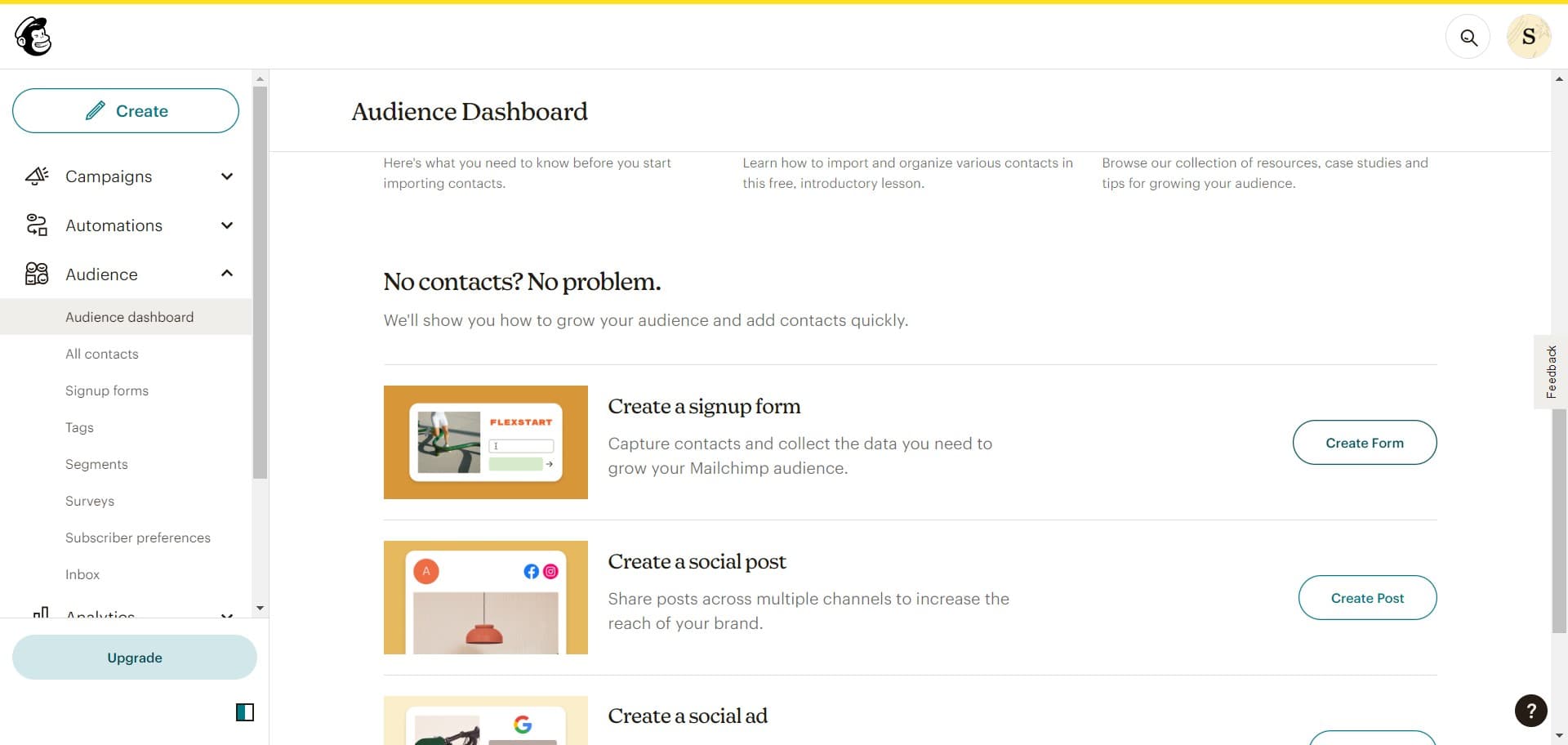
Click on Create Form
Look for the Create Form button on the audience dashboard and click it to begin building your new sign up form. Mailchimp will present you with form type options to choose from.
- 4
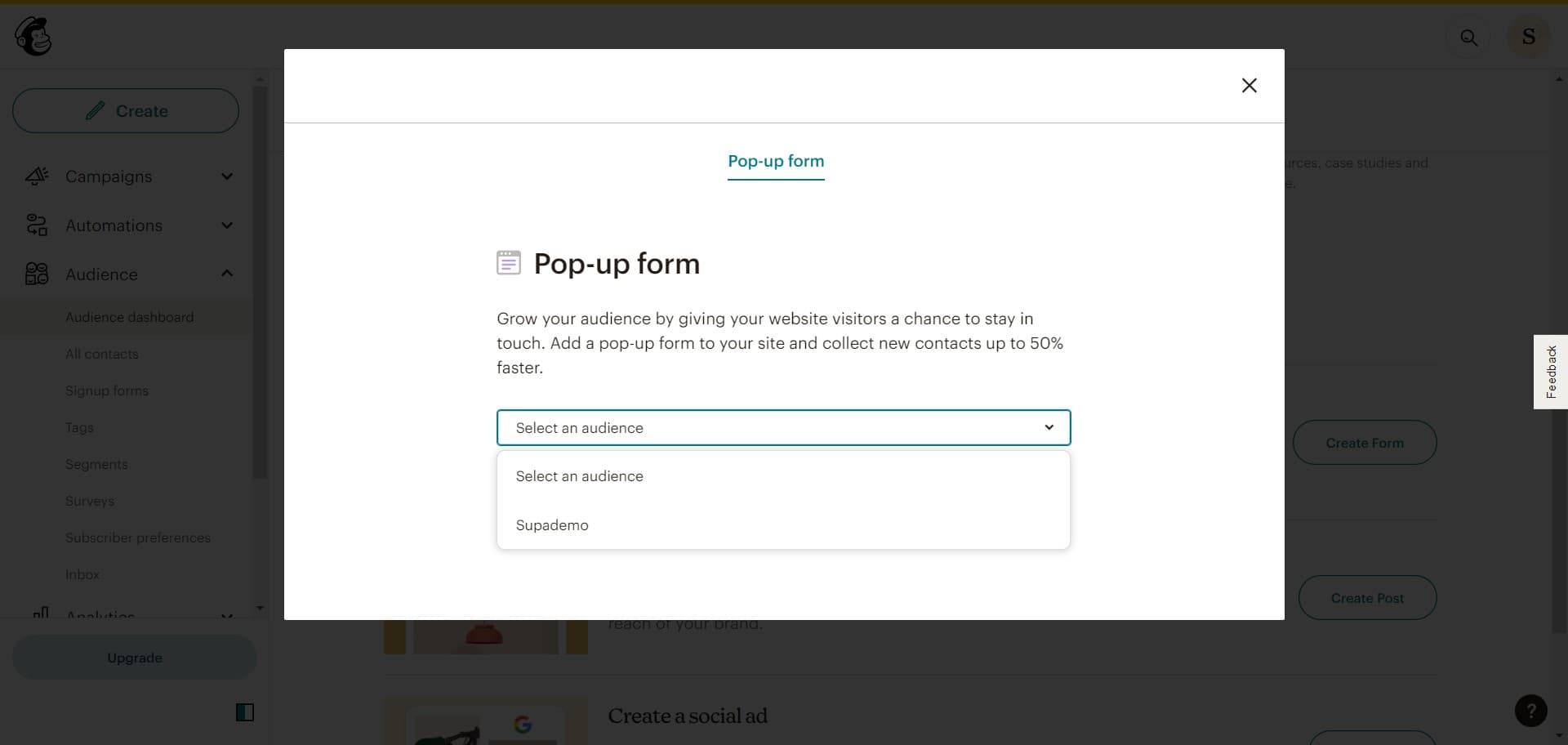
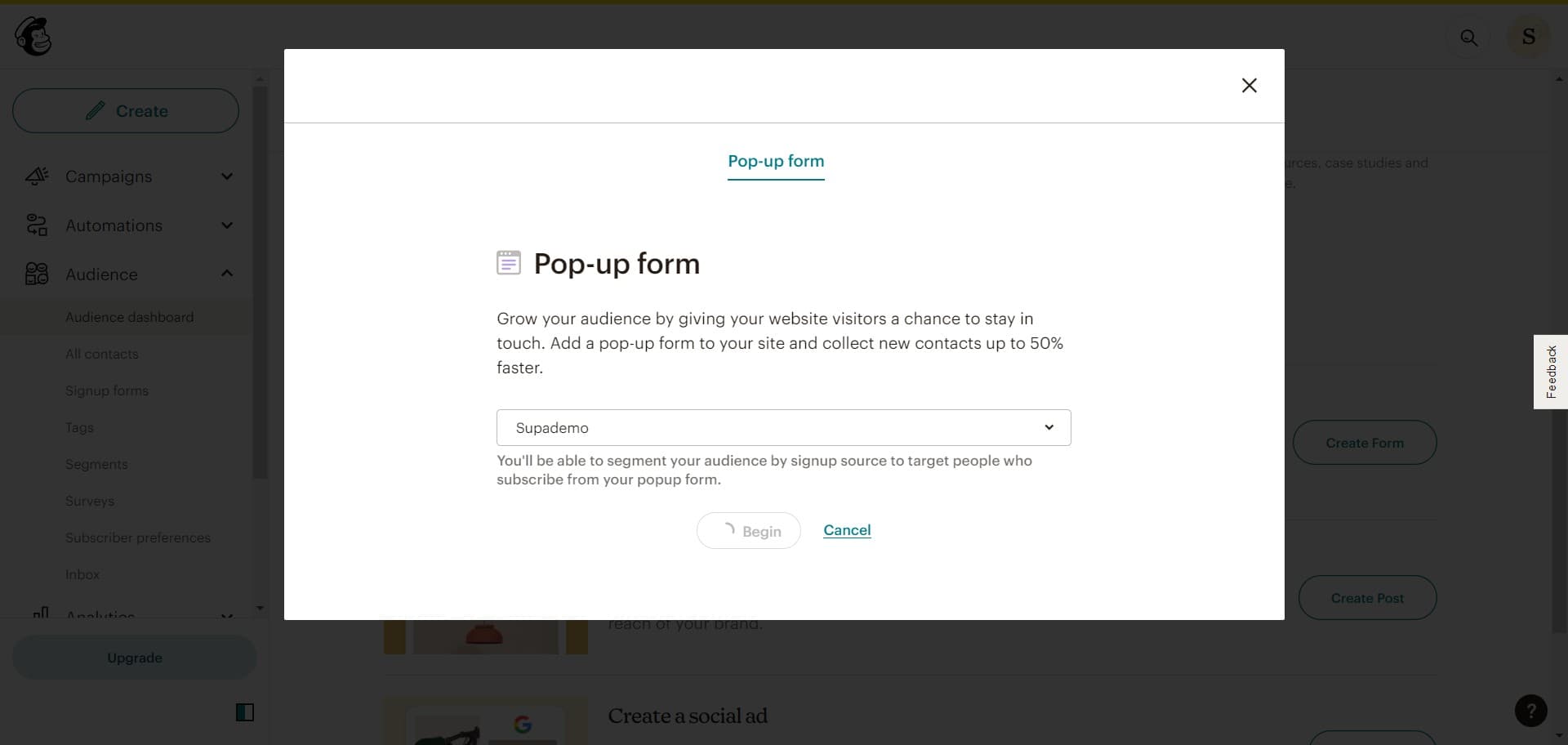
Select your target audience
Choose which audience this form will be collecting subscribers for from the available list. This ensures new sign ups are automatically added to the correct audience segment.
- 5
Click Begin to start setup
Click the Begin button to enter the form customization interface. You'll now have access to all the tools needed to design and configure your form fields and appearance.
- 6
Connect your web presence
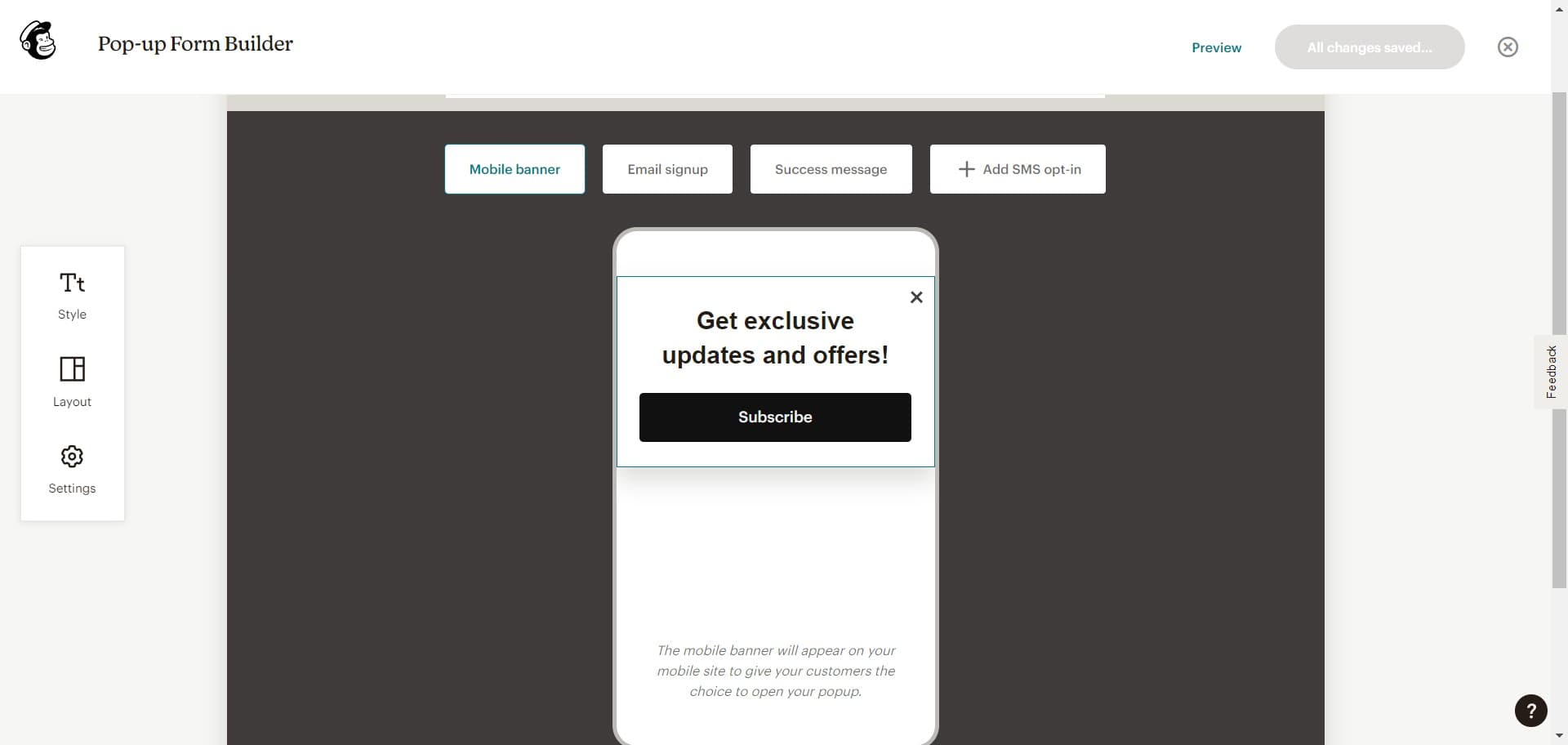
Select where you want to embed or deploy your sign up form, such as your website or landing page. This step establishes the connection between Mailchimp and your digital properties.
- 7
Preview your customized form
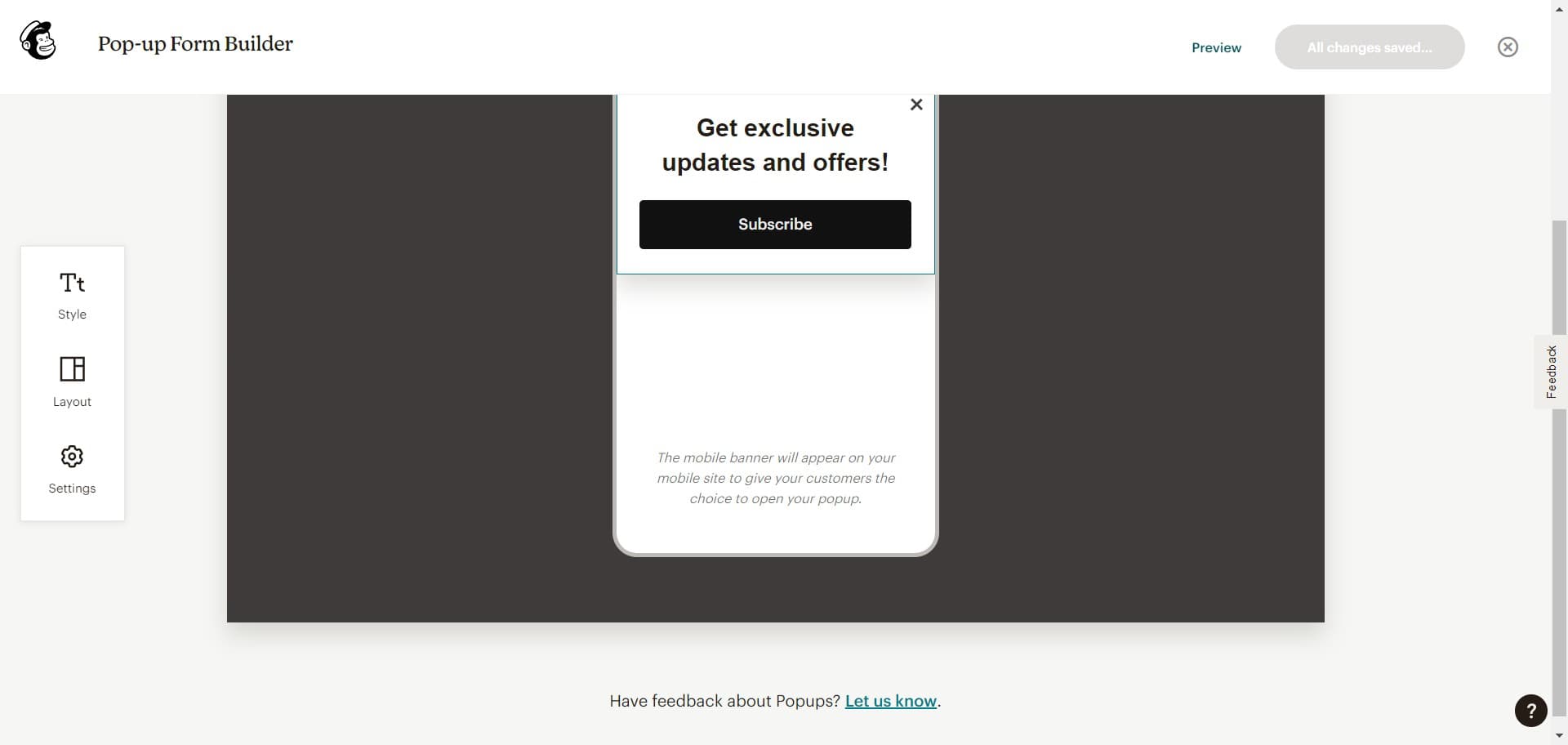
Click Preview to see how your sign up form will appear to subscribers across different devices and browsers. Review all fields, styling, and messaging before finalizing your form.
Frequently asked questions
Common questions about how to customize your sign up form in mailchimp.
Yes, Mailchimp allows you to add, remove, and reorder form fields based on your needs. You can collect basic information like email and name, or add custom fields for more detailed subscriber data. This flexibility helps you gather the information most relevant to your business.
Mailchimp provides design customization options including colors, fonts, and logos to match your brand identity. You can adjust these settings within the form builder before previewing your final design. The styling tools ensure your form looks professional and cohesive with your existing marketing materials.
Submitted information is automatically added to your selected Mailchimp audience and the subscriber receives a confirmation email by default. You can customize the confirmation message and set up automation workflows to send welcome series or segment subscribers based on their responses.
Yes, Mailchimp forms can be embedded on multiple sites or pages using embed codes or integrations. All submissions from different locations will be added to the same audience, giving you a unified subscriber database across your digital properties.
Mailchimp forms are automatically responsive and display properly on mobile devices, tablets, and desktops. The Preview feature lets you see exactly how your form looks on different screen sizes before publishing to ensure an optimal user experience for all visitors.