How to Delete Contacts in Mailchimp

Mailchimp makes it easy to manage your contact list by allowing you to remove outdated or unwanted contacts. Whether you're cleaning up your audience or removing a specific subscriber, understanding how to delete contacts ensures your mailing list stays accurate and compliant. This guide walks you through the process step by step.
Quick summary
In this tutorial, you'll learn how to permanently delete contacts from your Mailchimp audience. You'll navigate to your audience settings, select the contact you want to remove, and confirm the deletion through Mailchimp's safety prompts to ensure the action is intentional.
Why this matters
Maintaining a clean contact list is essential for accurate reporting, improved email deliverability, and compliance with data protection regulations. Removing inactive or invalid contacts helps reduce bounce rates and ensures your engagement metrics reflect genuine subscriber interactions. Regular contact management also demonstrates respect for your audience by removing those who no longer wish to receive communications.
Step-by-step guide
- 1
Access your account menu
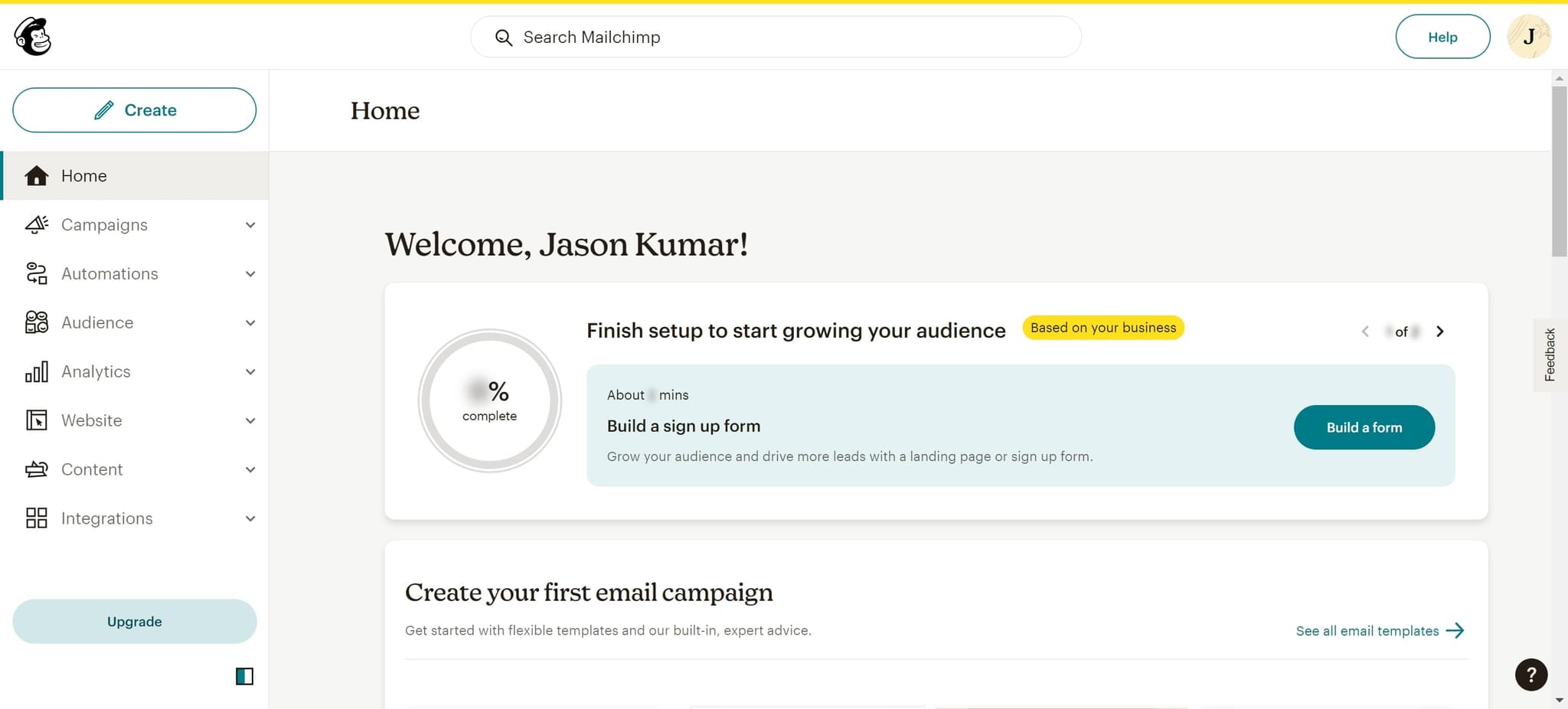
Click on the welcome message with your name displayed in the top navigation. This opens your account menu where you can access various settings and options.
- 2
Navigate to Audience
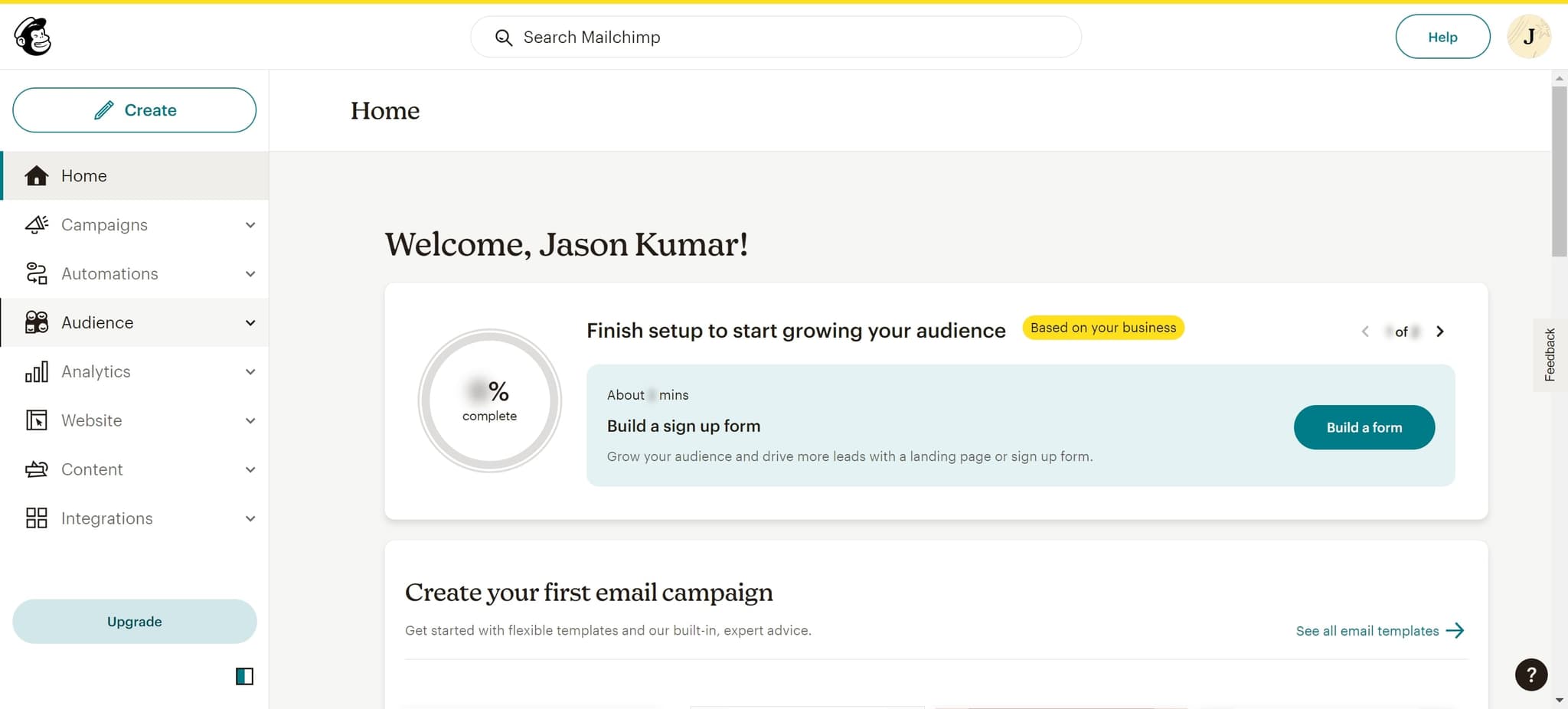
Click on the 'Audience' option in the menu. This takes you to your contact list management area where you can view and manage all your subscribers.
- 3
Select your audience list
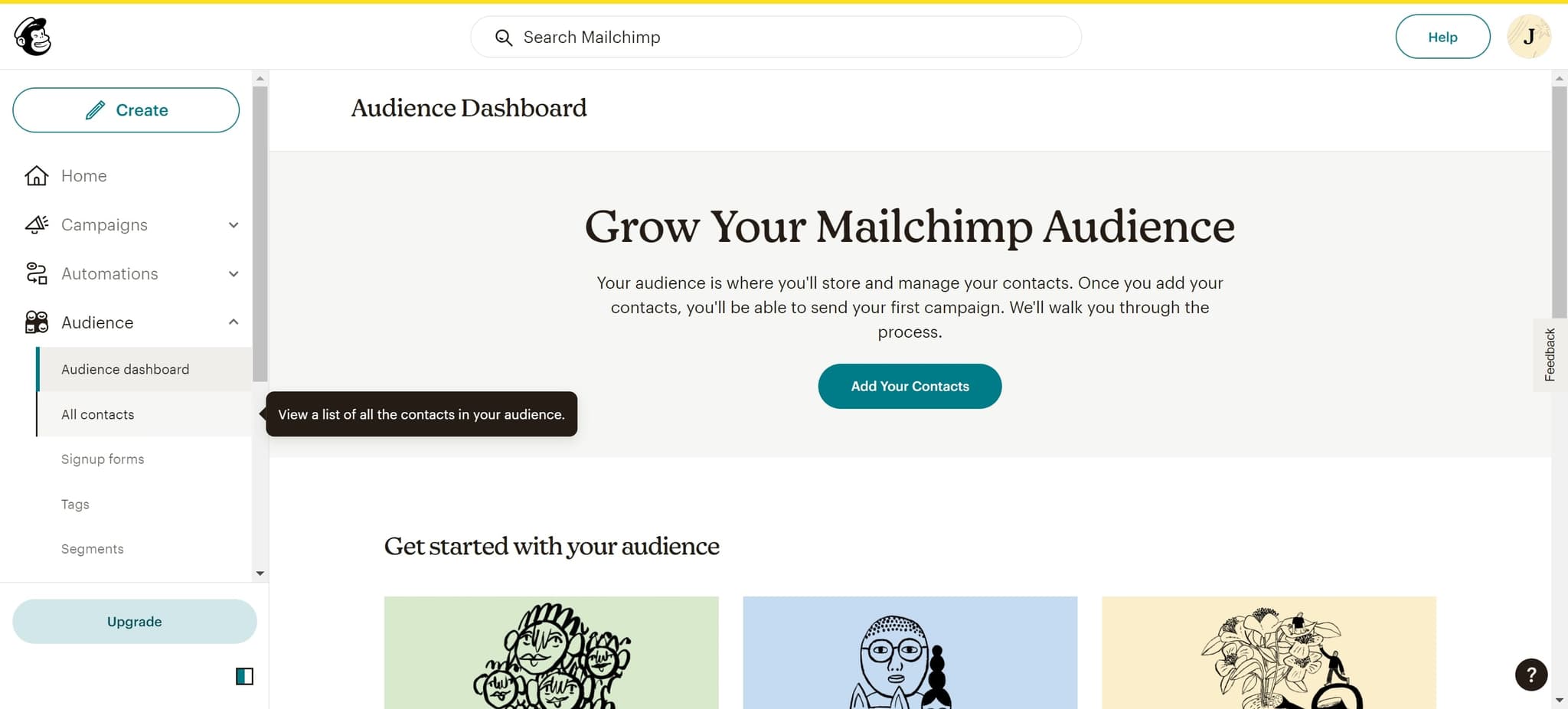
Click on the audience list you want to manage. You'll see all the contacts associated with that specific audience.
- 4
Choose the contact to delete
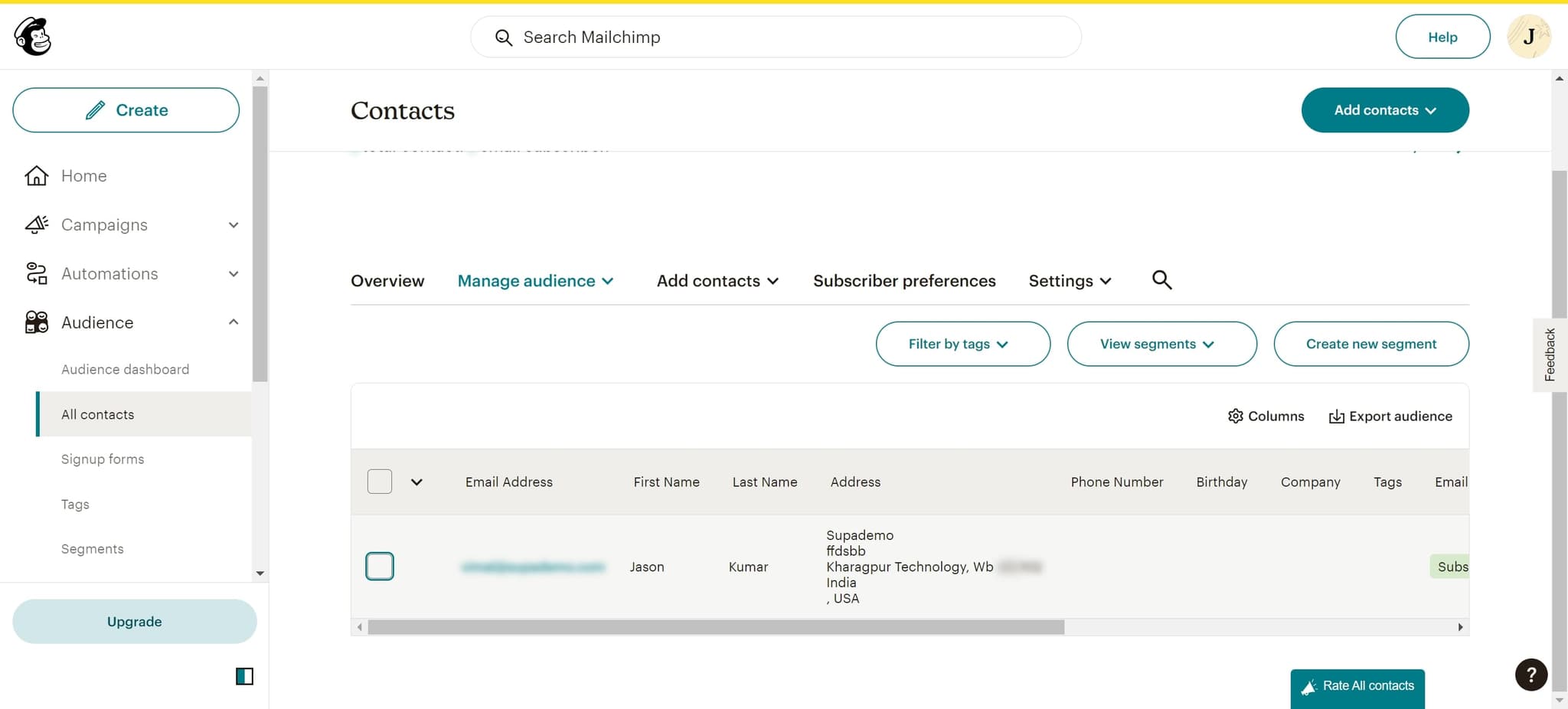
Click on the specific contact or contact element you wish to remove. This selects the contact and may open additional options for that subscriber.
- 5
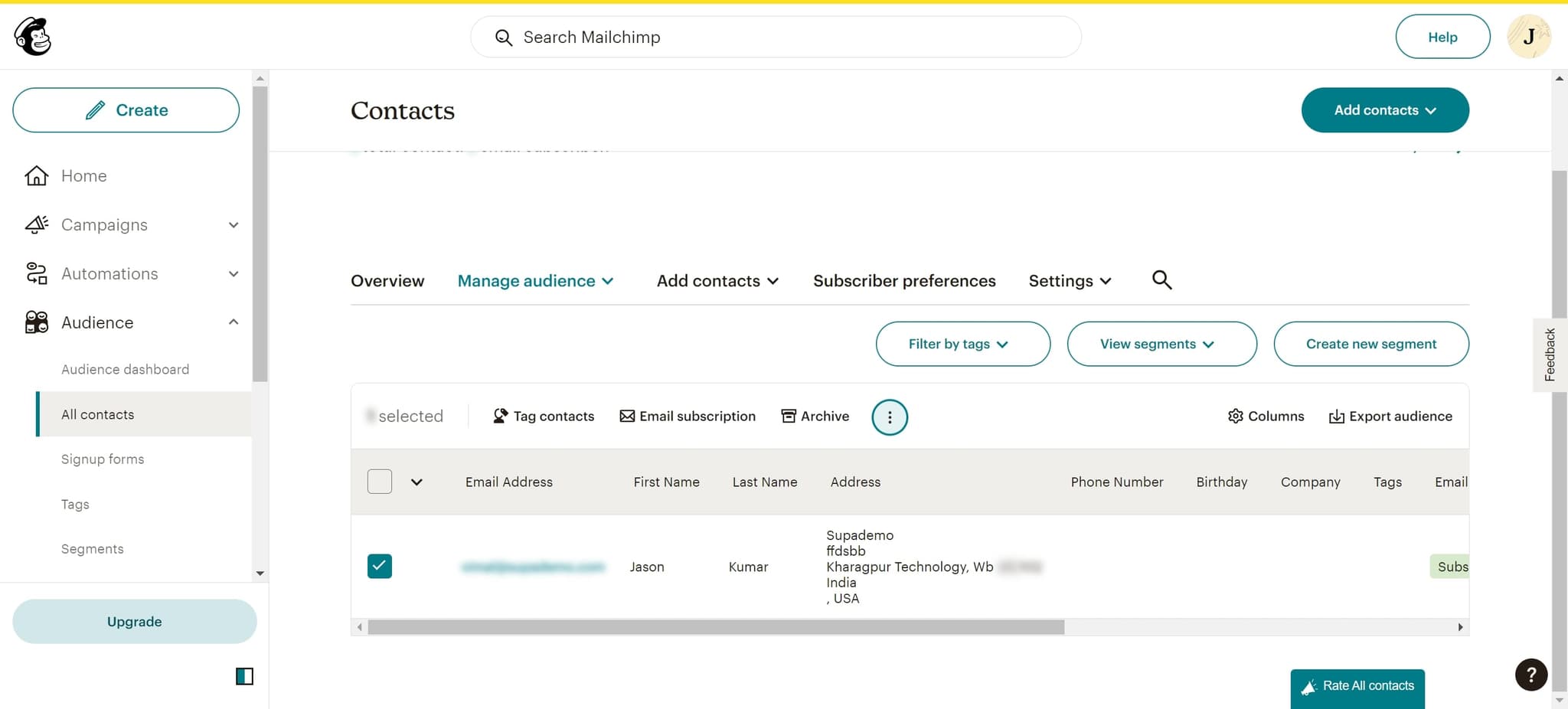
Open contact options menu
Click on the menu or options area for the selected contact. This reveals the available actions you can perform on that contact record.
- 6
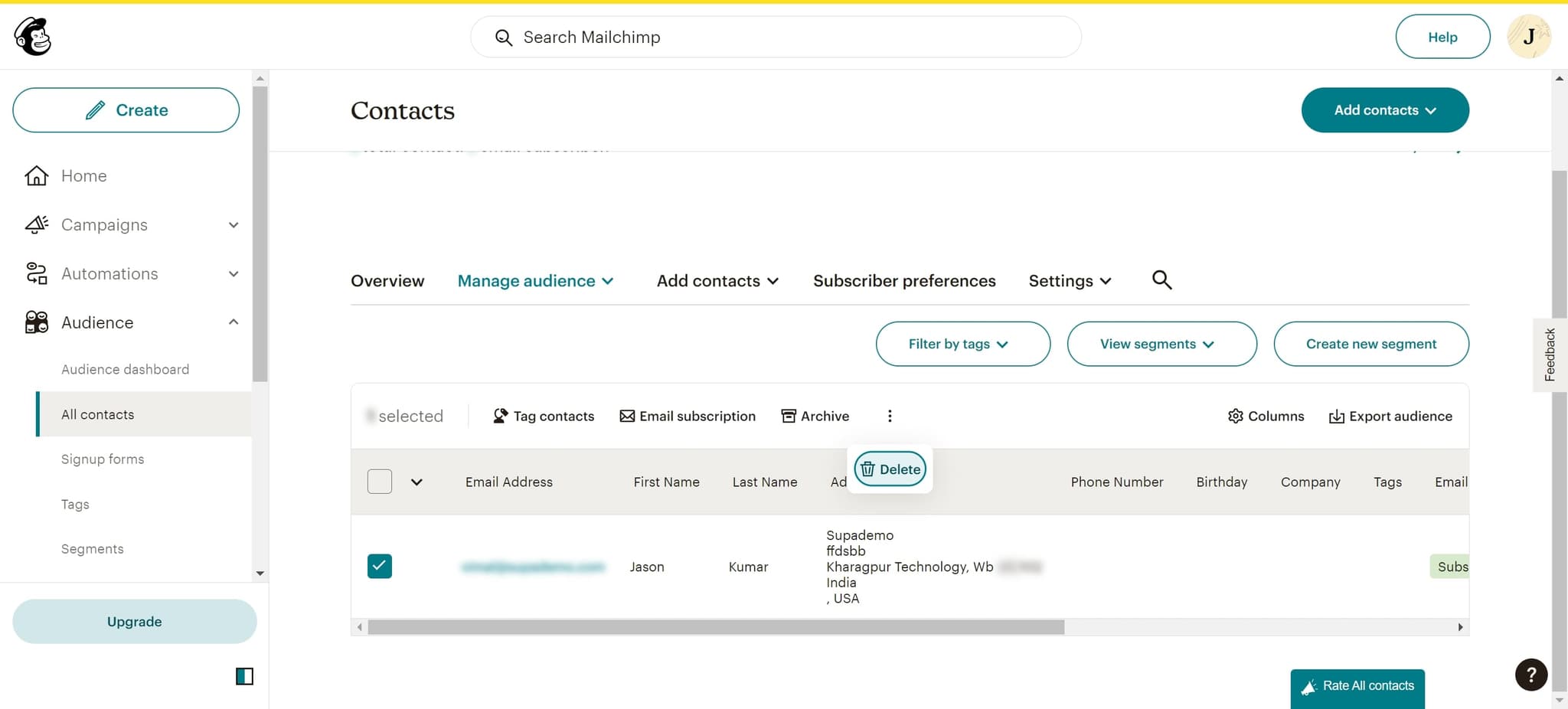
Click Delete option
Click on the 'Delete' button from the available options. Mailchimp will present a confirmation to ensure you want to proceed with the deletion.
- 7
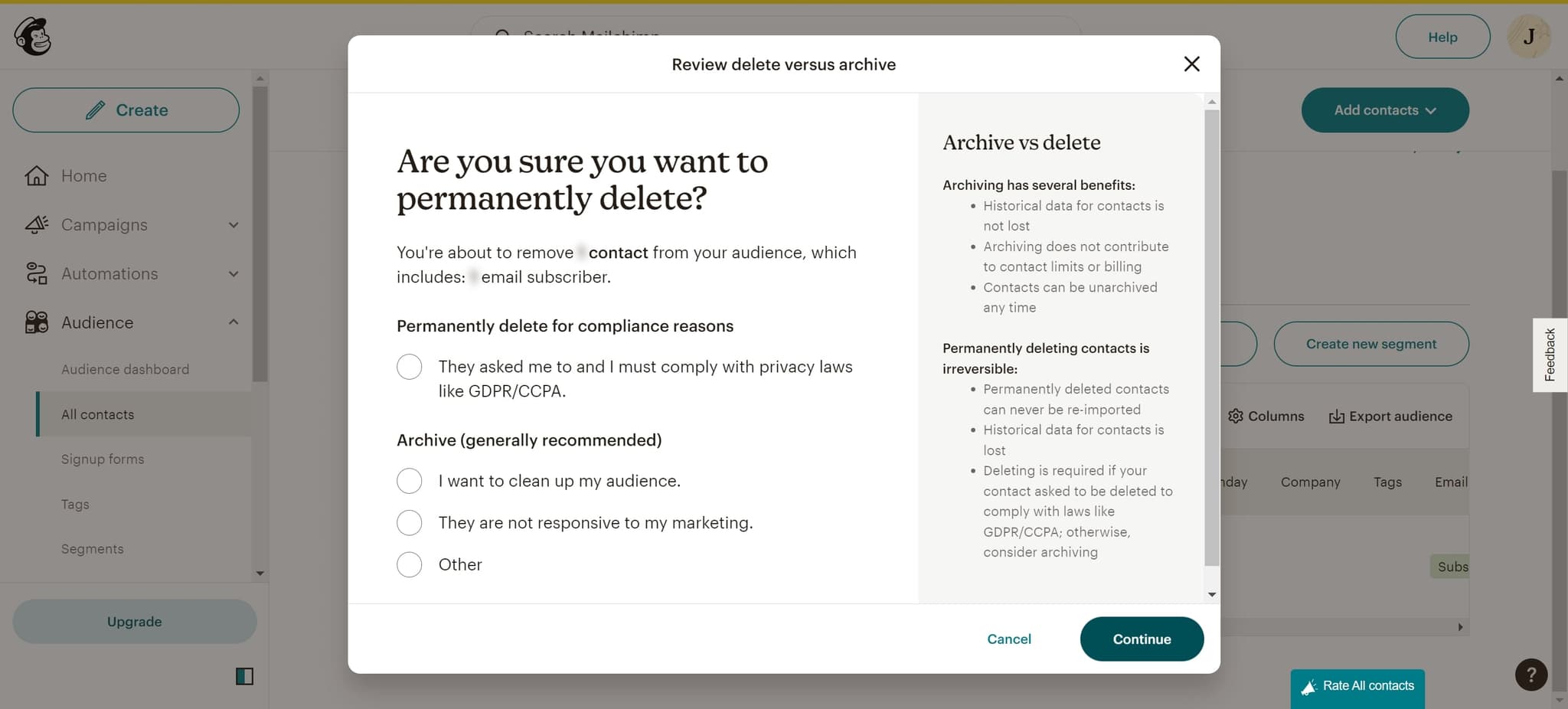
Confirm initial deletion prompt
Click 'Continue' on the first confirmation screen. This acknowledges that you understand this action will remove the contact from your audience.
- 8
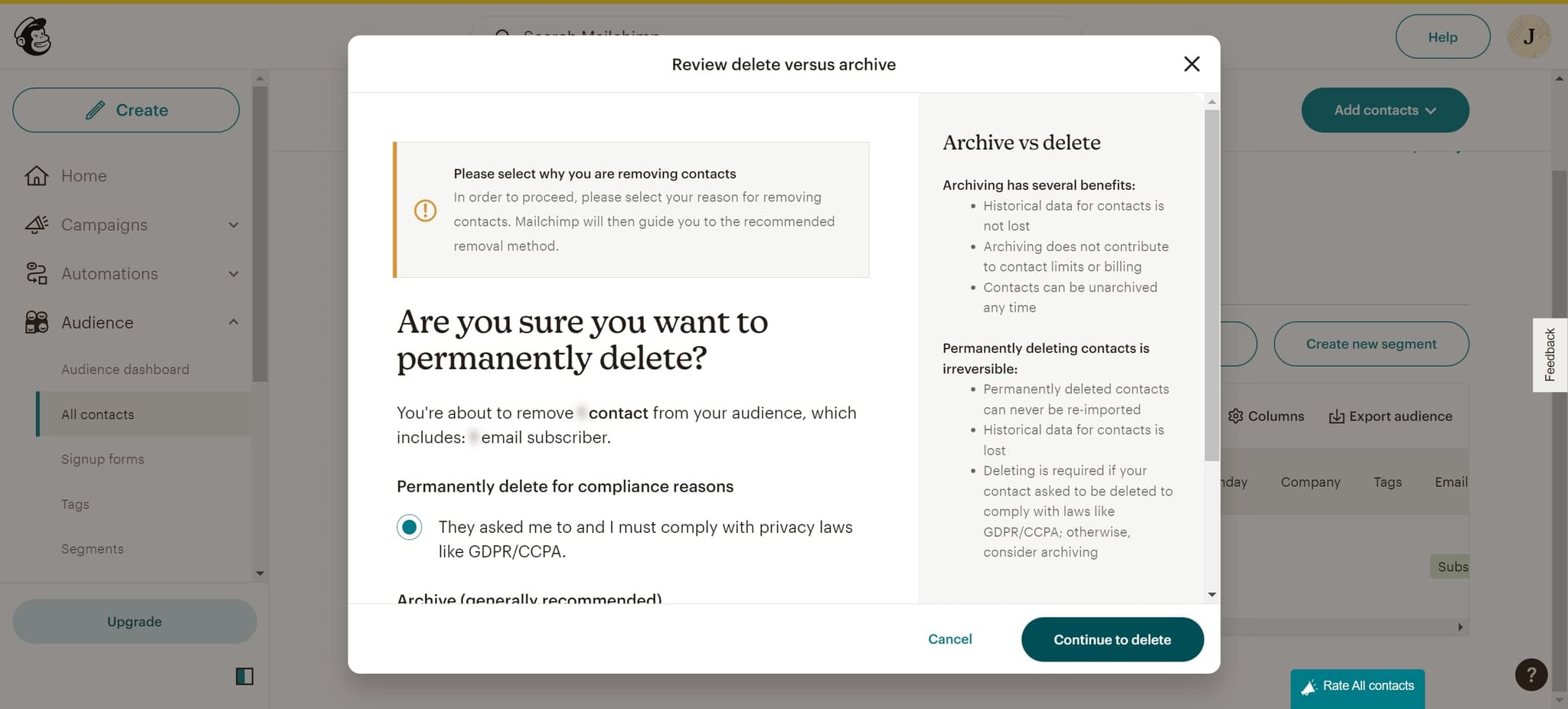
Proceed to final confirmation
Click 'Continue to delete' on the next prompt. You're now moving toward the final step to permanently remove this contact.
- 9
Review deletion details
Click on the indicated area to review or confirm the contact details being deleted. This ensures you're removing the correct person from your list.
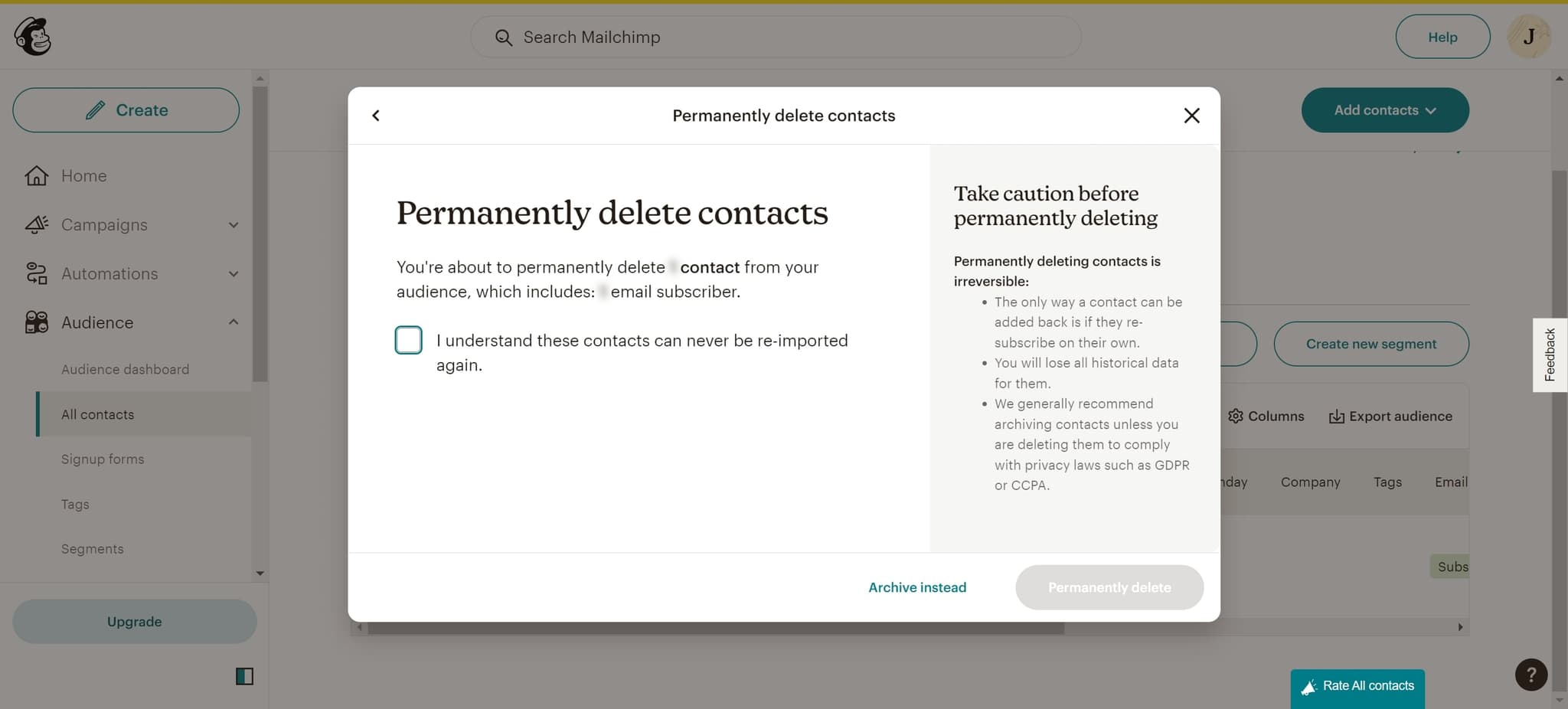
- 10
Finalize the deletion process
Click on the final confirmation element presented on screen. This prepares the system to execute the permanent deletion.
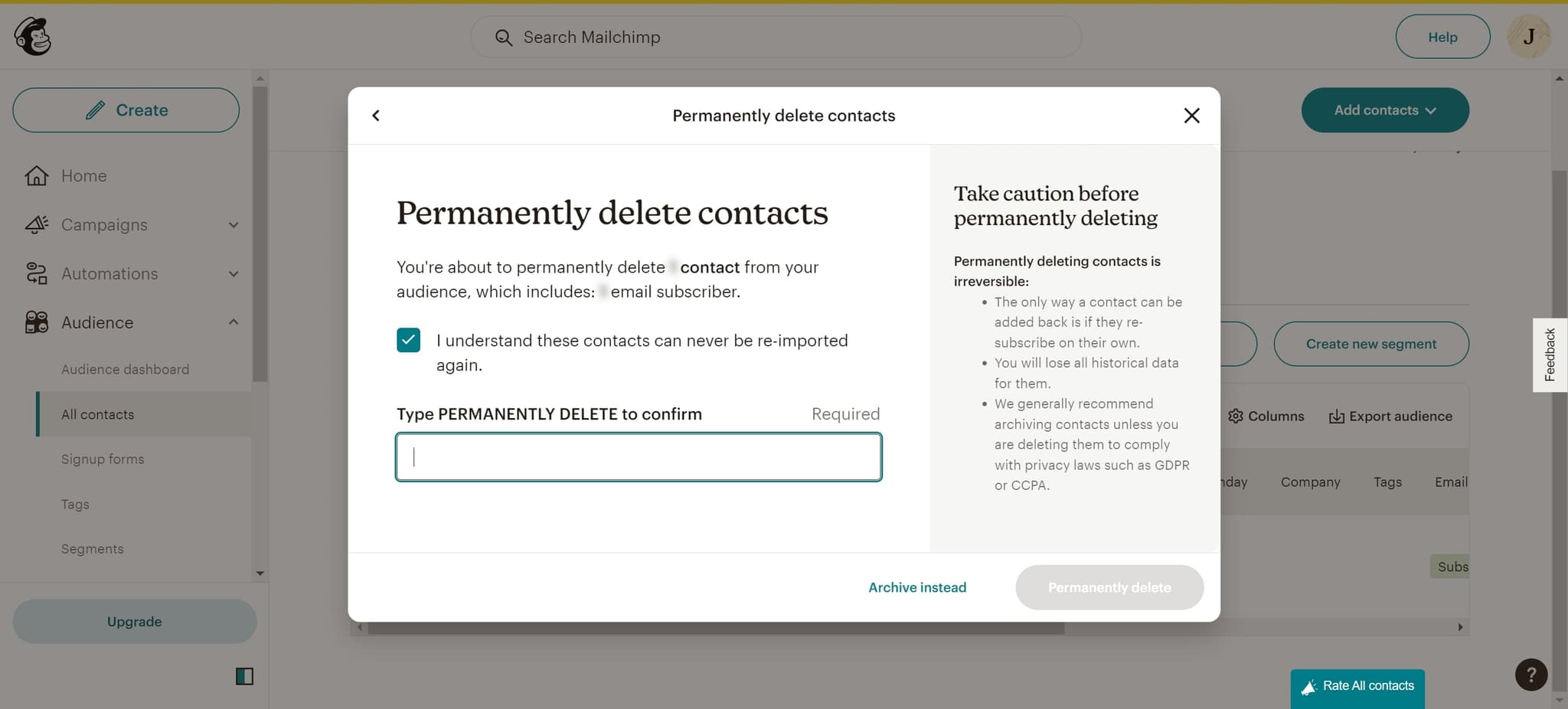
- 11
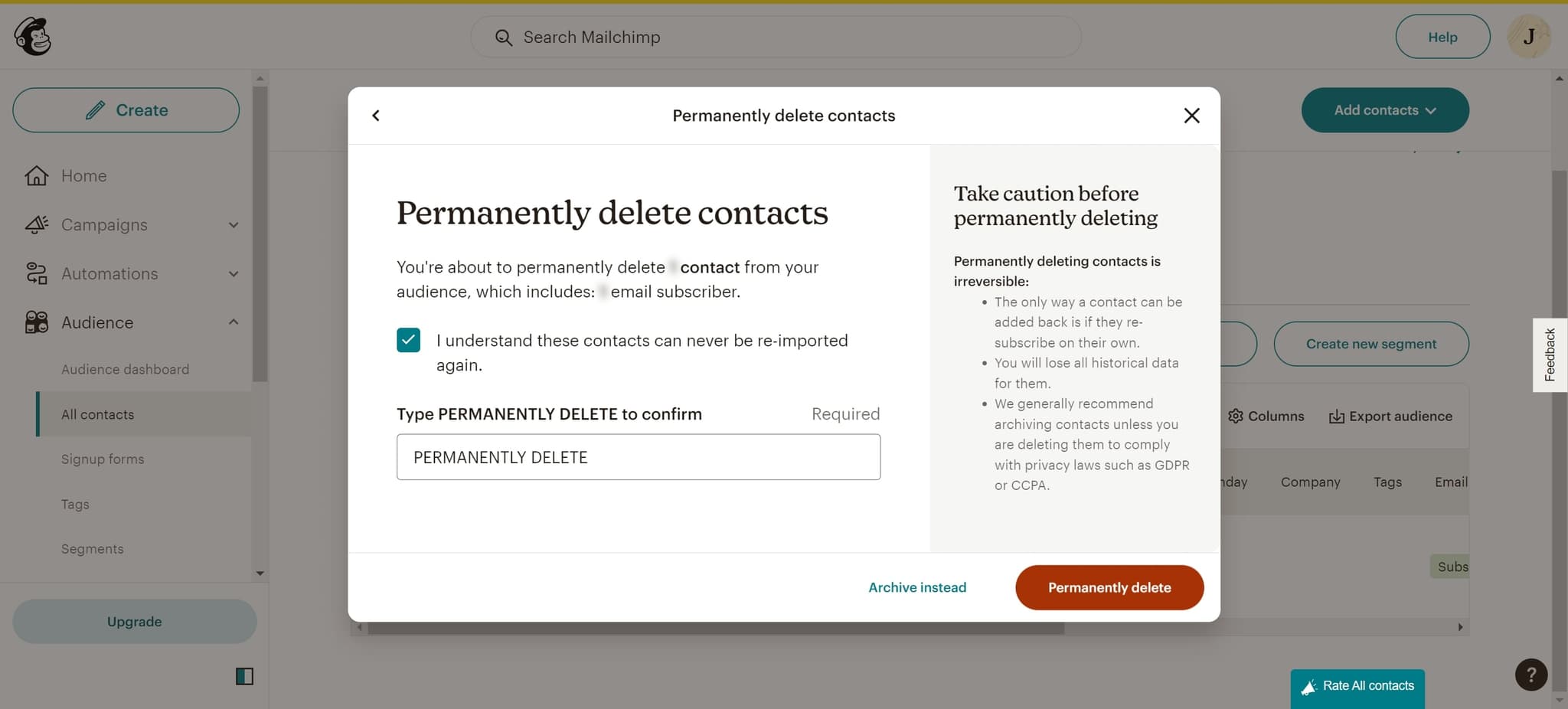
Permanently delete the contact
Click on 'Permanently delete' to complete the removal process. The contact will be immediately removed from your Mailchimp audience and cannot be recovered through standard means.
Frequently asked questions
Common questions about how to delete contacts in mailchimp.
Once a contact is permanently deleted from Mailchimp, it cannot be recovered through the standard interface. If you need to restore a contact, you may need to contact Mailchimp support or re-import the contact from your original data source. It's always a good idea to maintain backups of your contact lists before performing bulk deletions.
To delete multiple contacts efficiently, you can select several contacts using checkboxes in your audience list, then use the bulk action menu to delete them together. This saves time compared to deleting contacts individually and allows you to manage your list more quickly.
Unsubscribing removes a contact from your mailing list but keeps their record in Mailchimp for compliance and reporting purposes. Deleting permanently removes the contact record entirely from your account. Use unsubscribe for contacts who opt out, and delete only when you need to completely remove the record.
Deleting a contact will remove them from future audience counts and reports. However, historical data showing that contact's interactions with past campaigns will typically remain in your campaign statistics. This ensures your historical reporting remains accurate even after removing contacts.
You can generally delete any contact in your audience. However, if you're operating under certain compliance regulations like GDPR, be aware that deleted contacts may still require documentation of the deletion. Always ensure your deletion practices comply with applicable privacy laws and regulations in your region.