How to Delete Your Mailchimp Account

Closing your Mailchimp account is a straightforward process that permanently removes your account and all associated data from the platform. Whether you're consolidating email marketing tools or no longer need the service, this guide walks you through each step to safely delete your account.
Quick summary
In this tutorial, you'll learn how to navigate to your account settings in Mailchimp and permanently delete your account. You'll access your account menu, locate the billing and plan management sections, and confirm the final deletion to complete the process.
Why this matters
Deleting your Mailchimp account is important for data privacy and account management. Permanently removing your account ensures your contact lists, campaigns, and account information are no longer stored on the platform, which is especially important if you've migrated to a different email marketing service.
Step-by-step guide
- 1
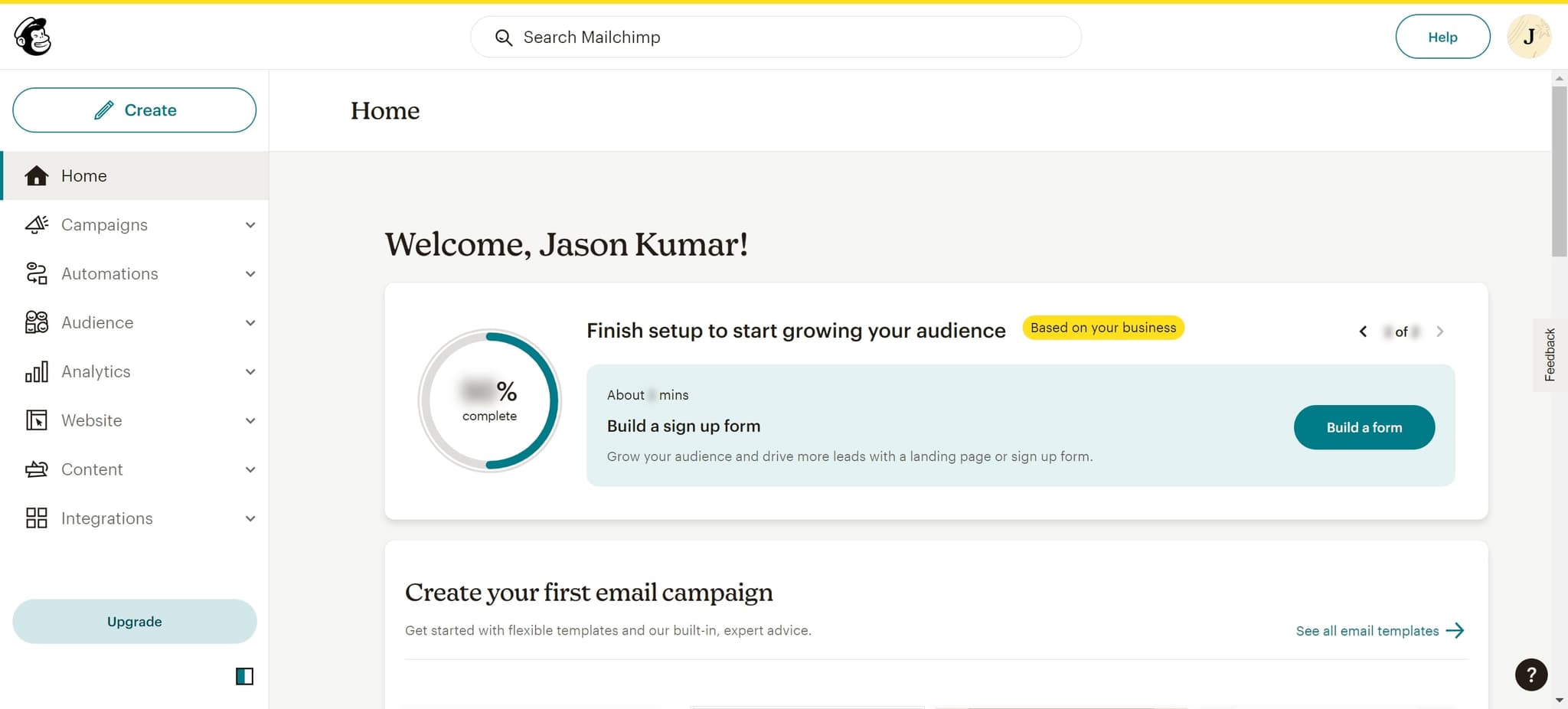
Click your account profile menu
Begin by locating and clicking on your account name at the top of the page, which displays as 'Welcome, Jason Kumar!' or similar. This opens your account dropdown menu where you can access account management options.
- 2
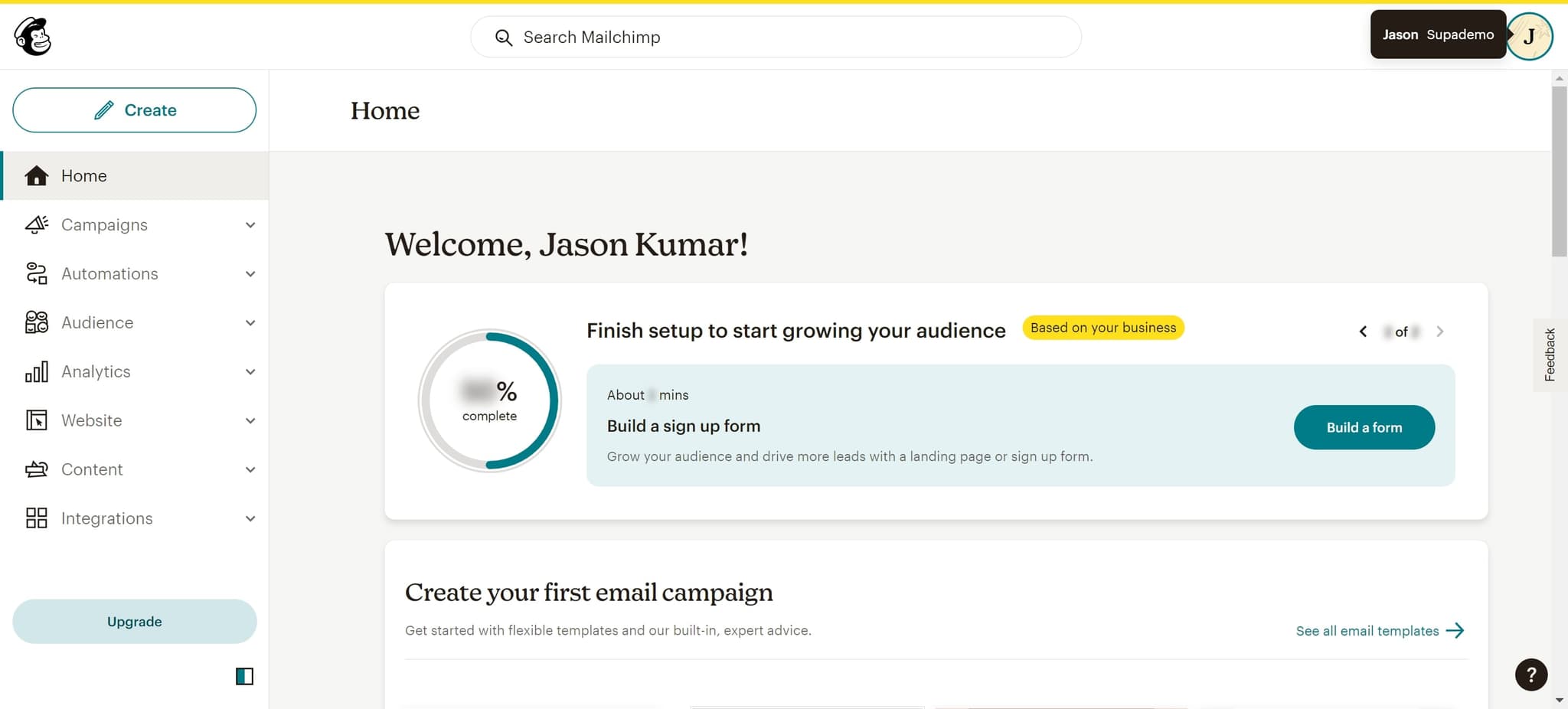
Select the menu element
Click on the dropdown element that appears after selecting your profile. This displays your account options and settings.
- 3
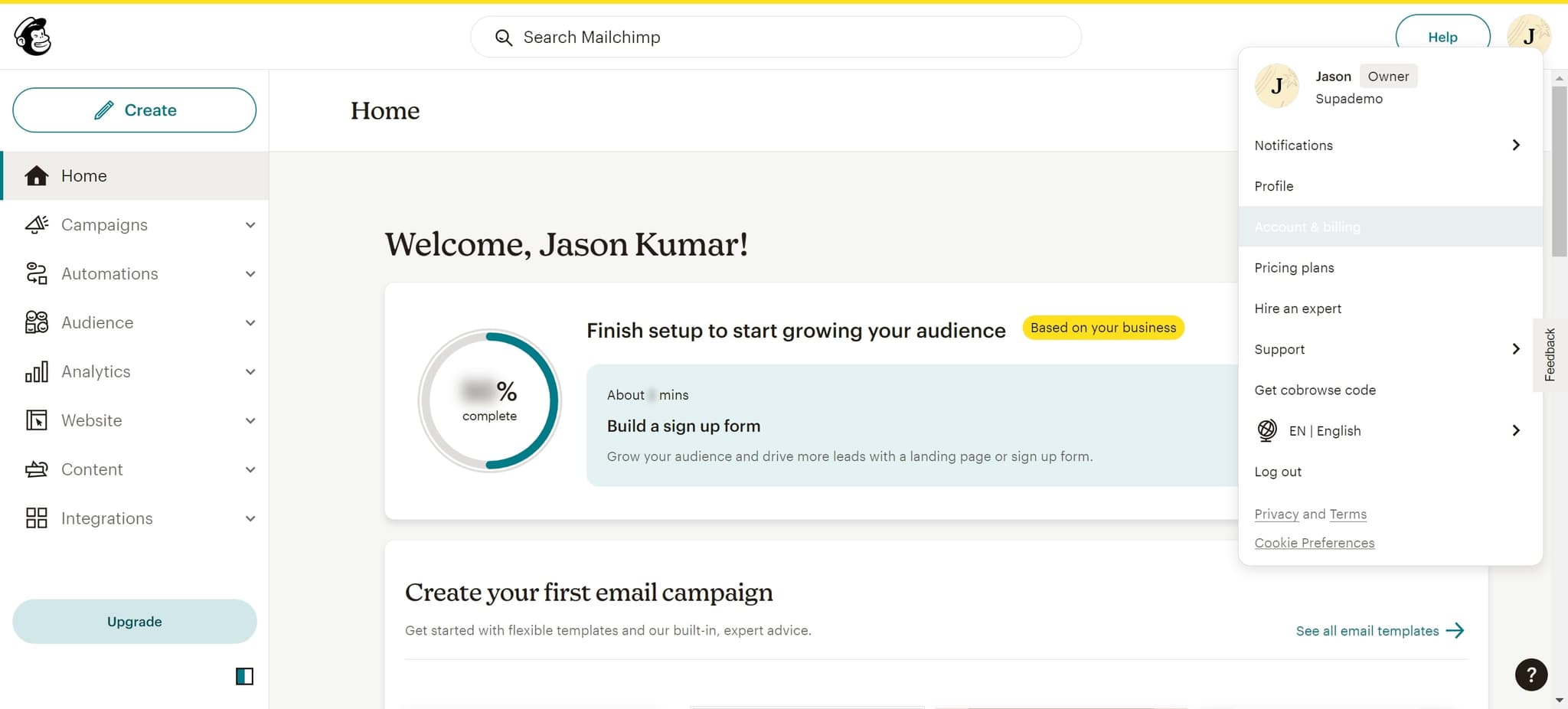
Navigate to Account & Billing
From the dropdown menu, click on 'Account & billing' to access your account settings and billing information. This section contains all account-level configurations and management options.
- 4
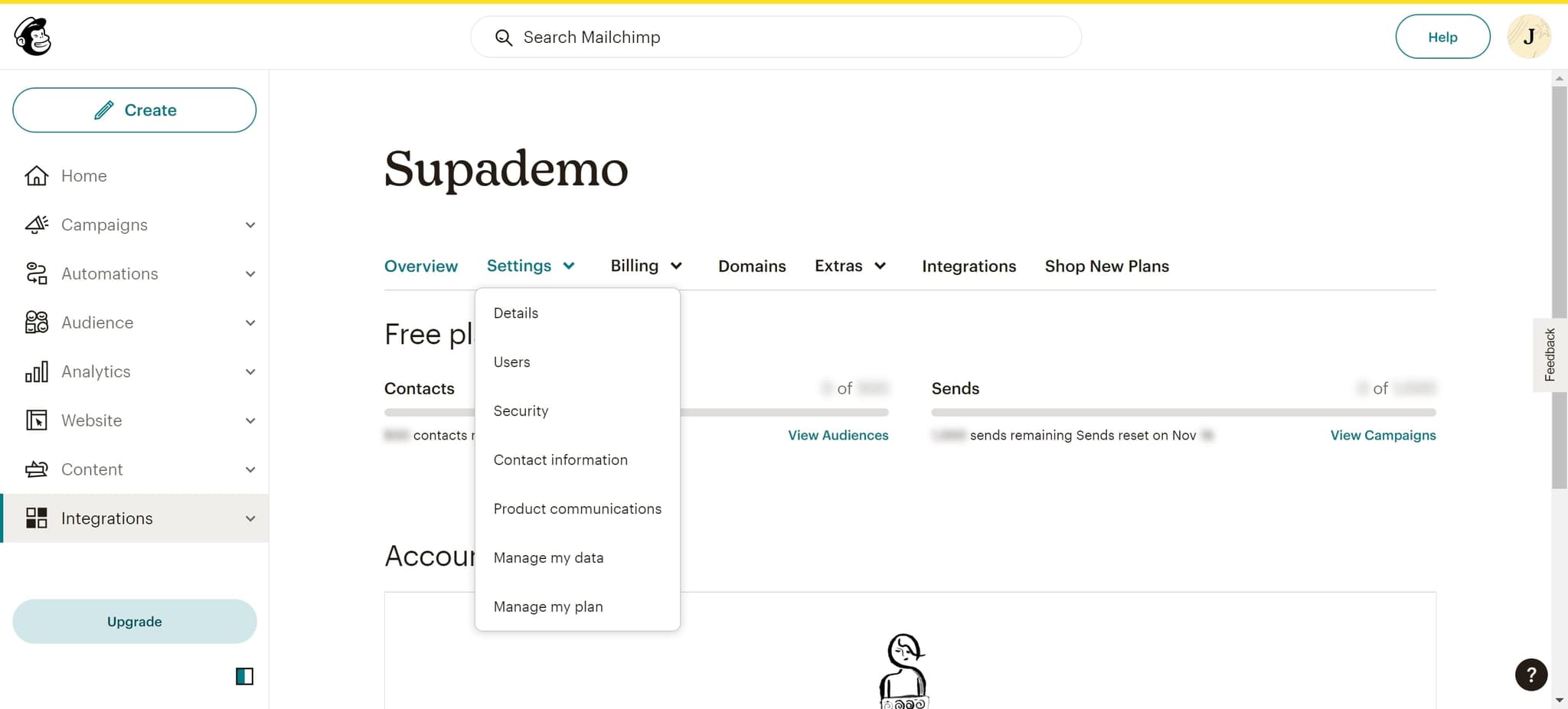
Open the Settings section
Click on 'Settings' within the Account & billing area. This takes you to your detailed account settings where you can manage your account configuration.
- 5
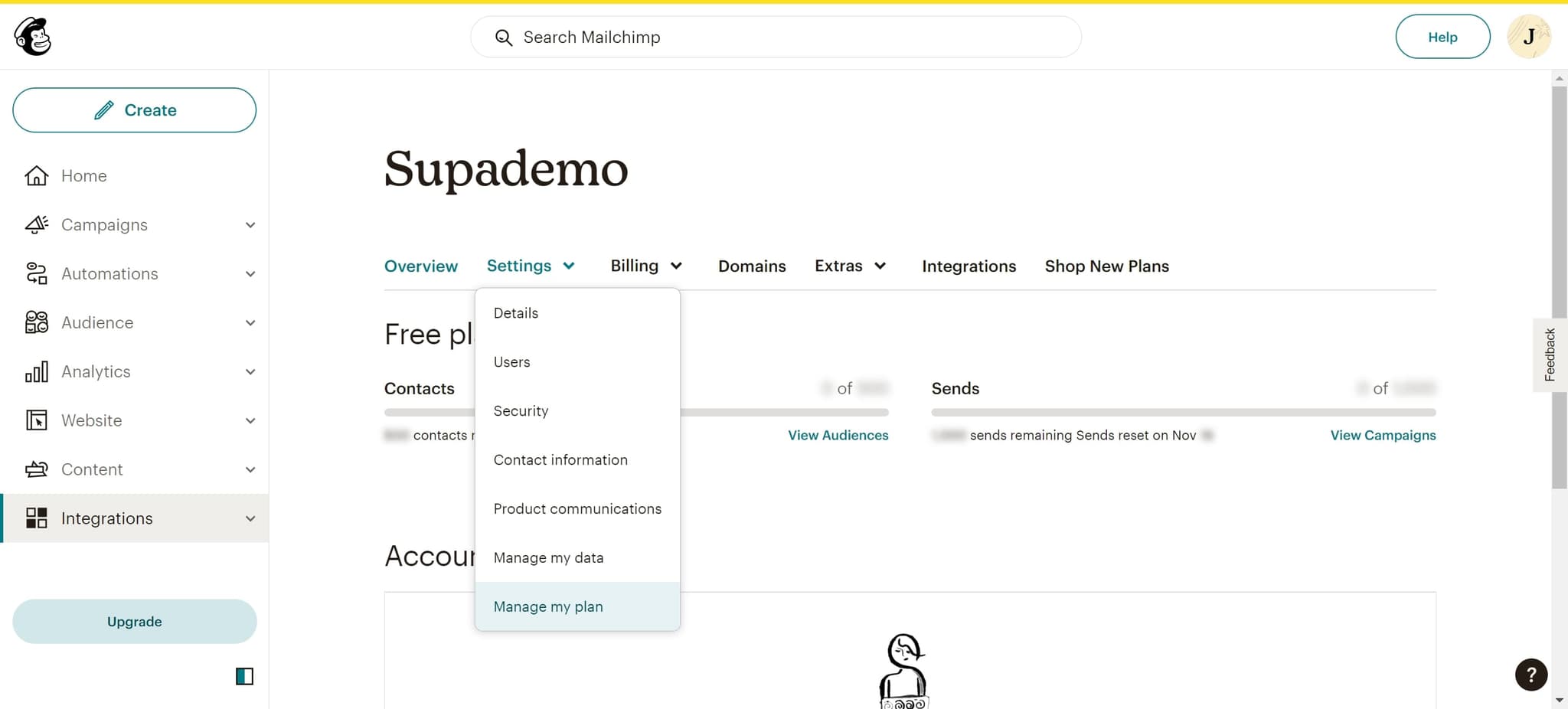
Click on Manage my plan
Select 'Manage my plan' to access your subscription and plan management options. This section allows you to view and modify your current plan details.
- 6
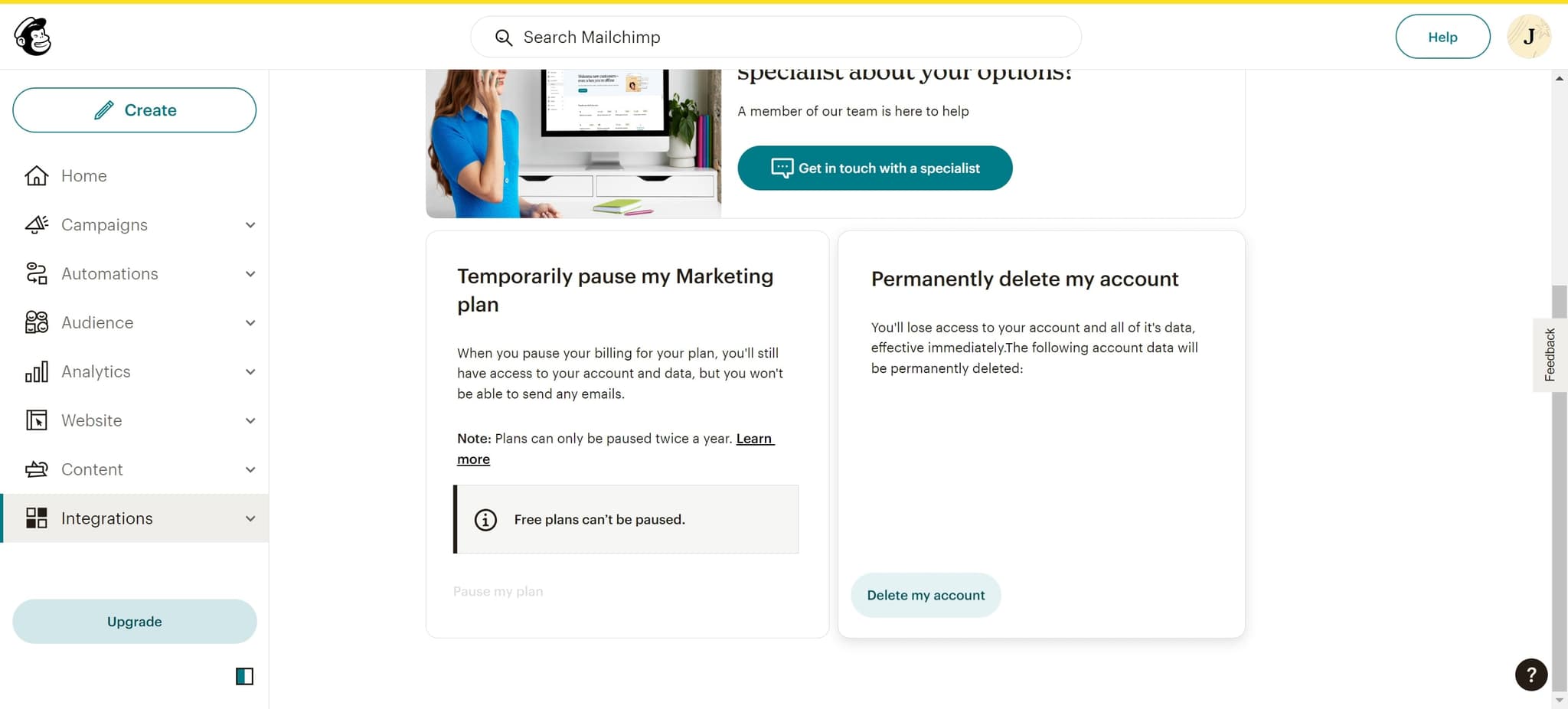
Select Delete my account
Click on 'Delete my account' to initiate the account deletion process. This option is typically located at the bottom of your plan management page.
- 7
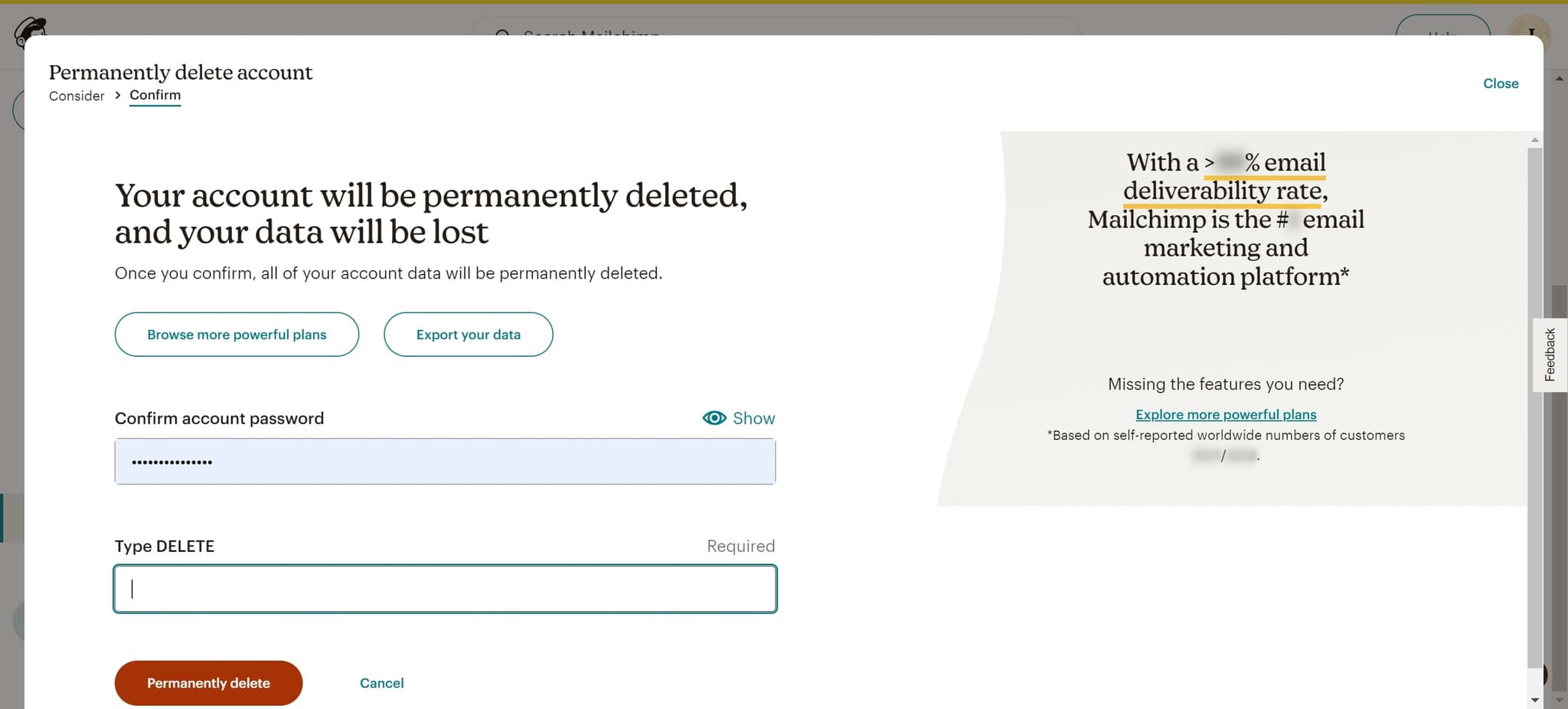
Confirm the deletion action
Click the confirmation element that appears after selecting delete. This verifies your intent to proceed with the account deletion.
- 8
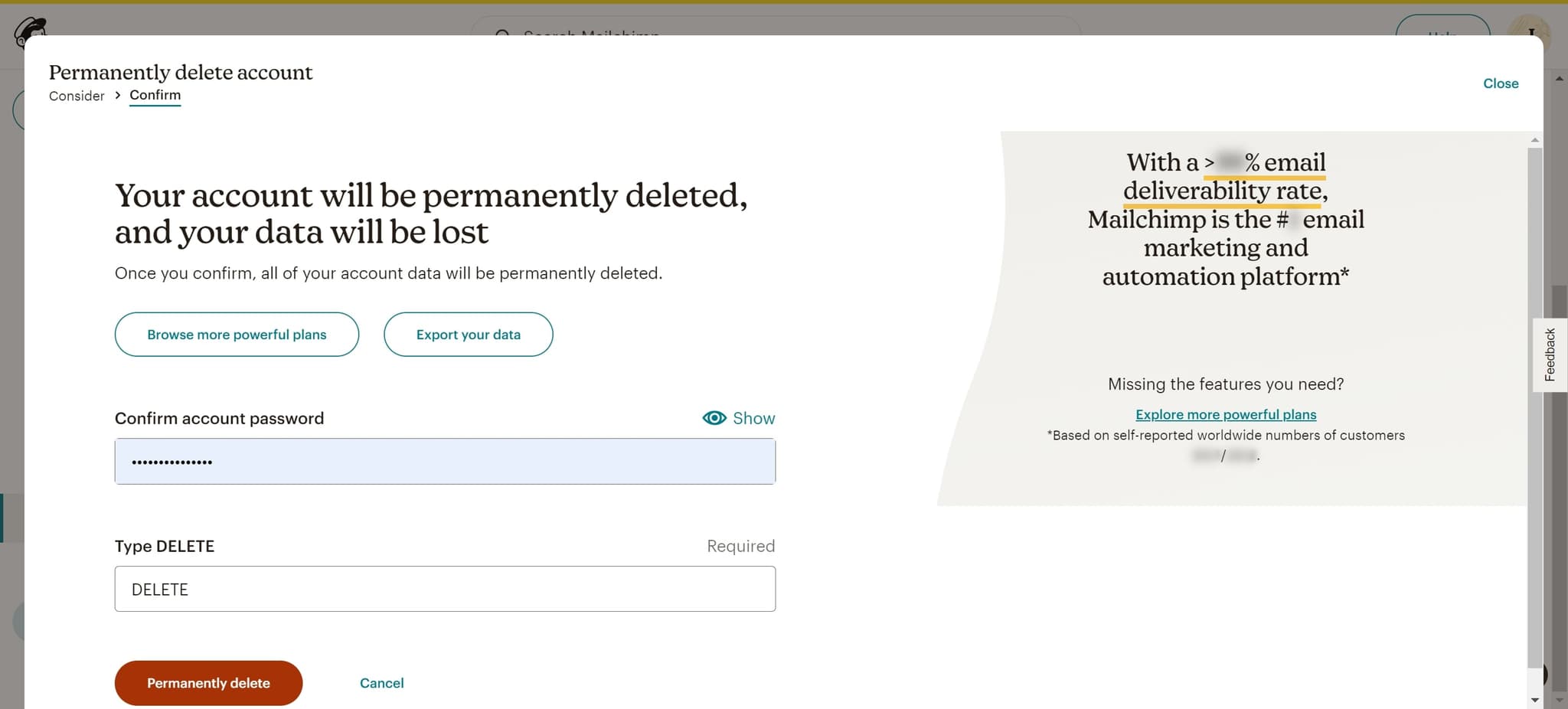
Click Permanently delete
Click on 'Permanently delete' to finalize the account deletion. This is the final confirmation step that irreversibly removes your Mailchimp account.
- 9
Complete the deletion process
Submit any final confirmation or upload any required information as prompted. Your account deletion will then be processed and completed.
Frequently asked questions
Common questions about how to delete your mailchimp account.
No, once you permanently delete your Mailchimp account, it cannot be recovered. All your campaigns, contact lists, and account data are permanently removed from the platform. If you think you might need your data in the future, export your contact lists and campaign information before deleting your account.
All subscriber data, contact lists, and audience information are permanently deleted when you delete your Mailchimp account. If you need to retain this information, export your subscriber lists before initiating the deletion process. You can then import them into another email marketing platform if needed.
Yes, deleting your account will immediately stop all active campaigns and automations. Any scheduled emails will not be sent after your account is deleted. Make sure to save any important campaign data before proceeding with the deletion.
Mailchimp typically processes account deletions immediately upon confirmation, though it may take a few hours for all data to be completely removed from their servers. Your account will be inaccessible right away after you confirm the permanent deletion.
You may be restricted from deleting your account if there are outstanding payments or unpaid invoices associated with it. Contact Mailchimp support to resolve any billing issues before attempting to delete your account. Once all charges are settled, you can proceed with the deletion process.